The Raspberry Pi is a fun little computer, but I have a habit of collecting accessories that turn out to be more useful than the device they were designed for. Some of them stay connected to the Pi, while others find their way onto my desk and become part of my regular setup. The official Raspberry Pi USB 3 Hub is one such accessory.
The difference between a battery-powered sensor that runs for a few days and one that runs for a year comes down to what the board does when it's doing nothing. Most DIY projects, like weather stations, mailbox alerts, or plant monitors, spend 99% of their life idle. In those scenarios, idle draw matters far more than peak performance.
Remember when phone chargers were straight up garbage? The Micro-USB standard defined a generation of devices, but it was notorious for both its fragility and its toxic "hey, I just bent your phone's pins, now I'm the only charger that'll ever work with it" attitude.
Most of us have outdated electronics and gadgets sitting around—an old TV, some nice old speakers, or a slightly bulky monitor. They often work just fine, but they just haven't aged well because either connectivity or software left them outdated long before they break.
A Raspberry Pi and a mini PC have a lot in common, but most mini PCs can outperform Raspberry Pis for traditional computing tasks. They're intended for different purposes, however, and there are plenty of things that a Raspberry Pi can do that a mini PC can't match.
Are you looking for a fun weekend project with your Raspberry Pi? I recently picked up a few extra Pis for my homelab, and instantly started spinning up new things just for the fun of it. Here are three projects that you can have up and running before Monday arrives.
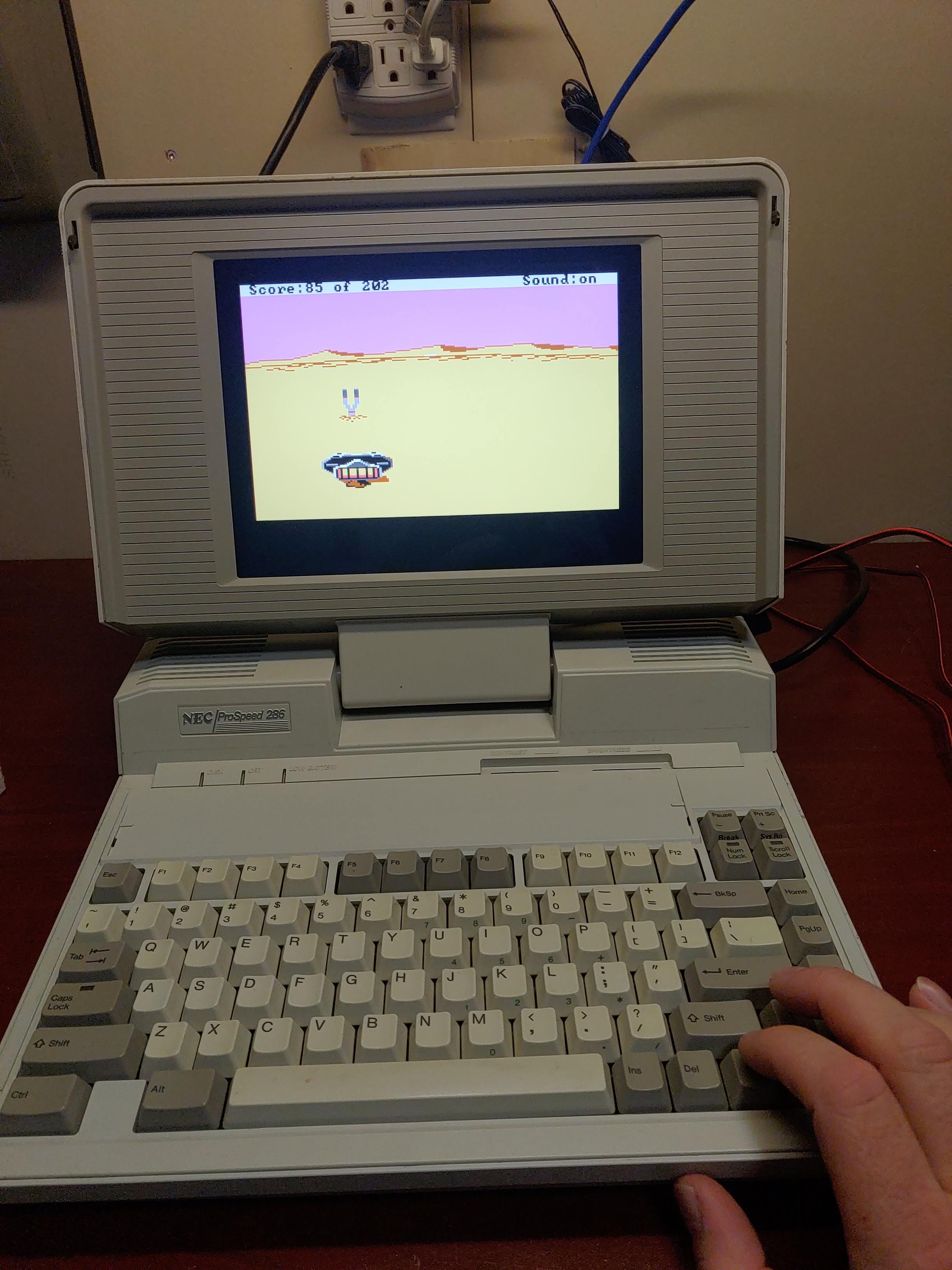
The sad reality is that all consumer electronics are going to be e-waste eventually. [Cory Whitesell] was determined his old NEC ProSpeed 286 Laptop wouldn’t meet that fate until absolutely necessary, so when his attempts at repairs failed, his efforts pivoted to create a retro battlestation from the stylish old machine.
That screen looks too good to be stock, but otherwise you can’t tell from this angle.
Externally, it looks pretty well stock, and [Cory] has retained as much of the internals as possible. The original power supply remains intact, with power taken off the original HDD’s molex connector. Said power drives a Raspberry Pi, which is small enough to fit inside without any gutting. The original keyboard connects easily enough via a PS/2 to USB adapter, while the passive-matrix LCD has been replaced with a modern screen of the same dimensions. You’d have to be a pretty hard-core purist to mourn that last change.
With emulation on the Pi, he can still have the DOS experience you’d expect from this machine, but its also powerful enough to be useful in the modern day. While we place no bets on whether or not this mod will stay relevant for another 38 years, a more powerful single-board computer or slightly-squished cell phone can be placed in the drive bay instead once the Pi’s ARM processor inevitably starts to look as anemic as the 286 does now.
Not everyone loves this kind of restomod, but we’ve featured more than a few and have a special category for it in our ongoing retrocomputing contest for those who will do everything to keep classics out of the e-waste bin, including remaking them.
Although Android is essentially just another Linux distribution, most people only experience it in the form of the rather restrictive and proprietary versions found on smartphones, tablets and smart TVs. While this is probably fine for the average person, there’s also a lot to be said for the more pure Android experience in the form of LineageOS.
With this fully open and community-supported version of Android you’re free to muck about with your hardware to your heart’s content, without annoyances like unremovable bloatware apps and restrictions on e.g. enabling developer mode.
Even more fun is that there are ports of LineageOS to systems such as the Raspberry Pi SBC, including in the Android TV configuration. This means that not only can your ten year old Android phone get a make-over with a recent version of Android, you can also create your own Android TV-based smart TV without all the spying and other nasty things that commercial smart TVs love to do.
The LineageOS Lineage
The history of LineageOS is slightly messy, being a fork of CyanogenMod, which itself was based on the Android Open Source Project (AOSP). Since Android is classified as Yet Another Linux Distribution, it’s got the same GPL license foundation and naturally a few dozen customized Android distros based around this AOSP.
Although CyanogenMod is no more, LineageOS is its effective successor, featuring probably the largest number of supported phones, tablets and other hardware. You also get most of the benefits of running an OEM-blessed Android distro, such as over-the-air (OTA) updates within a single major version of LineageOS.
When it comes to disadvantages, the closed nature of smartphone platforms means that initial installation and updating to a new major version requires an intimate experience with Fastboot mode, the Android debug bridge (ADB) and other aspects that make even me as a slightly more technically inclined Android – and Arch Linux – user and developer slightly nervous when looking at the installation steps.
A Smartphone Revival
Welcome to Xiaomi’s high-end offerings in 2016. (Source: GSMArena)
It’s been said that the primary reason why smartphones are the way they are is due to computer manufacturers missing the boat on locking down the PC and Mac ecosystems back in the day, including the very hardware that the OS runs on. Unlike with installing a new OS on that old x86 or PowerPC-based system, smartphones – with very few exceptions – feature locked bootloaders and other obstacles designed to protect the children deter you from doing things with your own hardware that corporate disapproves of.
Consequently, getting LineageOS on the average smartphone is a bit of an ordeal, with my 2016-era Xiaomi Mi 5 being no exception. Fortunately Xiaomi does offer an official way to unlock the bootloader when you ask them nicely, so that was one of the first thing I did shortly after receiving my shiny new phone. This is also the first and most cumbersome step in the whole LineageOS installation procedure for the phone, so I’m grateful that I got that annoyance out of the way already.
This particular phone was left behind by Xiaomi in 2018, freezing it on Android 8.0 and consequently rendered it effectively useless for a wide range of apps as time moved on. Theoretically LineageOS would here bump the version up to Android 15, with regular OTA updates. I even had recently replaced its battery, which is still fairly easy on this era of smartphone, so it should be basically a brand new phone.
All I had to do now was follow the instructions.
Fast Fastboot Frustrations
Welcome to the Xiaomi fastboot mode, comrade.
Unfortunately, after dutifully deleting all Google accounts on the phone and booting into Fastboot mode I ran into a seemingly unsurmountable obstacle: fastboot devices listed zero devices and a quick look at the Device Manager in Windows showed why, with the Yellow Triangle of Meh.
As it turns out, Xiaomi devices aren’t happy with the regular USB driver, but require a special Fastboot driver. This is where I’d spend the next few hours chasing a seemingly endless number of dead ends and useless advice. Rather than download sketchy driver installers or run some .bat file from six years ago off a GitHub page, I went with the Xiaomi Mi Unlock Tool, the same that is used to unlock the bootloader.
Here I ran around in circles for a bit with the version offered by Xiaomi being the ancient 6.x version without the needed driver and the update link being dead. Finally XDA Forums came to the rescue as usual, with someone having squirreled away a copy of the .zip file from which I could extract the driver and install it.
With this done the rest of the process was fairly easy, with the fastboot command from my existing Android SDK installation happily pushing the recovery image to the phone, followed by rebooting into the LineageOS recovery mode by keeping the power and volume up buttons pressed until the Mi logo appears.
Using adb you then sideload the main LineageOS image after mashing the appropriate buttons on the phone to accept it, with me opting to also sideload the special Google apps sauce. A reboot later and before I knew it I was busy setting up the ‘new’ phone, copying data and settings off my newer Xiaomi Note 10 Pro phone via Wi-Fi.
Mission success, with a 2016-era phone now running Android 15.
DIY Android TV
Welcome to the ‘black box’ Raspberry Pi 4B-based ‘smart TV’.
Of course, putting Android on phones is boring, with everyone and their dog doing it these days. Which is why long before I considered putting LineageOS on this phone of mine I had already put it on a Raspberry Pi 4 SBC that I had been trying to use for NymphCast receiver purposes in various guises over the years.
While this isn’t one of the officially supported devices by LineageOS, a wonderful person called Konga has ported LineageOS to the Raspberry Pi series of SBCs, both in their regular Android and Android TV versions.
The only real difference here is that Android TV uses the – shockingly – TV-optimized interface. This I installed in order to test whether the Android port of the NymphCast Server (NCS) would also play nice with Android TV. I had previously tried to use this SBC with regular Raspberry Pi OS and kin, but always ran into issues with the proprietary video hardware that requires custom patching of FFmpeg to work for basic features like hardware acceleration.
To my delight all of this, including video hardware decoding, worked out of the box, making it probably the most functional version of Linux that I have ever run on a Raspberry Pi board. Even if the RPi 4 isn’t your thing, there are also images for the RPi 3 and RPi 5, though I haven’t tried those yet. Android versions with this port are kept up to date, with the current release of Android 16 probably being something that I should update my board with.
Installation here is stupidly easy compared to the smartphone ordeal: simply write the image to an SD card, stick it into the SBC’s card slot and congratulations, you just installed LineageOS. You can even use the typical Android box-focused remotes to use them. I can recommend the ones that have a keyboard built-in to skip the on-screen keyboard. Or just wire up a full-sized keyboard, of course.
Updates are done via OTA images, which you have to flash by hand. This makes them more of an Over-SneakerNet (OSN) update system, but it works pretty much the same otherwise.
Welcome To Open Android
Coming from many years of using Huawai, Samsung, Xiaomi and Google’s interpretations of ‘Android’ I’m somewhat anxious to see what my LineageOS experience will be like. I’ll be using it as my regular phone, with ideally there being no difference from when I last used it back in the early 2020s, other than maybe being less awfully slow.
I do appreciate that I didn’t get strong-armed into inserting a SIM card to be even allowed to enable USB debugging, which I had to work around with my newest Xiaomi phone with a sneaky hack. This is where I feel that especially for us Android developers LineageOS can be incredibly useful.
On the ‘smart TV’ side of things, I haven’t really done too much with my little box other than cast video to it from a NAS like a DIY Netflix. I’d be up for exploring this setup as a proper alternative to OEM-blessed Android TV installations, though I imagine that apps that insist on DRM for precious streaming content will throw a fit.
Using a Raspberry Pi board with Pi OS is a great way to jump into cybersecurity. You don’t need a lot of fancy gear to get started. Just hook it up to a TV, grab a keyboard and mouse, connect to the internet, and you’re all set with a solid system to explore Linux, programming, and hacking.
In this article, we’ll walk through how to install Raspberry Pi OS Desktop on a Raspberry Pi 4 and check out all the cool tools and features it has to offer. Let’s get rolling!
Step #1: What Is Raspberry Pi OS?
Raspberry Pi OS is the official operating system for Raspberry Pi single-board computers. It was launched back in July 2012 under the name Raspbian, which combines Raspberry Pi and Debian. The OS was created to give early users a stable Linux environment that’s tailored to the hardware’s simpler specifications.
There are three different versions of Raspberry Pi OS, each aimed at different users. The Desktop edition is the most beginner-friendly, featuring the PIXEL (Pi Improved Xwindow Environment Lightweight) desktop environment and popular apps like Chromium, and VLC. This version, requiring at least 32 GB of storage.
Raspberry Pi OS Full includes the desktop and all recommended software. It’s got everything from the regular desktop edition and some additional tools.
The Lite version is perfect for folks who prefer the command line to a graphical desktop. It’s great for servers, headless apps, and projects that need to be light on resources, giving savvy users the flexibility to tweak things just the way they like.
This article focuses on the Desktop edition, the one most new users will download first, and a perfect starting point for exploring what Raspberry Pi can do.
Step #2: Installing Raspberry Pi OS
Installing Raspberry Pi OS is pretty straightforward. First, make sure you have a Raspberry Pi, preferably models 3, 4, 5, 400, or 500 if you want the desktop version. You’ll also need a microSD card of at least 32 GB, a computer to set up the SD card, a micro-HDMI cable, and a monitor. The newer Raspberry Pi 4 and 5 use micro-HDMI, while the older models need full-size HDMI. Don’t forget about a keyboard, a mouse, and a power supply.
To install the OS on the microSD card, use the Raspberry Pi Imager. It is the official tool for creating the OS image and handles everything from downloading to writing and verifying in a single app. If you’re on Linux, open up your terminal and type:
sudo apt install rpi-imager
Once it’s running, you’ll see a screen that looks like what’s shown below.
Click on ‘Raspberry Pi Device’ and pick your model so Imager shows only the OS versions that work with your hardware.
Next, tap on ‘Operating System’.
If you’re new to this, go for ‘Raspberry Pi OS (64-bit)’ at the top since that’s the standard Desktop edition. If you want the Full edition with extra features, just scroll down to ‘Raspberry Pi OS (other)’ and pick ‘Raspberry Pi OS Full’.
After that, plug your microSD card into your computer’s card reader. Hit ‘Storage’ and select your card, making sure you’ve got the right one, since Imager will wipe everything on it. Then, click ‘Save’, then ‘Write’. Imager will download the latest OS image or use one you already have, write it to the card, and check that everything went smoothly.
Finally, once Imager gives you the green light, safely eject the card and boot into your Raspberry Pi.
Step #3: First Boot
Insert the prepared microSD card, connect the display using HDMI, plug in your USB keyboard and mouse, and then connect the power supply. The Raspberry Pi will turn on automatically when you power it up; there’s usually no separate power button on most models.
Then, the setup wizard will guide you through a few easy steps. You’ll set up your location and keyboard layout, create a new username and password to replace the default ones, connect to Wi-Fi, and you can even check for software updates before diving into the desktop.
Eventually, you’ll see a desktop that looks something like this:
The top panel has quick-access icons for the tools you use most, such as the file manager, web browser, and terminal. Click on the leftmost icon to open the application menu, which sorts all your installed software into easy categories like Programming and Internet.
By default, a limited number of apps are installed, but you can easily install additional ones through GUI app installers or the terminal.
Step #4: Key Features and Benefits
Raspberry Pi OS is different from regular Linux distributions because it’s made specifically for Raspberry Pi hardware. Everything, from the kernel to the GPU drivers, is tuned to get the best performance out of the Pi’s ARM processor and VideoCore GPU. The packages in the Raspberry Pi OS repository are compiled with specific optimizations that you won’t find in standard ARM versions of Debian or Ubuntu.
Another great thing about Raspberry Pi OS is that it’s designed to use as little memory as possible from the start. The PIXEL desktop environment, along with some basic background services, uses only about 300–400 MB of RAM at boot, leaving plenty of memory for your applications.
And finally, Raspberry Pi OS is completely free to download, install, and use with no license fees or subscription costs.
Summary
Raspberry Pi OS Desktop isn’t just a lightweight Linux version made for some weird hardware. It’s actually built specifically for the unique features and limitations of Raspberry Pi devices. You can really see this design approach in everything, from how efficiently the system runs to how well the hardware works together and even how clear the documentation is.
If you’ve gone through the article, you’re all set up to dive into learning cybersecurity. At this point, it’s a good idea to check out the Hackers-Arise Cybersecurity Starter Bundle and kick off your journey to becoming a master hacker.
Bluetooth is often seen as something short range and therefore harmless. Many people think that because it only works over a limited distance, it must also be secure by design. But that’s not true. Bluetooth is convenient, but convenience often comes at the cost of security and privacy. A big number of vulnerabilities show that Bluetooth devices can expose much more information than many realize. At a technical level, they constantly announce their presence to the surrounding environment. Even when you are not actively using them, they still send small pieces of data. Over time these pieces form patterns that show detailed information about people’s lives.
Hackers can take control of devices, pair with them without permission and even use them as remote listening tools. In other cases, simply listening is enough.
WhisperPair Vulnerability
In January 2026, researchers from KU Leuven disclosed a critical Bluetooth vulnerability known as WhisperPair (CVE-2025-36911). This vulnerability affects hundreds of millions of Bluetooth audio devices, including headphones and headsets that rely on modern pairing mechanisms. The attack takes advantage of a feature called Fast Pair in Android. Fast Pair was designed to simplify the user experience. With a single tap users can connect their Bluetooth accessories and synchronize them with their account. It’s convenient and widely adopted.
However, some devices don’t properly ignore pairing requests when they aren’t in pairing mode. A hacker can exploit this by sending crafted pairing initiation packets to a vulnerable device. Even if the device isn’t actively trying to connect, it may still respond. Once the hacker receives that response, they can establish a normal Bluetooth connection.
Source: WhisperPair
From that point on, the hacker gains control over the accessory.
Source: WhisperPair
Then they can activate the microphone to record conversations. The attack works from up to 14 meters away, which is plenty for offices, cafes or public transport.
Source: WhisperPair
This can be combined with device tracking. Some Bluetooth accessories integrate with Google’s Find Hub network, which allows lost devices to be located using nearby Android devices. If a vulnerable accessory has never been paired with an Android device before, a hacker can register it under their own Google account. In doing so, they become the “owner” of the device in the tracking system.
An attacker tracks the victim’s location through the Find Hub network. Source: WhisperPair
The victim may eventually receive a notification about unwanted tracking, but the alert can appear misleading. If the user’s own device is responsible for tracking, that will cause confusion and reduce the likelihood that the threat is taken seriously. Meanwhile, the hacker continues to track the device over time. It affects multiple vendors, chipsets and product lines. As a result, exploitation is likely to continue well beyond 2026.
Bluehood Scanner
Sometimes, attacks are completely passive. In February 2026, a developer released a Bluetooth scanner called Bluehood. It looks like a monitoring tool and shows how much information can be extracted from the environment without ever connecting to a device.
Bluetooth is almost always enabled. Phones, laptops, smartwatches, headphones, cars and even medical devices continuously broadcast signals. Bluehood listens to that data and builds patterns over time. By passively listening to this traffic over days or weeks, hackers can reconstruct behavior.
For example, you can find out when delivery vehicles arrive and whether the same driver appears regularly. You can see daily routines by tracking when certain devices appear and disappear. You can also correlate devices that are always seen together, such as a phone and a smartwatch, which likely belong to the same person. You can even determine approximate schedules when someone leaves for work or returns home.
You don’t need to buy hardware for that. In many cases, a laptop will do the job. If you want, you can get a Raspberry Pi with a Bluetooth adapter.
Some devices are designed to always keep Bluetooth active. Hearing aids, for instance, rely on Bluetooth Low Energy for configuration and diagnostics. Pacemakers may also broadcast BLE signals for similar reasons. These aren’t devices that users can simply turn off.
Many cars use Bluetooth for diagnostics, driver assistance and connectivity features. Consumer devices add even more noise to the environment. Smartwatches, pet trackers and fitness equipment all give off signals. Together, they create a dense network of signals that can be analyzed.
Bluehood works only in passive mode. It doesn’t try to connect to devices. It identifies them based on manufacturer data and BLE service UUIDs, then tracks when they appear and disappear. The tool also includes a web dashboard. It generates hourly and daily heatmaps, tracks dwell time and has filters. New devices often use randomized MAC addresses for privacy and Bluehood can detect and filter these.
Installation
You can install the tool quickly using Docker.
kali > git clone https://github.com/dannymcc/bluehood.git
kali > cd bluehood
kali > docker compose up -d
Alternatively, you can install it using package managers and Python tools.
kali > sudo apt install bluez python3-pip
kali > pip install -e .
kali > sudo bluehood
After the installation you can start the scanner.
# Start with web dashboard (default port 8080)
kali > bluehood

# Specify a different port
kali > bluehood --port 9000

# Use a specific Bluetooth adapter
kali > bluehood --adapter hci1

# List available adapters
kali > bluehood --list-adapters

# Disable web dashboard (scanning only)
kali > bluehood --no-web
Keep in mind that if you installed the app with Docker Compose, it should be accessible at http://localhost:8080.
Collected data is stored in SQLite, and the tool can optionally send notifications through ntfy.sh when devices arrive or leave a location.
Summary
Bluetooth security is often underestimated because the technology feels invisible and low risk. That’s not the case though. There are active and passive techniques that can be used for tracking. Big cities often have listeners scattered around public places and stations, working like Bluehood. Active techniques like WhisperPair can lead to full device compromise with tracking and audio surveillance.
If you enjoy experimenting with frequencies and trying new things, we have our SDR for Hackers training. With Master OTW, you’ll learn how to use your computer and inexpensive SDR hardware to explore and hack a wide range of radio signals.

 Login
Login