❌

Reading view

There are new articles available, click to refresh the page.

Pentesting: Twelve Caesars – Community Tools for Offensive Security

Welcome back, aspiring cyberwarriors!

Recently a new project was released by Praetorian. Praetorian is open-sourcing the offensive tools their red team actually uses on engagements. They call it 12 Caesars and their team is planning to release one tool a week for twelve weeks. Every tool is written in Go and ships as a single binary with zero external dependencies.

Each tool is assigned a Caesar name and a blog post, where you can learn more about these tools.

We’ll look at four of these tools, including the basic ones, to make this article suitable for everyone. Before we proceed, it’s important to remind you that you can only test systems you own or have explicit written authorization to test. We will use our lab for it.

Titus

Our first tool is Titus. Titus finds credentials, API keys, and tokens in source code, files, git history, container images, and more. The tool has 487 detection rules covering AWS, GCP, Azure, GitHub, Slack, databases and hundreds of other services. Similar to TruffleHog, it can validate credentials as it finds them by calling the provider APIs.

It’s also available as a Burp Suite extension and a Chrome extension.

kali > curl -sL -o titus https://github.com/praetorian-inc/titus/releases/latest/download/titus-linux-amd64
kali > chmod 777 titus
kali > ./titus --help
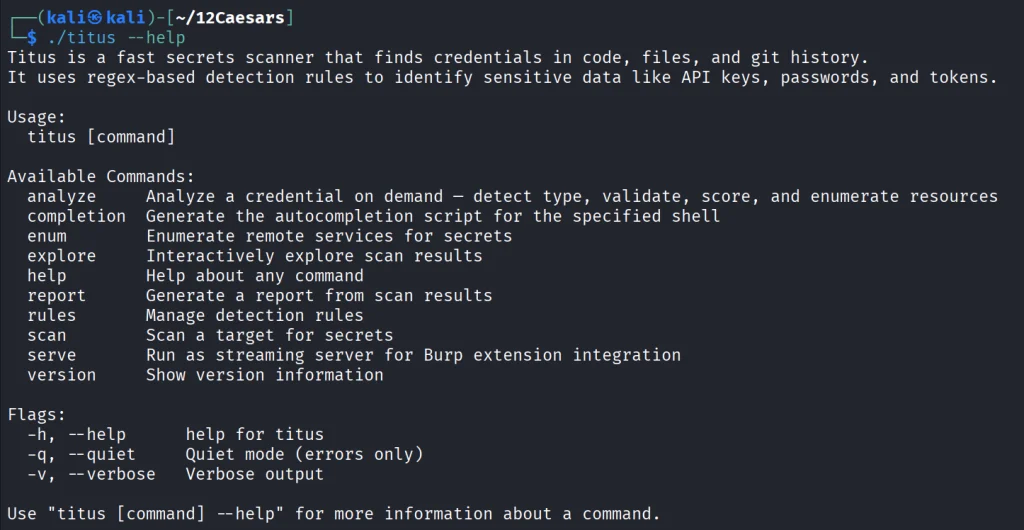
Let’s start by pointing it at test keys released by Truffle Security.
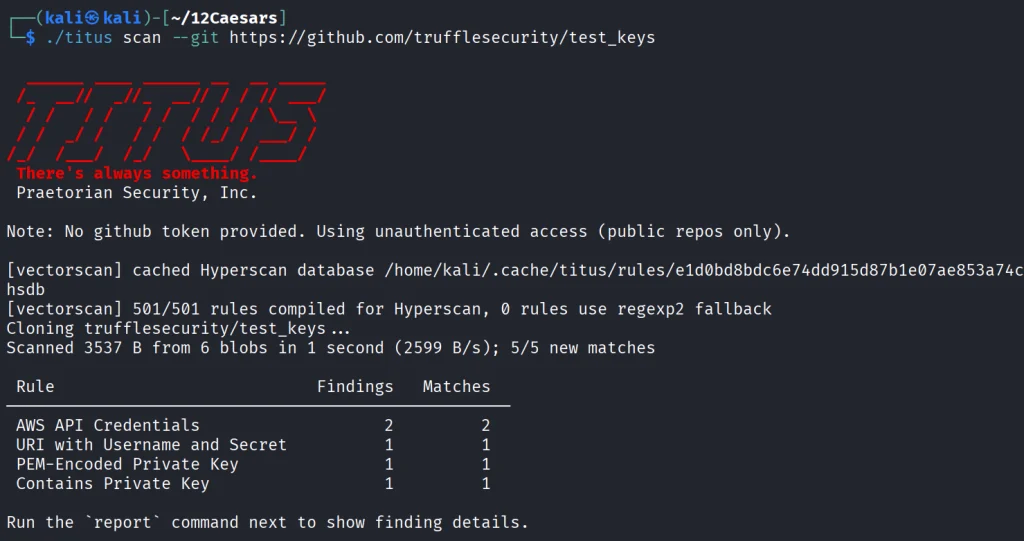
It found all the keys in the repo. Companies often publish their secrets by accident. Some live in the repositories for years, so it’s good to do regular checks to prevent unnecessary leakage.

Nerva

Nerva is a fingerprinter supporting 170 protocols across TCP, UDP, and SCTP, plus dozens of HTTP technology fingerprinters. You can feed it with open ports from naabu, nmap or other tools and it’ll tell you what’s actually running with its version.

kali > curl -sL -o nerva.tar.gz https://github.com/praetorian-inc/nerva/releases/download/v1.70.3/nerva_1.70.3_linux_amd64.tar.gz
kali > tar --no-same-owner -xzf nerva.tar.gz
kali > chmod 777 nerva
kali > ./nerva --help
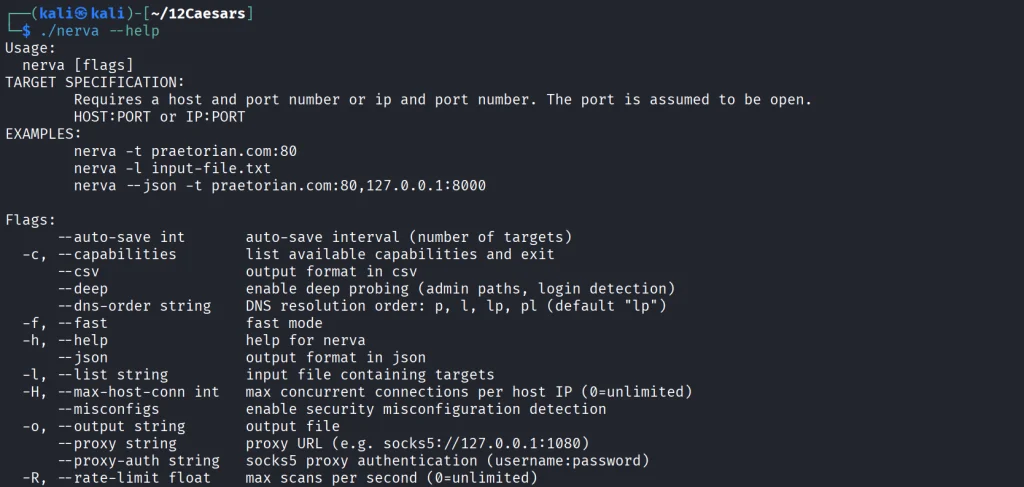
Now let’s use our Ubuntu to show a basic test.

kali > ./nerva -t 192.168.131.9:22,11434

It will be way more useful when you work with big lists of corporate assets during a pentest.

Brutus

Brutus is a modern Hydra alternative. It supports more than 40 protocols including SSH, RDP, MySQL, PostgreSQL and a lot more. Brutus was built to work with Nerva or naabu output.

kali > curl -sL -o brutus.tar.gz https://github.com/praetorian-inc/brutus/releases/latest/download/brutus-linux-amd64.tar.gz
kali > tar --no-same-owner -xzf brutus.tar.gz
kali > chmod 777 brutus
kali > ./brutus --help     
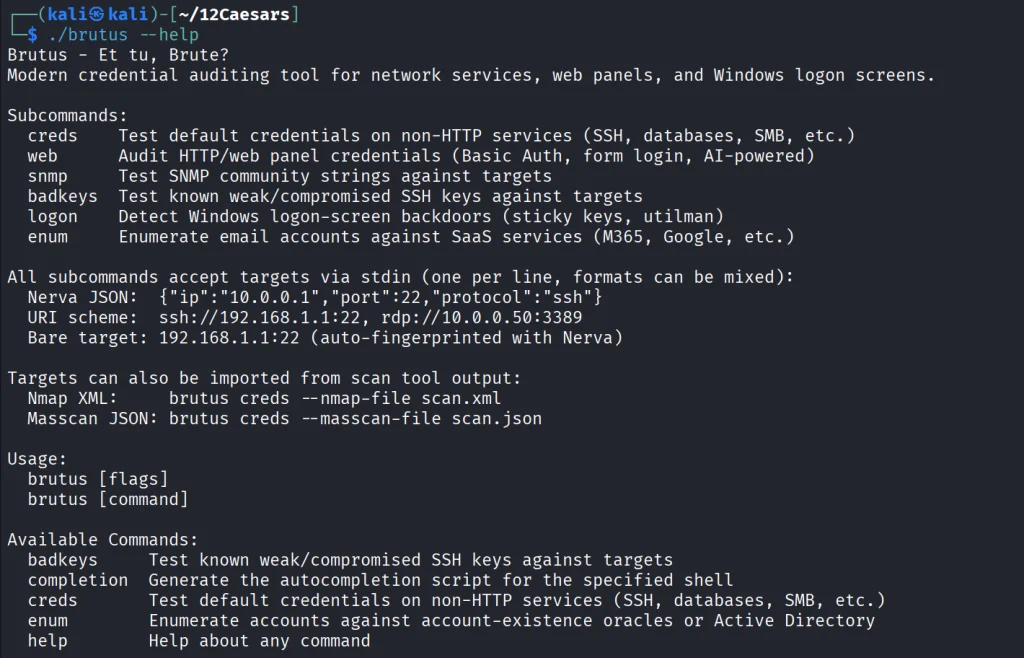
Each command has its own help menu to make it easy to work with.

kali > ./brutus creds --help
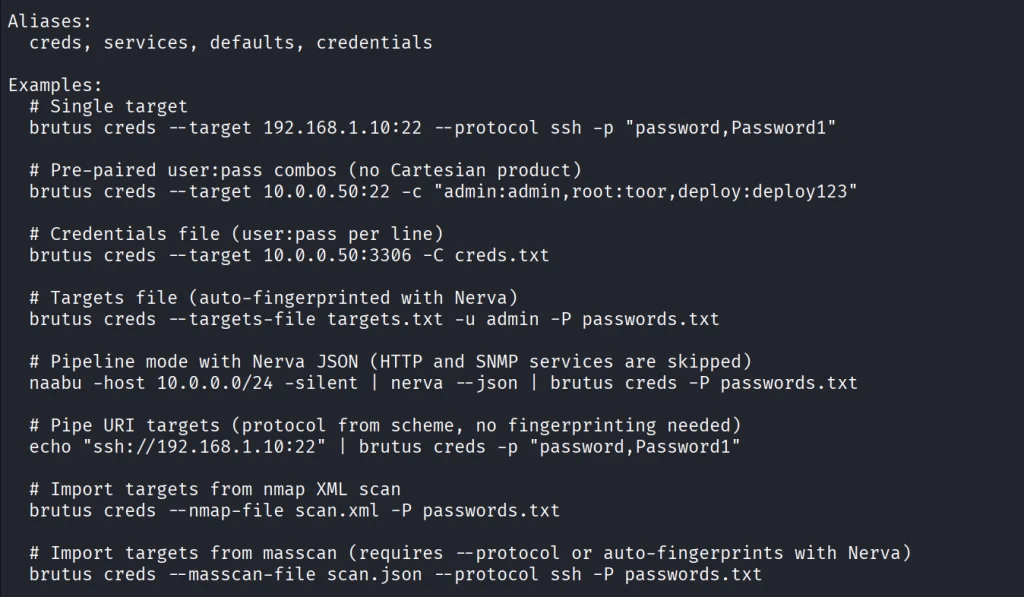
Now once again lets use our Ubuntu to spay passwords. 

kali > ./brutus creds --target 127.0.0.1:22 --protocol ssh “admin:admin”
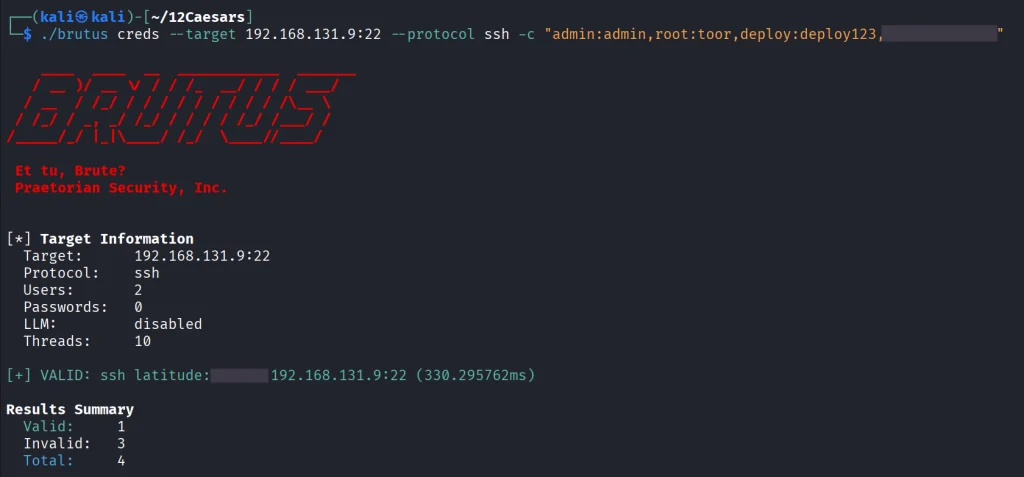
It was easy. As mentioned before, this tool chains with Nerva, and that’s how it becomes useful to test the entire infrastructure against common password and detection.

Julius

With AI services proliferating inside corporate environments, we want to know what LLM infrastructure is running on our hosts. Julius will fingerprint more than 60 AI services including Ollama, vLLM, LiteLLM, LocalAI, Hugging Face TGI, AWS Bedrock and AnythingLLM. It can also list available models from endpoints.

kali > curl -sL -o julius.tar.gz https://github.com/praetorian-inc/julius/releases/download/v1.5.1/julius_1.5.1_linux_amd64.tar.gz

kali > tar --no-same-owner -xzf julius.tar.gz
kali > ./julius --help
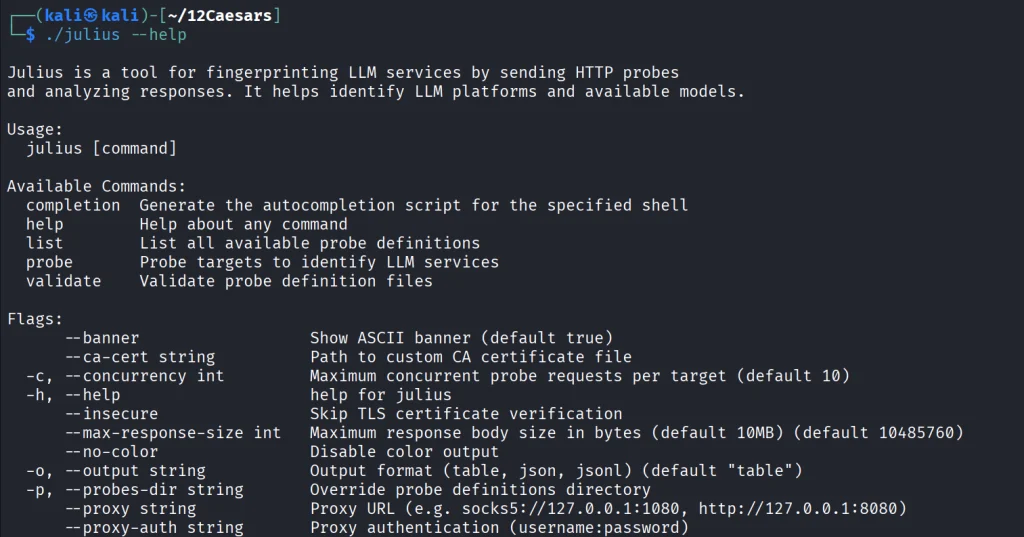
You can list all the AI services Julious can fingerprint: 

kali > ./julius list
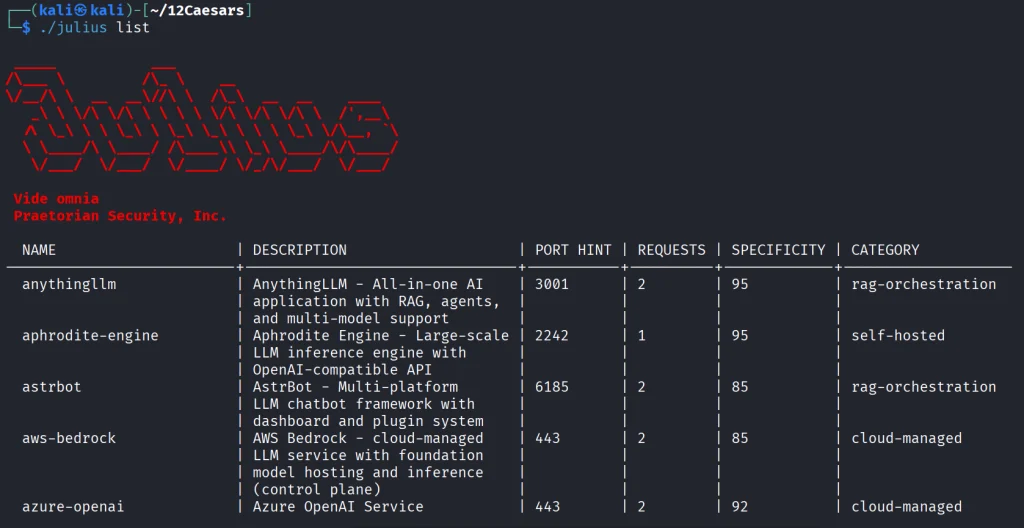
We will take a look at our machine.

kali > ./julius probe http://192.168.131.7:11434

Ollama sits on port 11434, and it’s important not to leave it exposed publicly, because everyone can use your models without authentication.

Summary 

There are more tools available in this project. Most of them are meant to be chained together and work well this way. The company says its team is actively using these same tools during their engagements. While you won’t need everything at once, experiment with those tools and see what fits you best.

If you like red teaming, we have our Red Team Operator training, where we cover more tools and techniques to help you emulate real APT work, so you can give a company a realistic stress test and help make it secure.

The post Pentesting: Twelve Caesars – Community Tools for Offensive Security first appeared on Hackers Arise.
Open-Source Intelligence (OSINT): Turn One Username into a Full Digital Dossier with Maigret

Welcome back, aspiring cyberwarriors!

Every username you ever created leaves a digital footprint across the internet. In the wrong hands, those footprints tell a story: your habits, location, friends, employer, and real name. Username OSINT is one of the most powerful weapons in any reconnaissance arsenal. We have previously discussed a popular tool for these tasks called Sherlock. Still, circumstances change, and sometimes we need a more comprehensive tool for profile investigation.

So, in this article, we’re going to check out Maigret. Let’s get rolling!

What is Maigret?

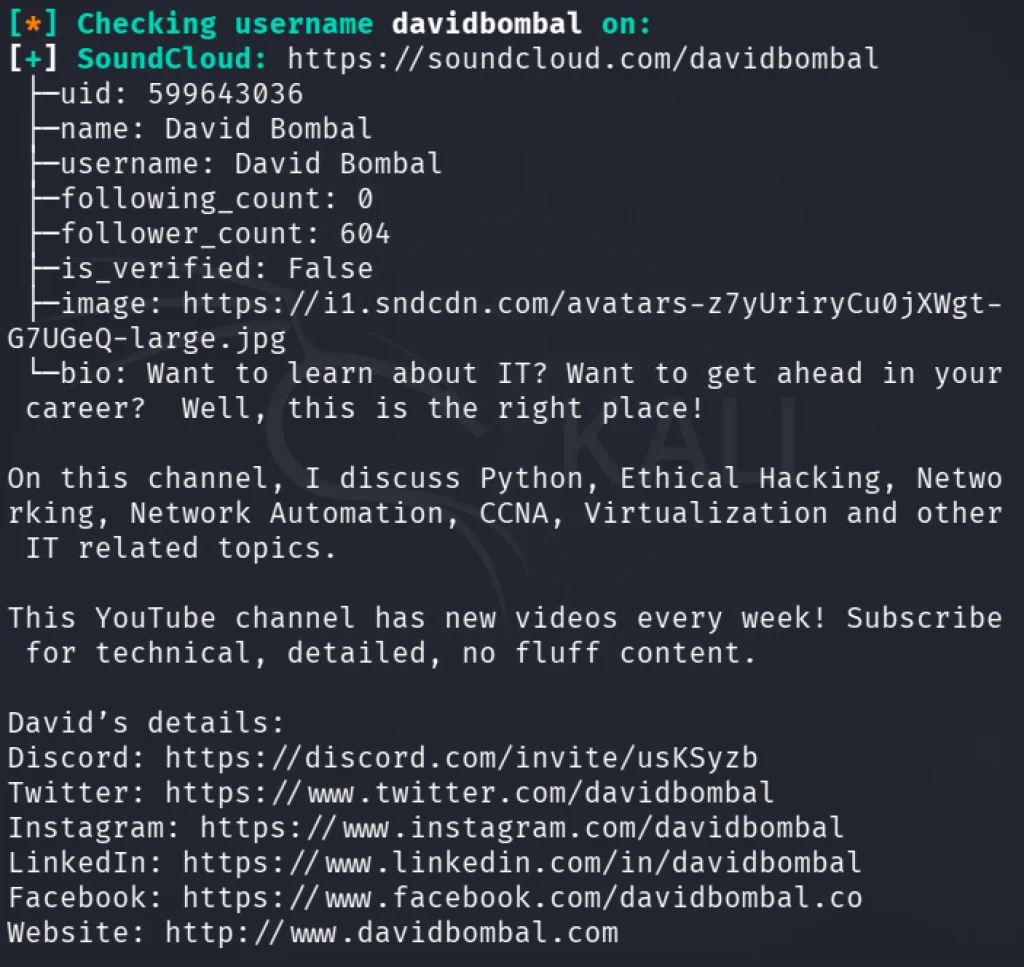
Maigret is a free, open-source Python tool that finds online accounts linked to a username. You give it a username, and it checks more than 3,000 websites (social networks, forums, coding platforms, and more) to see where that name is registered. By default, it scans the 500 most popular sites, and you can switch to the full list.

Unlike a simple lookup, Maigret tries to build a profile (“dossier”) of the person. It reads the public profile pages it finds and extracts details such as names, links, and other usernames. It then searches those new leads, which is called recursive search. It can save results as HTML, PDF, CSV, TXT, or JSON reports. It also offers an optional AI mode that can summarize the findings.

How Does It Compare to Sherlock?

Sherlock, which inspired Maigret, does one thing well: it quickly checks whether a username exists on a few hundred popular sites and lists the matching links. Maigret goes further.

SherlockMaigret
GoalFast, simple username checkDeeper profile investigation
Sites coveredSeveral hundred3,000+
Extracts data from profilesNoYes
Follows new leads recursivelyNoYes
ReportsBasic outputHTML, PDF, CSV, TXT, JSON
Best forQuick checksDetailed research

How to Use Maigret

First, make sure you have Python and pip installed. Then, clone the repository from GitHub.

kali> git clone https://github.com/soxoj/maigret && cd maigret
kali> python3 -m venv .venv
kali> source .venv/bin/activate
kali> pip3 install .

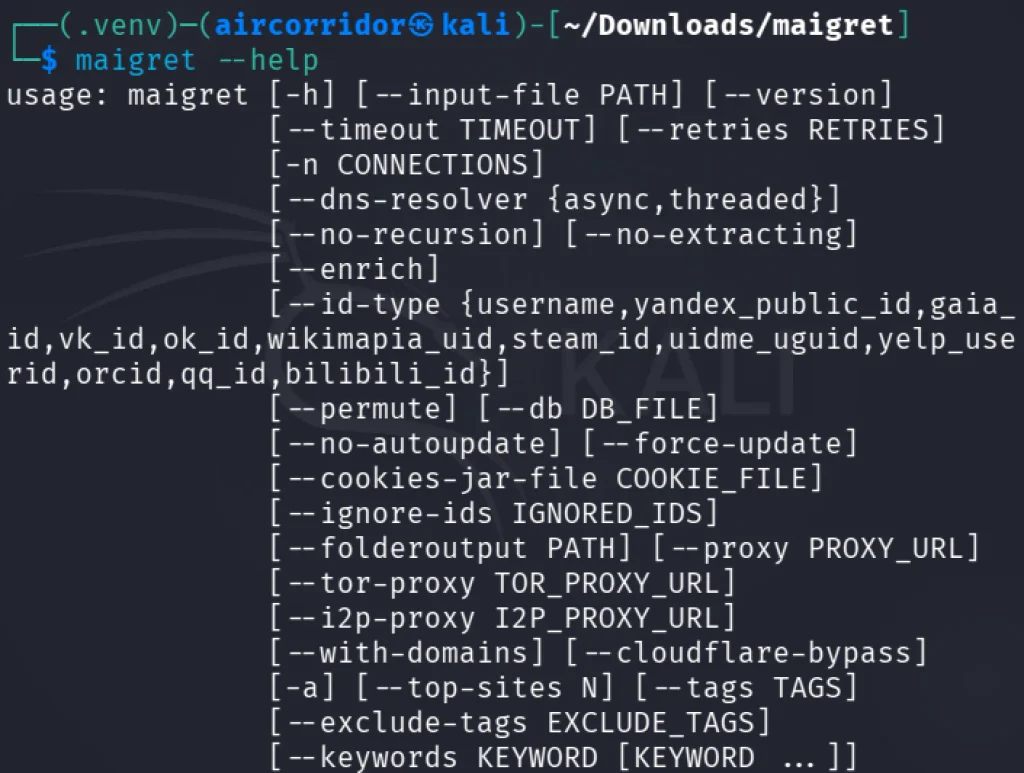
That’s it, the tool is ready to go. We can check the help screen to confirm the installation is correct.

kali> maigret –help

The simplest way to use Maigret is to feed it a single username and let it do the work:

kali> maigret username

Maigret checks the 500 most popular sites, ordered by popularity. This is the best starting point because it’s fast and covers the platforms where most people have accounts. To turn on full database mode, use the -a flag.

Maigret has many flags that allow you to search very specifically. For example, we can target one website:

kali> maigret username –site GitHub

In the screenshot above, you can see the found tags. We can search by them as well:

kali> maigret username –tags coding

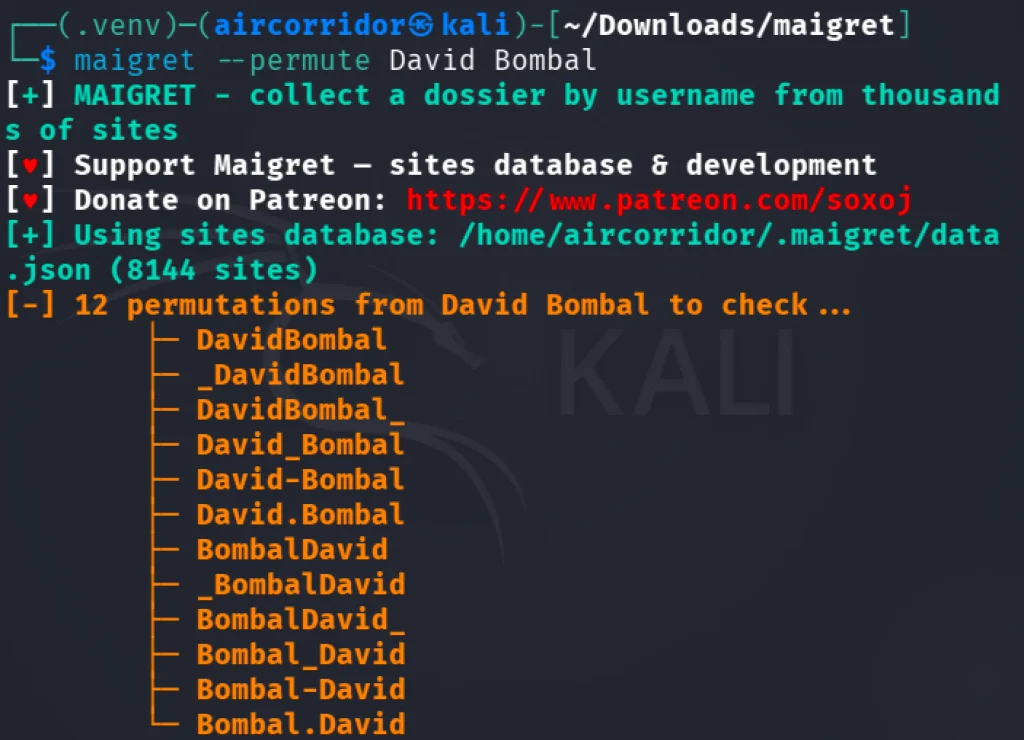
Another valuable feature is username permutation. Maigret can generate and search username variants (for example, combining first and last names in common patterns).

kali> maigret –permute firstname lastname

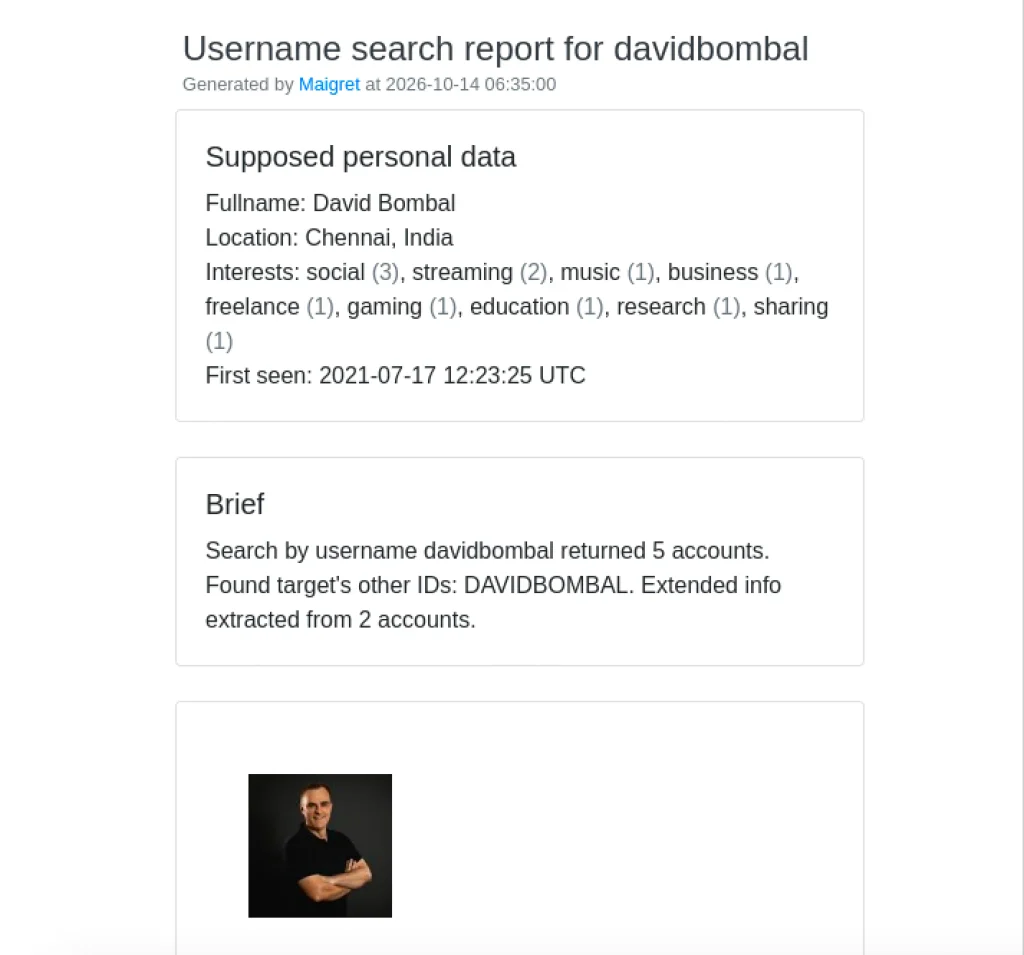
Maigret supports many output formats. For demonstration purposes, let’s test the HTML report; it is the most readable option.

kali> maigret username –html

This creates a standalone file in your results directory with all the findings organized, including images.

It’s also worth testing the graph flag.

Also, Maigret can send its findings to an external LLM to produce a written summary. For this task, create the file ~/.maigret/settings.json with the following content:

{
 "openai_api_key": "sk-or-v1-YOUR_OPENROUTER_KEY",
 "openai_api_base_url": "https://openrouter.ai/api/v1",
 "openai_model": "openai/gpt-4o-mini"
}

Then type:

kali> maigret username –ai

Summary

Maigret turns OSINT from a quick lookup into a proper investigation. It covers 3,000+ sites, parses profile data, follows new leads recursively, and can write an AI summary. I recommend testing it. It may find a place in your hackers’ toolbox.

The post Open-Source Intelligence (OSINT): Turn One Username into a Full Digital Dossier with Maigret first appeared on Hackers Arise.
SDR (Signals Intelligence) for Hackers: Scanning Wireless Devices Using FieldWatch

Welcome back, aspiring cyberwarriors!

As you know, there are thousands of Bluetooth and WiFi signals we pass through daily, especially if we live an active life in a big city. That includes tags, smartphones, WiFi routers, drones, surveillance devices, vehicles, body cams and mesh radios. Clearly it doesn’t stop here and the list goes on.

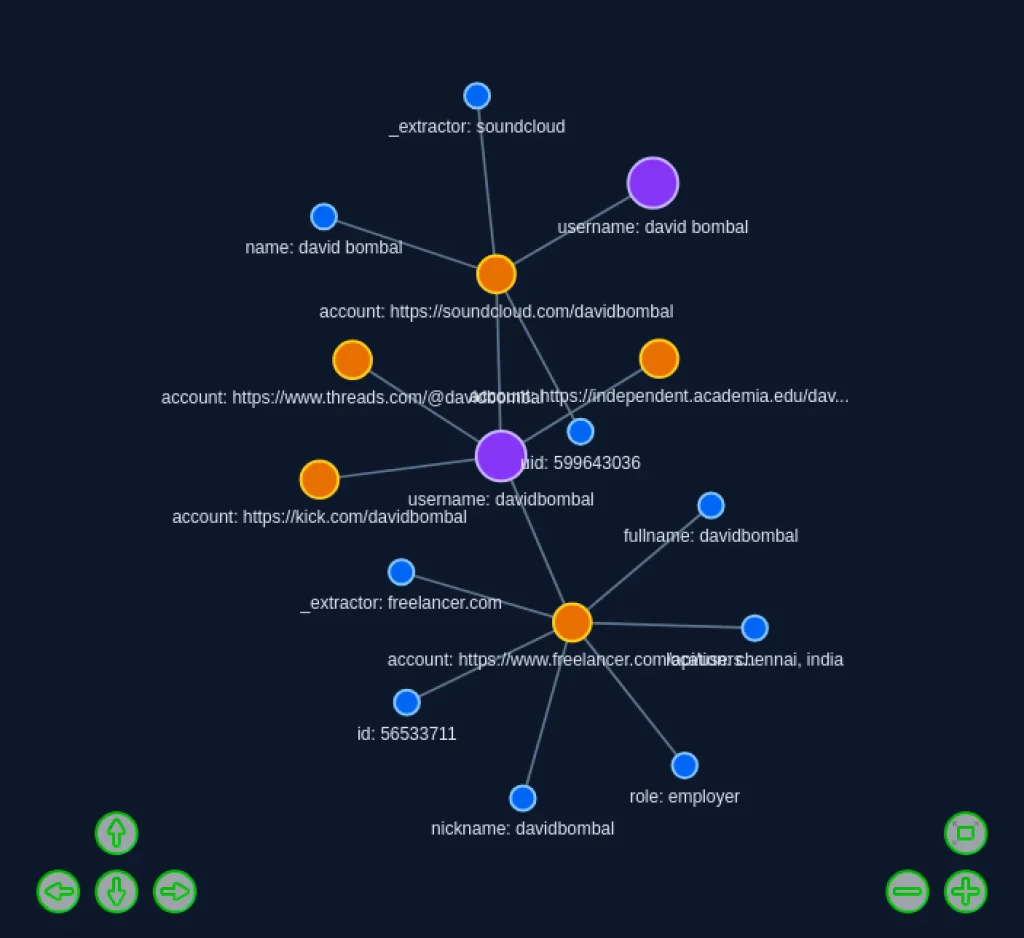
Many of you are privacy focused individuals and want to know what’s going on around you and whether you’re being tracked or watched by someone. That’s okay, protecting your privacy is a good thing. FieldWatch was made for this. It matches what it hears against an editable signature catalog of roughly 250 device types and shows the results in live views, recorded sessions, path maps and reports. Everything runs on the device and works fully offline.

FieldWatch

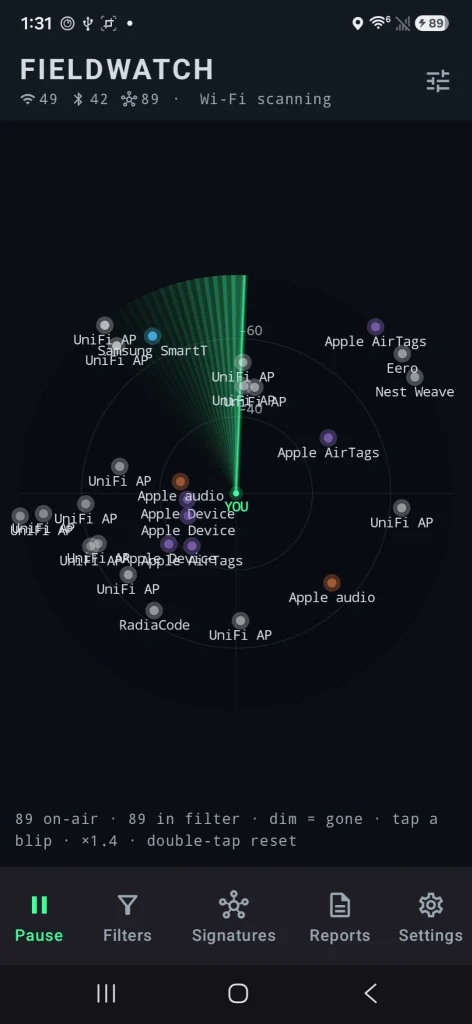
FieldWatch is a free, open-source Android app that listens to nearby Wi-Fi and Bluetooth signals using the radios already in your phone. It compares what it hears against a list of known device signatures and shows them. It only receives signals. It never transmits. 

Source: OGridPete
Source: OGridPete

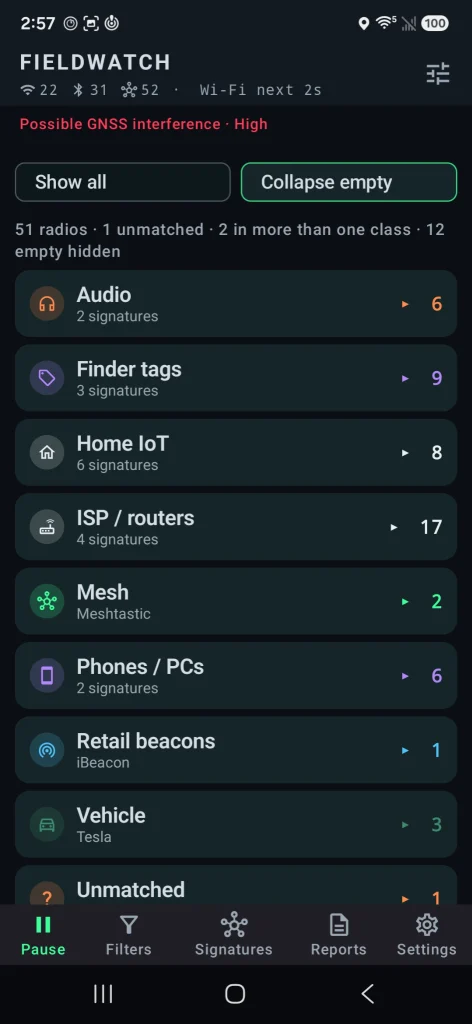
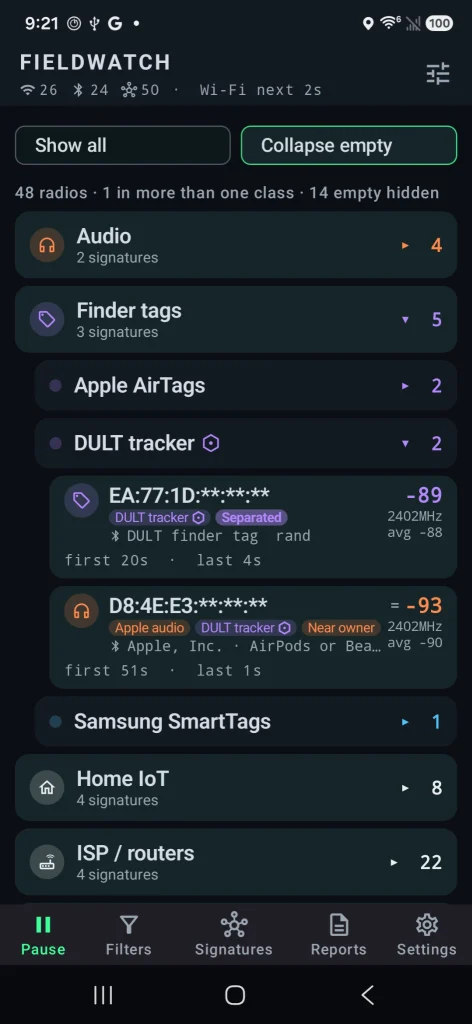
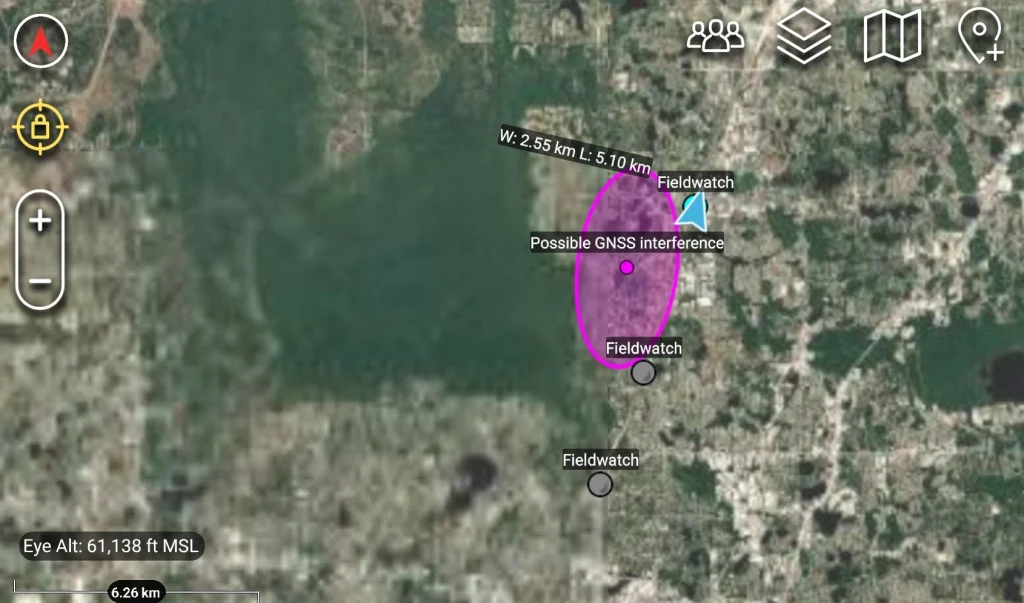
You can set alerts for specific devices, record what’s present during a walk or drive, and later compare sessions. All the findings are sorted under their category. It also has basic GNSS interference detection and can send results to mapping tools like TAK. Matches are based on patterns, not guaranteed identifications, and the app only sees what the phone’s radios and Android allow it to see.

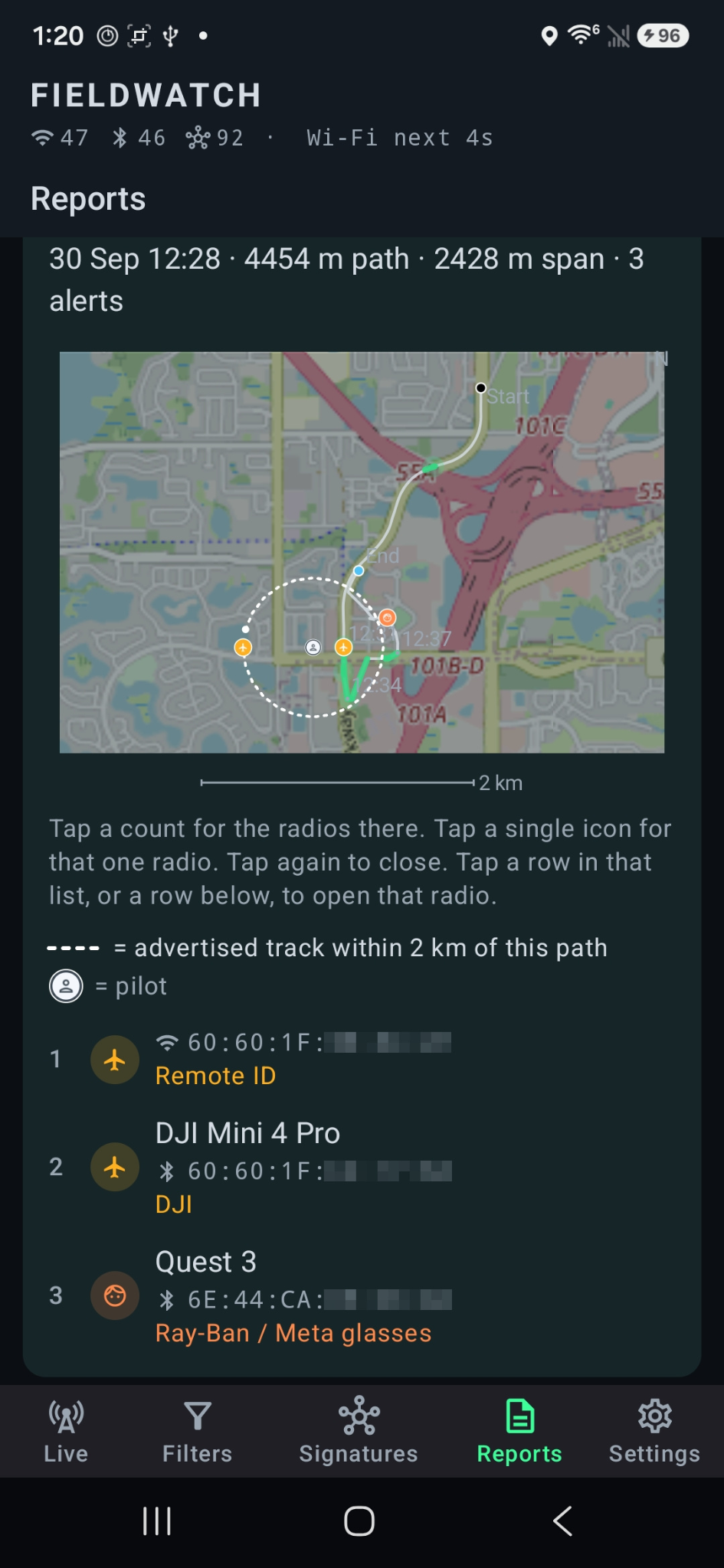
Depending on your preferences, you may want to see these devices on a radar or on a map. The app found the location of the drone operator as well as the drone itself.

Source: OGridPete
Source: OGridPete

TAK Support

TAK and ATAK are free mapping apps used by military, emergency responders and some civilians to share locations and information on a map in real time. FieldWatch can send what it detects straight to TAK over the local network.

When FieldWatch sees a drone that’s broadcasting Remote ID, it can place a moving marker on the TAK map for the drone and a second marker for the pilot if that location is available. Other devices it finds, plus any GNSS interference alerts, can also appear as markers. Several phones running FieldWatch can send data to the same map at the same time, so a team sees the same picture.

Source: OGridPete

GNSS Interference Detection

Newer versions check for signs of GPS interference or spoofing using the phone’s own receiver. After a short outdoor calibration, it can alert you and mark the spot on your path or on a TAK map. It shows where you were, not where the interference came from.

Source: OGridPete

Limits

Now let’s talk about its limits. It isn’t a direction finder. Also, it doesn’t scan Bluetooth Classic, cellular networks or full Wi-Fi traffic. Matches are based on patterns and those are not confirmed identities. Your results depend on the phone and what Android lets the app see. For better results use newer phones. Official versions only come from the GitHub repo.

Android App

Download the APK from the official GitHub page and sideload it. Android 10 or newer is required. Android 11 has more functions that can be used with this app. A short instruction file and manual are included. The repository has all the answers in terms of the app. It works on a cheap phone with no SIM card. OffGridPete recently posted that he used a Moto G for $30 for his test and it worked well. If you decide to use it, use it for your own privacy and security, and be respectful of other people’s privacy.

Summary

You can use your cheap phone as a scanner for devices nearby, and find jamming and tracking. There are different apps that do similar things, but they’re bound to Linux only, which is very inconvenient. FieldWatch works on an Android phone to find trackers, cameras, drones, body cams and more.

If you enjoy experimenting with frequencies and trying new things, we recommend signing up for our SDR for Hackers training. With Master OTW, you’ll learn how to use your computer and inexpensive SDR hardware to explore and hack a wide range of radio signals.

The post SDR (Signals Intelligence) for Hackers: Scanning Wireless Devices Using FieldWatch first appeared on Hackers Arise.
OSINT: Monitoring World Events with God’s Eye

Welcome back, aspiring cyberwarriors!

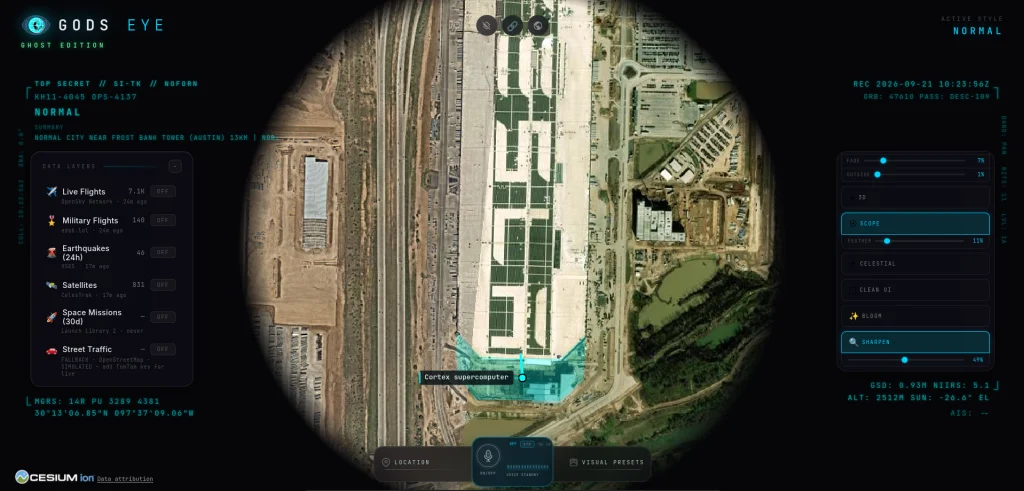
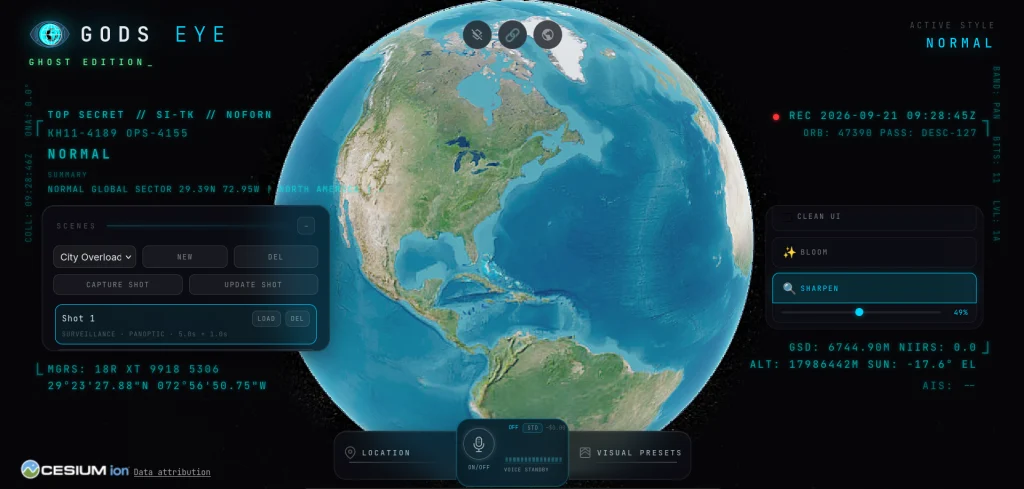
Lately we’ve been seeing a lot of posts about God’s Eye, a spy satellite simulator that runs in your browser. It’s a great tool developed by Bilawal Sidhu, but it requires certain paid APIs. Those APIs make the experience a lot richer, but they can be hard to get or you just don’t want to pay for them. That’s fine. For that reason we want to cover a fork developed by Gh0st-mods.

God’s Eye

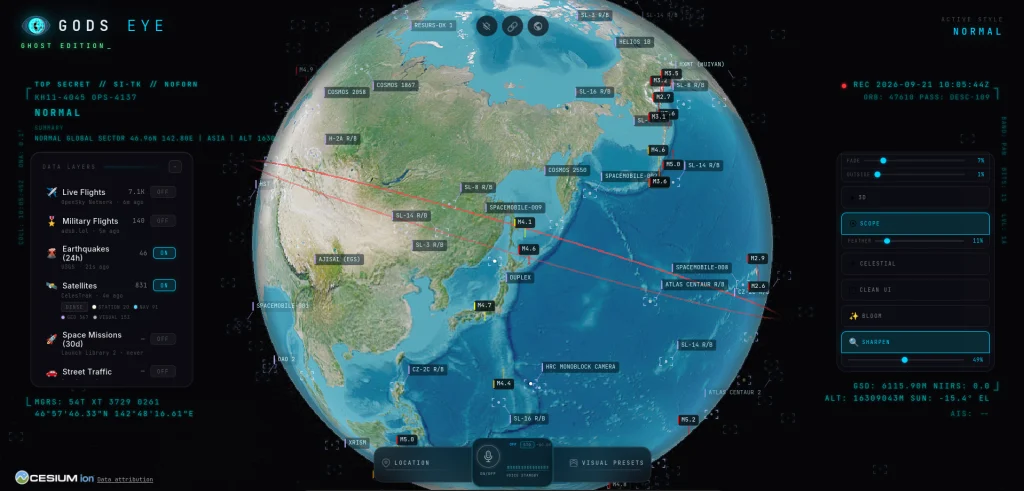
God’s Eye is basically a website you run on your own computer that shows the Earth as a 3D globe with live public data on top of it. You can see planes in the air, ships at sea, some satellites, earthquakes and public traffic cameras. When you select those objects on the map, it tells you everything it knows about it. This can be its identity, speed, heading and other details. It looks like a spy movie. The data is just ordinary public feeds.

Let’s set up the fork and see how the free version works.

Setting Up

First, make sure you have all the dependencies installed.

kali > sudo apt update
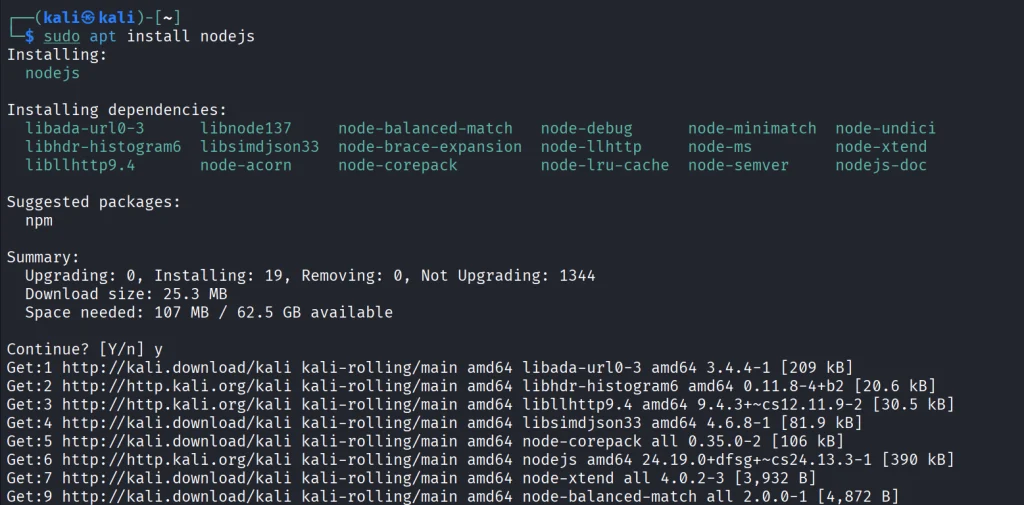
kali > sudo apt install nodejs
kali > sudo apt install npm

Then clone the repository and install what it needs.

kali > git clone https://github.com/Gh0st-mods/Gods-Eye-Ghost-Edition.git
kali > cd Gods-Eye-Ghost-Edition
kali > npm install
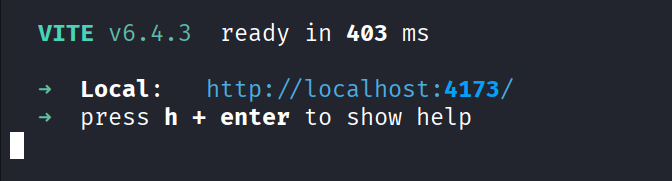
kali > npm run dev -- --host localhost --port 4173

The app is available at http://localhost:4173, so we can open it in a browser.

Let’s walk through some of its features.

Data Layers

There are multiple data layers and many of them work without any API key. You can always add them to the .env file if you want a richer experience.

Aircraft Tracking

Each aircraft gets rendered in 3D flying over the Earth. You can switch visual presets too. Here we have a civil aircraft flying over the south of England.

Below you can see all the information on it.

Maritime Vehicles

These include transport and nontransport vessels. You’ll see plenty of them scattered across the globe. Here’s a tanker moored somewhere in Miami. Military vessels will also be shown on the map, so you can monitor their activity.

The satellite image quality looks good, since the tool sharpens it for you.

Dams

Water dams are part of critical infrastructure. Their locations are publicly available and integrated into the tool. Here is the Barro Blanco Dam in Panama. All critical facilities need good care and protection, especially during wartime, since they’re one of the things an enemy tries to attack.

Data Centers

Just like dams, data centers are important targets. If an enemy attacks data centers (drones/missiles, sabotage or cyberattacks) the result can be permanent data loss. Data centers are the physical backbone of banking, payments, logistics, government systems, AI and often military/cloud services. Hitting them will inflict economic and operational pain. The effects will cascade across almost everyone, even those who are completely offline.

One of these attacks happened recently when Iran attacked Amazon data centers.

Source: Wired

Satellites and Earthquakes 

This isn’t the most notable feature on the platform, but it’s there and might be interesting to some. The data updates regularly. Below you can see several earthquakes hitting Japan in the last 24 hours. No surprise there, that region is highly seismic.

Summary

World monitoring apps are getting more popular. Some don’t even need to be installed, like Osiris. The original project by Bilawal Sidhu is great, but it still requires a paid Google API, which not everyone is comfortable with. The fork we covered today works for free out of the box. If you liked it, you might also want to check out ShadowBroker.

The post OSINT: Monitoring World Events with God’s Eye first appeared on Hackers Arise.
Wi-Fi Hacking: Testing Routers with Wifit3

Welcome back, aspiring cyberwarriors! 

Many beginners want to know how they can hack their Wi-Fi. It’s fun, it’s easy to get started with and those small wins make the early part of your cybersecurity journey exciting. Testing Wi-Fi security is also an important part of a pentest, since many organizations keep old routers in place with weak security settings. As years go by, those settings get more and more obsolete, like WEP. Some features routers have enabled by default might be convenient, but are often unnecessary. That’s WPS, as you might know. It gets abused regularly to recover a plaintext password and sometimes you can get it in under a minute just because WPS was left on.

If hackers get onto the network, they can start exploring everything on it or just use your Wi-Fi for their own purposes. You don’t want that. That’s why you need to make sure it’s secure.

Today we’ll cover Wifit3, which can help you with this.

What is Wifit3

The tool was developed by the same author who created Wifite2.

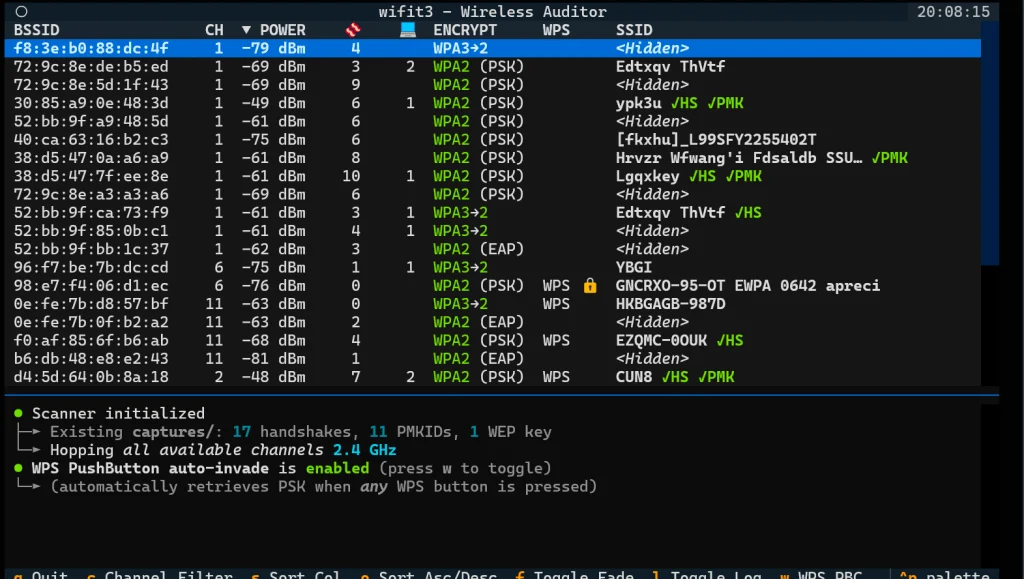
Unlike its predecessor, it doesn’t need aircrack-ng, reaver or bully installed. Instead, it uses pure Python with the PyUSB and Textual libraries. Wifit3 works just as well on Linux, macOS and Windows. You’ll only need a USB dongle to work with it. The repository mentions all the supported devices. 

It scans both 2.4 GHz and 5 GHz, can tell when a network is WPA3 or in mixed WPA2/WPA3 mode and keeps track of signal and encryption. It also tries to identify the router and pull extra details about it. Hidden network names sometimes get revealed by matching them to a known router address. If you plug in more than one supported Wi‑Fi adapter, you can listen on several at once and leave one free to send packets.

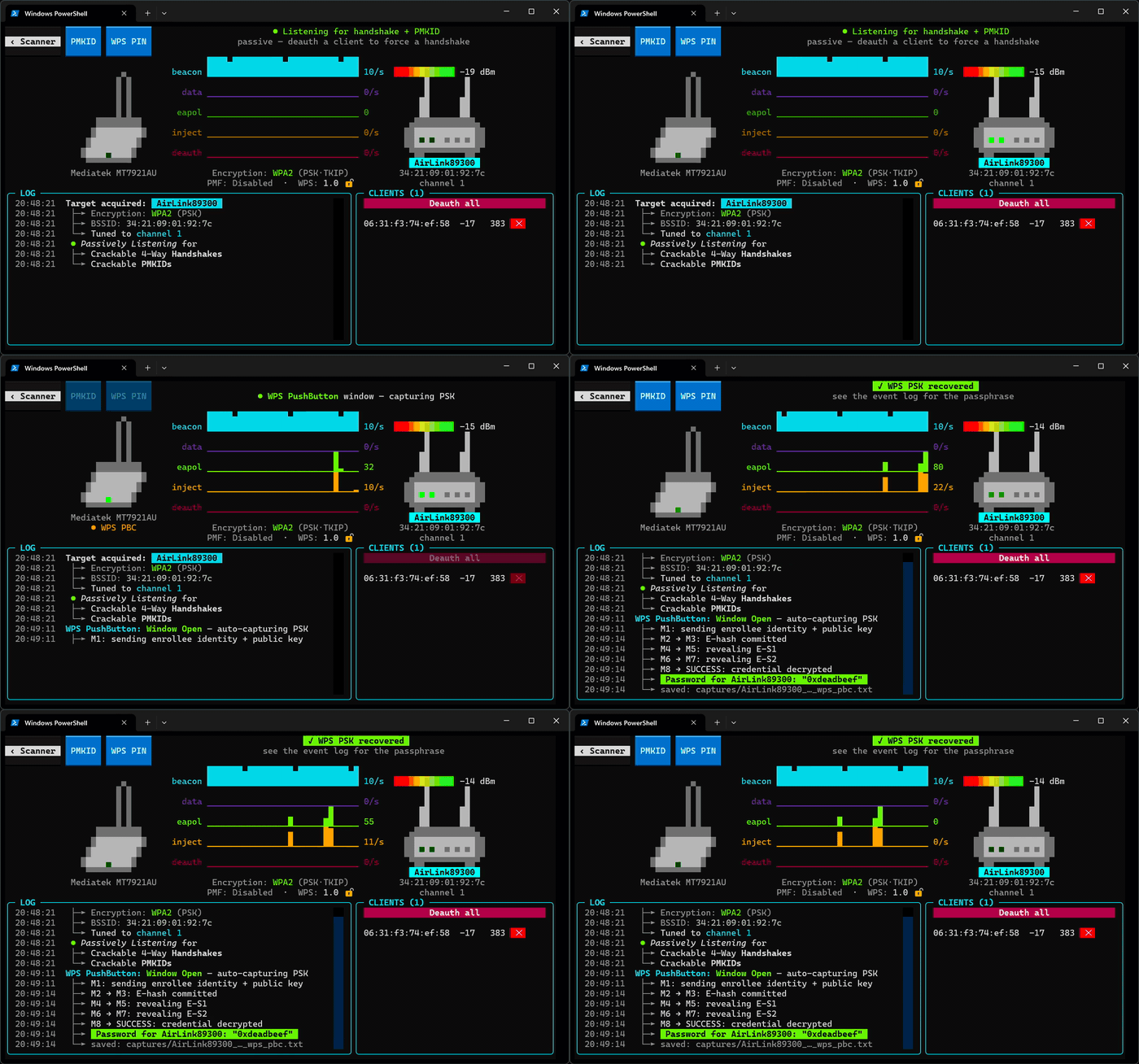
It shows beacons, data, injection and disconnect traffic so you can see what’s in the air while you work.

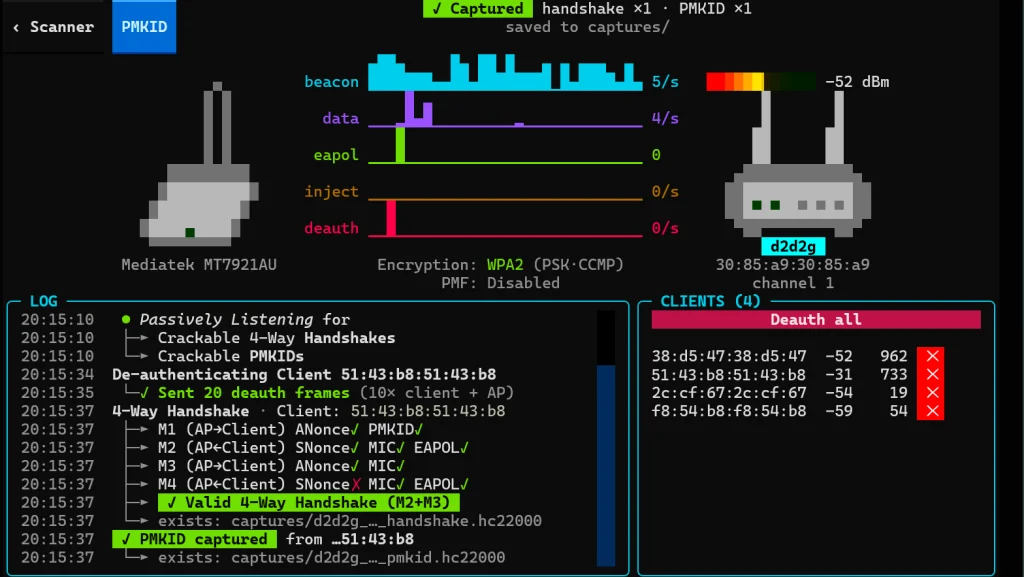
The tool can listen to Wi‑Fi traffic and send disconnect messages. Those messages kick phones off the network. When a phone joins again, it talks to the router to prove it knows the password. The tool records that conversation. The password is in there, but scrambled, so you can crack it later with hashcat.

Here’s how it looks. Above you can see it capturing handshakes with passwords after disconnecting a client. The tool also managed to capture a PMKID. PMKID is a short hash the router can send that’s tied to the Wi-Fi password. If you capture that hash, you can try passwords against it later on your own machine. You don’t need to kick anyone off the network or capture a full login handshake.

There’s also an Evil Twin mode for WPA3. It tricks phones into leaving the real Wi‑Fi and joining a fake one so the tool can steal a handshake. For WPS it can try the fast Pixie Dust attack, grab the password when someone presses the router’s WPS button and keep guessing the WPS PIN while pausing if the router starts locking out attempts.

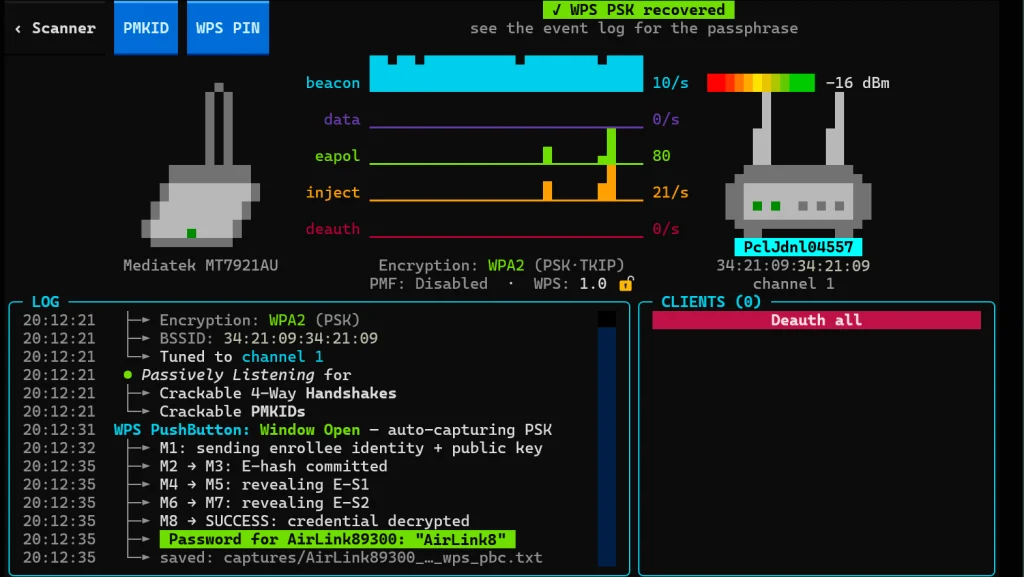
That’s how the WPS attack looks. The tool sends an enrollee identity with a public key and gets the router credentials decrypted. The password is then saved to a text file.

WEP is attacked in Python with the usual replay tricks to recover the key.

Setting Up

Now let’s set it up on our machine. As always, we’re going to use Kali, but you can use anything you want.

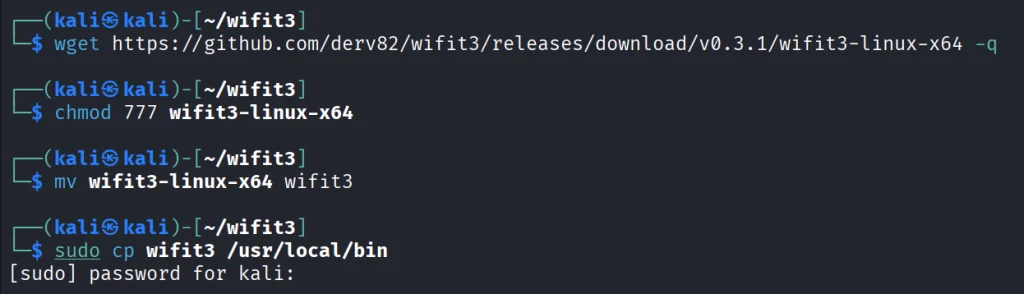
kali > wget https://github.com/derv82/wifit3/releases/download/v0.3.2/wifit3-linux-x64 -q 

kali > chmod 777 wifit3-linux-x64
kali > mv wifit3-linux-x64 wifit3
kali > sudo cp wifit3 /usr/local/bin

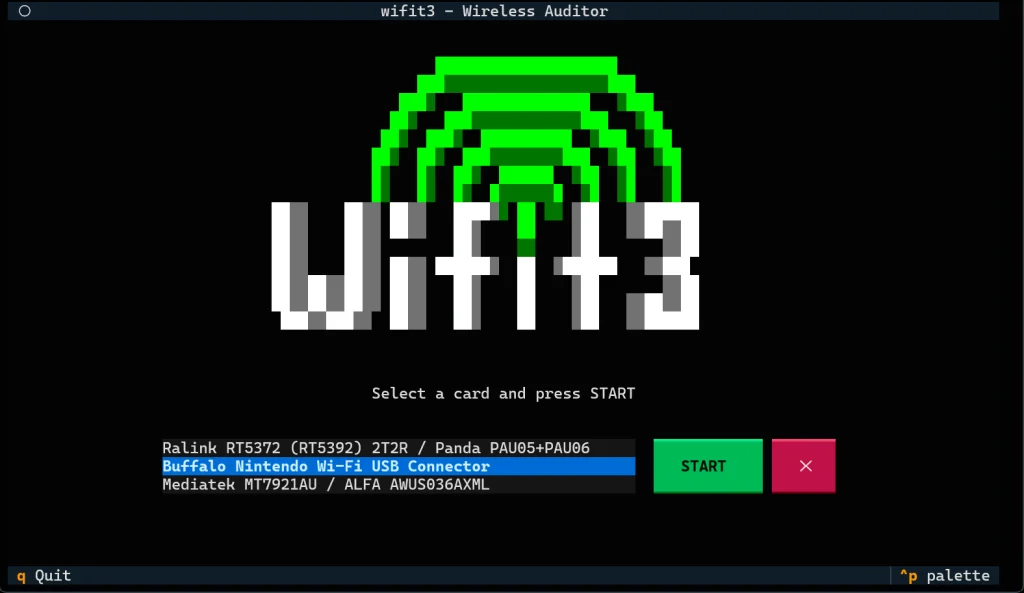
We’re all set. Plug in your USB dongle and start the tool.

kali > wifit3

After choosing the right, you can start testing your Wi-Fi. Use it only on your own Wi-Fi or the one you’re authorized to test. 

Summary

There are so many vulnerable Wi-Fi networks you’ll come across during pentests. They’re often the quickest way into a network, which is why their security shouldn’t be overlooked. Wifit3 is a new tool that came out relatively recently. It’s easy to work with and can help you cover all the common wireless attacks.

If you’re interested in Wi-Fi security, our Wi-Fi Hacking training can help you gain the necessary experience.

The post Wi-Fi Hacking: Testing Routers with Wifit3 first appeared on Hackers Arise.
Open Source Intelligence (OSINT): Investigating Google Accounts with Ghunt

Welcome back, aspiring cyberwarriors and OSINT enthusiasts!

These days, it’s hard to find someone who doesn’t have a Google account. With the massive Google ecosystem out there, knowing how to dig into a Google account can be super useful for OSINT investigations. Ignoring it means missing out on a goldmine of information.

Therefore, in this article, we’re going to dive into using the Ghunt tool to investigate Google accounts effectively. Let’s get rolling!

What is Ghunt?

Ghunt is an open-source security framework created by the researcher mxrch. It helps gather public information connected to Google accounts. What’s important is that the tool does not break into accounts or exploit system bugs. Instead, it extracts publicly exposed data directly from Google services and internal APIs.

Investigators can start a search using a target email address, a Gaia ID, a Google Drive share link, or a Google Maps link. It can reveal an account’s unique Gaia ID, last profile edit timestamp, uploaded photos, and Google Maps reviews. It can also check for active services like Google Calendar or YouTube.

Step #1: Installation and Setup

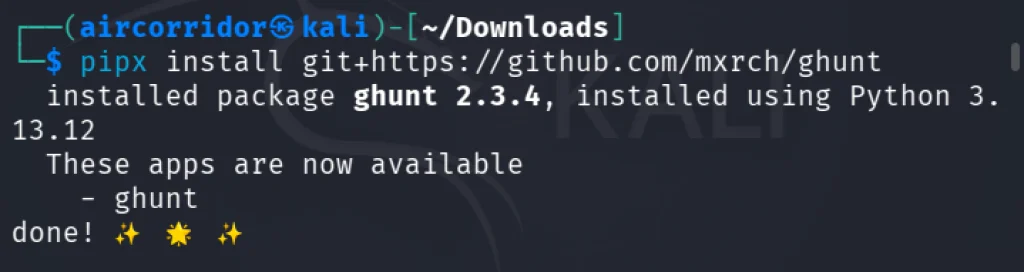
At the time of writing, the version of Ghunt published on PyPI was not working. So, the recommended way to install this tool is directly from the Git repository.

kali> pip3 install pipx
kali> pipx ensurepath
kali> pipx install git+https://github.com/mxrch/ghunt

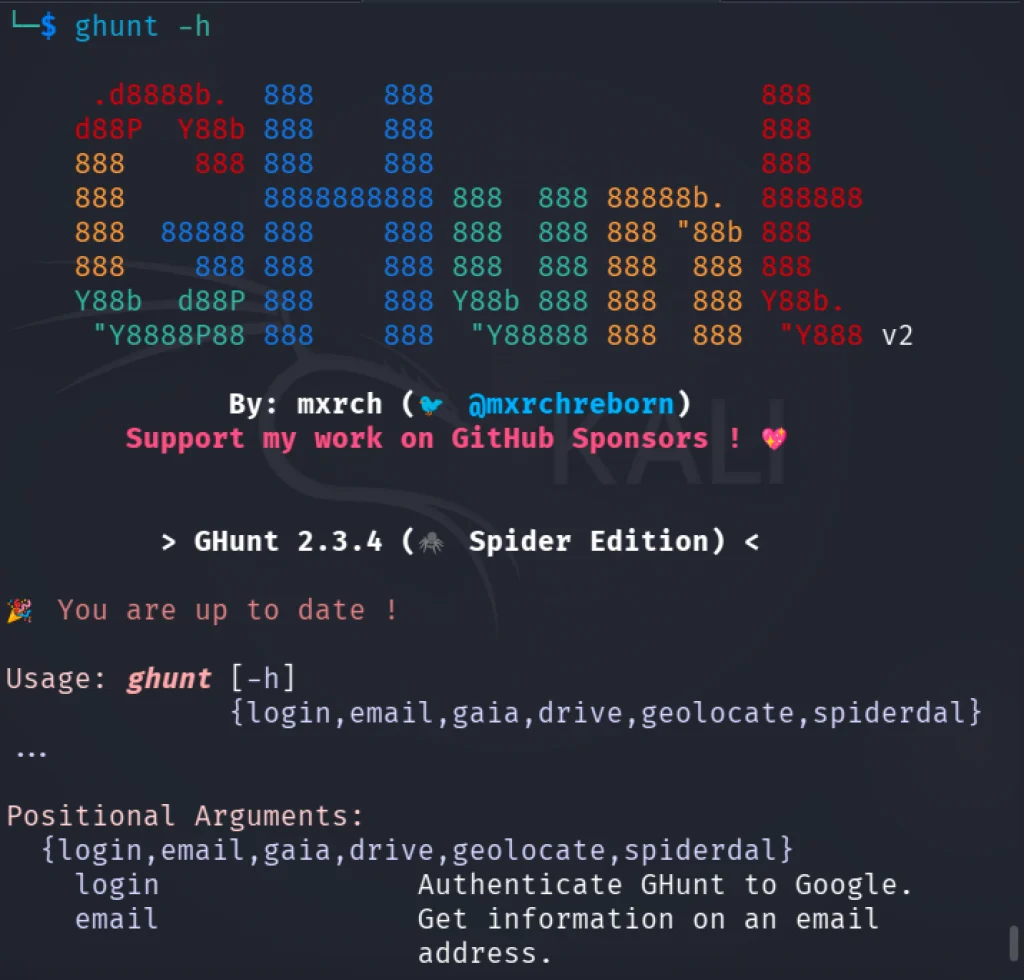
To check if everything works, we can open the help screen.

kali> ghunt -h

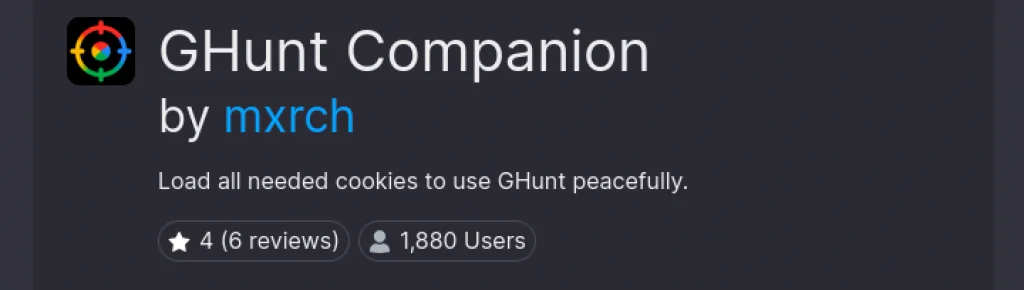
You should see the output above. To continue, we need to authenticate Ghunt with Google. To do so, we need to download the Ghunt Companion extension for Firefox or Google Chrome.

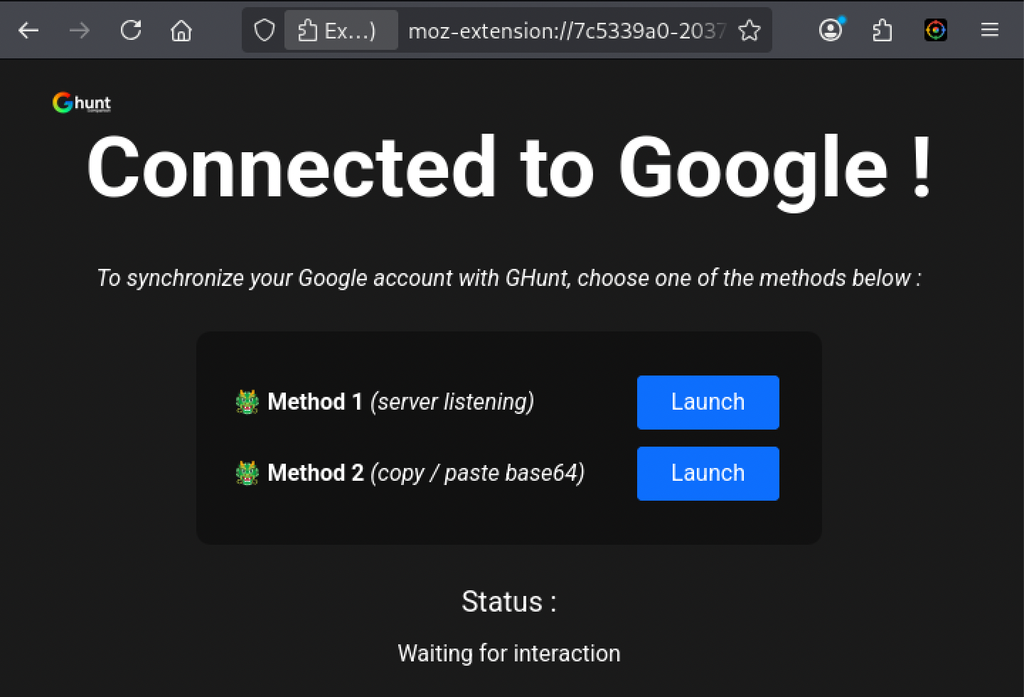
This plugin will load all the necessary cookies to use Ghunt correctly. After installing it, you will need to sign in to your Google account, and at the end, you will see the screen below.

In this demonstration, I will use method number 2. Just click Launch, and the credentials will be copied to the clipboard. After that, run:

kali> ghunt login

And enter the token. Credentials will be saved locally, and in the next runs of the tool, you won’t need to enter them again.

Step #2: Modules

Once authenticated, you have the following search options:

email: Get information on an email address.

gaia: Get information on a Gaia ID.

drive: Get information on a Drive file or folder.

geolocate: Geolocate a BSSID.

Let’s gather information on email:

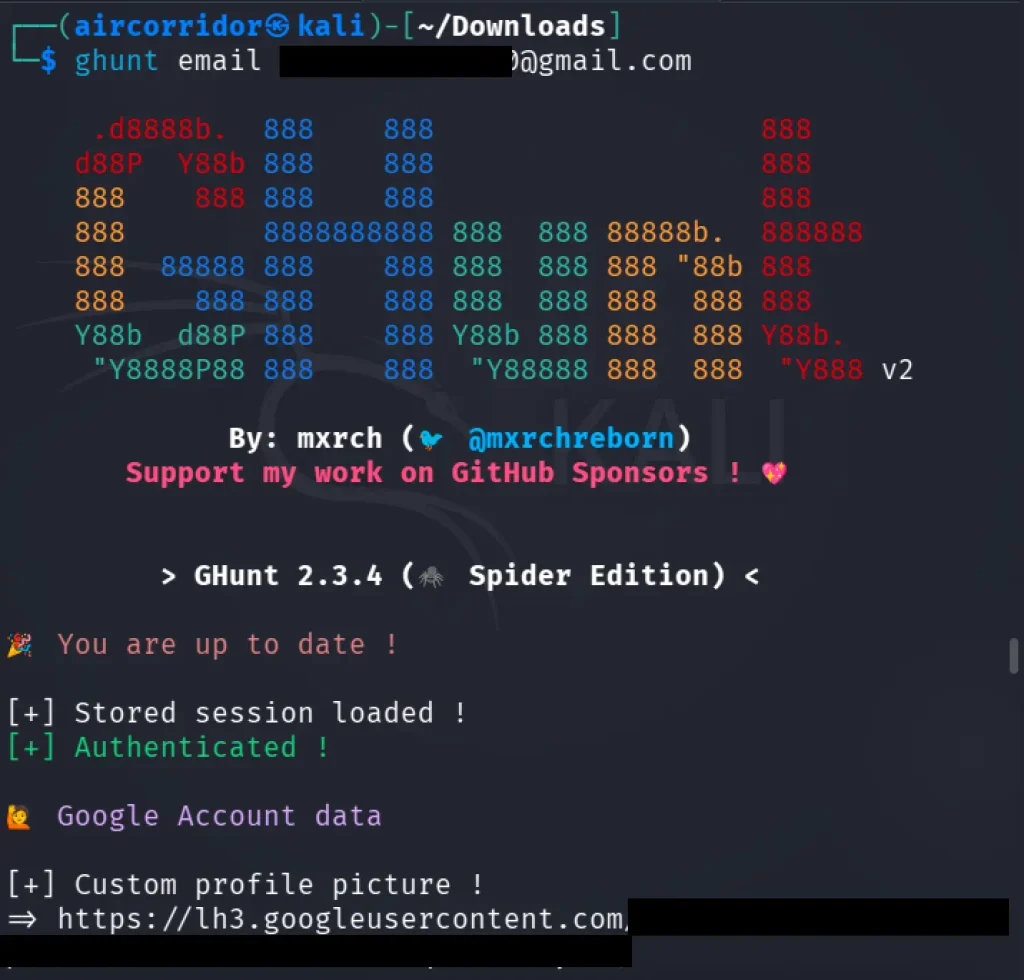
kali> ghunt email <email>

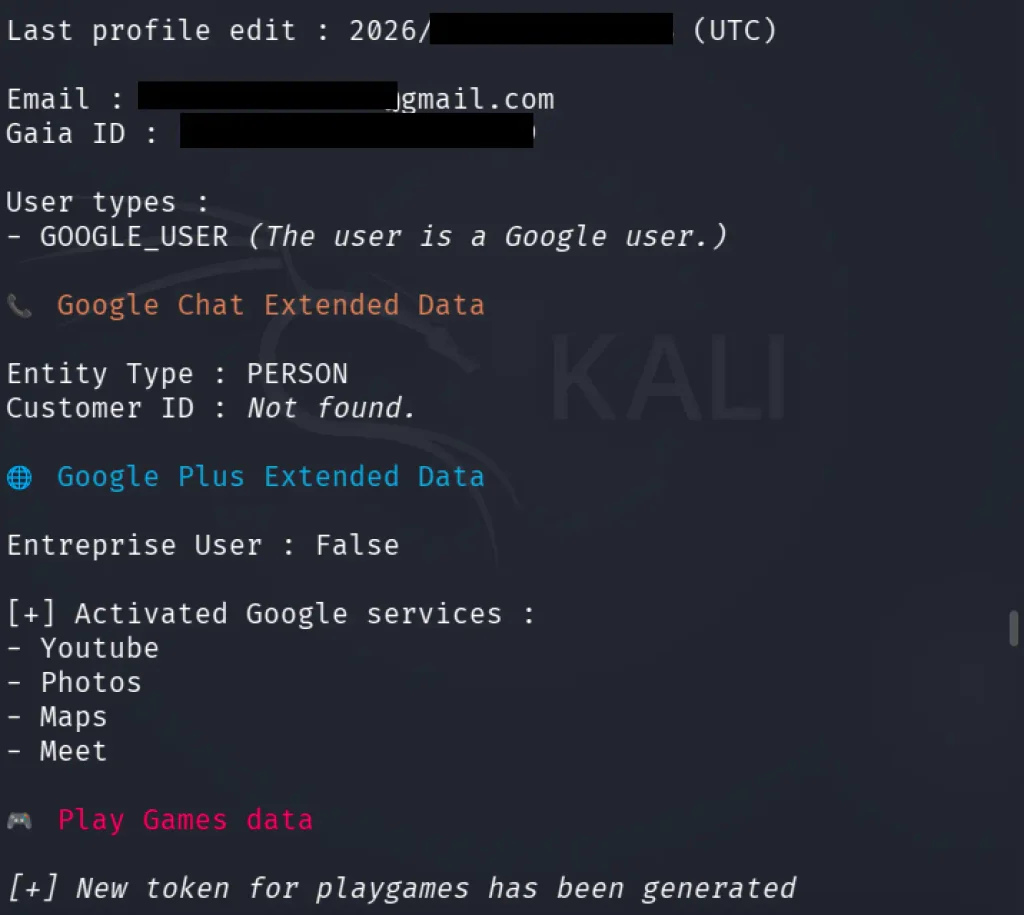
First, the output includes a link to the user’s custom profile image. The next valuable pieces of information are the date the profile was last edited, the Gaia ID, and the list of activated Google services. A Google Gaia ID is a unique, persistent identifier assigned to a user that serves as the foundational token for Google’s centralized authentication infrastructure, enabling the company to recognize users and link their data, preferences, and activity across services such as Gmail and YouTube.

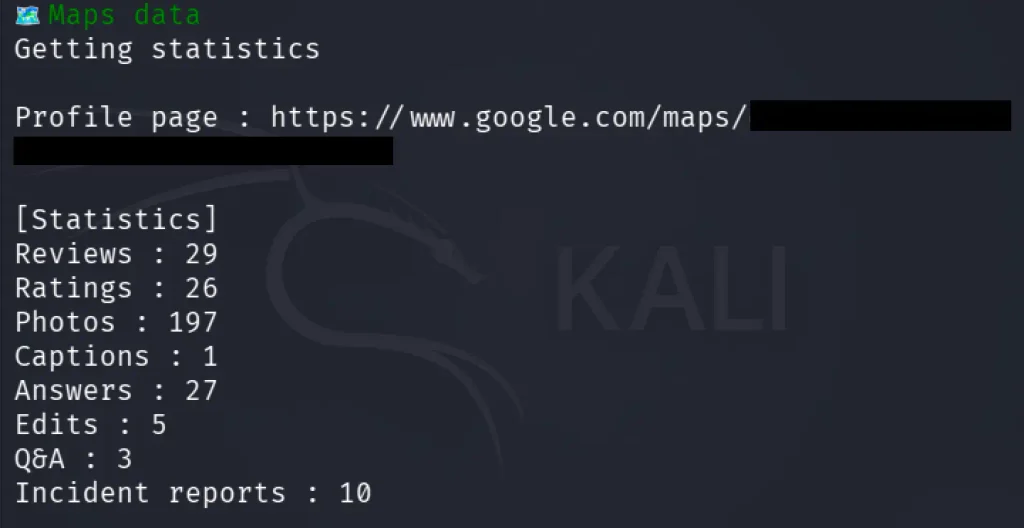
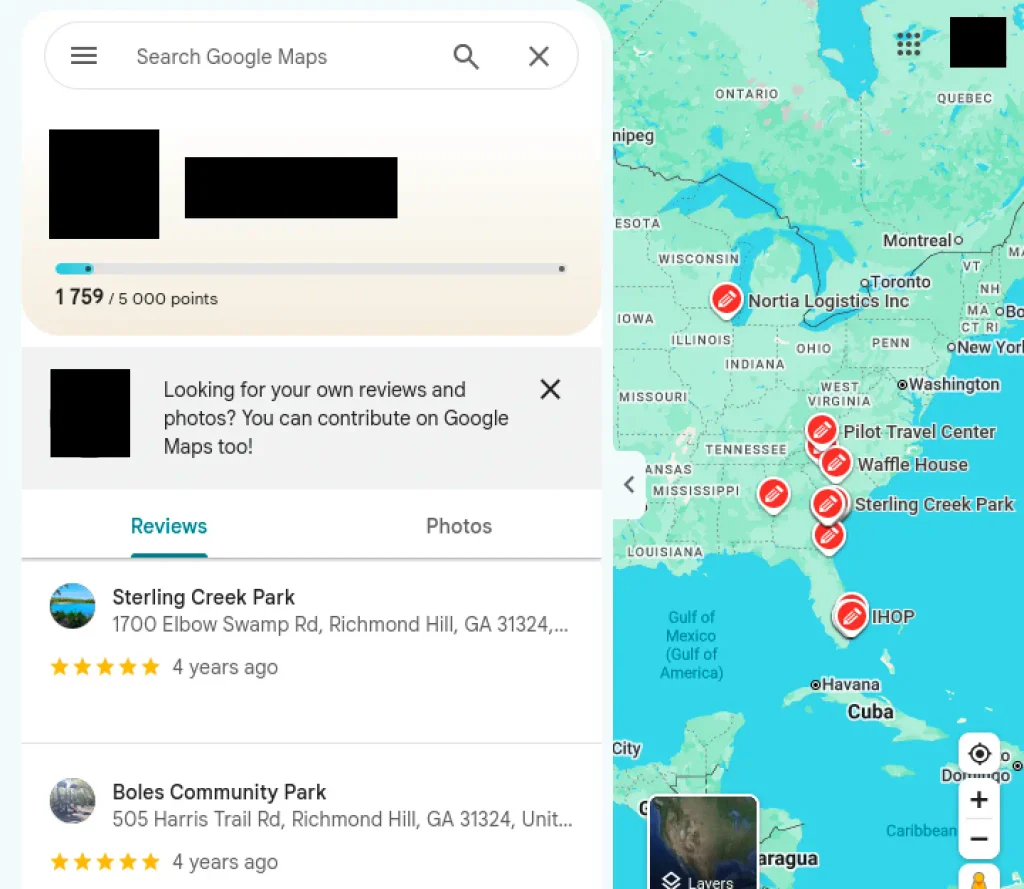
In addition, Ghunt can display Google Maps–related data associated with the account.

It includes all the activities that the user did, including photos and incident reports, if there are any.

Another Ghunt module is information gathering by Gaia ID. It works identically to how it does with email, so let’s move into the Drive module. Here we need to provide Ghunt with a Google Drive file ID. You can find this ID by right-clicking a file in Google Drive, selecting “Get link,” and copying the ID from the resulting URL, which appears after /d/.

kali> ghunt drive <file_id>

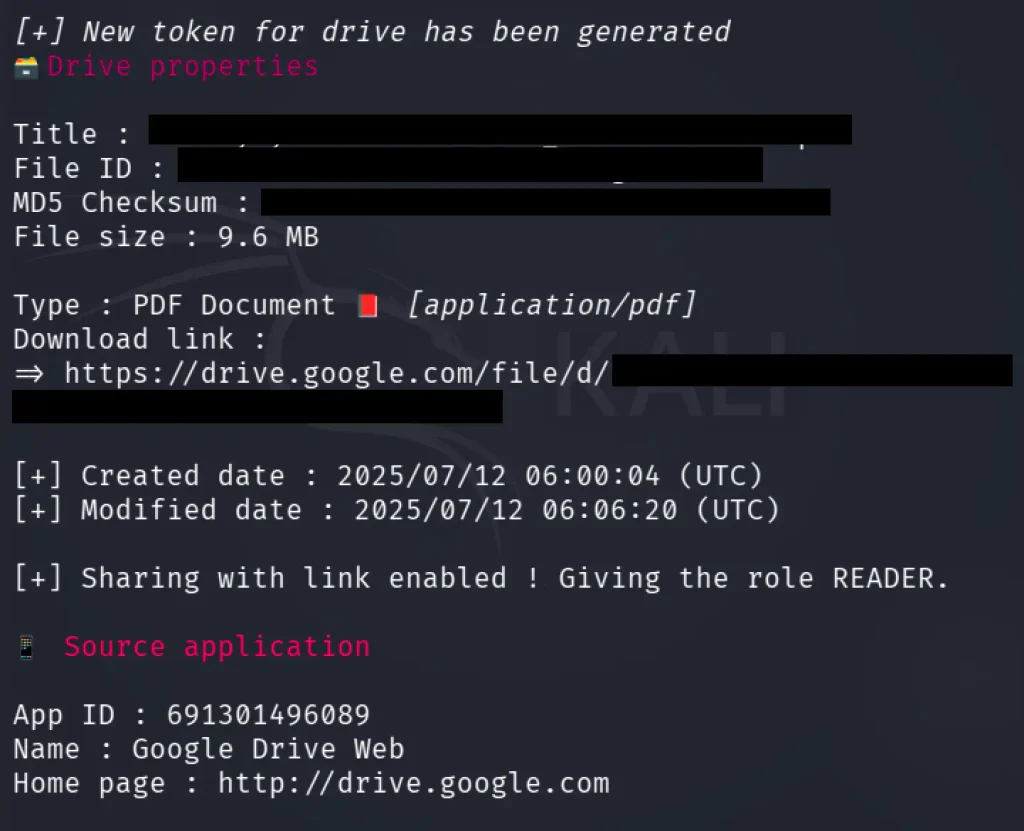
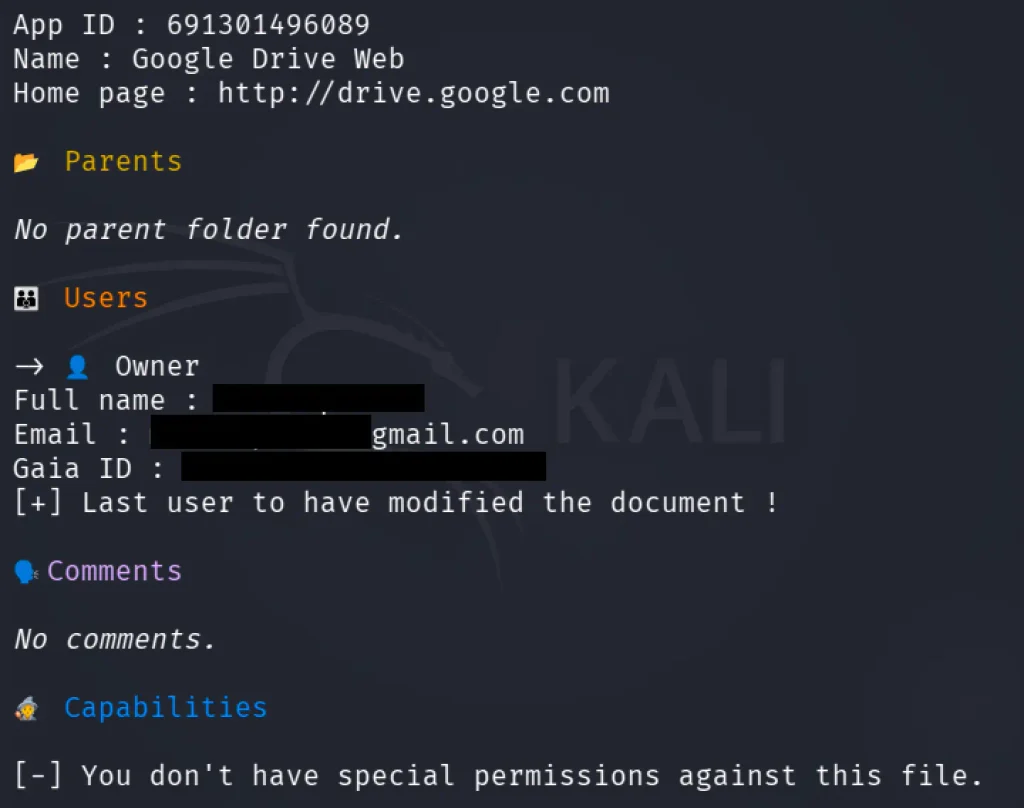
Here we can see that we found the timestamp and even the source application details. By scrolling down, we can see who the owner of the file is.

Pretty useful, I think.

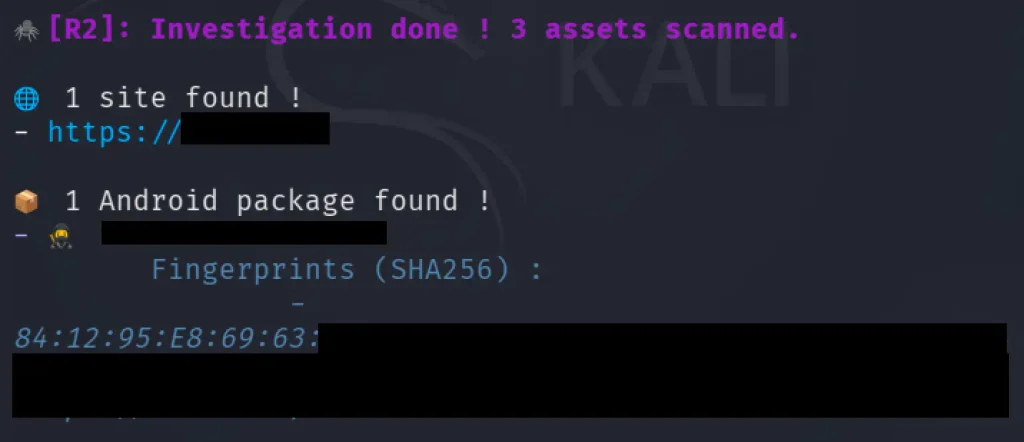
Next, the module is geolocation of BSSID. But it returns approximate positions, and it won’t resolve every BSSID. So let’s not focus on that and move into the last module, spiderdal. It follows Google Digital Asset Links declarations to identify related web or Android app assets.

kali> ghunt spiderdal -u <domain>

Crawled the domain looking for Google-related data and confirmed the website itself. It discovered that the official Android app domain is tied to a domain and extracted the app’s SHA-256 signing certificate fingerprint.

Summary

A Google account is primarily designed to give users access to Google services. Over time, as a person stores more of their digital life within the Google ecosystem, the account accumulates a large amount of information that can be highly valuable for OSINT investigations. Tools like Ghunt provide a convenient way to access and analyze some part of that information. I recommend testing Ghunt, as it may earn a place in your OSINT toolbox.

If you’re looking to enhance your OSINT skills, consider exploring OSINT training. If you need assistance in uncovering the truth, don’t hesitate to reach out to us at hackers-arise@protonmail.com, and we’ll conduct a comprehensive OSINT investigation for you.

The post Open Source Intelligence (OSINT): Investigating Google Accounts with Ghunt first appeared on Hackers Arise.
Linux: PowerView for Linux – How Hackers Enumerate Domains

Welcome back, aspiring cyberwarriors!

PowerView is one of those tools that has become almost legendary in the world of Windows security. Originally it existed as PowerView.ps1, a script built to enumerate and understand Active Directory environments from the inside. It is used to ask the domain controller all kinds of questions and get detailed answers about users, computers, groups, privileges, relationships and sometimes even weaknesses.

The problem with the original script is that it only runs on Windows and every AV detects it. That’s why powerview.py was created.

OTW always stresses that recon is everything. Active Directory was not really designed to hide internal structure. Any authenticated domain users can enumerate almost everything inside the domain. Many junior pentesters feel lost when they first land inside a domain and aren’t sure what to do next. If that sounds familiar, this article is for you.

What If?

There are two issues you may encounter when working with powerview.py.

The first problem is credentials. Powerview.py requires valid domain credentials. So what happens if you do not have them? This is where MAQ, or Machine Account Quota, becomes important. By default, every user in Active Directory is allowed to create up to ten machine accounts. These machine accounts can authenticate to the domain and can therefore be used for enumeration. So if you have a shell or an RCE you simply create a machine account with a password and then use that account with powerview.py to log in. Some Active Directory setups are misconfigured and allow you to enumerate things anonymously.

The second problem is platform compatibility. Sometimes the machine you compromise is running Windows with no Python and a centrally managed antivirus you can’t disable. Other times you land on a sensitive Linux production box where installing tools isn’t an option. In those cases a reverse proxy tunnel is often the best solution. You can create one on Windows or Linux with this command:

ssh -R 1080 user@vps -Nf

Then you route traffic through port 1080 on your server using proxychains.

Setting Up

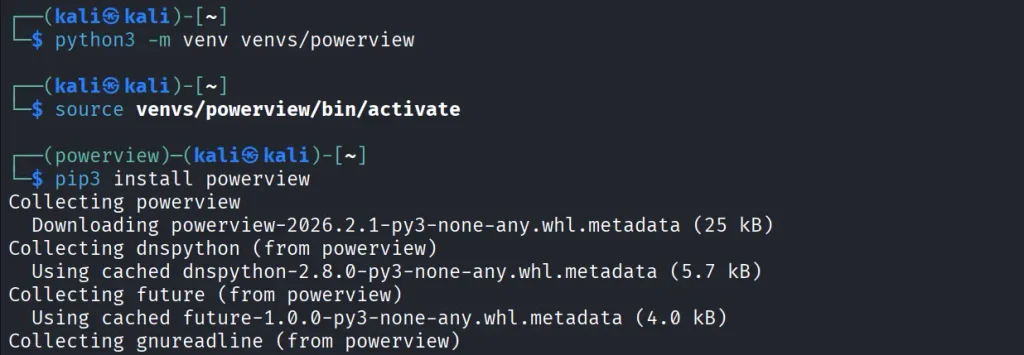
Let us prepare the environment for powerview.py. There are several ways, but this method works on most Linux systems:

kali > python3 -m venv venvs/powerview
kali > source venvs/powerview/bin/activate
kali > pip3 install powerview

Once you complete installation, you can connect to the domain controller.

Connection

Connecting to the domain controller is very flexible. You can authenticate using a password, an NTLM hash or even a PFX certificate:

With a password:

kali > powerview domain.local/lowpriv:Password123@192.168.1.12

With an NTLM hash:

kali > powerview domain.local/lowpriv@192.168.86.192 -H NTLM

With a pfx file:

kali > powerview 10.10.10.10 --pfx administrator.pfx

Capabilities

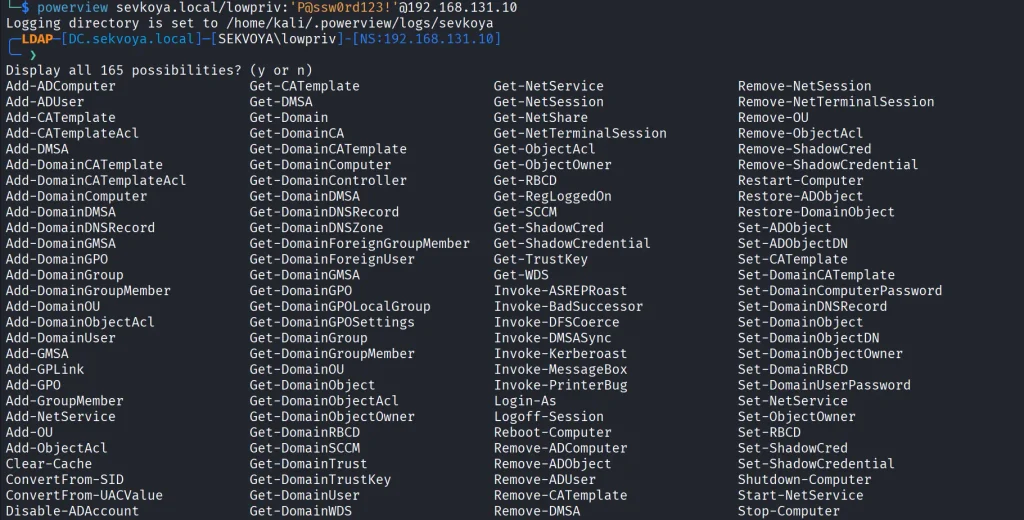
At this point you can explore everything powerview.py can do. Pressing Tab twice lists the available commands. If you’ve used PowerView.ps1 before, you’ll recognize a lot of the names and patterns, though some commands are different. Powerview.py doesn’t include every feature from the original script, but there’s more than enough to fully map a domain.

Every command contains a help section that explains available flags.

PV > Get-DomainComputer -h

Computers

In Active Directory, computers are objects just like users. Each one can have different permissions or roles. Certain misconfigurations can make certain computers valuable to attacks. Here’s how to list all enabled computers vulnerable to unconstrained delegation:

PV > Get-DomainComputer -Enabled -Unconstrained

Even small organizations usually have complex internal structures. You can count all enabled computers like this:

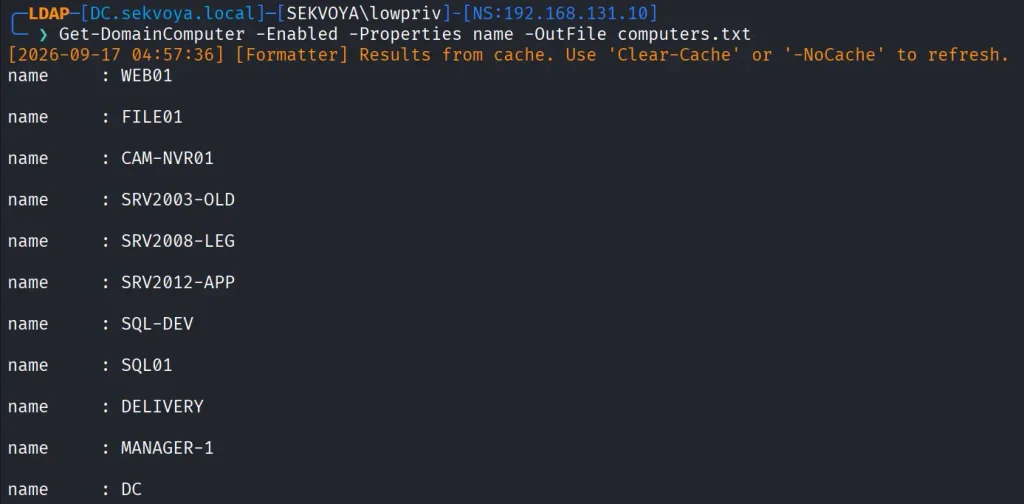
PV > Get-DomainComputer -Enabled -Count

Just 11 computers in our lab. Hackers usually export the names of all those computers and then ping them to get their IPs. That way they get a list of real computers rather than a mix with computer accounts. Exporting computer names looks like this:

PV > Get-DomainComputer -Enabled -Properties name -OutFile /root/computers.txt

You can also pull detailed information about a specific computer:

PV > Get-NetComputerInfo -Computer NAME

Older Windows versions are especially valuable since they often lack modern protections and are still running as critical production systems.

Users

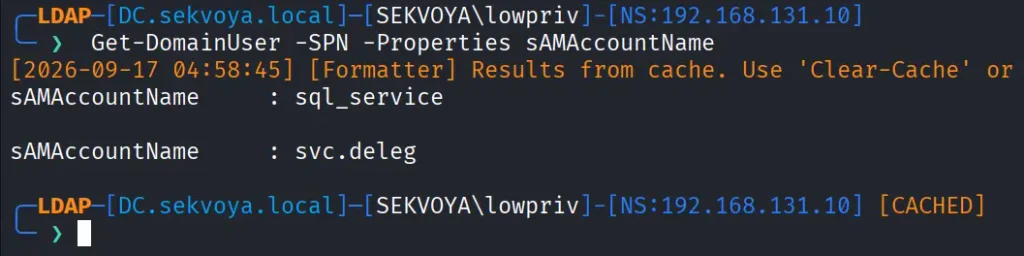
We can enumerate users too. This command shows users with SPNs configured, meaning they’re vulnerable to Kerberoasting:

PV > Get-DomainUser -SPN -Properties sAMAccountName

Privileged users shouldn’t have SPNs unless absolutely required, and if they do, the passwords need to be really strong.

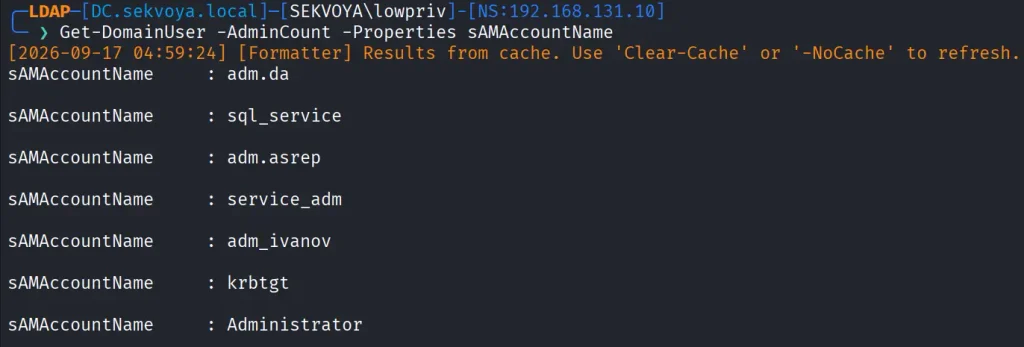
You can also list users with AdminCount, which usually marks privileged or protected accounts:

PV > Get-DomainUser -AdminCount -Properties sAMAcountName

Groups

Groups control privilege assignment. You can list all groups like this:

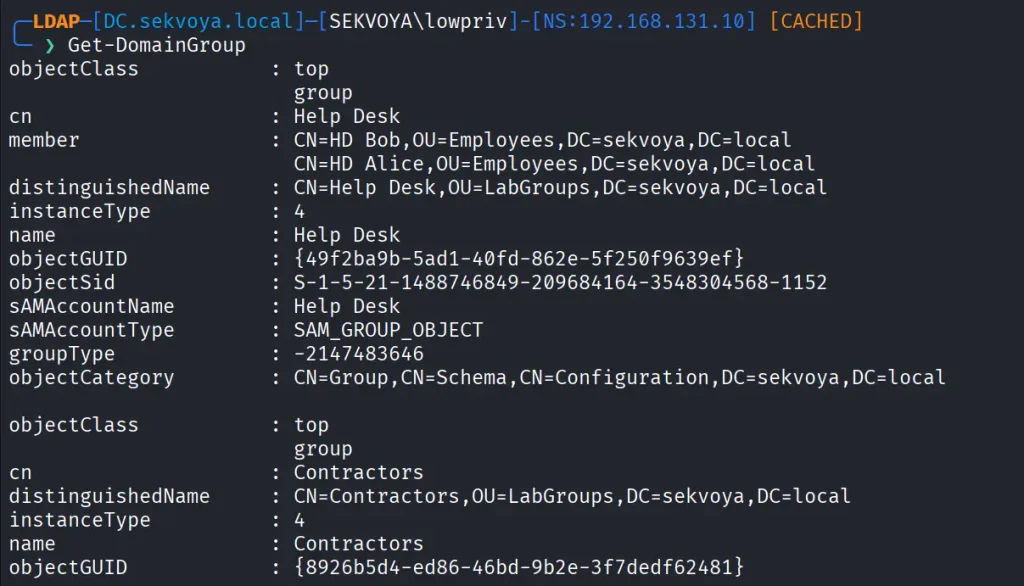
PV > Get-DomainGroup

To find a specific group:

PV > Get-DomainGroup -Identity “Remote Desktop Users”

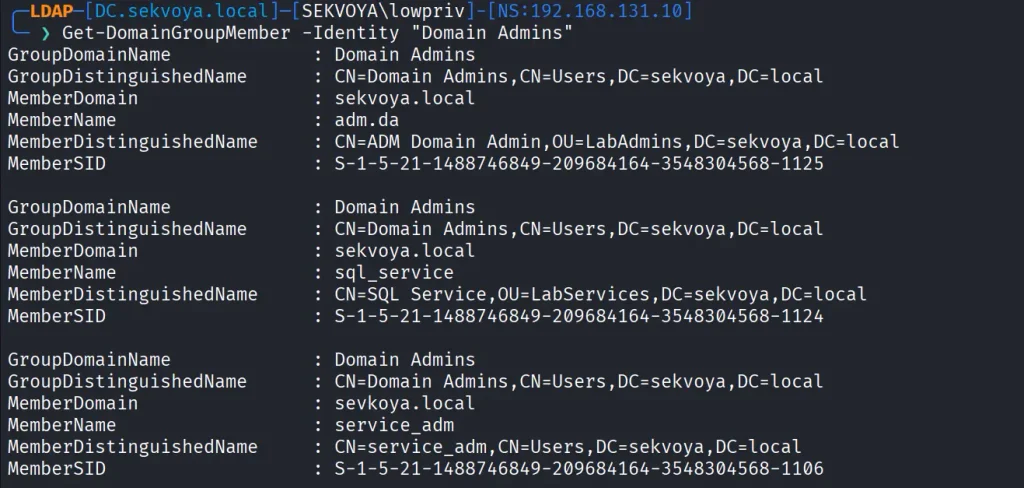
Hackers always check the members of Domain and Enterprise Admins:

PV > Get-DomainGroupMember -Identity "Domain Admins"

Login Sessions

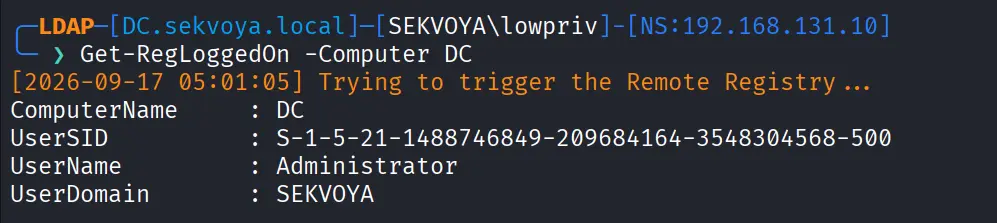
Windows supports enumeration of logged on sessions through the registry. You can list currently logged on users.

PV > Get-RegLoggedOn -Computer IP/NAME

This becomes really useful when you have admin rights and are waiting for a privileged login.

Shares

A lot of sensitive files live on network shares. To enumerate them:

PV > Get-NetShare -Computer IP/NAME

Exchange Servers

You can also enumerate Exchange servers with:

PV > Get-ExchangeServer -Properties cn,serialNumber

Exchange remains a high value target. It has certain privileges that can help hackers abuse it and escalate in the domain. On top of that, it has a long history of vulnerabilities like ProxyShell, which let hackers get in without valid credentials.

Vulnerabilities

PowerView also finds certain vulnerabilities automatically in its output, so you can quickly spot misconfigurations.

Summary

These examples are only a small part of what powerview.py can do. The tool also supports DFSCoerce, PrinterBug, and several Kerberos related attacks. The amount of information you can pull with just a low privileged account is enormous. That’s why we strongly recommend powerview.py for both defenders and red teamers.

Recon might not feel exciting at first, but it’s the true foundation of effective security work. When you learn to listen to what the domain is already telling you, the path forward becomes a lot clearer.

If you want to advance your Linux skills in a penetration testing environment, or you’re planning to take the OSCP exam, you need to get creative with how you use your Linux machine. We offer our Advanced Linux for Hackers training.

The post Linux: PowerView for Linux – How Hackers Enumerate Domains first appeared on Hackers Arise.
Open Source Intelligence (OSINT): Gathering Information on Discord Users

Welcome back, aspiring cyberwarriors and OSINT investigators!

During the OSINT investigation, we might find a situation where a target has a presence on the Discord platform. According to Demadsage, there are 259 million monthly active users on Discord. Therefore, leaving this source of intelligence would be unwise. But unlike regular social media, Discord’s data is kept in semi-private “servers,” so investigators have to engage actively and correlate the data rather than just observe through third-party tools. And this requires more investment in tools and awareness of visibility risks.

Therefore, in this article, we will explore the first steps to get started with OSINT on Discord users. Let’s get rolling!

Step #1: Search Architecture

Discord has powerful built-in search, which acts like a localized “Dorking” system. To get started using it, we just need to click on the top-right search form. As you can see below, it has 4 core operators for filtering.

OperatorFunctional LogicInvestigative Application
from:Filters messages by a specific user.Isolate the entire chat history of a person of interest to map behavioral patterns and communication style.
has:Filters for specific message contents (link, file, video, image).Intercept high-value artifacts.
in:Limits search to a specific channel.Filter the investigation to high-signal channels like #introductions or #portfolio
mentions:Filter messages by mentioned userCheck who communicated with a mentioned user


Besides that, Discord offers 3 more filters after clicking “More filters”.


This built-in search serves as a good start for investigation. Just by writing a good query, you can sort through tens of thousands of messages. And sometimes, even find leaked access credentials.


Another important thing here is the images. Sometimes folks shared photos from their college graduation years ago or a first-day-on-the-job photo. Or even some family photos. Therefore, even with simple search filters, a lot of interesting data can be found.

Step #2: Linked Accounts

One of the easiest ways to find the real name of a Discord user is to look into linked accounts. Originally, Discord was built for gamers, and these linked accounts were intended to share in-game status and activities. But eventually, the list of supported services grew very long, and now users can connect their Facebook, GitHub, and even PayPal accounts.

In the screen above, we can see a list of services and a YouTube channel, which appears to be a real name.

Step #3: Server Nicknames

In Discord, every user can create a different username for every server they join.

This is useful because users might set up their real names or provide additional information for the investigation on other servers. To check it, just click “View full profile” and then the three dots.

Step #4: Discord ID

A Discord ID is a unique 18-digit number, and everyone has one. Users, messages, servers, and even bots all have one. The advantage of this is that while a username can be changed, a user’s ID cannot. Discord, in turn, uses these IDs to store all user data, including the history of name changes.

To find a Discord ID, all we need to do is enable developer mode. To do this, click the gear icon next to your name (in the lower-right corner), and in the settings menu that opens, look for the “Developer” section. There, enable “Developer Mode.”

Now find the user you’re looking for and click on their name. An actions menu will open; you’ll see three dots. Click on them, and you’ll see the “Copy User ID” button.

Step #5: Cord.Cat Tool

After gathering the user’s ID, we can move into the usage of dedicated tools for Discord OSINT. One of them is the Cord.cat website. The core function of Cord.cat is resolving a Discord “snowflake” (the numeric user ID) into a complete, sourced picture of the account. But beyond basic profile data, the platform checks for breaches, FiveM records, and DSA sanctions. To get started, we just need to enter the user’s ID on the website. You will see output like below.

Here we can see that this account wasn’t found in breaches; there are no sanctions, etc. On the left, we can see the account creation date and links to download the avatar, decorations, and nameplate. By scrolling below, we can see more info.

We can see that the user has a low risk score according to the assessment. If we scroll down, we can see additional information like this.

We can see servers where this user is joined, and we can see whether this ID has an account on Discord-related websites.

Summary

Discord has huge potential for OSINT. Especially if we look into it not just as a communications channel for gamers, but as a tool for a wide range of people, where there are even cases when companies use this tool for employee communications. Although it has semi-private servers, with the correct approach, this social platform can provide good intelligence.

If you’re looking to enhance your OSINT skills, consider exploring OSINT training. If you need assistance in uncovering the truth, don’t hesitate to reach out to us at hackers-arise@protonmail.com, and we’ll conduct a comprehensive OSINT investigation for you.

The post Open Source Intelligence (OSINT): Gathering Information on Discord Users first appeared on Hackers Arise.
Artificial Intelligence in Cybersecurity, Part 26: OpenPlanter for OSINT Investigations

Welcome back, investigators!

Some things just lie on the surface, while others take time to find. In OSINT, finding the right data often means digging deep. Before you reach a conclusion, there must be solid evidence to support it, and data acquisition is always the most time consuming part of this process. The success of your investigation depends on how well you can find information and connect the dots.

OpenPlanter can automate part of this process. 

OpenPlanter

Essentially, OpenPlanter is a recursive language model investigation agent. It ingests different kinds of data, which can be corporate registries, campaign finance records, government contracts and more. It then resolves entities across them and surfaces connections through evidence-based analysis. You can also use it to build profiles of individuals based on publicly available information.

OpenPlanter has both a desktop GUI and a terminal interface. The second one is more convenient.

Setting Up

The setup process is quick. We just need to create a Python environment that will host the needed libraries. 

kali > git clone https://github.com/ShinMegamiBoson/OpenPlanter.git
kali > cd OpenPlanter
kali > python3 -m venv venv; source venv/bin/activate
kali > pip install -e . 
setthing up the tool

Once it’s done, we need to give it our API keys. 

To make web searches, OpenPlanter needs the Exa API. Exa is cheap to use and gives free credits for new accounts, so you don’t have to pay upfront. OpenRouter API is also needed to run the tool. OpenRouter has free AI models, but there is a daily usage limit. Make an account there and get your free API key. 

To configure keys, run this command and paste them: 

kali > openplanter-agent --configure-keys
configuring the api keys

At this point, you can use the tool.

Using OpenPlanter with OpenRouter

The daily API usage limit is enough to run a couple of basic tests, like the one below.

kali > openplanter-agent --task “Find recent security breaches affecting Apple” --provider openrouter --model openrouter/free
testing with openrouter

OpenPlanter will use Exa API key to find information. Without Exa, it burns tokens faster and gives incomplete results. 

Normally, the tool saves the results in a text file in the current directory, but it doesn’t always happen. Be careful and make sure you don’t lose anything. 

Here is our first report.

reading report on Apple's breaches

To make things more interesting, we asked it to find a complete list of Tatneft executives. Tatneft is one of the largest oil and gas companies in Russia.

tatneft executives

The report was well organized, but all this information is readily available on the internet, due to the size of the Russian company. 

When it was asked to find more information on a specific person from the list above, it struggled to find much and ended up with some generic data and a wrong social media account. Well, maybe that person is hard to find, so we gave it a second chance and picked a unique name from the same list: Nail Ulfatovich Maganov.

kali > openplanter-agent --task "Find as much information as you can on Nail Ulfatovich Maganov who works at Tatneft. If possible, find his Vkontakte, phone number, address, email and check if his email has been in data leaks. Save the results in a text file" --provider openrouter --model openrouter/free

The results can be seen below. OpenPlanter did find his LinkedIn account and extracted information from various places. 

tatneft report on an executive

finding infromation in the OpenSanctions records

It also found OpenSanctions records associated with Nail Maganov. 

But he is a well known figure in Russia. What about regular employees at a large Russian company? We will use Sibur for this example. Founded in 1995, it’s Russia’s largest petrochemical company.

We tried two individuals. During the first attempt, the tool didn’t find the correct person. After the second attempt with a different employee, it gave the results. 

finding information on employees

finding information on employees

It found Svetlana’s position (Head of HR). This information was in her LinkedIn account. The rest of the information deserves further validation. Keep in mind, Russia has undergone a massive data blackout, systematically dismantling its open data and public statistics infrastructure. No wonder it’s hard to find things there.

Using OpenPlanter with Ollama – Locally

OpenPlanter’s own docs push toward frontier models (GPT-5.2, Claude Opus 4.6, Cerebras Qwen3-235B), because the whole process is quite demanding. Small local models will be noticeably weaker. But we still gave it a try. The first model was Qwen3:0.6B and its first attempt didn’t produce any results. After the second attempt, it found recent vulnerabilities that Windows had.

finding recent vulnerabilities that Windows had with local ollama model

We also tried it with Qwen3:4b, but it produced absolutely irrelevant data in its response. 

testing qwen3:4b

We didn’t stop here and tried it again. The results were still irrelevant. Instead of making a report on Mikhail Karisalov (CEO of Sibur) it spoke about something else. 

Using OpenPlanter with Ollama – Remote Servers

If you decide to rent a server with good hardware to test other models, don’t waste your time on it. We tried various models, but none of them worked well. OpenPlanter calls a model, the model replies and then it fails. The output can be seen on the screen.

Here is an example with Qwen3.6:27b. Qwen3.6:35b had the same issue.

testing remote ollama models

We also tried Ornith:35B.

testing remote ollama models

These models support thinking and tooling, but they can’t really do much in this case. 

Terminal Interface

It’s also important to mention that there are two ways you can use OpenPlanter in the terminal. So far, you’ve seen only one. If you’re more comfortable with a chat interface, you can use the second option.

kali > openplanter-agent --provider openrouter --model openrouter/free
terminal ui

Here you run your prompts and tweak the tool using the available commands.

Summary

After testing the tool in various ways, we came to the conclusion that it works reliably only with OpenRouter. That’s what gave us the best results. The developers also push towards frontier models or OpenRouter. The whole process of investigation relies heavily on the Exa API. Using it with Ollama models hosted externally (VPS) will not work, as it fails silently even if you select a supported AI model. 

The tool might confuse people, especially if their names are common and their social media profiles are empty. Everything it finds deserves validation. Occasionally, it may check the results, marking them HIGH, MEDIUM or LOW depending on its confidence. It doesn’t always do it, but this can be fixed if the prompt explicitly asks for it. Most importantly, OpenPlanter can still save you time.

Learn more with our AI for Cybersecurity training. During the training, we’ll show you different ways of using AI in cybersecurity, set up local models and solve tasks with it.

The post Artificial Intelligence in Cybersecurity, Part 26: OpenPlanter for OSINT Investigations first appeared on Hackers Arise.
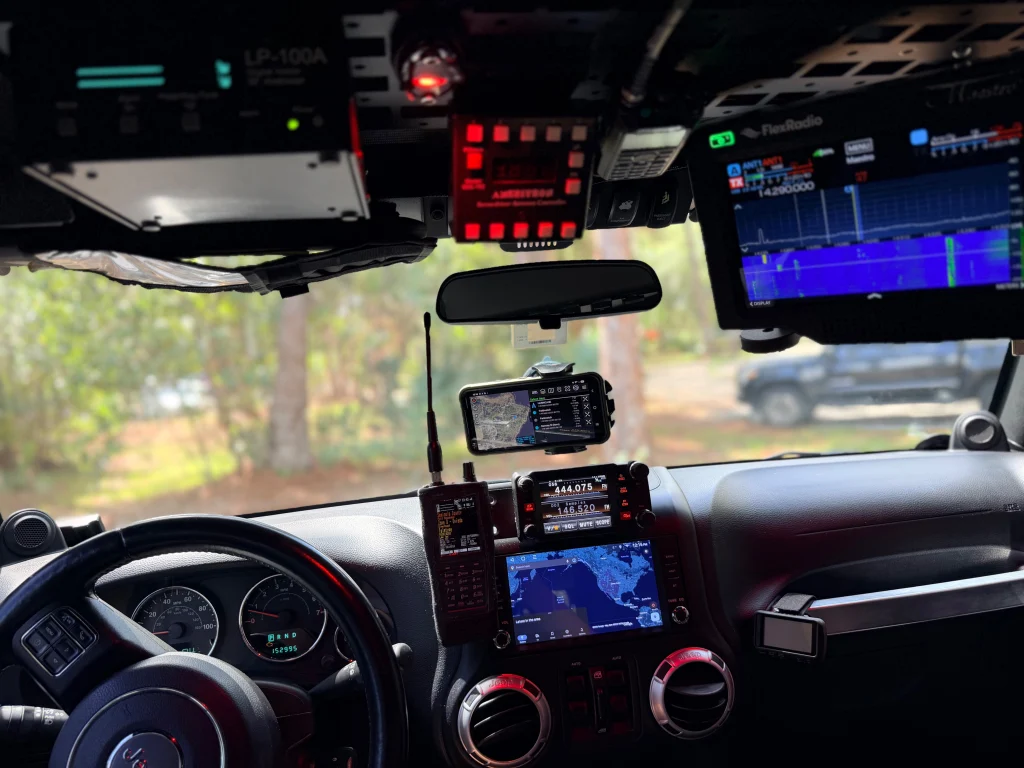
Open Source Intelligence (OSINT): Is Tsurugi Linux the Most Powerful OS for OSINT?

Welcome back, aspiring cyberwarriors!

Imagine this: you need to keep tabs on a sketchy person who may be involved in fraud. You’ve got some info about them and access to a laptop, ready to dive into your investigation. But as you start digging, you realize your system is missing the right tools for an OSINT investigation. Sure, you could set everything up on Kali Linux or Parrot OS, but that could take hours.

That’s where Tsurugi Linux comes in. In this article, we’ll break down what Tsurugi Linux is, how to get it installed, and what cool features it brings to the table for OSINT investigations. Let’s get rolling!

What is Tsurugi Linux

Many newcomers to open-source intelligence often turn to Kali Linux or Parrot OS as their first specialized distributions, and both are effective tools. However, neither was specifically designed for OSINT purposes. Kali Linux, for instance, is primarily an offensive penetration-testing platform. While it includes some OSINT utilities, its main focus is on exploitation rather than investigation. This is where Tsurugi Linux comes in.

Tsurugi Linux is a free and open-source Linux distribution specifically tailored for incident response and OSINT investigations. Its name, inspired by a Japanese double-bladed sword, reflects its dual emphasis on active intelligence gathering and passive forensic analysis. Tsurugi addresses the challenge of consolidating and curating over 300 specialized tools, thereby saving users the tedious process of installing and configuring each tool individually on a generic system. Instead, Tsurugi provides a pre-packaged, user-friendly environment organized by investigative categories, allowing users to become productive in just hours rather than days.

The Three Flavors of Tsurugi

Before downloading anything, it’s important to understand that Tsurugi is available in three distinct forms, each serving a specific purpose. Tsurugi Linux LAB is the full 64-bit distribution that we will focus on in this article. It includes the complete toolkit and is designed to be installed on a dedicated machine or run in a virtual machine for hands-on analysis and OSINT investigation.

Tsurugi Acquire is a lighter 32-bit version that contains only the essential tools needed for live disk acquisition.

Finally, BENTO is a portable forensics toolkit that you can carry with you and run directly from a USB device, allowing you to conduct live investigations on machines that cannot be taken away.

For getting started purposes, Tsurugi Linux LAB is your target, and you can find the latest ISO image on the official project website at tsurugi-linux.org.

How to Install Tsurugi Linux

In this demonstration, I will install Tsurugi Linux on VirtualBox. To get started, we need to download the latest ISO image from the website and create a new virtual machine based on it.

It is recommended to allocate at least 4 gigabytes of RAM and 60 gigabytes of disk space during the creation process. Once this is done, you can boot the machine. A desktop like the one shown below will welcome you.

First Look

When you boot for the first time, you will see the MATE desktop environment. The taskbar at the top offers quick access to files, an application launcher, a web browser, and a terminal emulator named Terminator.

When you open the Applications menu, you will notice a typical range of categories. Like most distributions, it includes programs for internet browsing, programming, office tasks, various media players, and other standard software that is unlikely to surprise anyone. However, our main focus is on the first item in the menu, labeled TSURUGI.

The top-level categories include OSINT, Memory Forensics, Malware Analysis, Network Analysis, and others. We will not delve into specific tools here; some have been covered in previous articles, and we will address others that haven’t been discussed yet, provided they warrant our attention.

The Tsurugi Browser

Tsurugi Linux ships with a well-known version of the Firefox browser, preinstalled with extensions.

Let’s take a look at some of them.

Tampermonkey is a browser extension that enhances your browsing experience by allowing you to run userscripts on websites. Userscripts are small programs that modify page layouts, add or remove features, and automate actions to personalize your web experience.

DNSlytics lets you retrieve information about a domain, including WHOIS data, DNS records, and more.

NoScript is a browser extension that enhances online security and privacy by blocking JavaScript, Flash, Java, and other potentially harmful content on websites, only allowing execution from sites you explicitly trust.

Additional Features of Tsurugi Linux

The developers of Tsurugi Linux have worked hard to ensure that the operating system is as versatile as possible, making it suitable for a wide range of situations. To achieve this, they have included a vast array of utilities. Notably, they have highlighted OSINT (Open Source Intelligence) as a distinct category that has received special attention.

A dedicated OSINT profile has been introduced, and you can activate it by selecting the OSINT Switcher on the desktop or in the menu. Once enabled, most sections unrelated to OSINT will be removed from the menu, leaving only the relevant options you might need. Additionally, the wallpaper will change to provide a visual indicator of the active profile, ensuring you won’t confuse it with others.

Another valuable feature is the Write Blocker. This is an extra layer of protection against any malicious activity. The external storage device, such as a USB flash drive, will only be accessible in “read-only” mode when connected. To enable writing, select the TSURUGI device unlocker on the desktop. Then, in the window that opens, select the desired device and click “Unlock.”

Summary

Tsurugi Linux is a great choice for beginners starting with OSINT or digital forensics. It provides a friendly and well-equipped environment. While it won’t make you an expert right away, it will help you learn OSINT more quickly.

If you’re looking to enhance your OSINT skills, consider exploring our OSINT training. If you need assistance in uncovering the truth, don’t hesitate to reach out to us at hackers-arise@protonmail.com, and we’ll conduct a comprehensive OSINT investigation for you.

The post Open Source Intelligence (OSINT): Is Tsurugi Linux the Most Powerful OS for OSINT? first appeared on Hackers Arise.
Open Source Intelligence (OSINT): Finding Leaked Secrets with TruffleHog

Welcome back, cyberwarriors! 

You’ve probably seen people committing their env files to GitHub without noticing it. When you’re looking for a job as a coder, that mistake alone is significant enough to get you rejected if it happens during the technical portion. And if it ever happened to you, it’s happened to plenty of others too.

Today we’ll look at TruffleHog. It’s a tool that scans Git repositories and their full history for secrets that got committed by accident. It uses high entropy checks with custom regular expressions to catch strings that look like API keys, tokens, passwords and other sensitive data. You can point it at one repository or use a GitHub or GitLab API to hit a lot of projects in one go.

A developer can delete a key from the latest commit, but it will still live in Git’s past. With those credentials, you access services without making much noise.

Installation

First install git-dumper and TruffleHog. The Python package and the GitHub release are not the same, so pay attention to which one you’re on.

kali > pip3 install git-dumper  
kali > pip3 install trufflehog

We’ll use git-dumper when we find an exposed .git directory and then run TruffleHog against that dump. Leaked .git folders are still common.

Dump a Repository

Some servers leave the entire .git directory open. Below you can see a website where it was fully accessible.

viewing exposed git directory

Dump it by giving git-dumper the URL and a local folder for the files.

kali > git-dumper http://example.com/.git dump
dumping exposed git directory with git-dumper

Other websites block the directory listing but still serve some of the files.

Git-dumper can pull every object, commit and reference it can reach.

kali > git-dumper http://example.com/.git/  dump

Everything will be stored in the dump folder.

Analyzing the Repositories

Once the dump is on disk, run TruffleHog against it. By default it runs entropy-based matching. That can help, but it shouldn’t be the only mode you know. In our case, regex with entropy off gave us more results. 

kali > trufflehog --regex --entropy NO dump
experimenting with tufflehog flags

discovered credentials with trufflehog

In one of the files we found database credentials.

You can also install TruffleHog from the GitHub release and scan the filesystem directly:

kali > curl -sSfL https://raw.githubusercontent.com/trufflesecurity/trufflehog/main/scripts/install.sh | sh -s -- -b /usr/local/bin 

kali > trufflehog filesystem /home/kali/Documents/dump  
trufflehog filesystem mode

This build is fine for tuning your scans, but it often makes more noise and false positives, so just be aware of it.

Other Ways to Analyze Repositories

Depending on which build you’re using, try these flags to change what you get in the output.

Scan a repo for verified secrets:

kali > trufflehog git https://github.com/trufflesecurity/test_keys --results=verified,unknown
scanning for verified secrets with trufflehog

Verified means TruffleHog checked these finding live against the service API (AWS, GitHub and so on). Unknown is both high entropy and regex hits that it couldn’t confirm.

Same scan with JSON output:

kali > trufflehog git https://github.com/trufflesecurity/test_keys --results=verified,unknown --json
scanning all repos of an organization with trufflehog

Scan a GitHub repo including issues and pull requests:

kali > trufflehog github --repo=https://github.com/trufflesecurity/test_keys --issue-comments --pr-comments  
scanning issues comments and pull requests with trufflehog

finding gems with trufflehog

That digs into issues, comments, PR bodies and comments. You can find leaks in discussions too.

Scan a local Git repo:

kali > trufflehog git file://test_keys --results=verified,unknown  

Useful when you’ve compromised a dev Linux machine with multiple projects on it. There’s a better chance of finding something locally than pushed to GitHub, although both can happen, as you now know.

Summary

We had an external pentest where several services were accessible but no credentials could be found. Surprisingly, some developers had kept projects they were doing for the company publicly accessible on GitHub. Eventually we found a working pair and got into a database.

TruffleHog can be really helpful here. Sensitive files sometimes get exposed without the publisher even knowing it. We’re humans and we make mistakes. Offensive or defensive, the point is the same.

The post Open Source Intelligence (OSINT): Finding Leaked Secrets with TruffleHog first appeared on Hackers Arise.

Bluetooth Hacking and Security: The WhisperPair Exploit and Bluehood Surveillance

Welcome back, aspiring cyberwarriors!

Bluetooth is often seen as something short range and therefore harmless. Many people think that because it only works over a limited distance, it must also be secure by design. But that’s not true. Bluetooth is convenient, but convenience often comes at the cost of security and privacy. A big number of vulnerabilities show that Bluetooth devices can expose much more information than many realize. At a technical level, they constantly announce their presence to the surrounding environment. Even when you are not actively using them, they still send small pieces of data. Over time these pieces form patterns that show detailed information about people’s lives.

Hackers can take control of devices, pair with them without permission and even use them as remote listening tools. In other cases, simply listening is enough. 

WhisperPair Vulnerability

In January 2026, researchers from KU Leuven disclosed a critical Bluetooth vulnerability known as WhisperPair (CVE-2025-36911). This vulnerability affects hundreds of millions of Bluetooth audio devices, including headphones and headsets that rely on modern pairing mechanisms. The attack takes advantage of a feature called Fast Pair in Android. Fast Pair was designed to simplify the user experience. With a single tap users can connect their Bluetooth accessories and synchronize them with their account. It’s convenient and widely adopted.

However, some devices don’t properly ignore pairing requests when they aren’t in pairing mode. A hacker can exploit this by sending crafted pairing initiation packets to a vulnerable device. Even if the device isn’t actively trying to connect, it may still respond. Once the hacker receives that response, they can establish a normal Bluetooth connection.

whisperpair-cli
Source: WhisperPair

From that point on, the hacker gains control over the accessory. 

scanning for nearby ble devices
Source: WhisperPair

Then they can activate the microphone to record conversations. The attack works from up to 14 meters away, which is plenty for offices, cafes or public transport.

hijacking ble devices
Source: WhisperPair

This can be combined with device tracking. Some Bluetooth accessories integrate with Google’s Find Hub network, which allows lost devices to be located using nearby Android devices. If a vulnerable accessory has never been paired with an Android device before, a hacker can register it under their own Google account. In doing so, they become the “owner” of the device in the tracking system.

ble device surveillance with Find Hub
An attacker tracks the victim’s location through the Find Hub network. Source: WhisperPair

The victim may eventually receive a notification about unwanted tracking, but the alert can appear misleading. If the user’s own device is responsible for tracking, that will cause confusion and reduce the likelihood that the threat is taken seriously. Meanwhile, the hacker continues to track the device over time. It affects multiple vendors, chipsets and product lines. As a result, exploitation is likely to continue well beyond 2026.

Bluehood Scanner

Sometimes, attacks are completely passive. In February 2026, a developer released a Bluetooth scanner called Bluehood. It looks like a monitoring tool and shows how much information can be extracted from the environment without ever connecting to a device.

showing devices in bluehood

Bluetooth is almost always enabled. Phones, laptops, smartwatches, headphones, cars and even medical devices continuously broadcast signals. Bluehood listens to that data and builds patterns over time. By passively listening to this traffic over days or weeks, hackers can reconstruct behavior.

For example, you can find out when delivery vehicles arrive and whether the same driver appears regularly. You can see daily routines by tracking when certain devices appear and disappear. You can also correlate devices that are always seen together, such as a phone and a smartwatch, which likely belong to the same person. You can even determine approximate schedules when someone leaves for work or returns home.

You don’t need to buy hardware for that. In many cases, a laptop will do the job. If you want, you can get a Raspberry Pi with a Bluetooth adapter. 

bluehood alert configuration

Some devices are designed to always keep Bluetooth active. Hearing aids, for instance, rely on Bluetooth Low Energy for configuration and diagnostics. Pacemakers may also broadcast BLE signals for similar reasons. These aren’t devices that users can simply turn off.

Many cars use Bluetooth for diagnostics, driver assistance and connectivity features. Consumer devices add even more noise to the environment. Smartwatches, pet trackers and fitness equipment all give off signals. Together, they create a dense network of signals that can be analyzed.

bluehood

Bluehood works only in passive mode. It doesn’t try to connect to devices. It identifies them based on manufacturer data and BLE service UUIDs, then tracks when they appear and disappear. The tool also includes a web dashboard. It generates hourly and daily heatmaps, tracks dwell time and has filters. New devices often use randomized MAC addresses for privacy and Bluehood can detect and filter these.

Installation

You can install  the tool quickly using Docker.

kali > git clone https://github.com/dannymcc/bluehood.git
kali > cd bluehood
kali > docker compose up -d
setting up bluehood with docker

Alternatively, you can install it using package managers and Python tools.

kali > sudo apt install bluez python3-pip
kali > pip install -e .
kali > sudo bluehood

After the installation you can start the scanner.

# Start with web dashboard (default port 8080)
kali > bluehood

# Specify a different port
kali > bluehood --port 9000

# Use a specific Bluetooth adapter
kali > bluehood --adapter hci1

# List available adapters
kali > bluehood --list-adapters

# Disable web dashboard (scanning only)
kali > bluehood --no-web

Keep in mind that if you installed the app with Docker Compose, it should be accessible at http://localhost:8080.

bluehood dashboard

Collected data is stored in SQLite, and the tool can optionally send notifications through ntfy.sh when devices arrive or leave a location.

Summary

Bluetooth security is often underestimated because the technology feels invisible and low risk. That’s not the case though. There are active and passive techniques that can be used for tracking. Big cities often have listeners scattered around public places and stations, working like Bluehood. Active techniques like WhisperPair can lead to full device compromise with tracking and audio surveillance.

If you enjoy experimenting with frequencies and trying new things, we have our SDR for Hackers training. With Master OTW, you’ll learn how to use your computer and inexpensive SDR hardware to explore and hack a wide range of radio signals.

The post Bluetooth Hacking and Security: The WhisperPair Exploit and Bluehood Surveillance first appeared on Hackers Arise.
Open Source Intelligence (OSINT): Using Osiris for Global Intelligence

Welcome back, aspiring investigators!

We recently updated our article on ShadowBroker, which a lot of you liked. The latest release brought some new features and made the dashboard even richer.

But ShadowBroker is resource intensive and might need you to allocate a good chunk of resources to your VM, which not all systems have. Instead, there’s Osiris and it can do similar things without any installation. You can run it in the browser or host it on your Kali. Both versions are identical.

Osiris

Osiris is a global intelligence dashboard that aggregates live flight tracking, CCTV, earthquake monitoring, conflict zone mapping and 24/7 news feeds. It’s made to give you situational awareness across multiple intelligence domains. The tool was built with Next.js 16 and MapLibre GL and every data point is rendered via WebGL for 60fps performance even with thousands of concurrent entities on screen.

Dashboard

Let’s start with the live version. It’s available here.

The world looks busy once you enable all the data layers on the left side of the screen.

Camera Feeds

There’s a huge number of cameras available around the world that are free to access. They are usually scattered across different websites and don’t look nearly as good as they do on a map. The dashboard has integrated a big number of them, marked with green dots on the map.

Here’s a camera in Toronto. Looks empty at 5 am.

Aircraft Tracking

All kinds of aircraft and maritime vehicles can be tracked. Not only that, you can do a deep dive on the intel available for each one. Below you can see we picked a random flight over the UAE and the dashboard pulled up the company it belongs to, Tim Clark who is the CEO and some publicly known information on him.

You can do similar things with other objects on the map.

So if you’re monitoring military activity in a certain region, that can come in handy.

Critical Infrastructure

There are different data assets you can display by clicking the database icon on the right side of the screen. The data is relevant for various places, but mostly for the US.

Above you can see the critical infrastructure in New York (red) and nationwide (yellow).

Conflicts and Dangerous Zones

Wars, tensions and threats are differentiated by color and notes are assigned to each with a severity level.

Market Analysis

When someone loses, someone else wins. Osiris can do some Market AI overview, which you obviously shouldn’t take as legit advice. But you can see it does some basic analysis and warns of potential price spikes.

Satellite Tracking

All kinds of satellites are available on the dashboard and they can also be tracked. Here you can see Starlink flying over the Atlantic and Canada.

Malware Threats

Finally, you can view malware threats and attacks on the map. There was a big node in China linked to a lot of attacks, with more scattered around the rest of the country.

Hosting Locally

Although the live version is stable and its uptime is good, you might still want to run it locally. It’s pretty easy to set up:

kali > sudo apt install npm
kali > git clone https://github.com/simplifaisoul/osiris.git
kali > cd osiris
kali > npm audit fix --force
kali > npm run dev

Then it’ll be available at http://localhost:3000

Summary

As you can see, there are different platforms available for different setups. Having compared the two, ShadowBroker looks richer and more professional, but Osiris hosts a live version you can use without any installation and it already has most of what you’d want to test. The installation itself is quick and easy and the dashboard consumes way fewer resources than ShadowBroker. Test it yourself and see what you like.

You can learn more with us! Get our Cybersecurity Starter Bundle II and unlock WiFi Hacking, Python for Hackers, Radio Basics and other training.

The post Open Source Intelligence (OSINT): Using Osiris for Global Intelligence first appeared on Hackers Arise.
Open Source Intelligence (OSINT): What Open Maps and Trackers Reveal About Rail Networks

Welcome back, aspiring cyberwarriors!

Railways are probably the most talkative piece of infrastructure in the world. Unlike military installations or closed networks, most railway data is deliberately published in the open: timetables, track diagrams and network lengths. All of this exists to serve passengers, logistics companies, and researchers, but that same data turns out to be a powerful OSINT resource for transport infrastructure analysts and security researchers alike.

In this article, I will walk through a set of open tools that let you investigate the rail infrastructure of almost any country, from a static map of the tracks to the real-time position of a single train. Let’s get rolling!

Why This Matters

A rail network is the physical backbone of a country’s logistics, covering passenger traffic, freight corridors, border crossings, and industrial sidings. For an analyst, it is a source of information about the network’s topology, meaning which lines connect where, which stations act as junctions, and which branches simply end. It also reveals capacity and traffic load, since it shows how many trains actually run on a given route. Beyond that, it exposes concrete infrastructure objects such as stations, depots, marshalling yards, and industrial spur lines. Finally, it can show real-time dynamics, meaning where a specific train or tram happens to be right now.

Each tool described below covers a different slice of this picture. Together they form a fairly complete stack for railway OSINT.

Step 1: OpenRailwayMap

https://www.openrailwaymap.org

This is a derivative project of OpenStreetMap dedicated entirely to railway infrastructure. The map displays tracks broken down by electrification, gauge, and number of tracks, along with signaling equipment and speed limits through its Maxspeed layer. It also shows stations, platforms, depots, and switches, and includes an operations layer that reveals which operator a given section of track belongs to.

Step 2: NS International Station Maps

https://www.nsinternational.com/en/stations/station-maps-floor-plan

This is a catalog of floor plans for European railway stations. It is useful when you need to understand the internal layout of a specific hub, including platform positions, exits, and interchange points with other transport modes.

For an OSINT analyst, this is a natural complement to satellite imagery. A floor plan shows what you cannot see from above, such as platform numbering, service access points, and staff-only zones.

Step 3: geOps Mobility Portal

https://mobility.portal.geops.io

This is an online tracker that shows the live movement of trains and public transport across most of Europe, tied to the published timetable. On the map, you can see the current position of a service, its train number and rolling stock type, and any delays relative to schedule.

Step 4: Yandex Rasp Train Map

https://rasp.yandex.ru/map/trains

This is a similar service, but it covers Russia, Belarus, Kazakhstan, and Uzbekistan, regions that geOps does not reach.

Step 5: Wikiroutes

https://wikiroutes.info

This is a crowdsourced directory of public transport routes covering trams, trolleybuses, buses, and metro systems in cities worldwide. It is not strictly a railway resource, but it is valuable for analyzing the last mile, meaning how passengers actually get from a station into the city, and for understanding how a rail network integrates with the rest of urban transport.

Step 6: City Population, network length statistics

https://www.citypopulation.de/en/world/bymap/railways

This is a statistical resource showing total railway track length broken down by country and region.

Summary

Rail infrastructure is one of the few types of critical infrastructure where states and operators voluntarily publish an enormous amount of detailed open data, simply because passengers need it. For an analyst that means a combination of free maps, trackers, and directories can produce a picture rivaling that of commercial geospatial analytics products. All it takes is knowing which tool covers which layer of the data.

If you’re looking to enhance your OSINT skills beyond just using this tool, consider exploring OSINT training. If you need assistance in uncovering the truth, don’t hesitate to reach out to us at hackers-arise@protonmail.com, and we’ll conduct a comprehensive OSINT investigation for you.

The post Open Source Intelligence (OSINT): What Open Maps and Trackers Reveal About Rail Networks first appeared on Hackers Arise.
Open Source Intelligence (OSINT): Tracking World Events with ShadowBroker

Welcome back, investigators!

The world is moving fast and it’s hard to keep up with everything happening around us. Not long ago, news from foreign places could take days or weeks to arrive. Now it’s different. Planes, ships, satellites, news and basically everything else is indexed and on the internet. The only problem is there are so many services and this fragmentation can drain your focus fast. But all these things can be integrated into one platform that runs locally.

We want to talk about ShadowBroker today. The developers did a great job making the tool professional, so it does deserve your attention. 

ShadowBroker

ShadowBroker is an OSINT dashboard designed to collect a wide variety of public intelligence feeds into its map interface. It visualizes live information from different sources, which includes aircraft and maritime tracking, satellite orbit data, reports on world conflicts and so much more.

The developers built it using Next.js for the frontend and MapLibre GL for rendering the interactive mapping layer. FastAPI and Python are used for the backend.

Setting Up

Before we start working with the dashboard, we need to set up a couple of things first. The tool does support different OS, but we’ll use Kali. 

ShadowBroker needs Docker and Docker Compose to be installed on the system.

Here are the commands that will help you set things up:

kali > sudo apt update
kali > sudo apt install docker.io
kali > sudo systemctl start docker
kali > sudo systemctl enable docker
kali > sudo apt install docker-compose
kali > sudo usermod -aG docker $USER
kali > newgrp docker
installing docker

When you run these commands, you might be asked to restart different services. Press “Ok” and wait for the installation to complete. After the installation is complete, restart your Kali.

When your Kali boots, the Docker service should already be running. Now we can install ShadowBroker:

kali > git clone https://github.com/BigBodyCobain/Shadowbroker.git
kali > cd Shadowbroker

Once you’re in its directory, you need to run Docker commands with root privileges, otherwise it will throw an error:

kali > sudo su
root > docker compose pull
root > docker compose up -d
docker completed and installed the app

It will take a few minutes to install. Time spent on waiting really depends on you hardware and internet speed. It might take roughly 10 minutes. When Docker is done, see if ShadowBroker is up:

root > docker ps
docker ps

You should see its containers in the output. Your system will keep them running in the background every time you boot.

Dashboard

Now we are ready to test it. Make sure you have allocated enough resources to your Kali VM to let it run smoothly. Open your browser and put this in the search bar: http://localhost:3000 (or try http://127.0.0.1:3000 if it doesn’t open anything).

api keys are optional

When you open it for the first time, it will ask you for API keys. These keys are optional and you can skip this part. It will also offer you the option to hook up an AI agent to parse through the data and find correlations, but there is already enough data without it.

overview

On the left side, there is a panel with many Data Layers with information that can be enabled or disabled. They include military flights, private jets, commercial aircraft, maritime vessels, satellite tracking, seismic activity and other global monitoring feeds. The list continues to expand.

It may feel overwhelming at first to work with the dashboard, so there is a legend with icon references. You can find it at the top of the left side, it has a small book icon.

map legend

News 

News alerts appear on the lower right side of the interface, categorized by their level of importance.

news

When significant events occur in a particular region, the platform aggregates related news articles and shows them as yellow clusters on the map. You can open these clusters and see the headlines with links that lead to original sources.

news in clusters

Red clusters contain information collected from Telegram. You can see them scattered across the globe. Quite often they have media attached to them. 

telegram news in red clusters

There is also Threat Intercept, these are big banners with alerts that you see on the screen in different regions. You can click and see more detailed information

threat intercept

Military Bases

The recent update brought military bases to the map. Here are some of them near the Strait of Hormuz

military bases

Antennas and Nodes

Antennas and Metastatic nodes are also available in the dashboard. You can tune in or send a message.

antennas and nodes

Satellite Monitoring

Satellites orbiting the Earth have different purposes. Some of them are used for weather forecasting, others give us communication services. There are also some used for recon, military and scientific missions. If you enable the satellite layer, you can see them moving across the planet.

satellites

GPS Jamming

GPS jamming can happen for several reasons, including military exercises, electronic warfare operations or just experimental testing.

gps jamming

Here you can see parts of Romania being jammed near the capital.

Aircraft Tracking

The dashboard has several categories of aircraft, including military planes, tracked VIP aircraft and commercial flights.

tracking airplanes

Some aircraft are tagged with additional information that identifies their owner. The one above belongs to the government of Morocco. You can look up specific individuals in the search bar. For instance, searching for the President of the United States will show the location of his aircraft if he’s flying somewhere. 

Satellite Captures

The satellite captures are updated on a daily basis. They can be useful for environmental monitoring and weather observation.

sat imagery

You can play with different layers under Satellites to see other things. For example, here is VIIRS Nightlight by NASA.

night time sensors

Summary

OSINT is generally about connecting many small pieces of publicly available information into one thing. It’s an arduous thing to do, since you have to jump from tab to tab and find ways to piece it all together. ShadowBroker brings all that aggregated and prioritized information into one platform. The developers have been taking good care of the project for almost half a year now since they published it. New things keep getting integrated, expanding the amount of data available for analysis. Given how simple it is to set up, it’s worth giving it a shot.

If you want to improve your OSINT skills, consider our OSINT training. Those who need assistance in finding the truth, don’t hesitate to reach out to us at hackers-arise@protonmail.com. We will conduct an investigation for you.

The post Open Source Intelligence (OSINT): Tracking World Events with ShadowBroker first appeared on Hackers Arise.

Open Source Intelligence (OSINT): Track Satellite Movements with SkyOSINT

Welcome back, aspiring cyberwarriors!

Space has become a contested domain. Thousands of satellites from various nations and commercial operators now compete for limited orbital slots. The lines between peaceful and military-use spacecraft are increasingly blurred. This creates significant challenges for analysts monitoring orbital activity.

Publicly available data, mainly Two-Line Element (TLE) sets from the US Space Force, provide an object’s location and trajectory. However, these data do not clarify whether behavior is normal, has changed, or what it might indicate.

Detecting an orbital maneuver using raw TLE data requires comparing historical element sets. It also involves predicting future positions and identifying differences between predicted and actual orbits. To link any maneuver to geopolitical events, like military exercises, analysts need additional layers of open-source analysis that basic tracking tools do not provide. SkyOSINT addresses both challenges: it helps with the technical detection of maneuvers and the correlation of intelligence.

In this article, we will explore what SkyOSINT is and how to get started with satellite tracking. Let’s get rolling!

What Is SkyOSINT?

SkyOSINT is an online platform that tracks over 15,000 objects in Earth orbit in real-time. It goes beyond just showing where these objects are; it combines location data with behavioral analysis, radio frequency (RF) monitoring, and geopolitical insight. Instead of just telling you where something is, SkyOSINT helps answer tougher questions: What’s this object up to? Is what it’s doing normal? And what does that mean in a wider geopolitical context?

Space OSINT and Space Domain Awareness

Space Situational Awareness (SSA) is all about knowing where objects in orbit are located, and it has been a key focus for the military and civil sectors since the Cold War. The U.S. Space Surveillance Network has been tracking these orbital objects since the 1950s and now monitors tens of thousands of satellites, rocket parts, and debris. Until recently, though, this information was mostly used to avoid collisions and manage catalogs rather than for intelligence analysis.

Space Domain Awareness (SDA) is a bigger concept that the U.S. Department of Defense formally adopted around 2019. It goes beyond just tracking locations to also understand the status, capabilities, and intentions of objects in orbit.

Another important aspect to understand is the TLE set. The Two-Line Element set (TLE) is the standard format for describing a satellite’s orbital details. The U.S. Space Force publishes TLEs for every tracked object in its catalog. A TLE includes six Keplerian orbital elements: inclination, right ascension of the ascending node, eccentricity, argument of perigee, mean anomaly, and mean motion. Together, these explain an object’s orbit at a specific time known as the epoch. By using these elements with the SGP4 propagation model, software can predict the object’s position at any future time.

Why Maneuver Detection Matters

When a satellite maneuvers and changes its orbit by firing thrusters, it is signaling something important. The type, strength, and timing of the maneuver all hold intelligence value. Routine moves, such as station-keeping for geostationary satellites to maintain their positions, are expected and not particularly significant. However, a maneuver that alters a satellite’s orbital plane, significantly changes its altitude, or brings it close to another object could be noteworthy.

Spotting these maneuvers from public TLE data can be problematic. TLEs come with measurement noise, get updated at random intervals, and use a simplified gravitational model. It takes advanced statistics to separate genuine maneuvers from noise and to determine the direction and size of a change in velocity known as delta-v. This is a core analysis function that SkyOSINT handles.

The RF Intelligence Layer

Positional tracking tells you where a satellite is located. At the same time, radio frequency monitoring shows whether it is communicating, which frequency bands it uses, and whether those signals match what operators have publicly announced. Radio Frequency Intelligence, or RFINT, has traditionally been the area of national signals intelligence agencies. However, with accessible software-defined radio technology, even hobbyists and open-source RF monitoring have become important contributors to the field of space intelligence.

When a satellite starts transmitting on a new frequency, increases its signal strength, or is detected communicating when it should be quiet, it is showing unusual behavior that can be very significant. By combining this RF data with positional information, we can confirm whether a satellite is active, determine its operational phase, and sometimes even link its actions to events on the ground below.

Get Started with SkyOSINT

To start tracking satellites, open the website https://skyosint.io/ in your browser. You will see a webpage similar to the one below.


By scrolling down, we can see how many foreign satellites are passing over US territory and which country they belong to.


In addition, we can see the core OSINT capabilities of this tool. We’ll explore these capabilities in practice a bit later. For now, let’s check the overflight report.

SkyOSINT provides very clear statistics. As shown in the screenshot above, there are currently over 1,200 Russian satellites flying over the U.S. at the time of writing this article. Additionally, we can see satellite classifications, passes near major cities, exact times, and the most active satellites, including their names, NORAD IDs, inclinations, periods, passes, and types.

When you return to the main page and scroll down, you will also see active conflict zones and key locations.

Let’s click Ukraine to monitor.

A pop-up will appear as shown below; you can click Start Exploring.

Here we can see five satellites, represented as green dots. By clicking on them, you’ll see additional information about each one on the right side of the screen.

We can observe not only satellites but also GPS threats like jamming or spoofing.

In addition, SkyOSINT offers a dark mode and displays streets along with restricted zones. With satellite imagery, we can observe both civil and military aircraft.

Summary

SkyOSINT represents a significant advancement in making space intelligence more accessible. Previously, the ability to detect orbital maneuvers, monitor radio frequency (RF) signals, and link space activities with geopolitical events was largely held by national space agencies, defense contractors, and well-funded commercial Space Domain Awareness (SDA) firms. While the data itself has been open, the analytical tools needed to derive meaningful insights from it were not readily available.

With SkyOSINT, those analytical tools are now offered through an easy-to-use web-based platform. Analysts who are knowledgeable in this field can now monitor the behavior of over 15,000 space objects.

If you’re looking to enhance your OSINT skills, consider exploring our OSINT training. If you need assistance in uncovering the truth, don’t hesitate to reach out to us at hackers-arise@protonmail.com, and we’ll conduct a comprehensive OSINT investigation for you.

The post Open Source Intelligence (OSINT): Track Satellite Movements with SkyOSINT first appeared on Hackers Arise.
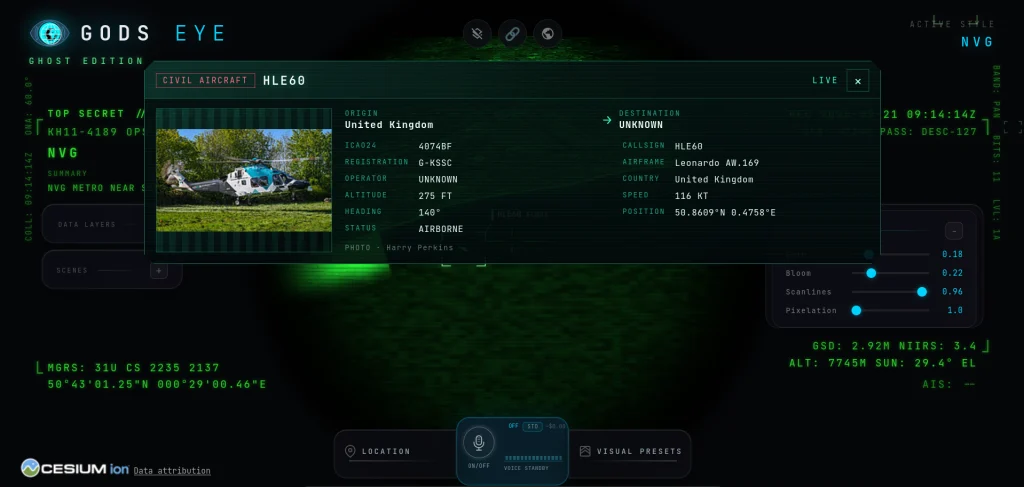
OSINT: Locating Hidden Security Cameras with Overpass Turbo

Welcome back, aspiring cyberwarriors!

In the reconnaissance phase of any security engagement, information gathering is crucial. Previously, we discussed using Google Earth Pro for investigations. Today, let’s shift our focus from satellite OSINT to map‑based reconnaissance. Many of you are already familiar with Google Maps and its alternatives, such as OpenStreetMap (OSM). But did you know that you can easily extract specific data from OpenStreetMap, like security cameras or Wi‑Fi hotspots, using a tool called Overpass Turbo?

Let’s explore in this article how to leverage this powerful reconnaissance tool.

Step #1: Understanding Overpass Turbo Basics


Overpass Turbo is accessible at https://overpass-turbo.eu and requires no installation or registration. It provides a web-based interface for querying the Overpass API, which is OpenStreetMap’s data extraction engine.

The interface consists of three main components:

Query Editor (left side): Where you write your queries using the Overpass Query Language (QL)

Interactive Map (right side): Displays your query results geographically

Toolbar (top): Contains the Run button, Wizard, Export options, and settings

When you first access Overpass Turbo, you’ll see a default query loaded in the editor. The map displays the current viewport, which you can pan and zoom to focus on your area of interest.

The Query Wizard

For beginners, the Wizard tool (accessible from the toolbar) provides a simplified interface. You can enter search terms in plain English, and the Wizard converts them into proper Overpass QL syntax. For example:

Type: amenity=atm in London

Click “build and run query”.

The Wizard generates the appropriate query syntax and executes it automatically.

As a result, we can see a map of ATMs in London.

Step #2: Writing Overpass Queries

Overpass Query Language follows a specific structure. Let’s break down the anatomy of our query built by a wizard:

[out:json][timeout:25];

// fetch area “London” to search in

{{geocodeArea:London}}->.searchArea;

// gather results

nwr["amenity"="atm"](area.searchArea);

// print results

out geom;

It already includes comments, but for better understanding, let’s dive a bit deeper.

[out:json][timeout:25] – Sets the output format to JSON and limits the server-side execution time to 25 seconds.

{{geocodeArea:London}}→.searchArea; – A macro that resolves the administrative boundary of London (its OSM relation). The result is stored in a temporary set named .searchArea for later reference.

nwr["amenity"="atm"](area.searchArea); – nwr stands for nodes, ways, and relations.

OpenStreetMap uses three element types: nodes, which represent single-point locations such as cameras or Wi-Fi access points; ways, which represent lines and closed shapes such as roads or building outlines; and relations, which group nodes and ways together to represent features such as building complexes or campuses.

The filter ["amenity"="atm"] selects all OSM elements tagged as ATMs. (area.searchArea) restricts the search to the previously defined London area.

out geom; – Outputs the matching elements, including their full geometry (geom) – points with latitude/longitude, ways with their node lists, and relations with their member geometries.

Tag Filters

The core of your reconnaissance queries are the tag filters. Tags in OSM follow a key=value structure.

node["key"="value"]

By opening the page at https://wiki.openstreetmap.org/wiki/Map_features

you can view a comprehensive list of possible keys and values. From a hacker’s perspective, you can examine the man_made key to discover surveillance‑related options.

Now, let’s edit out query and try to find out surveillance cameras in California.

[out:json][timeout:25];

{{geocodeArea:California}}->.searchArea;

nwr["surveillance"="camera"](area.searchArea);

out geom;

Now, let’s try to find data centers in Moscow.

[out:json][timeout:25];

{{geocodeArea:Moscow}}->.searchArea;

nwr["building"="data_center"](area.searchArea);

out geom;

Summary

OpenStreetMap data helps companies and independent researchers work more efficiently. And Overpass Turbo simplifies tasks such as tracking urban growth and analyzing surveillance patterns. OSINT investigators and cyberwarriors can also use it to extract precise information from OpenStreetMap’s extensive geographic database.

If you’d like to advance in OSINT, consider checking out our OSINT training class.

The post OSINT: Locating Hidden Security Cameras with Overpass Turbo first appeared on Hackers Arise.

Open Source Intelligence (OSINT): Ukrainian Hacktivists Publish Massive Database of Russian Defense Facilities and Employee Data

Welcome back, aspiring cyberwarriors!

In the ongoing war between Ukraine and Russia, the battlefield has expanded far beyond trenches and artillery positions. In previous articles, we discussed how hackers attack Russian SCADA/ICS systems, conduct reconnaissance by hacking cameras, and much more. Hacktivists operate alongside conventional military forces to degrade enemy capabilities.

Recently, Ukrainian OSINT communities have published an interactive map cataloging 6,088 Russian defense factories, complete with detailed personal information on 1.2 million employees working within Russia’s military-industrial complex. This isn’t simply a list of company names and addresses. The database includes passport numbers, phone numbers, email addresses, and home addresses for over a million individuals involved in producing everything from missile systems and ammunition to drones and electronic warfare equipment.

In this article, we will analyze this database and explore how it may assist hackers in future cyber operations. Let’s get rolling!

Fire Up the Map

To get started with the map, open the website https://map.osint-varta.com/ in your browser. The site’s default language is Ukrainian, but you can easily translate the content using the built-in translator in your browser or by using a translation plugin.

Upon opening the website, you will see an interactive map displaying defense factories.

The website catalogs 6,088 enterprises spanning from Kaliningrad to Vladivostok, including factories involved in weapon production, repairs, and support infrastructure. All these factories are sorted by 16 production sectors for precise searches. For example:

Key Component Manufacturing (1,320 enterprises) – Suppliers of critical parts like electronics and materials.

Repair, Modernization, and Maintenance (1,231 enterprises) – Facilities keeping Russia’s arsenal operational.

Radioelectronics and Electronic Warfare (420 enterprises) – Tech for jamming signals and cyber defenses.

And more, covering everything from small arms to chemical protection gear.

By scrolling down, we can see company categories organized by sector, sanction status, and risk indicators.

Let’s take a closer look at the Radioelectronics and EW category. Here, we can access a well-organized page that allows us to search for the required company.

For example, let’s explore LLC “RESONANCE” in more detail.

At the top of the page, we find a wealth of information, such as whether the company is under sanctions, what it produces, a description of the company, and other relevant details. By scrolling down, we can access even more valuable information, including employee details.

This information includes names, passport data, email addresses, phone numbers, and locations – all of which can be easily exported as a CSV file.

Additionally, in the navigation bar, we can click “Managers” to search for CEOs and founders. The webpage provides the Tax Identification Number, positions, and relationships with the companies.

If you find the lists unclear, the website also provides graphs that illustrate the relationships between the companies.

Summary

The recently published database by Ukrainian OSINT communities offers a significant resource for understanding Russia’s military-industrial complex. The interactive map provides in-depth details about each company, including employee data that could be leveraged in future cyber endeavors.

For further insights into cyber operations and OSINT, consider our Subscriber Pro training package.

The post Open Source Intelligence (OSINT): Ukrainian Hacktivists Publish Massive Database of Russian Defense Facilities and Employee Data first appeared on Hackers Arise.
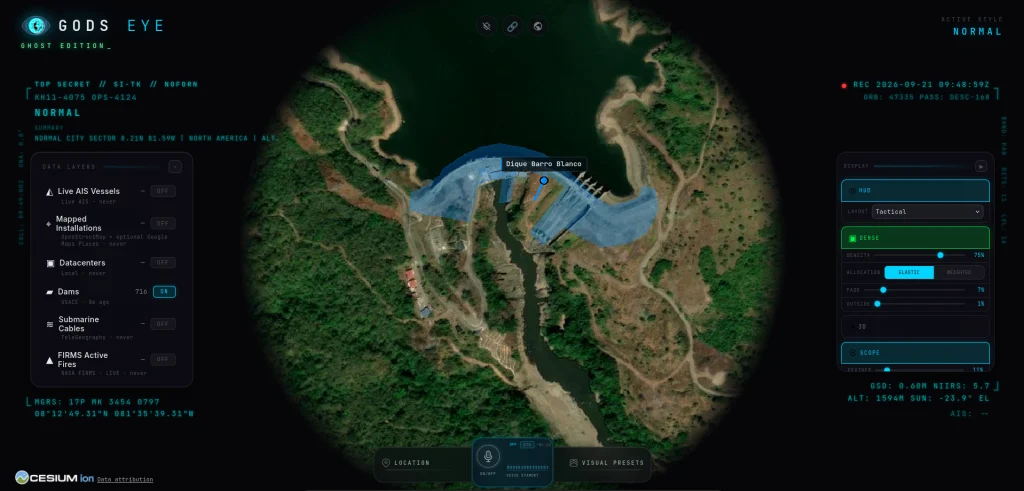
❌