
 Login
Login
Adaptix C2 Architecture: Configuring Command & Control Listeners
Welcome back, aspiring cyberwarriors!
This is the second article in our AdaptixC2 series. Last time, we talked about how to install and set things up. Now, we’re going to dig into listeners. A listener is part of the C2 framework that waits for compromised hosts to connect back and handles the ongoing chat. Making listeners can be tricky, and there’s no one-size-fits-all solution, so red teamers need to understand which protocol to use and when to outsmart modern defenses. Therefore, in this article, we’ll cover how to create listeners in AdaptixC2 and the types available. Let’s get rolling!
Generating and Configuring Listeners
To access Listeners, click the Adaptix tab with the headset icon.
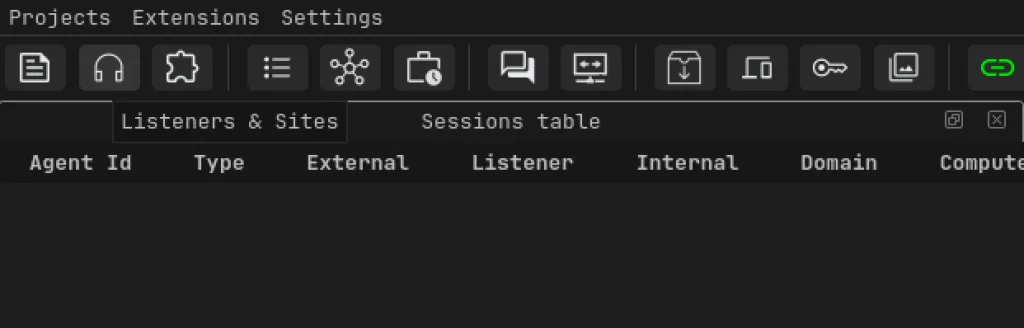
Once you’re in the Listeners tab, right-click on the console pane and choose “Create.” You’ll see a window pop up like this:
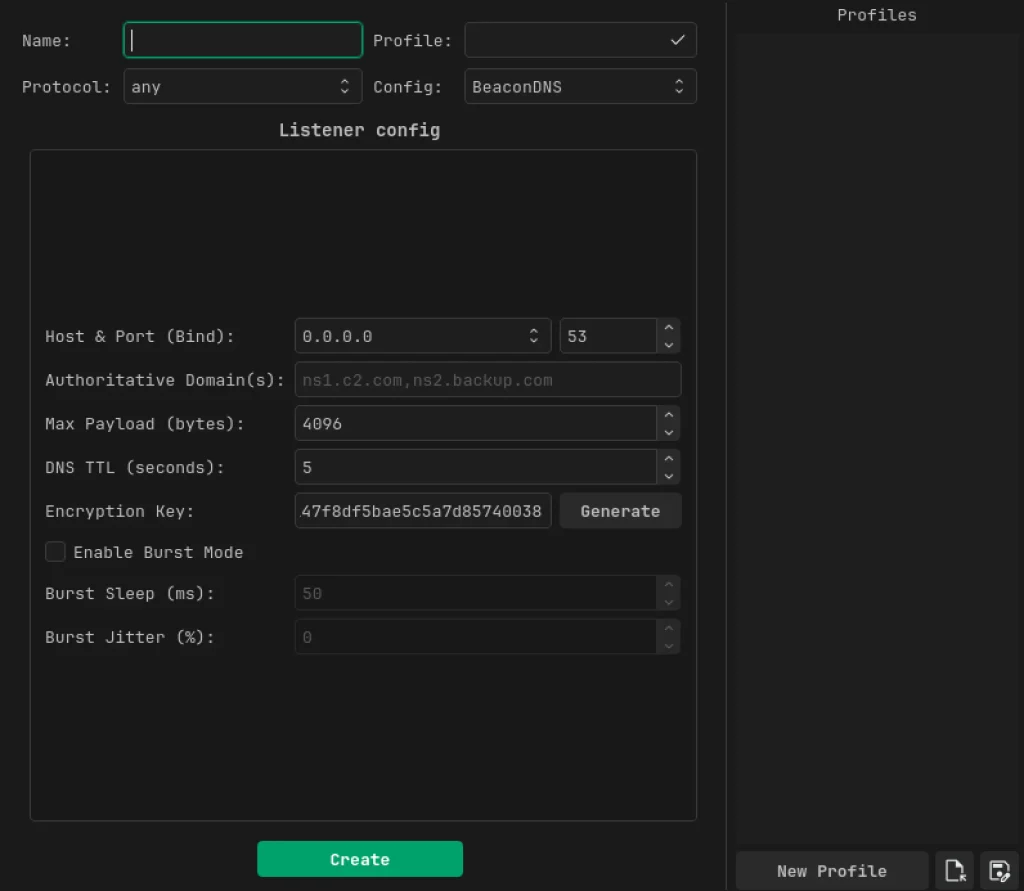
These listeners are important; without them, nothing happens. They’re the first step in what you want to accomplish in a red team engagement. Here’s a quick rundown of what each part does:
Name is just a label for your listener.
Profile lets you pick or save a settings profile, so you don’t have to input everything from scratch each time.
Protocol tells you how your listener connects, and it’s set to “any” for now, but common options include stuff like HTTP, DNS, SMB, and TCP. This is how the agents, or “beacons,” communicate with the C2 server.
Config is where you choose the type of listener module. If you see “BeaconDNS,” that means it’ll use DNS for the beacon traffic. Adaptix also offers other types like Beacon HTTP, Beacon SMB, Beacon TCP, and Gopher TCP.
Host & Port (Bind) lets you set the IP address and port the listener binds to on the C2 server. It’s usually set to 0.0.0.0 by default, but you can select a specific network adapter.
Authoritative Domain(s) refers to the domain names your server is the boss of. Compromised hosts, or beacons, will send DNS queries for subdomains under this domain, and since the C2 server is the main nameserver, those queries will point to it.
Max Payload (bytes) indicates the biggest chunk of data you can cram into a single DNS request or response.
DNS TTL (seconds) sets how long DNS responses hang around in caches, telling them how long to remember the answer.
Encryption Key is used to encrypt the beacon’s traffic or payload.
Enable Burst Mode turns on a feature where the beacon sends multiple quick queries in bursts instead of one by one, which can speed up data exfiltration.
Burst Sleep (ms) is how long the beacon pauses between queries in a burst.
Burst Jitter (%) adds randomness to the wait time between queries, so the traffic doesn’t look too regular and helps avoid timing-based detection.
Once you fill in all those fields, click Create.
Let’s move on to the more popular listener, the HTTP listener. It has way more attributes than the others. It looks like the one below.
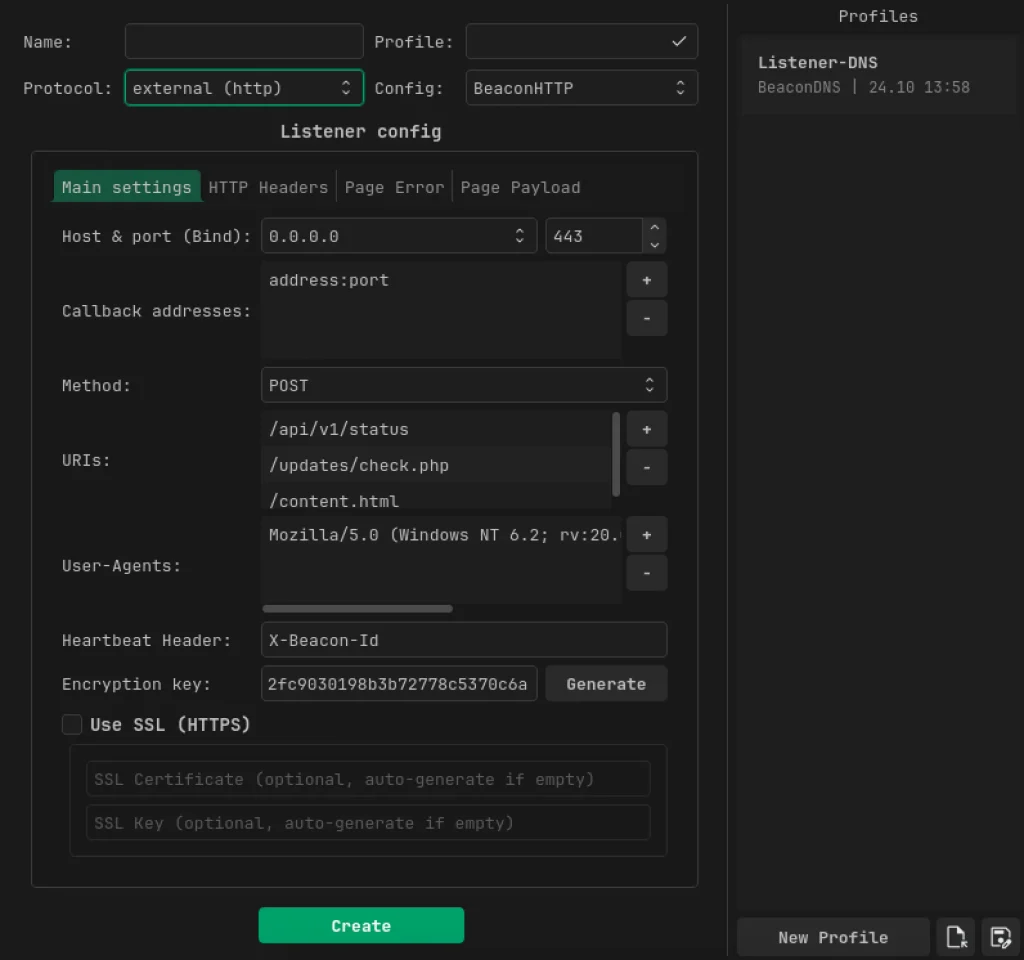
In the main settings, we’ve got some new options to play with:
Callback addresses are the external IPs or domains (with ports) embedded in the beacon payload, letting compromised hosts know where to connect back. This can be different from the bind address, especially if you’re using a redirector. Redirectors are handy, and Adaptix lets you put in multiple combinations of IPs and ports. When a compromised host tries to connect, it first goes to the redirector, which checks if it’s allowed to access the C2 server. For more on redirectors, check out Major Smouk’s article.
For demo purposes, since we’re not using redirectors for now, we can just put in our own host’s IP in that field.
Method allows you to choose the HTTP method (GET/POST) that beacons will use to send requests/check-ins to the server.
URIs is where you list URL paths that the beacon will randomly choose from when making requests, like /api/v1/status or /updates/check.php.
User-Agents lets the beacon rotate through different browser User-Agent strings in its HTTP headers.
Heartbeat Header is a custom HTTP header (like X-Beacon-Id) that carries the beacon’s identifier/session token during each check-in, helping the server identify which compromised host is reaching out.
Use SSL (HTTPS) is a toggle for whether the listener wraps traffic in TLS. If you turn it on, you can either provide your own certificate/key (like simulating a real site’s cert) or let Adaptix automatically generate a self-signed one.
We also have some extra tabs with settings:
HTTP Headers lets you add custom request/response headers to mimic legitimate traffic further or hide data.
Page Error configures what the server shows to regular visitors or scanners that hit the listener.
Page Payload lets you set up a legit-looking webpage/response for certain paths, which is often used to host the stager/payload for initial access or make the server look like a harmless website.
That sums up what we need to set up HTTP listeners. Now, let’s dive into BeaconSMB!
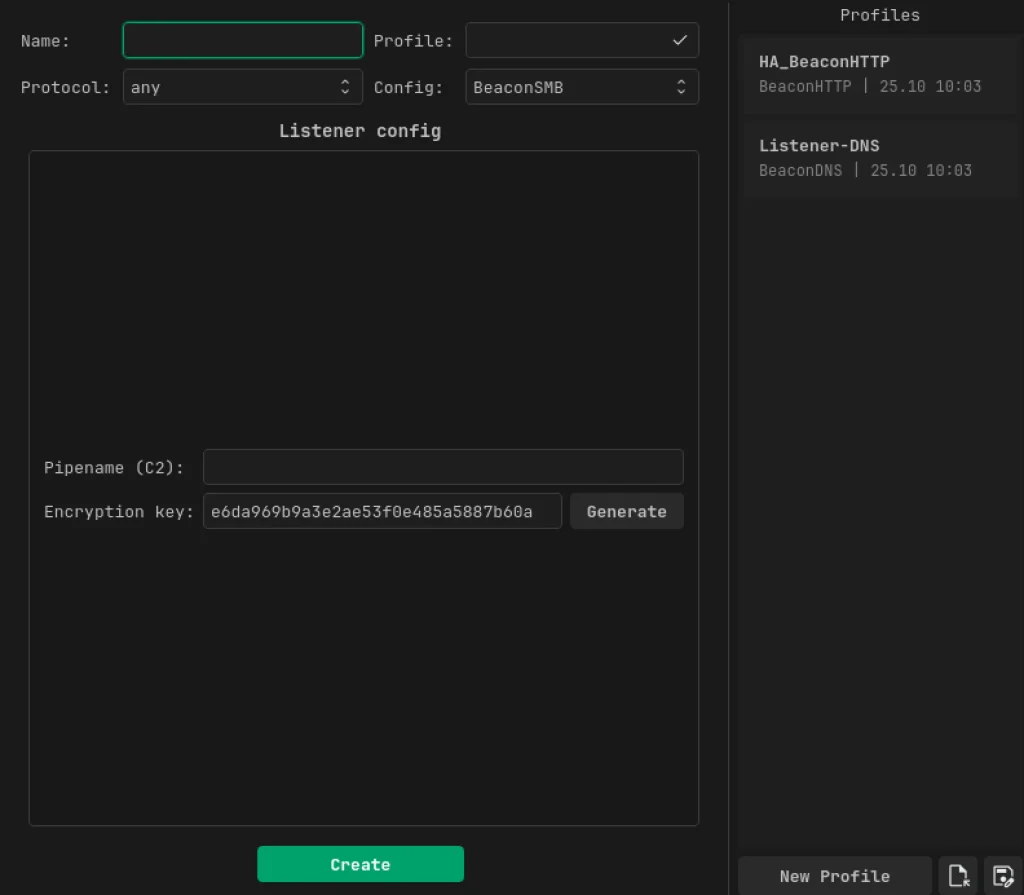
In this section, we need to focus on the pipe name. The pipe name is simply what the Windows named pipe will be called. The listener sets it up and waits for connections. A named pipe on Windows acts as a communication channel. It’s named something like \\.\pipe\somename. When a compromised host wants to connect, the SMB beacon reaches out to this pipe by name to create the C2 channel. That wraps up our talk about Beacon SMB.
Now, let’s move on to Beacon TCP.
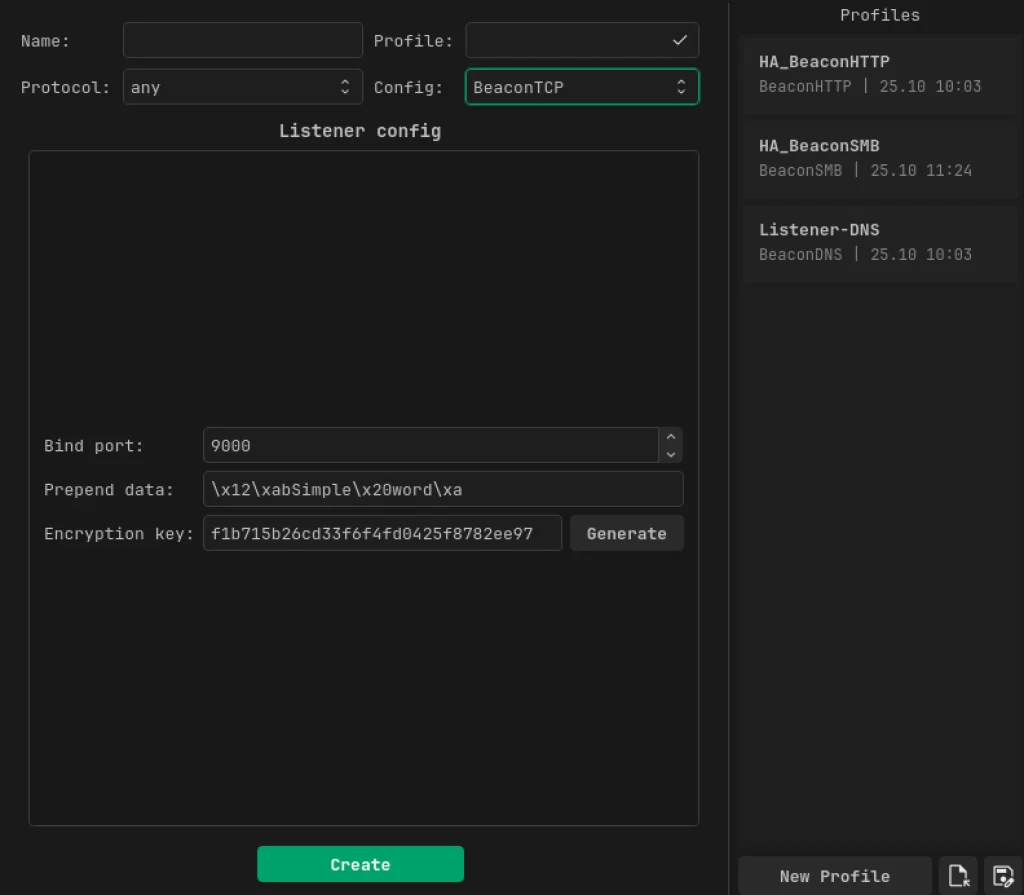
The screenshot above shows how to set up a BeaconTCP listener, which is straightforward and requires only three fields.
First is the bind port, the TCP port the listener opens on the compromised host to act as the relay.
Next, there’s the prepend data. This is a set of bytes like \x12\xab that gets added to the start of every TCP communication. This trick is all about traffic obfuscation. By starting with a specific byte pattern, the TCP stream looks less like your typical C2 traffic. It can mimic the handshake or header of a known protocol, making it harder for network monitoring tools to flag the beacon as suspicious.
Lastly, the encryption key works the same way as it does with the other listeners.
And finally, don’t forget about the Gopher TCP listener.
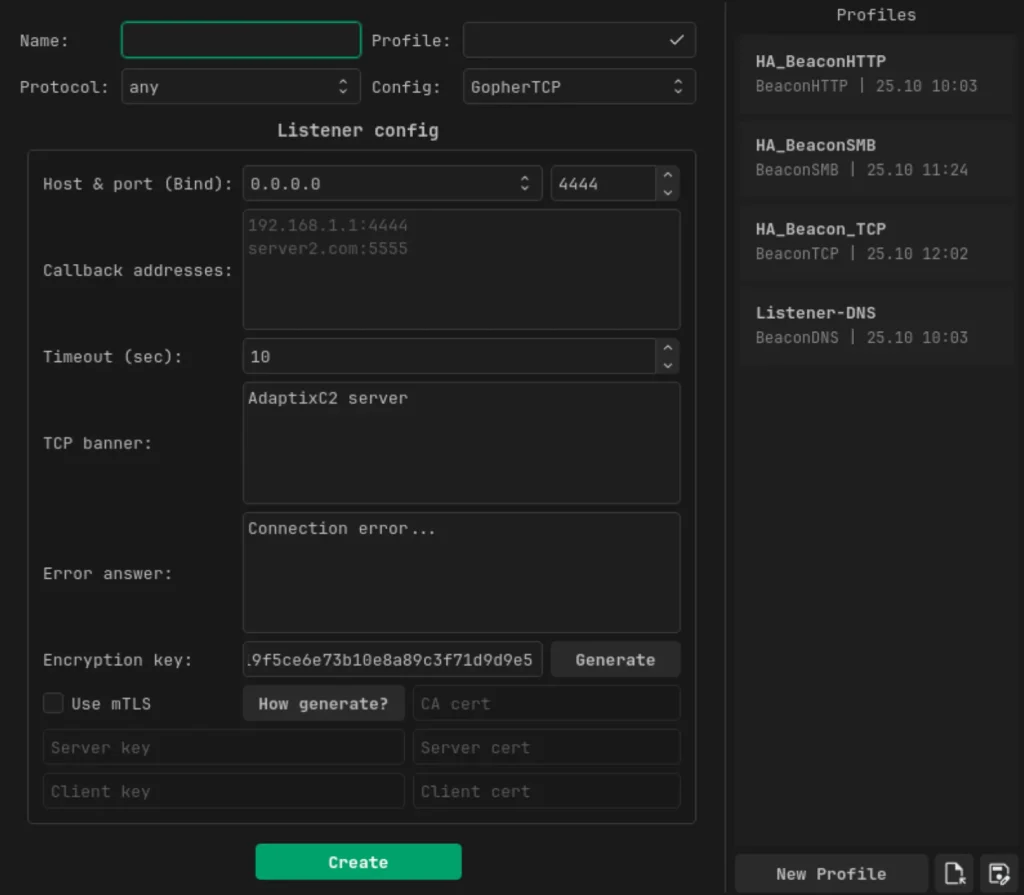
We’ve already checked out a lot of options before, but here’s what’s new for us:
The TCP banner is just some text sent out to anything connecting to the port before the beacon handshake goes down. It currently says “AdaptixC2 server,” but in a real scenario, you’d want to swap it for something more innocuous or something that resembles a legit service.
The error answer is what gets sent back if a connection fails or is rejected.
The big one here is adding mTLS. That stands for mutual TLS, which means both the server and the connecting beacon prove who they are to each other using certificates, not just the server showing its identity like in regular TLS. This is a major security boost because only beacons with the right client certificate can connect to the listener. So, even if someone figures out the C2 address and port, they can’t interact or pretend to be a beacon without that certificate. The setup includes fields for the CA cert, server key, server cert, client key, and client cert to enable mutual authentication.
After setting up all the different listeners, we’ll see the following picture.
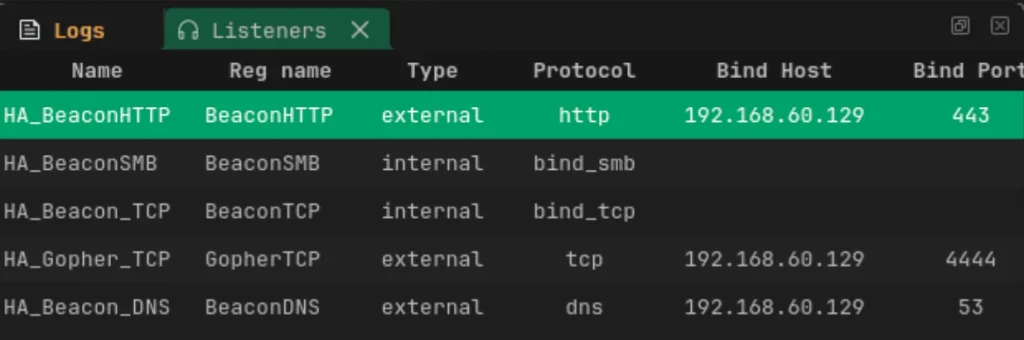
We need to recognize two types of listeners: internal and external. An external listener connects to the public internet and is what the first hacked device calls back to, going through the firewall. It usually uses protocols like HTTP, HTTPS, or DNS because those are often allowed out and blend in with regular traffic. Sometimes, it’s even hidden behind a redirector or CDN to mask the actual control server’s IP address.
On the flip side, an internal listener is what you use once you’re already in the network. It helps with moving sideways between compromised devices that usually don’t have internet access. This one relies on LAN-only protocols, like SMB named pipes or raw TCP, allowing beacons to communicate and send traffic back through the first hacked device to the external listener.
Summary
In this article, we dove into how to set up listeners in AdaptixC2. We went through all the different types of listeners and their configuration options so you can jump right into using Adaptix after checking this out.
Keep an eye out for our upcoming articles as we continue exploring command and control frameworks. If you found this information helpful, you might want to check out our Hacking Infrastructure course. Also, consider joining our community by signing up for Subscriber PRO.
The post Adaptix C2 Architecture: Configuring Command & Control Listeners first appeared on Hackers Arise.
