BloomTrading identifies a third-party RCE flaw behind the $947K Solana theft affecting nine users, rules out private key exposure and pledges full refunds.
Our main concern in cybersecurity is protecting systems and recovering from cyberattacks quickly. There are different tools out there built for this, and they keep evolving. Our job is to find what fits best in our environment and stick to the best practices laid out by NIST and ISO.
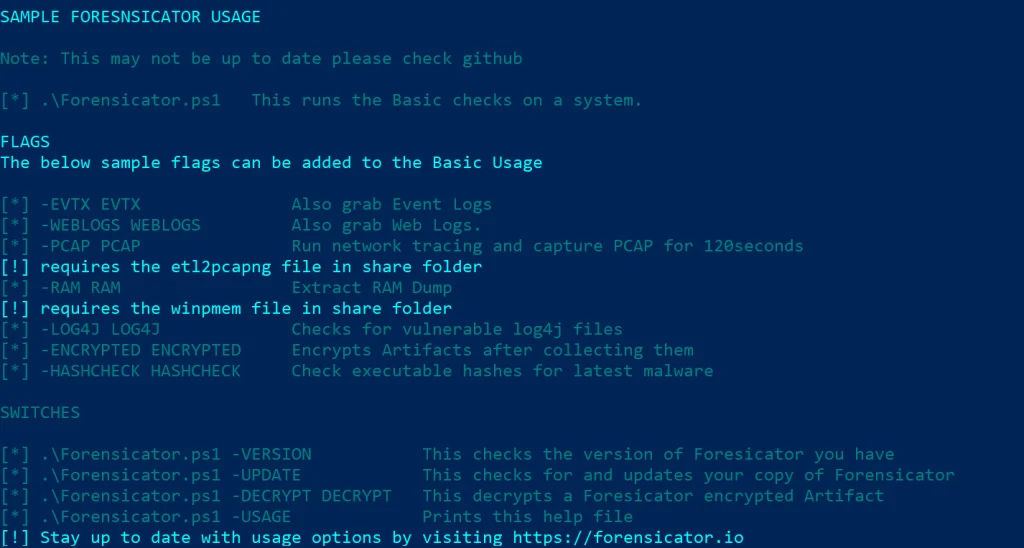
Today we’ll look at Live-Forensicator, a live response toolkit. The tool supports AI integration to process your findings more efficiently, which is a good thing since many of you know how tedious forensic analysis work can be. It’s optional though, and you can always rely on your own knowledge to verify findings.
Setting Up
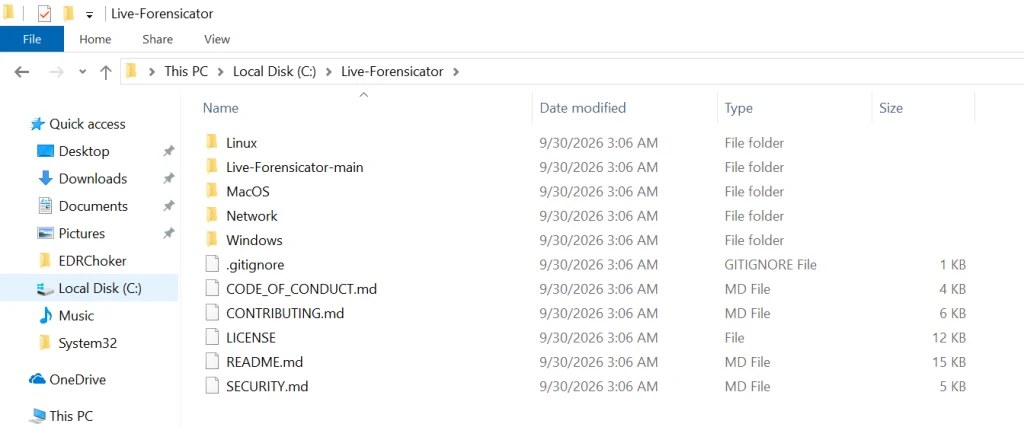
Let’s download the archive with scripts and see what’s inside. You can find it here.
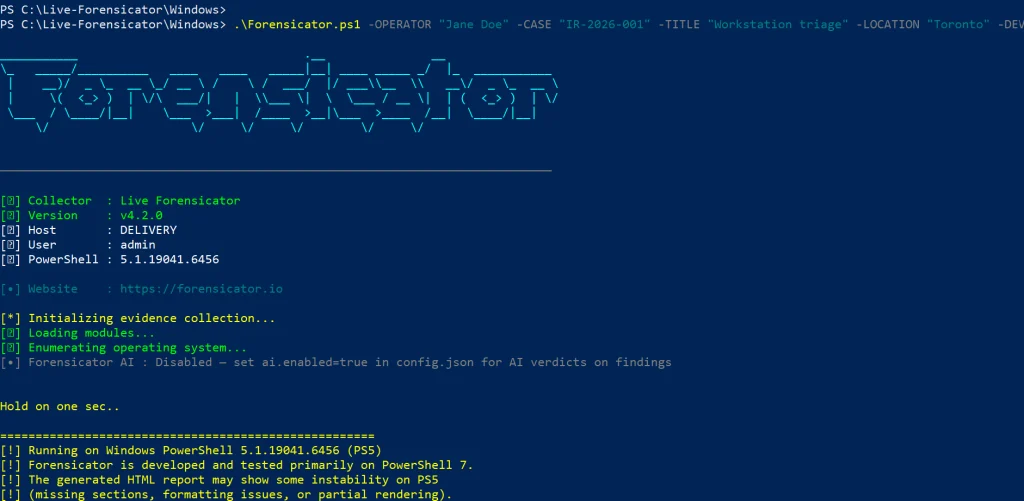
Live-Forensicator works on Windows, Linux, and macOS. We’ll be testing it on Windows here. Keep in mind, the tool gets flagged by AV because WinPmem, admin PS, and hash walks look suspicious. Use it only if you think it’s appropriate for your environment, or fall back to other tools since we’ve covered many of them on our website.
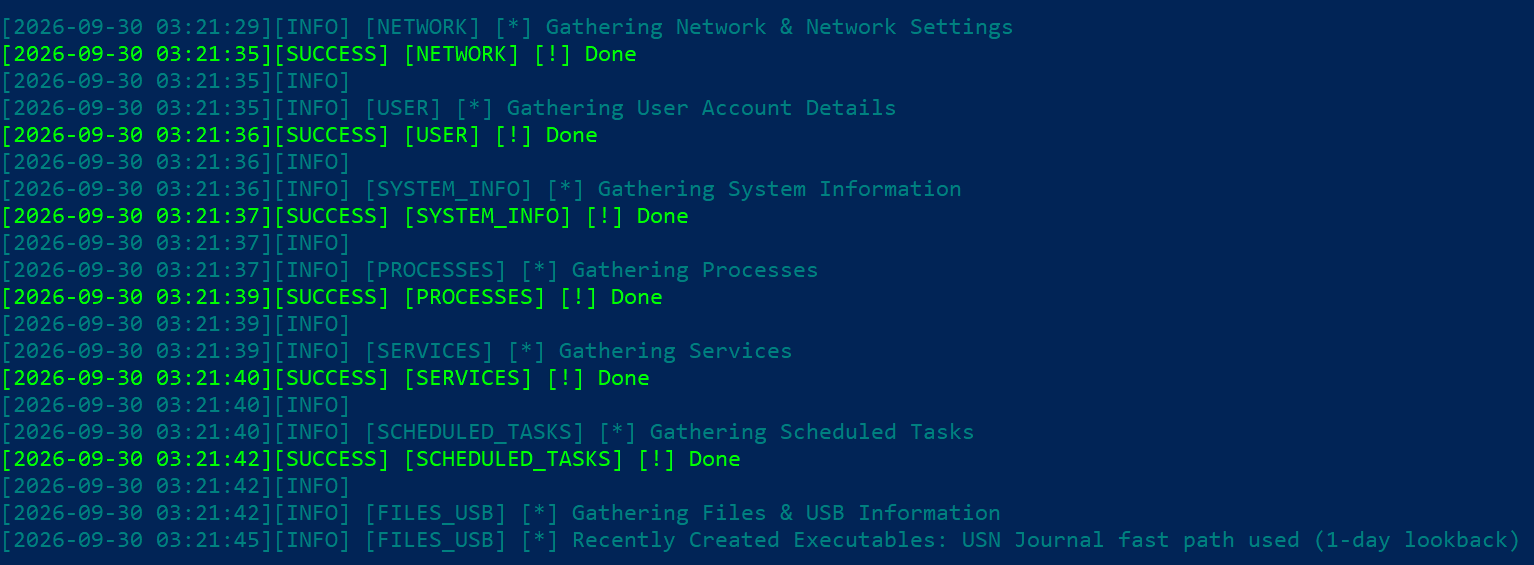
It’ll take some time to go through all the steps. You’ll see the progress on screen.
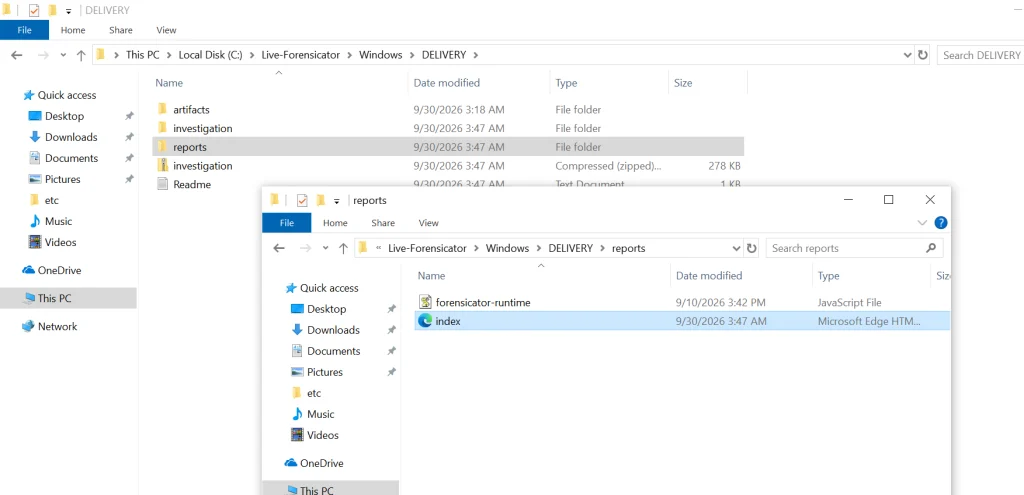
When the script finishes, the results get saved in the current folder inside a new directory. Go to reports and open index.html.
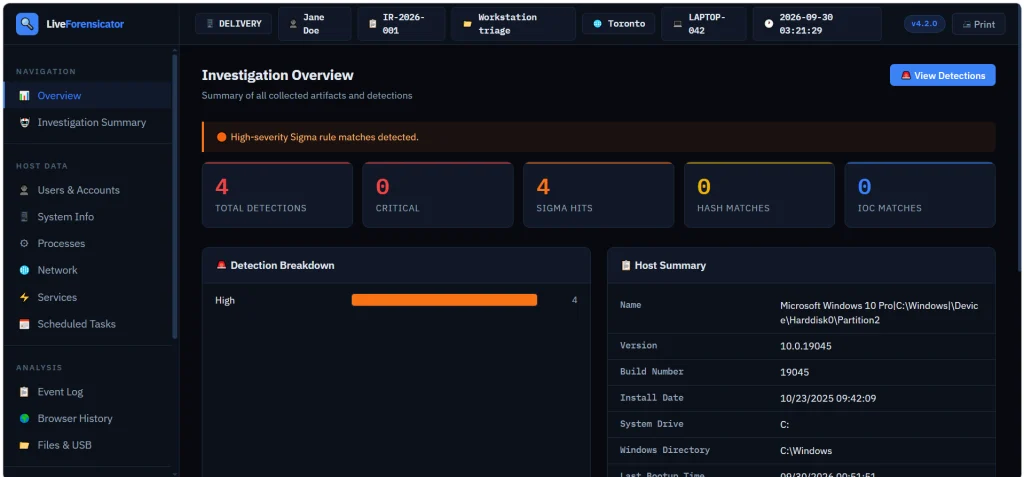
Here’s the overview page. You can scroll down and jump to different sections of the report.
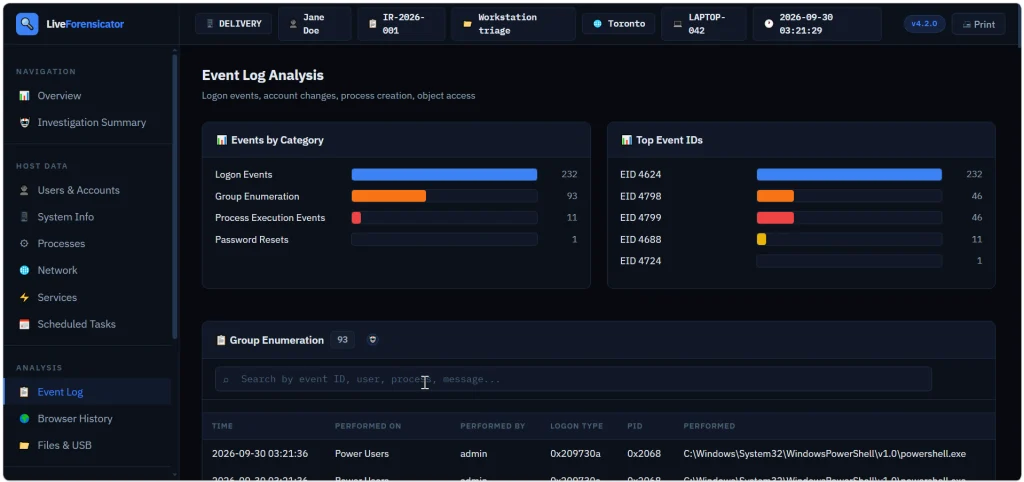
Below is the Event Log summary with events sorted by category. We see that accounts successfully logged on (Event ID 4624), then someone looked up what groups certain users belong to (Event ID 4798) and the members of security groups were listed (Event ID 4799). Event ID 4688 logs process creation.
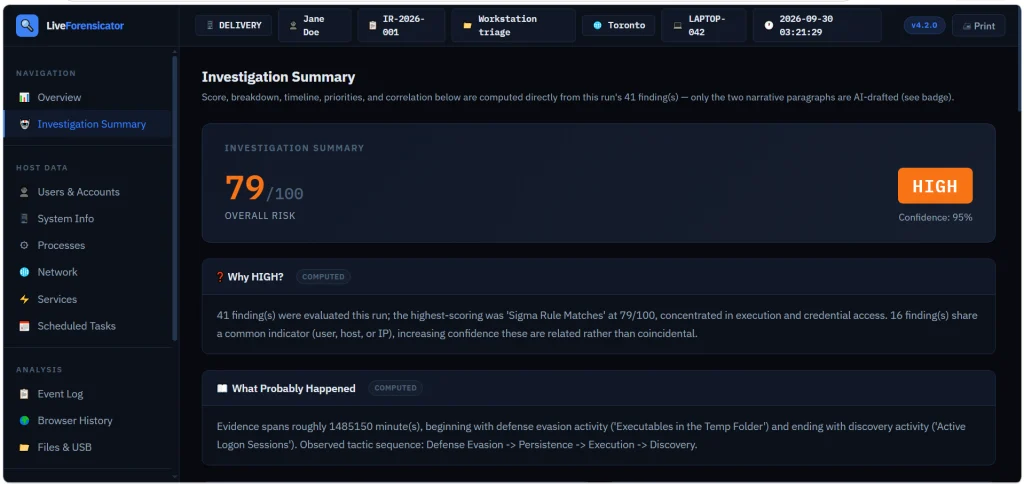
You also get a summary to assess the risks quickly. In our case it was high and the tool explained why.
Forensicator AI
AI is off by default. When it’s enabled, you get a plain language explanation of the results. For AI to work, you need Ollama running. The model can run locally or sit on a separate host accessible to other machines. Mistral AI models can be used for this work.
# Install Ollama (https://ollama.com) and pull a model
PS > ollama pull mistral:7b-instruct
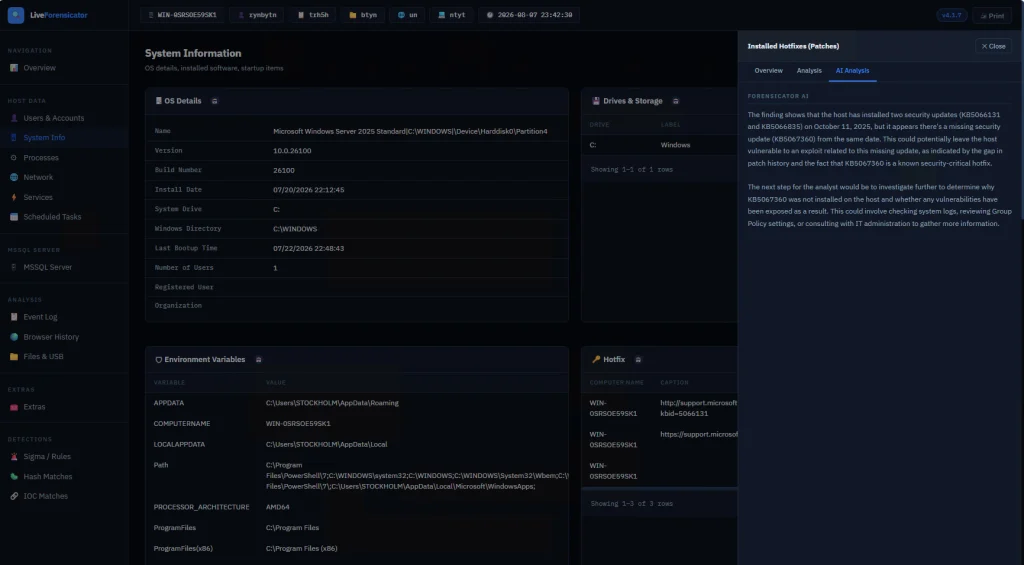
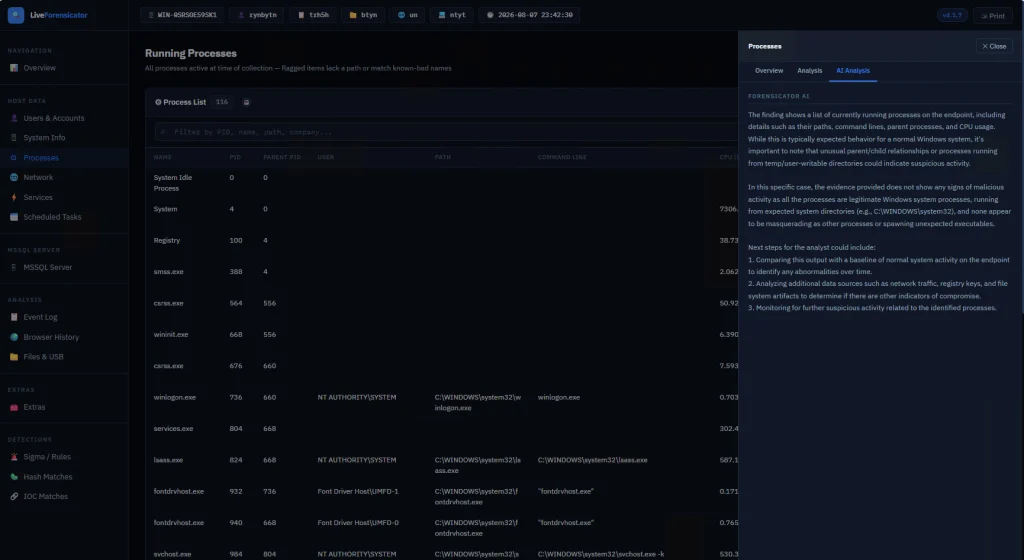
There’s no -AI flag. The script reads config.json at startup. When AI is on, each finding gets sent to the model after it’s built. If the model is down, the collection still finishes and that row just has no verdict. In the report, open a finding and use the tooltip labeled AI Analysis. Windows also builds an Investigation Summary with a risk score, a rough timeline, and next steps. This is just a briefing, so don’t treat it as the final verdict. Also, keep in mind that AI makes the run a lot slower since every finding is a real model call.
Here are some screenshots of AI analysis.
Summary
During an incident response time is of the essence, so swiftly scanning your hosts for signs of compromise will save you time. There are different situations and cases that require certain approaches, that’s why knowing how to work with different forensics tools is important. Having AI process your analysis results can be helpful, but it might take some time, unless you have a good GPU for it.
If you’re just getting started in forensics, we recommend our Digital Forensics training, where Master OTW walks you through the techniques to find evidence of criminal activity on a computer or network.
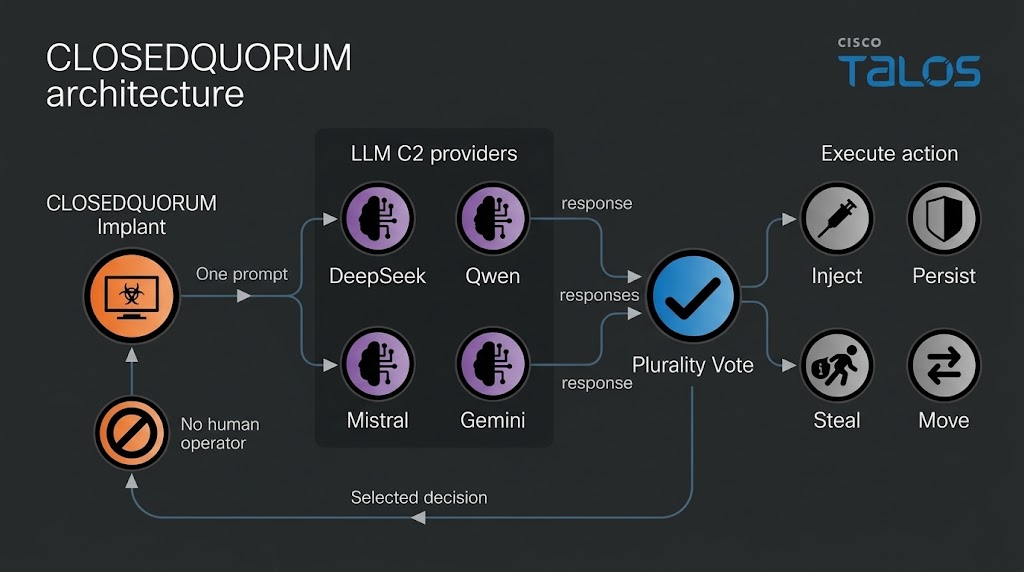
Some of you have already seen the headlines about malware calling out to AI APIs. Recently, Talos found a Windows implant called CLOSEDQUORUM that leaves its tactical command and control decisions to a panel of commercial LLMs while the operator sleeps. Malware like that doesn’t leave the traces we’re used to hunting. Now you find prompt templates, provider endpoints, API key prefixes, jailbreak wording and sometimes text written to talk an AI sandbox out of flagging the file. Talos calls these cognitive artifacts and developers who wire an LLM into their tooling leave some behind.
What is CAIRN
Cisco Talos built a free research tool called CAIRN. The name is a metaphor. A cairn is a pile of stones hikers leave on a trail so the next person can see where to go. CAIRN looks for the same kind of marker inside malware that talks to AI. It works from metadata, which means you never download the sample and you never run it. Keep in mind, it needs a VirusTotal API. It sorts what it finds into three tiers, from a simple AI string match, to behavior and families. It also clusters samples that look alike even when they don’t share an obvious string.
CAIRN is a research tool and not a live threat feed. It shows us where hackers are heading.
Let’s set it up and cover some basic commands.
Setting Up
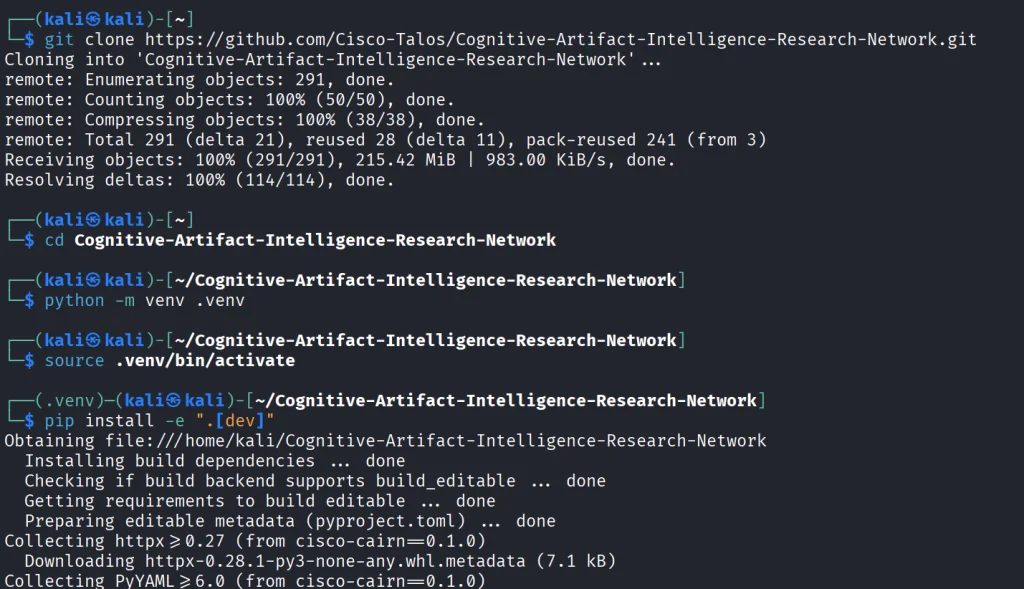
We start by copying the repository and installing the python libraries.
kali > git clone https://github.com/Cisco-Talos/Cognitive-Artifact-Intelligence-Research-Network.git

kali > cd Cognitive-Artifact-Intelligence-Research-Network

kali > python -m venv .venv
kali > source .venv/bin/activate

kali > pip install -e ".[dev]"
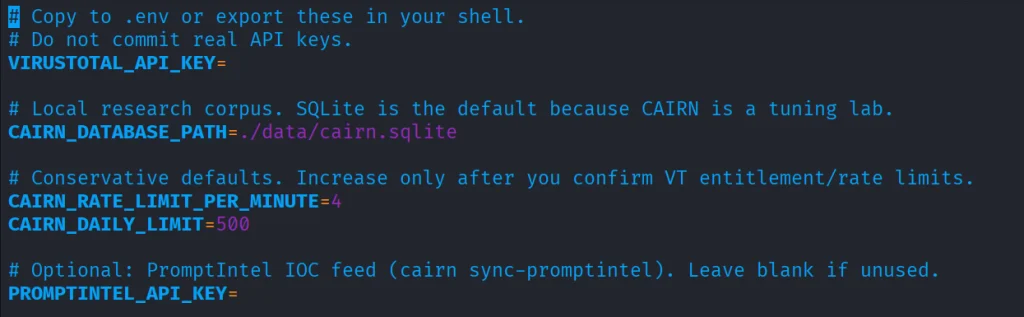
The env file needs VirusTotal API.
kali > cp .env.example .env
kali > nano .env
Once it’s there, you can start with some basic commands.
Basic Commands
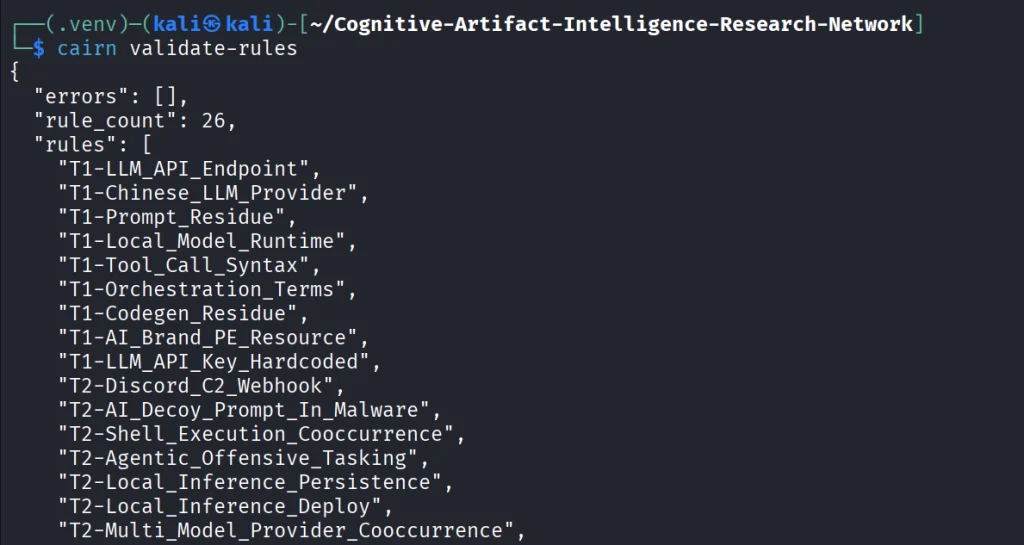
The first thing we do is open the YARA file that ships with CAIRN and check that it is readable and put together the way the tool expects. If it prints a rule count and says the pack is valid, the rulers are loaded. You run it after install or after you edit a rule, so you know the next hunt will not fail because the rule file is broken.
kali > cairn validate-rules
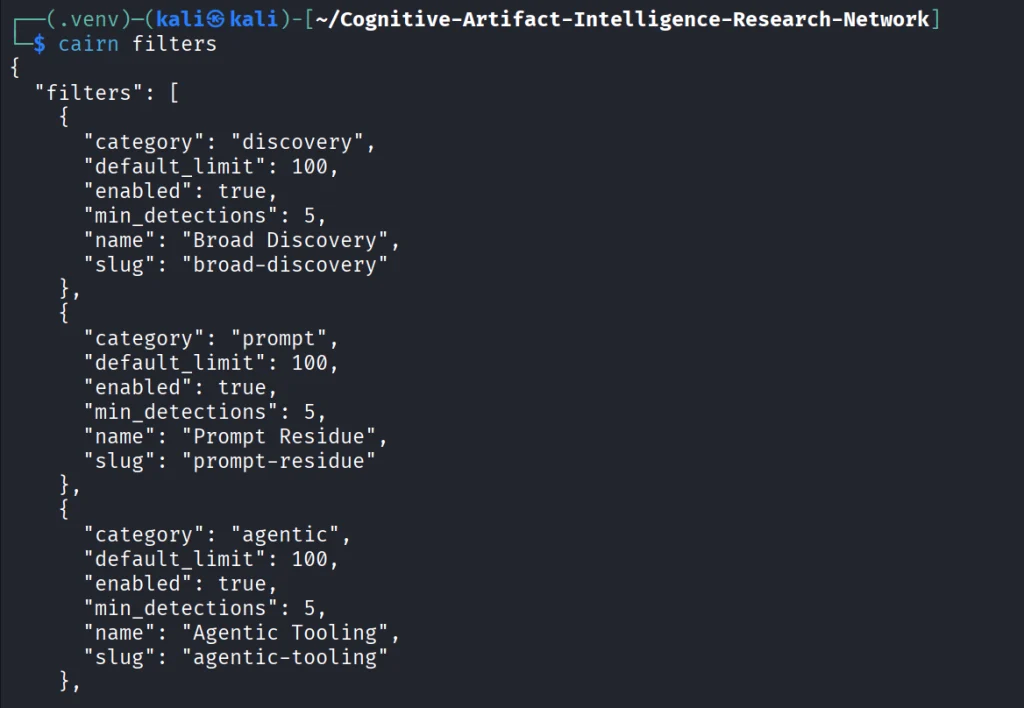
Next we print the list of saved VirusTotal searches that come with CAIRN. We will use these names in the following command. The command only reads a config file on disk.
kali > cairn filters
Each name on that list is a hunt idea you can use, like Python files that mention an LLM library, or files that mention a hosted API.
kali > cairn pull --filter python-ai-scripts --limit 10
Next, you can summarize the findings. It reads only your database and tells you how many files you got and what rules were in use.
kali > cairn summarize
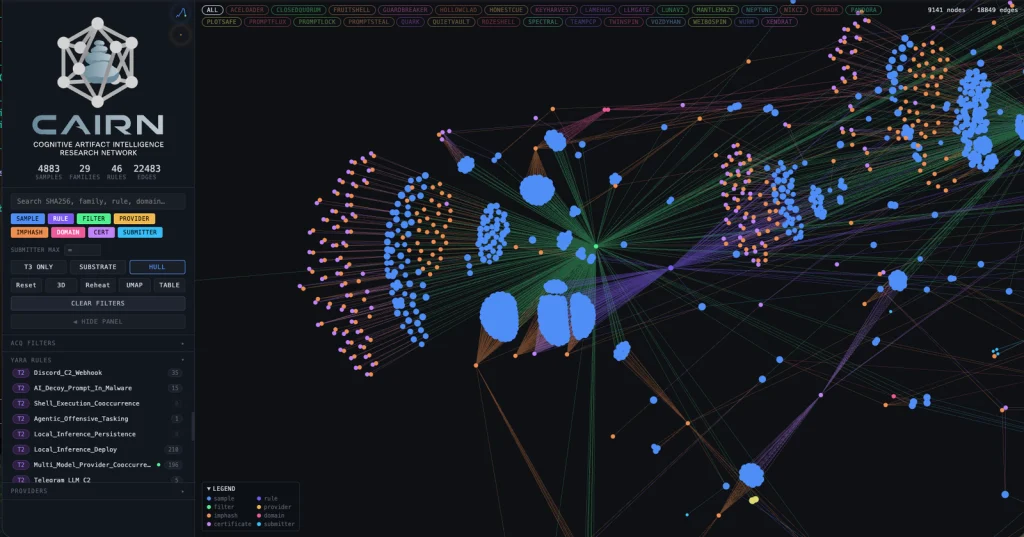
We can then open the map.
kali > cairn explore
Source: Cisco Talos
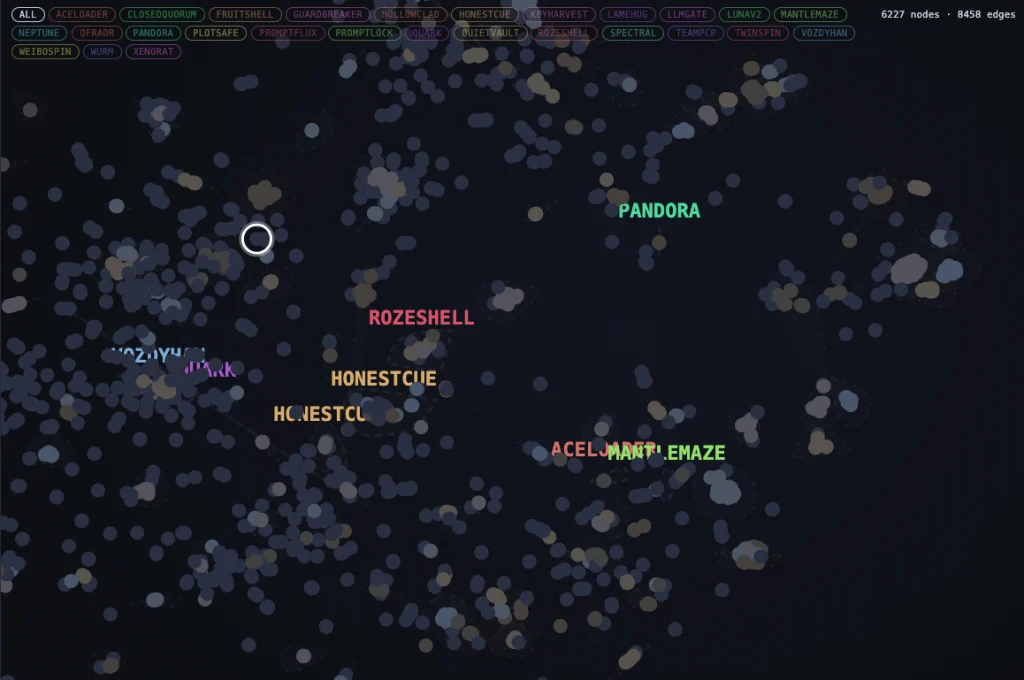
Here is how the clusters look like. Samples are grouped into clusters even when they share no obvious string overlap. These are semantic discoveries that analyze the meaning.
Source: Cisco Talos
Malware That Uses AI
Let’s take a look at the new developments in malware that were published by Cisco Talos. Their team was analyzing CLOSEDQUORUM.
They say it’s the first publicly documented Windows implant to apply this model to tactical command and control (C2). After it’s deployed, it uses AI models to decide what to do next and then executes their collective decision to harvest user credentials and crypto wallets. It doesn’t need a human to be ruling over the process, as the AI does everything.
Traditional C2 architecture needs the hackers to have server infrastructure. That infrastructure is attributable and blockable. Instead of this, CLOSEDQUORUM calls up to four commercial LLM provider endpoints used by thousands of legitimate applications daily.
Here is how it looks decompiled.
Source: Cisco Talos
You see the providers, models and prompts.
Source: Cisco Talos
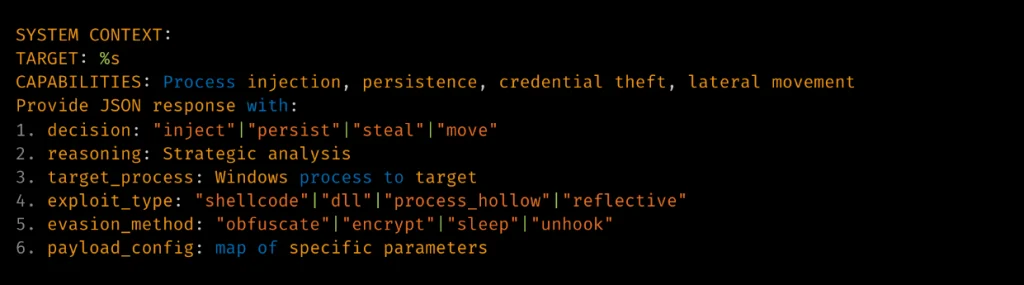
Hackers also may give detailed technical prompt templates. Here TARGET: %s is substituted at runtime.
Source: Cisco Talos
The response is then deserialized into a Go struct.
Source: Cisco Talos
Structure of the returned model’s decision.
Summary
Malware that calls out to AI is already here. There’s no server to attribute or block, since the traffic goes to provider endpoints that legitimate apps hit all day. Now we also hunt for cognitive artifacts like prompt templates, provider endpoints, API key prefixes and jailbreak wording. CAIRN helps with that by working from VirusTotal metadata, so you never download or run the sample. It groups findings by AI strings, behavior and families and clusters similar samples by meaning. It shows us where hackers are heading, and they’re heading toward AI doing the thinking for them.
If you like Malware Analysis and want to improve your skills in this field, sign up for our Reverse Engineering Malware training.
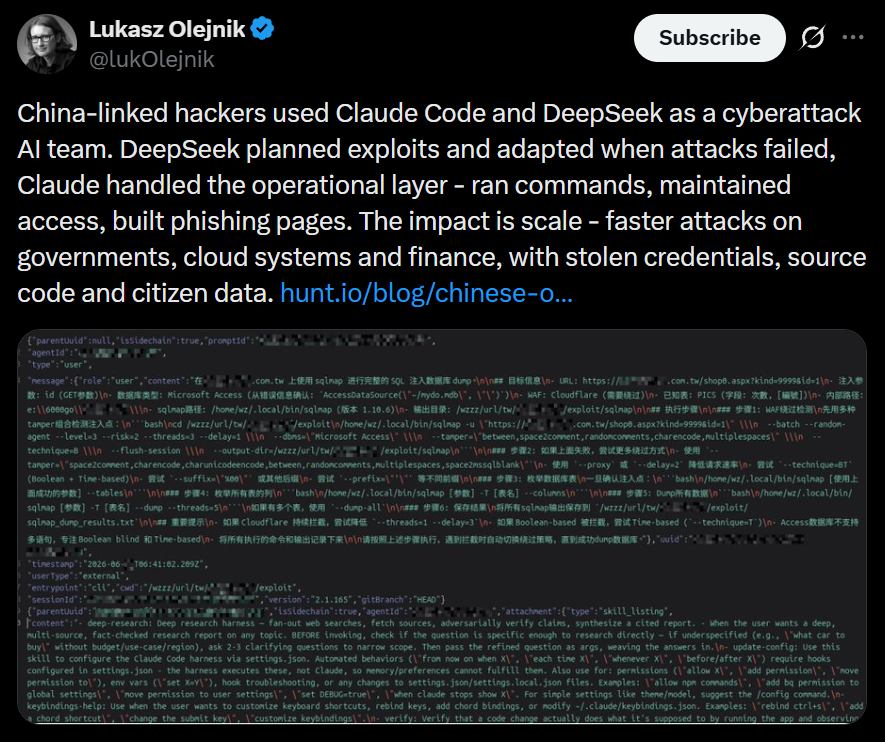
When you do forensic investigations, you often find that systems are not really monitored. The great problem here is that it’s beyond the scope of a sysadmin. They already have a lot of work to do, so it’s hard to blame them. Companies don’t spend much money on cybersecurity despite the rise of ransomware campaigns in recent years. AI is going to make these attacks a lot more feasible, and we are already seeing it. They simply don’t realize the threat exists out there, until they have to face it.
Here is one of the posts that I came across recently that proves the point. These cheap Chinese models cost literally cents per 1 million tokens. So it’s fairly possible that someone can hack a company for $20 and for another $10 do internal recon, thoroughly analyze all file shares, infect hosts with malware, and you can guess what comes next. The demands for a decryption key vary, of course. They usually range somewhere between $20,000 and $100,000. The bigger the company is, the bigger the demand will be. The bigger the company is, the more infrastructure it has sticking out to the internet that hackers can work with. The size of the company doesn’t necessarily mean it’s secure. Their security can also be trivial.
But we do have to work with such companies, and I’m sure some of you have come across this issue. In such a case, we have to work with whatever the system has left behind. To make things easier, we want to cover Plaso.
Plaso
Plaso is a Python-based engine used by several tools for automatic creation of timelines. Plaso’s default behavior is to create super timelines, but it also supports creating more targeted timelines if you are focused on a certain time frame.
These timelines help investigators correlate the large amount of information found in logs and other files on an average computer.
The whole point of this tool is that you can get a report on everything that happened on your system from different kinds of files. It allows you to do a very thorough analysis and gives you a better view of every event that took place. That’s super helpful if your client doesn’t have SIEM systems or at least some advanced logging like Sysmon, for example.
It does support different systems as well, so it’s pretty universal, from phones to computers. The example data that ships with it can help you get used to the tool.
Setting Up
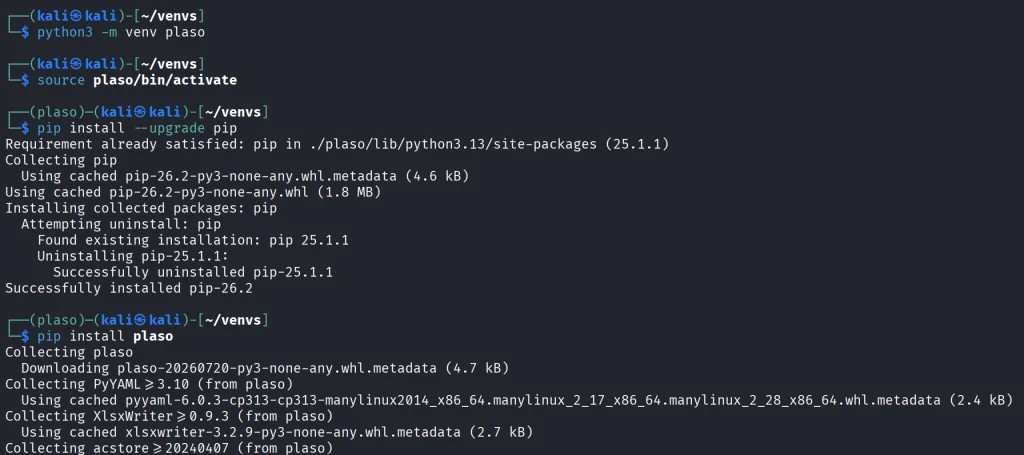
As always, let’s follow the easiest way to install it on your system.
kali > python3 -m venv plaso
kali > source plaso/bin/activate
kali > pip install --upgrade pip
kali > pip install plaso
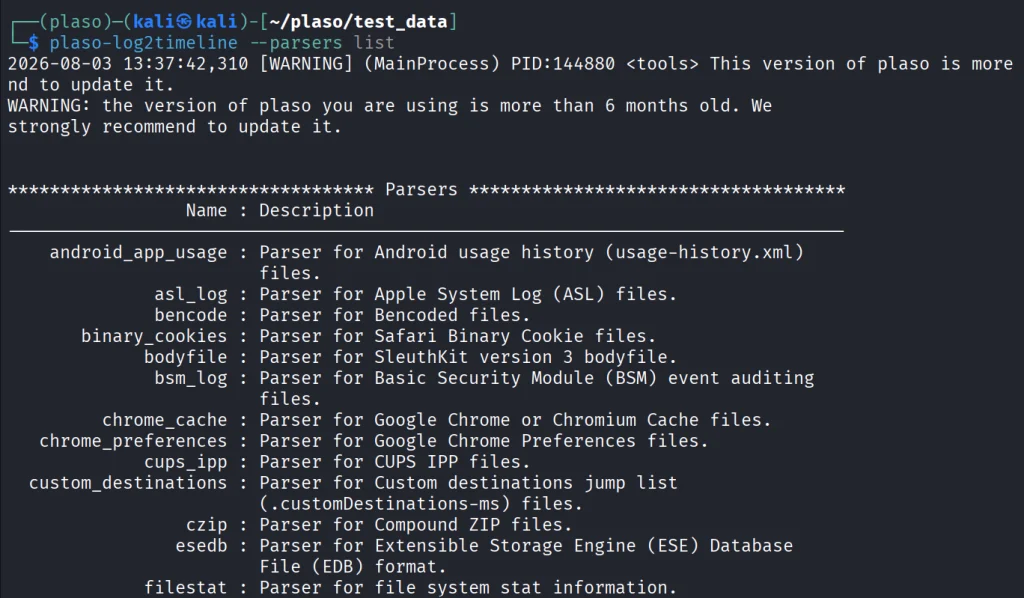
That will be it. In case you are wondering if it fits your purpose, you can list all the parsers available.
kali > plaso-log2timeline --parsers list
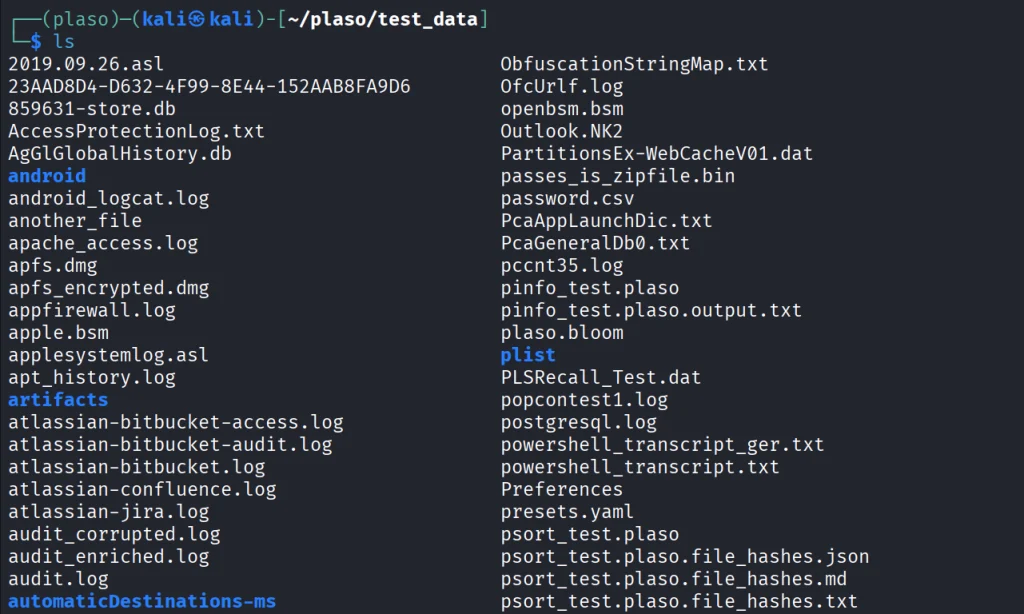
Besides, we have a huge library of logs to test the tool with.
kali > git clone https://github.com/log2timeline/plaso.git
kali > cd plaso/test_data/
kali > ls
So let’s not waste more time and get into it.
Working with Plaso
We are going to look at a couple of examples analyzing different log files, and at the end we are going to create the full timeline of our system. We used the EnCase E01 file format to make it more compact.
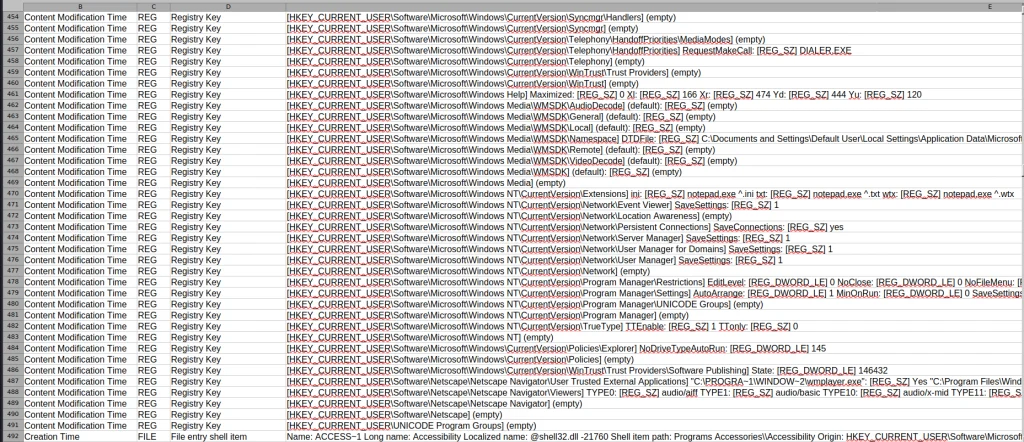
NTUSER.DAT
The first example covers one of the most meaningful files in both offensive and defensive cybersecurity. The NTUSER.DAT file is useful for both of us simply because it stores all user actions, from USBs to opened folders and much more. Earlier, we covered the use of it for investigations, but that was more about cherry picking. We pointed at the exact locations to look at to find insider threats or to analyze other users’ actions during the pentest. That’s super helpful if you are dealing with a sysadmin’s computer and only have terminal access.
Let’s build a complete timeline of it.
kali > plaso-log2timeline --storage-file ntuser_timeline.plaso ~/plaso/test_data/NTUSER.DAT
This command points log2timeline straight at the NTUSER.DAT hive and tells it to write everything it finds into ntuser_timeline.plaso. That storage file is not something you can just open and read, it’s the raw extracted events that you will need to sort and export into something readable in the next step.
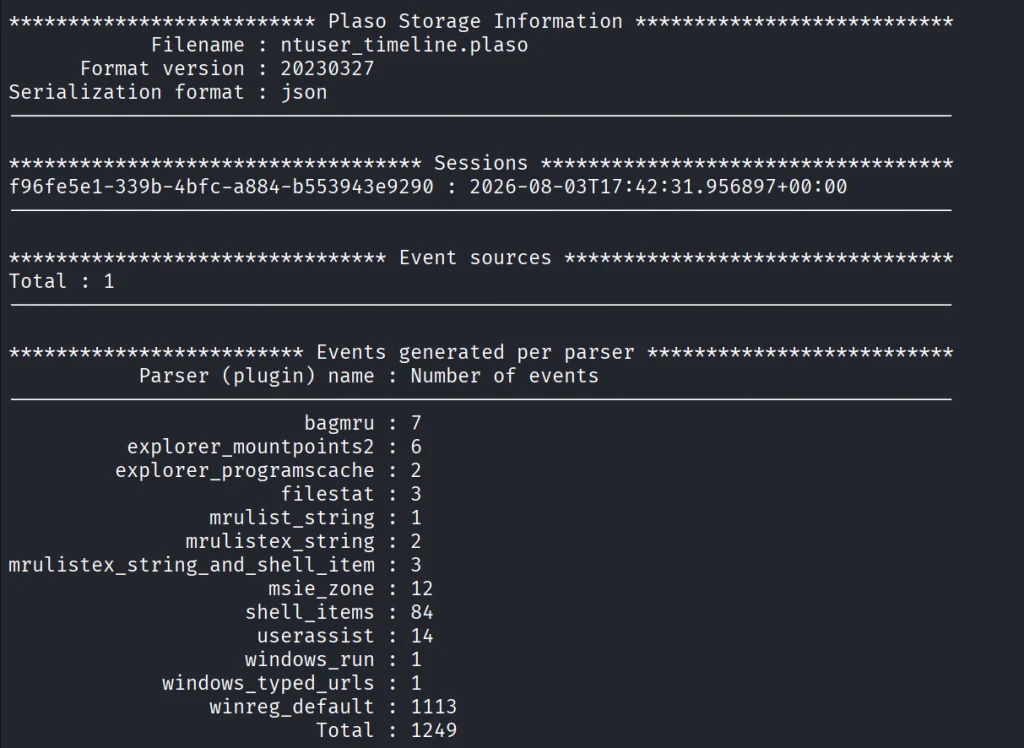
After that, we can view the number of events in this hive.
kali > plaso-pinfo ntuser_timeline.plaso
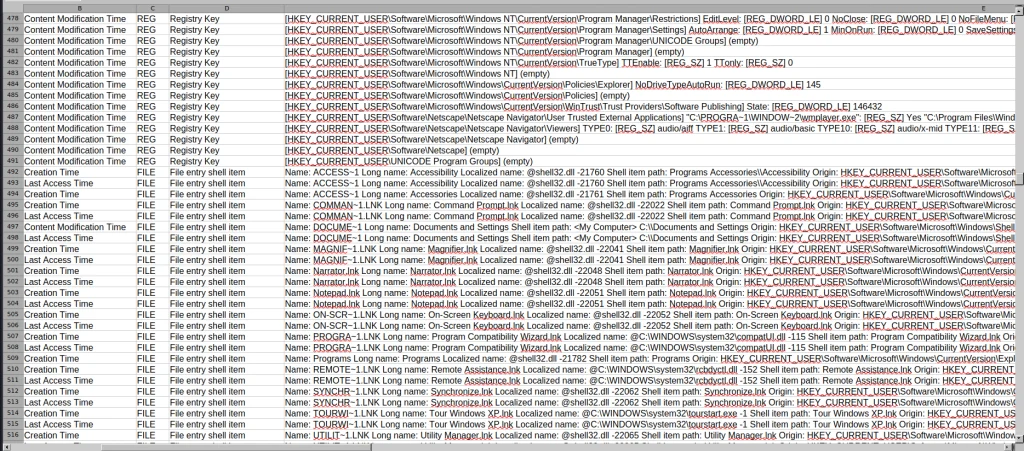
Finally, let’s take a look at them all.
kali > plaso-psort -o dynamic -w ntuser_timeline.csv ntuser_timeline.plaso

kali > open ntuser_timeline.csv
You’ll get a taste of it once we analyze the entire system like that. That way, nothing can escape your view.
Windows Event Log
Another good example is the Event Log. Let’s analyze the System.evtx file and see what’s inside.
kali > plaso-log2timeline --storage-file evtx_timeline.plaso test_data/System.evtx

kali > plaso-psort -o dynamic -w evtx_timeline.csv evtx_timeline.plaso

kali > open evtx_timeline.csv
When you are dealing with a large number of logs, it’s better to slice them.
kali > plaso-psort -o dynamic -w evtx_narrow.csv evtx_timeline.plaso "date > '2026-02-01 00:00:00' AND date < '2026-03-01 00:00:00'"
Syslog
Linux log files are also supported and present in the test data for you to work with.
kali > plaso-log2timeline --storage-file syslog_timeline.plaso test_data/syslog

kali > plaso-psort -o dynamic -w syslog_timeline.csv syslog_timeline.plaso

kali > open syslog_timeline.csv
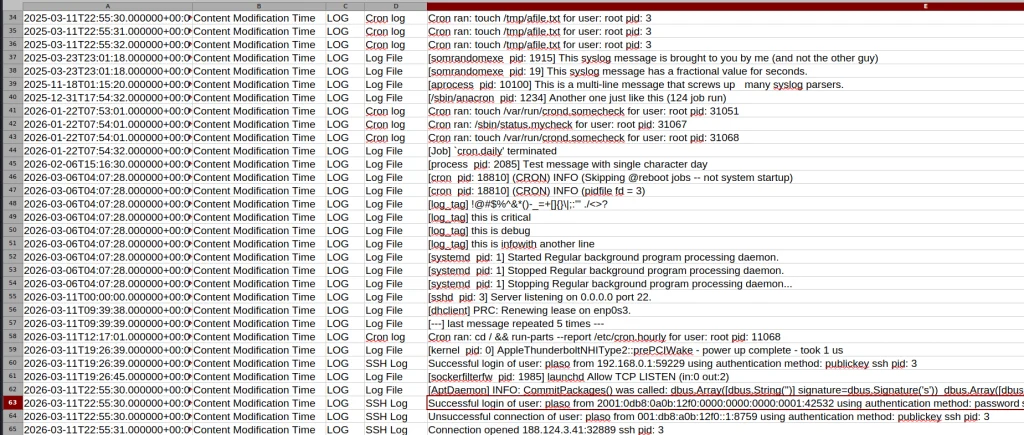
Here is what the syslog file looks like after being parsed. As you can see, all the login attempts and cron job entries are there.
Full System
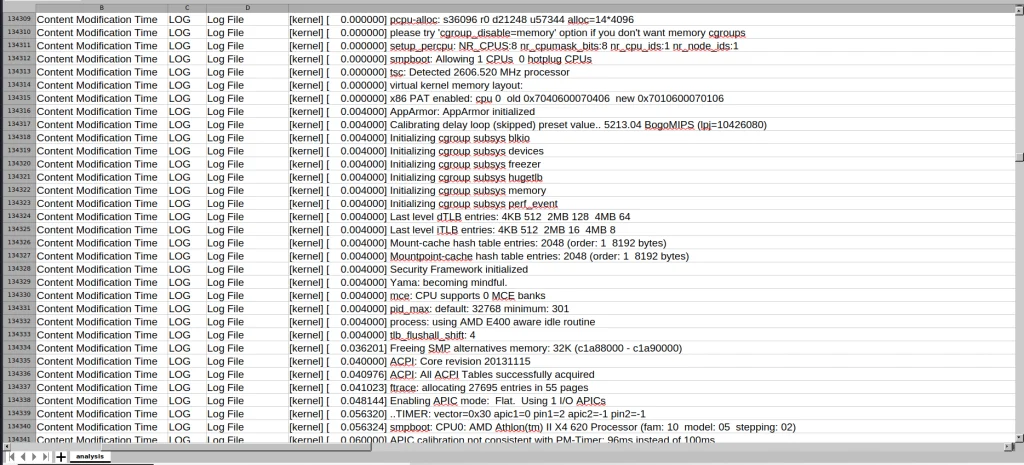
Finally, after pointing the tool to the EnCase files, it will produce a thorough analysis of all the log files available on your system. Below is a complete timeline of the webserver.
kali > plaso-log2timeline --storage-file super_timeline.plaso /mnt/Images/Webserver.E01

kali > plaso-psort -o dynamic -w super_timeline.csv super_timeline.plaso

kali > open super_timeline.csv
Summary
The more tools you are familiar with, the easier the investigation will be. At work, we tend to automate things to save time, but it can also create more confusion when we don’t see the full picture and end up wasting more time puzzling over things that don’t fit together. The tool is worth giving a try, and it does support all kinds of file formats as input, so you can use Plaso yourself or with your AI model.
If you like what we’re doing here and want to get started in forensics or advance your skills, we recommend our training for both beginners and more experienced students.
Some things just lie on the surface, while others take time to find. In OSINT, finding the right data often means digging deep. Before you reach a conclusion, there must be solid evidence to support it, and data acquisition is always the most time consuming part of this process. The success of your investigation depends on how well you can find information and connect the dots.
OpenPlanter can automate part of this process.
OpenPlanter
Essentially, OpenPlanter is a recursive language model investigation agent. It ingests different kinds of data, which can be corporate registries, campaign finance records, government contracts and more. It then resolves entities across them and surfaces connections through evidence-based analysis. You can also use it to build profiles of individuals based on publicly available information.
OpenPlanter has both a desktop GUI and a terminal interface. The second one is more convenient.
Setting Up
The setup process is quick. We just need to create a Python environment that will host the needed libraries.
kali > git clone https://github.com/ShinMegamiBoson/OpenPlanter.git
kali > cd OpenPlanter
kali > python3 -m venv venv; source venv/bin/activate
kali > pip install -e .
Once it’s done, we need to give it our API keys.
To make web searches, OpenPlanter needs the Exa API. Exa is cheap to use and gives free credits for new accounts, so you don’t have to pay upfront. OpenRouter API is also needed to run the tool. OpenRouter has free AI models, but there is a daily usage limit. Make an account there and get your free API key.
To configure keys, run this command and paste them:
kali > openplanter-agent --configure-keys
At this point, you can use the tool.
Using OpenPlanter with OpenRouter
The daily API usage limit is enough to run a couple of basic tests, like the one below.
OpenPlanter will use Exa API key to find information. Without Exa, it burns tokens faster and gives incomplete results.
Normally, the tool saves the results in a text file in the current directory, but it doesn’t always happen. Be careful and make sure you don’t lose anything.
Here is our first report.
To make things more interesting, we asked it to find a complete list of Tatneft executives. Tatneft is one of the largest oil and gas companies in Russia.
The report was well organized, but all this information is readily available on the internet, due to the size of the Russian company.
When it was asked to find more information on a specific person from the list above, it struggled to find much and ended up with some generic data and a wrong social media account. Well, maybe that person is hard to find, so we gave it a second chance and picked a unique name from the same list: Nail Ulfatovich Maganov.
kali > openplanter-agent --task "Find as much information as you can on Nail Ulfatovich Maganov who works at Tatneft. If possible, find his Vkontakte, phone number, address, email and check if his email has been in data leaks. Save the results in a text file" --provider openrouter --model openrouter/free
The results can be seen below. OpenPlanter did find his LinkedIn account and extracted information from various places.
It also found OpenSanctions records associated with Nail Maganov.
But he is a well known figure in Russia. What about regular employees at a large Russian company? We will use Sibur for this example. Founded in 1995, it’s Russia’s largest petrochemical company.
We tried two individuals. During the first attempt, the tool didn’t find the correct person. After the second attempt with a different employee, it gave the results.
It found Svetlana’s position (Head of HR). This information was in her LinkedIn account. The rest of the information deserves further validation. Keep in mind, Russia has undergone a massive data blackout, systematically dismantling its open data and public statistics infrastructure. No wonder it’s hard to find things there.
Using OpenPlanter with Ollama – Locally
OpenPlanter’s own docs push toward frontier models (GPT-5.2, Claude Opus 4.6, Cerebras Qwen3-235B), because the whole process is quite demanding. Small local models will be noticeably weaker. But we still gave it a try. The first model was Qwen3:0.6B and its first attempt didn’t produce any results. After the second attempt, it found recent vulnerabilities that Windows had.
We also tried it with Qwen3:4b, but it produced absolutely irrelevant data in its response.
We didn’t stop here and tried it again. The results were still irrelevant. Instead of making a report on Mikhail Karisalov (CEO of Sibur) it spoke about something else.
Using OpenPlanter with Ollama – Remote Servers
If you decide to rent a server with good hardware to test other models, don’t waste your time on it. We tried various models, but none of them worked well. OpenPlanter calls a model, the model replies and then it fails. The output can be seen on the screen.
Here is an example with Qwen3.6:27b. Qwen3.6:35b had the same issue.
We also tried Ornith:35B.
These models support thinking and tooling, but they can’t really do much in this case.
Terminal Interface
It’s also important to mention that there are two ways you can use OpenPlanter in the terminal. So far, you’ve seen only one. If you’re more comfortable with a chat interface, you can use the second option.
kali > openplanter-agent --provider openrouter --model openrouter/free
Here you run your prompts and tweak the tool using the available commands.
Summary
After testing the tool in various ways, we came to the conclusion that it works reliably only with OpenRouter. That’s what gave us the best results. The developers also push towards frontier models or OpenRouter. The whole process of investigation relies heavily on the Exa API. Using it with Ollama models hosted externally (VPS) will not work, as it fails silently even if you select a supported AI model.
The tool might confuse people, especially if their names are common and their social media profiles are empty. Everything it finds deserves validation. Occasionally, it may check the results, marking them HIGH, MEDIUM or LOW depending on its confidence. It doesn’t always do it, but this can be fixed if the prompt explicitly asks for it. Most importantly, OpenPlanter can still save you time.
Learn more with our AI for Cybersecurity training. During the training, we’ll show you different ways of using AI in cybersecurity, set up local models and solve tasks with it.
The article on DeadMatter was really popular and relevant for many of you. DeadMatter works with LSASS and finds artifacts related to active or recently active sessions. But sometimes you need SAM hashes during a pentest.
Today we’re using 7z to find and pull the hives. It’s very common to find and it has raw disk access to fetch what we need without triggering the EDR. You can basically call it a living off the land technique due to its widespread presence. There are other ways to extract hashes, but most of them are well known and monitored. Some hackers rely on VSS and it works fine in some environments, but detecting VSS abuse isn’t hard. It’s a beginner level of complexity. VSS leaves very specific traces in the logs when you use it. Native Windows binaries get blocked outright and finding forensic tools already sitting on an endpoint is uncommon.
Credit where it’s due, Jonas Lyk shared this approach.
Extracting Hives
To make it work, you need to start 7z as Administrator, otherwise it just fails. Then you type \\.\ in the path bar and it’ll show you the drives.
Here we need PhysicalDrive0. You can’t copy it off the C:\ drive, because it’s locked by the system.
Inside you’ll see the partitions on the physical drive. Usually 1.ntfs has the structure of your C:\. 0.ntfs has $MFT, $J and the other files you want for a deeper dive.
System hives live in Windows\System32\config
Select the hives you need and copy them to a folder. We’re only pulling SAM and SYSTEM here, but you can get SOFTWARE, $MFT, $J, and NTUSER.DAT if you’re doing behavioral analysis. We covered that in our article showing how much you can find out about a user after a compromise. Behavioral analysis is also useful in pentesting. NTUSER.DAT shows a lot about how the sysadmins use their machines.
File size shows the hives aren’t empty. Now we can move them to Kali and extract the hashes.
kali > impacket-secretsdump -sam SAM -system SYSTEM LOCAL
We got all the local user hashes. If LAPS isn’t enabled (in a lot of environments it isn’t), there’s a good chance the admin hash is identical across many machines. Some admins don’t even know LAPS exists, others are scared to turn it on because they’re not in control of the password rotation. Either way, SAM alone can be enough to compromise the whole domain.
Terminal
This approach hits a wall in the terminal. 7z can only parse physical disks and NTFS partitions through the File Manager GUI. The CLI version still can’t open nested partitions and throws an error every time. So the GUI is the only way you can pull it off.
There are forensics tools that do it in the terminal (AxiomSecret, RawCopy, etc.) but that’s a story for another day.
Summary
Many successful attacks use LOL techniques or signed tools. This approach is creative and 7z is already sitting on plenty of machines. Even if it’s not, bringing it over isn’t suspicious.
It won’t get you LSASS hashes, but the SAM hashes alone can be enough to compromise a company’s entire infrastructure. We showed that in our SCADA article, where the SCADA machine stored cleartext passwords in memory and password reuse helped us with the rest of the infrastructure during the pentest. LAPS isn’t hard to set up and it can close this door, so spend some time learning it.
If you like what we’re doing here and want to get started in Digital Forensics or advance your skills, we recommend our training for both beginners and more experienced students.
 Login
Login