Login
Login
Artificial Intelligence (AI) in Cybersecurity, Part 30: Shannon – AI Pentester for Web Apps and APIs
Welcome back, aspiring cyberwarriors!
We’re continuing our series on Artificial Intelligence in Cybersecurity with another tool called Shannon. Shannon is a white-box AI pentester. It was created to test the security of your project by pointing it at the source code and the test stand. That means it needs both the running application and the source code. First, Shannon does an in-depth analysis of the code in the repository, then looks for attacks against that same project you’re hosting locally. This white-box approach is certainly more effective, as models don’t have to guess possible vulnerabilities, since guessing varies greatly depending on the model you use. Vulnerabilities can only make their way to the report if they have a working PoC. As always, only test systems you own or have explicit written authorization to test.
Now let’s take a closer look at Shannon and test our Juice Shop with it.
Setting Up
Juice Shop is just a Docker container, so we will install Docker and npm first.
kali > sudo apt update
kali > sudo apt install -y docker.io nodejs npm
kali > sudo systemctl enable docker --now
kali > sudo usermod -aG docker $USER
kali > newgrp docker
Then comes the Juice Shop.
kali > docker pull bkimminich/juice-shop
kali > docker run -d --name juice-shop --restart unless-stopped -p 3000:3000 bkimminich/juice-shop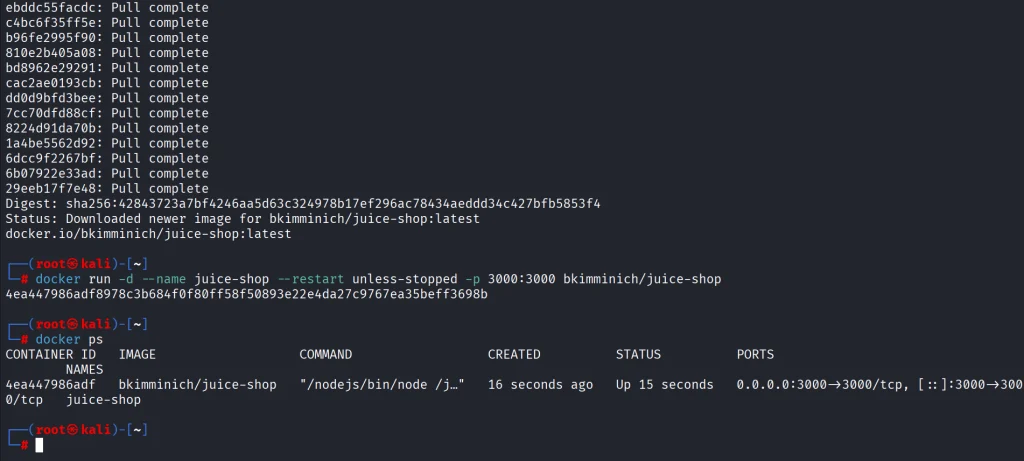
It’s up and running. Now we need to copy the repository to our disk.
kali > git clone --depth 1 https://github.com/juice-shop/juice-shop.git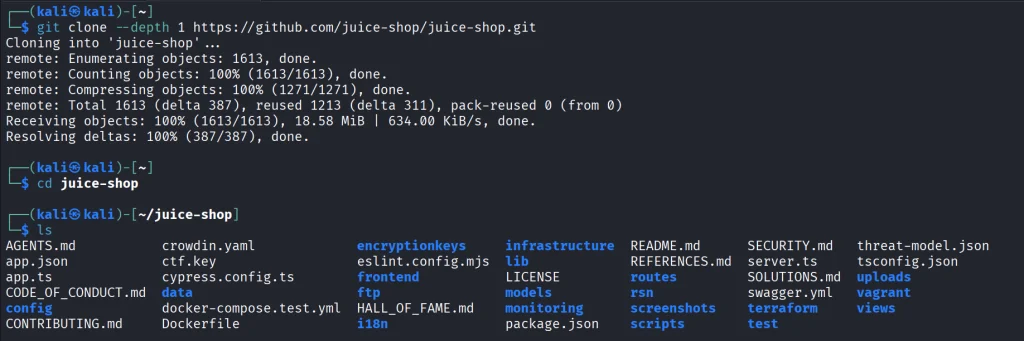
Once we have it all set, we can get Shannon. Unlike Pentestcode and other tools, Shannon runs differently. By default, it expects your AI API keys in the env. In the next sections we’ll show how to run Shannon with OpenRouter and Ollama.
OpenRouter
Shannon wants to see your API key in the env. You will also need a models.json file somewhere on your disk. Copy the following command to create it.
cat > ~/models.json << 'EOF'
{
  "providers": {
    "openrouter": {
      "apiKey": "YOUR_API_KEY",
      "models": [
        {
          "id": "nvidia/nemotron-3.5-lightning:free",
          "name": "NVIDIA Nemotron 3.5 Lightning (free)",
          "reasoning": true,
          "input": ["text"],
          "thinkingLevelMap": {
            "off": null,
            "minimal": null,
            "low": "low",
            "medium": null,
            "high": "high",
            "xhigh": null,
            "max": "max"
          },
          "contextWindow": 262144,
          "maxTokens": 65536,
          "cost": {
            "input": 0,
            "output": 0,
            "cacheRead": 0,
            "cacheWrite": 0
          },
          "compat": {
            "supportsDeveloperRole": false,
            "thinkingFormat": "openrouter"
          }
        }
      ],
      "api": "openai-completions",
      "baseUrl": "https://openrouter.ai/api/v1"
    }
  }
}
EOF
Then pass the keys and validate the setup.
kali > export SHANNON_AI_API_KEY="sk-or-v1-YOUR_KEY"
kali > export SHANNON_AI_MODEL="openrouter:nvidia/nemotron-3.5-lightning:free"

kali > npx @keygraph/shannon@latest start -u http://172.17.0.1:3000 -r /home/kali/juice-shop --validate-model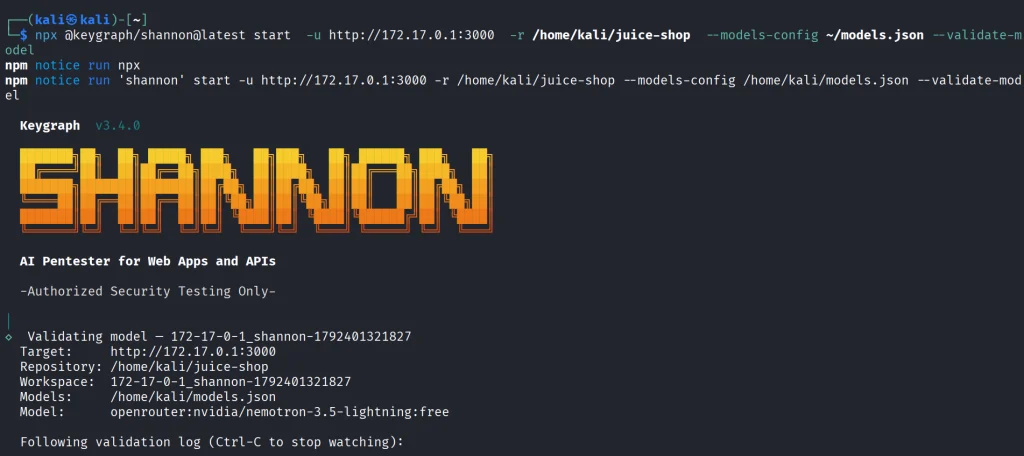
If you see it’s validated, then you can run a full security analysis.
kali > npx @keygraph/shannon@latest start -u http://172.17.0.1:3000 -r /home/kali/juice-shop -c ~/juice-quick.yaml --models-config ~/models.json --follow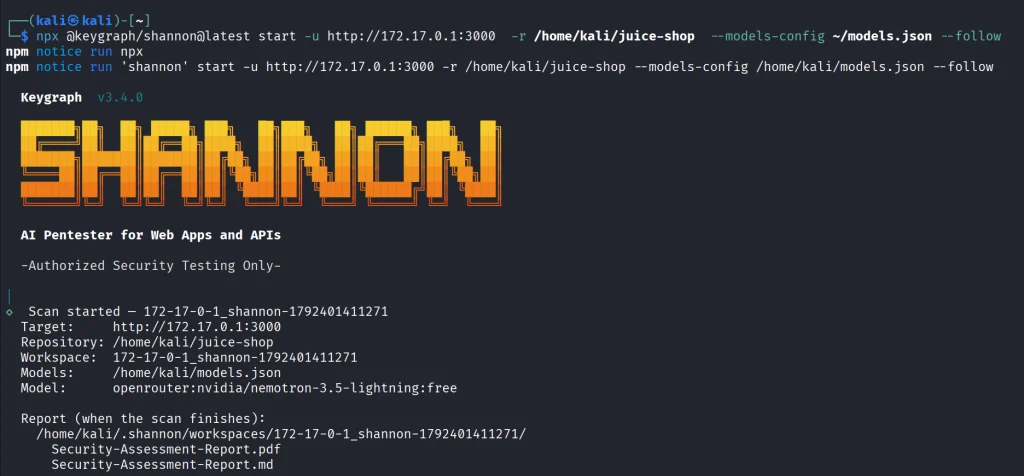
This will take a while and your free daily tokens won’t be enough to complete the scan.
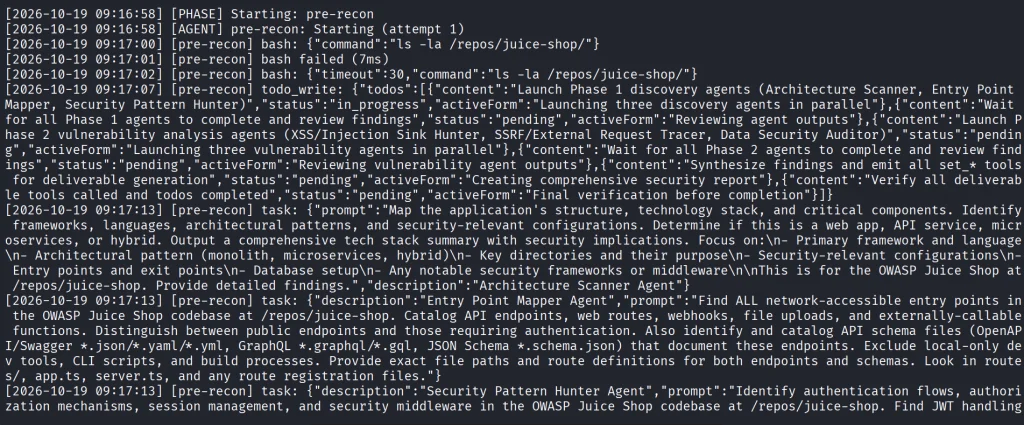
As the security test progresses, you’ll see all the commands and prompts it runs. Obviously, the frontier models will give better results.
Ollama
Shannon isn’t only limited to APIs. You can perform the same scan with a local model. Many openweight models will be a great fit for it if you have the necessary hardware to make it work smoothly.
Just for the demonstration we’ll use Qwen 2.5-coder 7b.
kali > curl -fsSL https://ollama.com/install.sh | sh
kali > ollama pull qwen2.5-coder:7b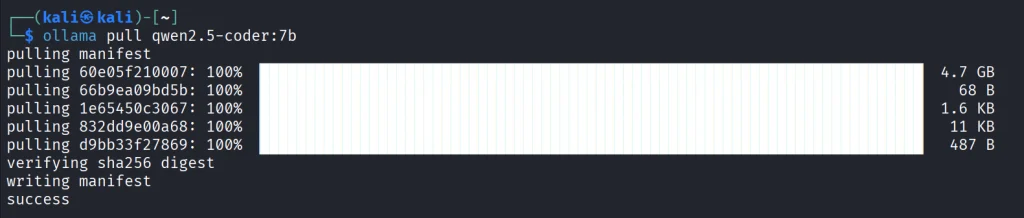
We’ll create the same models.json file to point Shannon to our Ollama.
{
  "providers": {
    "ollama": {
      "baseUrl": "http://127.0.0.1:11434/v1",
      "api": "openai-completions",
      "apiKey": "ollama",
      "models": [
        {
          "id": "qwen2.5-coder:7b",
          "name": "Qwen 2.5 Coder 7B",
          "input": ["text"],
          "contextWindow": 32768,
          "maxTokens": 8192,
          "cost": { "input": 0, "output": 0 },
          "compat": {
            "supportsDeveloperRole": false,
            "supportsReasoningEffort": false
          }
        }
      ]
    }
  }
}
Make sure your Ollama is accessible, and change the IP address if needed.
kali > export SHANNON_AI_API_KEY=ollama
kali > export SHANNON_AI_MODEL=ollama:qwen2.5-coder:7b
kali > npx @keygraph/shannon@latest start -u http://172.17.0.1:3000 -r /home/kali/juice-shop -c ~/juice-quick.yaml --models-config ~/models.json --validate-model
Before we do anything, let’s validate the model.
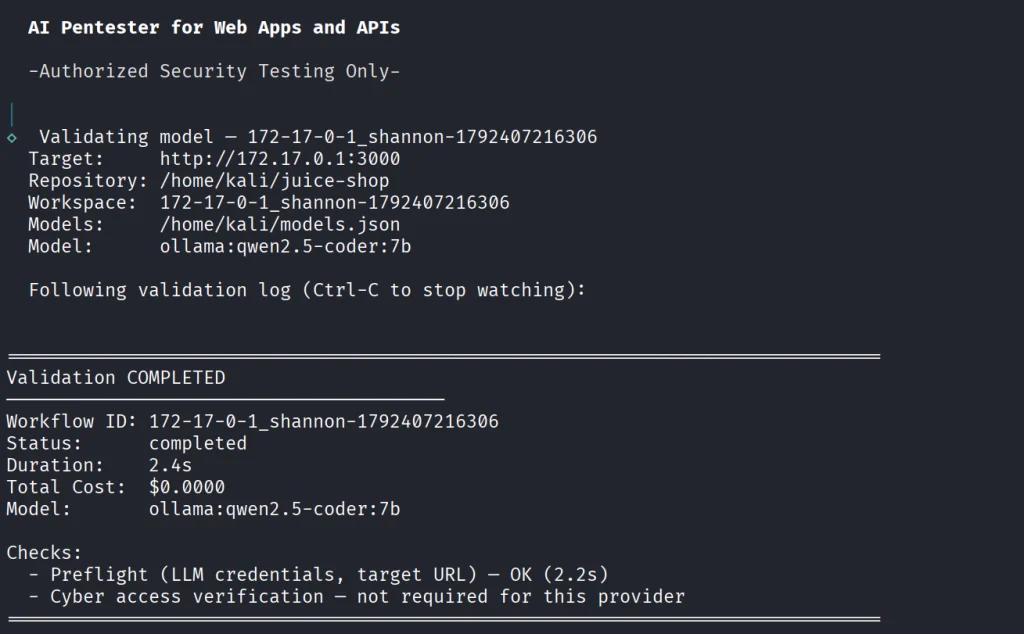
If your model has been validated and you can start scanning your project.
kali > kali > npx @keygraph/shannon@latest start -u http://172.17.0.1:3000 -r /home/kali/juice-shop -c ~/juice-quick.yaml --models-config ~/models.json --followReporting
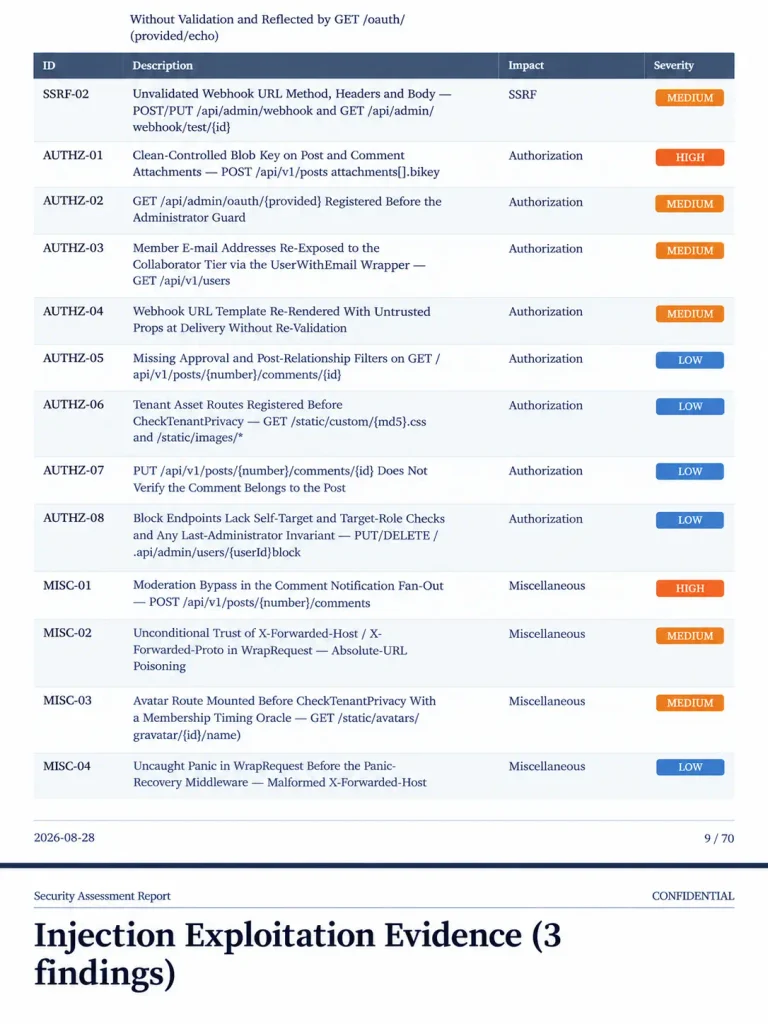
When the scan finishes, Shannon creates PDF and Markdown reports with the evidence attached to them. You will also see structured JSON and SARIF files for downstream systems.
Below is an example of a PDF report. As you can see, multiple vulnerabilities were found in the project, some of them are classified as High. As mentioned before, all the findings here were validated with PoCs.
Summary
Shannon was made to find flaws in your web apps to make them more secure. It digs through the project repository and runs checks against a live system. It then creates a report with findings that were discovered with PoCs, so you get a clean report. As AI becomes more prevalent in cybersecurity, it should be used to improve the security of your projects before their release. Of course, that doesn’t replace a human in the loop, but it makes things faster. Stick to better models and don’t cut back on your security.
AI is evolving rapidly and the sooner you learn how to work with it, the greater the advantage you’ll have. That’s why we invite you to join our AI for Cybersecurity training. During this training, you will see you different ways of using AI in cybersecurity, set up local models and solve labs.
The post Artificial Intelligence (AI) in Cybersecurity, Part 30: Shannon – AI Pentester for Web Apps and APIs first appeared on Hackers Arise.