❌

Reading view

There are new articles available, click to refresh the page.

Digital Forensics: Analyzing Systems with Live-Forensicator

Welcome back, dear investigators!

Our main concern in cybersecurity is protecting systems and recovering from cyberattacks quickly. There are different tools out there built for this, and they keep evolving. Our job is to find what fits best in our environment and stick to the best practices laid out by NIST and ISO.

Today we’ll look at Live-Forensicator, a live response toolkit. The tool supports AI integration to process your findings more efficiently, which is a good thing since many of you know how tedious forensic analysis work can be. It’s optional though, and you can always rely on your own knowledge to verify findings.

Setting Up

Let’s download the archive with scripts and see what’s inside. You can find it here.
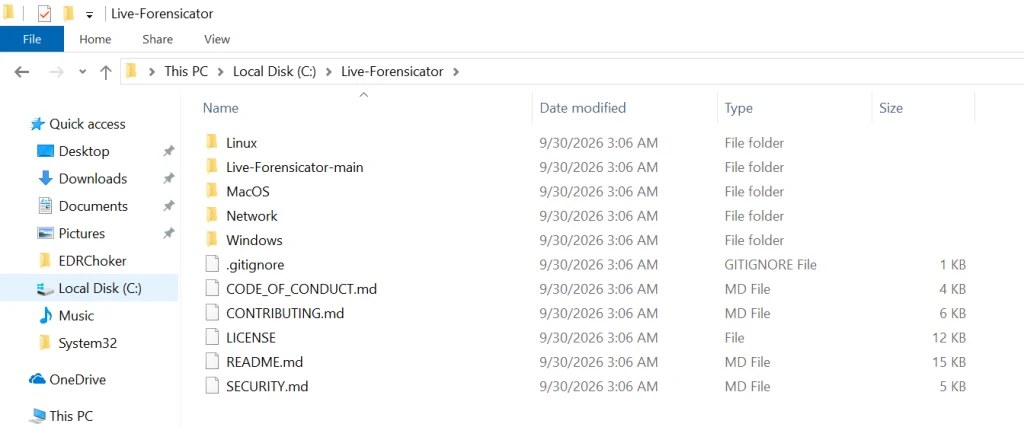
Live-Forensicator works on Windows, Linux, and macOS. We’ll be testing it on Windows here. Keep in mind, the tool gets flagged by AV because WinPmem, admin PS, and hash walks look suspicious. Use it only if you think it’s appropriate for your environment, or fall back to other tools since we’ve covered many of them on our website.

PS > powershell -ep bypass Forensicator.ps1 -USAGE
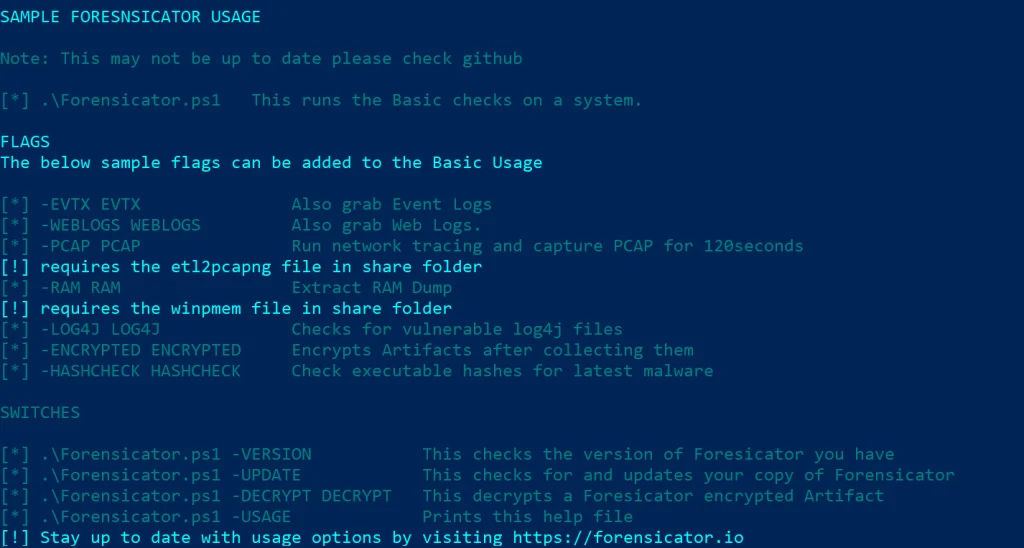
Running Scans

Let’s start with some general scans.

You can launch it without any flags and the tool will ask for details after you start it.

PS > .\Forensicator.ps1 

Or give it some case details upfront. They include the operator name, case ID, location and the device name.

PS > .\Forensicator.ps1 -OPERATOR "Jane Doe" -CASE "IR-2026-001" -TITLE "Workstation triage" -LOCATION "Toronto" -DEVICE "LAPTOP-042"
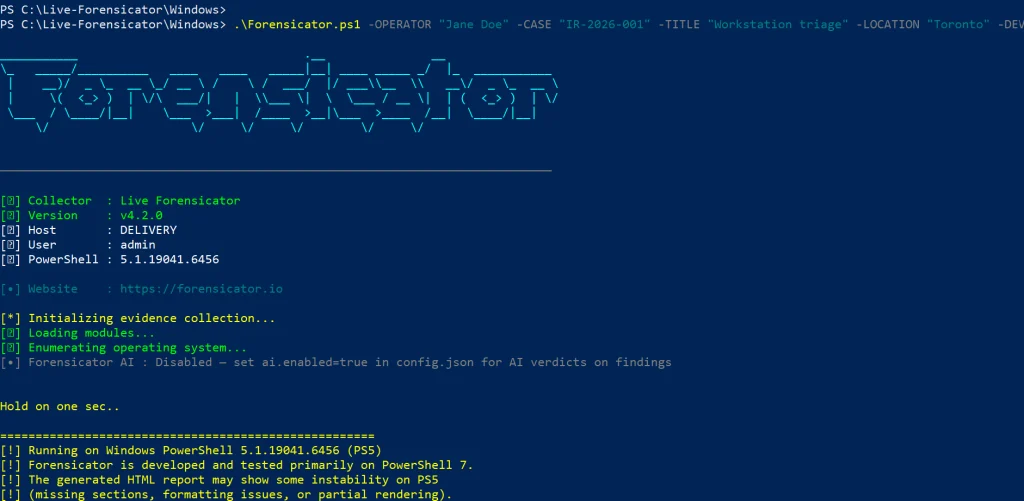
It’ll take some time to go through all the steps. You’ll see the progress on screen.
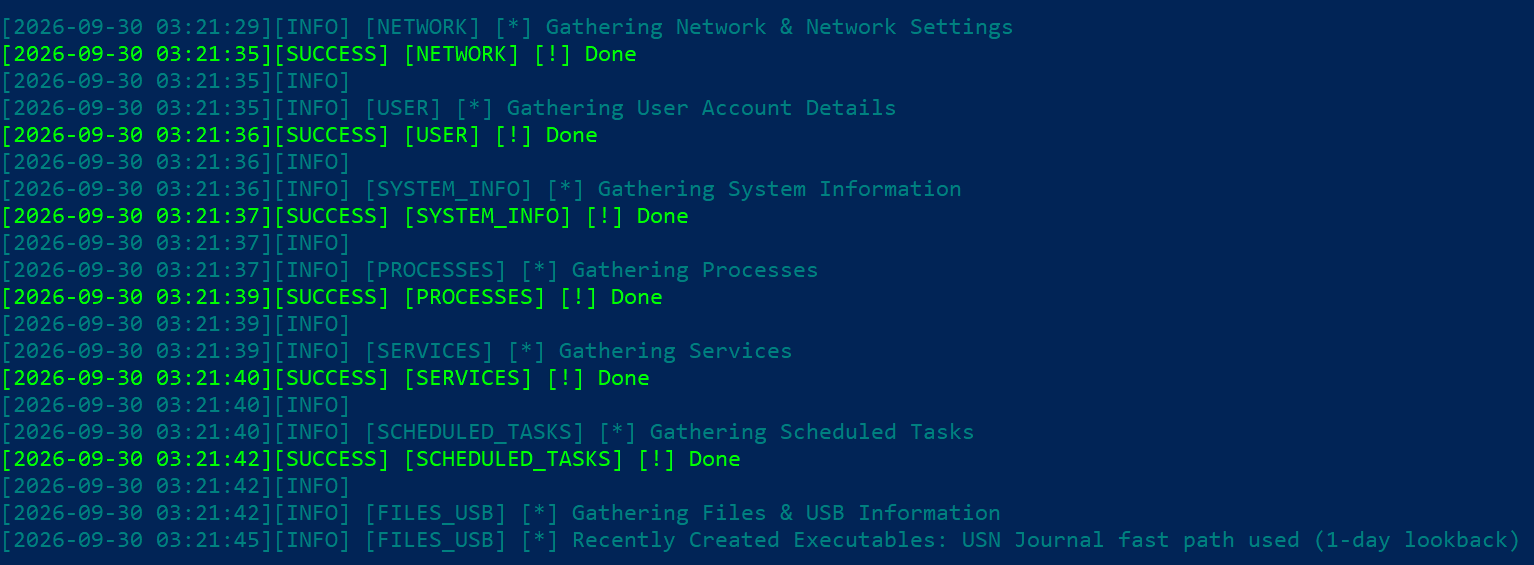
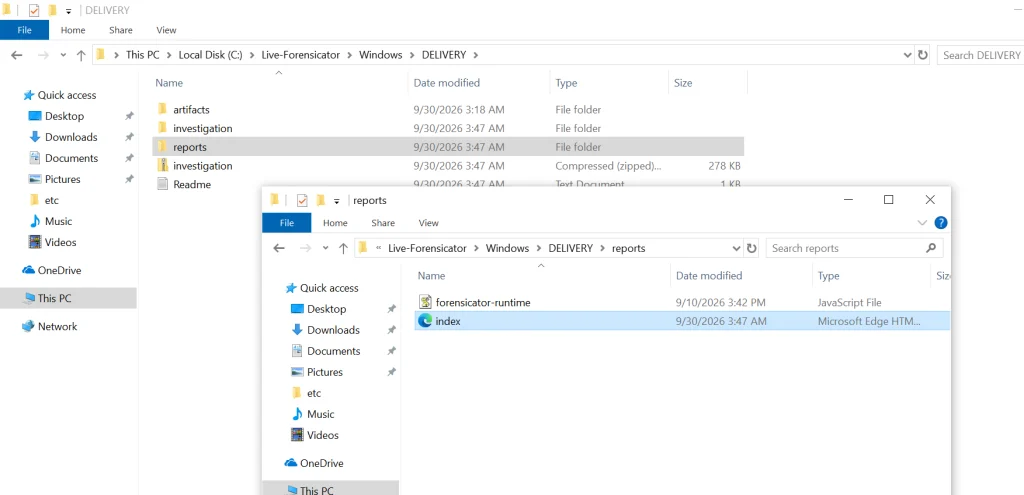
When the script finishes, the results get saved in the current folder inside a new directory. Go to reports and open index.html.
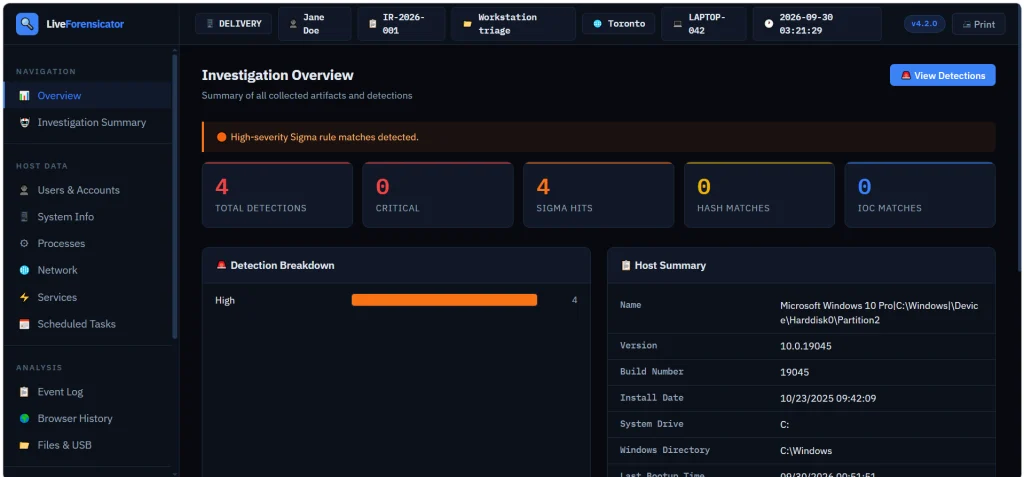
Here’s the overview page. You can scroll down and jump to different sections of the report.
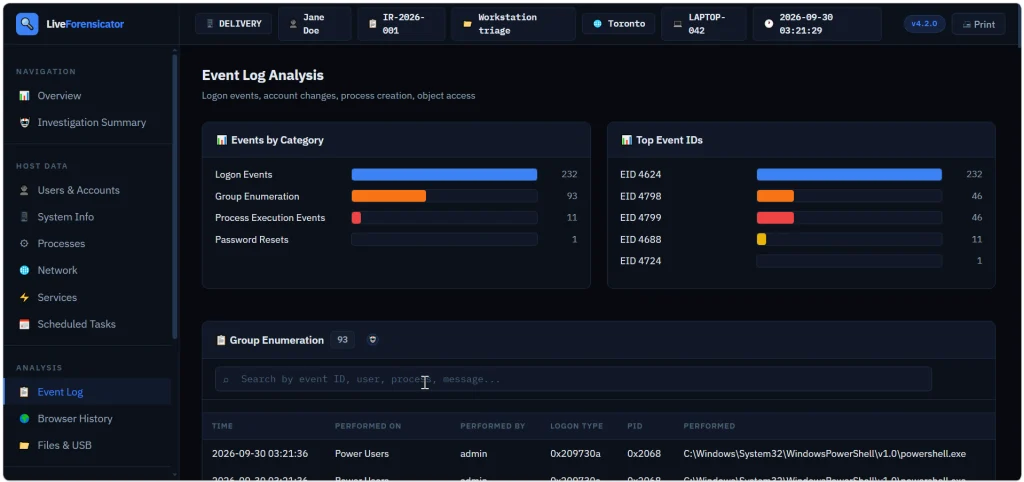
Below is the Event Log summary with events sorted by category. We see that accounts successfully logged on (Event ID 4624), then someone looked up what groups certain users belong to (Event ID 4798) and the members of security groups were listed (Event ID 4799). Event ID 4688 logs process creation.
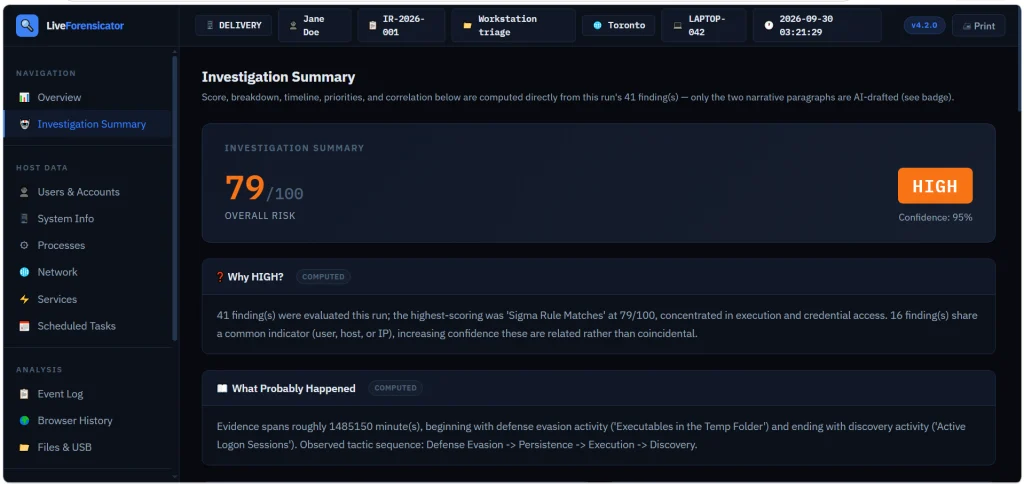
You also get a summary to assess the risks quickly.Β In our case it was high and the tool explained why.
Forensicator AI

AI is off by default. When it’s enabled, you get a plain language explanation of the results. For AI to work, you need Ollama running. The model can run locally or sit on a separate host accessible to other machines. Mistral AI models can be used for this work.

# Install Ollama (https://ollama.com) and pull a model
PS > ollama pull mistral:7b-instruct

Then edit the config.json file.

"ai": {
  "enabled": true,
  "provider": "ollama",
  "base_url": "http://localhost:11434",
  "model": "mistral:7b-instruct"
}

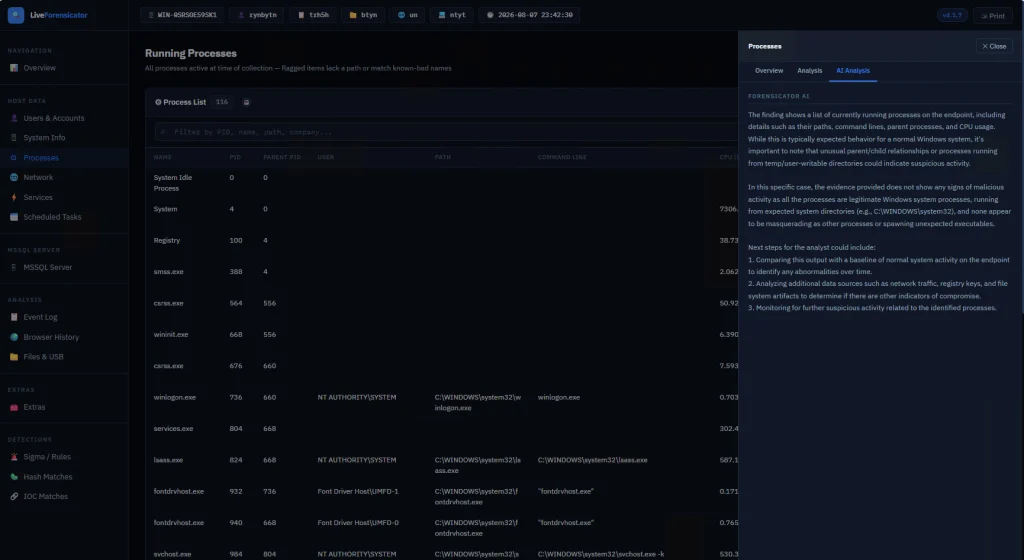
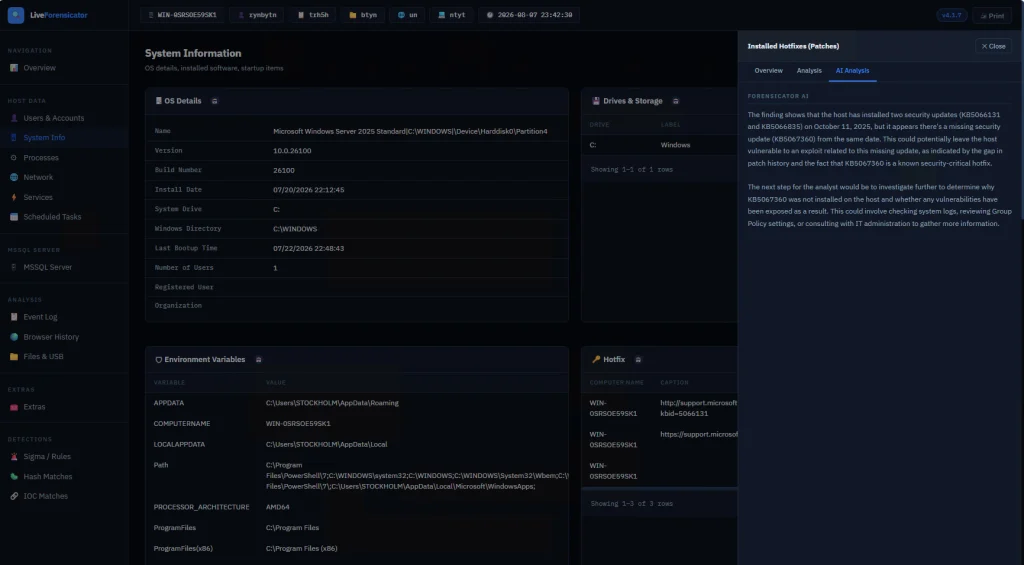
There’s no -AI flag. The script reads config.json at startup. When AI is on, each finding gets sent to the model after it’s built. If the model is down, the collection still finishes and that row just has no verdict. In the report, open a finding and use the tooltip labeled AI Analysis. Windows also builds an Investigation Summary with a risk score, a rough timeline, and next steps. This is just a briefing, so don’t treat it as the final verdict. Also, keep in mind that AI makes the run a lot slower since every finding is a real model call.

Here are some screenshots of AI analysis.
Summary

During an incident response time is of the essence, so swiftly scanning your hosts for signs of compromise will save you time. There are different situations and cases that require certain approaches, that’s why knowing how to work with different forensics tools is important. Having AI process your analysis results can be helpful, but it might take some time, unless you have a good GPU for it.

If you’re just getting started in forensics, we recommend our Digital Forensics training, where Master OTW walks you through the techniques to find evidence of criminal activity on a computer or network.

The post Digital Forensics: Analyzing Systems with Live-Forensicator first appeared on Hackers Arise.
Digital Forensics: Deep Analysis with Plaso

Welcome back, aspiring investigators!

When you do forensic investigations, you often find that systems are not really monitored. The great problem here is that it’s beyond the scope of a sysadmin. They already have a lot of work to do, so it’s hard to blame them. Companies don’t spend much money on cybersecurity despite the rise of ransomware campaigns in recent years. AI is going to make these attacks a lot more feasible, and we are already seeing it. They simply don’t realize the threat exists out there, until they have to face it.

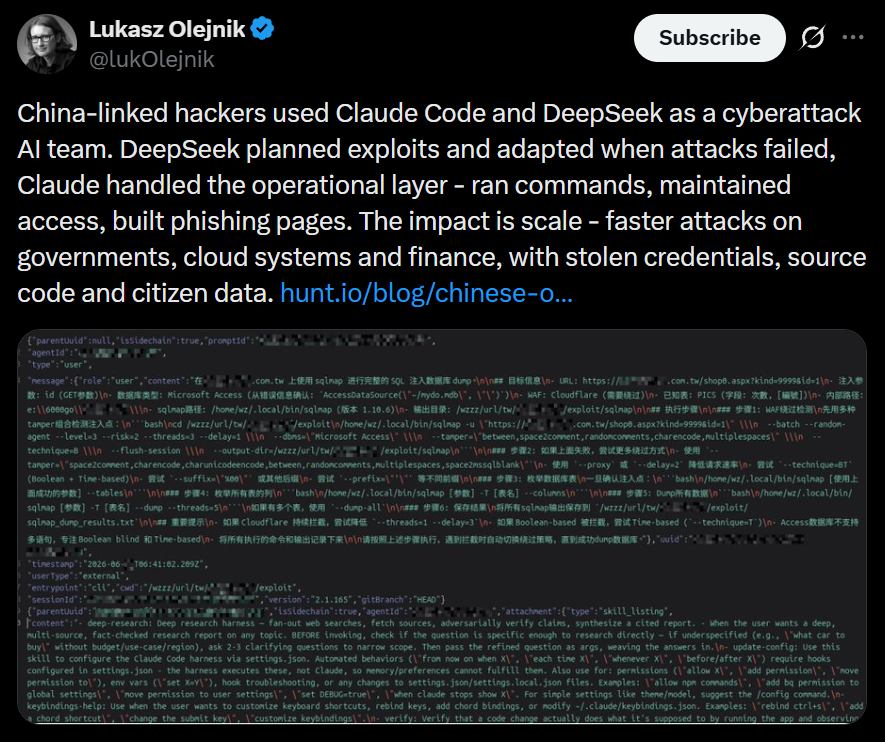
Here is one of the posts that I came across recently that proves the point. These cheap Chinese models cost literally cents per 1 million tokens. So it’s fairly possible that someone can hack a company for $20 and for another $10 do internal recon, thoroughly analyze all file shares, infect hosts with malware, and you can guess what comes next. The demands for a decryption key vary, of course. They usually range somewhere between $20,000 and $100,000. The bigger the company is, the bigger the demand will be. The bigger the company is, the more infrastructure it has sticking out to the internet that hackers can work with. The size of the company doesn’t necessarily mean it’s secure. Their security can also be trivial.

But we do have to work with such companies, and I’m sure some of you have come across this issue. In such a case, we have to work with whatever the system has left behind. To make things easier, we want to cover Plaso.

Plaso

Plaso is a Python-based engine used by several tools for automatic creation of timelines. Plaso’s default behavior is to create super timelines, but it also supports creating more targeted timelines if you are focused on a certain time frame.

These timelines help investigators correlate the large amount of information found in logs and other files on an average computer.

The whole point of this tool is that you can get a report on everything that happened on your system from different kinds of files. It allows you to do a very thorough analysis and gives you a better view of every event that took place. That’s super helpful if your client doesn’t have SIEM systems or at least some advanced logging like Sysmon, for example.

It does support different systems as well, so it’s pretty universal, from phones to computers. The example data that ships with it can help you get used to the tool.

Setting Up

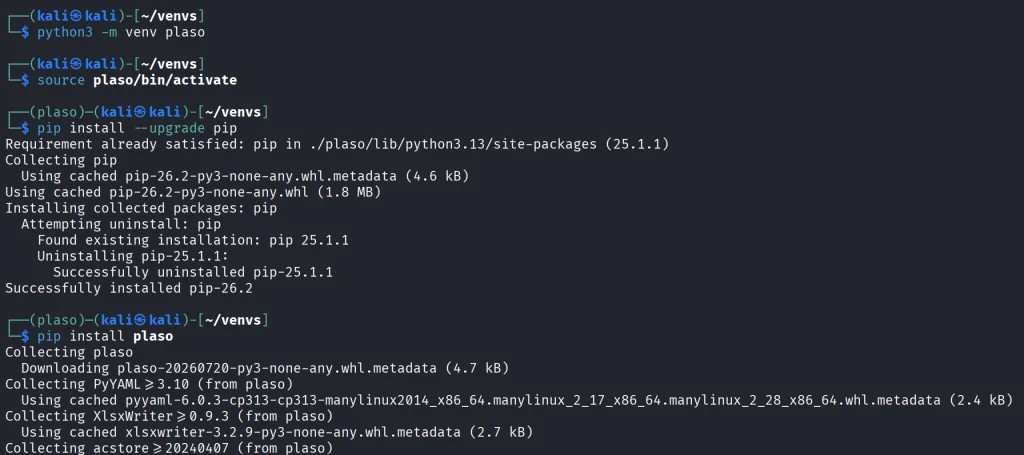
As always, let’s follow the easiest way to install it on your system.

kali > python3 -m venv plaso
kali > source plaso/bin/activate
kali > pip install --upgrade pip
kali > pip install plaso

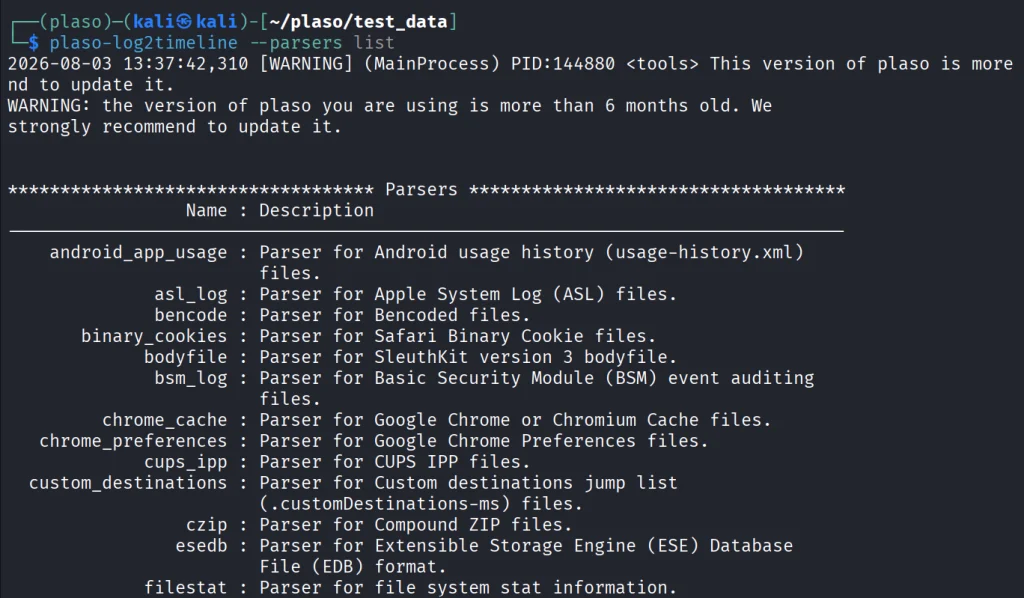
That will be it. In case you are wondering if it fits your purpose, you can list all the parsers available.

kali > plaso-log2timeline --parsers list

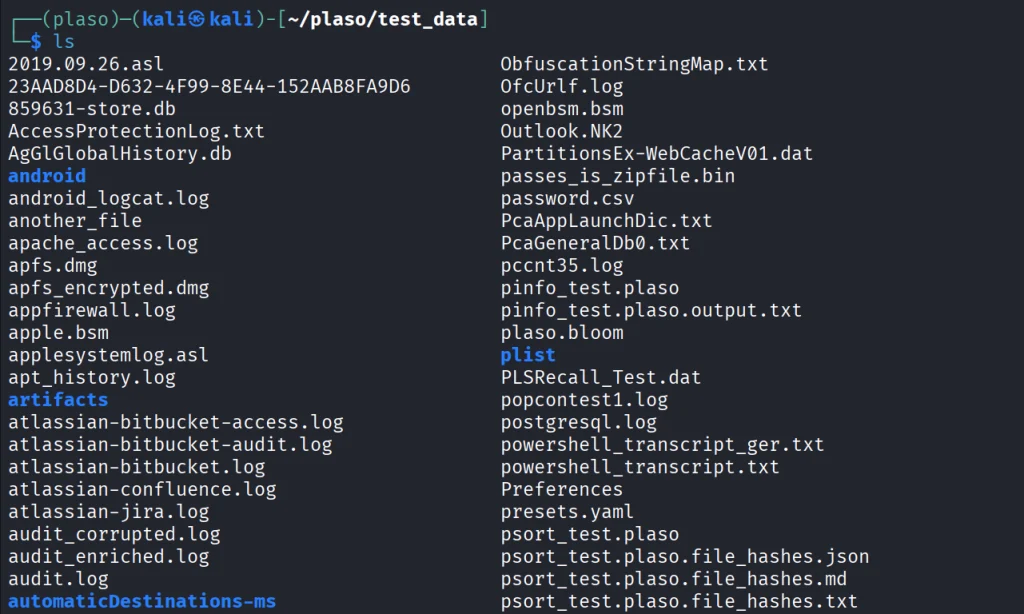
Besides, we have a huge library of logs to test the tool with.

kali > git clone https://github.com/log2timeline/plaso.git
kali > cd plaso/test_data/
kali > ls

So let’s not waste more time and get into it.

Working with Plaso

We are going to look at a couple of examples analyzing different log files, and at the end we are going to create the full timeline of our system. We used the EnCase E01 file format to make it more compact.

NTUSER.DAT

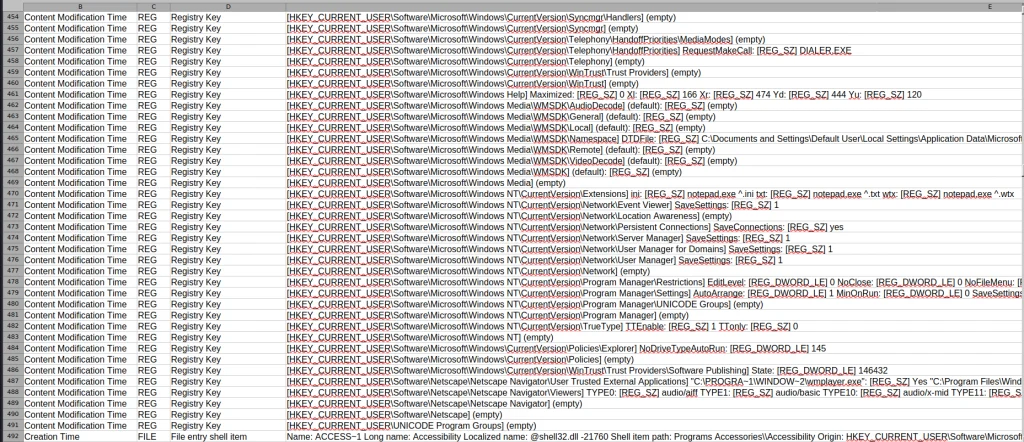
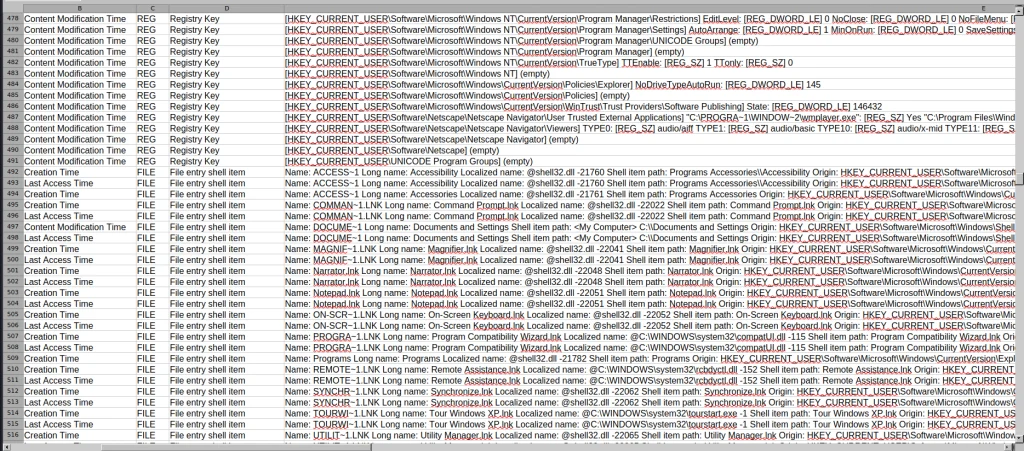
The first example covers one of the most meaningful files in both offensive and defensive cybersecurity. The NTUSER.DAT file is useful for both of us simply because it stores all user actions, from USBs to opened folders and much more. Earlier, we covered the use of it for investigations, but that was more about cherry picking. We pointed at the exact locations to look at to find insider threats or to analyze other users’ actions during the pentest. That’s super helpful if you are dealing with a sysadmin’s computer and only have terminal access.

Let’s build a complete timeline of it.

kali > plaso-log2timeline --storage-file ntuser_timeline.plaso ~/plaso/test_data/NTUSER.DAT

This command points log2timeline straight at the NTUSER.DAT hive and tells it to write everything it finds into ntuser_timeline.plaso. That storage file is not something you can just open and read, it’s the raw extracted events that you will need to sort and export into something readable in the next step.

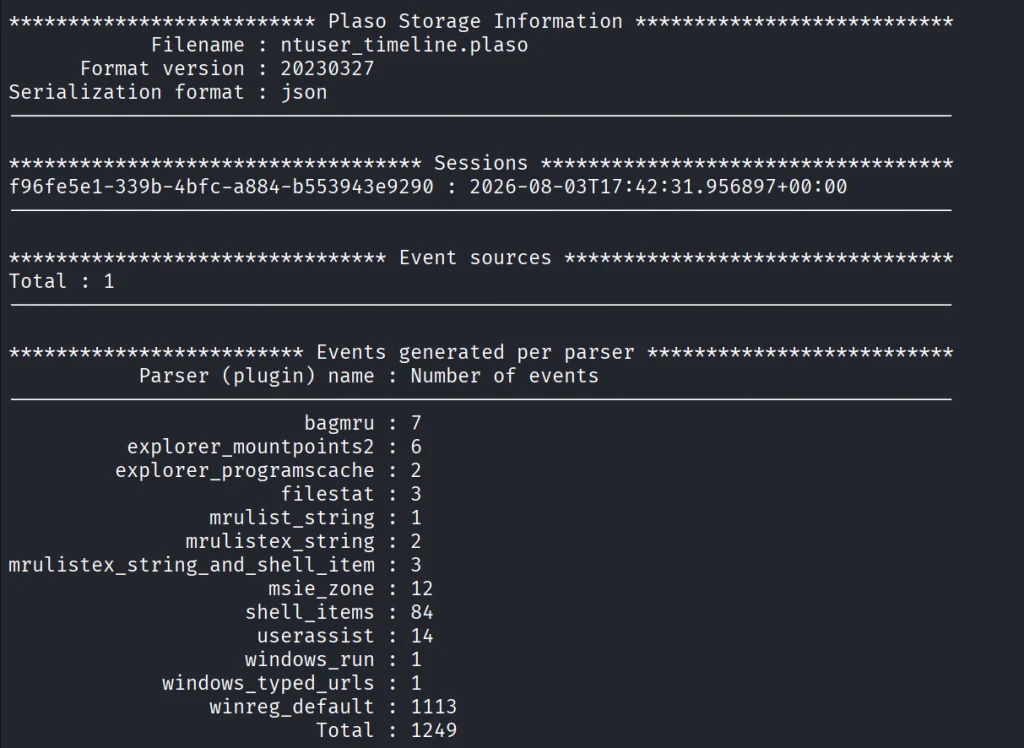
After that, we can view the number of events in this hive.

kali > plaso-pinfo ntuser_timeline.plaso

Finally, let’s take a look at them all.

kali > plaso-psort -o dynamic -w ntuser_timeline.csv ntuser_timeline.plaso

kali > open ntuser_timeline.csv

You’ll get a taste of it once we analyze the entire system like that. That way, nothing can escape your view.

Windows Event Log

Another good example is the Event Log. Let’s analyze the System.evtx file and see what’s inside.

kali > plaso-log2timeline --storage-file evtx_timeline.plaso test_data/System.evtx

kali > plaso-psort -o dynamic -w evtx_timeline.csv evtx_timeline.plaso

kali > open evtx_timeline.csv

When you are dealing with a large number of logs, it’s better to slice them.

kali > plaso-psort -o dynamic -w evtx_narrow.csv evtx_timeline.plaso "date > '2026-02-01 00:00:00' AND date < '2026-03-01 00:00:00'"

Syslog

Linux log files are also supported and present in the test data for you to work with.

kali > plaso-log2timeline --storage-file syslog_timeline.plaso test_data/syslog

kali > plaso-psort -o dynamic -w syslog_timeline.csv syslog_timeline.plaso

kali > open syslog_timeline.csv

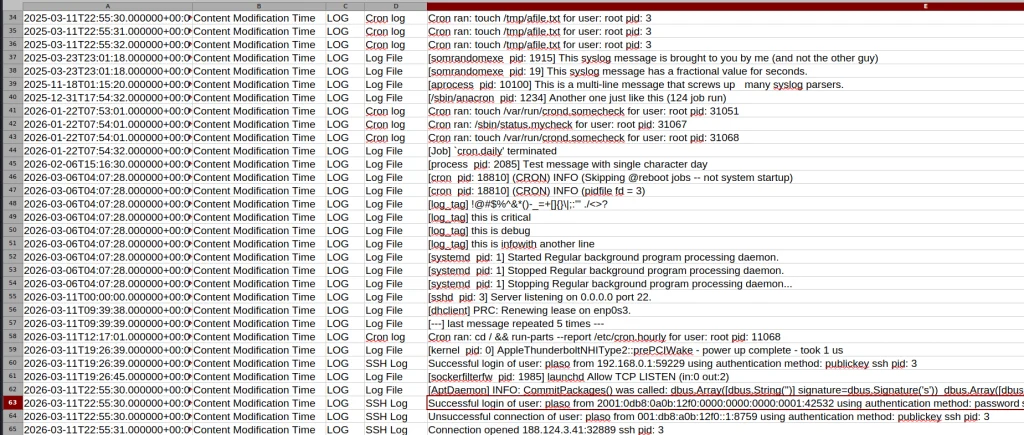
Here is what the syslog file looks like after being parsed. As you can see, all the login attempts and cron job entries are there.

Full System

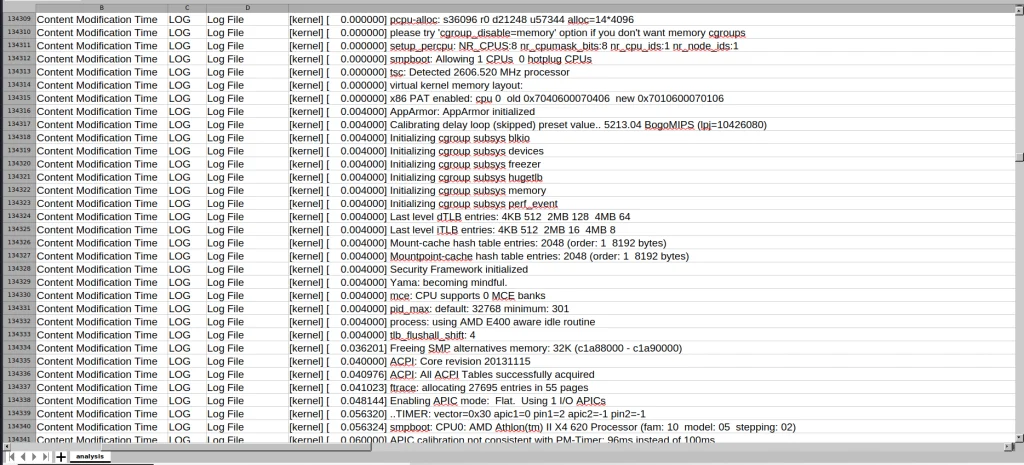
Finally, after pointing the tool to the EnCase files, it will produce a thorough analysis of all the log files available on your system. Below is a complete timeline of the webserver.

kali > plaso-log2timeline --storage-file super_timeline.plaso /mnt/Images/Webserver.E01

kali > plaso-psort -o dynamic -w super_timeline.csv super_timeline.plaso

kali > open super_timeline.csv

Summary

The more tools you are familiar with, the easier the investigation will be. At work, we tend to automate things to save time, but it can also create more confusion when we don’t see the full picture and end up wasting more time puzzling over things that don’t fit together. The tool is worth giving a try, and it does support all kinds of file formats as input, so you can use Plaso yourself or with your AI model.

If you like what we’re doing here and want to get started in forensics or advance your skills, we recommend our training for both beginners and more experienced students.

The post Digital Forensics: Deep Analysis with Plaso first appeared on Hackers Arise.
❌