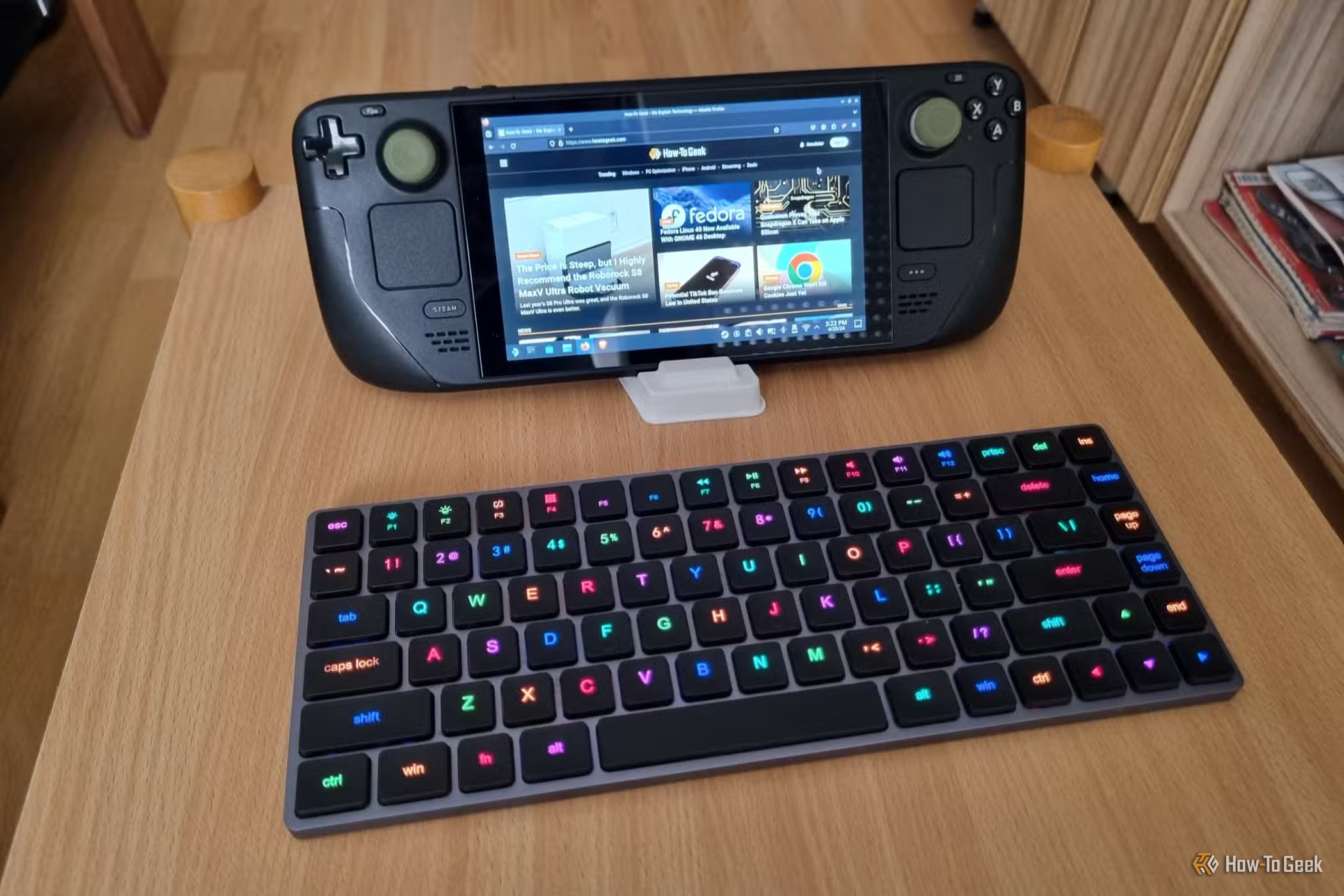
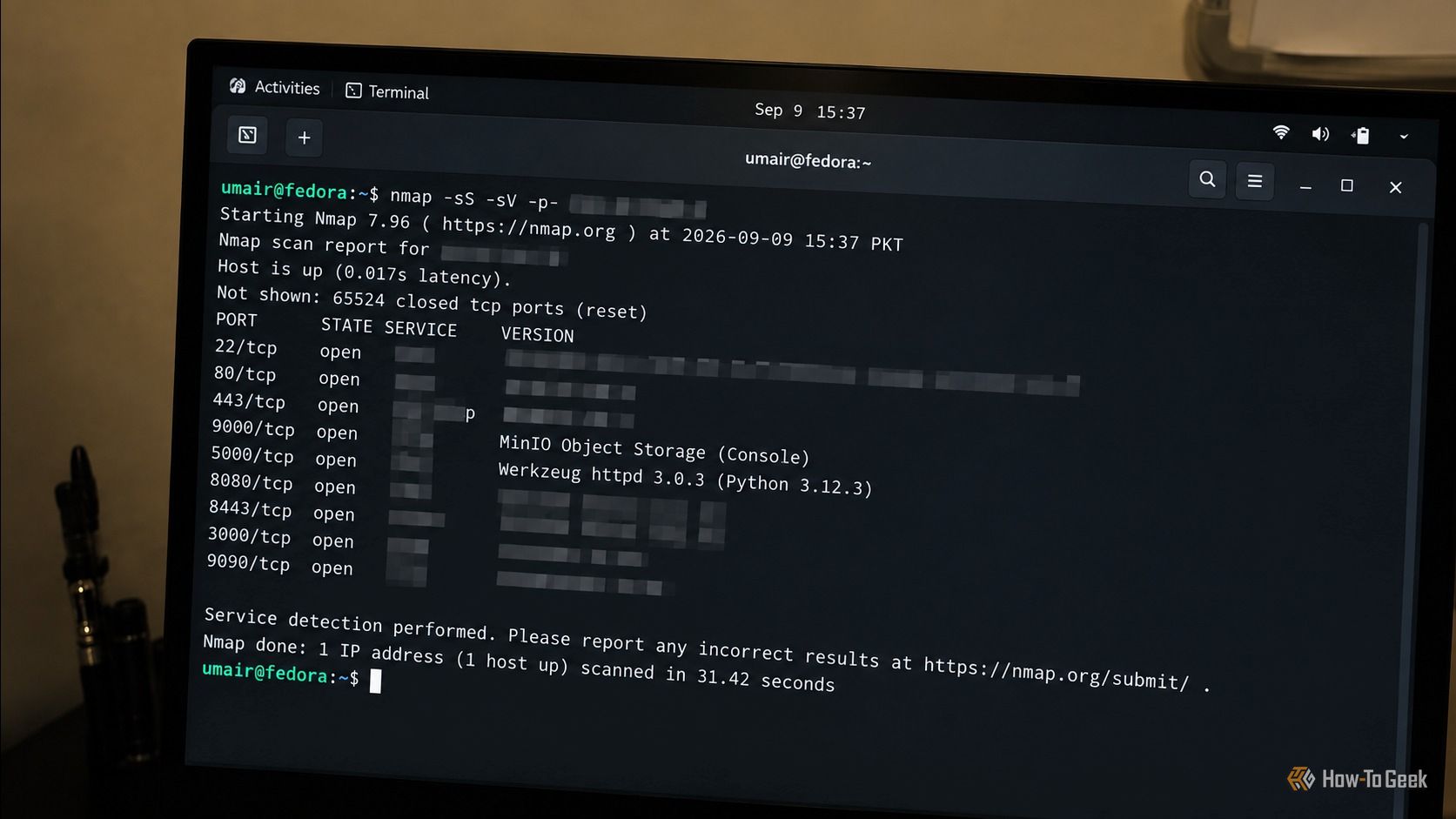
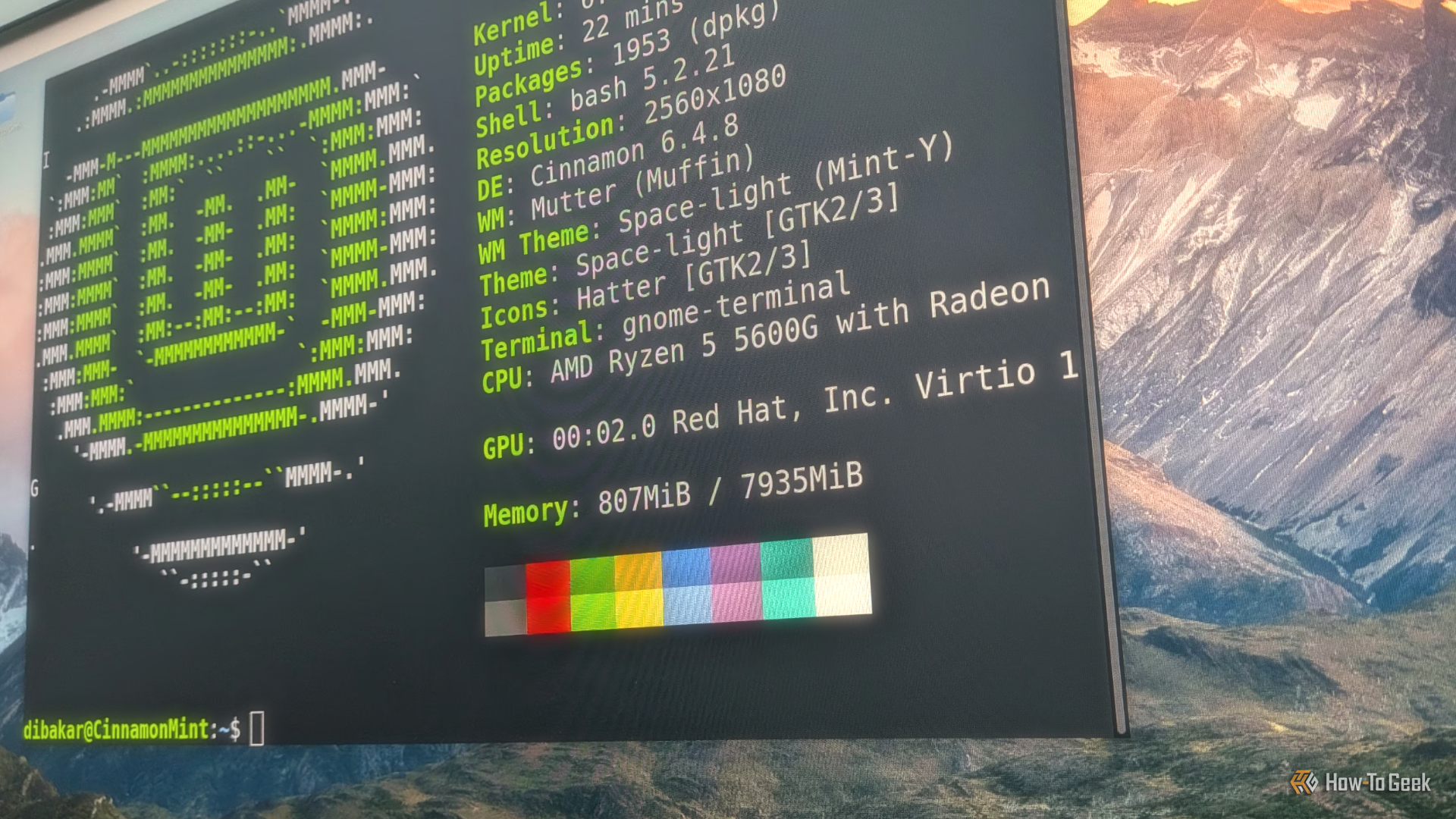
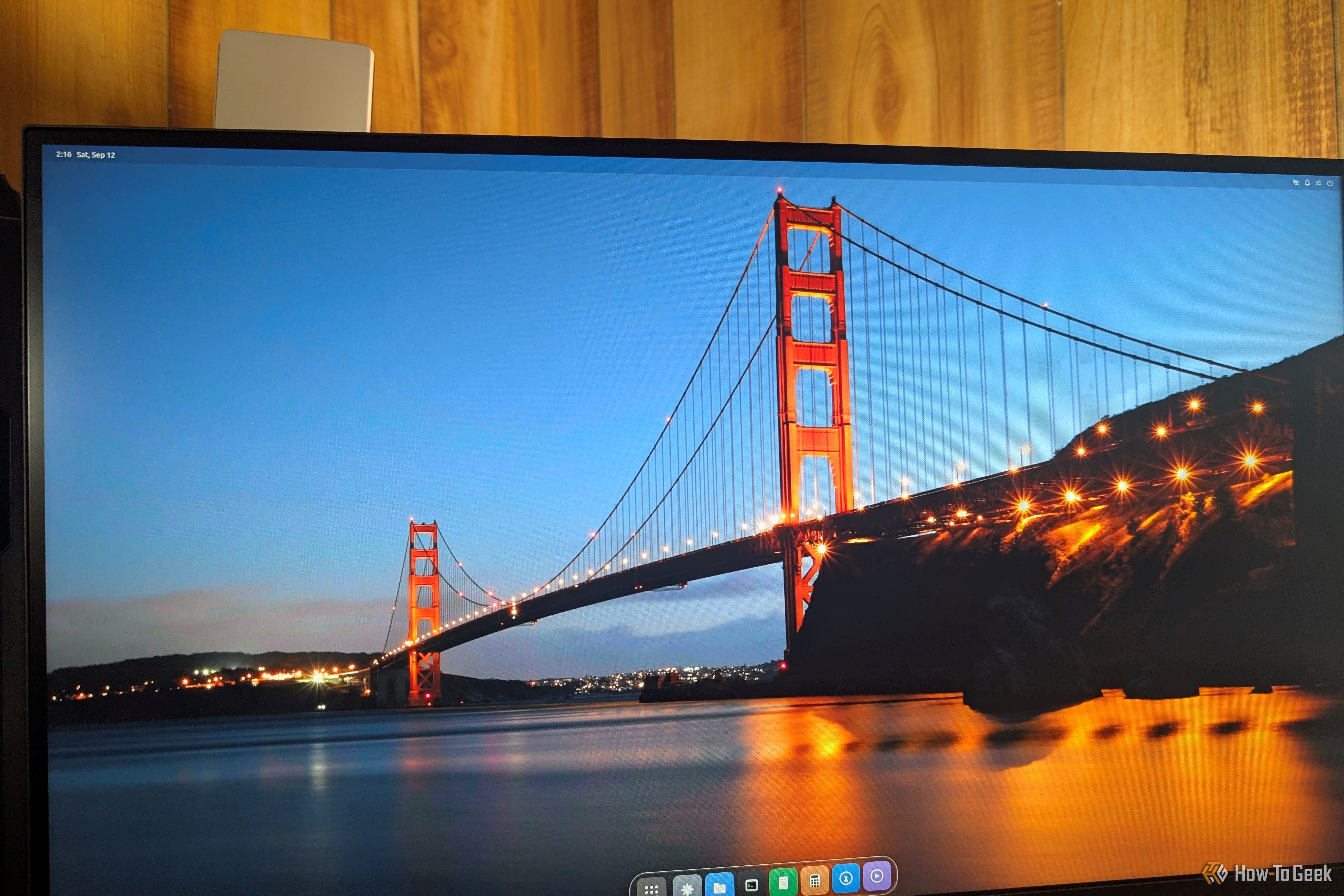
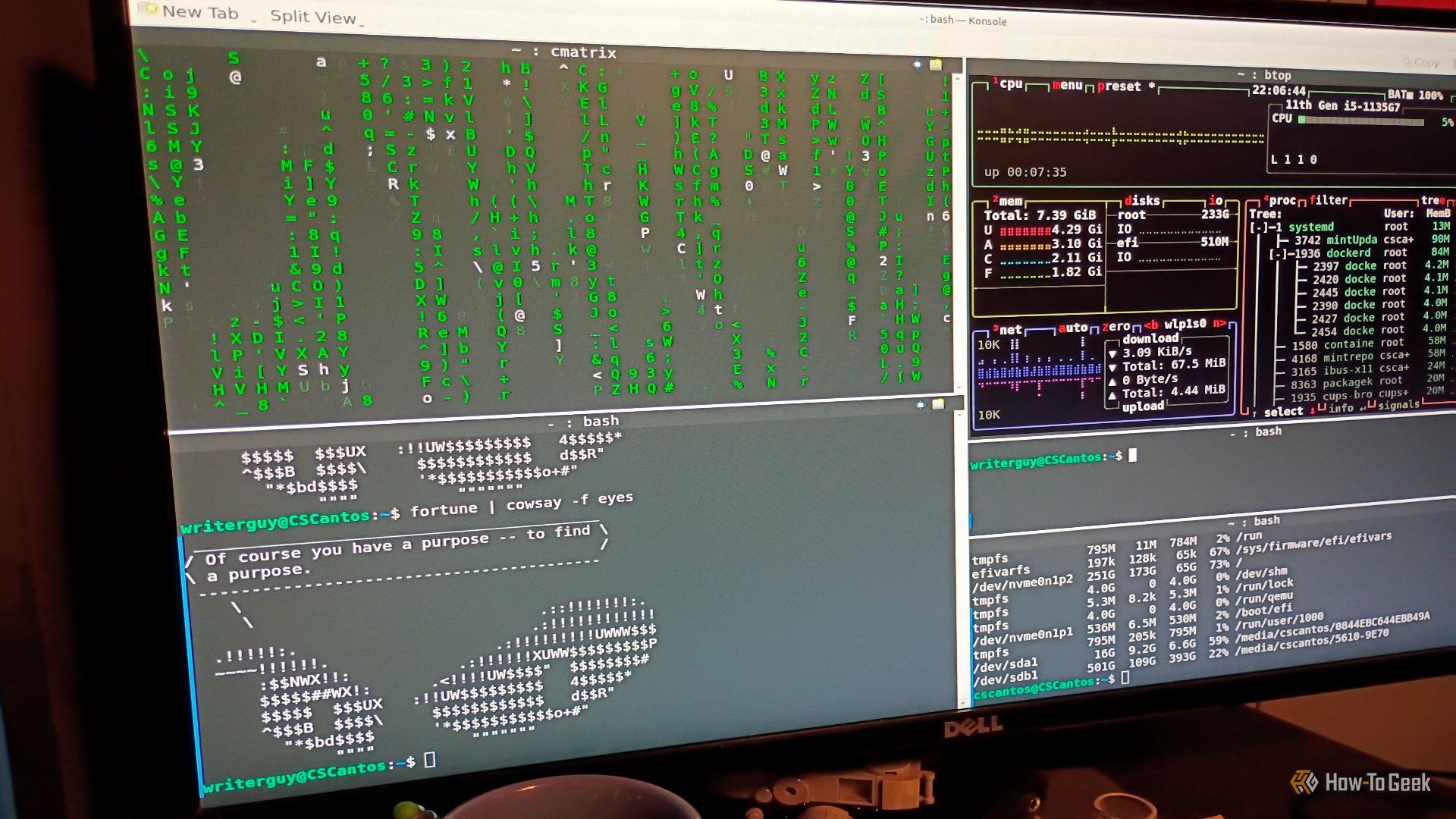
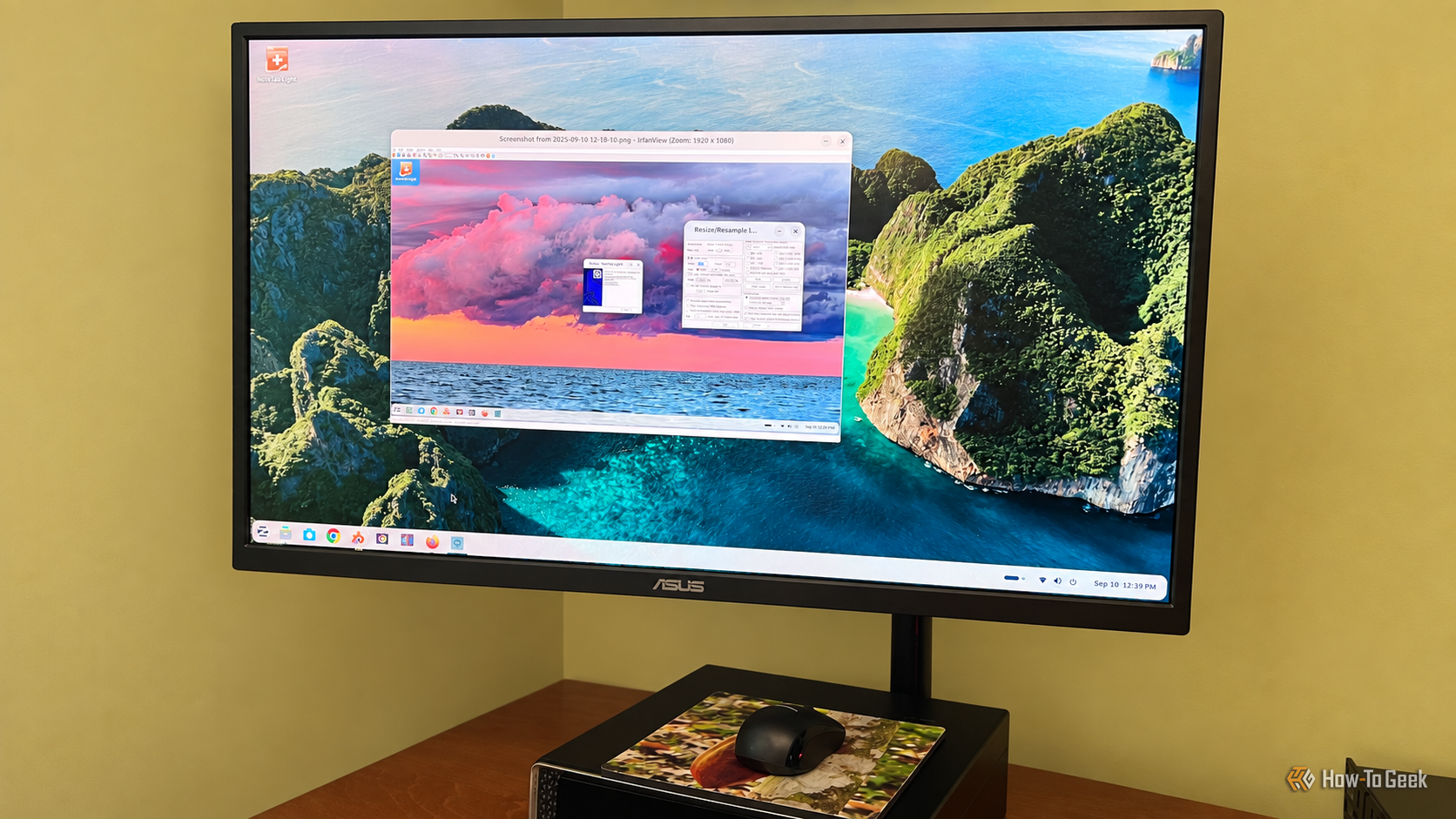
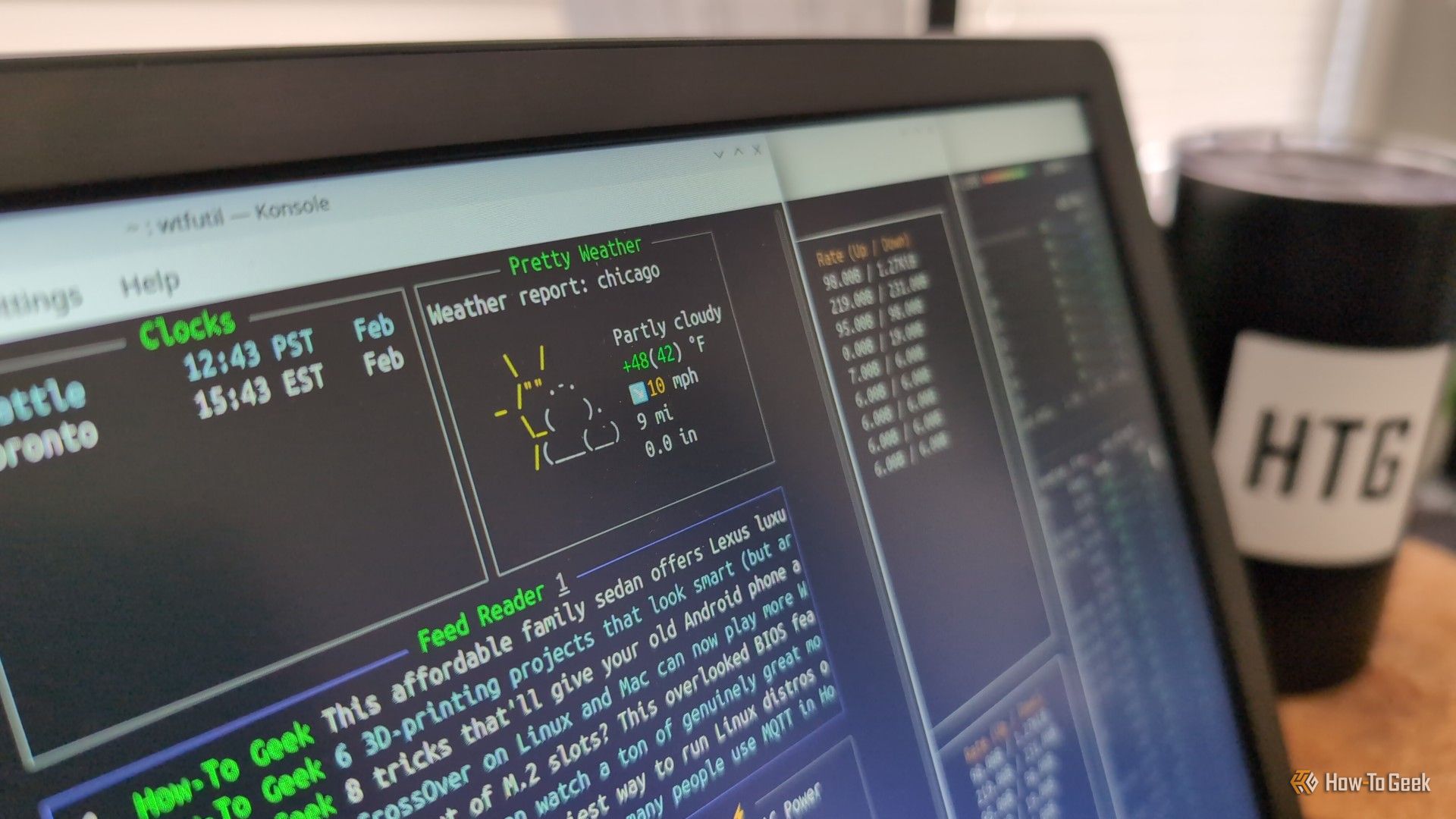
Most Linux advice targeted at newcomers starts and ends with “just pick Ubuntu or Linux Mint,” but I find that to be an oversimplification. However, at the same time, I do understand that it’s not helpful to overwhelm someone with the hundreds of distros out there. So, we’ve developed a quick cheat sheet that walks you through a dozen beginner-friendly distros and shows how they compare across the four key areas that matter for a Linux newcomer. This should help you decide for yourself instead of simply listening to someone else’s opinions.
With the Xtensa Lx7 twin CPU cores in the ESP32-S3 running at a relatively zippy 240 MHz and accompanying PSRAM of up to 16 MB, you might find yourself wondering whether it could run Linux. As [Paulneja] demonstrates with Linux kernel 6.11, the answer is a ‘yes’, though with the usual caveats.
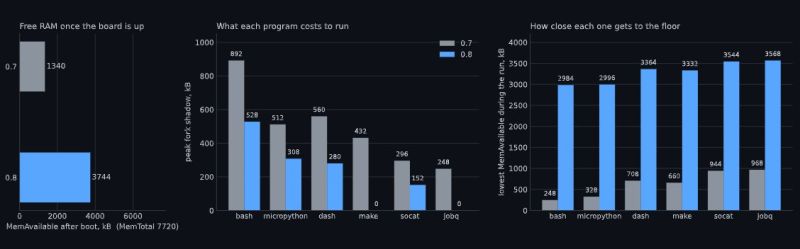
What complicates matters with the ESP32-S3 is that it lacks certain amenities that spoiled OSes like Linux have come to take for granted, such as a Memory Management Unit (MMU). To deal with this, the NOMMU Linux configuration was used, along with a custom fork() implementation. Although the previous 0.7 version sort-of worked, the current 0.8 release is the first that manages to actually boot reliably and has a usable amount of RAM available after boot.
You can see the comparison between the two versions in the header image, with v0.8 having a blistering 3.7 MB available after booting and with overall resource usage and performance having improved massively. Note that only one core is available to Linux, with the other used by the typical FreeRTOS ESP-IDF stack to provide WiFi and Bluetooth.
This was all run on an ESP32-S3 with the N16R8 configuration, meaning 16 MB Flash that’s also used for writable storage and 8 MB of octal PSRAM. As for practical applications, it’s noted by [Paulneja] that this is a research project, though one could imagine this being an embedded Linux project along the lines of a network router running something like BusyBox.
Apparently, people hate typing. As every movie and TV show suggests, the future is talking to computers. There was a time when speech recognition was complex and not very good. But these days, even our lowly phones can do a pretty good job of speech recognition. Of course, one problem is that your phone probably isn’t actually doing the speech recognition. It sends it to the big business of your choice to interpret. I’ve been using Handy, a speech recognition system that works well for me. I’ve also looked at some that didn’t.
After all, it is sometimes nice to dictate to your computer, and it would be even nicer if you could keep your data local. On Windows, oddly enough, there is a well-developed speech feature that, as far as I can tell, almost no one talks about or uses. One video estimates that 99% of users don’t use it. Linux, of course, has many options, but historically, these have been difficult to set up or finicky.
Of course, the good news is that many of the Linux tools are open source and the models are quite good. That means other people have had the freedom to fork the tools and make them easier to use, at least in theory. The licensing of the models themselves may be different, but those will be hard to modify, anyway and they generally work well. The biggest problems on Linux isn’t the technology itself, but the tremendous variety of systems and setups.
Suppose you want to write a speech-to-text program. Will it work on ARM? What desktops will it integrate with? Can it use a GPU? What kind? What about specialized instructions in some CPUs? Then there’s the forced input situation; typing into arbitrary programs once you know what the user said. On X11, it is easy, but Wayland needs different handling.
A Shortcut
I’ve thought about using my phone with KDE Connect, which is an excellent program. It can let you use your phone as a keyboard and mouse for your Linux computer. Unfortunately, it is aimed at character-at-a-time input, and I’ve never found a way to make it work with voice.
Besides, the phone is beaming all the data to “the cloud.” You probably type things you’d rather not broadcast to the ether.
I had looked at Speech Note before, but it is sort of a speech recognition notepad. I didn’t find it seamless, and it didn’t work well on my system anyway. Vocalinux looks nice, but a quick test kept complaining that my Intel extensions were not available. Makes sense, since I have an AMD CPU. Even though the documentation said it should work, I was never able to get it to work.
The Easy Way
Turns out the application that worked readily on my machine was Handy. Keep in mind, Handy is just another tool that uses one of several models out there, along with other open-source tools. You might need to install some tools to deal with your system like xdotool or dotool, but they are probably already installed anyway. That isn’t to minimize the value of Handy. It is — well — Handy. You don’t have to load and configure models, set up a bunch of system-level hooks, or install a bunch of libraries. You install it, and it works.
You can configure it. The best model for you, for example, may depend on your machine and the languages you speak. You can configure the hotkeys and how the app types into your computer. But it does all the work of downloading and configuration.
No Cloud, Unless…
The models do run on your computer and you can make sure it takes advantage of your hardware. However, there is an optional alternate hotkey that takes your speech, processes it to text, and then sends it to your choice of AI engines to clean it up.
Of course, you could be running your own AI engine, but normally you’ll have it sent somewhere else with a prompt. You can tune the prompt or create your own, but the default one starts: “Clean this transcript: 1. Fix spelling, capitalization, and punctuation errors 2. Convert number words to digits (twenty-five → 25, ten percent → 10%, five dollars → $5) 3. Replace spoken punctuation with symbols (period → ., comma → ,, question mark → ?) 4. Remove filler words (um, uh, like as filler)…”
You do need an API key, but there are free options available. For experimenting purposes, I went to OpenRouter, generated a key, and attached it to one of several free models they have. The nice thing is that you can experiment with different models while keeping the same key.
If you search for free in the models box, you will find a few choices including openrouter/free which just picks a free model that isn’t too busy. That can be important because some of the models will introduce long wait times into your transcription.
On the other hand, you can make a new prompt, copy the original one in, delete the part about keeping the language the same, and add instructions to translate the output to French, and that will work, at least most of the time. So there are a lot of possibilities.
Rather than tell you all about it, we’d encourage you to install it and try it or watch the reveiw video below.
Special Mention
Although Handy is my first choice for day-to-day transcription use, there is another open source project that’s worth mentioning. Nerd Dictation is a very lightweight wrapper around the Vosk model. It does take a little bit to set up, and then it provides you with a command line tool that can start and stop dictation. Of course, you can assign those to macro keys. However, there is also a switch that allows you to simply output to stdout. That opens up a lot of possibilities for writing programs or even shell scripts that respond to voice.
To see what’s possible, run nerd-dictation begin --help. This will show you how to output to stdout, set a timeout, and handle other options.
Of course, the obvious project would be a voice typewriter. Many of the tools mentioned here either rely on or can use OpenWhisper and, of course, you can use it too, if you roll your own code.
Linux has changed dramatically since the early days of the kernel. Desktops have gone from X11 environments with primitive window managers to polished graphical shells. Containers, cloud computing, virtualization, and immutable operating systems have transformed how people deploy Linux. Even the hardware running Linux today would have seemed extraordinary to many of its earliest users.
Linux on desktop systems is in a great place right now. Whatever desktop system you have, you can probably slap a Linux distro of your choice on it right now, and have few if any issues.
I am not a professional red teamer or security researcher, but my background is in systems engineering and DevOps, so I spend a lot of time working with Linux, networking, firewalls, virtualization, and infrastructure security. I already knew the obvious security rules.
One of the perks of Linux is that both the operating system and the vast majority of apps are free. Yet if you try to buy a PC that comes with Linux, you might end up spending more than buying one with Windows. Why spend that extra money when you can install Linux on an existing computer for free?
If you're new to Linux, or you've happily existed in Mint's easygoing ecosystem for years, you might want to hear what its downsides are. That comfortable feeling may cost you dearly.
Most Linux distros you'll find are basically a pile of separate programs—a panel, a compositor, a window manager, and so on—all exchanging information and coordinating their behavior to create a cohesive experience.
If you're new to Linux and switching from Windows to Linux, there are some mistakes you want to avoid. Avoiding common beginner mistakes in Linux will put you ahead of the other Linux newbies.
Like a lot of Windows users, I resisted Linux for years for two main reasons. I expected a steep learning curve, and I assumed I'd have to give up some of the Windows apps I rely on every day. Either one is enough to make switching feel like more trouble than it's worth.
I’ve been using Linux for many, many years now, but I still keep learning new things all the time. It seems like, no matter what task you’re running, there’s a faster way to do it. So I decided to start focusing on these speed gains to see just how fast my terminal life can be.
Buying used enterprise storage is one of those things that makes perfect sense when you look at the price and becomes more complicated once you actually put the hardware into a machine. Enterprise HDDs that originally cost a small fortune can appear on the used market for surprisingly little money. For a homelab, where storage capacity is always useful and budgets are rarely unlimited, it is difficult to ignore those prices.
I've been an Arch user for five years, and it's been a love-hate relationship. I love having access to the AUR (Arch User Repository) and the hundreds of thousands of packages it brings with it, along with access to bleeding-edge updates as soon as they drop. But at the same time, I hate it when a buggy update just wrecks my system, not to mention the current malware mess with the AUR and all the headaches that come with it.
Back in 1998, four of the biggest names in enterprise computing agreed on something wild. IBM, the Santa Cruz Operation (SCO), Sequent, and Intel would merge their separate UNIX systems into one OS for Intel's upcoming 64-bit chips. They called it Project Monterey.
One reason that Linux has struggled to gain desktop users is the perception that the Linux desktop is a mess. Apps look too different from each other, and command-line elitists rule the system. The way the Linux desktop is the way it is largely stems from Linux's predecessor, Unix, and some design choices made in the '60s, '70s, and '80s.
Linux is famously smaller and lighter than Windows, but that understates just how small Linux distros can really be. There are complete, general-purpose operating systems that only take up 200MB of storage—truly tiny by the standards of 2026.
I've been in the Windows camp for decades, and for years I thought Linux was simply harder to use. That was a pretty common view among Windows and Mac users, and for a long time, it was fair.
If you type a lot of commands in Bash, it can be time-consuming to navigate, correct, and add strings to achieve the desired output. I've found my fair share of typing errors, multi-instruction commands, and complex interpreters. There are ways to speed up the typing process without wearing you out or giving you headaches, from short codes and hotkeys to cool shortcuts and hidden features.

 Login
Login