❌

Reading view

There are new articles available, click to refresh the page.

Exploring What’s Left of Google’s VR Dreams
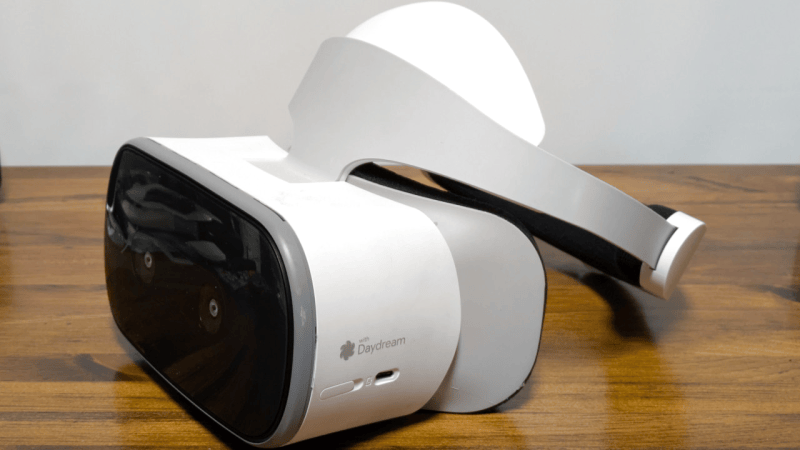
You’re likely familiar with Google’s Cardboard, and the legions of cheap virtual reality headsets it spawned. By sticking a smartphone to the wearer’s head, all these headsets needed were some basic optics to provide a surprisingly effective VR experience. You may even know about Google Daydream initiative that came a few years later, which not only improved the basic Cardboard design but brought with it new software features such as VR-specific improvements to the Android operating system and a version of the Play Store dedicated to 3D games and applications.

But unless you’re a true Google devotee, what you may not know is that the search giant partnered with Lenovo to produce a stand-alone Daydream headset called the Mirage Solo in 2018. A full year before the Oculus Quest hit the market, the $399 device combined the guts of a smartphone with a 2560×1440 display running at 75 Hz, a pair of cameras in the front that let it see the world around the user in three dimensions, and a gyroscopic handheld controller to provide an immersive VR experience without having to be tethered to a computer. In addition to the standard consumer version, there was even a “Business Edition” of the headset specifically marketed to schools, offices, and hospitals as a way to deliver VR content without having to invest in any additional infrastructure.

So why isn’t the Mirage Solo better known? Because in classic fashion, just a few years after it was released, Google decided they were no longer interested in virtual reality and shuttered the entire Daydream program. The software components it introduced were stripped out of Android, the 3D Play Store was taken down, and the back-end mechanisms necessary to register new headsets were turned off. Almost overnight, the Mirage Solo became a stereoscopic paperweight.

Or at least that was the official story, anyway. I recently came across a Lenovo Mirage Solo at a thrift store for $25, and despite my initial Internet searches strongly indicating that it would probably be worthless, it seemed worth the gamble to find out for myself.

Know Before You Buy

Usually I’d just jump into the cool stuff, but I think in this case it’s probably wise to get some details clear before continuing. There’s a good chance that some of you may decide to pick up a Mirage of your own after reading this, or perhaps you’ve already got one and wandered in from an Internet search. However you’ve come to read this article, I don’t want to give you the wrong impression about the realities of the situation.
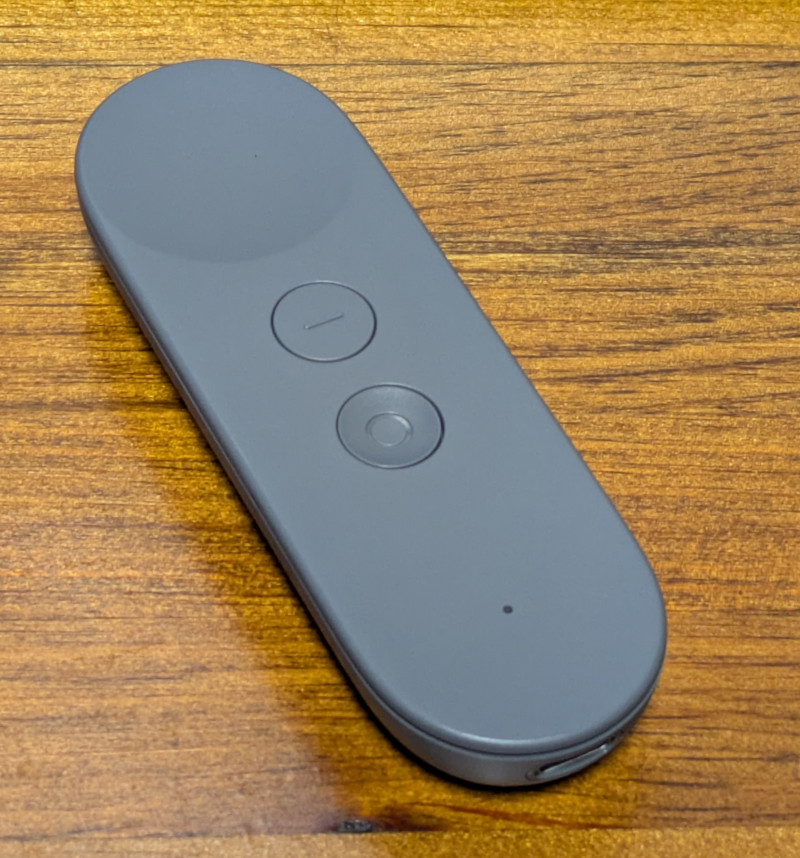
So let’s start with the most important thing: do not buy a Lenovo Mirage Solo unless it has the motion controller! I really can’t stress this one enough, as to my knowledge, there is no way to navigate the UI of the Mirage without it. Many of the cheap units you’ll find on the second-hand market are only priced that way because the controller is missing, so be careful. If you’re wondering, the controller doesn’t need to be the original one that was sold with the Mirage for it to work, but spare controllers are understandably in high demand and are usually priced accordingly.

The second thing to remember is that Daydream is a dead platform, and the software running on the Mirage is now at least six years out of date. Anything that still works on it only does so because whatever upstream service or API it relies on hasn’t yet changed enough to break anything. As of this writing, I personally believe enough of the software still works to make the Mirage worth picking up if you can get a good price on one, but that’s not necessarily going to be true forever.

Escaping Captivity

Alright, let’s assume you’ve just pulled a brand new Lenovo Mirage Solo out of the box in 2026 and want to use it, what does that look like?

The first time you boot it up, you won’t get very far. After it asks you to connect the controller and does some internal housekeeping, you’ll be presented with a dialog that walks you though connecting to a WiFi network and adding it to your Google account. Unfortunately, this process will never complete because Google has flipped some switch on their end — although you wouldn’t know it on the device, as the only feedback you’ll get is a pop-up message advising you that there’s been an unspecified problem and that you should try again later.

Thankfully, somebody over at Google left us a backdoor. If you click on the four corners of this dialog, starting with the top-left and working clockwise, you’ll be able to bypass the provisioning process. After some more loading and a bit of a tutorial about using the controller and navigating the user interface, you’ll be facing (literally) the next problem.

You are standing in an open field west of a…wait, no. Sorry that’s something else. You will be in a virtual forest though, and if you look around you’ll see waterfalls, a winding stream, and birds flying around.
It’s all very slick, but the thing we’re mainly worried about right now is the huge message in front of us saying the system can’t connect to the internet. What’s actually happened is that the system can’t connect to the mothership because the Daydream API has been turned off, but apparently there was no canned error message to convey that condition so this is what we get.

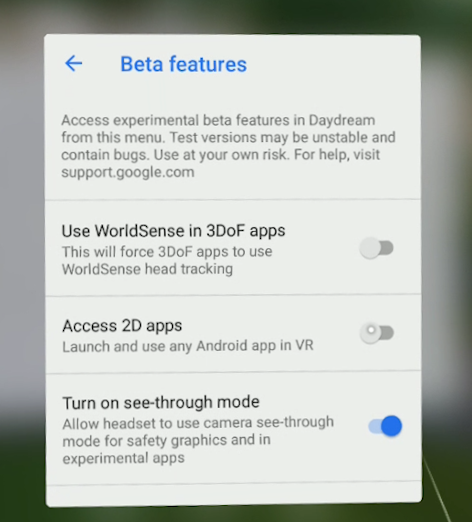
But again, the developers at Google have provided us a way forward. If you navigate to the settings screen there is an option for Beta Features, and underneath that section you’ll find an entry that says Access 2D Apps. Once you select it you’ll be warned that the behavior of standard Android applications in Daydream may be unpredictable, and the Mirage will reboot.

This is where things start to get interesting. Once the headset restarts there will now be a new tab in the application launcher labeled 2D, and under it you should see an icon for the standard Play Store. Once you go into the settings and add your Google account, you’ll be able to browse the Store and download whatever games or applications you want — so long as they don’t mind running on Android 8.0, anyway.

Android Apps…in Space!

Gaining access to standard Android applications opens up a huge world of possibilities. While the older hardware of the Mirage Solo and the outdated OS means you won’t necessarily be able to run the latest and greatest pieces of software, there’s still a lot you can do, from watching Netflix to working with spreadsheets in Google Docs and connecting to your Linux box over SSH. The on-screen virtual text input is good enough for simple tasks, but connecting a physical keyboard over USB or Bluetooth makes the whole experience vastly more enjoyable.
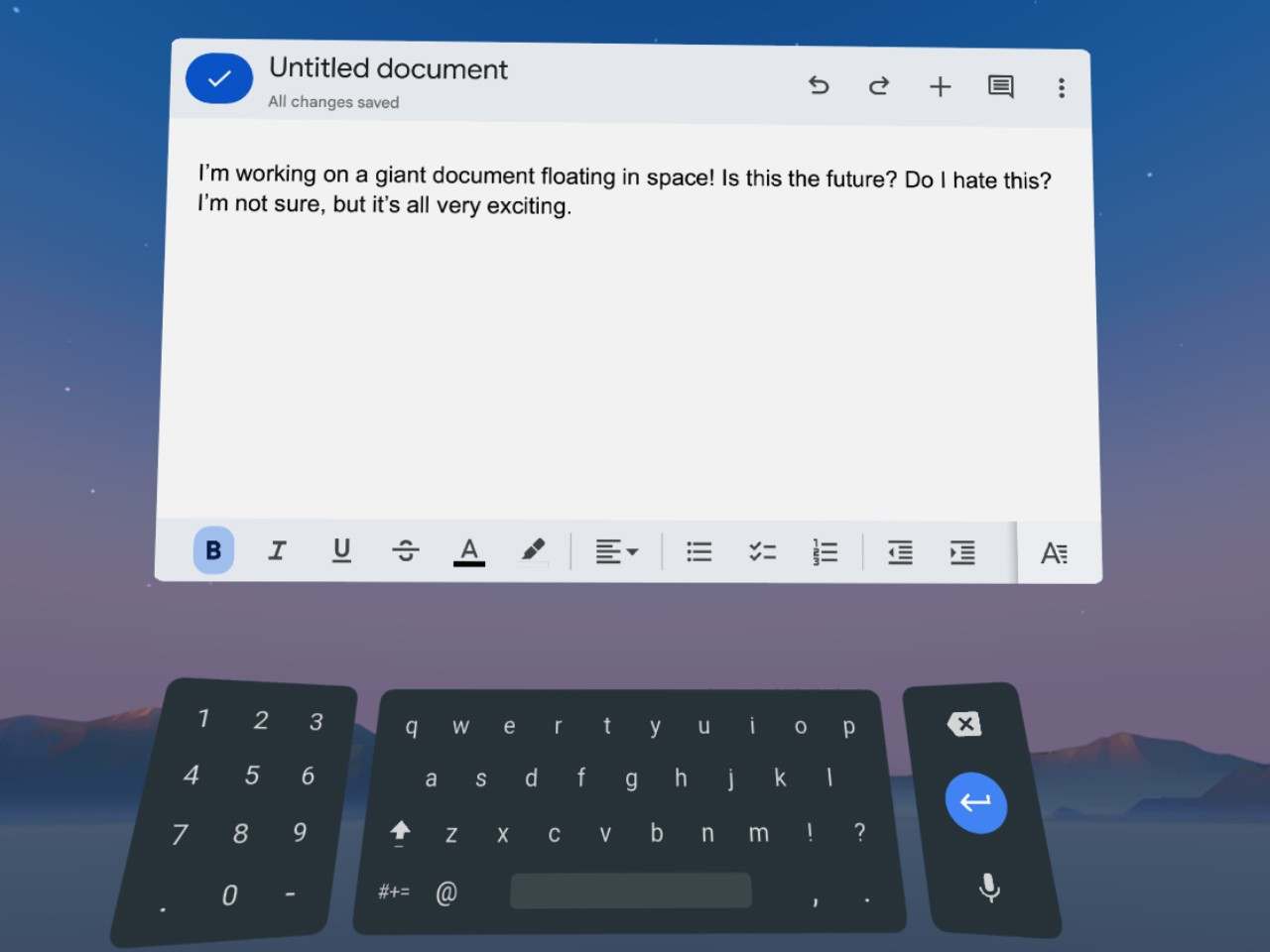
When running 2D applications in Daydream, they will appear as a giant display floating in front of you. Some of the apps will only work in portrait mode as if they think they are running on a normal phone, but in most cases you can grab the corner of the window and stretch it out into a landscape orientation that better fits the fairly impressive field of view offered by the Mirage.
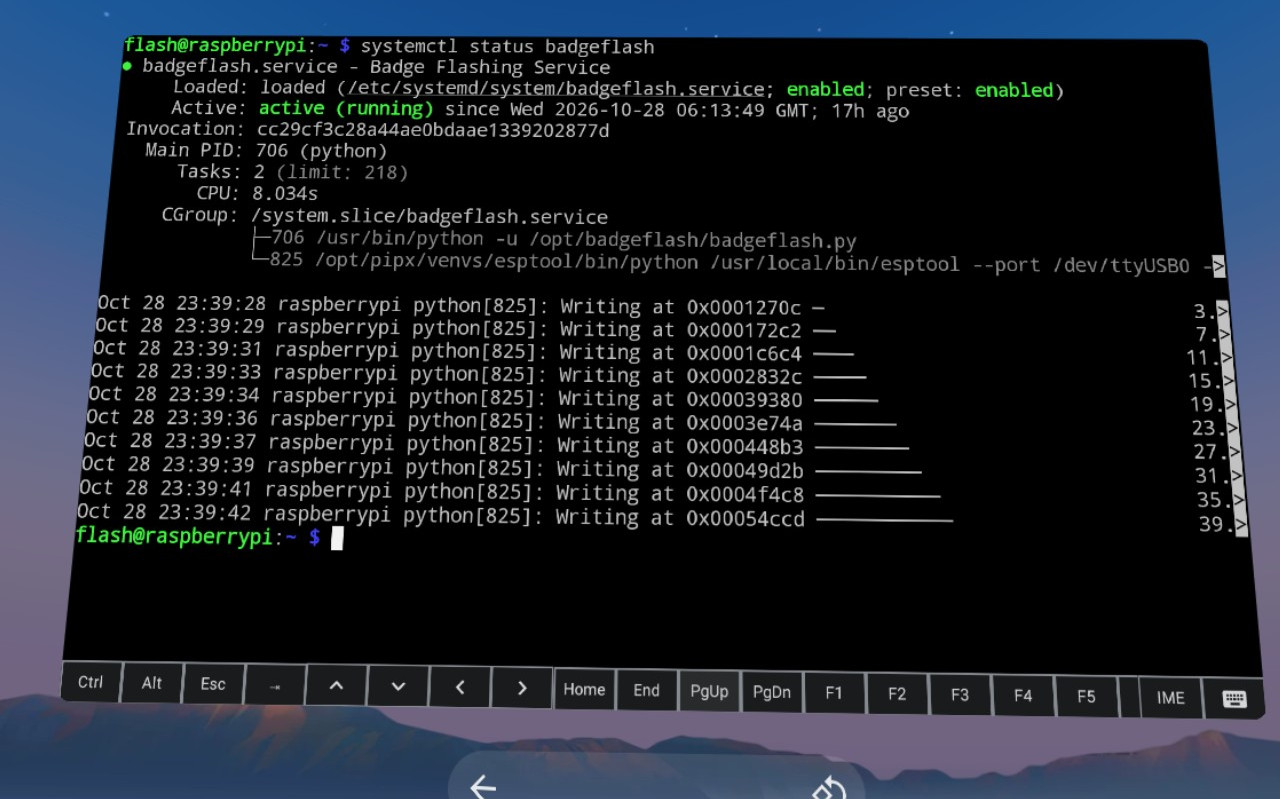
The only real issue with using 2D Android apps on the Mirage is how simplistic the window management is. You can move the window and resize it, but there’s no provision for having multiple windows open at the same time. In fact, under normal circumstances there doesn’t even appear to be a way to switch between running applications without having to go all the way back to the main menu — although I did discover that when you have a physical keyboard connected you can use Alt-Tab to bring up the stock Android task switcher, which helps.

Entering the Third Dimension

At the start of this article I explained that the 3D Play Store was shuttered, and with it, all the games and applications that were actually designed to take advantage of virtual reality. But as we all know, nothing is every really gone on the internet, and thanks to some dedicated fans at the Opendream project, much of the Daydream software has been preserved and can be installed on the Mirage.

I’ll leave exploring the catalog of available Daydream software as an exercise for the reader, but at the very least you should install Firefox Reality. It’s not only a far more capable browser than Android’s stock version of Chrome, but it’s an excellent example of how immersive Daydream could be when the software took advantage of the platform.
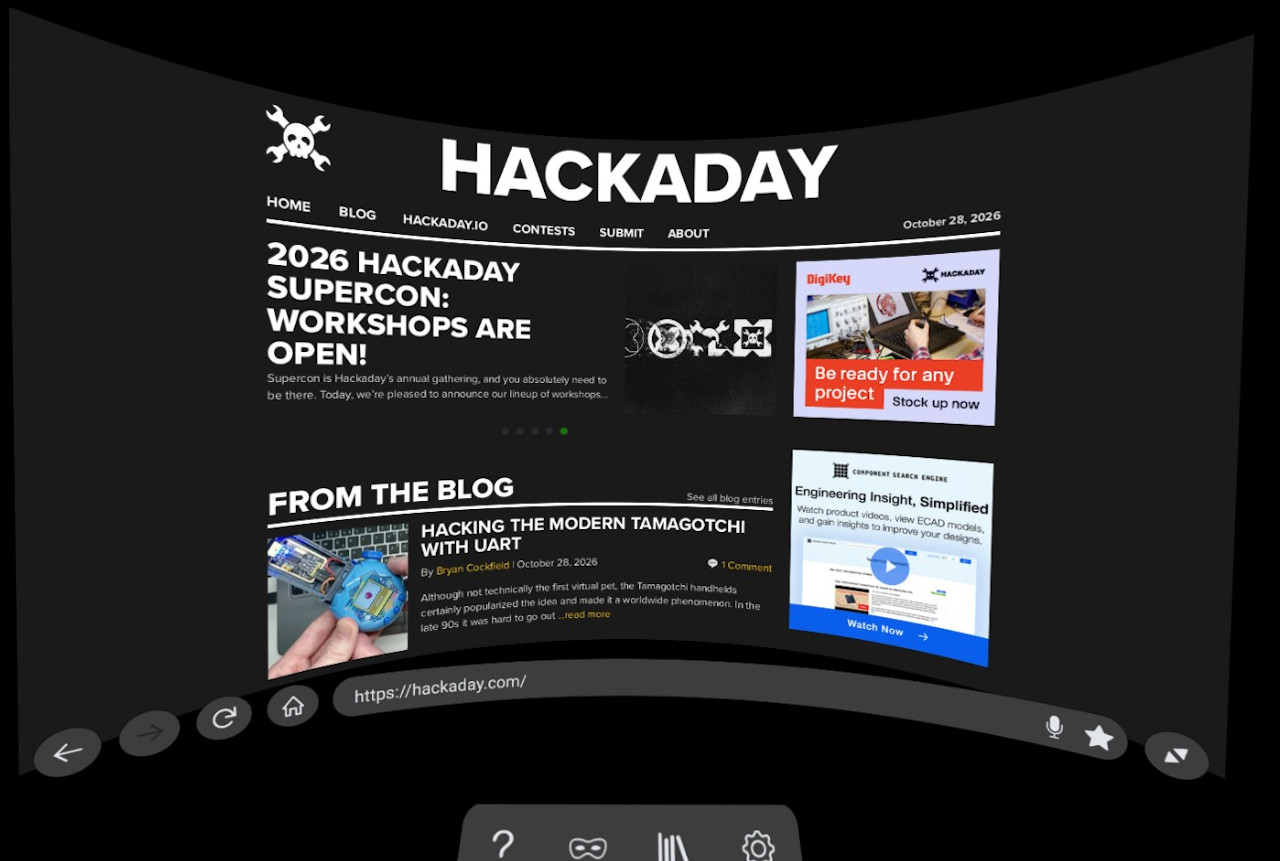
The browser still shows up as a giant floating display, but now you’ve been transported into a darkened environment and have far better control over how everything looks. It also features a far more pronounced 3D effect, with pop-ups that actually hover over the page, and a 3D render of the remote that moves around in space in front of you as you swipe around the pages. There’s even support for curving the entire display, which makes for a very unique browsing experience.

Speaking of a unique experience, I’ve saved my absolute favorite for last — YouTube VR. It’s so well implemented and immersive that I’ve actually watched whole movies with this thing on my head. While there’s plenty about Daydream that clearly needed some more time to cook, Google really pulled out all the stops for this one.

Everything works as you’d expect, including 360 degree videos and even purchased content that’s attached to your Google account. At least for me, I’d go so far as to say that the experience is good enough that it’s worth getting a used Mirage Solo just for watching YouTube alone.

Nothing Lasts Forever

As I said at the start, it’s important to understand that the Lenovo Mirage Solo still having any sort of functionality in 2026 is something of a fluke. It’s supposed to be a dead product, and neither Google nor Lenovo want anything to do with it. There are no updates coming, no tech support, and no warranty.

At any moment, the YouTube API could make some kind of breaking change, or your favorite apps might get an update that prevents them from working on such an old version of Android. You’d be absolutely crazy to buy this headset at anything near its full retail price.

That being said…if you can get a good deal, and by that I mean certainly under $100 and closer to $50 – $70 USD, I think there’s enough life left in the device to make it worth picking up. If you end up getting one and doing something cool with it, I’d love to hear about it.

JPEG-XL Is Back On The Menu

Many of the image formats we’re familiar with have been around for decades. We all know JPEG and PNG like the back of our hands, and GIF even had a bit of a resurgence when tiny annoying looping animations became cool again on social media. There has been a growth in newer formats, though, like WEBP, and AVIF, with various platforms and software companies adopting them for greater efficiency, performance, and image quality.

Amongst the new crop of formats vying for relevance is JPEG XL. It was touted as a format that improved on what JPEG could do in the lossy compression space, while also adding on a lossless mode. There were grand hopes that it would become a universal replacement for all existing raster formats on the Web. A major problem was that Google was seemingly against it, only to backflip—with the format now slated to hit the big time with renewed backing from the search giant. So what’s going on?

Got You JPEG’d

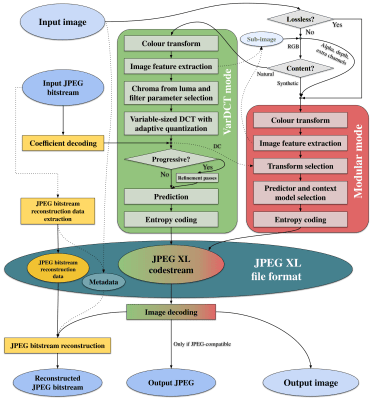
The JPEG XL codec architecture. Credit: Jon Sneyers, CC BY SA 4.0

The JPEG XL standard is modern, but by no means brand new. It was initially released on 13 October 2021, having been developed by a consortium of the Joint Photographic Experts Group, Google, and Cloudinary. It was deveoped from earlier work from Jon Sneyers on the Free Universal Image Format (FUIF), and work from Google on the PIK format.

It was decided the resulting format would use the *.jxl file extension. The spec defined a format with a wide range of features well beyond what classic JPEG ever offered. It has lossless compression, including for the alpha channel, but also lossy compression available in different modes to suit both photographic and synthetic imagery.

It remains fast to decode—almost as fast as JPEG and much quicker than HEIC with x265. A key future proofing feature is that it can also handle 32-bit sample precision, and images with over a billion pixels per side—that’s a terapixel, if you’re playing along at home.

The JPEG XL logo, which pretty much solely exists for people who need an image for their article about JPEG-XL. Credit: Joint Photographic Experts Group

A wide range of major tech companies have backed the standard in the years since it dropped, from Meta, to Adobe, Intel, and Flickr. While it might seem like Google was fully onboard from the get-go, having literally been involved in development of the standard, the history is more complicated, as reported by TT Lab.

Chromium implemented a libjxl-based decoder all the way back in 2021, which seemed to signal JPEG-XL support would soon be a thing in Chrome and other products besides. However, soon enough, there was a change in direction. In late 2022, it was slated for removal, with a notice that ecosystem support wasn’t great enough to justify continued efforts to bring JPEG-XL into the fold.

In Chrome 110, there was no trace left—JPEG-XL was not going to be a part of things. And yet, in the years that followed, debate raged on the Chrome issue tracker as to whether the nascent format would earn its inclusion. Elsewhere, JPEG-XL was struggling to find a footing. Apple rolled it into Safari in 2023, while Mozilla continued to hedge, noting that including another C++ image decoder was undesirable for reasons around memory safety.

A screenshot of an Android media app displaying a *.jxl image. Credit: Syced, CC0

New movement happened in November 2025, when Rick Byers, Area Tech Lead on Google Chrome, noted that the landscape had shifted. He posted that in light of JPEG-XL support being added to things like the PDF format and Safari, amidst other signals of support in the wider ecosystem, that the development team would be open to “integrate a performant and memory-safe JPEG XL decoder in Chromium.”

With Chrome having over 65% of the browser market, this would be a game changer for the format and likely see its adoption skyrocket across the web. It just needed to actually be implemented. However, Byers was careful to note that the inclusion of the new format would be contingent on a commitment to long-term maintenance of the decoder.

Things moved fast, and when Chrome 145 dropped in February this year, JPEG-XL was on the docket. This was thanks to the development of the jxl-rs decoder, which was implemented in Rust. This was an intentional decision for security reasons, with Google relying on the Rule of 2 to keep its browser safe. However, the new decoder was not activated by default. It would take another half a year or so before the new format would become a mainstream part of Chrome, rather than being hidden behind an experimental flag or anything like that. As of Chrome 155, though, JPEG-XL will be fully supported in the browser.

Don’t expect to see a ton of *.jxl files out on the wider web immediately. However, with the new format offering 30-50% better compression than JPEG, it will be appealing to just about any content provider looking to slimline data budgets and improve page loading times. When the performance gains start boosting traffic to a degree that makes up for the loss of users from older non-compliant browsers, expect to see things changing more quickly.

What does it mean for you, the end user? Probably little more than some minor headaches. You’ll struggle here and there when you download a *.jxl and try and load it into older software that doesn’t support it. You might get a device that shoots pictures in JPEG-XL and then find you can’t upload them to an older website with an out-of-date image submission form.

It’s the same problem we’ve all dealt with as HEIC, AVIF, and WEBP have started bouncing around the web, and we’ll have to weather it again. At least, at the end of the day, we’ll have slightly prettier images that take up a little less space. It’ll all be worth it, to be sure.

How Bad Is That Bridge: A Government Database

Bridges! We kind of expect them to just be there and do their job, ad infinitum. They are built into the landscape, and we often take them and the routes they open up for granted.

The reality, as any civil engineer will tell you, is that bridges are living, breathing things that require endless maintenance and monitoring to keep them safe, standing, and functional. A great example of this is found in the US Department of Transportation, and its publicly accessible register of bridge health reports.

Stay Standing

The thing about bridges is that we rely on them. They serve as vital transport links in our communities, ferrying people to and from work and school, and acting as the very arteries of commerce as trucks and trains haul goods to and fro. When a bridge crossing has to close, either for maintenance or at end of life, this link is severed, often with serious economic and logistical impacts. For that reason, we tend to like to keep our bridges in service as long as possible. The result, of course, is that if pursuing this goal means that proper maintenance and repairs aren’t seen to, there is a risk of collapse—which often comes with worse consequences. Loss of life is common when bridges fail, and replacing a collapsed bridge is often much harder and more time consuming than handling things properly ahead of time.

In the United States, it’s a well known fact that the bridges are getting old. The average bridge is 44 years old, which is bumping up against the 50-year service limit many were originally built for. Being an average number, it’s indicative that many bridges are exceeding that figure significantly. Obviously, a bridge’s age isn’t a perfect proxy for its condition, but closer examinations indicate there’s definitely a problem. A 2024 report from the American Road & Transportation Builders Association noted that 36 percent of US bridges are in need of repair or replacement, a total of 221,800 spans. 42,067 spans were considered to be in “poor” condition, which in their total see 168.5 million motorists crossing them every day. It’s a particularly sobering figure as it highlights the size of the disaster possible if these structures are to fail.

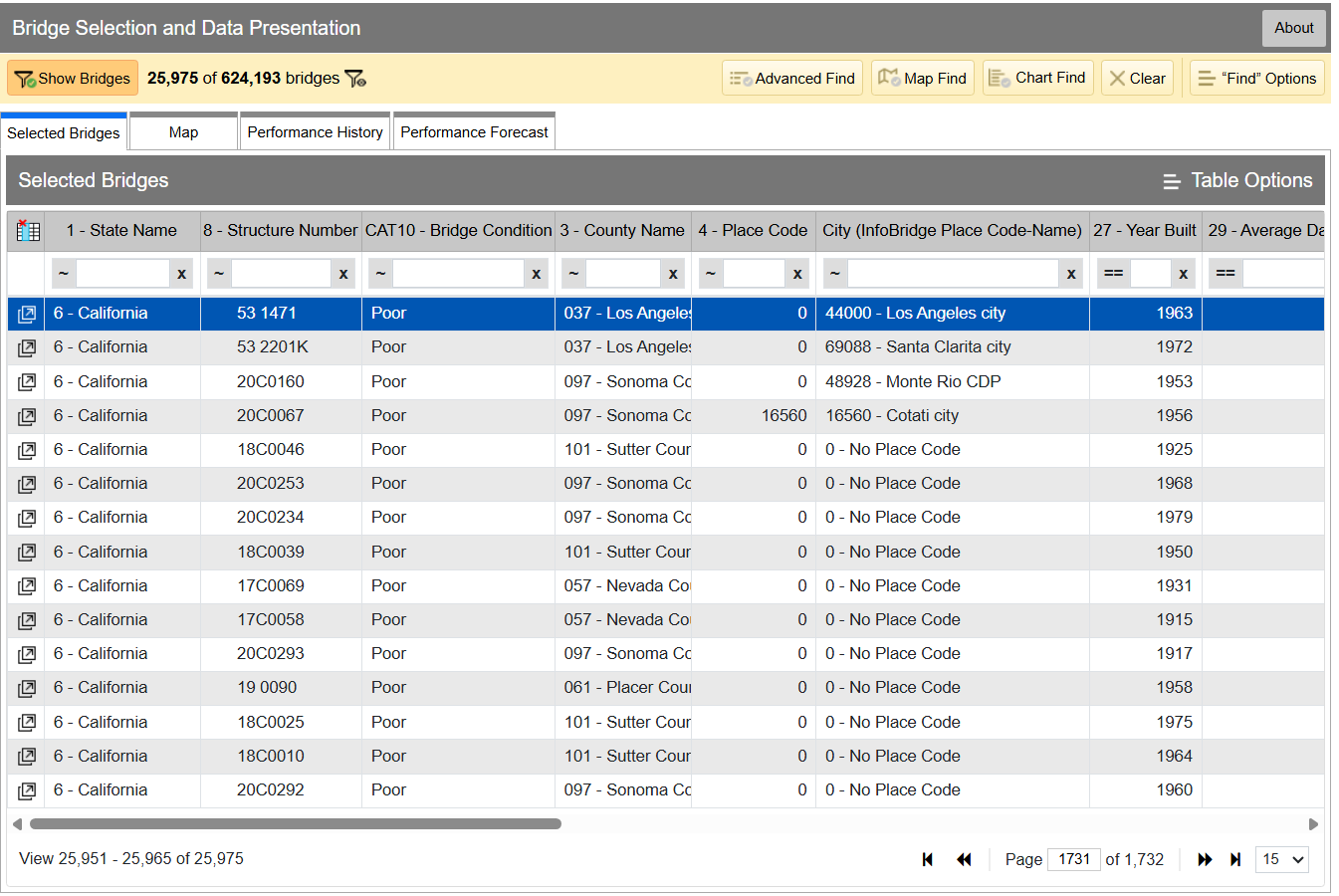
InfoBridge quickly lets you sort through data by all kinds of different factors. If you’re looking for the worst bridges in town, it’s easy to flick through CAT10 – BRIDGE CONDITION to see which bridges as listed as Good, Fair, or Poor. Bridges are rated on the condition of their deck, superstructure, and substructure, and the lowest scoring section influences which bin the bridge lands in, as per federal code—specifically, 23 CFR 490 Subpart D. Credit: InfoBridge screenshot

You can drill down into the data yourself if you desire. Within the Department of Transport, the Federal Highway Administration maintains LTBP InfoBridge, a database of information on bridges all across the country. It was developed by the Long Term Bridge Performance program, because the goal of the project is to understand how these structures hold up and perform over the decades. The database is publicly accessible, and serves as a portal for all the available data and statistics on how US bridges are doing. It hopes to enable everyone from state and federal authorities, to university students, faculty, and other researchers, to dive into bridge data and visualize and understand it better.

Data available is from a wide number of sources, including the National Bridge Inventory and National Bridge Element datasets, as well as climatic data collected from NASA’s MERRA-2 database. There’s also construction and design data sourced by the LTBP program, along with non-destructive evaluations that have been carried out. Data from various other special projects is available too, such as from Federal Highway Administration projects investigating timber bridges, steel weathering, and the use of ultra-high performance concrete structures.

Just glancing at the Vincent Thomas bridge won’t tell you how the structure is doing. Credit: The Port of Authority, CC BY-SA 3.0

If you have a particular bridge of interest, it’s easy to get a quick break down of how it’s doing. For example, you might like to know about the Vincent Thomas Bridge, in Los Angeles, California: National Bridge Inventory number 53 1471. It links San Pedro with Terminal Island, and is a suspension bridge with a total length of 6,060 feet and a longest span of 1,500 feet. Built in 1963, we can see from the data alone that it’s now showing its age.

The bridge condition is listed as “Poor,” and if we dive deeper into the National Bridge Elements data, we can see why. The health indexes of the deck, substructure, and superstructure have all been trending down in recent years as the bridge’s age has increased, with a particular drop off from 2019 or so. In particular, the steel cables and girders on the bridge have been showing their age, and the concrete columns supporting the bridge have been similarly degrading. The deck, too, is in need of repair, with the California Department of Transport recently dedicating some $706 million to replace it ahead of the 2028 Olympic Games.

However, InfoBridge will let you drill down into detailed reports on the bridge conditions, down to a level which indicates which parts of the bridge are most in need of maintenance, repair, or replacement. Credit: Screenshot, InfoBridge

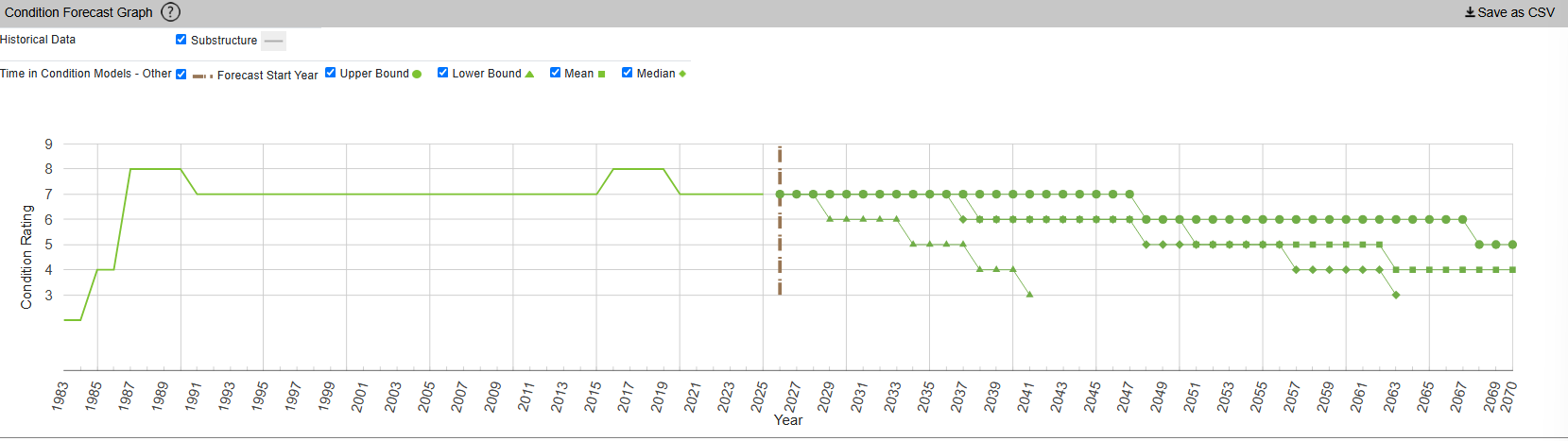
InfoBridge also offers condition forecasts for many bridges across the country. For example, the 24th Street Bridge over Rio Linda Creek is currently listed as being in “Good” condition. Current forecasts show that the deck and superstructure is expected to be in much poorer shape somewhere between 2035 and 2055, while the substructure is expected to hang on in good shape for a bit longer.

The Long Term Bridge Performance Program has developed a variety of models—base, survival, and machine-learning—to predict bridge condition over time. The aim is to guide maintenance efforts over time and allow for better planning. Credit: InfoBridge, screenshot

You might think that you’d have to query a government department and delve deep into some dusty records room to learn about the condition of your local bridges. Instead, thanks to the efforts of diligent civil servants, you can instead access all the rich inspection data you like from the comfort of your own web browser. It’s not just good for citizen oversight, either. It aids local authorities and bridge owners in making the right decisions, by putting the necessary data right at their fingertips.

It also creates a certain level of accountability—having the data available means there’s little room for anyone to make excuses that they were unaware of a bridge’s condition prior to something going wrong. Ultimately, it’s just one arm of a project that hopes to take US bridges safely long into the future.

Featured image: “Brooklyn Bridge – New York City” by [Simone Roda]

The Fascinating World of IrDA and Other Infrared Protocols

Infrared (IR) communication technologies are probably one of the most influential, yet also one of the least flashiest. The fact that IR communication tends to be highly directional and often limited to low data rate leads many people to scoff at it, deeming it barely worthy of more than making TV remotes work, perhaps along with some unloved industrial gear like the IR interface of electrical meters.

This is a shame, because TV remotes are a good example of why sometimes you want something that is directional, and anyone who has battled with Bluetooth pairing can attest to the value of things simply working by pointing it at the device. IR protocols also have the advantage of inherent privacy protection as walls and other obstacles will block the signal, unlike that of an exploitable Bluetooth device which happily advertises to your neighbors and passersby.

For reasons like the above – as well as their simplicity and hackability – IR protocols are worthy of a detailed look.

Remote Control

Naturally, one of the oldest uses of consumer IR protocols is that of the venerable IR remote control. Initially TVs used wired and ultrasonic remote controls, with the latter using simple ultrasonic tones to transfer a command, but with IR protocols and the advent of cheap MCUs it became possible to create extensive communication protocols. Of these the NEC, Sony IR (SIRC) and Philips protocols are probably the most well-known and most used.

These use an approximately 38 kHz carrier, with the common NEC protocol using pulse distance encoding – a form of amplitude-shift keying – and the Philips RC-5 protocol using Manchester encoding. Within this encoding, these protocols define various bit fields and other values that can be used by a receiver to determine whether it’s being targeted, and if so what command the user wishes to have performed.

When it comes to those cheap-and-cheerful remotes that you get with just about any RGB light strip and others gadgets these days, they tend to use the same NEC protocol, with many MCU-based projects around that can control these gadgets directly with a simple IR LED.

For example this STM32F0-based project by [eleksaggr] on GitHub that targets the common 24-key RGB remotes. This Infrared Remote Control Implementation application note by Texas Instruments for the MSP430, which contains a good overview of the modulation and encoding schemes, as well as how to implement a remote control.

Many smartphones have – or used to have – an IR blaster feature that can target the same carrier frequency and a range of protocols to control just about anything that is IR remote controlled. In a world of smartphones this would theoretically mean that everyone has a universal remote in their pocket at any time, if it wasn’t for IR blasters becoming pretty rare. If your recently purchased smartphone still has an IR blaster, it’s very likely a Chinese brand, which is a shame as IR remotes are still used for so many things.

IrDA

IrDA used to transfer a file between a Thinkpad T40 and T42. (credit: nick99nack, Wikimedia)

Of course, IR remotes are quite a specific use case, but you can send a lot more than just a basic set of commands to a device. The most well-known standard here is IrDA, which stands for Infrared Data Association, the association which defined the various standards.

The basic principles behind IrDA remain effectively the same as with the remote control protocols, just designed to be capable of far higher transfer speeds. This is accomplished through various types of encoding, modulation and other techniques also observed with non-IR forms of wireless communication. Using this a range of speeds are possible, defined as:

  • SIR (115 kbit/s).
  • MIR (1 Mbit/s).
  • FIR (4 Mbit/s).
  • VFIR (16 Mb/s).
  • UFIR (96 Mbit/s).
  • Giga-IR (512 Mbit/s – 1 Gbit/s).
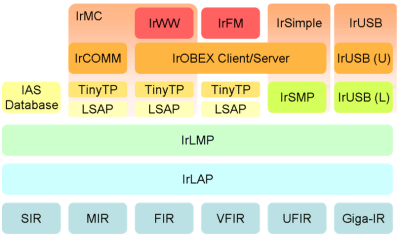
The IrDA protocol stack. (Credit: Fred derf, Wikimedia)

In addition a range of derived protocols exist such as IrSimple that allows for easy sharing of images between phones, printers, and displays. All of this uses generally the same IrDA software stack, though the special versions such as IrSimple optimize it to make transfers take less than a second for a 500 kB picture.

All communication generally happens in half-duplex, as the sending side tends to produce too much interference for the receiving side of the transceiver to reliably receive data. Distance between the two sides can be as much as two meters, though the lower power versions shrink that down to 20 cm or thereabouts.

Within this range of speeds you can pick whatever the device needs. Power meters, for instance, are plenty happy with the IrDA-SIR protocol, which is low-power and speed enough to bitbang on even a basic MCU in these meters with just a basic IR transceiver attached to its pins.

Power Meters

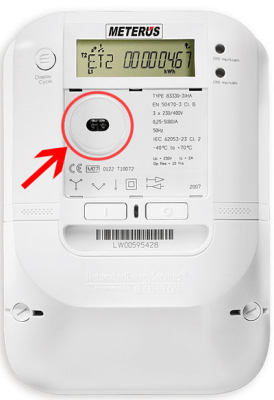
IR transceiver port on IEC 62056-enabled smart meter. (Credit: WMKrieling, Wikimedia)

The humble power meter that lurks in your utility closet or wherever else it is installed has to be shielded from whatever environment it is installed in, ergo they require some kind of low-power, low-speed wireless interface. Using nothing but an IR-transparent window on the enclosure it is then possible for a read-out device to be pressed up to said window, where it’ll quickly query the device for the necessary information.

This same feature is also found on heat meters and other types of devices where such basic read-out functionality is required. Here security is managed by not only the short-distance, line-of-sight requirement of an IR communication link, but also by having a sign-on involving an encrypted password exchange.

Although IrDA-SIR was commonly used here, these days DLMS/COSEM, also known as IEC 62056, is much more common. While radio-based forms of automatic meter reading (AMR) are also used, short-range protocols like this have a definite privacy advantage, with the line-of-sight feature meaning that the reader has to be literally in front of the meter to work, unlike with RF wireless approaches.

Whether this privacy aspect is important depends on the situation, but it’s hard to argue with the low power requirements compared to stuffing a Bluetooth or Wi-Fi module into the meter and dealing with its implications.

Game Consoles

Nintendo 3DS with Circle Pad Pro accessory installed. (Credit: Umweltschützen, Wikimedia)

Although it may seem that handheld game consoles went straight from the Game Boy’s link cable to Wi-Fi transfers on the Nintendo 3DS beyond, it featured an IR communication port. This was intended to support peripherals like the Circle Pad Pro and the Amiibo reader/writer device for the original 3DS as it did not feature the NFC reader of the New Nintendo 3DS.

As it turns out, the 3DS uses irDA-SIR for this expansion feature, with e.g. the Circle Pad Pro using a 96000 baud rate. Since this peripheral merely is there to add a second circle pad to match the built-in left one, it doesn’t need a lot of bandwidth.

In the case of the external NFC reader, this was a similar low bandwidth application where it made a lot of sense to use this same IR port to provide this new feature to older 3DS consoles, instead of making it a New 3DS-exclusive feature. Although one could have used Bluetooth for this even back then, the 3DS console did not include Bluetooth, and when looking at e.g. the Joycons of the Nintendo Switch it’s clear that they are a tad more power hungry and complex circuitry-wise.

When low-power and line-of-sight are benefits rather than a potential source of confusion of which peripheral you’re trying to pair with, it can make a lot of sense.

DIY IR Transceiver

If you’re feeling like making your own IR receiver, receiver or even transceiver solution, there are many options. Perhaps the most exciting aspect is that even if you want to use something like IrDA, this feature is often part of the UART in many MCUs. In the case of Espressif’s ESP32 MCUs, for example, you can look at its list of potential UART modes and note that you can pick IrDA as well as RS485 in addition to plain UART functionality.

There are also dedicated IrDA encoder/decoder ICs, such as the MCP2120. This gets you IrDA-SIR support for any UART interface that does not directly implement this protocol. You can also use something like the Vishay TFDU4101 IrDA transceiver that integrates everything including the IR elements into a single package.

If you’re more about messing with NEC, Sony and Philips remote control protocols, then a common part like the VS1838b provides a similar solution to the Vishay part for 38 kHz applications. This IR receiver handles all the receiving, demodulating, amplification and other tasks, leaving it to the receiving MCU to parse the received data.

This of course just barely scratches the surface of everything IR communication-related, so feel free to chime in with your own info dumps and requests for additional topics to cover.

Japan Launches Mission to Study Martian Moon

Humanity has been sending robotic explorers to Mars since the 1970s, and for our efforts we’ve been rewarded with not only incredible imagery of the Red Planet’s magnificent desolation, but a wealth of information about the alien world and how it’s changed over the last several billion years. But comparatively, we know almost nothing about the planet’s two moons, Phobos and Deimos. In fact, as recently as the 1960s, there were some scientists that believed the unusual shape, mass, and orbit of Phobos hinted at the possibility that it was no moon at all, and was in actuality a derelict spacecraft of some type.

Martian Moons eXploration Spacecraft

Once the first Viking probes arrived at Mars, we had the photographic evidence and up-close measurements to prove that Phobos wasn’t artificial. But even today, we still don’t know exactly what it is. The data suggests that it’s not solid rock, and that large voids may be hiding under its surface. While we can be fairly sure there won’t be any mummified remains of Martian astronauts to be found within Phobos, vast deposits of ice are a tantalizing possibility.

With the launch of the Martian Moons eXploration (MMX) mission earlier this week, the Japan Aerospace Exploration Agency (JAXA) hopes to bring us one step closer to understanding the formation and structure of Phobos. Should everything go to plan, MMX will deploy a small rover to its tenuous surface in 2029, and by 2031, a sample return capsule will bring pieces of the mysterious moon back to Earth for further study.

A Delicate Operation

It’s only natural that we’d imagine Phobos and Deimos to be similar to Earth’s moon, but the reality of the situation is very different. For one thing, the Martian moons are absolutely dwarfed by our nearest celestial neighbor. Phobos has a diameter of just 22.2 kilometers (13.8 miles), and Deimos is even smaller at roughly 12.6 km (7.8 miles). For reference, Luna is approximately 3,474 km (2,159 miles) across.

Due to their low mass, putting a spacecraft into a stable orbit around either of the Martian moons isn’t really an option. Some clever maneuvering will put the MMX mission within range of both Phobos and Deimos at different points during the mission, but it won’t be able to stay around for long.

As such, final approach to Phobos will look more like a slow-motion “crash” than a traditional landing. A close comparison would be the OSIRIS-REx mission, where the spacecraft effectively “bumped” into the asteroid Bennu while collecting its samples. The impact velocity will need to be very low to prevent the spacecraft from bouncing off, and even then, some reports indicate that JAXA expects the craft to make at couple of hops before finally settling down.

The situation is compounded by the fact that we still don’t know what the surface conditions are like on Phobos. Based on previous observations, it’s expected that the moon is covered with a layer of fine regolith that could make traversal difficult for the mission’s Idefix rover. Indeed, one of the rover’s primary mission goals is to determine if wheeled motion in such an environment is even viable.

Tiny Moon, Huge Potential

Landing a crewed vehicle on Mars and successfully bringing it back home afterwards is perhaps the most daunting engineering challenge ever conceived. There’s even a solid argument to be made that it’s currently beyond our technological capabilities. The energy requirements of making a propulsive landing on the planet and then lifting off and getting back into orbit are enormous, and will very likely require in situ propellant production to refuel the craft between the two phases of the mission.

Landing on Phobos or Deimos however would require a small fraction of that energy. Moreover, due to their low orbital altitude, the moons would make ideal outposts from which to make detailed observations of Mars. This close proximity to the planet also means human operators on Phobos could directly command robotic vehicles on the Martian surface without the transmission delays that make real-time telerobotics from Earth impossible. While such a mission might not have quite the same symbolic impact of actually putting boots on Mars, it could be a valuable stepping stone towards that eventual goal.

The viability of such a landing may well depend on the findings of Japan’s Martian Moons eXploration mission. Not only in terms of the actual mechanics of rendezvousing with Phobos and touching down on it, but should the mission succeed in returning surface samples, we may be able to confirm whether or not the moon is made from ejected Martian material. Should that be the case, there will likely be even greater interest in studying the planet’s strange little moons up close.

The Age of Altair

I recently got the Amazon Christmas toy book in the mail, and it is definitely the modern version of the Sears Christmas Wish Book for last century’s youth. Or at least the majority of last century’s youth. For the true hacker, we had a different set of wishes. Recently, I found something I’ve clung to for over 50 years: the 1975 “The Age of Altair” catalog from MITS. Now that was a wish book!

The poor thing has been dragged around for decades and, I’m sad to say, it looks it. It isn’t totally trash, but I decided I should scan it. Then I realized that Bitsavers has already done it for me and with a much nicer copy, too. The images in this post are from their scan instead.

About the Altair

The magazine that started it all (World Radio History).

If your first computer ran Windows, you might not get the significance of the Altair. Back in 1974, the idea of having your own computer was practically ludicrous. Sure, Radio Electronics had published plans for the Mark 8 in July of that year. But it used an anemic 8008 CPU, and it wasn’t easy to get all the parts you’d need to build one. Other limited computers, like the Kenbak-1 or the occasional surplus minicomputer, ended up in personal hands. But you couldn’t just decide you wanted a real computer, plunk down some money, and have one delivered unless you had extremely deep pockets.

To stay on magazine stands longer, old print mags would come out earlier than their cover date suggested. The January 1975 Popular Electronics arrived, actually, in December of 1974 — just in time for the holidays. It showed a computer you could buy as a kit or assembled: the Altair 8800. Many of us were mesmerized by the idea of owning an actual useful computer.

Reality Check

Of course, the problem is, it wasn’t actually a useful computer. All by itself, it was a bunch of switches and LEDs with a CPU. You’d need memory, and even a little was super expensive. But it was still cheaper than anything else. Want a terminal and enough memory to run BASIC? That’s going to be even more.

In those days, magazines had “bingo cards.” Each ad had a number, and if you wanted more information, you circled that number on the card and mailed it to the magazine. A while later, you’d be rewarded with mail from the company in question. I have no idea how many of the “Age of Altair” catalogs were sent, but I know I got one.

The machine on the cover didn’t look much like the machine in the magazine. The story is that the original machine was sent to the magazine for photography and was lost in the return shipping. But either way, it looked like a small minicomputer of the era.

Micro

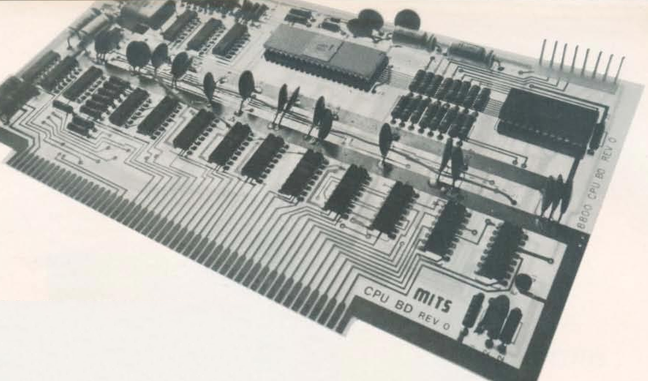
The CPU board used what would later be called the S-100 bus.

The catalog notes a cycle time of two microseconds, or about 500 kHz. That’s a little misleading. The CPU actually ran at 2 MHz, but each instruction took multiple clock periods, and some instructions required several machine cycles. Even a simple NOP took two microseconds, while more complex instructions could take considerably longer. It wasn’t a speed demon.

One nice thing about the Altair is that it had a card cage, and you could plug in whatever you wanted with what would later be called the S-100 bus. Of course, to save money, you might not get all the card guides and connectors.

If you had deep pockets, you could get fast static memory. This would cost more and provide less memory, but the chips stored bits in flip-flops, and it was fast. Or you could opt for more dynamic memory, which stored data in tiny capacitors on its memory chips. The downside is that the memory had to periodically refresh itself, stealing cycles away from the already slow CPU.

Down with Switches

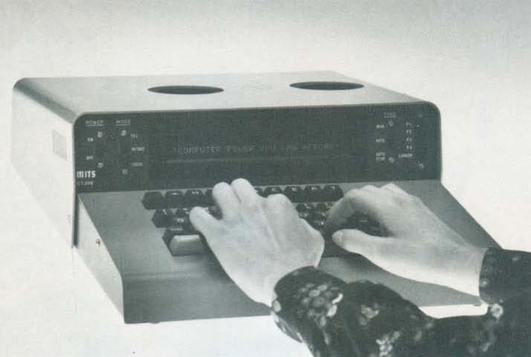
The Comter 256 showed a whole 32 characters at a time!

Naturally, you didn’t want to flip switches all the time. MITS offered the Comter 256 terminal. It had 256 bytes of its own storage and a whopping 32-character display. It even had holes to stick your phone in, if you wanted to talk to a remote computer.

This was, of course, not very practical. Your best bet was a TeleType. The TeleType Model 33 had a printer and a keyboard. The ASR variant had a paper tape reader and punch, too. Mass storage and a printer that operated at 10 characters per second. No screen, though. Everything you did was on paper. And it was pricey, too.

Software

The catalog offered a 4K and 8K BASIC along with “Extended” BASIC, which needed 12K but got you double precision math, PRINT USING, and disk I/O. There was also a single page of 8080 instructions in binary. I remember fixating on that page, trying to understand how you’d program this machine. There was a lot of missing detail.

Pricing

For as cheap as these were compared to the alternatives, they were still out of reach for many people, especially a kid. The computer itself was just a bit over $600 unless you wanted to build it yourself. Then you could save just under $200.

You couldn’t do anything without memory, though. A board that could hold 1 kB of static RAM (but only came with 256 bytes) was $134 assembled, plus $61 for every 256 bytes after that. If you wanted the board fully loaded, they discounted that to $209. The slower 4 kB dynamic RAM board was a cool $338. If you didn’t have paper tape, you probably wanted the interface to load and save programs from cassette. That was another $174.

Wanted something with a keyboard? The Comter terminal was $885, but for $35 more, you could get one that would also work with your cassette recorder to save and load things. Or opt for the TeleType for $1,500. You might be tempted by the 88-VLCT (the “low cost terminal”) at only $169. But if you saw it, it only had seven numeric keys (for octal) and two other buttons.

That’s not all. Those terminals had to plug into something. That board would run you around $140, depending on which variant you wanted. Even something like a real-time clock was an extra purchase.

The base computer price had four available slots, one of which held the CPU. So if you had a CPU, two memory cards, and a serial I/O card, you were full unless you bought more slots. To make it easier, you could buy a bundle. The cheapest was just shy of $3,000.

Perspective

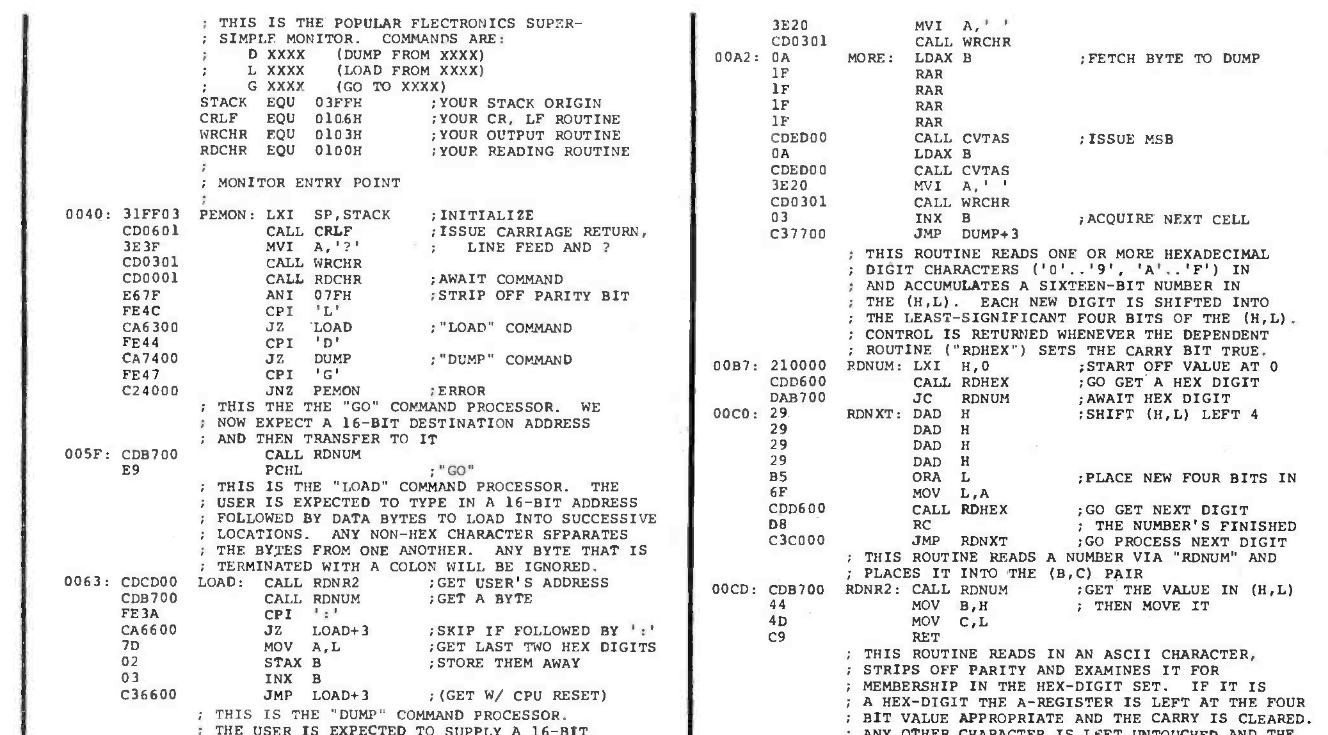
Why are the addresses backward? Part of the PEMON monitor from the November 1975 Popular Electronics.

I know. It is easy enough to spend $3,000 on a state-of-the-art computer today and, at the time, this was pretty state-of-the-art. But in today’s dollars, that’s about $19,000. A new car was about $5,000, and $3,000 would get you a very nice used car. An average home ran about $42,000, and  $3,000 would be a hefty part of a down payment. The median income in 1975? Under $14,000.

Still, these were the first real computers you could at least imagine buying. It wouldn’t be long before the prices of even better machines dropped considerably.

I wasn’t the only one who wanted one of these machines. I conspired with friends to pool money to get one, but we never managed it. I pored over machine code listings in later magazines and the instruction reference in the catalog, trying to puzzle it out. I finally did. In those days, you couldn’t just download the manuals or watch a video about it.

Then again, the value of an original working Altair 8800 today makes it, again, out of reach for most of us. There are always faithful recreations. Or even less-than-faithful ones. I have plenty of these recreations and simulations now, but I still have kept the catalog I pored over so many years ago.

So You Want To Make Your SDR Work On Other Frequencies

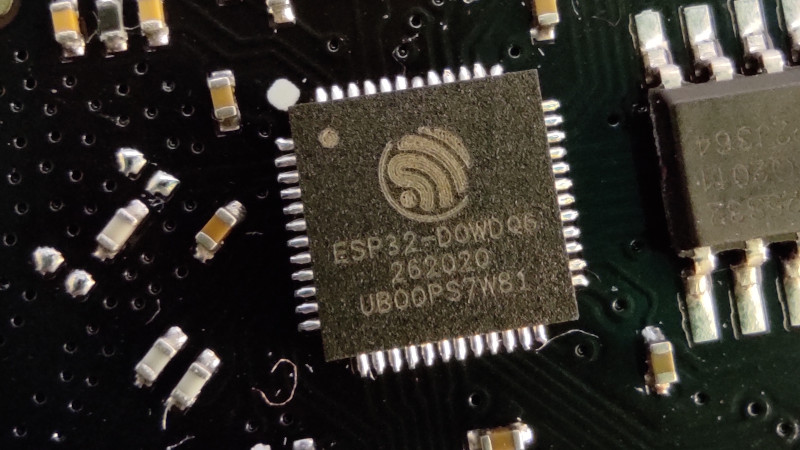
Perhaps the most exciting news of the past few weeks in the world of hardware hacking has been the unlocking of hidden SDR functionality in the Wi-Fi radios found on Espressif ESP32 microcontrollers. They can be used as both transmit and receive SDRs, and given that it’s early days for this hack we expect that great things are yet to come.

There’s one snag though, despite speculation that they might be dragged down to much lower frequencies, as far as we know they’re only proven to work around the Wi-Fi frequencies. Though the reality may be wider we’ll take that for a 2.4 GHz part as a 100 MHz slice from 2.4 GHz to 2.5 GHz. Plenty of possibilities there, and they might even work down to 1.8 GHz, but there would be so much more to do if it could work elsewhere in the spectrum. So it’s time to look at the converter, a tried and tested old way to make a radio work on a different frequency.

A Lesson From Analogue Receivers

TV tuner front end block diagram. Derived from Chetvorno (Own work) [CC0], via Wikimedia Commons
TV tuner front end block diagram. Derived from Chetvorno (Own work) [CC0], via Wikimedia Commons.
I hope most of you will be familiar with what happens when you mix two frequencies; the resulting spectrum contains both their sum, and their difference. This was the mechanism behind the tuning dial on your analogue radio or TV, the dial moved an oscillator, and a sensitive circuit tuned to a so-called intermediate frequency would filter out the difference frequency between the oscillator and the station you wanted. A few years ago we had a deep dive into the UHF hackers playground of an analogue TV tuner, where we examined this in depth.

A converter uses exactly this principle. The antenna frequency range is mixed with the output of a fixed oscillator whose frequency is chosen so that their difference represents the frequency band of your radio. THus tuning your radio tunes across the output of your mixer, which is the same as tuning across the antenna frequency range. For a numerical example, if the ESP32 receives from 2.4 GHz to 2.5 GHz, a mixer on its input with a 2 GHz local oscillator would allow the ESP32’s receiver to pick up the 400 MHz to 500 MHz band. In practice the circuit requires filters for both input and output to keep out-of-band stuff from going where it shouldn’t, but it really is that simple. Best of all, with appropriate handling of power and amplification, it works for transmitters too, and such a device is called a transverter.

Towards An Achievable Receive Converter

To make a practical converter then, we need an input filter, a mixer, an output filter, and a local oscillator. The filters are often off-the-shelf parts and needn’t be too expensive, the mixer can be as simple as a fast Schottlky diode, and the local oscillator could even in this case be another ESP32, they’re that cheap. You can add amplifiers if you want and what I am about to describe is a somewhat janky receive converter, but it can be made to work.

The Filter

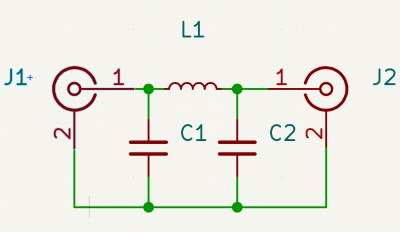
A very simple Pi network low pass filter

In most cases such a converter will be intended to receive signals lower than the ESSP32’s range, so let’s assume you’re looking somewhere from HF through to VHF. The input filter has to reject anything above your maximum input frequency and stop any stray local oscillator leakage to the antenna, which most of you will identify as a low-pass filter. These can be bought off the shelf for a price, but are easy enough to make for yourself.

The most common low pass filter is often referred to as a Pi network because its circuit superficially resembles a Greek letter Pi, and takes the form of an inductor in the signal path with a capacitor to ground either side of it. If you know your maths you can calculate the values for yourself, but if you don’t there are many online Pi network calculators to help you. Constructing a Pi network at these frequencies is straightforward enough.

For the output filter, you need something that rejects the local oscillator frequency as much as possible, and passes the ESP32 receive range. Here you’re in luck, because the Wi-Fi hardware industry needs exactly those filters, so they can be had from Mouser or Digi-Key for cheap. I’m not going to specify a particular part, but I’d like to point you at the TDK Wi-Fi filter range and invite you to pick one with the bandwidth you need.

The Local Oscillator

Your local oscillator for an ESP32 working at much lower frequencies is likely to be around or above 2 GHz. Back in the day you would have used a crystal oscillator and multiplier circuits, if you like you can buy an expensive PLL oscillator module, but your simplest and probably cheapest method is to use another ESP32, now that it can be used as an SDR transmitter. Program it to output a single carrier on your desired frequency, dial down the output level, and there you have it, a 2 GHz local oscillator for a dollar or two.

The Mixer

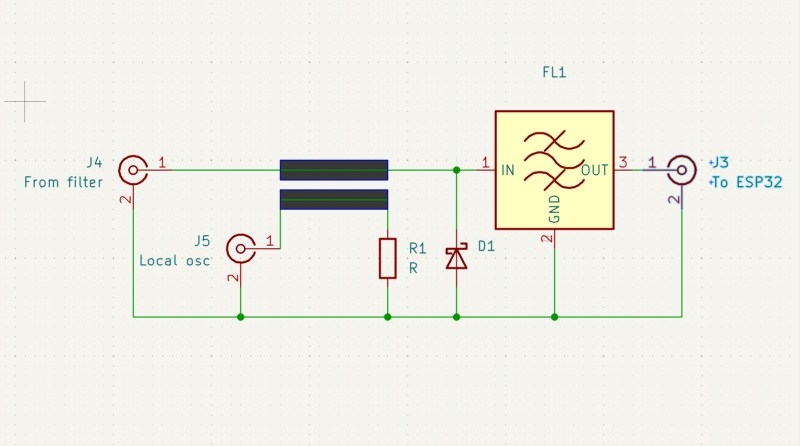
Yet again you can buy an off the shelf mixer as a module, though one for a 2.4 GHz output will be expensive. Happily there’s a simple circuit which can do the job, and it uses a diode as a non-linear element fed with both antenna and local oscillator signals. At these frequencies you are looking for a very fast small-signal Schottky diode with as low a capacitance as you can find, and happily such parts are available from multiple manufacturers at cent rather than dollar prices. The basic circuit is shown below, and as you can see it’s quite simple.

The circuit of a simple unbalanced diode mixer with a bandpass filter on its output.

In the circuit above the diode is your Schottky device, the input low pass filter isn’t shown, and the output filter is an off-the-shelf Wi-Fi bandpass filter. The two thick lines represent a stripline coupler, and they are simply two parallel PCB traces side by side over a groundplane. Their size should ideally be calculated to present the right impedance, often 50 ohms which is also the value of R1, but in practice the jankiest solutions can work here. With an ESP32 as a local oscillator I would hazard a guess that laying the trace on the PCB under the module’s antenna with the power turned down would be enough. I may earn the scorn of some of my peers, but I have a long history of RF bodging and I think it might just work.

Making It Transmit

The same technique as above works for shifting the ESP32’s transmit output down to the desired frequency, but there’s a catch. Even the modest output from an ESP32 can be enough to damage or overload parts designed for receivers, so you have two choices. Pick transmit-appropriate parts, or dial back the power to a low level, and amplify it at the lower frequency.

By Now, You Should Be Able To Bodge A Converter

The information above isn’t a ready-to-go design for a receive converter to get your ESP32 listening to lower frequencies, but it should give you all the signposts you need to get there. People have built converters for the RTL-SDR for ages now, so you could pilfer ideas there too. If you build a downconverter, for transmit or receive or both, let us know!

At a superconference about a decade ago there was a talk about RF construction techniques which will save you a lot of pain, and with luck such a simple circuit should be within your grasp. Good luck.

What’s a Nonius?

If you already know what a nonius is, you can probably skip this post. But, if like us, you would have to look it up, we’ll tell you what we found out. It turns out, a translation mistake taught us a new word and some history we weren’t aware of.

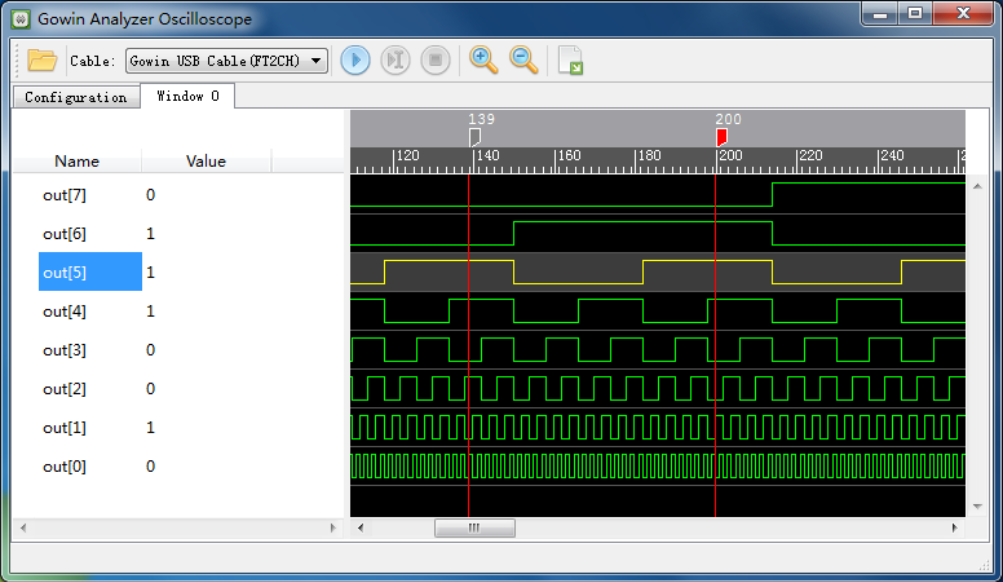
In the manual, this is captioned: Figure 4-7 Nonius Display (Standard Mode)

Have a look at the adjacent graphic from a waveform display. What would you call the vertical red lines at positions 139 and 200?

We’d probably call them markers. Or maybe cursors. The manual, however, calls each one a “nonius”. It refers to them that way multiple times.

Oddly, the manual also has sentences like “Select one nonius and right-click, and then select ‘Remove Marker’ in the next window to delete the nonius.”

So, clearly, a nonius is the vertical line marker or cursor. But that, of course, begs a question…

What is a Nonius?

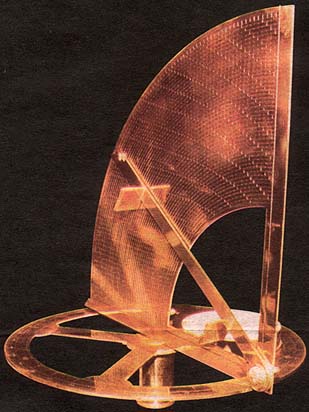
“Nonio originale” by [Henrique Leitão]
Have you ever heard of the vernier scale? If you’ve done navigation, used a traditional caliper, or tuned an old shortwave receiver, you probably have. [Pierre Vernier] developed it in 1631 as a way to better interpolate values on a scale.

However, there was an earlier version used to improve measurements on astrolabes. A Portuguese navigator named [Pedro Nunes] created this type of astrolabe in 1542. The Latinized version of his name is [Petrus Nonius]. What are the odds of him inventing… oh wait, they named it after him. That does make more sense.

The nonius is a series of concentric circles traced on the instrument. Working towards the center, each circle has fewer divisions than the previous one. In fact, if the outer ring had 90 marks for 90 degrees, the next ring would have 89, and the following one would have 88.

The astrolabe’s line, the “alidade”, would cross all these circles but would be closest to one mark on one circle. Given that mark and that circle, you could look up the correct answer.

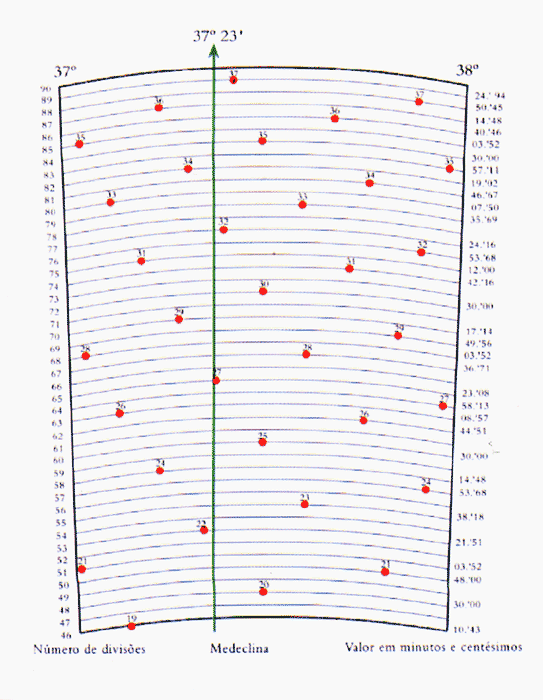
One degree of a nonius showing 37º 23′.

For example, the image shows such a system from [Nunes] himself. It shows the circle from 37 degrees to 38 degrees. You can see the 89th circle has only one mark for 37. The other marks are in other sectors of the outer ring. The 88th, for example, has two marks for 36 and 37.

On ring 65, the line runs right over the 27, which is hard to read because the line covers it up. With a table lookup, you’d find the correct value was 37º 23′ within 0.08′. Not bad. [Nunes] was considered one of the greatest mathematicians of his time.

But we had never heard of him, which goes to show that being a mathematician is not a good way to get lasting fame. [Charles V], [Nostradamus], and [John Calvin] were all born around the same time and, while not household names, are more likely to be known today than [Nunes].

And while this is interesting, it raises another question: Why did the GOWIN software instruction manual call the vertical marker line on a scope trace a nonius?

Why Nonius?

Lost in translation

Our guess is that this is a translation mix-up: Chinese 游标 can mean either a computing cursor or a vernier. Or a nonius. Someone apparently selected the wrong English equivalent.

Of course, we figured it out. Plus, we learned a new word and a little history. So we aren’t complaining.

Astrolabes are pretty amazing. Navigation was so important that it drove many technological advancements. Of course, measuring things in general was also of keen interest to our forefathers.

The FPGA Chronicles: Ready to Probe

In the last few installments, we looked at using the Tang Nano 20K with both the GOWIN tools and some open-source tools. The open-source tools certainly had the advantage of letting you simulate and debug your design before sending it to the actual chip. However, as we’ll see, the GOWIN tools include a very easy-to-use, capable logic analyzer.

Setup

First, you’ll need a GAO config file. When you create one in the editor, you are given a number of complex options. With an active GAO file, the tool builds a logic analyzer into your design, and the file sets the trigger conditions.

Here’s a tip. You can only have one active GAO file. Sometimes you don’t want the logic analyzer. Other times you might want an alternate configuration. If you right-click almost any file in the IDE’s Design tab, you’ll see you can disable it. That gives it a big red X and excludes it from future builds. Well, at least until you enable it again. This lets you pick between multiple GAO files, or even multiple Verilog files, for a particular build (e.g., one for tests and another for production).

If you create a GAO file from scratch, it will ask you if you want “Lite Mode.” As far as I can tell, you will never want this mode. Always use Standard Mode. In addition, you nearly always want RTL mode, which shows you (mostly) the symbols you’ve defined and not the ones added during processing.

You can find the entire manual online, of course. However, the video below and the rest of the post will get you started quickly.

GAO Basics

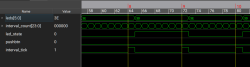
To set up probing, we need to understand the design, so the rest of this post covers the Verilog we’ll use to test the logic analyzer feature, and you’ll see how the analyzer works in a video. Here are a few sneak peeks at what the analyzer output we’ll see at the end looks like:

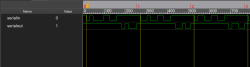
The left-hand image shows the pulse that flips the LEDs, which is tricky because the sampling clock is 27 MHz. The right-hand side shows serial data and uses a slower clock specifically used for debugging.

Inside the Verilog

Verilog can be dangerous. If you already know how to program, Verilog looks just enough like a programming language to encourage you to think about it the wrong way. You can’t think of Verilog as code. It describes how you want hardware to behave. A key part of that is clocks.

Most practical digital systems have some kind of clock that makes things work. Very simple things like our last example might not need them, but practical systems almost always do. In theory, you can make asynchronous logic, but it is very difficult. Synchronous logic — those with a clock controlling things — is vastly more common.

Why Clocks?

We think of signals as changing instantly, but they don’t. They change at slightly different times for many reasons: wire length, capacitance, differences in device construction, temperature, and probably many other things. So let’s think of an exaggerated example. Suppose you have a super safe car. If it detects the motor is running and the door is open, it kills the engine. That’s an AND gate, and for the purposes of exaggeration, suppose the signals from the door and the engine that feed the AND gate take a random amount of time between 100 and 900 milliseconds to get to the AND gate.

Normally, it wouldn’t matter much. You close the door, check your mirror, turn on your playlist, and you start the car. But suppose you were in a panic. You jump in the car and immediately try to start it. The engine start signal could get there before the signal that the door is open turns off. Suddenly, your engine cuts off right after you start it. Not cool.

This is a bit made up, but the problem is real. Suppose you want to add two numbers. One number changes from 11 to 22 while the other changes from 5 to 10. You want 16 and 32 as results. But instead you get 16, 27, and then 32. Or maybe 16, 21, and then 32. Still not cool.

So clocks basically let you give everything enough time to settle down and then figure out the output. Those outputs will stay stable until the next clock. That’s grossly oversimplified, but we’ll talk more about it later. Each thing in your design takes some time, and the longest time, in general, will dictate your maximum clock rate. So if one part of your design takes a microsecond to reliably change, your frequency will have to have a longer period than that.

Check out the example file. This is regular Verilog, although SystemVerilog (.sv files) has some advantages that you can utilize that I’ll point out. The example we’ve been using is a very simple design that just drives some LEDs on the 20K board. The input clock will be 27 MHz, so to make the LEDs blink, we will need to count many clock cycles and only change the LEDs sometimes.

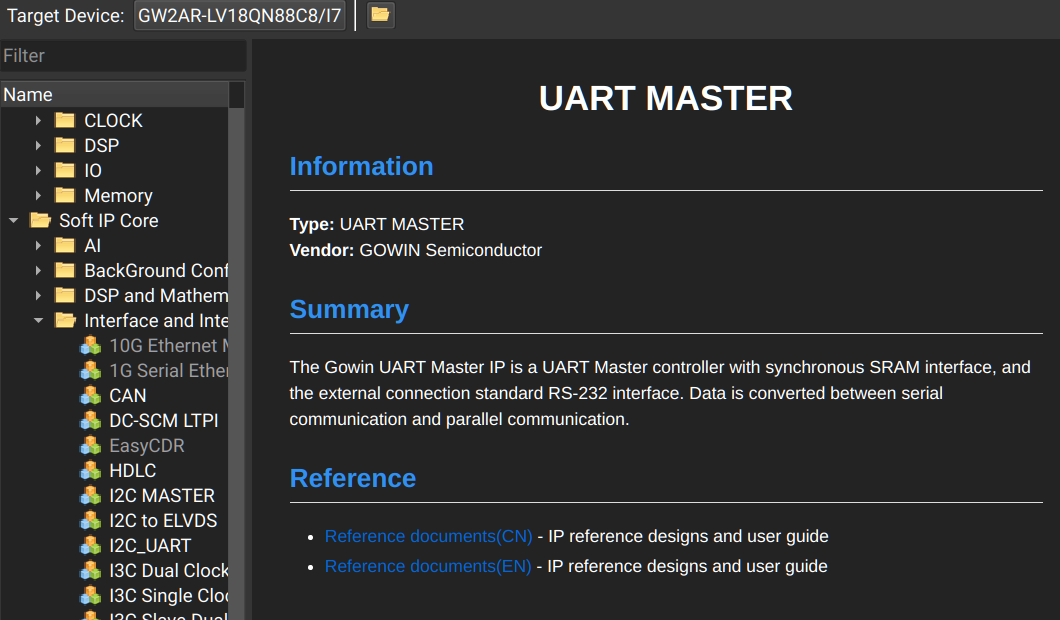
In addition, it is going to use IP — predefined blocks — to build a UART. The function is simple and contrived. By default, entering a character through the UART will echo it. However, if you push the user button on the board, it will switch the board to a mode where it adds one to the character before resending it. If you push the button again, the output will be a straight echo. When you push the button in either case, the device will send an asterisk.

From the Top

At the top of the file you’ll see this line:

default nettype none

This is a good idea because without it, Verilog will happily create new nets from typos. For example:

countt=count+1;

Now count doesn’t change, but a new wire, countt is set and never used. The only problem is that some of the GOWIN IP expects the default nettype to be wire so at the end of your files, you need to put it back:

default nettype wire

Another quirk is that while some tools will realize that if you specify an input or an output, it should infer that you mean a wire unless you say otherwise. The GOWIN tools will refuse to do this if you set the default type to none.

Modular

The next part is the led module. This is a reusable piece, in theory. However, it is also our top block. The #() syntax allows me to set some parameters you can change when you create one of these modules, as well as the defaults. For example, in the previous testbench I wrote:


led #(.CLOCK_FREQUENCY(10, .INTERVAL_MS(1000)) uut(.reset(reset), .Clock(clk)...

This sets a slow clock and interval for simulation purposes instead of using the defaults. Not all modules have parameters. After that, though, there is what looks like an argument list of inputs and outputs. These are the ports you can use if this isn’t your top module, but since this one is the top module, we’ll need constraints to assign them to particular pins on the FPGA.

The localparam statements are like #defines in C, and we use them to set the required counter and figure out the number of bits we need for the counter ($clog2 gives us the base 2 logarithm at compile time).

Most of the time we deal with wires. Something has to drive them. They are perfect for connecting to things. But then there are also regs. You might think these are flip-flops, but that’s not exactly true. They are just Verilog variables, if you will.

It is easy to think of wires and regs as being 1 or 0, but it turns out Verilog also supports values like X (unknown) and Z (sort of like open collector). In fact, SystemVerilog allows you to write logic instead of wire or reg, something we’ll talk about soon. However, there is so much “plain” Verilog out there that it is important to understand it even if you plan to use the more modern SystemVerilog in your own work.

Look at this line:


reg [COUNT_BITS-1:0] interval_count;

The IP Generator has plenty of choices and links to documentation.

This tells us that we have a reg named interval_count. It has bits that range from bit 0 (least significant) to COUNT_BITS-1. Note that you can reverse those if it makes sense for your design. Or start at bit 1, for example. This is not an array, although Verilog does support arrays. This is a multi-bit variable. If you don’t specify the bits (like the interval_tick definition that appears next) then the variable is a single bit.

The next bit of code defines reg and wire variables that will connect to the UART. For now, we aren’t building our own UART. We’re using the IP provided by GOWIN. One problem with this is that it is really made to connect to a microprocessor, so we are going to cheat a little to make it simple to use. You can insert IP into a project from the Tools menu under IP Core Generator.

The final setup section handles the pushbutton input and LED state. The pushbuttons are not synchronized to the clock and this can lead to a major problem. Plus, mechanical switches can bounce — that is, they don’t go off then on. They go off, on, off, on, off, on, off, and then — after a few milliseconds — they settle in the on state. There is a debounce module included to help with these problems. For now, we’ll just use it like we’ll use the UART, even though this module is in debounce.v.

Instantiation

Here’s how we create a debounce module. You could, in theory, create as many as you like:

 debounce #(
  .CLOCK_FREQUENCY (CLOCK_FREQUENCY),
  .DEBOUNCE_MS (10)
   ) button_filter (
     .Clock (Clock),
      .reset (reset),
       .noisy_button (pushbtn),
       .clean_button (button)
  );

The name of the instance is button_filter, and we’ve set parameters to tell it our clock frequency and the debounce time, which is 10 milliseconds. The connectors are the clock and reset lines, along with the button input and a clean version of the button as an output.

Assignment: UART

There are a few lines that start with assign. These are Verilog’s soldering irons. You can connect a wire output to some variable or expression, and then that is what that wire will be. We’ve seen that in the earlier LED-only demos.

Then there is a much more complex instantiation of the UART. Although it has more ins and outs, it is basically the same as connecting the debounce module. Note that in some cases I just force fixed data to a pin (e.g., 3’b001, which is a three-bit binary constant, or 8’hff, which is an 8-bit FF hex. Some connections are wires or regs. Some are expressions like ~reset (the inverse of reset).

The upshot is simple. When uart_rx_ready_n goes low, you can read a character from uart_rx_data. The transmit has a similar setup.

The Flop

The rest of the file has three always expressions. There are two things you can do with always (in fact, SystemVerilog separates these out as we will see in the future). For now, we will focus on how to write clocked flip flops using always @.

The simplest one is the last one that toggles the LED state:

always @(posedge Clock) begin
  if (reset)
    led_state <= 1'b0;
  else if (interval_tick)
   led_state <= ~led_state;
end

This will create a flip-flop that triggers on the positive edge of Clock. If the reset line is high, the flip-flop will set led_state to 0. Otherwise, it will set the led state to the inverse of whatever it was before.

There are a few things to note here. First, led_state can’t be set anywhere else but inside this always block. The other problem is a bit trickier. Note that the assignments use <= and not =. You could write = but that leads to a problem. Imagine this code inside an always block:

qout=3'b000;
if (b) quot=~quot;

Verilog would interpret this to mean that quot should be set to 0 before the next line. Remember, though, that Verilog at “run time” doesn’t step through code line-by-line. So it would infer a latch to hold this value and feed it to the logic that handles the second line.

Not only is this not what you want, but it generates strange things on the device that will not operate efficiently. Instead, you want to use the <= assignment. In essence, every value of quot read in the always block will be whatever quot was at the clock edge. Then, at the end of the block, the last <= assignment “wins.”

This is probably what you really meant anyway and avoids creating strange latches that will, at best, slow down your design. In practice, you can think of it as the flip-flops will capture inputs on the clock edge, then produce outputs that will be ready (at least) by the next clock edge.

Metastability

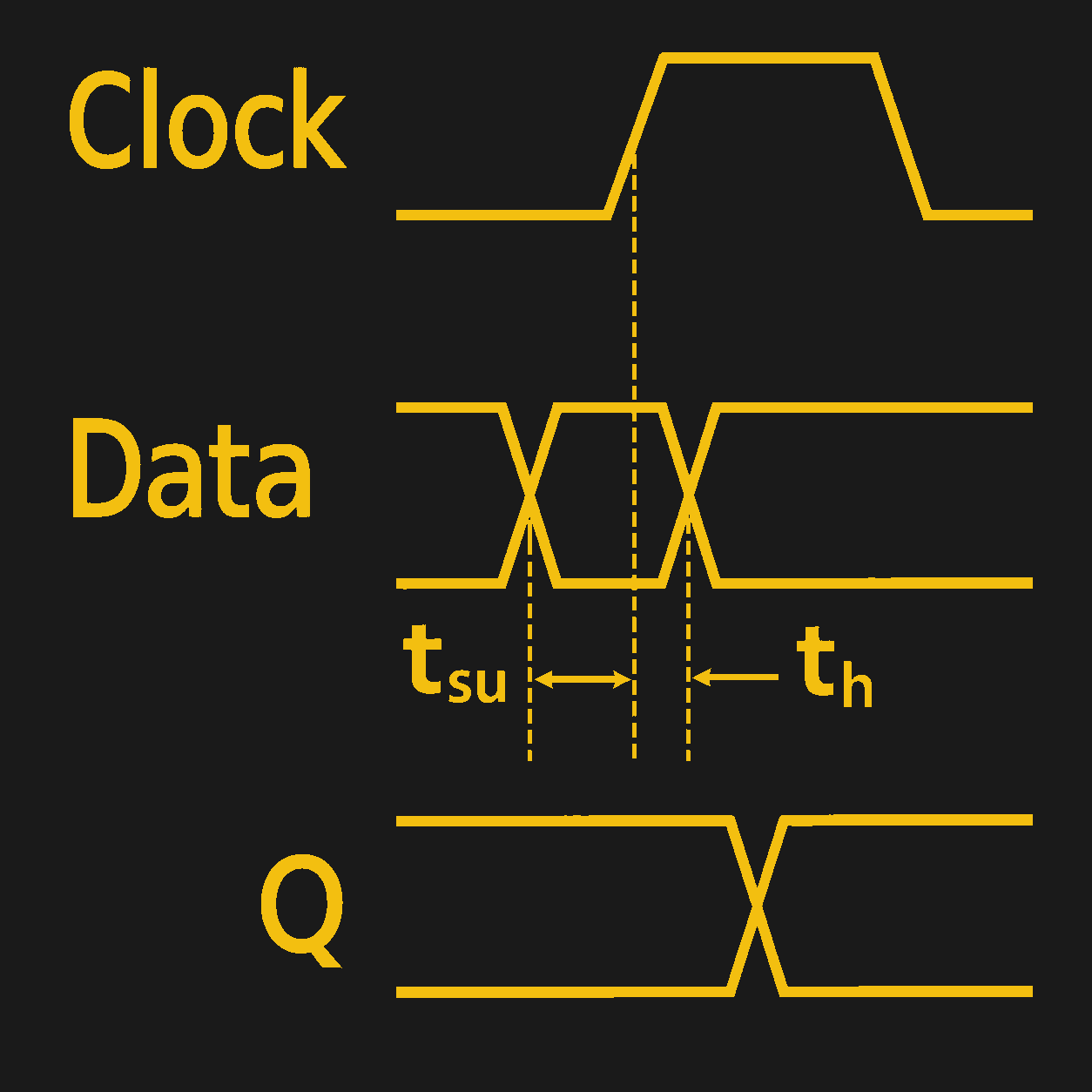
Data must be stable for the setup time through the hold time.

I mentioned the debounce module did two things: debounces the mechanical switch and synchronizes with the clock. The problem is that we imagine flip-flops to be perfect but, of course, they are not. Any practical flip-flop has a setup time and a hold time. Imagine a very bad flip-flop that had a setup time of 100 milliseconds and a hold time of 50 milliseconds. That would mean that an input has to be stable for at least 100 milliseconds before the clock trigger and can’t change until 50 milliseconds after the trigger.

This is one thing that affects your maximum clock speed. Logic has to have time to stabilize before the clock triggers. But if something is coming from another clock or, worse still, asynchronously, then you run a risk. If the flip-flop’s requirements are not met, it can go metastable, where it could be in an indeterminate state or even oscillate wildly.

The most common way to combat this is to delay the signal with a few flip-flops. The idea is that even if one flip-flop goes metastable, it won’t go all through the system. Just something to be aware of if you deal with something asynchronous or try to connect flip-flops using one clock to those using a different clock.

If a Picture’s Worth…

Now that we know what’s going on in the Verilog, we’re ready to set up the logic analyzer. You can find out how that works in the video below. You can also grab the files on GitHub.

Be sure to drop by the Discord. If you need a refresher on digital logic, there are always the FPGA Bootcamps.

Your Computer Memory is a Lie

When you first learn to program, memory seems pretty straightforward. You have a bunch of bytes, each with an address. If you want to read or write something, you specify the address, and the computer goes to that place and does your bidding. Sure, some addresses might be reserved for hardware or the operating system, but the general idea is simple: memory is a big array of bytes.

Just like we pretend that a wire is a perfect conductor, the big array of memory model used to be a slight twisting of the truth. On a modern computer, however, it is almost entirely a lie. The address you use probably isn’t a physical address. The data you read might not come from RAM at all. Even if it does, it might be sitting in one of several caches. And if you follow the rabbit hole far enough, you discover that your SSD is arguably just another level in the memory hierarchy.

The Need For Speed

The fundamental problem is that processors have gotten much faster than memory. A modern processor can execute several instructions per clock cycle, but accessing ordinary DRAM can take hundreds of cycles. If the processor had to wait for RAM every time it needed data, much of that impressive computing power would go to waste.

The solution is caching. Keep copies of frequently used data in smaller, faster memories closer to the processor. Most modern desktop processors have at least three levels of cache. The L1 cache is tiny but extremely fast, and often split between instructions and data. L2 is larger and somewhat slower, while L3 is even larger and usually slower as well.

Things get interesting with multiple cores, as is often the case these days. Typically, each core has its own L1 and L2 caches, while several cores share an L3 cache. But that’s not universal. Some processors share L2 caches between cores. Others have multiple L3 caches, each serving a group of cores. The exact arrangement depends on the processor architecture.

One important detail: caches don’t generally work byte by byte. They transfer and track blocks called cache lines, commonly 64 bytes on modern desktop processors. If you read one byte that isn’t cached, the processor generally fetches the entire line containing that byte.

This is why sequential memory access is often much faster than random access. If you read the next byte, there’s a good chance it’s already in the cache. Hardware prefetchers may even anticipate what you’ll need next.

But there can be problems. Imagine two cores modifying completely different variables. If those variables happen to occupy the same cache line, the cores may repeatedly invalidate each other’s copies, wasting time even though they aren’t logically sharing data.

Protocols such as MESI keep the caches coherent, coordinating which core owns a line and which copies are valid. MESI is an acronym for cache line states: modified, exclusive, shared, or invalid. Memory systems must figure out how to keep caches in sync. But coherence doesn’t eliminate the need for synchronization or memory-ordering rules in multithreaded programs. The point is that even our simple byte-addressed memory is secretly operating in larger chunks.

The Address Isn’t Real, Either

So far, we’ve assumed that the address you supply identifies a location in RAM. Usually, it doesn’t. Modern operating systems use virtual memory. Your program sees a virtual address space that the operating system and processor cooperate to map onto physical memory.

The memory management unit, or MMU, translates virtual addresses into physical addresses, typically using page tables. This lets different programs use identical virtual addresses without interfering with one another. It also provides memory protection and allows physical pages to be shared.
Of course, translating addresses takes time. So we add another cache.

The translation lookaside buffer, or TLB, remembers recently used address translations. A TLB hit avoids a potentially expensive page-table walk. Some processors even have multiple levels of TLBs. Unlike the ordinary CPU cache, which generally operates on cache lines, virtual memory usually works with pages, often 4 KB, although larger pages are also supported.

Notice what’s happening. We have caches for data, caches for instructions, and caches for the information needed to locate the data and instructions.
The simple act of reading a variable has become surprisingly complicated.

Not All RAM Is Created Equal

Even if we get through the caches and finally reach RAM, things aren’t necessarily simple. On systems with multiple processors or certain multicore arrangements, memory access can be non-uniform. This is called NUMA, or Non-Uniform Memory Access.

A processor may have relatively fast access to memory attached to its own NUMA node, while accessing memory associated with another node requires crossing an interconnect. Both locations are ordinary RAM, and both may appear in the same address space, but the access times and available bandwidth can differ.

The operating system tries to place memory near the processors using it. Moving a thread to another CPU can therefore change its memory performance, even though the program’s addresses haven’t changed.

And NUMA isn’t limited to traditional multiprocessor servers. Modern systems with chiplets, heterogeneous memory, and technologies such as CXL are making memory topology increasingly interesting.

What If It Isn’t In Memory?

Virtual memory has another trick. A virtual page doesn’t necessarily have to be backed by physical RAM at the moment you access it.

When a program accesses a page that isn’t currently mapped in a usable way, the processor generates a page fault. The operating system decides what to do. Sometimes it simply allocates a fresh page. Sometimes it retrieves data from an executable or memory-mapped file. Other times, the page was moved out of RAM to swap space and must be retrieved. Note that things like executable data are generally immutable, so most operating systems won’t swap them out. They simply trash them and know they can reload the same page later when needed.

This means your program can address data that isn’t presently in physical memory. Naturally, accessing an SSD is much slower than accessing RAM, so excessive swapping can bring a computer to its knees.

Virtual memory doesn’t actually require swapping, though. Address translation and protection are useful even on systems that never move pages to disk.

Your SSD Is Memory, Too

Suppose your program reads a file. You might imagine that the operating system sends a request to the SSD and waits for the data. But if the file was recently accessed, the data may already be in RAM.

Operating systems maintain a filesystem page cache, keeping frequently or recently accessed file data in memory. Writes may also be buffered in RAM before eventually reaching persistent storage.

This makes RAM act like a cache for secondary storage, much as L3 acts like a cache for RAM.

The analogy isn’t perfect. RAM is also the primary working storage for running programs, and anonymous memory isn’t necessarily a copy of anything on disk. But the general hierarchy is clear: registers, CPU caches, RAM, and persistent storage provide progressively different tradeoffs between speed, capacity, and cost.

Even SSDs have their own caches and address translations. Their flash translation layers map logical block addresses onto physical flash locations, hiding wear leveling and garbage collection from the host. Apparently, nobody wants to tell the truth about addresses.

Compressing The Middle

But what if we could make RAM effectively larger without adding more? Compression offers another way to complicate our memory hierarchy. Instead of immediately moving an infrequently used page to disk, why not compress it and keep it in RAM?

Linux has two well-known mechanisms for doing this: zram and zswap. Zram creates a compressed block device in RAM. It’s commonly used as a swap device, allowing pages to be stored in compressed form rather than written to physical storage.

Zswap, on the other hand, is a compressed cache in front of a swap device. When Linux decides to swap out a page, zswap attempts to compress and retain it in RAM. If necessary, pages can eventually be evicted to the backing swap device.

Both trade processor time for memory capacity and reduced storage I/O. Decompressing a page costs CPU cycles, but that can be considerably cheaper than retrieving it from an SSD.

There’s a catch, though. These mechanisms operate through the swap subsystem. When a compressed page is needed again, it must be decompressed into an ordinary page before the program can access it. That means page faults, memory management overhead, and moving data around. But what if compressed memory could behave more like ordinary RAM?

Meta Wants To Change The Rules

That’s the idea behind CRAM, or Compressed RAM, a project presented by Meta’s Gregory Price at the October 2026 Linux Plumbers Conference.

Rather than treating compressed memory as a conventional swap device, CRAM proposes exposing it through a special NUMA node. Linux can then use existing memory-management mechanisms to move pages between ordinary DRAM and compressed memory. The most interesting part is the hardware-assisted compression and decompression, which allows access at much finer granularity than conventional page-oriented compressed swap.

The developers report impressive benchmark results, including read performance that approaches ordinary DRAM in some tests and dramatic improvements over zram for selected workloads.

That doesn’t mean compression has suddenly become free. Writes, compression ratios, hardware requirements, and managing incompressible data all matter. CRAM is still developmental work, not ready for everyday use.

But it illustrates where the memory hierarchy is heading. Instead of simply deciding whether a page is in RAM or on disk, the operating system may choose among ordinary RAM, compressed memory, slower memory tiers, and secondary storage.

The Illusion Is The Feature

Most programmers don’t need to think about any of this most of the time. That’s the point of an abstraction. But when performance matters, the illusion starts to leak. Sequential access can beat random access by enormous margins. Two threads modifying unrelated variables can fight over cache lines. Moving a process between CPUs can change its memory latency. A page that looks like ordinary memory might actually require decompression or a trip to an SSD.

On smaller embedded systems, of course, the picture may be very different. Without an MMU or elaborate caches, memory can look much more like the simple physical address space we learned about in the first place.

We started with an array of bytes. We ended up with a hierarchy of caches, translation tables, NUMA nodes, compressed memory pools, and persistent storage devices, all cooperating to maintain that simple illusion. Amazing how complicated something so simple can be.

Lead a Discord Exodus with a Matrix Server

The Internet, and large groups of people in general, tend to have a remarkably short collective memory. Whether it’s the nature of algorithms or the people themselves to always be chasing the next novelty, maintaining long-term engagement for even relatively small changes can be challenging. Distractions abound, and motivation tends to fade over time. This past spring, Discord’s unpopular decision to force age verification resulted in a brief flash-in-the-pan of outrage that dissipated when they promised to delay its roll-out. Rather than backtrack on unpopular policies, they’ve been slowly boiling the frog with incremental changes towards this same goal in the meantime. One of the options to deal with this is to migrate over to something like a Matrix server, which has a number of benefits over Discord including being open-source and self-hostable.

Unlike Discord, a closed platform subject to the whims of a private company, Matrix is a communications protocol and open standard. Its major server and client implementations are open source, so anyone can build tools around it and integrate it with other systems that also use this protocol. This protocol-vs-platform comparison mirrors email, which is another protocol that isn’t locked down by any one company, and which can easily be used to send messages across various providers. The most commonly used server-side software for Matrix is called Synapse and the most prominent general-purpose clients are the various implementations of Element, and my exploration uses these defaults.

Analysis Paralysis

One of the problems with choosing a Discord replacement for one’s family, friends, or online gaming community is that there are a huge number of options. In much the same way Linux itself fails to make a dent in the desktop operating system market, open-source and community-driven projects are relatively easy to code and release but difficult to market and build up a sustainable userbase. So, while there are platforms like Stoat, XMPP, and others which provide self-hosted text and video communication, many of these services have a very small userbase or have some other shortcoming, and on some deeper level it can feel like flipping a coin to choose between any one of them and their myriad of forks.

For me personally, my choice of Matrix over any other option was partially driven by the fact that it seems to have an active and helpful userbase compared to others, it has it has strong end-to-end encryption support which is generally enabled by default (for private chats), and it’s possible to host on computers that I own. Another big reason I picked Matrix to experiment with is that self-hosting Matrix is optional. There is a large and active server called matrix.org that functions as a default server of sorts, which allows almost anyone to sign up and start chatting without having to install anything other than a Matrix client like Element. In this way, matrix.org feels a lot like IRC in its golden age because these large servers allow mostly anonymous Internet users to communicate about various topics in dedicated chatrooms without any great effort.

Federation Is Also Optional

Matrix is often loosely lumped in with other “federated” social media like Lemmy or Mastodon because, like these ActivityPub-based systems, there is no central server like Discord or Reddit and no overarching authority policing the entire network. So a Matrix server can federate with other Matrix servers, allowing users on the two servers to participate in the same rooms and exchange messages. If one server goes offline or decides to defederate for whatever reason, that doesn’t bring down the rest of the network, although users and rooms hosted exclusively on that server will of course be affected. Federation is also optional, and independent servers for one’s own family or friends that don’t federate with any other server is just as possible as a large server federating with all of the major servers like matrix.org. Compared to Discord, this decentralized structure makes it much more robust to a single entity’s whims.

Although a different protocol from ActivityPub which is used for other federated social media, Matrix also has a bridging network that allow it to communicate with other platforms, including IRC and Discord, as well as numerous other messaging services. So, in theory, setting up a Matrix server doesn’t preclude anyone’s friends on Discord from communicating with them, and might make it easier to migrate a friend group to the more open platform over a period of time, rather than expecting everyone to pick up and move all at once.

Starting The Virtual Machines

To that end, setting up a Matrix server does take a little more effort than creating a channel in Discord. I have a Proxmox server that makes setting up new servers relatively easy, but the server- and client-side software runs just fine on most Linux distributions without the help of virtualization. To start, I spun up an LXC container to run Synapse which is easy enough, but only includes text and photo chatrooms on its own. I was able to make this available on the wider Internet using a Cloudflare tunnel at first. With the Cloudflare URL, encryption keys, and the Element clients on various machines owned by my family and friends, everyone was easily able to get in to the chat rooms and communicate, with full end-to-end encryption and with messages stored on a machine I physically control. If you’re following along and want to stop here with just text-based chat, that’s certainly a viable and simpler option.

However, this does fall short of matching Discord’s quick voice and video calling, and this is where Matrix server administration can start to get a bit cumbersome. The short story here is that, at the time I set up my servers, there was a legacy calling mode alongside a newer one, so to support both there were two additional servers that needed to be set up. The legacy mode needs a TURN server, and the modern voice and video calling system supported by Element generally needs a LiveKit server. Since I set up my servers, though, this architecture has been simplified with TURN becoming less central to typical Matrix servers.

The next hurdle for me was getting around my Internet service provider’s network address translation (NAT). This is part of the reason I started using a Cloudflare tunnel in the first place, but the free tier is basically only an HTTP/WebSocket proxy which has no way to accept the UDP connectivity that TURN and LiveKit normally require for media. To solve that problem I turned to a small VPS that I rent which has a public-facing IP address. (I actually put an OpenOSCAR server on here first, back when this project got popular, to test out its capabilities and get it ready for my Matrix server.) The TURN server is lightweight enough to run on the VPS directly, but LiveKit is much more resource-intensive than I’m willing to pay for. This means LiveKit has to run on my server, so I set up a WireGuard connection from the VPS back to its container on the Proxmox machine.

Part of what makes this setup a little more difficult than average, besides the NAT-induced headaches, is that even once these packets get to my router, which is also hosted on my Proxmox machine, they go to a DMZ on a separate VLAN in my home network so that public-facing traffic can never get through to the rest of my LAN. But that DMZ includes a number of other public-facing services which are managed by an nginx server, adding yet another layer to this onion of a system. So between the support services for the Matrix server, the network layers, the off-site VPS, and the Matrix server itself, my setup involves six virtual machines, some interaction with Cloudflare, and one additional (albeit relatively inexpensive) paid service. This also doesn’t count the services I run on the Proxmox host and in other VMs to monitor web traffic and improve network security.

Even this setup, once I spent a considerable amount of time troubleshooting, has its downsides. For some reason which still eludes me, users on iPhones running the Element X client are randomly unable to send picture messages to chats. Occasionally a service on one of my many VMs will fail and need maintenance, and this seems to only happen when I’m not near my laptop. But perhaps most notably is that my Matrix server still doesn’t federate with any others. This isn’t really a problem as much as it was a conscious choice, though; it’s something that’s possible with a public endpont of some sort, so it’s my VPS makes this an option for me, but I haven’t attempted it yet. Mostly this is because the people on my Matrix server that actively use it are family members who don’t need or want that kind of exposure to the deep Internet, and my broader experience on matrix.org was often marred by things like crypto scams and generally desolate chatrooms.

All of This Has Happened Before, and All of This Will Happen Again

If you’re still with us after that extremely convoluted journey, it might seem like this is a lot to ask to replace a free service that’s been fairly instrumental in making it easy for gamers to interact with each other over the Internet and which has also revolutionized online chatrooms (for better or worse). But they have demonstrated time after time that they’re willing to slowly erode user trust, privacy, security, and experience in favor of shareholder value, and as they start rolling out “features” like age and identity verification they introduce more categories of sensitive information that are stored somewhere, and more potential points of failure. Given the long history of major companies failing to protect user data, it seems inevitable that someone will eventually make a mistake and expose information that users never expected or wanted Discord to collect in the first place. So for those who still have intact memories of Discord’s prior attempts to implement extremely unpopular policies, or even memories of other companies who have failed to protect sensitive user information in the past, a Matrix server might be worth the attempt.

❌