ICMP (Internet Control Message Protocol) is crucial for network communication and primarily for error reporting and diagnostics. It facilitates the exchange of control messages, helping to identify connectivity issues, unreachable destinations, and routing problems. ICMP tools like ping and traceroute are essential for troubleshooting, ensuring efficient data transmission, and maintaining network health.
Understanding the Basics of ICMP
ICMP, or Internet Control Message Protocol, is a vital network communication component. It is used for diagnostic purposes and assists in error reporting and network device querying. ICMP plays a crucial role in maintaining the health and efficiency of networks, making it indispensable for IT professionals and network administrators. Without ICMP, diagnosing and resolving network issues would be much more complicated and time-consuming.
The protocol operates within the Internet Protocol (IP) suite and is primarily used to send error messages indicating unreachable network locations, congestion, and connectivity failures. It also provides a means for diagnostic and query messages, helping network devices communicate operational data. This communication ensures that all network parts can sync correctly and any issues can be flagged and addressed promptly.
Common ICMP Messages and Their Purposes
ICMP messages are varied, and each serves a particular purpose in network diagnostics and maintenance:
• Echo Request and Echo Reply: The command called "ping," which determines whether a host on an IP network can be reached, has made these signals generally recognized. When you "ping" a device, an echo request is sent, and if the device is reachable, it sends back an echo reply. This simple interaction can confirm connectivity and measure round-trip time.
• Destination Unreachable: This message indicates that a destination is unreachable, alerting about routing issues, blocked ports, or the absence of a route to the destination. Each subtype of this message provides specific details about why the destination cannot be reached, helping network administrators troubleshoot the problem.
• Time Exceeded: Often seen in traceroute operations, this message alerts when a data packet's time-to-live (TTL) has expired. The TTL value is a counter that decrements every time the packet passes through a router. A time-exceeded message is returned, and the packet is deleted if it approaches zero. This helps identify routing loops or excessively long routes.
The Role of Ping in Network Diagnostics
The ping command, utilized by ICMP echo request and reply messages, is one of the most ubiquitous tools in network diagnostics. Ping waits for an echo response after sending an ICMP echo request to the intended host. The time for the round trip is recorded, providing a measure of reachability and latency. This tool can quickly determine whether a server is down or network latency affects performance. Consider reading this article for an in-depth look at how ping works and its applications.
Ping's simplicity makes it accessible even to those with limited networking knowledge, providing a straightforward method to check connectivity. However, experienced IT professionals use it more sophisticatedly, such as scripting ping tests to monitor network stability over time or using ping options to test different packet sizes and intervals.
Utilizing Traceroute for Network Path Analysis
Traceroute leverages ICMP time-exceeded messages to map the path packets take to reach a destination. By incrementing the TTL value of successive packets, the traceroute receives a time-exceeded message from each hop along the route. This maps out a packet's entire path through the network, indicating where delays or failures occur. This is crucial for identifying network bottlenecks and diagnosing complex routing issues.
For example, if there's a delay in a particular network segment, traceroute can pinpoint precisely where it happens, allowing network administrators to address the issue at its source. This diagnostic tool is essential in large network environments where multiple paths to various destinations exist, and identifying the exact route a packet takes can mean the difference between a quick fix and prolonged downtime.
ICMP and Network Security
While ICMP is essential for network maintenance, it presents potential security risks. Malicious actors might exploit ICMP for reconnaissance attacks, such as mapping out network topologies or discovering active IP addresses. To counter these threats, network administrators configure firewalls to allow only necessary ICMP traffic while blocking potentially harmful messages. This article provides an overview of how ICMP can be used in attacks and how to mitigate them.
Effective ICMP management involves setting specific firewall rules that permit diagnostic messages needed for network operations but deny those that could be used for surveillance. This selective filtering helps balance operational efficiency and security, ensuring the network remains accessible for legitimate purposes while being safeguarded against unauthorized probing.
Configuring Firewalls to Handle ICMP
Firewalls play a crucial role in managing ICMP traffic, balancing the need for diagnostic tools with the risk of potential attacks. Proper configuration involves allowing beneficial ICMP messages while blocking those that pose security threats. For instance, echo requests and replies might be permitted within a private network but restricted from external sources to prevent external ping sweeps or DDoS attacks.
A well-configured firewall will distinguish between necessary and redundant ICMP types, enhancing security without compromising diagnostic capabilities. Regular reviews and updates to firewall rules ensure they adapt to evolving network needs and emerging threats, maintaining an optimal security posture over time.
Future Trends in ICMP Use and Network Diagnostics
As network technologies evolve, so does the role of ICMP. Emerging trends focus on enhancing diagnostic capabilities and integrating ICMP with advanced security protocols. Artificial intelligence and machine learning developments could see ICMP messages used in predictive analytics, foreseeing network issues before they affect operations.
The continuous growth of IoT and cloud computing also presents new challenges and opportunities for ICMP. Ensuring secure and efficient communication in increasingly complex network environments will likely depend on advanced ICMP protocols and innovative diagnostic tools, driving the ongoing evolution of network management strategies.
NMAP (Network Mapper) is a free and open-source network scanning tool widely used by network administrators and cybersecurity professionals to discover and map devices on a network. It can scan a range of IP addresses or a single host to identify the services and operating systems running on it. In this article, we will discuss how to install and use NMAP in Termux.
Installing NMAP in Termux
1. Open Termux on your Android device and update the package repository by running the following command:
pkg update && pkg upgrade -y
2. Install the Nmap package by running the following command:
pkg install nmap
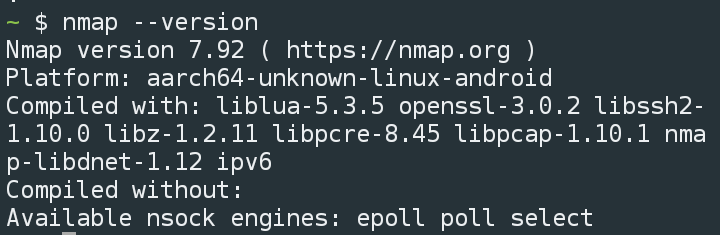
3. To verify the installation, you can run the nmap command with the --version option
nmap --version
Using NMAP in Termux
NMAP provides a wide range of options for scanning networks and hosts. Here are a few examples of how to use NMAP in Termux:
Scanning a range of IP addresses
To scan a range of IP addresses, you can use the -sL option followed by the range of IP addresses you want to scan. For example, to scan the range 192.168.1.1-255, you can use the following command:
nmap -sL 192.168.1.1-255
This will list all the IP addresses within the specified range.
Scanning a single host
To scan a single host, you can use the -sV option followed by the hostname or IP address of the host you want to scan. For example, to scan the host www.example.com, you can use the following command:
nmap -sV http://scanme.nmap.org/
This will scan the specified host and report the services and operating system running on it.
Scanning a range of ports
NMAP can also be used to scan a range of ports on a host. To do this, you can use the -p option followed by the range of ports you want to scan. For example, to scan the range of ports 1-1000 on the host www.example.com, you can use the following command:
nmap -p 1-1000 www.example.com
This will scan the specified host and report the status of the ports within the specified range.
Performing an OS detection scan
NMAP can also be used to detect the operating system of a host. To do this, you can use the -O option followed by the hostname or IP address of the host you want to scan. For example, to detect the operating system of the host www.example.com, you can use the following command:
nmap -O www.example.com
This will scan the specified host and attempt to detect the operating system running on it.
In this article, we have discussed how to install and use NMAP in Termux. NMAP is a powerful and versatile tool that can be used to scan networks and hosts to identify the services and operating systems running on them. By following the steps outlined in this article, you can easily install and use NMAP in Termux on your Android device. We have a comprehensive nmap tutorial
GNU nano is a simple terminal-based text editor, used in command line to edit, create small text files, its similar to VIM but not that powerful and it can be good for making small changes in text files through the command line
Today in this post, you will learn how to install and use nano text editor in termux
Follow these steps to get started
1. Download and install Termux from Fdroid
2. Open Termux and type the below commands
apt update && apt upgrade
3. Now install the nano package by typing
pkg install nano
4. After that you can check its version by typing
nano --version
5. Now you are ready to use nano
Creating a file with nano
Type below command to create a new text file
nano test.txt
it will create a new file test.txt if not exists
Now write there and to save and exit the nano press CTRL + X and Y then hit enter
This is the way you can use nano in termux and edit files
Goland or Go language is a popular open-source programming language developed by Google engineers, and it is one of the faster languages,
In this tutorial, you will learn how to install glang in Termux step by step.
Before we begin, ensure that you have Termux installed on your Android device. You can download it from Fdroid. You should have some basic knowledge of termux commands
To install Golang in Termux, follow these steps:
1. Open Termux and update the package repository by running the following command:
pkg update && pkg upgrade -y
2. Install the Golang package by running the following command:
pkg install golang
3. Once the installation is complete, verify that Golang is installed correctly by running the following command:
go version
You should see the version number of Golang displayed in the output.
4. To set the environment variables required for Golang to work properly, run the following commands:
export GOPATH=$HOME/go
export PATH=$PATH:$GOPATH/bin
These commands will set the GOPATH variable to the go directory in your home directory and add the bin directory to the PATH variable.
5. You can now create a new Golang project by creating a directory for your project and running the following command:
go mod init <project name>
This will create a new Go module in the directory you specified.
6. You can start writing your Golang code in the project directory.
That's it! You have successfully installed Golang in Termux and can start building your applications.
Conclusion
Installing Golang in Termux is a simple and straightforward process. By following the steps outlined in this article, you can easily set up a development environment and start writing your Golang code on your Android device. Happy coding!
Git is a popular version control system that allows developers to track changes and collaborate on their code. This article will show you how to install Git in Termux So that you can use git on Android with a Linux-like terminal.
Before we begin, ensure that you have Termux installed on your Android device.
To install Git in Termux, follow these steps:
1. Open Termux and update the package repository by running the following command:
pkg update && apk upgrade -y
2. Install the Git package by running the following command:
pkg install git
3. Once the installation is complete, verify that Git is installed correctly by running the following command:
git --version
You should see the version number of Git displayed in the output.
4. To configure Git with your name and email address, run the following commands:
git config --global user.name "<Your Name>"
git config --global user.email "<Your Email>"
This will ensure that your commits are correctly attributed to you.
5. You can now create a new Git repository by running the following commands:
mkdir <repository name>
cd <repository name>
git init
This will create a new directory for your repository and initialize it as a Git repository.
6. You can add files to the repository and commit changes using the usual Git commands.
That's it! You have successfully installed Git in Termux and can now use it to manage your code repositories.
Conclusion
Installing Git in Termux is not that hard. You can configure your remote repository according to your git platform
Php is a popular scripting language for web development; Php is easy to use and has a simple syntax. In this article, we will show you how to install PHP in termux
To install PHP in termux, follow the below steps carefully
1. Install Termux from F-Droid
2. Type the Below command to update the termux packages
pkg update && apk upgrade -y
3. type the below command to install PHP
pkg install php
4. After successful installation, you can check the PHP version by typing
php --version
5. Install nano, a text editor for terminal
pkg install nano
6. Now Create a file test.php using nano and execute
nano test.php
Save the file by CTRL +X , Then execute it,
php test.php
You will see the output.
hope you guys learnt how to install and use PHP in termux. Also, read termux commands
Node.js is a powerful JavaScript runtime built on Chrome's V8 JavaScript
engine. It allows you to run JavaScript on the server side, which can be used
to create many applications, from simple command-line tools to complex web
applications. This blog post will show you how to install Node.js on your
Android device using Termux.
You can install nodejs and npm in termux and build javascript applications.
You can install express js, build web applications, build telegram bots and so
on.
Install node js termux
To install Node.js on Termux, follow these steps:
1. First, open the Termux app on your Android device and update the package
manager with the following command:
pkg update && pkg upgrade -y
2. Type the below command to install nodejs
pkg install nodejs
3. After successful installation, you confirm and can check its version by
typing the below command
node -v
4. To run Node.js files/scripts, you can follow
node script.js
where the script is the starting point of the app or a js file
npm will be automatically installed with node.js, you can use the node package
manager by typing npm in termux
In this tutorial, you will learn how to install python in termux and use python files on your android
What is Python?
Python is a programming language used to build software, websites, data analysis and so on. and it is one of the favourite programming languages for hackers.
Install python on termux
Follow these steps to install python in termux. We will use nano to edit python files.
1. Download and install Termux from F-Droid
2. in termux type apt update && apt upgrade -y
3. Now type pkg install python
4. Then type pkg install nano
5. type python --version to check the version of python
How to run python in termux
Create a file with .py extension, then execute python file.py
Hello there, In this tutorial, we will be discussing how to install and use
Sqlmap in termux
What is Sqlmap?
Sqlmap is an automatic SQL Injection scanner and exploitation tool written in
Python. We use this tool to detect SQL injection vulnerabilities in websites
and exploit
how to use sqlmap in termux
Follow the below steps to use sqlmap in Termux.
After Installing Termux, You have to install the following packages, so
type the commands in termux
ChatGPT is an AI-powered chatbot that can generate natural-sounding conversations in real-time. By leveraging advanced natural language processing and deep learning, ChatGPT is capable of understanding and responding to human input, allowing it to create engaging conversations with people.
The technology behind ChatGPT is based on the OpenAI GPT-3 model, which has been trained on massive amounts of text data to learn how to generate human-like conversation. This has allowed ChatGPT to become a powerful tool for businesses and developers alike.
In this article, we’ll be exploring how to get started with ChatGPT and how you can use it for your own projects.
Getting Started
The first step in getting started with ChatGPT is signing up for an account. Simply go to their website https://chat.openai.com/ and fill out the registration form. Once your account is set up, you’ll be able to start creating conversations with ChatGPT.
Creating Conversations
Once you have an account set up, the next step is creating conversations with ChatGPT. To do this, simply type in a question or statement into the chat window and press enter. ChatGPT will then respond with a conversation based on your input. It’s important to note that ChatGPT is designed to converse like a human, so if you give it too much information at once or ask it complex questions it may take some time before it responds.
Using the API
In addition to the chat window, ChatGPT also provides an API that can be used by developers to integrate its capabilities into their own applications or services. The API allows developers to send input text to the chatbot and get back responses in real-time. This makes it easy for developers to create applications that can interact with users through natural language conversation.
Using Advanced Features
ChatGPT also offers several advanced features such as custom intents and entities that developers can use when creating conversations with the chatbot. Custom intents allow developers to define specific conversational goals they want their users to achieve while talking with the chatbot. Entities are words or phrases that are used by the chatbot when creating conversations and can help create more natural-sounding responses from the chatbot by allowing it recognize specific terms within a conversation.
Conclusion
ChatGPT is an incredibly powerful tool for businesses and developers alike that can be used for everything from customer support services to virtual assistants. By leveraging advanced natural language processing and deep learning, ChatGPT is capable of understanding and responding to human input in order to create engaging conversations with people. With its API integration capabilities, custom intents, entities, and more, there are endless possibilities when it comes to what you can do with this technology!
Disclaimer
This Article is Generated by Chat GPT, and is not recommended for Generating Content as AI generated content is against Google Webmaster Guidelines
in simple words, Termux Commands are the terminal commands, which is executed to perform a particular task. These commands are similar to Linux Commands.
Termux Commands List :
Important Termux Commands
Command
Purpose, Usage
termux-setup-storage
Will setup the storage system
apt update
will update the available packages
apt upgrade
will upgrade the available packages
pkg install
will install new packages, eg: pkg install php
pkg uninstall
will uninstall packages, eg: pkg uninstall php
pkg list
will show installed packages
pkg search
will search packages, eg: pkg search php
pkg-list-installed
will show the list of installed packages
Important System Level Commands
Command
Purpose, Usage
uname -a
Will Display the system information
whoami
Will Display the current user information
history
Will Display the list of perviously typed commands
clear
Will clear the teminal
pwd
Will print the present working directory
ls
will list the directories, files in that directory
cd
you can open a folder/directory using cd command, usage cd test
mv
mv command is used to rename a file, folder, also used to move a file from one directory to another
cp
cp is used to copy files from directory to another
rm
will remove the file, folder, usage rm test.txt
touch
will create a new file, touch test.txt
mkdir
will create a new directories, usage mkdir test
Before we dive deep, let's start with some cool commands. Let's Learn How To Use Cmatrix effects on Termux
For That Type Below Command
pkg install cmatrix
After that type
cmatrix
Ctmatrix effects will be displayed on termux
Another Cool Command is Sl Type
pkg install sl
After that type sl That's all a small Train will Start Running On Termux
Now let's see what the background running tasks through termux are just type the below command
Top
Now let's find the factor of any number for that install below package by typing
pkg install coreutils
After that to find the factor of any number, then type the factor number eg: factor 100
Let's play with text on termux we can write text in different styles, firstly try with the figlet Type
pkg install figlet
After that type figlet and type the text you want to write in the figlet style
For Colourful text, you have to install toilet package for that, type below command
pkg install toilet
After that type toilet "your text" You can also try color combination eg toilet -f mono12 -F gay "Your Text"
Calendar in termux, if you can't to see the calendar in termux then type
cal
To see the calendar To see the time and date just type date in termux
Now let's talk about some helpful commands
apt update
This command used to update the termux built-in busybox and other packages
apt upgrade
This command is used to upgrade the packages to the latest
Accessing and managing files in termux
To manage and access files in termux then you must type below command
termux-setup-storage
To access a directory cd commandis used The termux default directory is located at /data/data/com.termux/ You can access it anytime by typing cd $home
ls Command is used to see the list of sub directories To access your internal sdcard you have to type cd /sdcard && ls To Access your External Sdcard the same command is used cd /sdcard0/ && ls To Remove/delete an empty Directory or a file, use this command: rm -rf filename Where filename belongs to the name of the file or directory Similarly, you can use rm-r filename To Make a Directory mkdir Command is used Eg: mkdir Hello Where Hello Belongs to a Directory Name For Copying files from one directory to another, cp Command is used eg: cp /path/file /path Similarly for moving files mv Command is used Termux also Supports zipping and Unzipping of Zip files For that zip , unzip Commands are used
Let's talk about Networking ifconfig Command is used to get all the information regarding your Network IP Address To check a particular website is accessible or not in your ISP then you can check that through termux by typing
ping website
Eg: ping google.com The Interesting thing is you can access the internet through termux, directly in the command line
Firstly you have to install the w3m package by typing
pkg install w3m
After that, type the below command to access any website
w3m website
eg: w3m google.com Lynx is similar to w3m To install lynx, type pkg install lynx After that, type lynx google.com
Hello guys. In this tutorial, we will be discussing how to use the L3MON Rat. If you are entirely new to this RAT, then follow this tutorial carefully so that you should not face any issues while using the L3MON Rat.
Before getting into the tutorial, here are a few things you have to know
What is L3MON?
L3MON vs Xploitspy?
Why not XploitSpy?
L3MON mod by Techncyber
What is L3MON?
L3MON is a cloud based remote android management suite, powered by NodeJS, and its features
GPS Logging
Microphone Recording
View Contacts
SMS Logs
Send SMS
Call Logs
View Installed Apps
View Stub Permissions
Live Clipboard Logging
Live Notification Logging
View WiFi Networks (logs previously seen)
File Explorer & Downloader
Command Queuing
Built In APK Builder
L3MON vs Xploitspy
L3mon can only be used on the local machine every time you have to start the server on your local machine. Also, you have to use ngrok or similar port forwarding solutions to attack devices outside of your network,
Where Xploitspy is the Copy of L3mon, it can be used on your local machine and any cloud hosting solution. Thus, you don't have to start your local machine each time.
What's Wrong with L3mon and Xploitspy?
Due to the breaking changes and dependency vulnerabilities, you may face many issues regarding the Javascript ejs error. Also, the Xploitspy has been backdoored and steals the username and passwords, even after changing the password.
L3mon Mod by Techncyber
While we tried to contribute to the l3mon project, it's archived. That's why we modded it for personal use,
In this mod, we removed the Built-in APK Builder. Instead, we have given the client project so that you can plug into the android studio or edit the apk using any apk editor tool.
Also, all the EJS errors are fixed in this mod. The exciting thing is you can use this tool in any distro without any issues.
You can use it with your local machine or deploy it to any cloud hosting service.
Install L3mon-mod in Kali Linux, Windows, Termux
The procedure is the same for all operating systems. You can use this l3mon-mod tool in any operating system. All you need is nodejs installed in your system.
, then go to the L3MON-MOD directory, then node index.js
cd L3MON-MOD
then
node index.js
Now open http://127.0.0.1 in any browser, and you will see the login panel.
Setting up the Client part.
Now your server is ready, we need the client for our android, I have given you two ways to use it, either you can plug into the android studio, or you can use any apk editor tool to modify the apk
All you have to do is search and replace the URL http://192.168.x.x
Note that you have to replace the URL with your machine's IP. You can quickly get it by typing the below command on the Terminal.
ifconfig
Look for the inet, starting with 192.x.x.x
On Windows, you can type
ipconfig
The URL does not require the port.
Now Compile the APK, and Install it on your victim's Phone. You will see the device in your panel.
Conclusion
This tutorial is only for educational purposes, and we are not responsible for your actions. If you face any issues, then feel free to ask your questions.
Excerpt: Linux is a versatile kernel that is omnipresent. It powers multiple servers, pipelines, clouds, and much more. However, it might be challenging for rookies to understand Linux. One of the major advantages of Linux is that it is open-source, which means anyone can take part in the development of Linux.
One of the major goals that both Linux and DevOps have, similar to each other, is scalability. It is one attribute that enables an upper to deliver software fast without sacrificing the developer's code quality. This one attribute makes Linux the best option for DevOps.
The community of developers is enabled to collaborate on making the operating system quite effective and efficient. Most importantly, one needs a powerful and dependable internet connection for smooth operation. In this article, we get an insight into how Linux is a perfect option for DevOps.
What exactly is Linux?
Linux is one of the commonly used Operating systems. It is an open source and free platform that one can avail of for a General Public License. Like every operating system, Linux acts like a mediator between the hardware and software of the device. This Operating System is responsible for the regulation of the hardware and is used to satisfy the requirements of the software.
To learn more about Linux and its tools and practices, Linux Training will help you to gain in-depth knowledge into the technology.
What is DevOps?
DevOps is a way of integrating software development as well as IT operations. The basic concept of DevOps includes integrating, automating, consistently collaborating, and freely communicating to provide software swifter than ever.
Below are some of the reasons why Linux is a perfect option:
1. Linux is completely free of cost
As opposed to Windows and Linux, AIX does not cost you anything. The distinctions between enterprise Linux and distros like RedHat are quite minimal if we compare it with the free edition. You can operate it at home and make the same application in an enterprise setup. This will tremendously help you in building technical skills in your resume.
2 .It is easily customizable.
Its adaptability is the most essential and famous attribute of Linux that sets it apart from the rest. You can seamlessly run it from any device and alter every aspect of the OS, such as the way your workflow has a proper configuration, the applications it runs, your preferred DevOps security standards, and the server environment. This assists the DevOps environments, which are dependent on fluid processes.
3. Linux has great scalability.
Scalability is quite essential when it comes to the sustenance of DevOps operations. The capacity to expand without the need for upgradation of your system is very important. There is a need for a lot of time and monetary investment. Fortunately enough, Linux has great scalability as compared to its counterparts. The Linux kernel can seamlessly tackle humongous quantities of memory and the capacity of a hard disc drive. The best thing about Linux is that it can run on anything, from laptops to IoT devices, and fluctuates the OS to fit your needs.
4. Linux has massive popularity.
There is a steady rise in the popularity of Linux. These days, there is a smooth running of Linux on numerous technologies that power products as well as services. It can be mobile phones, social networks, GPS services, the Cloud, or any other product.
5. The command line knowledge of Linux
There is always a presence of GUI on Linux servers, but it does not operate all the time. System engineers have to accommodate manually managing conf files with the VI and access through SSH to the server on port 22. As opposed to those who have adapted to the opening GUI prompts and pressing buttons, those who are devoid of a simple "easy button" find it painless to set up similar things with the use of scripts or programs.
Some of the best Linux options for DevOps
1. RHEL Desktop
Red Hat Enterprise Linux or RHEL Desktop is a Linux Distro for high-performance tasks. This includes Containers for Kubernetes, Dockers, and other cloud environments.
2. Cloud Linux OS
This is a Linux distro made with the help of cloud computing. Since it is based out of CentOS, this Distro is dependable, scalable, and can be connected with other systems.
3. Amazon Linux
A Linux image that is particularly designed for Amazon EC2. It consists of tools that enhance integrations and workflows with platforms.
4. CentOS
CentOS is an OS based on Linux, which Red Hat Enterprise inspires. It is also allowed to be suitable with RHEL. One of the salient features of CentOS is that it is a cloud computing that operates free of cost.
5. SUSE Linux Enterprise Desktop
It is a Linux Distro specifically made for desktops. The intelligent AppArmor system that it has enables installing of a firewall on applications.
A Continual Learning Experience
One needs to learn new things and adapt to new kinds of paradigms. This is important to let one succeed as a professional in the ever-changing field of IT development. When it comes to DevOps engineers, they need to follow the road of continuous and consistent improvement. Even if you are a true code ninja who can produce flawless code on demand, understanding and grasping the context of the project in a better way can be helpful. If your team works with Linux, having a fundamental and deep understanding of the operating system will significantly impact how you undertake the activity of designing, developing, and deploying IT solutions.
What are the skills that DevOps engineers must have?
1. Collaboration and Communication Skills
Since DevOps has a fundamental nature, cooperation and communication are crucial for success. These are very important for removing the barriers between Dev and Ops teams, getting teams' goals in alignment with corporate objectives, and fostering a cross-functional culture of DevOps.
2. Noble Thought and great Soft Skills
Just being good at automation and coding would not suffice. One needs to have great soft skills, self-motivation, learning, and flexibility to be a part of DevOps. A professional who is a part of DevOps should not only be a doer but a good listener too. They need to have clarity on the facts relating to DevOps transformation. This transformation involves stakeholder discussions, assessments, a level of understanding of business goals, and the ability to identify improvement areas. All of them need to be driven by collaboration.
3. Security Skills
The rate of risks matches the speed of deployment enabled by DevOps. Because of this limitation, the general strategy that places the concern on security at the end or does not place any concern at all will not be effective. There is an advantage of DevSecOps that integrates security with the SDLC from the outset. Hence having a sturdy DevSecOps skill set will, without question, help you succeed as an expert in DevOps.
4. An understanding of Important Tools
The success of DevOps completely depends on the toolset it has during different phases of the implementation. DevOps have brought in numerous tools.
5. Automation Skills
A strong understanding and a grasp of automation, the core of the DevOps approach, is essential to be referred to as a DevOps engineer. A DevOps engineer should be able to automate every step of the DevOps pipeline. It includes infrastructure and configurations, CI/CD cycles, app performance monitoring, and many others. The ability to use the DevOps toolset, code, and script directly relates to DevOps automation expertise.
6. Strong Cloud Skills
Cloud and DevOps always go hand in hand. The effectiveness of one is completely dependent on the other. DevOps and Cloud also have a major influence on one another. On the one hand, the DevOps method is responsible for driving a process; the Cloud can enable that process by giving out the required platform to test, deploy and release code.
7. Customer-oriented Approach
Any effective DevOps process has the most crucial aim of achieving customer satisfaction. Given this aspect, DevOps professionals should ensure that every task they complete fulfills end-user needs and aligns with company goals. To do this, they must work with many stakeholders, including project managers, testers, developers, and the organization's thought leadership.
8. Testing Skills
Testing is quite crucial to the success of DevOps. Tests must function flawlessly without failure in the DevOps automation procedure. For continual testing to be successful, the location where automated tests are run is crucial.
9. A proactive approach
The professionals in the field of DevOps will need passion and proactiveness towards work which directly reflects productivity.
Concluding Remarks
DevOps is not just a culture but also a technical solution. It will be quite beneficial the better you comprehend a professional, business, or service provider; you need to be quite flexible in your operations, open to change and possess a mix of soft and hard skills if you want to thrive in the journey of DevOps.